Pexo
H3 Max Turbo

H3 Max Turbo
Give your video a focused direction

Create video from text or images, guide shots with keyframes, extend existing clips, and replace the soundtrack with supplied audio.

Core capabilities

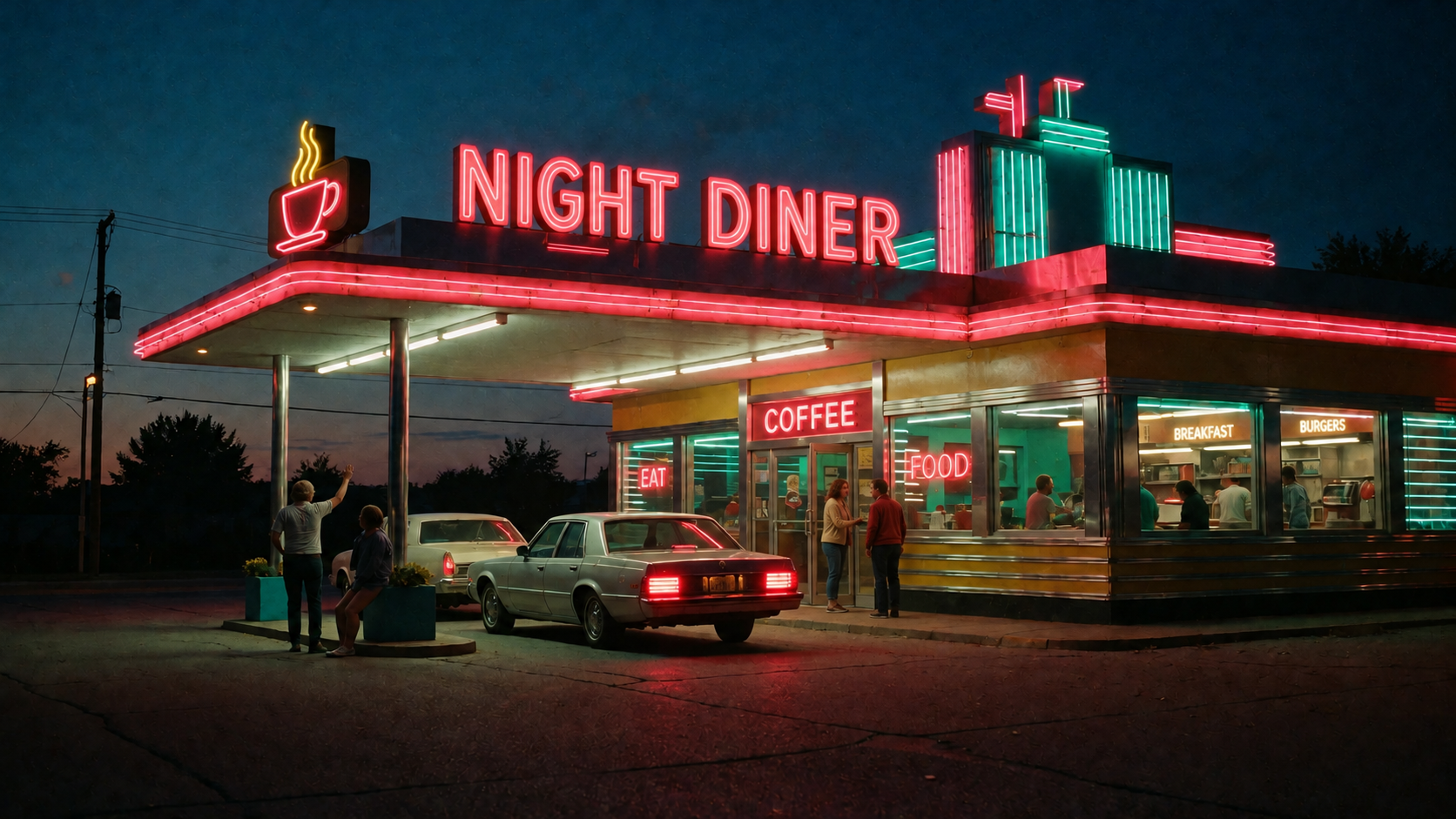
Capability illustration: Text-to-video generation

Text-to-video generation

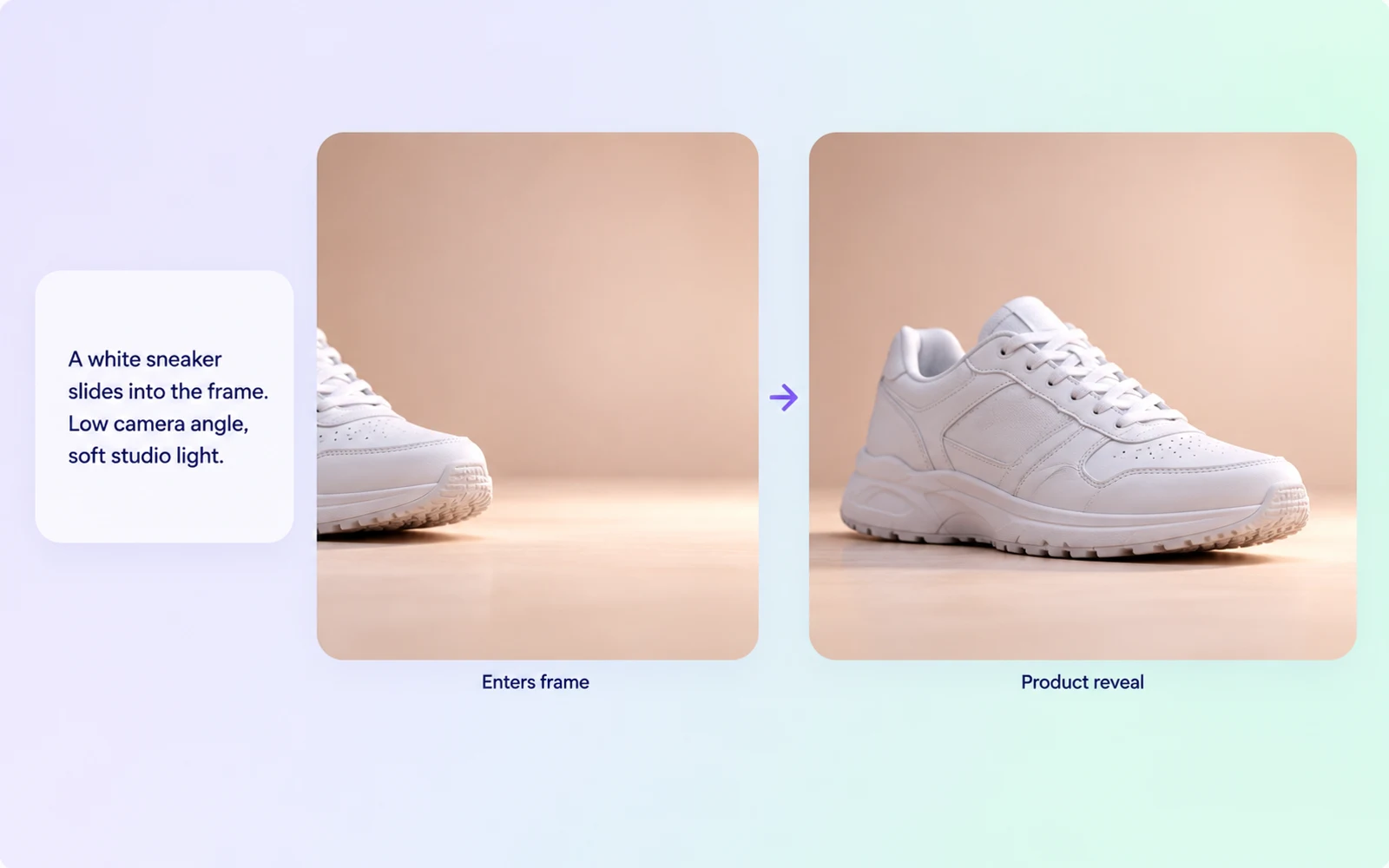
Describe the scene, action, and camera movement to generate video from text. Build the brief around a specific moment, such as a product entering the frame or a character performing a clear gesture, rather than a loose list of visual adjectives.
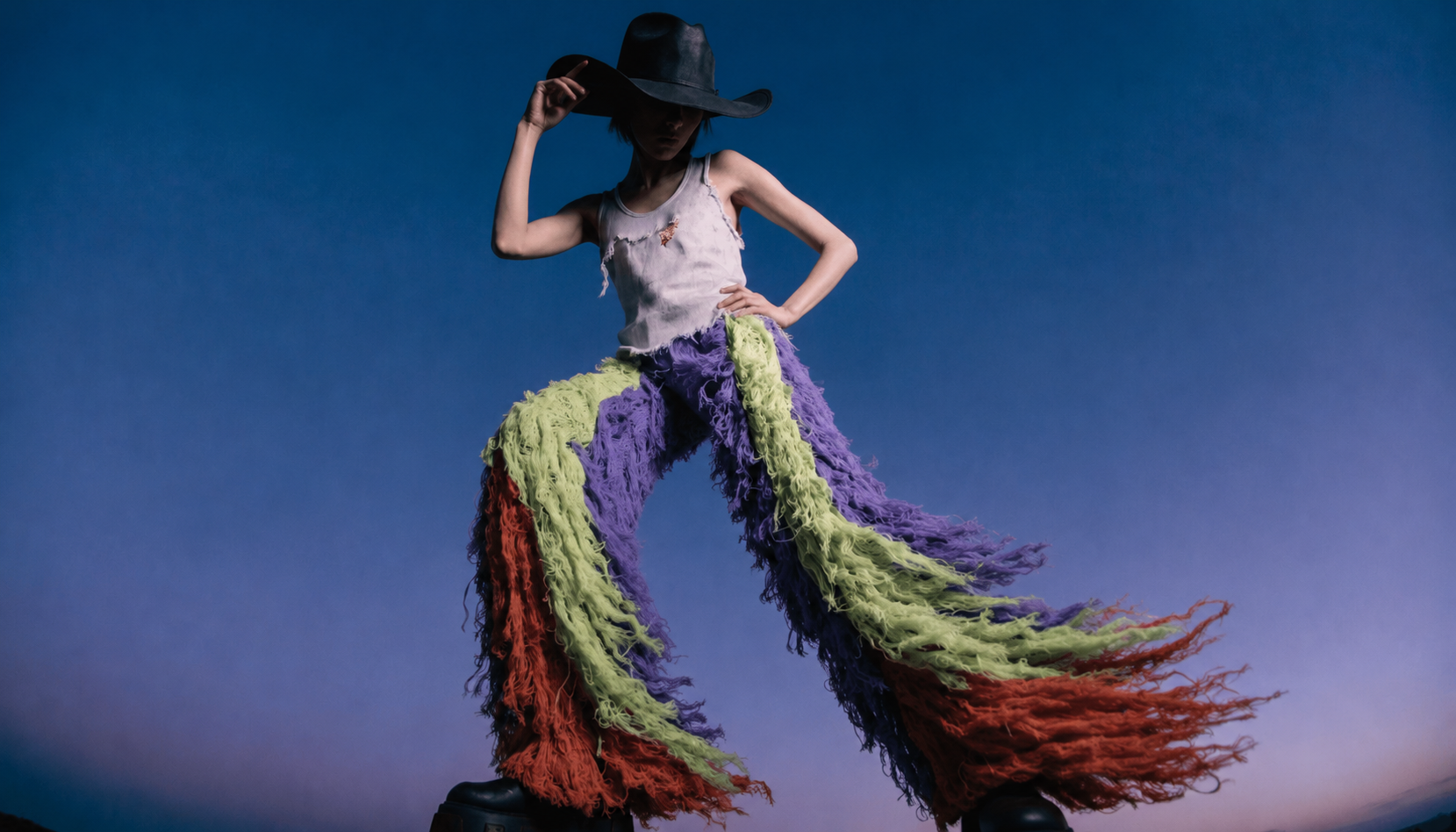
Capability illustration: Image-guided video generation

Image-guided video generation

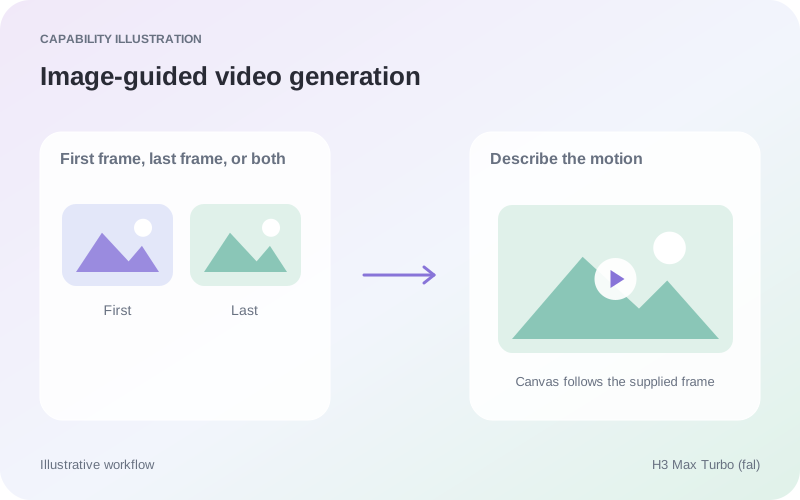
The fal I2V task accepts a first frame, last frame, or both. The canvas follows the first image when present, otherwise the last. Omitting both images falls back to text-to-video with a default 16:9 canvas.

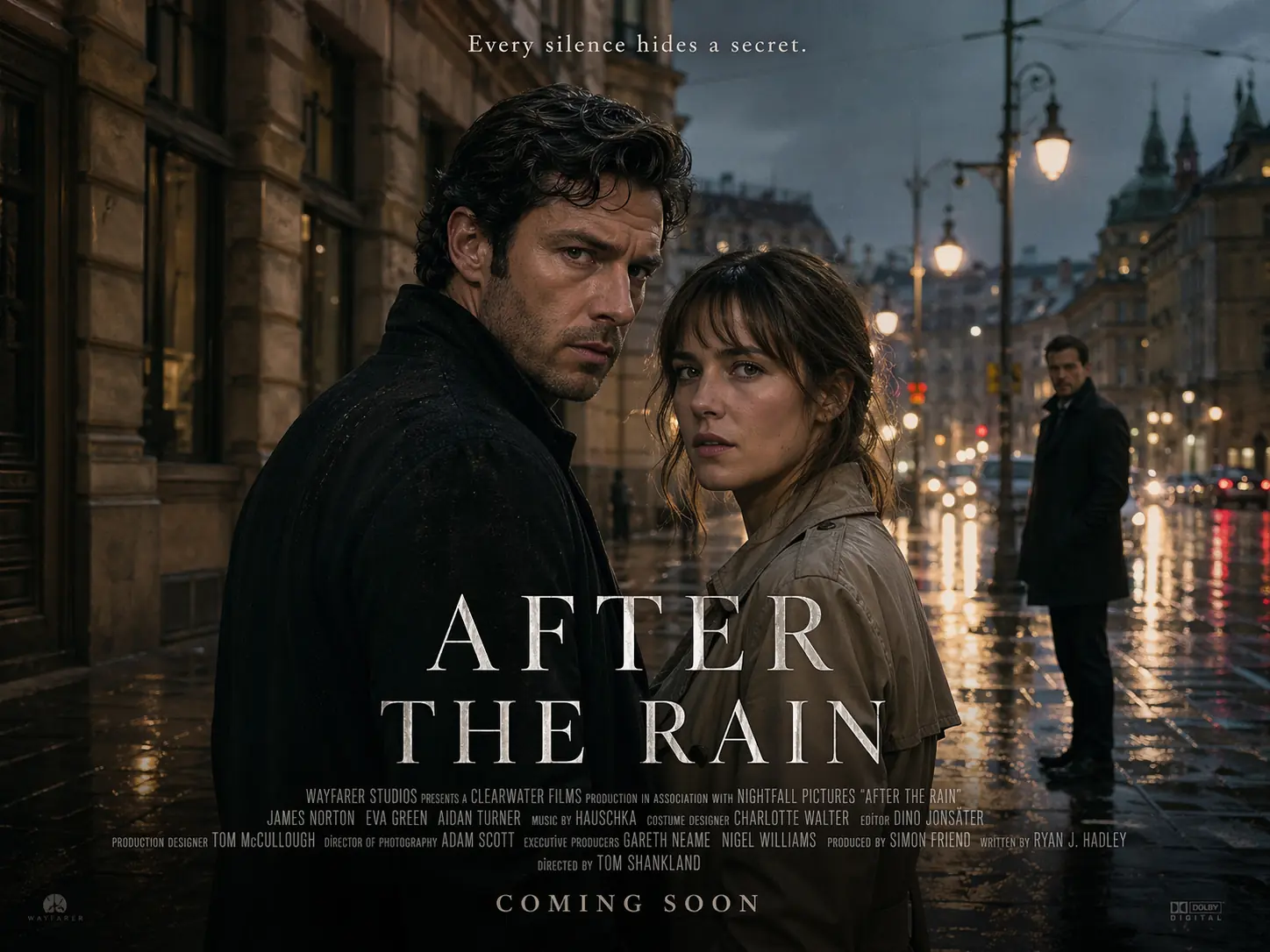
Capability illustration: Video extension

Video extension

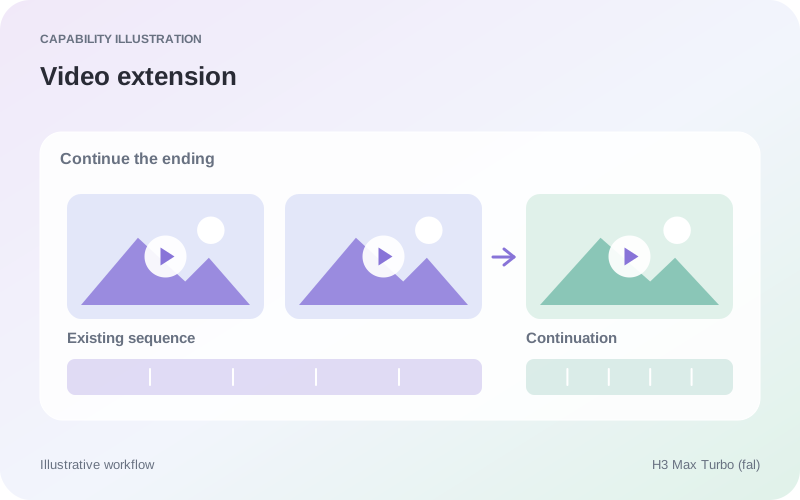
fal extend-video accepts a 1.625–60s source up to 50 MB and adds 1–15s. Return the full video or only the continuation. Formats include MP4, MOV, WebM, M4V, and GIF; format alone does not establish full source compatibility.

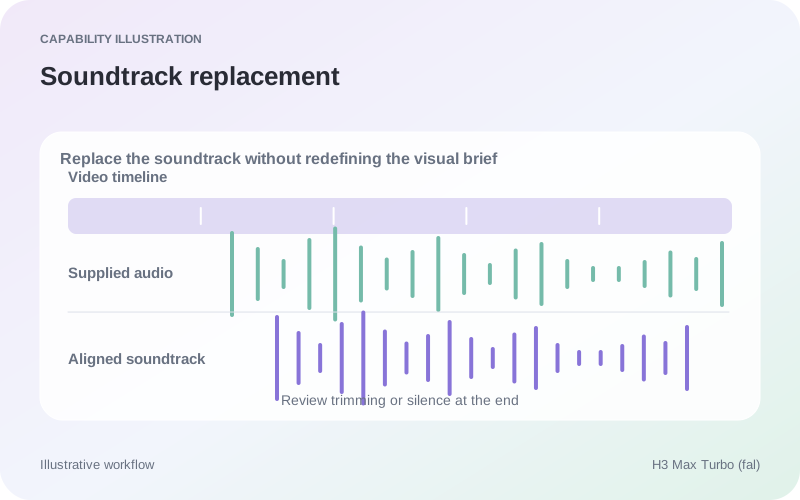
Capability illustration: Soundtrack replacement

Soundtrack replacement

For T2V/I2V, target_audio_url replaces the soundtrack: longer audio is trimmed; shorter audio gains silence. Audio must be at least 2 seconds and at most 15 MB. This does not establish native audio or motion guidance; extension uses separate audio references.

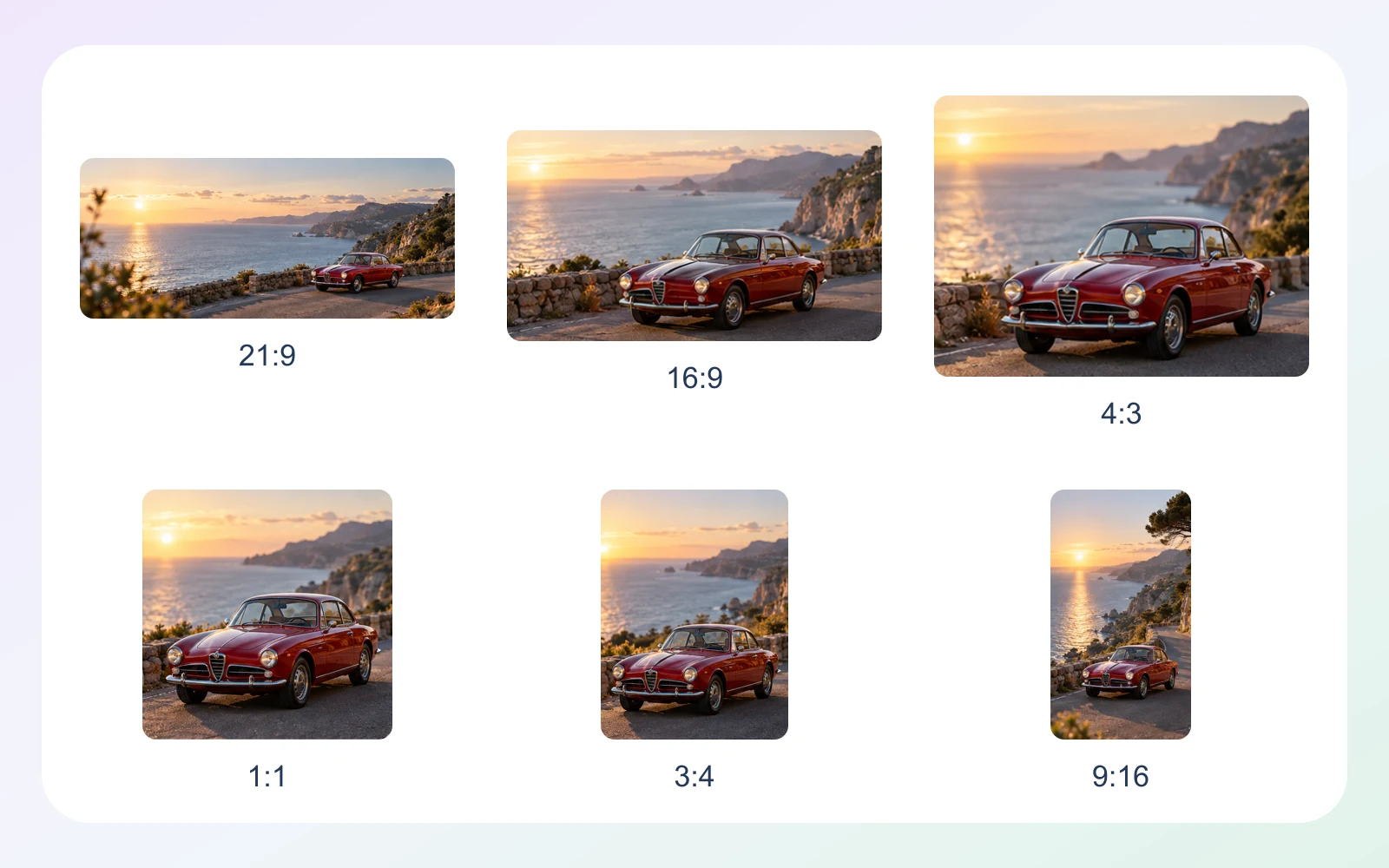
Capability illustration: Aspect ratio options

Aspect ratio options

Text-to-video lists 21:9, 16:9, 4:3, 1:1, 3:4, and 9:16. Image tasks follow the supplied keyframe canvas; extension follows the source by default. For text and image generation, 1080P is refinement from native 768P, not native 1080P generation.

Image showcase

Model comparison

DimensionH3 Max TurboVeo 3.1Wan 3.0 Prime
Input formatsText and image; extension by taskText and image; visual referencesText, image, video, audio; task-specific combinations
Core directionVideo generation, keyframe guidance, and extensionVideo generation with audio and visual guidanceMulti-shot video with multimodal references
Audio capabilitiesUploaded audio can replace the soundtrackNative audio generationNative dialogue, music, and effects
Video duration limitsUp to 15s requested per generation; extension adds 1–15sGemini API: 4, 6, or 8s initially; references and 1080p/4K require 8sModel Studio: up to 30 seconds
Output resolutionfal T2V/I2V: 480P or 768P; 1080P refinement from 768P. Extension has separate settings.Gemini API: 720p; 1080p/4K at 8s; extension at 720pModel Studio: 480P, 720P, 1080P
Suggested usesKeyframe-led shots and continuation of existing clipsScenes planned around sound, visual references, and continuationMulti-shot stories and reference-led scene development

H3 Max Turbo sources: Text-to-video API · Image-to-video API · Video extension API

Use-case scenarios

Short shots from text or images

Describe a shot in text or start from an existing image and specify what happens next. This suits motion proposals developed from static concepts; begin with a focused subject and clear action.

Continuations of existing clips

Describe the action or camera movement that should follow the end of a clip. This suits content that needs to extend a moment; inspect the transition and visual changes at the join.

Alternative soundtracks for one visual

Try a different soundtrack on an existing video to compare rhythm and mood. This suits a workflow where the visuals are established before sound is explored; check how the replacement fits the edit.

Use cases

Explore video workflows for short motion studies, follow-on scenes, and different creative moods.

Frequently Asked Questions About H3 Max Turbo

What source video can the extension task accept?

The fal extension page specifies a source lasting 1.625-60 seconds and no larger than 50 MB. Its upload form lists MP4, MOV, WebM, M4V, and GIF. Meeting the format list alone is insufficient; the source must also satisfy the duration and size limits.

Can I return only the new footage?

The extend-video task can return either the full extended video or only the continuation. Choose according to how the result will be used. If you request only the new portion, retain the source clip so the transition can still be checked in context.

Can an ending image be used without a starting image?

Yes. The fal image-to-video specification permits end_image_url by itself for end-only keyframe generation, and the output canvas follows that image. When a first image is also supplied, the first image controls the canvas. The requested motion should connect naturally to the chosen visual destination.

Can I keep prompt expansion disabled?

The text-to-video and image-to-video specifications provide disabled, balanced, and quality prompt-expansion modes. Disabled skips expansion. Use that choice when you want the submitted wording to remain the basis of the request, and assess the visual result rather than inferring greater fidelity from the setting alone.

Are the audio settings identical across all tasks?

No. Text-to-video and image-to-video use target_audio_url for supplied soundtrack replacement. The extension page describes audio references that replace the source soundtrack as reference material. Apply each task’s own input conditions; neither description alone establishes precise lip synchronization or beat-driven motion.

Describe your idea and start your next creation.

Start creating

Other models