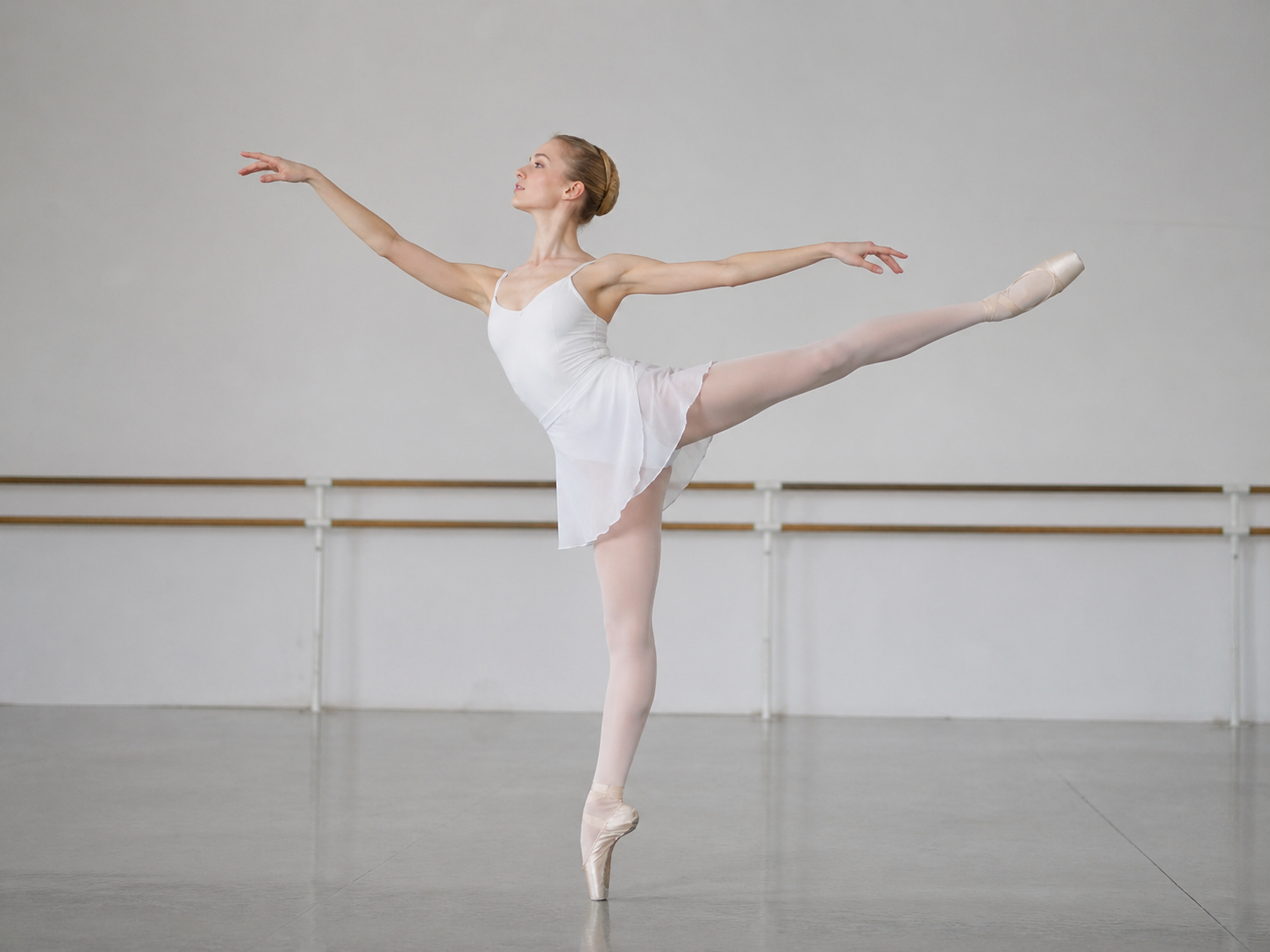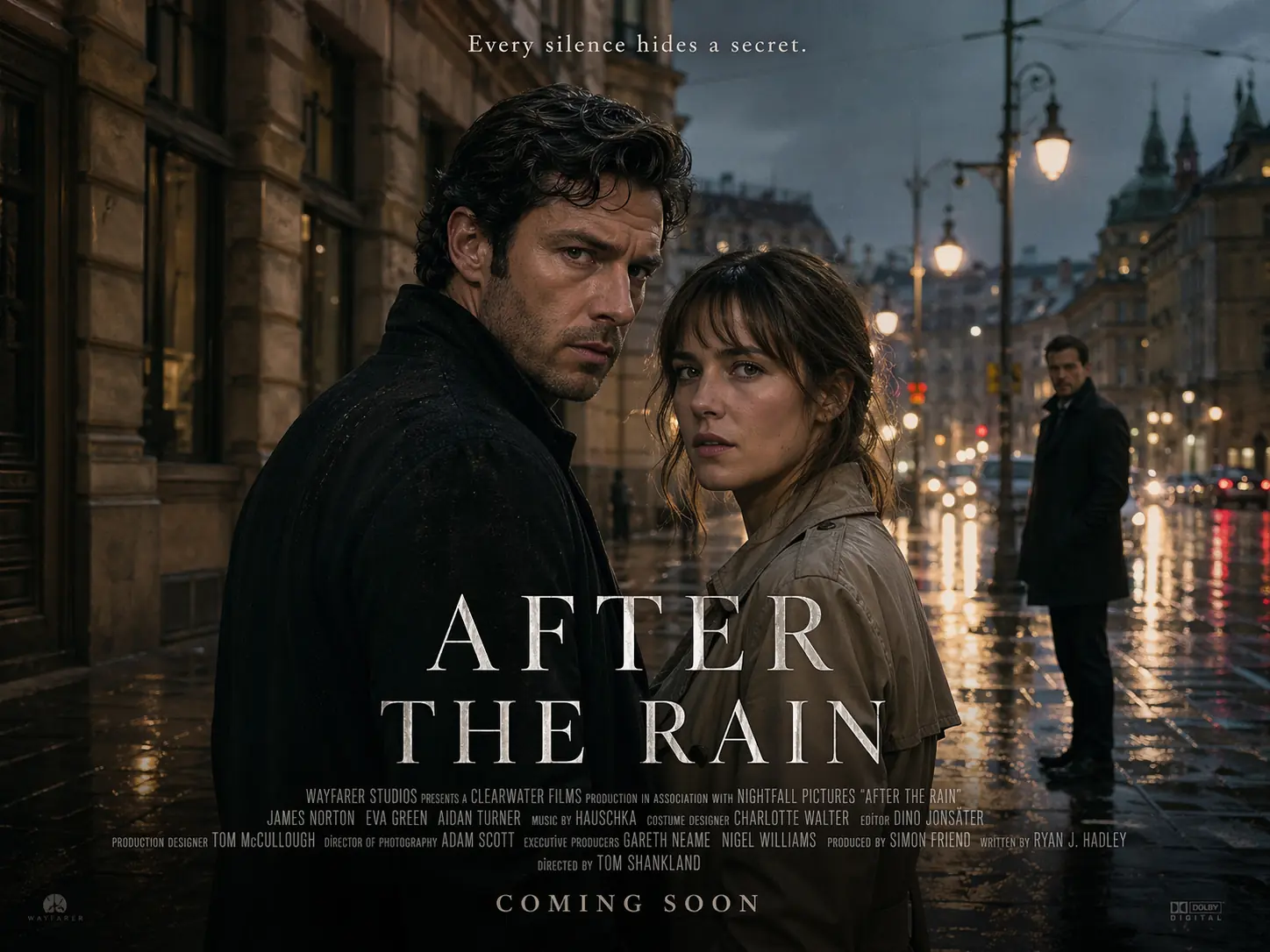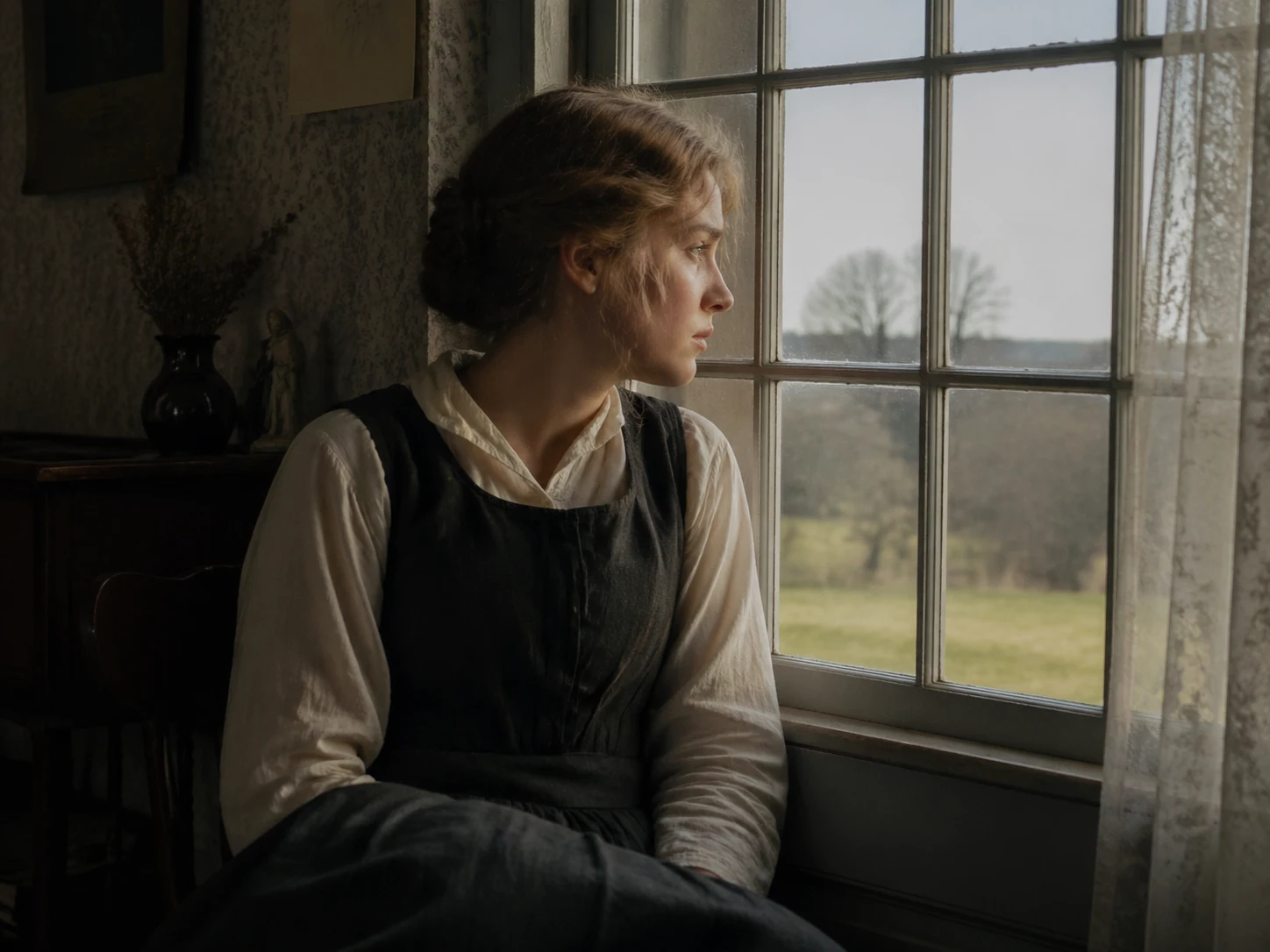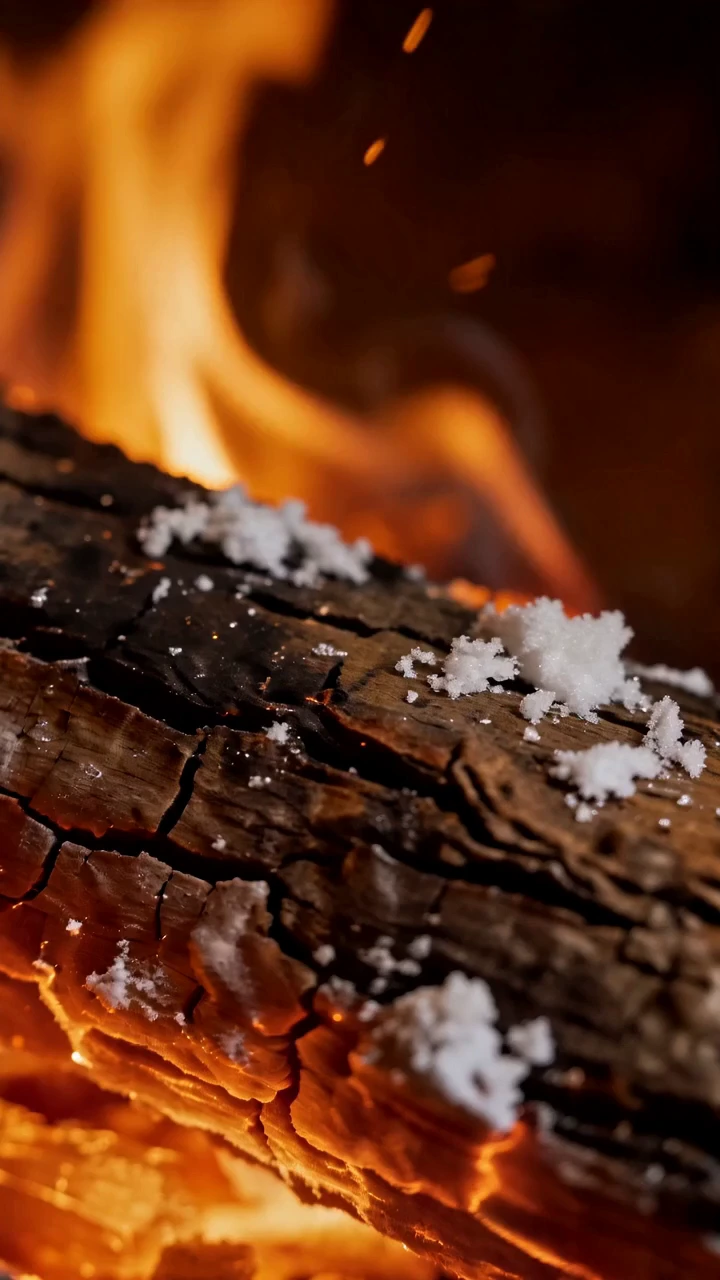
Text-to-video generation
Describe the subject, setting, action, and camera movement to generate a video. A clear sequence of events gives your prompt a practical structure, whether you are planning a product reveal or a character moment.
Build video from text or images, with native audio and visual guidance for the scene you want to create.
Describe the subject, setting, action, and camera movement to generate a video. A clear sequence of events gives your prompt a practical structure, whether you are planning a product reveal or a character moment.
Use an image as the starting point for a video. Describe what happens next: a person turns, a product rotates, or the camera moves through the scene. The image establishes the opening visual direction.
Veo 3.1 generates native audio alongside video. Include dialogue, ambient sound, or sound effects in your brief so the audio has a clear role in the scene. Review the generated timing and wording before use.
Supply a first and last frame to guide a transition between two visual states. This gives you a way to specify where a shot begins and where it should arrive, alongside a description of the motion between them.
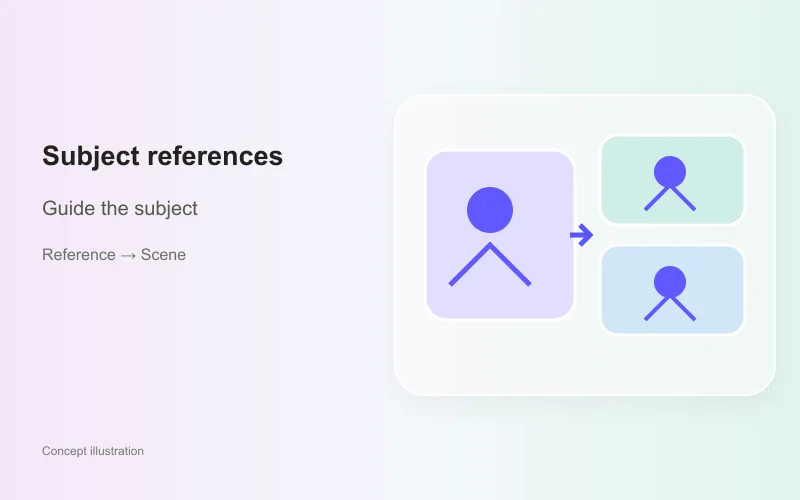
Provide reference images to guide a subject’s appearance. Use them to communicate details that are difficult to describe in words, such as a character’s clothing or an object’s design. Reference support depends on the selected endpoint and settings.
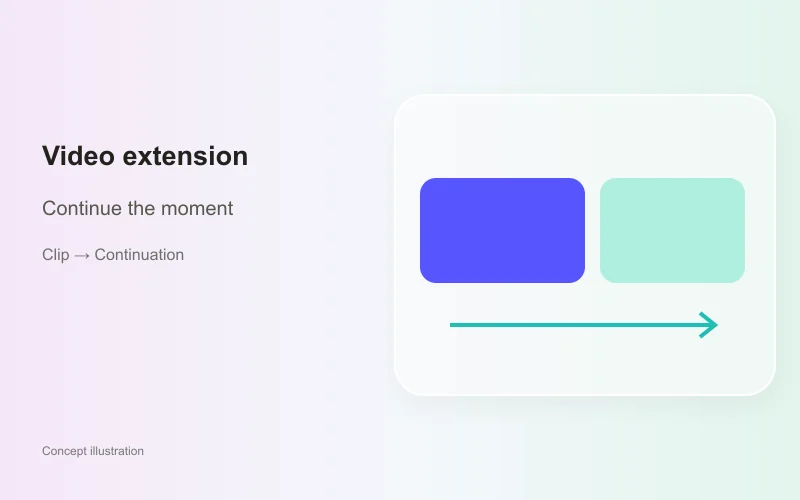
Extend an eligible Veo-generated video with a continuation. Describe the next action or camera movement to develop the sequence. In the Gemini API, extension requires a Veo-generated source clip; other input conditions depend on the service.

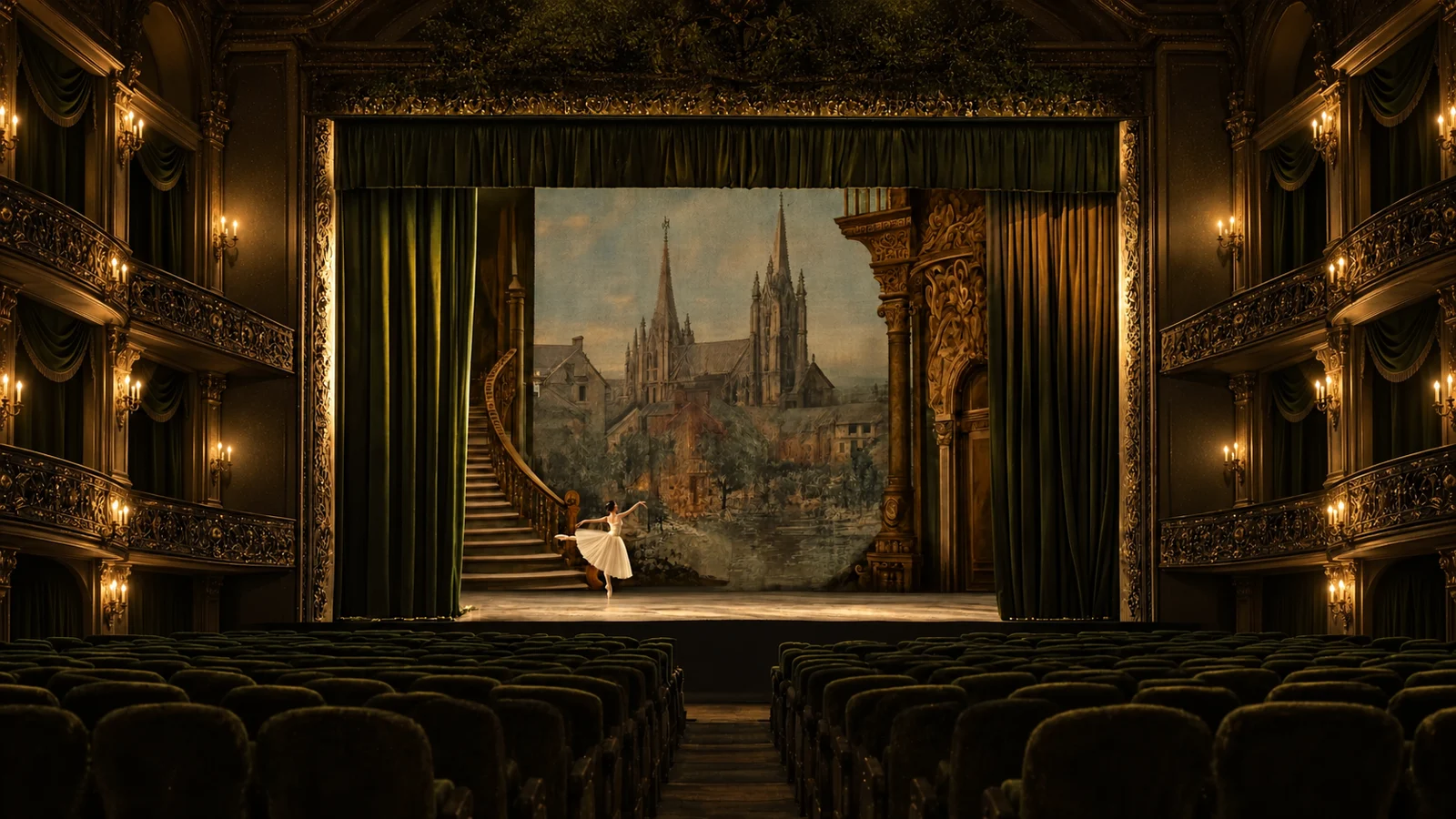
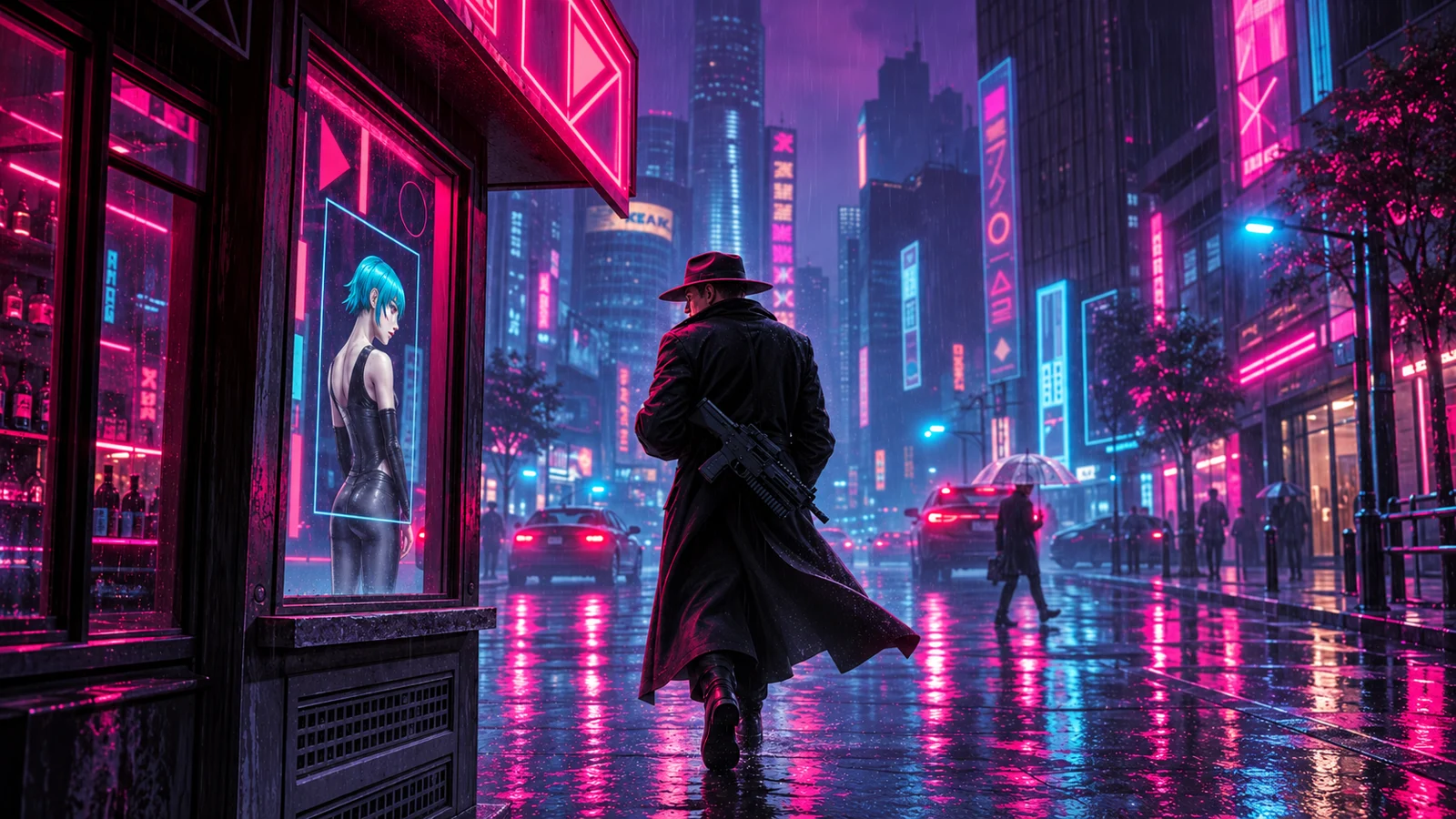
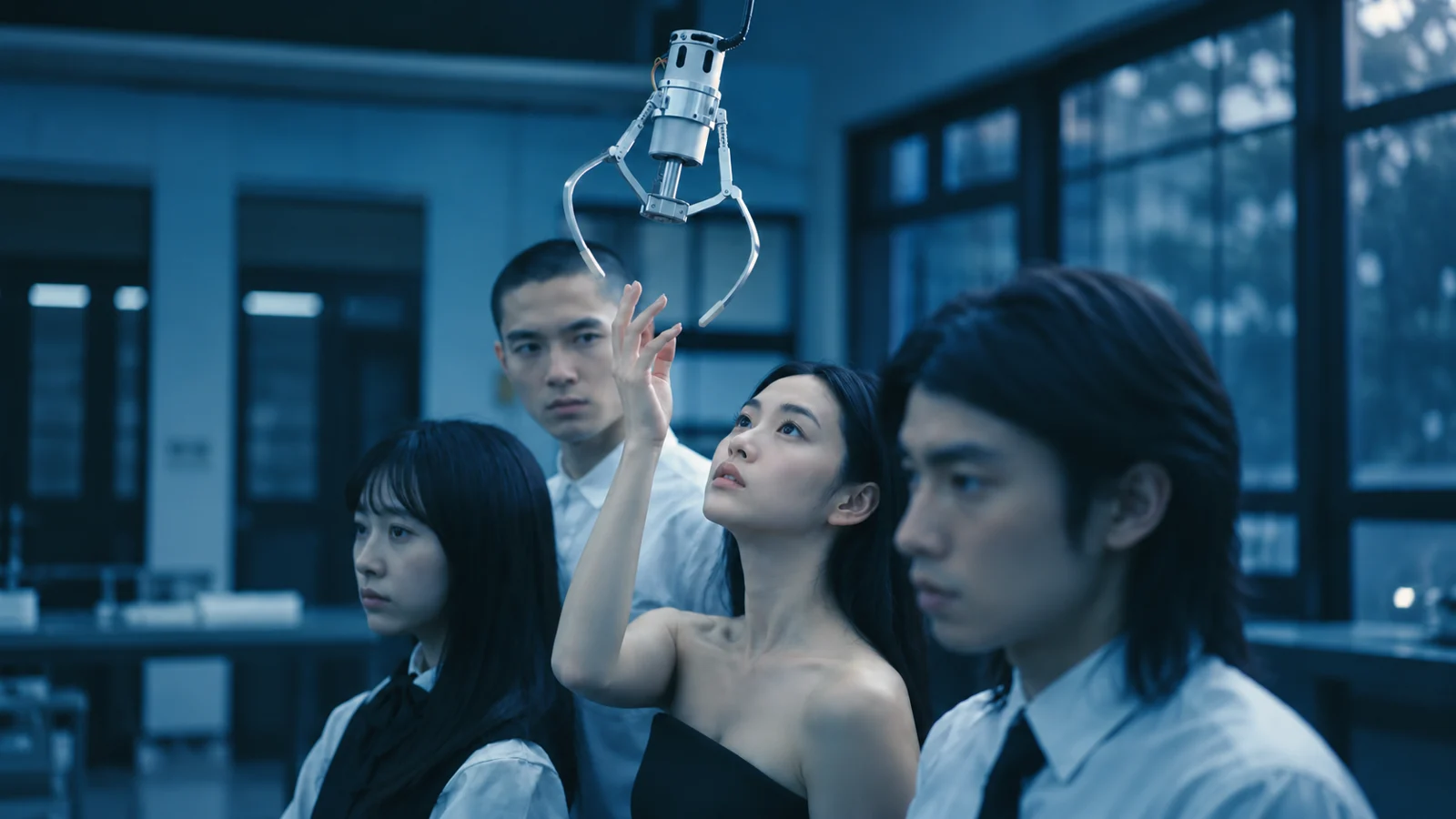
| Feature | Veo 3.1 | Kling 3.0 Turbo | Wan 3.0 Prime |
|---|---|---|---|
| Input formats | Text and image; visual references | Text and image | Text, image, video, audio; task-specific combinations |
| Core direction | Video generation with audio and visual guidance | Text and image video generation with synchronized audio | Multi-shot video with multimodal references |
| Native audio | ✓ | Audio-visual sync | ✓ |
| Video duration limits | Gemini API: 4, 6, or 8s initially; references and 1080p/4K require 8s | Not established for this exact version in this guide | Model Studio: up to 30 seconds |
| Output resolution | Gemini API: 720p; 1080p/4K at 8s; extension at 720p | Not established for this exact version in this guide | Model Studio: 480P, 720P, 1080P |
| Suggested uses | Scenes planned around sound, visual references, and continuation | Action briefs from text or a starting image | Multi-shot stories and reference-led scene development |
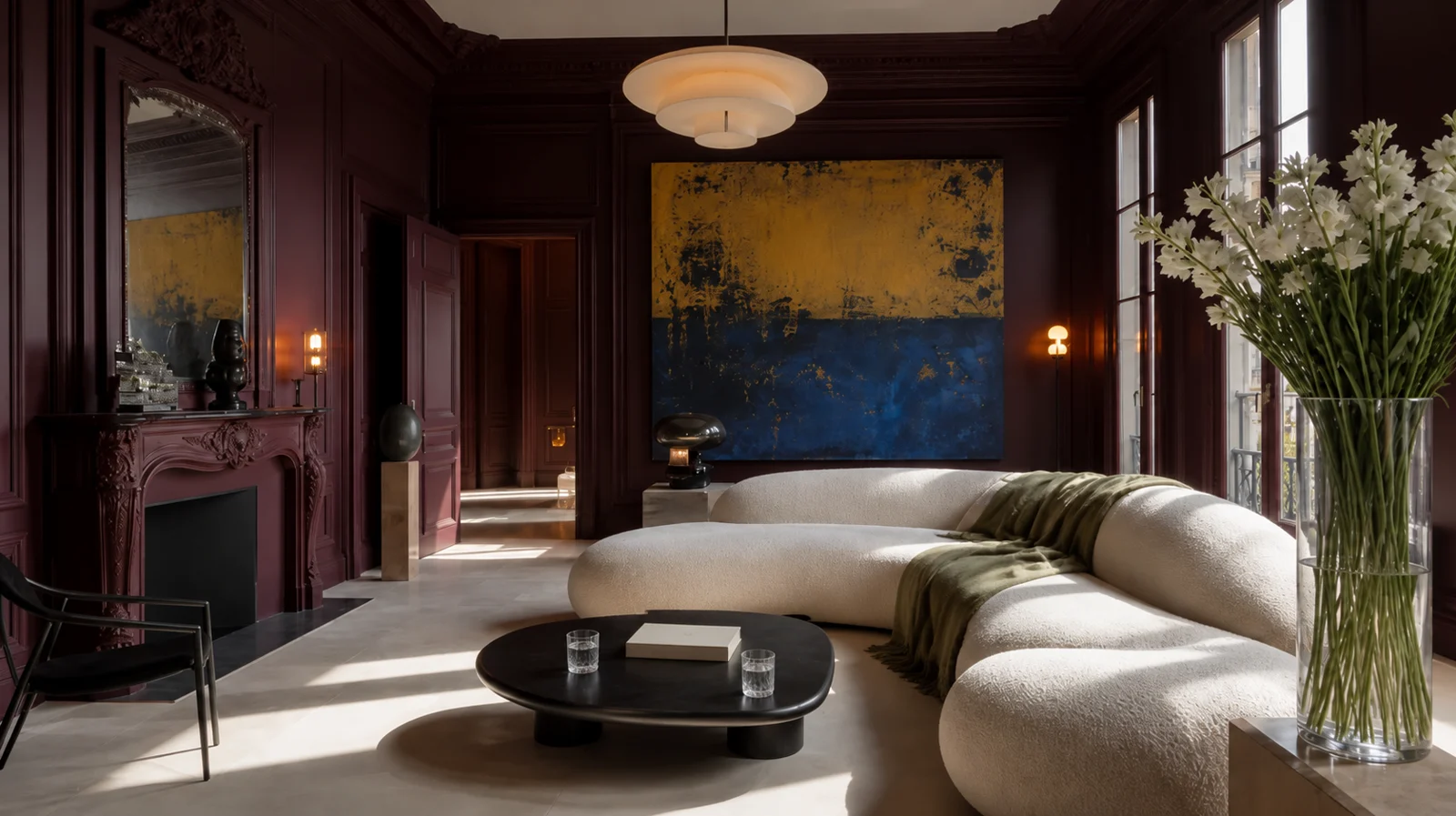
Plan lighting, camera movement and ambient sound around a product reveal. This suits brand films developed with both visuals and sound in mind; an input image can establish the intended product appearance.
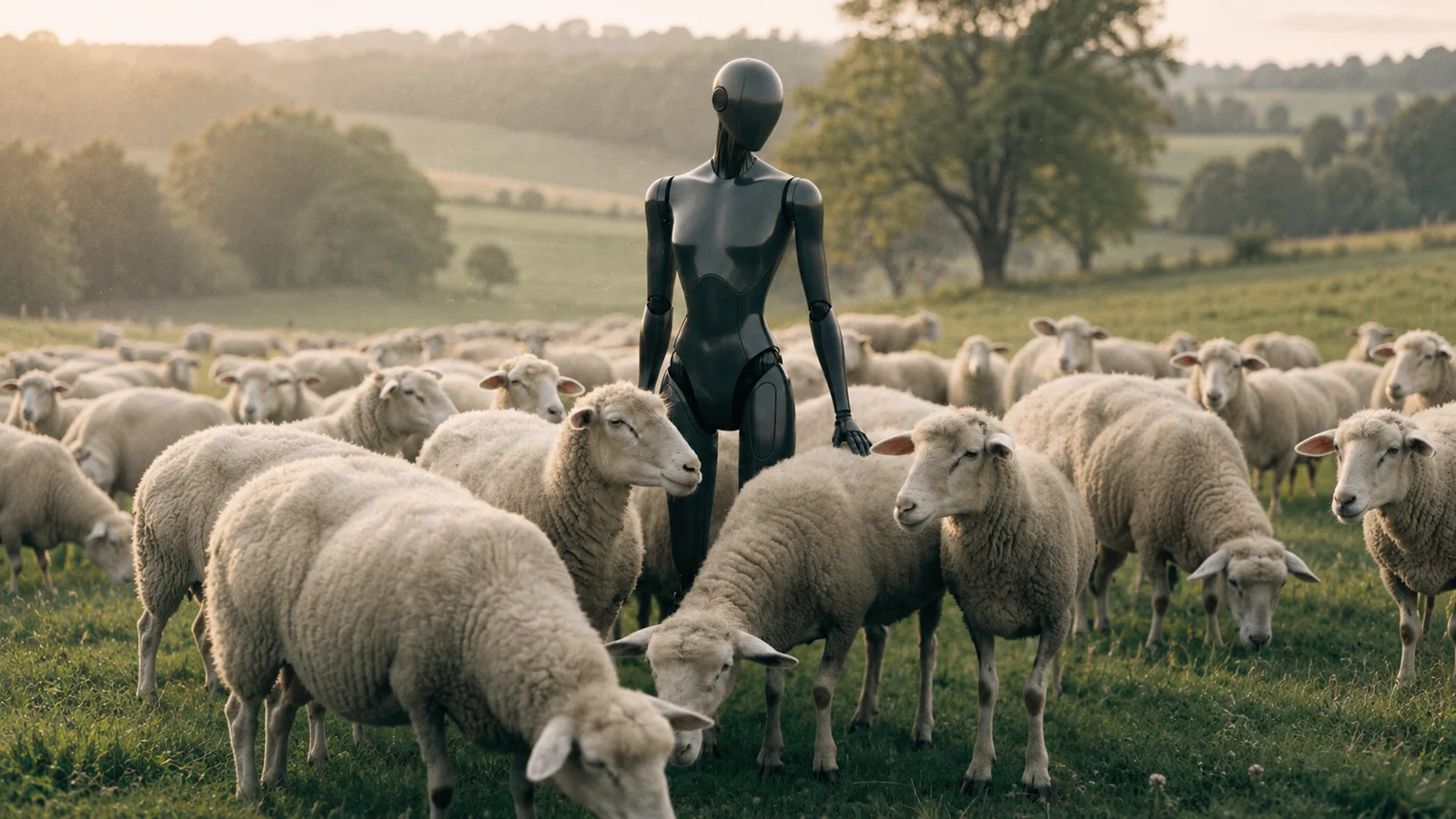
Use reference images to establish a subject, then describe the action, dialogue and setting. This helps turn a character concept into a short scene; check appearance consistency across individual shots.
Define the opening and closing frames, then plan the action between them. Video extension can help continue an existing moment, making these controls useful for transitions with clear endpoints and scenes that need a follow-on action.
Veo 3.1 is Google’s video generation model. It supports text and image inputs, native audio, reference image guidance, first and last frames, and extension for eligible video. The controls available in a particular workflow depend on the service and endpoint.
They serve different purposes. A starting frame establishes the opening composition. A reference image supplies information about a subject’s appearance. Choose according to whether your priority is the beginning of the shot or the details of the subject appearing within it.
Yes. Native audio generation lets you include dialogue, ambience, and sound effects in the scene direction. State which sounds matter most and how they relate to visible events. Review the generated wording and timing before treating the result as a finished scene.
The Gemini API extension workflow requires a Veo-generated source video that meets its input conditions. An arbitrary uploaded clip should not be assumed eligible. Plan the continuation from the actual source ending and confirm the requirements of the service you intend to use.
Pexo provides a conversational way to develop a video idea, its purpose, and its creative direction. You can discuss the wider brief before deciding on production details.