
 ChatGPT
 Perplexity
 Claude
 Gemini
 Grok
Grok


Written by the Pexo team. We build an AI video product, so treat the Pexo entry below with that in mind. Everything else is a straight hands-on report: I ran the same clip through every tool, timed it, and wrote down where each one annoyed me.
Search "best AI video editor for TikTok" and you get a wall of listicles that all sound like they were copied off the same homepage. The problem is that the tools they lump together do completely different jobs. One auto-clips a long podcast. One burns animated captions onto a clip you already shot. One writes a whole video from a text prompt. Calling all of them an "AI video editor for TikTok" is how people end up paying $40 a month for software that does the opposite of what they needed.
So I stopped reading and started testing. Over two weeks in June 2026 I put the same 22-second raw clip (a coffee brand product shot, 9:16, no captions, shaky) through seven of the most-recommended AI tools, plus a text prompt for the ones that generate from scratch. I timed every export, pushed each one to a finished 1080×1920 TikTok-ready file, and logged the exact moment each tool hit a wall. This is what I found.
What Is an "AI Video Editor for TikTok" (and Why They're Not All the Same)
An AI video editor for TikTok is any tool that uses automation to cut, caption, reframe, or generate vertical short-form video without you doing every step by hand on a timeline. That sounds simple until you realize the label covers four very different jobs:
- Editing raw footage you shot (trim, reframe to 9:16, color, music).
- Captioning a clip you already have (auto-subtitles, animated word-by-word styles).
- Repurposing a long video into multiple short clips (the podcast-to-TikTok job).
- Generating a video from scratch when you have no footage at all (text or a product photo in, finished clip out).
Most tools are genuinely good at one of these and mediocre at the rest. According to Grand View Research, the video editing software market keeps growing at a double-digit annual rate, and short-form vertical video is the segment pulling that growth, which is exactly why so many tools have bolted an "AI" badge onto whatever they already did. The trick to picking one is to first decide which of those four jobs is yours. The comparison table below is organized around that.
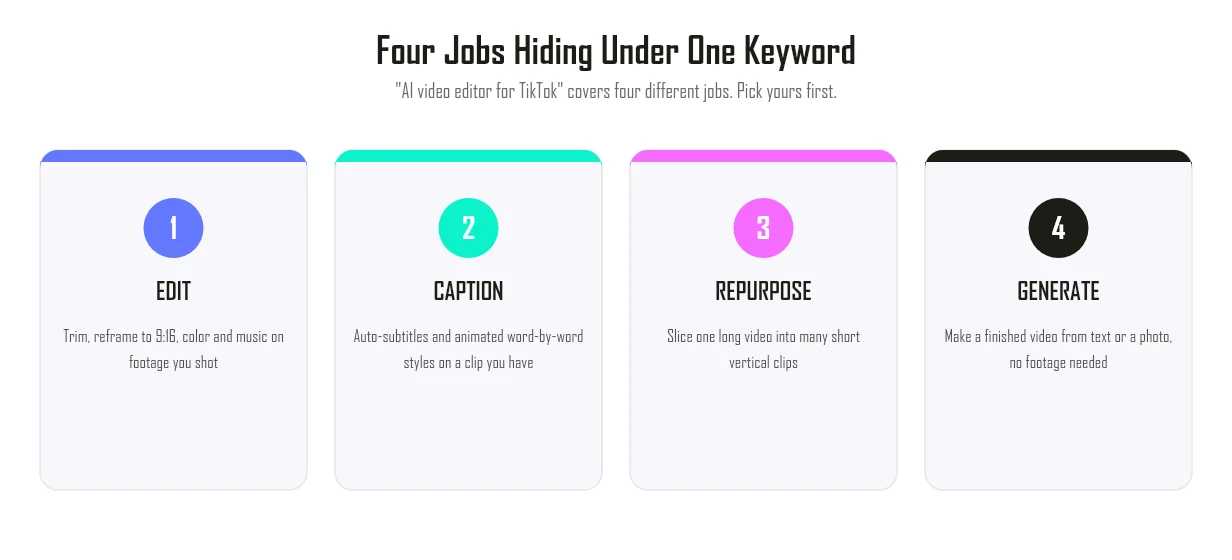 The four jobs hiding under one keyword. Pick your job first, then pick the tool.
The 7 AI TikTok Editors at a Glance
Here is the short version before the deep dives. Prices are the publicly listed plans as of June 2026 and shift often, so confirm on each official page before you buy.
| Tool | Best for | Free tier | Paid from | Auto-captions | Key limit I hit |
|---|---|---|---|---|---|
| CapCut | Free native TikTok editing | Yes, 1080p | ~$9.99/mo Pro | Yes | Cloud features push you to Pro |
| Submagic | Auto-captions and short-form polish | 3 videos, no card | from $12/mo* | Yes (best in test) | You must already have footage |
| Veed.io | Browser editing plus subtitles | Yes, watermark | $12/mo Creator | Yes | Render queue lag on free |
| OpusClip | Repurposing long videos into clips | 60 min/mo, watermark | $15/mo | Yes | Needs a long source video |
| Filmora | All-round desktop and mobile editing | Trial, watermark | ~$49.99/yr | Yes | Export watermark until you pay |
| InVideo AI | Text-prompt-driven editing | 10 videos/mo, watermark | from $17/mo* | Yes | Prompt re-rolls eat time |
| Pexo | Making a TikTok when you have no footage | Free credits to start | $30/mo (credit-based) | Yes | Not for editing clips you shot |
Submagic and InVideo entry prices are billed yearly; month-to-month runs higher.
At-a-glance comparison of the best AI video editor for TikTok options I tested, with real prices and the limitation each one hit.
How I Tested (Same Clip, Same Stopwatch)
I wanted apples to apples, so every tool got the same inputs and the same finish line. The source was one 22-second 4K product clip plus a stills folder, and for the generate-from-scratch tools I used one fixed prompt: "15-second TikTok ad for a small-batch coffee brand, upbeat, captions on, 9:16." The finish line was a downloaded 1080×1920 MP4 with captions, ready to post.
I logged four things for each tool: total time from upload (or prompt) to a usable export, caption accuracy on a quick listen, how hard it pushed me toward a paid plan, and the one thing that genuinely got in my way. I ran everything on a normal laptop over standard home broadband, no GPU bragging rights. Where a tool needed an account, I used the free tier first and only upgraded if the free output was unusable. Screenshots below are from those sessions, captured June 2026, with the key spot boxed in red.
The 7 Best AI Video Editors for TikTok
CapCut: Best for Free Native TikTok Editing
CapCut is the default for a reason: it is made by ByteDance, the same company as TikTok, so the export lands in 9:16 with trending sounds and native fonts already lined up. In my test it was the fastest path from raw clip to a posted-looking edit, about 14 minutes including hunting for a template. The auto-captions transcribed my voiceover cleanly and the one-tap "auto-reframe" actually held the product in frame when it switched to vertical.
What makes it stand out is the template library tuned to TikTok trends and the fact that the free plan exports clean 1080p with no watermark, which almost no other tool here does. It is best for creators who shoot their own footage and want to edit on a phone in one sitting. Over a billion downloads of the app back up that it is the volume default, not a niche pick.
Where it falls short: the good AI tools (cloud upscaling, some auto-cut features, the bigger asset library) sit behind CapCut Pro, and after the May 2025 price jump that runs about $9.99 to $19.99 a month depending on region. The free editor is generous, but the moment you want the shiny AI features it nudges you to upgrade, and the desktop and mobile versions do not have identical feature sets, which tripped me up mid-edit.
- Pros: free 1080p no-watermark export, native TikTok formatting, fastest hand-edit in test.
- Cons: best AI features are Pro-only, feature parity differs across devices.
- Pricing: free plan is genuinely usable; Pro from roughly $9.99/mo.
Try it at CapCut.
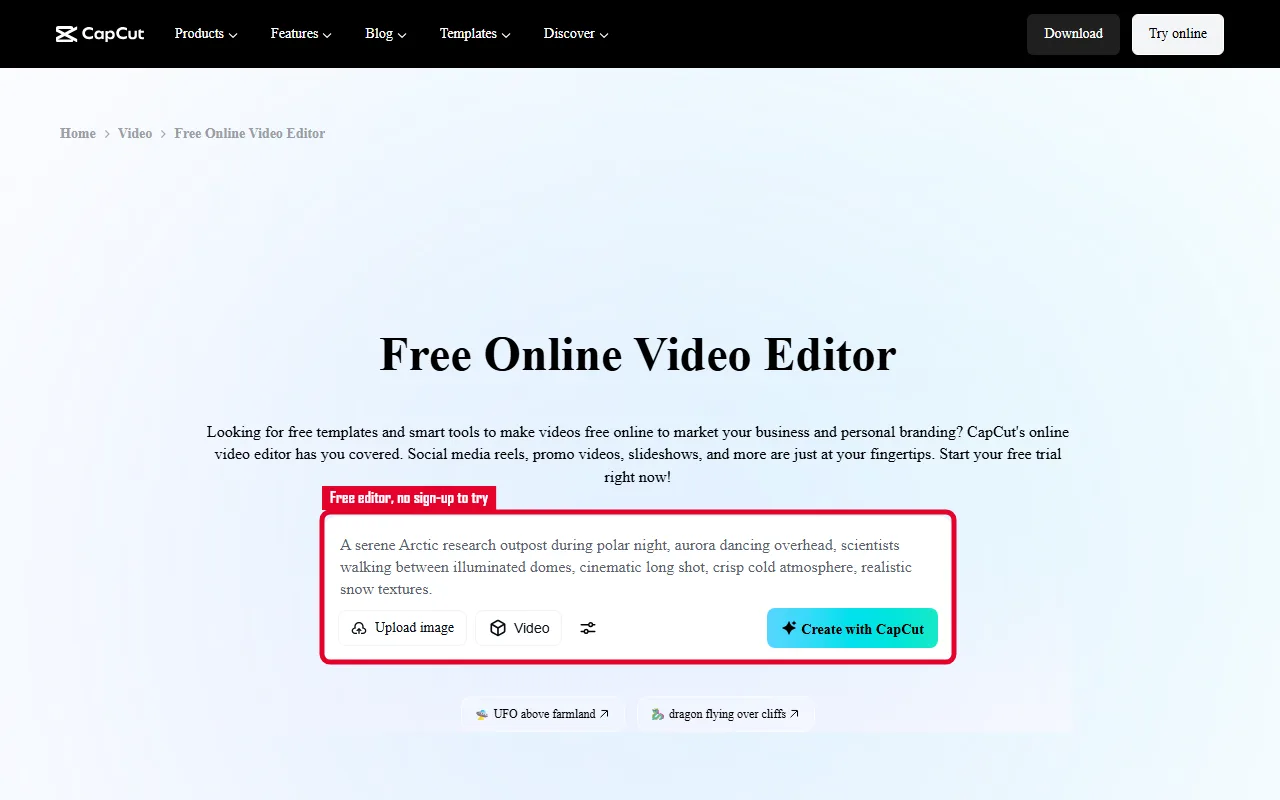 CapCut's free online video editor. The no-sign-up create panel I started from is boxed in red. Captured June 2026.
Submagic: Best for Auto-Captions and Short-Form Polish
Submagic does one thing and does it better than anything else I tested: it takes a clip you already have and adds the punchy, animated, word-by-word captions that define the TikTok look, plus emoji, B-roll suggestions, and sound effects. I dropped my 22-second clip in and had a styled, captioned version in under 4 minutes. The caption timing was the most accurate in the whole test, including on a fast-talking section where CapCut dropped a word.
Its core differentiator is that the caption styles are designed for short-form specifically, not generic subtitles, so the output looks like a creator made it rather than a corporate explainer. It is best for talking-head creators and editors who shoot their own footage and just want the captioning and polish step automated. Submagic has been one of the fastest-growing tools in this niche, which tracks with how dialed-in the templates feel.
Where it falls short: it is a finishing tool, not a from-scratch one. You must already have footage, so if your problem is "I have nothing to edit," Submagic cannot help. The free tier is only 3 videos with no credit card, so any real use means the Starter plan at $12 per member a month billed yearly (closer to $20 month-to-month), with the Pro tier at $23/mo.
- Pros: best-in-test caption accuracy and styling, very fast, short-form-native looks.
- Cons: needs existing footage, thin free tier, month-to-month pricing is higher.
- Pricing: Free (3 videos, no card); Starter from $12/mo billed yearly; Pro $23/mo.
Try it at Submagic.
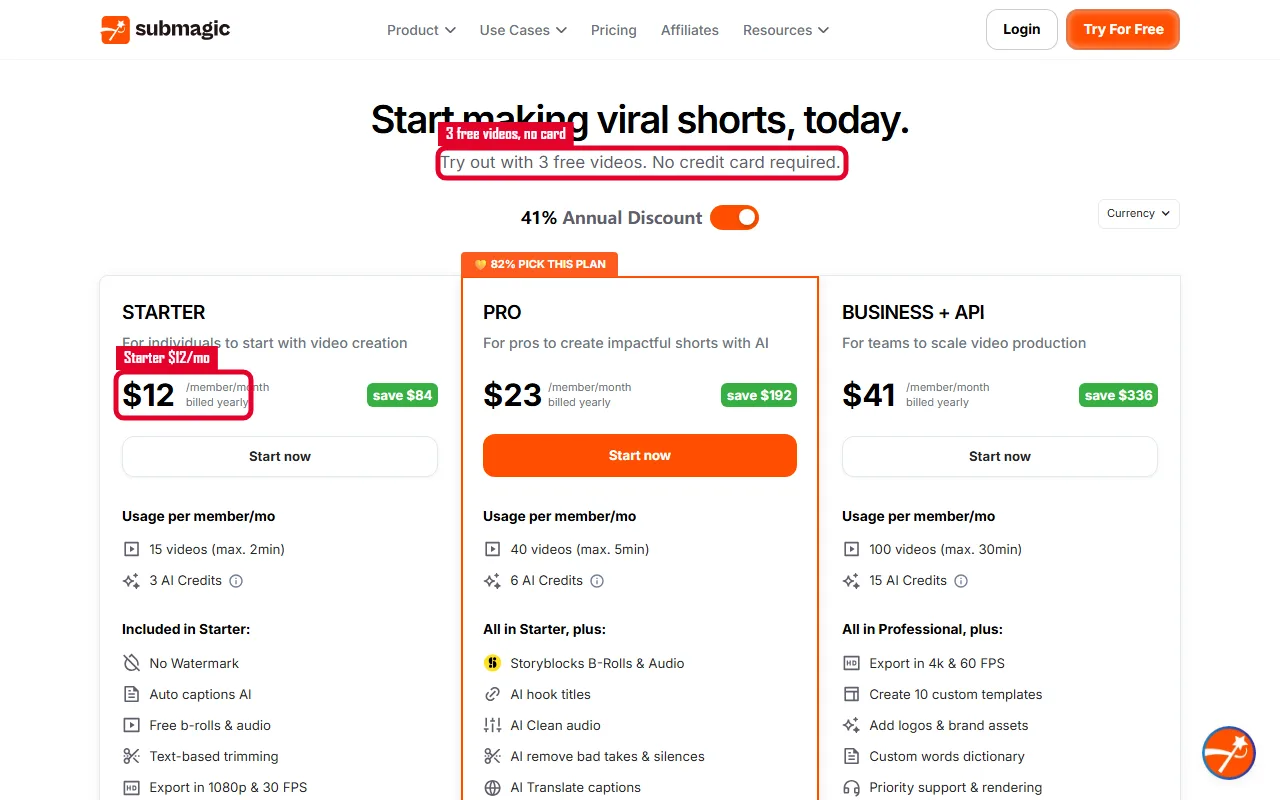 Submagic's plans. The three-free-videos offer and the $12 Starter tier are boxed in red. Captured June 2026.
Veed.io: Best for Browser-Based Editing Plus Subtitles
Veed.io is the tool I would hand to someone who wants a real editor but refuses to install anything. It runs entirely in the browser, and in my test it handled trimming, auto-subtitles, background-noise removal, and a 9:16 reframe without a single download. From upload to a captioned export took about 11 minutes, and the subtitle accuracy was strong, second only to Submagic on my fast-talking section.
What sets it apart is breadth in a browser tab: it is closer to a full editing suite than the single-purpose tools, with brand kits, translation, and unlimited subtitles on paid plans. It is best for marketers and small teams who edit across devices and want one link they can open anywhere. Veed is widely used in business settings, which shows in how the collaboration and brand features are built.
Where it falls short: on the free plan I hit a noticeable render-queue lag, with a short clip taking a few minutes to process at busy times, and the free export carries a watermark. The full feature set (4K, longer videos, brand kit) needs the Creator plan at $12 per user a month billed yearly or the Pro plan at $22 per user a month, and per-seat pricing adds up for teams.
- Pros: no install, broad editing toolkit, strong auto-subtitles, cross-device.
- Cons: free render lag and watermark, per-seat pricing climbs.
- Pricing: Free (watermark); Creator from $12/mo; Pro $22/mo.
Try it at Veed.io.
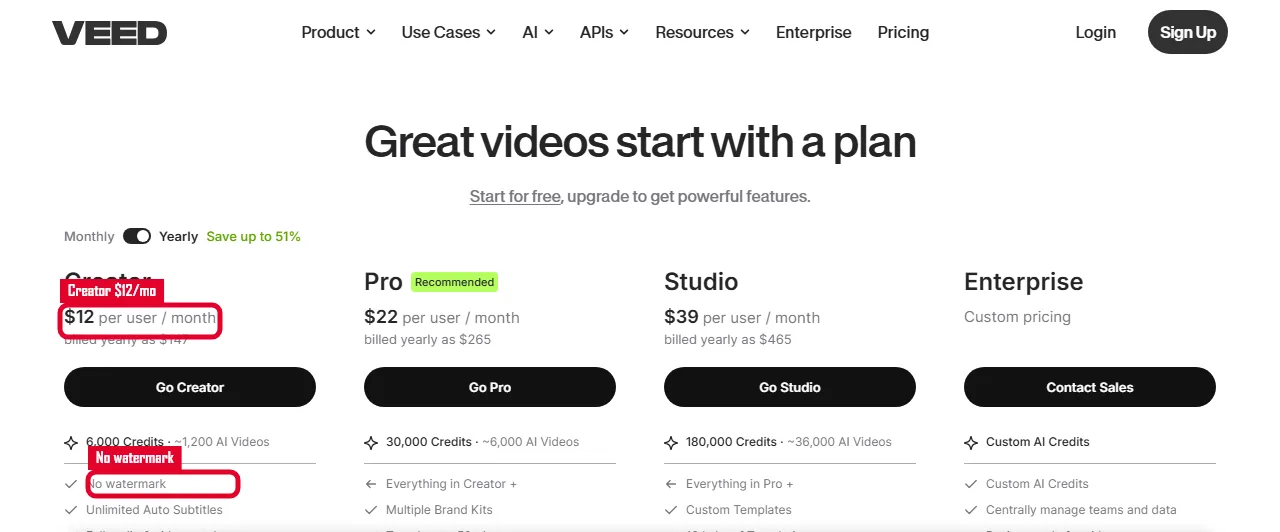 Veed.io's plans. The $12 Creator tier and the no-watermark line are boxed in red. Captured June 2026.
OpusClip: Best for Repurposing Long Videos Into Clips
OpusClip solves a job none of the others really touch: you feed it a long video, a podcast, a webinar, a 40-minute YouTube upload, and its AI scans the whole thing for the highest-engagement moments and spits out a batch of vertical clips with captions and hooks already on them. I gave it a 38-minute recording and it returned nine candidate clips in about 12 minutes, each scored for "virality," which is a gimmick but a useful sorting hint.
Its differentiator is that scan-and-rank step. Instead of you scrubbing for the good bits, the AI finds them, then auto-reframes to keep the speaker centered. It is best for podcasters, coaches, and long-form YouTubers who already produce a lot of footage and need to scale clips out of it. OpusClip's free tier alone processes 60 minutes a month, which is enough to test it honestly.
Where it falls short: it is useless if you do not have a long source video, which is the exact situation many TikTok creators are in. The free exports carry a watermark and expire after 3 days, the clip-scoring sometimes loves a moment that flops with humans, and the paid Starter plan is $15/mo with Pro at $29/mo if you want the processing minutes for real volume.
- Pros: unique long-to-short repurposing, fast batch output, auto-reframe.
- Cons: needs a long source, free exports watermarked and expiring, scoring is hit or miss.
- Pricing: Free (60 min/mo, watermark); Starter $15/mo; Pro $29/mo.
Try it at OpusClip.
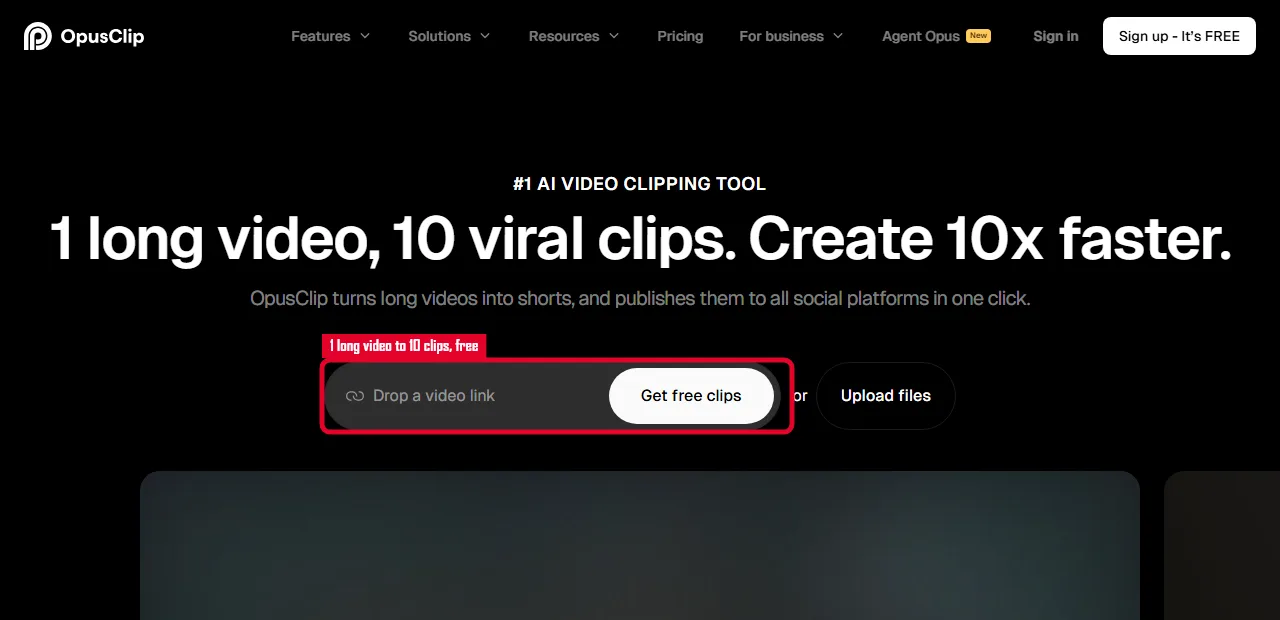 OpusClip's core promise of one long video into ten clips. The free-clips entry I used is boxed in red. Captured June 2026.
Filmora: Best for All-Round Desktop and Mobile Editing
Filmora is the most "traditional editor with AI added" of the bunch, and that is its strength. It gives you a real multi-track timeline plus a growing pile of AI helpers: auto-captions, AI audio cleanup, beat-sync, and background removal. When I needed precise control over a transition that CapCut would not let me hand-place, Filmora was the one that let me drop in and fix it frame by frame. A full edit took me about 19 minutes, slower than the one-tap tools but with more control.
Its differentiator is the balance between manual power and AI shortcuts, so you are not locked out of fine edits the way you are in the fully-automated tools. It is best for creators who want to grow past template editing into real craft without learning Premiere. Filmora has a long track record as a consumer editor, which shows in how stable and deep the timeline is.
Where it falls short: the free version stamps a watermark on every export, so you cannot ship anything until you pay, and the plan structure is confusing, with an annual plan around $49.99/yr, a perpetual license near $79.99, and several AI features metered with separate credits on top. It is also desktop-first, so the phone-native speed of CapCut is not there.
- Pros: real timeline control, deep AI toolkit, stable and mature.
- Cons: watermark until you pay, confusing plan and credit structure, desktop-first.
- Pricing: free trial (watermark); annual ~$49.99/yr; perpetual ~$79.99.
Try it at Filmora.
 Filmora 15's homepage. The Filmora AI pitch and the free start button are boxed in red. Captured June 2026.
InVideo AI: Best for Text-Prompt-Driven Editing
InVideo AI moves the work from a timeline to a text box. You type what you want, "make a 15-second TikTok ad for a coffee brand, upbeat, captions on," and it assembles a full video from stock footage, voiceover, and captions, then lets you revise by typing more instructions. On my fixed prompt it produced a complete first cut in about 6 minutes, captions and music included, which is genuinely impressive for zero manual editing.
Its differentiator is the prompt-to-edit loop: you steer with language instead of dragging clips. It is best for marketers and faceless-channel creators who want volume and do not have their own footage to start from. The free plan generates up to 10 videos a month, one of the more generous free tiers for this kind of tool, so it is easy to try before paying.
Where it falls short: the revise-by-prompt loop sounds smooth but in practice I burned time re-rolling when the AI picked stock clips that did not match my brand, and each re-roll spends generation time. The free plan always watermarks exports, and the Plus plan runs about $17/mo billed yearly ($200 up front, more month-to-month) with higher tiers above it, so steady use is not free. The stock-footage look can also feel generic if you do not push it.
- Pros: true text-to-video, fast first cut, generous free video count.
- Cons: re-rolls eat time, watermark on free, stock look can feel generic.
- Pricing: Free (10 videos/mo, watermark); Plus from $17/mo billed yearly; higher tiers above.
Try it at InVideo AI.
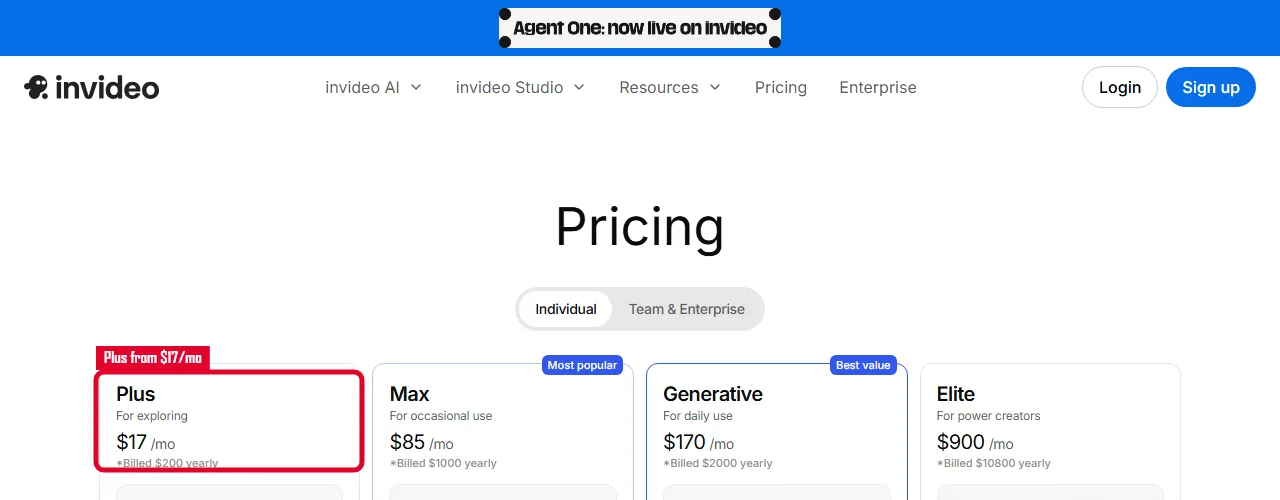 InVideo AI's plans. The entry Plus tier is boxed in red. Captured June 2026.
Pexo: Best for Making a TikTok When You Have No Footage to Edit
Full disclosure again: we build Pexo, so read this section knowing that. I tested it the same way as the rest, and it belongs on this list for one specific job the others do not cover. Pexo is an AI video partner, not an editor. It does not import a clip you shot and let you trim it. Instead you describe what you want in plain language, or hand it a product photo, a URL, or some audio, and it generates a finished short video through a conversation. For my coffee-brand test I sent a product photo and the line "make a 15-second upbeat TikTok ad with captions," and went back and forth a few messages to adjust the pacing.
Its differentiator is the workflow shape. There is no prompt box to engineer and no timeline to learn: you talk, Pexo proposes a direction and shows previews, and you redirect by replying. It works with multiple video models (Seedance, Sora, Kling, and more) and picks one for the shot rather than making you choose. It is best for the exact person the other six leave stranded, the seller or creator who has an idea and a product but no footage to edit, and it can also generate the still images for a clip if you have nothing to start from.
Where it falls short: if your job is editing or captioning a video you already shot, Pexo is the wrong tool. Submagic or CapCut will serve you far better there. It is generate-from-scratch only, the offer is credit-based rather than an unlimited flat fee, and as a conversational partner it trades pixel-level manual control for speed, so a creator who wants to hand-place every transition will feel boxed in.
- Pros: makes a finished video with zero footage, no timeline or prompt syntax, multi-model.
- Cons: not an editor for existing clips, credit-based, less granular manual control.
- Pricing: free credits to start; Pro from $30/mo (credit-based), with no watermarks and credits that cover the full workflow including captions and editing.
See it at Pexo.
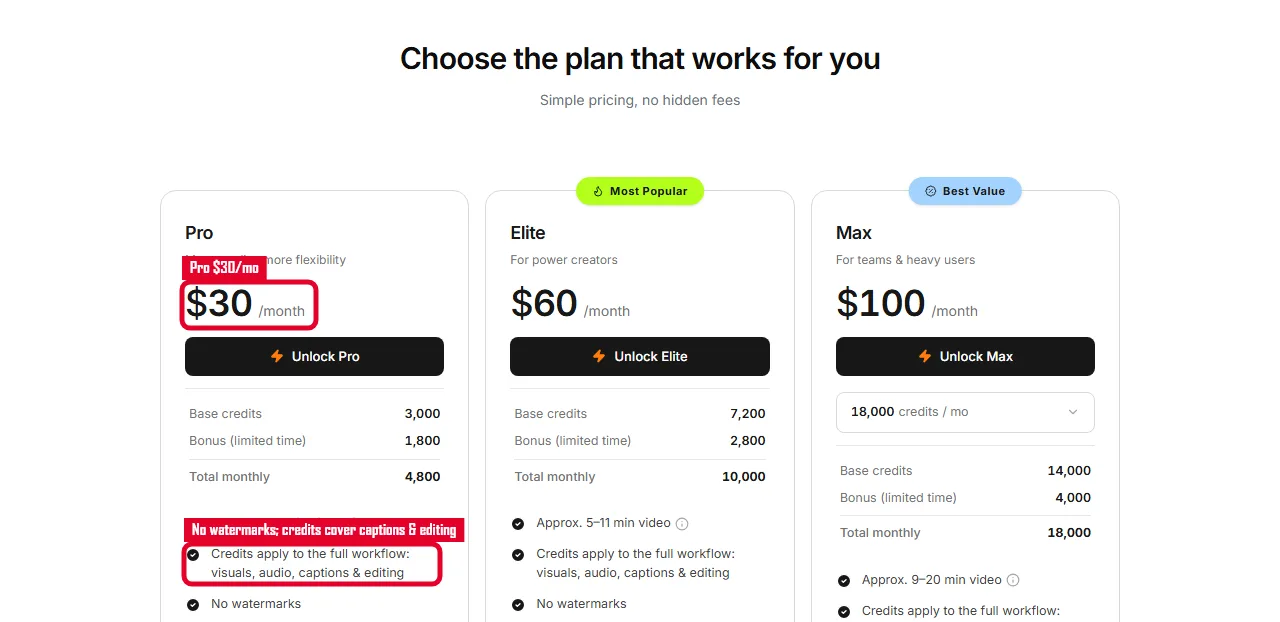 Pexo's credit-based plans. The $30 Pro tier and the no-watermark, credits-cover-captions-and-editing line are boxed in red. Captured June 2026.
How to Choose the Right AI TikTok Editor
After two weeks of this, the choice comes down to which of the four jobs is actually yours. Match yourself to one of these and the decision is easy.
- Choose CapCut if you shoot your own footage and want the fastest, free, native-to-TikTok edit on your phone.
- Choose Submagic if you already have a clip and only need the captions and short-form polish to look pro.
- Choose Veed.io if you want a broad editor in the browser with strong subtitles and team features, no install.
- Choose OpusClip if you sit on long videos (podcasts, streams, webinars) and need them sliced into clips at scale.
- Choose Filmora if you want a real timeline with manual control plus AI helpers, and you do not mind desktop.
- Choose InVideo AI if you have no footage and want to generate stock-based videos by typing prompts.
- Choose Pexo if you have an idea or a product photo but nothing to edit, and want a finished clip from a conversation.
The honest summary: there is no single best AI video editor for TikTok, because the tools answer different questions. Most creators end up using two, one to generate or repurpose and one to caption and finish.
Conclusion
The fastest way to waste money on the best AI video editor for TikTok is to pick before you know your job. If you have footage, CapCut and Submagic will get you posting today. If you sit on long recordings, OpusClip is built for you. If you want browser-based control, Veed.io and Filmora cover it. And if you have nothing to edit at all, a generate-from-scratch tool like InVideo AI or Pexo is the only category that solves it. Test on the free tiers first, ship one real TikTok, and let the tool that removed the most friction win.