
 ChatGPT
 Perplexity
 Claude
 Gemini
 Grok
Grok



CapCut used to be the easy answer. Then the Pro plan doubled from $9.99 to $19.99 a month, auto captions and background removal moved behind the paywall, and the updated terms of service handed ByteDance a perpetual, royalty-free license to your content. Add the regulatory whiplash from the brief U.S. ban in January 2025, and a lot of creators are asking the same question: what else is out there?
Quite a lot, actually. We tested 10 CapCut alternatives across editing power, AI features, pricing, and platform support. This guide covers what each tool does well, what it costs, and who should make the switch.
Why Look for a CapCut Alternative?
CapCut is still a capable editor. The problem isn't the product. It's everything around it.
The Price Doubled, the Free Tier Shrank
CapCut Pro jumped to $19.99/month in 2026, and features that used to be free, like auto captions, background removal, and many AI effects, now sit behind that paywall. The free tier that made CapCut famous is a shadow of what it was.
Your Content, Their License
CapCut's terms of service grant ByteDance a perpetual, worldwide, royalty-free license to user content. For hobbyists that may not matter. For brands and professional creators, handing a third party the right to use, modify, and distribute your footage is a real problem.
Regulatory Uncertainty
CapCut went dark in the U.S. for several days in January 2025 under PAFACA. It came back, but the episode showed how fast a ByteDance-owned app can disappear from app stores. Building your workflow on that foundation carries risk you don't control.
Quick Comparison: 10 Best CapCut Alternatives at a Glance
Here's how the 10 tools stack up before we get into the details.
| Tool | Best For | Platform | Starting Price |
|---|---|---|---|
| Pexo AI | Full video production via conversation | Web | $30/mo (4,800 credits) |
| VN Video Editor | Mobile editing without a watermark | iOS, Android, Mac, Windows | Free |
| DaVinci Resolve | Professional desktop editing | Mac, Windows, Linux | Free ($295 one-time for Studio) |
| Filmora | Easy desktop editing with AI assists | Mac, Windows | $9.99/mo |
| VEED | Browser-based editing with AI tools | Web | $12/mo |
| Clipchamp | Windows users who want zero setup | Web, Windows | Free (Premium $11.99/mo) |
| InShot | Quick vertical edits on a phone | iOS, Android | $19.99/yr |
| Descript | Editing video by editing text | Mac, Windows, Web | $16/mo |
| Canva | Branded social content at scale | Web, mobile | $15/mo |
| InVideo AI | Complete videos from a prompt | Web | $25/mo |
The 10 Best CapCut Alternatives in 2026
1. Pexo AI — Best CapCut Alternative Overall

Best for: creators who want finished videos without doing the editing at all.
| Metric | Score (out of 10) |
|---|---|
| Video Quality | 9.0 |
| Ease of Use | 9.5 |
| Creative Control | 8.0 |
| Speed | 9.0 |
| Model Variety | 9.5 |
| Value | 8.5 |
Here's the thing about replacing CapCut: most people don't actually enjoy editing. They edit because raw footage doesn't post itself. Pexo AI attacks that problem from a different angle. Instead of giving you a timeline, it gives you a conversation. Describe the video you want, drop in a product URL, a script, an image, or an audio file, and the agent handles scripting, generation, editing, captions, and export on its own.
Under the hood, Pexo routes each job to the best generation model for the task, including Kling, Seedance 2.0, Veo 3, and more, so you're never locked into one engine's look. Videos run up to 2 minutes, which covers ads, product demos, explainers, and social clips.
Key features:
- Text-to-video, image-to-video, URL-to-video, and audio-to-video in one place
- Multi-model routing across Kling, Seedance 2.0, Veo 3, and more
- Conversational revisions: say "make the intro punchier" instead of re-cutting
- Auto captions, music, and voiceover built into the workflow
Pros: No editing skills needed · One conversation replaces the whole timeline workflow · Multi-model variety · Handles 2-minute finished videos
Cons: Credit-based, so heavy volume adds up · Less frame-level control than a manual editor · Web only
Pricing: $30/mo for 4,800 credits (Plus) · $90/mo (Pro) · $300/mo (Ultra). See all plans.
Best for: marketers, founders, and creators who care about the output, not the editing process.
2. VN Video Editor — Best Mobile Replacement
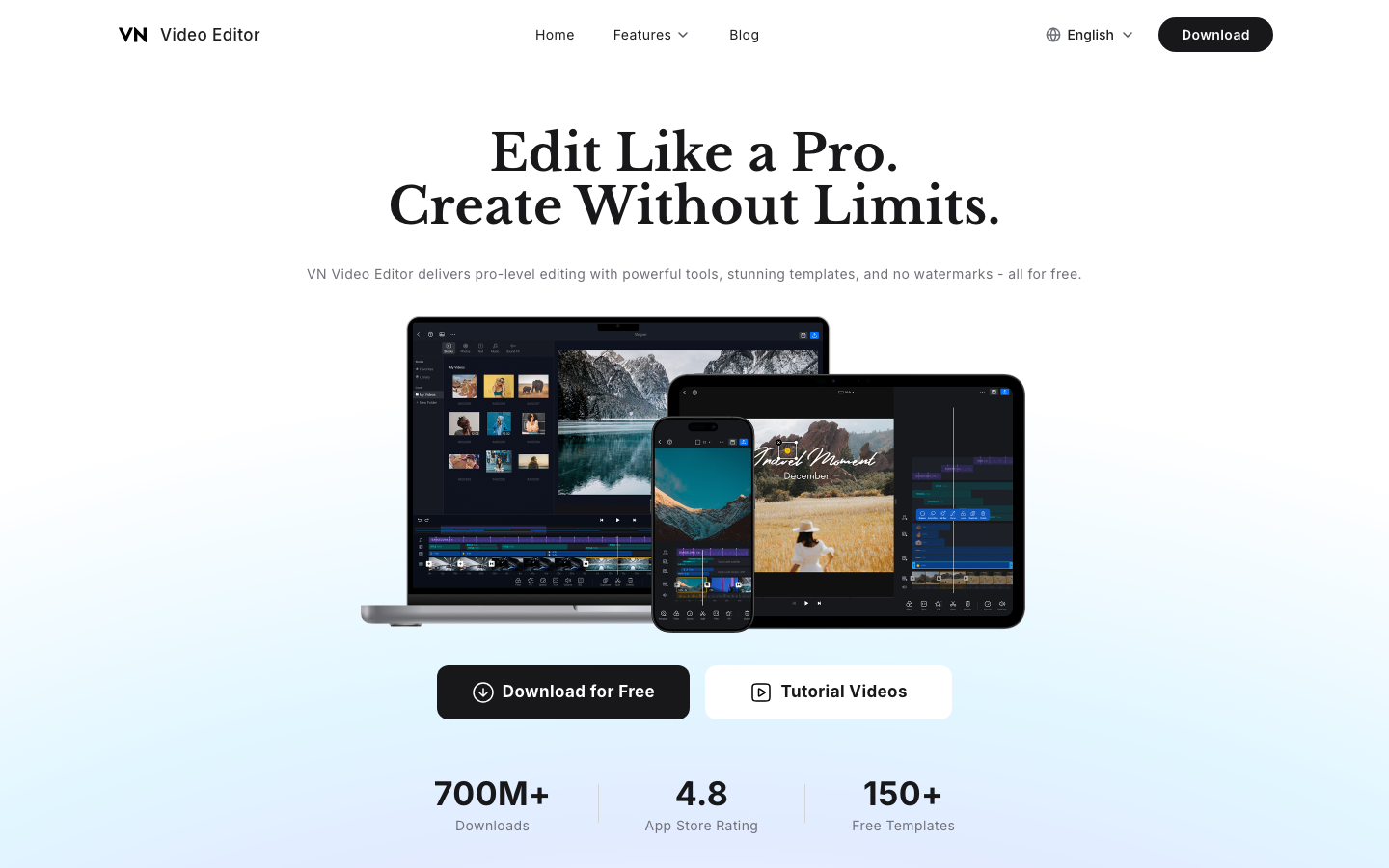
Best for: mobile-first creators who want CapCut's feel without the strings.
| Metric | Score (out of 10) |
|---|---|
| Video Quality | 8.0 |
| Ease of Use | 9.0 |
| Creative Control | 8.0 |
| Speed | 8.5 |
| Model Variety | 5.0 |
| Value | 9.5 |
VN is the closest thing to a straight CapCut swap. Multi-track timeline, keyframe animation, speed curves, auto captions, 4K export. No watermark, and the core editor is genuinely free rather than free-until-you-touch-anything. If your editing style is fast, vertical, and social-first, the muscle memory transfers in an afternoon.
Pros: No watermark on the free tier · Multi-track editing with keyframes · 4K export · Familiar layout for CapCut users
Cons: AI features are thinner than CapCut's paid tier · Desktop version trails the mobile app · No template marketplace at CapCut's scale
Pricing: Free; VN Pro adds cloud sync and extra assets.
Best for: TikTok and Reels creators who edit on their phone every day.
3. DaVinci Resolve — Best for Professional Editing
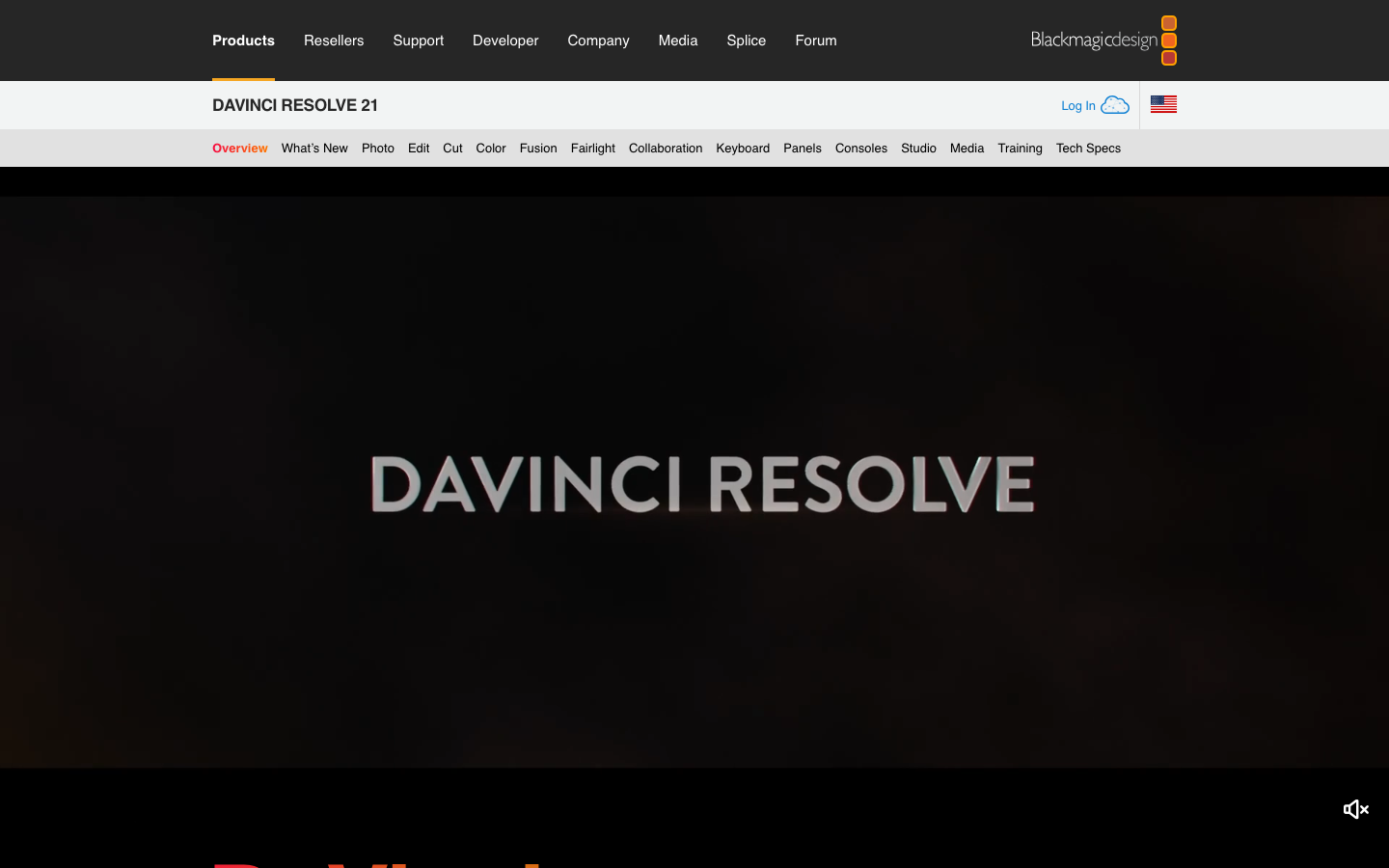
Best for: creators ready to graduate to a real post-production suite.
| Metric | Score (out of 10) |
|---|---|
| Video Quality | 9.5 |
| Ease of Use | 6.0 |
| Creative Control | 10 |
| Speed | 7.0 |
| Model Variety | 5.0 |
| Value | 9.0 |
DaVinci Resolve is the only tool on this list used to finish actual Hollywood films, and the free version is not a demo. Full multi-track timeline, the best color grading in the industry, Fairlight audio tools, and Fusion visual effects, all without a watermark, up to 4K 60fps. The catch is the learning curve: this is professional software with professional density. Plan on a weekend of tutorials before you're comfortable.
Pros: Industry-standard color grading · Genuinely professional free tier · One-time $295 Studio license, no subscription · Cross-platform
Cons: Steep learning curve · Heavy hardware requirements · Overkill for 30-second vertical clips
Pricing: Free · DaVinci Resolve Studio $295 one-time.
Best for: YouTubers and filmmakers who want room to grow.
4. Filmora — Best Easy Desktop Editor
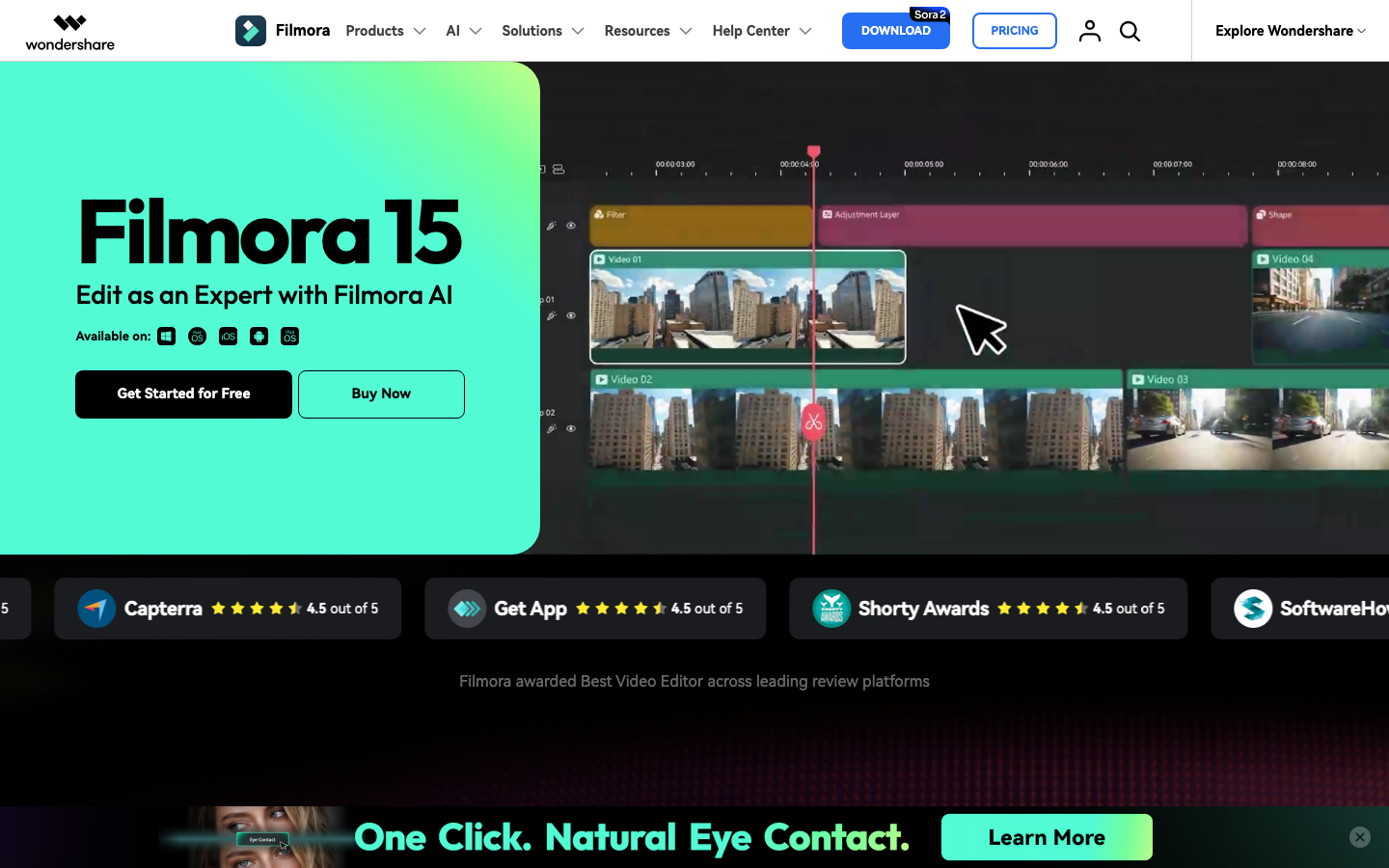
Best for: beginners who want desktop power without Resolve's learning curve.
| Metric | Score (out of 10) |
|---|---|
| Video Quality | 8.0 |
| Ease of Use | 9.0 |
| Creative Control | 7.5 |
| Speed | 8.0 |
| Model Variety | 6.5 |
| Value | 8.0 |
Filmora sits in the sweet spot between phone apps and pro suites. Drag-and-drop timeline, a deep effects library, and a growing AI toolkit: smart cutout, AI audio denoise, text-based editing, and auto captions. Wondershare has shipped consistent updates for over a decade, so it's a safe bet for a tool you'll still be using in three years.
Pros: Gentle learning curve with real depth · Strong AI assists · Big effects and template library · Stable, mature product
Cons: Watermark on the free version · AI credits are metered on lower tiers · Render speeds trail Resolve
Pricing: $9.99/mo, $49.99/yr, or $79.99 perpetual license.
Best for: creators moving from mobile to desktop for the first time.
5. VEED — Best Browser-Based Editor
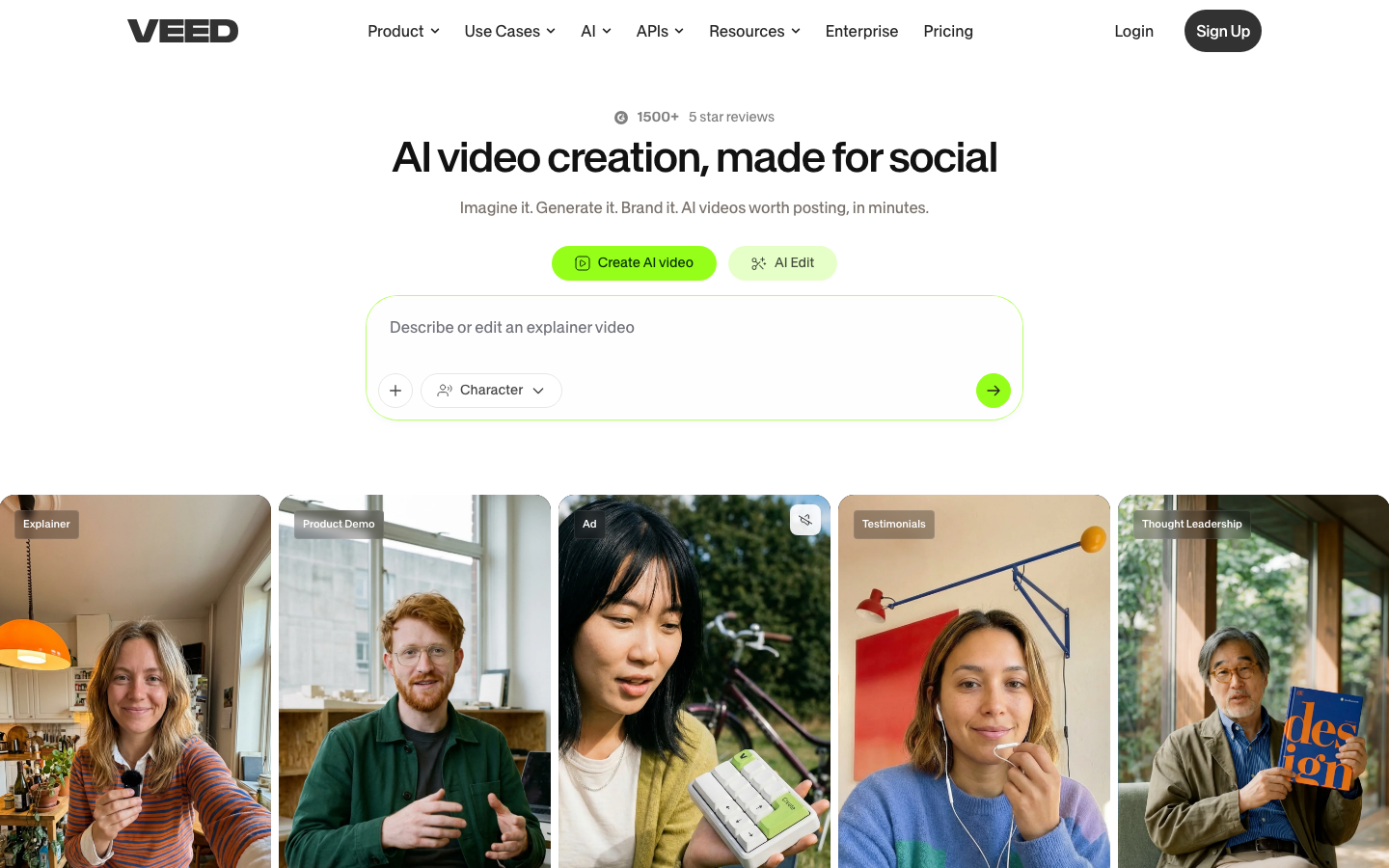
Best for: teams that need to edit from any machine, no installs.
| Metric | Score (out of 10) |
|---|---|
| Video Quality | 7.5 |
| Ease of Use | 9.0 |
| Creative Control | 7.0 |
| Speed | 8.0 |
| Model Variety | 7.0 |
| Value | 7.0 |
VEED runs entirely in the browser and leans hard into AI: auto subtitles in 100+ languages, AI avatars, eye-contact correction, background removal, and a clean collaborative workflow. For marketing teams where three people touch every video, the share-a-link editing model beats passing project files around.
Pros: Nothing to install, works anywhere · Excellent auto subtitles · AI avatars and clean-audio tools · Easy team collaboration
Cons: Watermark on the free tier · Gets pricey as your team grows · Browser editing struggles with long 4K footage
Pricing: $12/mo (Lite) · $24/mo (Pro), billed annually.
Best for: marketing teams and agencies editing social content together.
6. Clipchamp — Best for Windows Users
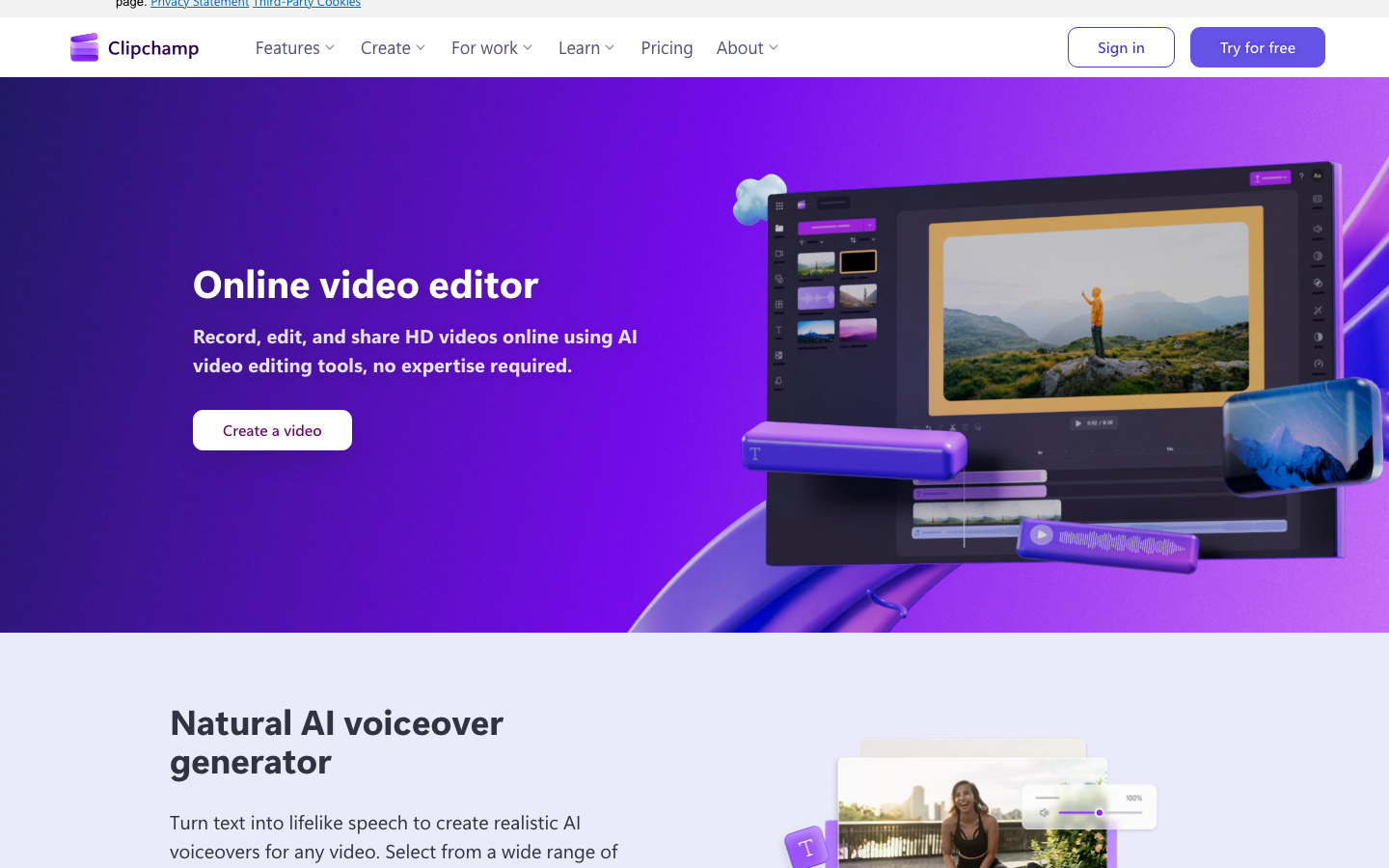
Best for: Windows 11 owners who want a capable editor that's already installed.
| Metric | Score (out of 10) |
|---|---|
| Video Quality | 7.0 |
| Ease of Use | 9.0 |
| Creative Control | 6.5 |
| Speed | 8.0 |
| Model Variety | 5.5 |
| Value | 9.0 |
Clipchamp ships inside Windows 11, exports 1080p with no watermark on the free tier, and includes auto captions, text-to-speech, and a solid template library. Microsoft ownership also means it clears most corporate IT policies that ByteDance apps fail. It won't win awards for depth, but as a zero-friction default it's hard to argue with.
Pros: Free 1080p export, no watermark · Preinstalled on Windows 11 · Auto captions and TTS included free · IT-department friendly
Cons: 4K export needs Premium · Effects library is shallow next to CapCut · Mac support is browser-only
Pricing: Free · Premium $11.99/mo for 4K export and premium stock.
Best for: Windows users who want good enough, instantly.
7. InShot — Best Budget Mobile Editor
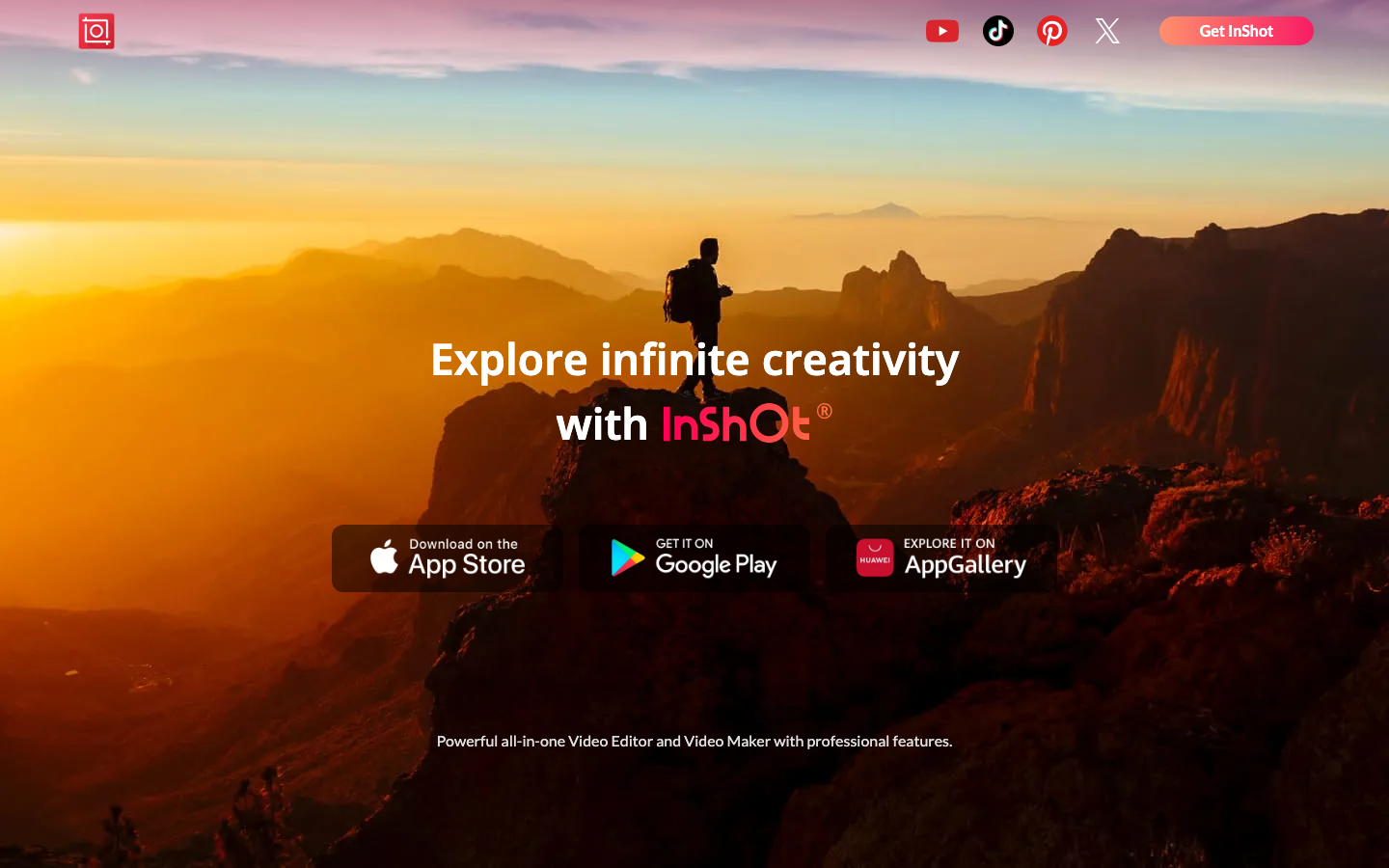
Best for: casual creators who want CapCut-style edits for 1/12th the price.
| Metric | Score (out of 10) |
|---|---|
| Video Quality | 7.5 |
| Ease of Use | 9.0 |
| Creative Control | 6.5 |
| Speed | 8.5 |
| Model Variety | 5.0 |
| Value | 9.0 |
InShot Pro costs $19.99 a year. CapCut Pro costs $19.99 a month. That single comparison is most of the pitch. For the money you get chroma key, AI captions, beat-sync, background removal, and the fast vertical-video workflow that made these apps popular in the first place. It's lighter than CapCut on advanced features, but for everyday Reels and Shorts it covers the job.
Pros: $19.99/year vs CapCut's $19.99/month · Fast, simple vertical editing · AI captions and background removal included · Tiny learning curve
Cons: Single-track mindset limits complex edits · Watermark on free tier · No desktop version
Pricing: Free with watermark · Pro $19.99/yr or $34.99 lifetime.
Best for: casual creators posting a few clips a week.
8. Descript — Best for Text-Based Editing
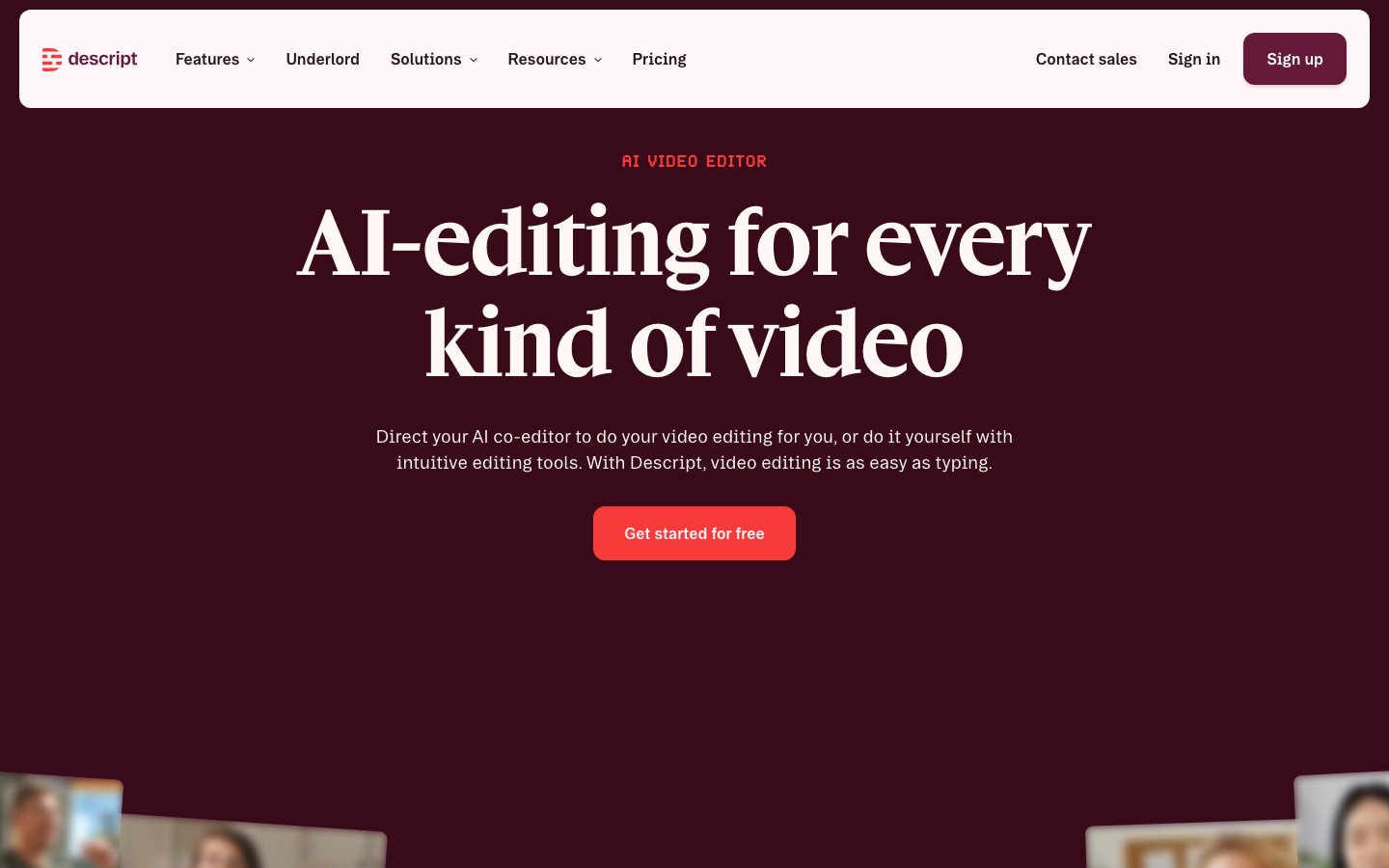
Best for: podcasters and talking-head creators who think in words, not frames.
| Metric | Score (out of 10) |
|---|---|
| Video Quality | 7.5 |
| Ease of Use | 8.5 |
| Creative Control | 7.0 |
| Speed | 8.5 |
| Model Variety | 6.0 |
| Value | 7.5 |
Descript transcribes your footage, then lets you edit the video by editing the transcript. Delete a sentence, the video cuts itself. Remove every "um" with one click. Studio Sound cleans up bad mics, and Overdub clones your voice for quick fixes. For interview, podcast, and tutorial content, it's a fundamentally faster way to work than any timeline.
Pros: Edit video like a document · One-click filler-word removal · Studio Sound audio cleanup · Great for repurposing long content into clips
Cons: Weak for visual-heavy, music-driven edits · Transcription accuracy drops with noisy audio · Subscription only
Pricing: Free tier (1 hr transcription/mo) · Hobbyist $16/mo · Creator $24/mo.
Best for: podcasters, educators, and anyone editing talking-head footage.
9. Canva — Best for Branded Social Content
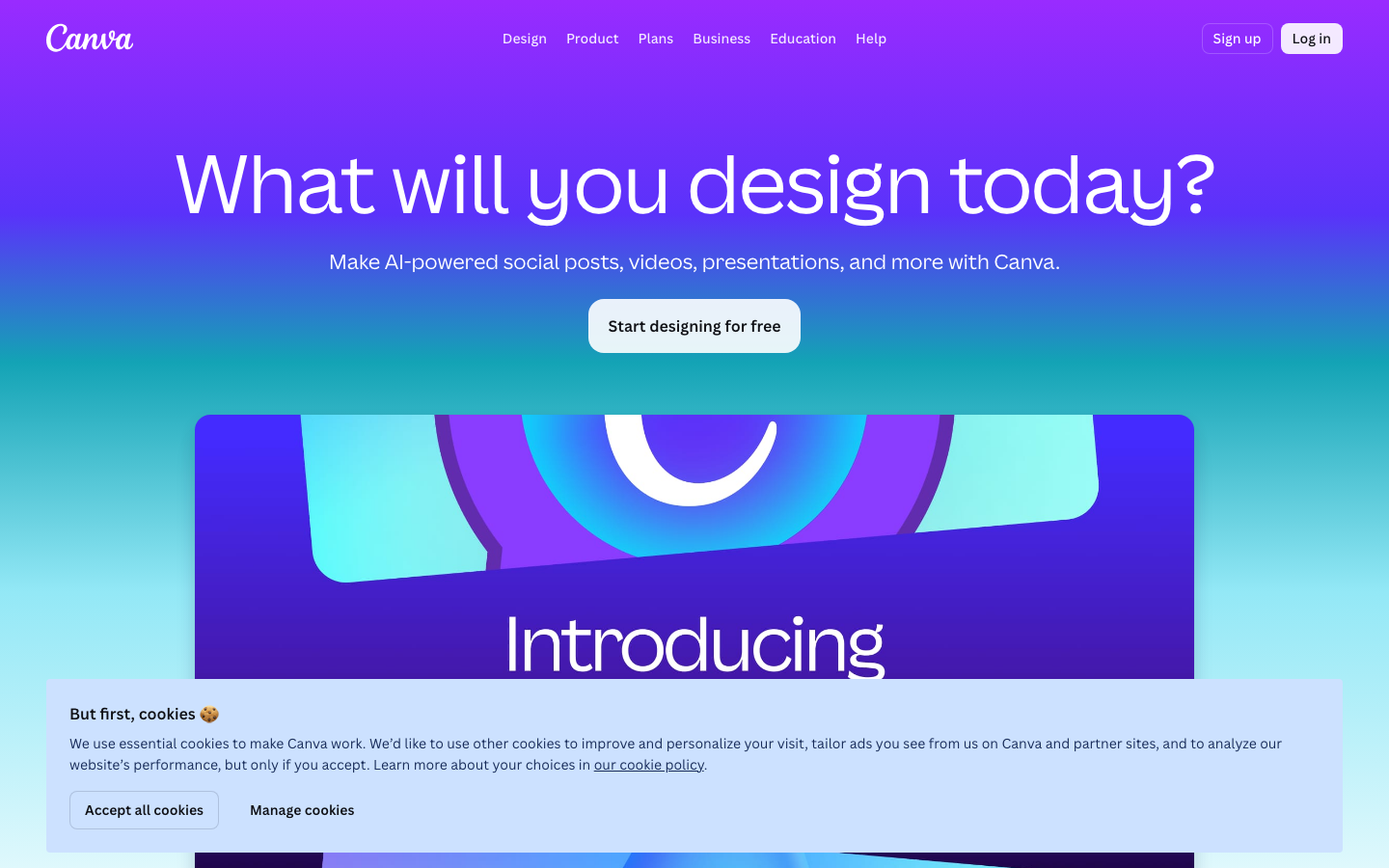
Best for: small teams making on-brand videos alongside everything else.
| Metric | Score (out of 10) |
|---|---|
| Video Quality | 7.0 |
| Ease of Use | 9.5 |
| Creative Control | 6.0 |
| Speed | 8.5 |
| Model Variety | 6.5 |
| Value | 8.0 |
Canva's video editor lives inside the design platform your team probably already uses. Brand kits keep every video on-palette, templates cover every social format, and the 2026 Veo 3 integration lets you generate short AI clips from a text prompt and drop them straight into the timeline. It's not a deep editor, and it doesn't try to be. It's the fastest path from "we need a post" to "it's posted."
Pros: Brand kit keeps output consistent · Massive template library · Built-in AI clip generation via Veo 3 · One subscription covers design and video
Cons: Timeline depth is limited · Long-form editing gets clumsy · AI video generation has monthly caps
Pricing: Free tier · Pro $15/mo · Teams $10/user/mo.
Best for: social media managers juggling graphics and video in one tool.
10. InVideo AI — Best for Prompt-to-Video Workflows
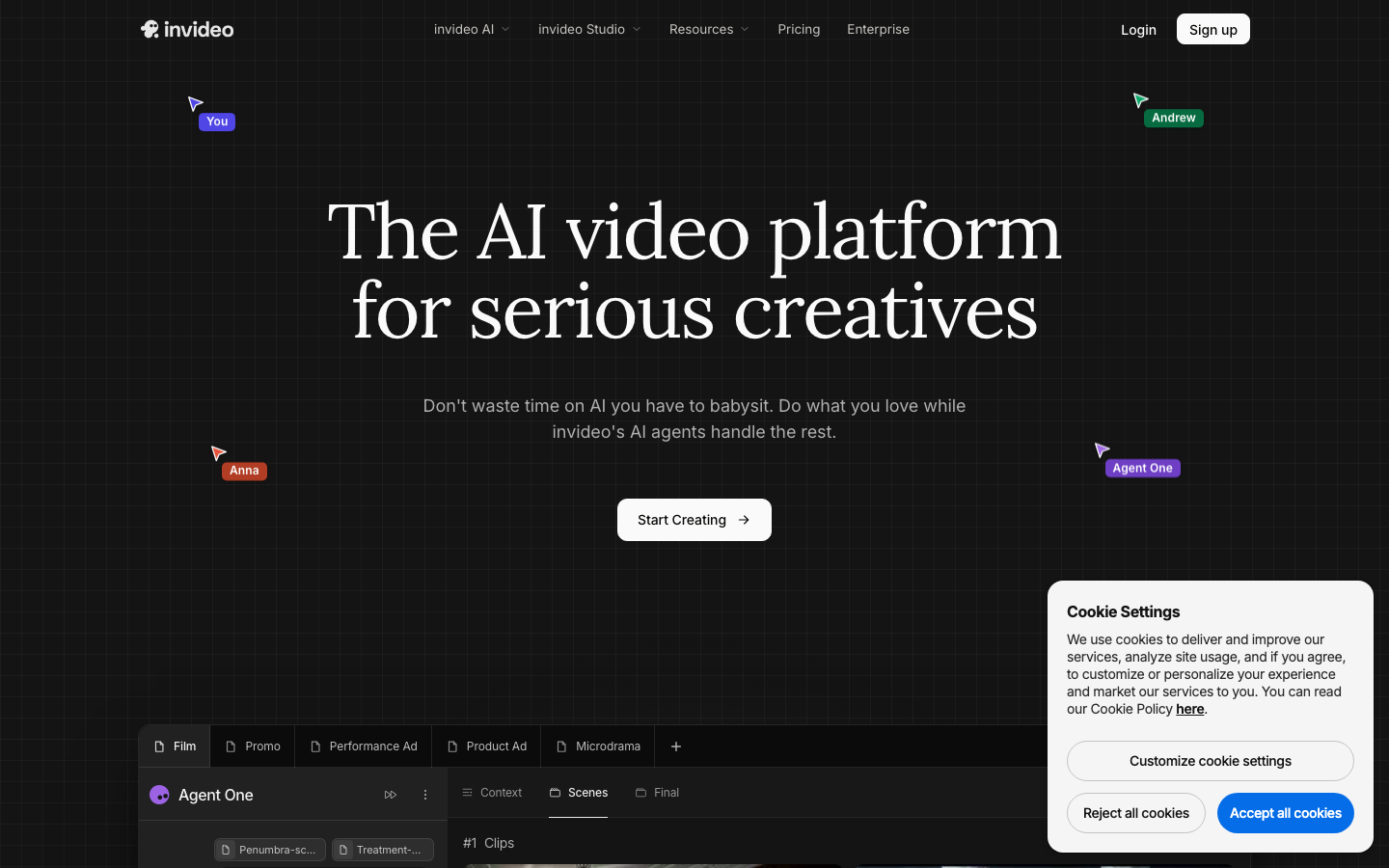
Best for: YouTube creators who want complete videos generated from a brief.
| Metric | Score (out of 10) |
|---|---|
| Video Quality | 7.5 |
| Ease of Use | 9.0 |
| Creative Control | 7.0 |
| Speed | 8.5 |
| Model Variety | 8.0 |
| Value | 8.0 |
InVideo generates full videos, narration, music, captions and all, from a text prompt, drawing on a 2.5M+ stock library plus AI-generated footage. Conversational editing lets you type "change the music to something upbeat" instead of digging through menus. The output leans templated, but for faceless YouTube channels and quick marketing videos, the speed is the point.
Pros: Complete videos with voiceover from one prompt · Huge stock library · Conversational editing commands · Fast turnaround for volume publishing
Cons: Output can feel formulaic without manual polish · Generation caps on lower tiers · Less control than a real timeline
Pricing: $25/mo (Plus) · $60/mo (Max), billed annually.
Best for: faceless channels and marketers publishing on a schedule.
How to Choose the Right CapCut Alternative
Want the video made for you, not by you? Go with Pexo AI. Describe the video once and the agent scripts, generates, and edits it end to end. Try a product video and compare it to an hour in a timeline. Browsing more options first? Our roundup of the best AI video generators covers the wider landscape.
Want to keep editing by hand? Pick by platform: VN on mobile, DaVinci Resolve if you're going pro on desktop, Clipchamp if you're on Windows and want zero setup.
Final Thoughts
CapCut earned its popularity, but the 2026 version asks you to pay double, accept a content license most professionals shouldn't accept, and bet your workflow on an app that has already been banned once.
The replacements fall into two camps. Manual editors like VN, Resolve, and Filmora give you CapCut's job with better terms. AI-native tools change the job itself: Pexo AI turns production into a conversation, Descript turns it into a document, InVideo turns it into a prompt.
The best CapCut alternative depends on a simple question: do you want a better timeline, or do you want to stop needing one?