ChatGPT
 Perplexity
 Claude
 Gemini
 Grok
Grok



The footage is approved, but the next social post still needs an opening, a claim, and a reason to click. That decision returns with every color, offer, or channel. A small team can make social media video production repeatable by keeping product facts steady and choosing what each post must show.
To make those decisions concrete, follow a fictional Cedarline desk caddy through one post. The feature to show is its lift-out pen cup. The brief, scene plan, and first-cut check below all work from that detail.
Set One Product Goal for Each Social Video
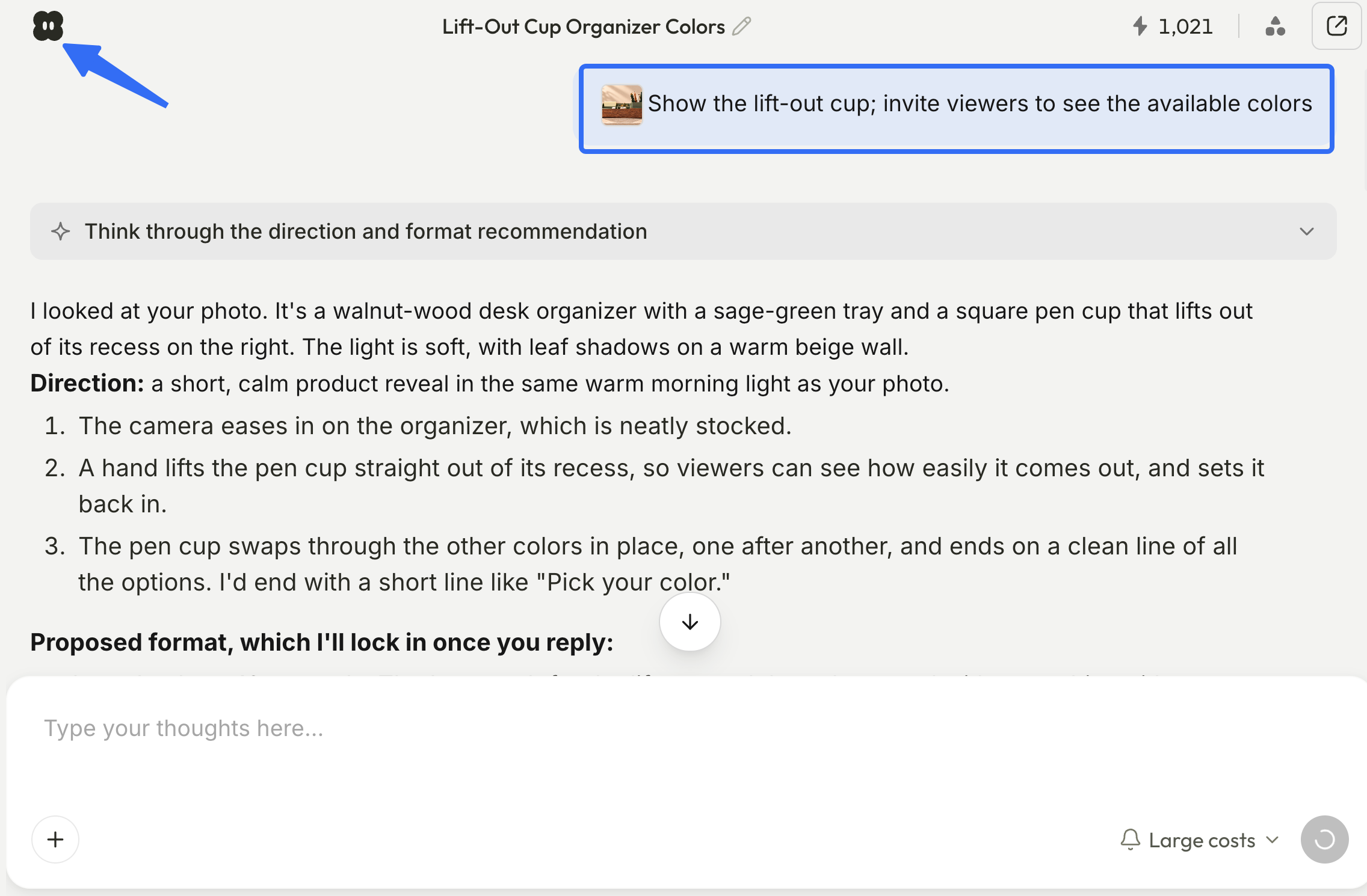
For one post, choose the product action a viewer should understand and the next step they can take. “Show the lift-out cup; invite viewers to see the available colors” is usable. “Introduce the brand, explain every feature, and drive sales” leaves the editor guessing which shot deserves the most time.
The distinction matters when a team has only a handful of clips. A close shot of the cup lifting out can support the first goal. The same clip cannot prove that the caddy saves desk space or makes someone more productive. If those are campaign claims, the team needs separate evidence and approval before writing them into the video.
Set the destination early. A product-page click needs a different closing frame from a post answering a question in the comments.
Build a Reusable Brief from Product Assets
A reusable product video brief holds facts across posts while leaving the message and destination open. Keep the source beside each fact so a packaging update points to the affected lines and shots.
| Brief field | Cedarline example — fictional | What to attach or decide |
|---|---|---|
| Viewer question | “Does the pen cup come out?” | One question for this post |
| Approved claim | “The pen cup lifts out” | Current product-page wording and product-owner approval |
| Proof asset | Unbroken clip of a hand lifting and replacing the cup | Original file; check that it shows the current product |
| Supporting assets | Front and side photos; current color names; logo | Approved source files, not screenshots of an old post |
| Brand boundaries | Warm neutral background; no invented color names | Current brand guide and approved copy |
| Placement and action | Organic vertical post → “See the colors” product-page link | Actual destination and target placement |
| Exclusions | No “space-saving” or “spill-proof” claim | Claims this pack cannot establish |
| Approver and change trigger | Product owner approves construction details; refresh if the cup design changes | Named contact and the source to check again |
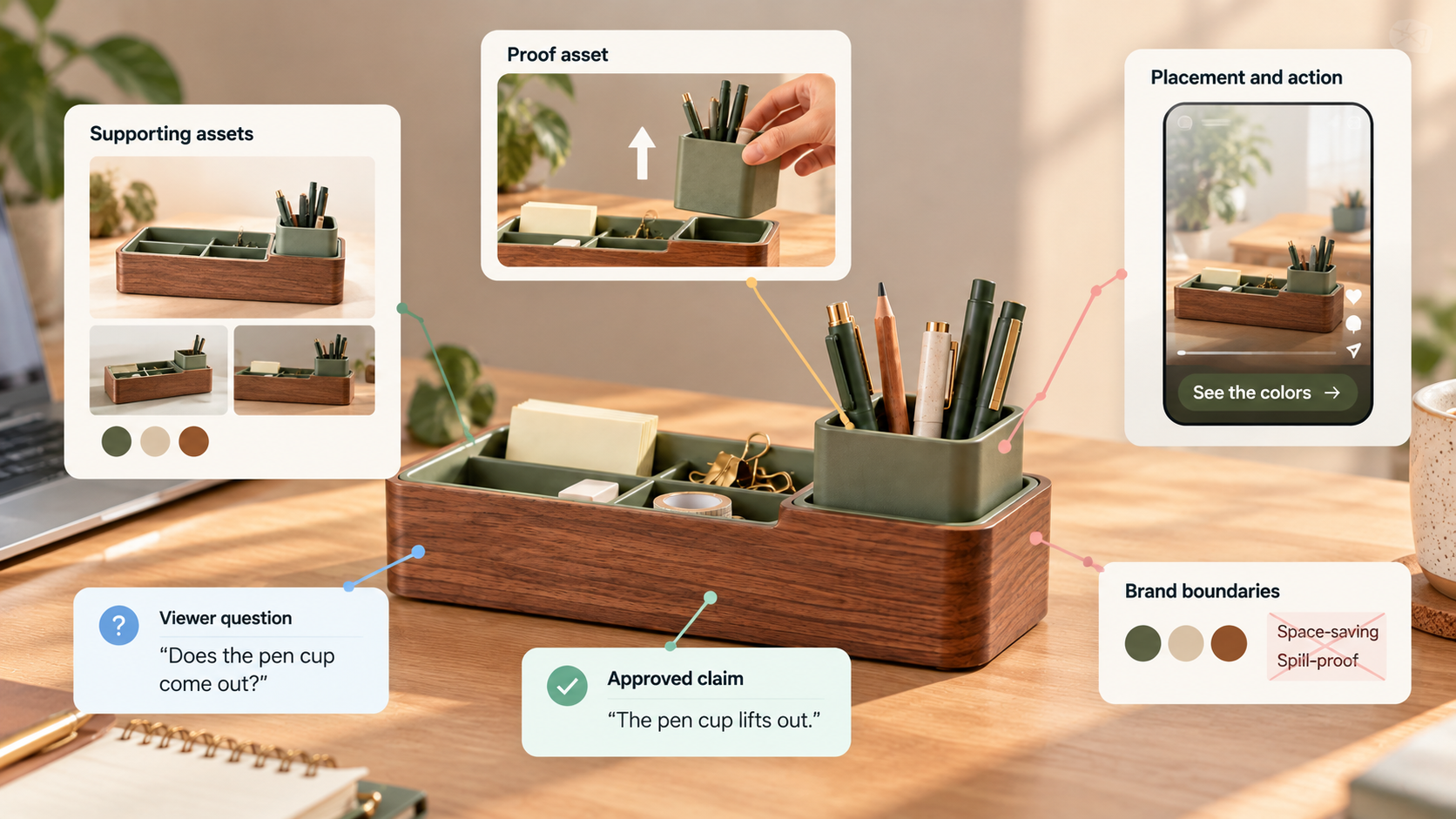
The brief needn't prescribe every transition. It should keep a lovely shot of the wrong model from passing review. Save the original footage, product-page snapshot, approved wording, and rights documents together. Remove customer details from supplied media before uploading it to a production service.
Turn the Brief into a Scene Plan
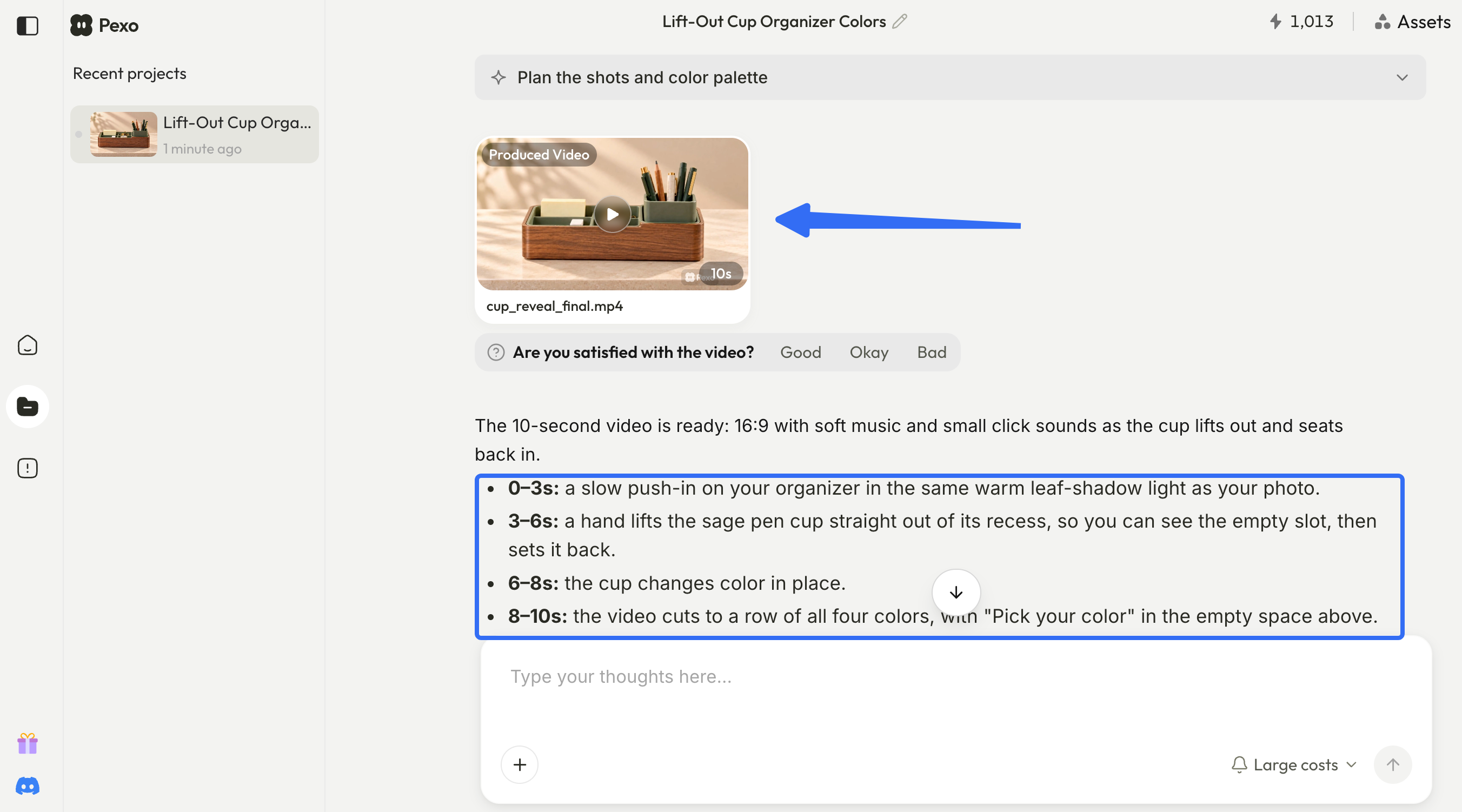
Start with what the viewer must see to believe the claim. For the Cedarline caddy, the lift-out action belongs in the middle of the cut, where it remains visible long enough to understand. A logo animation cannot do that job.
| Scene | Picture | On-screen words or sound | Job in the story |
|---|---|---|---|
| 1. Recognize | Caddy on a desk, cup seated | “Pens all in one place” only if approved; otherwise show the product name | Establish the object without making a new benefit claim |
| 2. See the action | One continuous lift of the cup, then a clear view of the empty slot | “Lift-out pen cup” | Prove the approved construction detail |
| 3. Choose | Cup returned; approved color images follow | “See the colors” | Connect the demonstrated product to the next click |
Lift-Out_Cup_Organizer_Colors_cup_reveal_2026-10-16_09-46.mp4
This is a scene order, not a fixed duration. If the hand blocks the cup at the key moment, extend or replace that shot before trimming the opening. If the color cards crowd out the lift, move them to a separate variant. The product action is the reason this video exists.
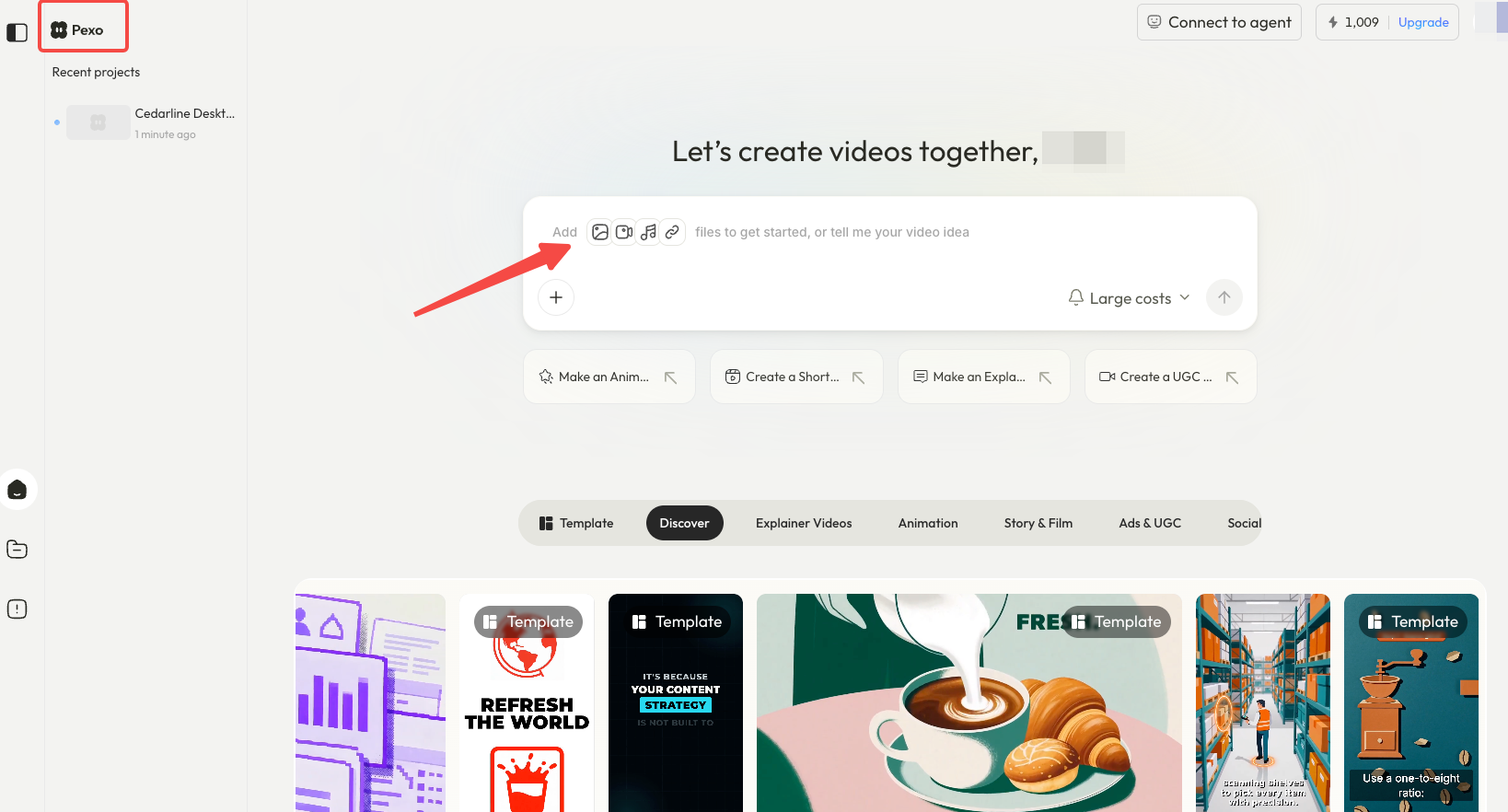
For a conversational route, Pexo’s starting guide describes sharing a website, assets, and direction, then reviewing a script or storyboard. The team still has to inspect the product detail and final words.
Review the First Cut for Product and Brand Accuracy
Watch once as a viewer, then again against the brief. The first pass asks whether the lift-out action reads without an explanation. The second catches a changed cup shape, a stray color name, or a closing frame that points nowhere.
| First-cut check | Pass when… | Send back when… |
|---|---|---|
| Product truth | The cup visibly lifts out and matches the current model | A generated or cropped view changes how it fits |
| Claim and proof | “Lift-out pen cup” appears while that action is visible | Words imply a benefit the footage does not show |
| Brand | Logo, colors, and product name match approved assets | An old pack shot or color name has slipped in |
| Viewing | The key action and CTA remain legible in the target placement preview | Platform controls or captions cover either one |
| Audio and text | Spoken line, captions, and screen text say the same approved thing | One version adds a new claim or misspells the product |
| Next action | The destination matches “See the colors” | The frame asks for a click to a page with no color choice |
Give feedback on the failed moment: “Keep the continuous lift in scene two; replace the closing color card with the approved three-color image.” That protects the useful part of the cut. Pexo’s revision guide describes conversational changes and marking a specific frame for feedback; it does not remove the need for someone to approve the next version.
Produce Variants Without Changing the Core Claim
Change the wrapper when the placement changes; reopen the brief when the product fact changes. The Cedarline team might try a different first shot, shorter color cards, or a silent version with clear text. Each cut must still show the same removable cup on the same approved model.
Record the source cut, destination, changed scenes, approved claim, approver, and date. Otherwise, a paid cut may inherit last month’s offer while the organic cut carries the current one. A new claim needs another product review.
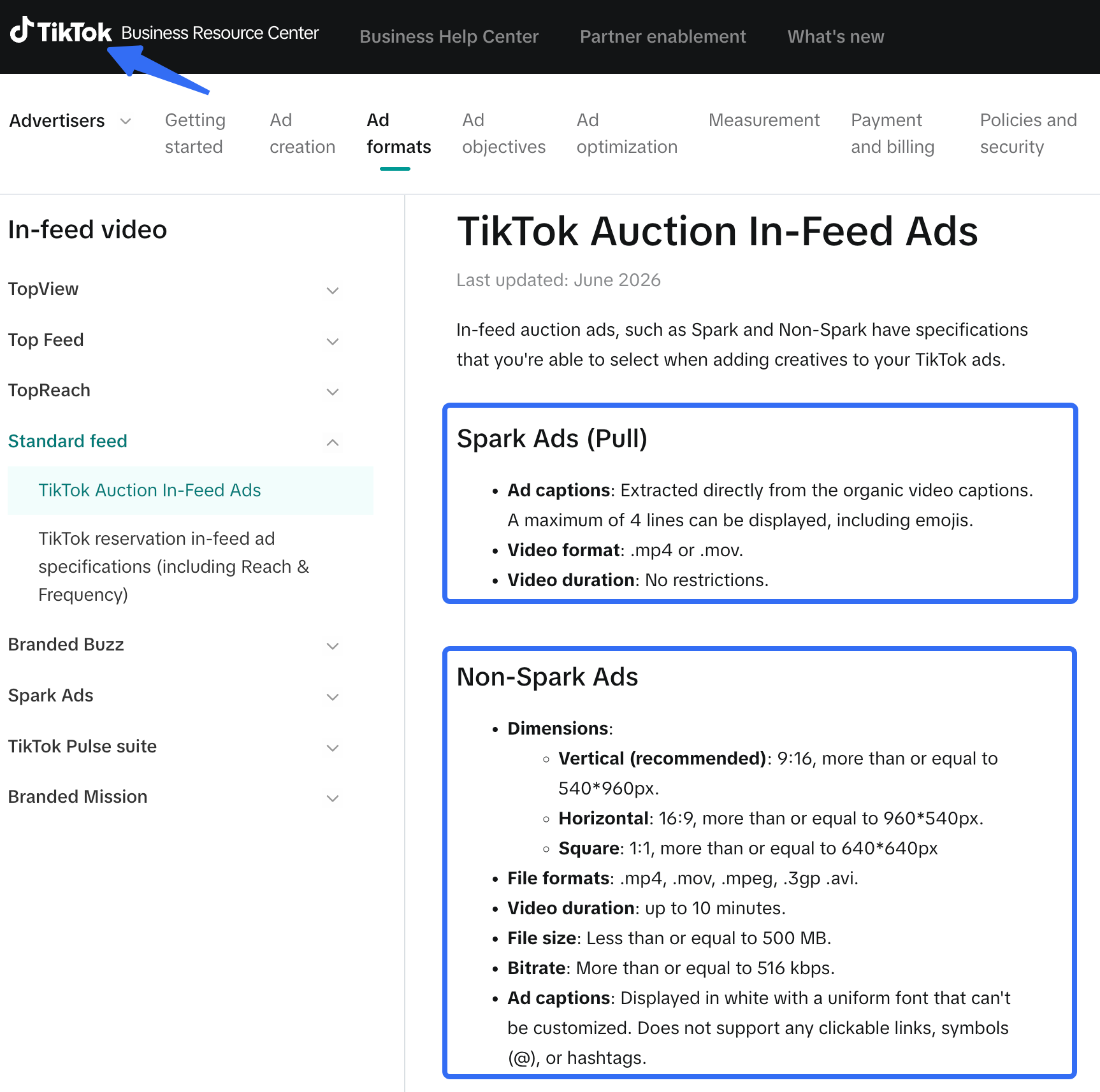
Use the destination’s current rules rather than a universal export recipe. For example, TikTok’s in-feed ad specifications distinguish Spark from non-Spark assets and say the safe zone depends on the creative’s dimensions, caption length, and added formats. Preview the actual placement, including its interface, before signing off on a crop or caption position. A viewable draft is not proof of upload acceptance or ad approval.
Prepare Final Files for Each Channel
Hand over the approved cut with its filename, aspect ratio, caption, opening frame, CTA, landing URL, approval date, and source cut. A name such as cedarline-liftout-organic-v03 beats final-final when a detail changes.
Before export or upload, check the current format and ad requirements for that precise placement. Test the delivered file on a phone with the real caption and interface. If the proof shot becomes too small, a new crop may need a new shot rather than another text overlay.
Rights deserve their own handoff line. Product footage, people, music, fonts, and other supplied assets may have different permissions for organic posts and paid ads. Check the actual license for each use and channel, plus the destination’s current policy; missing paperwork is not evidence of permission. This is an editorial check, not legal advice. Ask counsel about unclear rights or required disclosures before publication.
The repeatable part is the approved product truth and a record of what changed. Pexo publishes this guide and offers a conversational video workflow. If that route suits your team, bring the brief and assets to Pexo. Describe the post, review the direction and preview, then request a specific change where the cut misses the brief.