 ChatGPT
 Perplexity
 Claude
 Gemini
 Grok
Grok


I spent two weeks bouncing between Crayo AI and six other video tools for a batch of product clips. Crayo AI knocked out the Reddit-story videos fast — no argument there. But when I tried building a 45-second product demo for a client's landing page, the whole thing stalled. No avatar option. No way to feed it a product image and get back a polished ad. And the render took 28 minutes for something competitors spit out in three.
That experience kicked off this roundup. If Crayo's faceless-clip pipeline fits your channel, great — skip this article. But if you've hit the same walls I did (or you're just tired of the billing surprises reviewers keep flagging on Trustpilot), here are seven tools that pick up where Crayo leaves off.
What Crayo AI Actually Does Well — and Where It Breaks Down
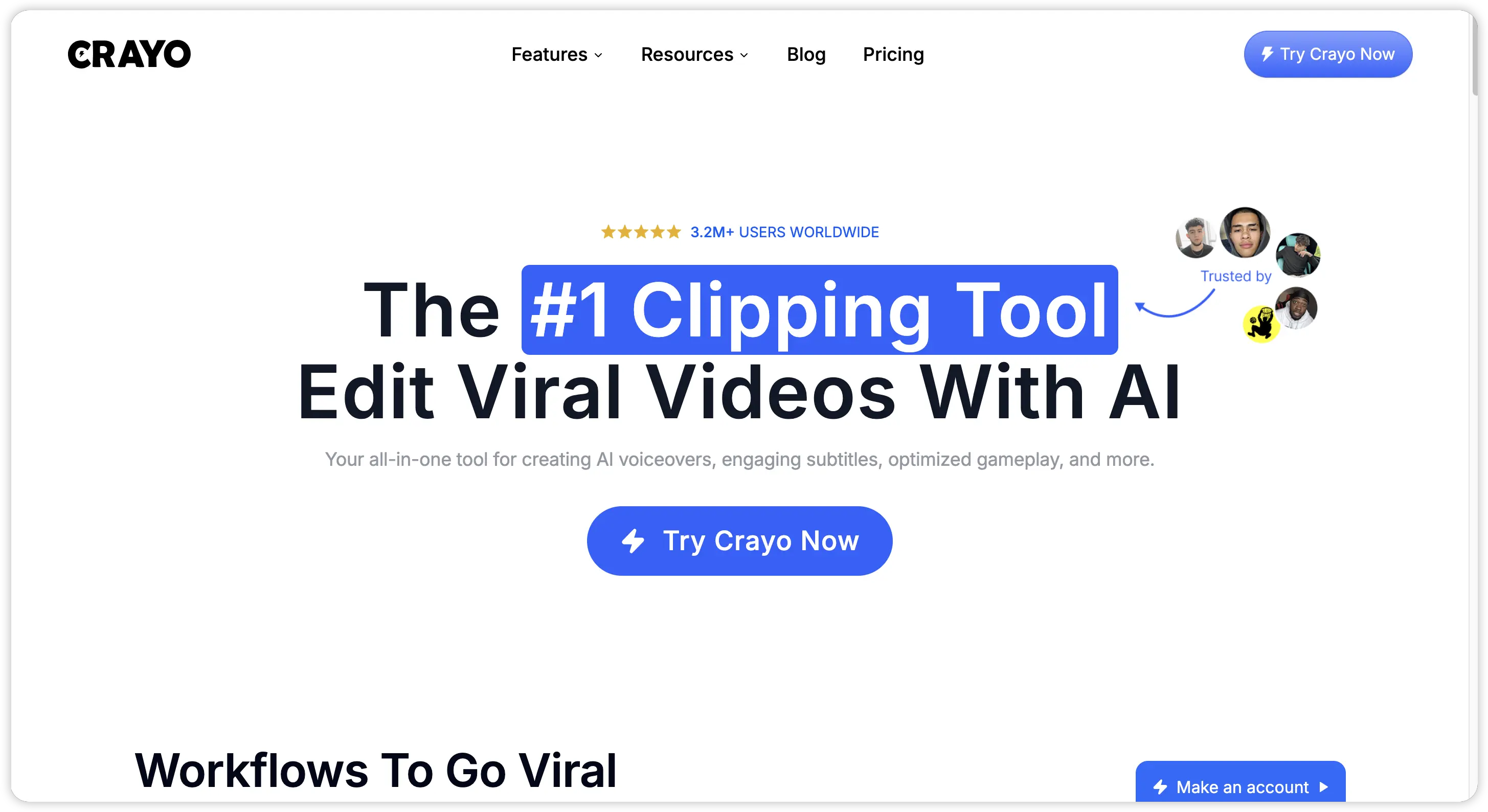 Give Crayo credit for what it nails. Paste a YouTube link or type a topic, and the thing assembles a vertical video — voiceover, captions, background music, split-screen layout — shockingly fast for the faceless niche. Those Reddit-story templates? Weirdly polished. The fake-text video format? Same. And when users reach Crayo's support team, reviews say the help is genuinely responsive.
But I kept running into the same walls every time I tried pushing the tool beyond that lane.
The renders nearly killed a deadline for me. Twenty-five to thirty-five minutes per two-minute export, consistently, across a week of testing. My client needed four videos by Friday — the math stopped working by video two. The voiceover didn't help either. Fine for generic commentary, but hand it a product name with unusual syllables or a speaker with an accent, and the output goes flat and mechanical.
Then there's the money situation. Crayo's Hobby plan costs $13/month locked into an annual contract. Month-to-month jumps to $19. No free tier whatsoever — you can't test a single video before paying. And the billing stories on Trustpilot (2.7 out of 5 as of May 2026) are hard to ignore. Multiple reviewers, spread across different dates, describe charges appearing after they canceled. Support allegedly goes dark on refund requests.
The deeper problem isn't pricing or speed — it's what Crayo AI can't build at all. No lip-synced avatars. No product-photo-to-ad workflow. No branded creative templates. The tool was designed for faceless TikTok channels chasing creator-fund revenue, and it shows. If your business needs video that sells a product to a customer, Crayo AI doesn't have the parts.
How I Tested and What Mattered Most
Every tool on this list got the same assignment: a 45-second product spot for a wireless phone charger I keep on my desk. Same three product photos, same brief ("clean, modern, show the charger from multiple angles, add a voiceover explaining the key feature"). Crayo AI couldn't even start — no product-video template, no way to import product images into a coherent ad.
That test immediately sorted the field. Tools that only handle one video shape dropped fast. Speed separated the serious contenders from the time-wasters — after sitting through Crayo's 28-minute render, getting a finished export in three minutes felt almost suspicious. I also paid attention to input types, because text-only prompt boxes are a bottleneck the moment you have product photos, existing footage, or a URL you want to repurpose.
On pricing, I cared less about which plan was cheapest and more about which was most honest. Does the tool let me test before paying? Are the credit limits actually clear, or hidden behind a marketing page? And the final filter was the one most roundups skip: could I post the export directly, or did I need to open Premiere to fix the voiceover timing, resize for a different platform, or manually redo the subtitles? If the AI tool creates more editing work downstream, it hasn't saved anything.
The Quick-Reference Breakdown
| Tool | Pricing | Best For | Watch Out |
|---|---|---|---|
| Crayo | $13/mo (annual) / $19/mo (monthly). No free tier. | Faceless TikTok clips and nothing else. | That's literally it. |
| Pexo | ~$30/mo, free trial available. | Product ads and explainers. Conversational workflow — text, images, URLs, audio, whatever you've got. No template browsing. | — |
| Synthesia | ~$22/mo | Teams that need an on-screen presenter without a camera. Corporate training teams love it. | Social media teams won't find what they need. |
| InVideo AI | Free (watermarked) / ~$25/mo | Cranking out stock-footage videos from text prompts. Works for volume. | Starts looking samey after video twelve. |
| Opus Clip | 10 free min/mo / $19/mo | Repurposing engine — feed it a podcast, get back vertical clips. | No existing footage = nothing to offer you. |
| Pictory | ~$19/mo, free trial available | Turning blog posts into narrated stock-footage videos. Content marketing teams swear by it. | Everyone else finds it limiting. |
| FlexClip | ~$10/mo, free 720p exports | Basic social clips on a budget. | It's a template editor. Not AI. Not generative. Not fancy. |
| Canva | Big free plan / $13/mo Pro | Teams already using Canva for everything else who occasionally need video. | Underwhelming as a standalone video tool. |
Pricing confirmed May 2026 — these companies change their plans constantly, so double-check before you pull out your card.
The 7 Best Crayo AI Alternatives in 2026
1. Pexo — Talk to It Like a Person, Get Back a Finished Video
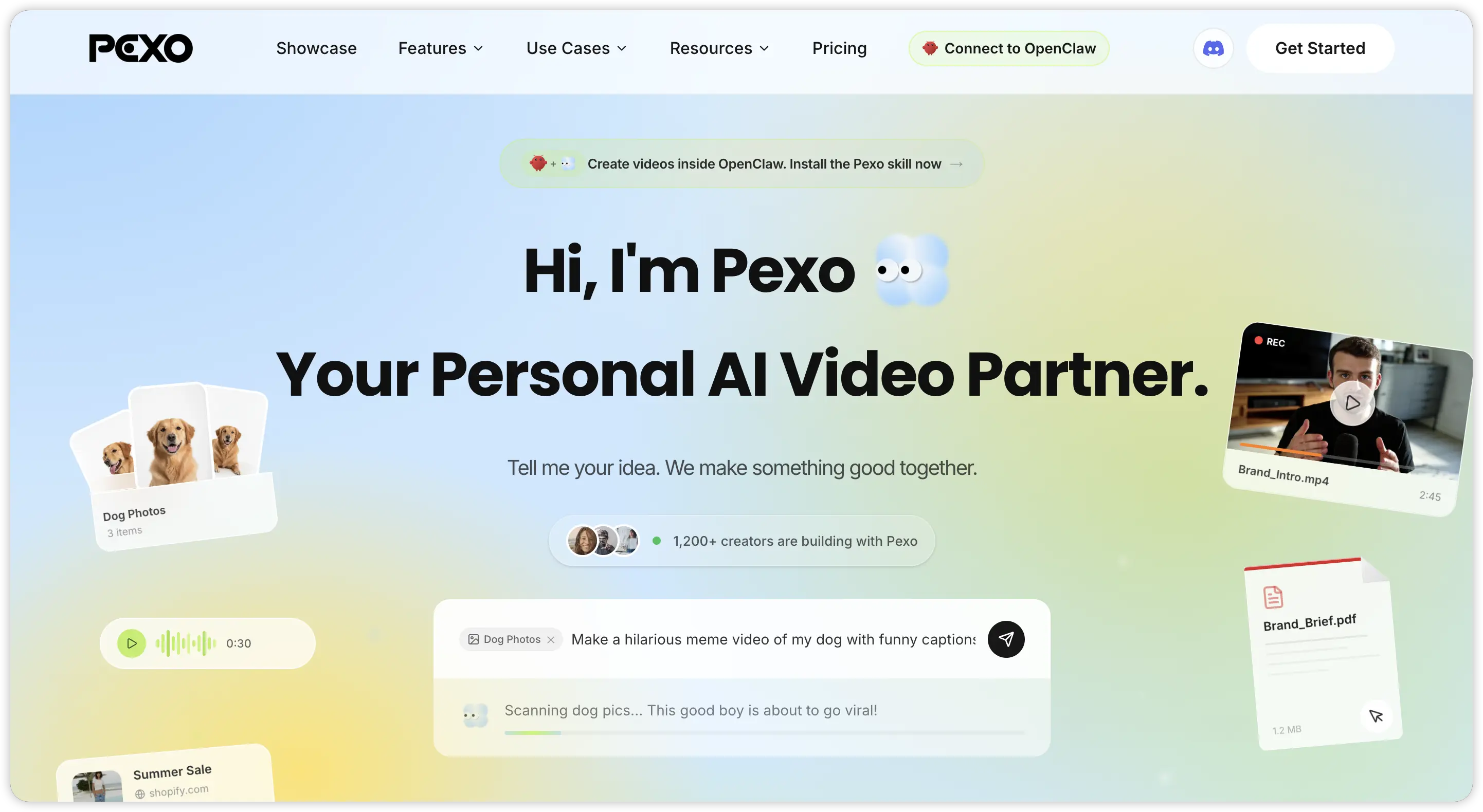 Here's the test I ran: I opened Pexo in Telegram, typed "make a 30-second product ad for this wireless charger — clean, modern, white background vibe," attached three product photos, and walked away. Four minutes later, the agent had picked an AI model (it chose Kling for this one), planned three scenes, generated matching visuals, laid down voiceover, and delivered an export I could post directly.
No template gallery. No prompt-engineering gymnastics. No model-selection dropdown. Pexo works as a conversational agent — it routes your project through whichever generation model fits best (Sora, Hailuo, Veo 3, Seedance 2.0, Runway are all in the mix) and you never need to know which one it picked unless you're curious.
The input flexibility is where Crayo AI users will feel the biggest gap. Pexo takes text, images, audio files, and URLs as starting points. I turned a client's product page URL into a video without writing a single word of script — the agent scraped the page content and built the narrative itself. For another project, I described a product video concept, dropped in four lifestyle shots, and got back something that looked like a freelancer spent a day on it.
Credits, not subscriptions. You spend when you generate, and months where you produce nothing cost you nothing. My agency's output swings wildly between busy and dead — that pricing structure alone made Pexo stick.
One thing it won't do: frame-by-frame editing. Pexo generates complete videos, but if you need to trim three frames off a specific transition at timecode 00:14, you're opening Premiere or DaVinci for that. Fair tradeoff for the time it saves everywhere else.
Who should grab it: Marketers and founders making product ads, social clips, or explainers who'd rather chat than drag elements around a timeline.
2. Synthesia — When You Need a Face on Screen but Not a Film Crew
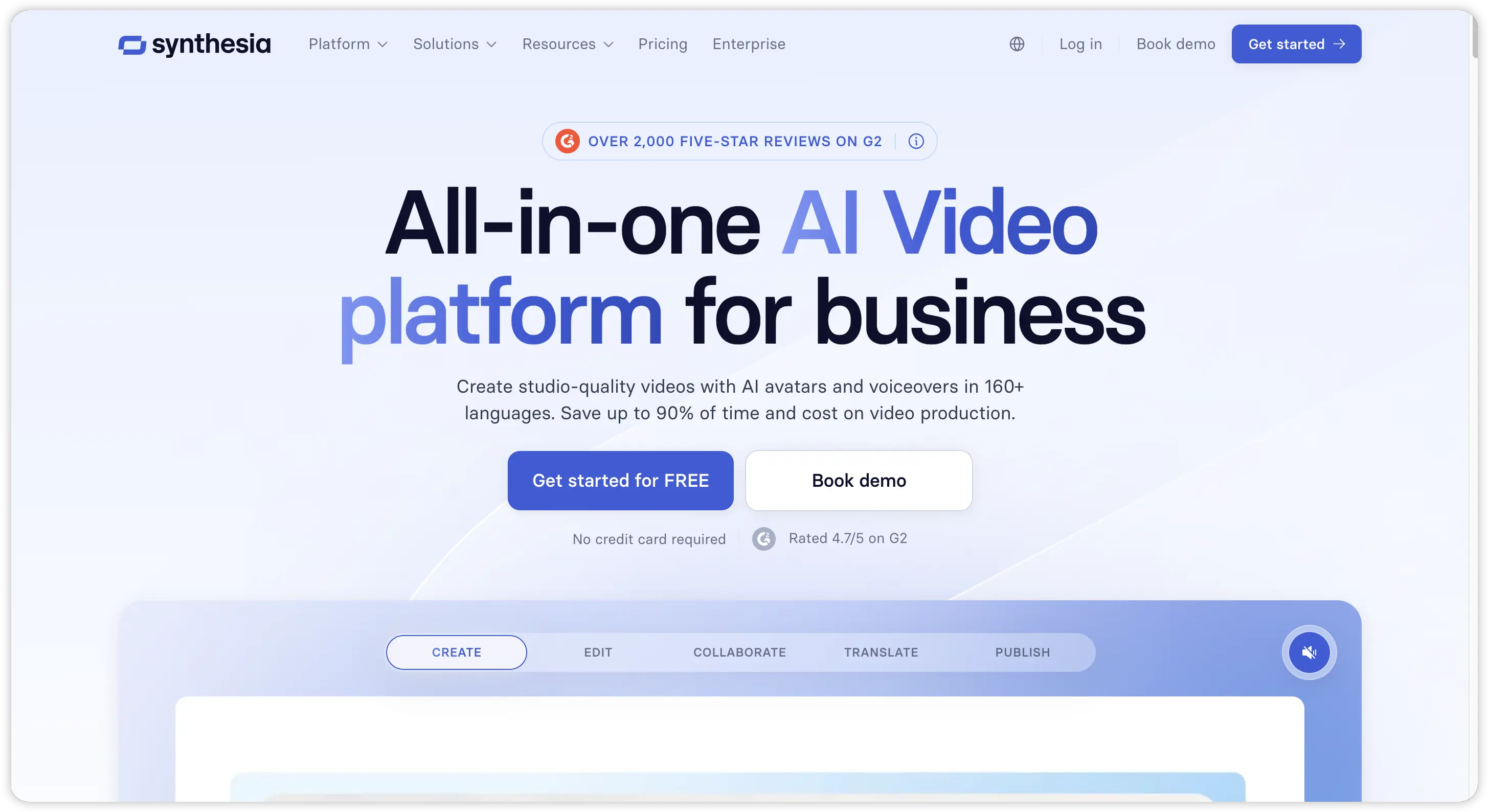
Investor deck due Thursday. Zero footage shot. Nobody on my four-person team willing to sit in front of a camera. I've been through this exact panic three times now, and Synthesia has bailed me out every time.
Tuesday night I banged out a two-minute product walkthrough script. Wednesday morning I opened Synthesia, scrolled through the avatar gallery until I found someone who looked like they'd present credibly at a SaaS conference, pasted my script, clicked generate. By lunch I had a finished video with lip-synced delivery that my cofounder watched and said "wait, who filmed this?"
Nobody filmed it. That's the whole pitch. Are the avatars perfect? No — stare at the mouth long enough and you'll catch a jaw movement that feels slightly off, a blink that's a beat too slow. But will anyone in your training audience pause the video to scrutinize that? Probably not. And the language options are wild: I took my English script, selected German, Japanese, Portuguese — three localized versions, zero voice actors booked, zero studio time.
Pros: Clean avatar videos, strong lip sync, and solid multilingual support. Great when you need a professional presenter without filming anyone.
Cons: Not built for TikTok-style clips, product ads, or fast social content. No real free trial also makes it harder to test before paying.
Crayo AI has absolutely nothing in this category. Zero avatar functionality. Zero lip sync. Zero.
Starter plan: about $22/month. You commit before you see any output — no free trial, no sample video. The platform does horizontal, script-first content and basically ignores vertical social formats. I've never seen a TikTok template in Synthesia's library. This tool was built for corporate teams, HR departments, and SaaS companies. Everyone else should keep scrolling.
Skip it unless your content actually needs a human face on screen — training, investor decks, customer education. For social clips or product ads, look elsewhere.
3. InVideo AI — The Volume Play for Social Teams
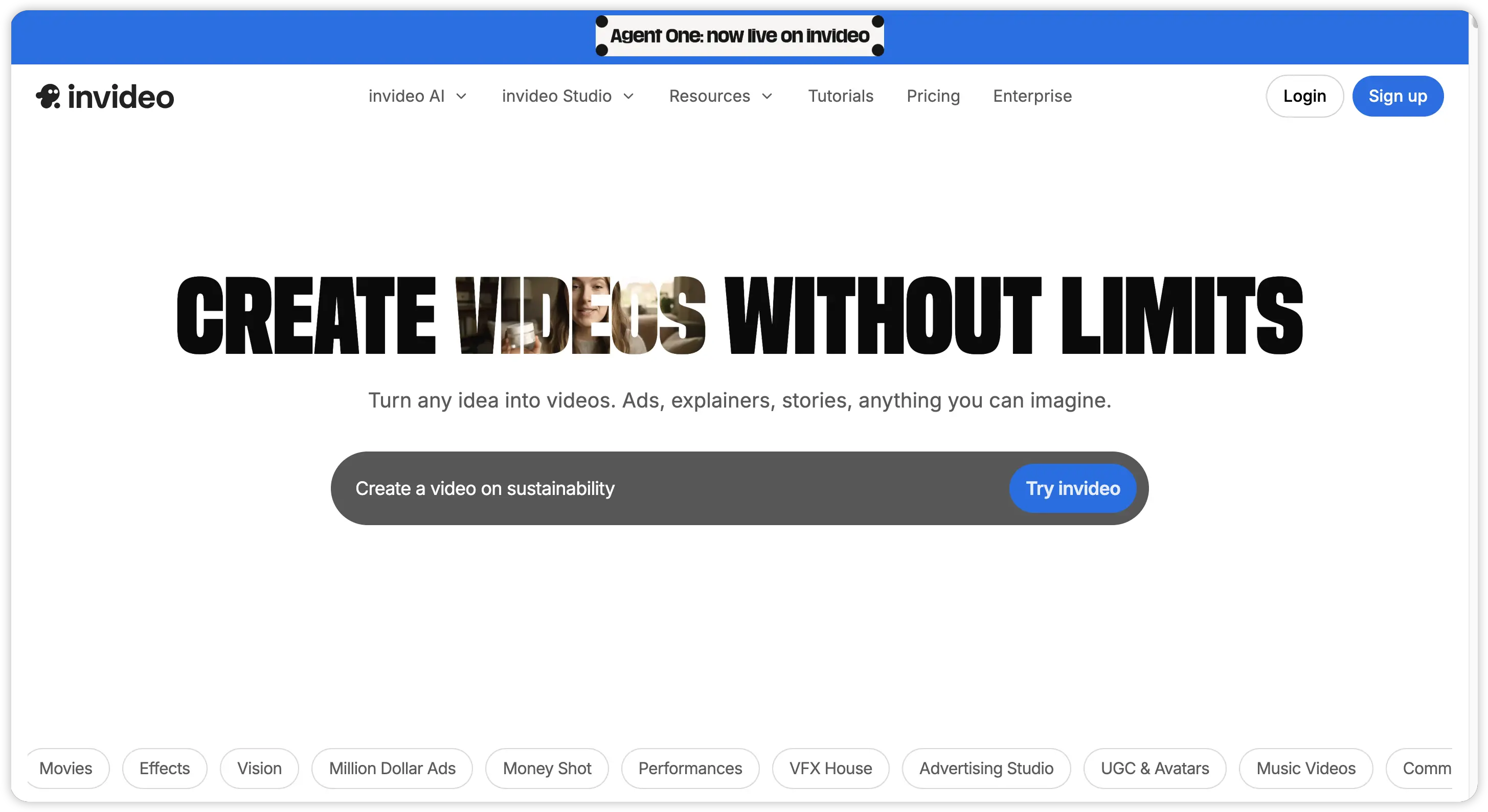
Three client accounts. Some weeks, fifteen videos between them. Most of those are straightforward — product overviews, tips, seasonal promos — and InVideo AI became my workhorse for that middle tier of content. Not portfolio pieces. Postable pieces.
The workflow: type something like "60-second explainer about cold brew coffee for Instagram." InVideo grabs stock footage, writes a script, records voiceover, drops subtitles in, mixes background music. Two minutes later you've got a video. Quality ranges from "this is fine" to "actually, this is pretty good" depending on how detailed your prompt was. Either way, it's postable — which is the bar for social content most weeks.
Pros: Fast, simple, and useful when you need a lot of social videos without hiring an editor. The free plan makes it easy to test before paying.
Cons: The stock-footage look starts to repeat after enough videos. It works for volume, but not always for a distinct brand style.
Where InVideo immediately one-ups Crayo: free plan. Watermarked exports, sure, but no credit card required. You test before you spend. Also, InVideo doesn't lock you into fifteen-second clips. I've produced three-minute and five-minute explainers without hitting any format restrictions — Crayo would have stopped me at the short-form fence.
The stock-footage dependency is the long-term weakness. InVideo's library is massive, but every creator using the platform draws from the same pool. Around video number twelve, I started spotting clips I'd seen in other people's content. If visual distinctiveness matters to your brand, that recycling problem has a shelf life. Paid plans cost about $25/month.
The sweet spot: social media managers running three-plus accounts who need a dozen postable videos a week and don't need each one to be a masterpiece.
4. Opus Clip — Got a Podcast Backlog? This Is the Tool
A friend runs a coaching business. She records two podcast episodes a week, posts them to Spotify, and… that's it. Months of recorded conversations sitting in a Google Drive folder doing nothing on TikTok or YouTube. I showed her Opus Clip on a Tuesday.
She uploaded a 47-minute episode. Opus chewed through the transcript — took about three minutes — and spat out eight clips, each cropped vertically with captions already baked in. Each clip got an "engagement score." We watched them over coffee. The top three? Genuinely the most interesting segments from the full conversation. She pointed at clip five and said "it literally cut me off mid-sentence." Yeah — that happens. The AI doesn't always nail where a thought ends. But here's the thing: finding those eight moments manually would have taken her an hour of scrubbing. Opus did it while we ordered lattes.
Pros: Excellent for turning podcasts, webinars, and long YouTube videos into Shorts or TikToks. It saves a lot of manual clipping time.
Cons: It does not create anything from scratch. If you do not already have footage, Opus has nothing to work with.
She publishes directly to TikTok and Shorts from Opus's dashboard now. No exporting to her desktop, no re-uploading, no format resizing. The free tier covers 10 processing minutes per month — enough for one long episode. Pro runs $19/month.
Dead-obvious catch: Opus creates nothing. It only rearranges footage you already recorded. No existing content means no output. Period.
Only makes sense when you've already got long recordings — podcasts, webinars, YouTube tutorials — and want vertical clips from that footage without manually scrubbing timelines.
5. Pictory — Your Blog Archive, Now in Video Form
Our company blog had 200-something posts collecting search traffic but doing absolutely nothing on YouTube. My content lead asked me to fix that. I gave Pictory the first ten article URLs on a Monday and had ten watchable videos by Tuesday afternoon.
Here's what happens: paste a URL, Pictory reads the page, chops it into sections, matches each section to stock footage it thinks fits, writes narration, layers in music. Four-ish minutes per video. The output lands in "watchable" territory — not the kind of thing you'd put on your homepage, but solid enough for YouTube supplemental content or LinkedIn posts that summarize a longer written piece.
Pros: Very useful for turning existing blog posts into simple narrated videos. The brand kit and caption controls make batches feel more consistent.
Cons: The visuals can feel generic, especially for abstract topics. It repurposes content better than it creates original video.
One surprise: caption styling. Most tools in this range give you bold-or-not and that's about it. Pictory offers actual typographic control — font, size, color, positioning. Combined with brand kits that lock your logo and color palette, the output stays visually consistent across a dozen videos from different source articles. That consistency matters more than most people realize when you're publishing at volume.
Free trial available, then $19/month. Friendlier entry than Crayo's no-trial annual lock-in.
Same stock-footage weakness I flagged with InVideo, though. Write an article about something abstract — brand strategy, market positioning, leadership philosophy — and the AI matches it to generic B-roll of people typing on laptops. Pictory assembles existing assets rather than generating original visuals, which puts a visible ceiling on creative quality as generative tools keep dropping in price.
Best match: content teams with a deep blog archive looking for the fastest route from published article to posted video.
6. FlexClip — The Budget Option That Won't Pretend to Think For You
Someone on my team asked "what's the absolute cheapest way to make Instagram videos that don't look terrible?" and I sent them FlexClip. That pretty much tells you what this tool is.
Browse a template library — six thousand of them, sorted by platform and industry. Drag in your clips or grab stock footage. Replace the placeholder text. Adjust when each element appears on screen. Export. The "AI" part is limited to script suggestions and auto-subtitles. This thing doesn't generate your video. You generate your video by dragging boxes around a canvas, and the AI helps you spell-check the captions.
Pros: Cheap, simple, and good enough for basic social clips. The template library helps when you need something finished quickly.
Cons: It is not really a generative AI video tool. Most of the creative assembly still happens manually.
Ten bucks a month. Cheapest tool on this entire list. Free tier exports at 720p, which looks acceptable on a phone but fuzzy on a laptop screen. I accidentally discovered the built-in screen recorder while making a completely unrelated software tutorial — turns out it's decent for walkthroughs and how-to content. Random bonus.
What FlexClip can't do is a shorter list than what it can: no text-to-video generation, no AI model routing, no conversational workflow, no original visual generation. You max out creatively the moment you've exhausted the relevant templates in your niche. But for someone who needs a basic social clip by 5pm and has $10/month to spend on the problem, FlexClip delivers exactly that and nothing more.
Try it when budget outranks creative ambition and you're willing to spend fifteen minutes dragging boxes around a canvas yourself.
7. Canva — You Probably Already Have It Open
Half the people reading this article have a Canva tab open right now. That's the argument for including it — not because Canva's video editor is particularly advanced, but because adding video to a tool you already use for everything else eliminates one more login, one more subscription, one more learning curve.
Canva's free plan covers basic video editing. Canva Pro at $13/month — same price as Crayo's annual Hobby tier — unlocks premium templates, stock media, and magic resize. Except you also get the entire design suite for that price: social graphics, presentations, print materials, brand kits, team collaboration.
Pros: Easy choice if your team already uses Canva. Good for simple story ads, resized social assets, and quick branded videos.
Cons: Weak as a serious AI video generator. No real text-to-video workflow, AI scene planning, or generative video engine.
I used Canva's video editor for a batch of Instagram story ads last month. Drag in the product photo, add text overlays, set animation timing, export in three aspect ratios. Took maybe twelve minutes per video. Professional? Not especially. Functional for paid social? Absolutely.
But let's be real about the ceiling. Canva doesn't generate video from text. No AI scene planning. No voiceover automation. No generative model running under the hood. You're assembling templates and stock assets by hand. For teams that occasionally need video alongside their regular design output, that's more than enough. For teams whose primary output is video, Canva is a side tool at best.
Makes sense for people already inside the Canva ecosystem who need occasional video without adding another subscription to the pile.
So Which One Should You Actually Pick?
I'll make this simple because I wasted too much time overthinking it myself.
Product ads and landing-page explainers kept coming back to Pexo. Three client projects after my initial test, the conversational workflow still holds up. Chat, describe, attach product shots, get a finished video. No timeline. No template hunting. The agent builds video from text and images together, and the credit pricing means slow months don't cost you a subscription you're not using.
My cofounder's investor deck needed a presenter. Synthesia. That decision took about thirty seconds once I realized nobody on the team would volunteer their face.
A friend who runs a coaching podcast asked me which tool to try. Opus Clip, obviously — she already had 200 hours of recorded conversations sitting in Google Drive doing absolutely nothing. Now she posts five Shorts a week without recording anything new.
Our content lead wanted to turn the blog into YouTube videos. Pictory handled the first batch. InVideo AI handled the second (she wanted to compare). Both worked. InVideo's free plan won her over for testing.
When a client with a razor-thin budget needed social media videos for a product launch, I pointed them to FlexClip and Canva. Neither tool blew anyone away creatively, but the videos went up on time and on budget. Sometimes that's the whole job.
One lesson from this whole process sticks with me: stop comparing feature lists. Open your actual to-do list, look at the videos sitting there unfinished, and pick the tool that matches those specific projects. Everything else is noise.