 ChatGPT
 Perplexity
 Claude
 Gemini
 Grok
Grok


Pexo operates on a credit-based model rather than a free tier and sits outside this ranking because it generates complete videos directly from a brief instead of editing raw footage you already shot. Disclosure: this article is published by the team at Pexo. Pexo is not on this list, because Pexo generates video from a brief rather than editing footage you already shot, so it would not be a fair entry in a free-editor roundup. Everything below is a neutral read on tools that genuinely cost nothing to start.
Most "best free AI video editor" lists have one problem: half the tools are not actually free. You import your footage, spend an hour cutting, hit export, and the file lands with a watermark stamped across the corner or a hard cap at 720p. The free tier was bait for a subscription.
So I did the boring part for you. I dug into the free tier of seven tools that advertise AI video editing, checked each one's current terms against its own pricing and help pages as of June 2026, and tried the AI features hands-on where the free plan let me in. Below is what the free plan actually gives you, the limit that bites first, and which tool fits which kind of person.
What Makes a Free AI Video Editor Actually Free
Nearly every editor now ships AI features. The category is on track for roughly $3.75 billion in 2026, and Mordor Intelligence names generative AI tools as the top growth driver. But free access to those AI features is wildly inconsistent, so here is the filter I judged everything against, because "free" hides three very different traps.
The first is the watermark. A surprising number of "free" editors let you do everything except export clean. Kapwing and Runway both stamp the free output. CapCut, Clipchamp, and DaVinci Resolve do not. That single fact decides whether a tool is usable for anything public.
The second is the export ceiling. Free does not always mean full quality. Kapwing caps the free plan at 720p, Runway's free generations come out at 720p, while Clipchamp gives you a clean 1080p and DaVinci Resolve and CapCut go all the way to 4K at no cost. If you publish to a 4K TikTok feed, that ceiling matters more than any AI gimmick.
The third, and the sneakiest, is the AI paywall. Almost every tool here calls itself an "AI video editor," but the AI is often the first thing locked. Kapwing gives you 10 minutes of AI subtitles a month and walls the rest. DaVinci Resolve's free version has real AI (Magic Mask, voice isolation) but reserves a chunk of its Neural Engine tools for the paid Studio. So "has AI features" and "lets you use the AI features for free" are not the same claim, and I scored them separately.
The 7 Best Free AI Video Editors at a Glance
Here is the whole field in one view before the deep dives. Every number below is the free tier, verified against each tool's own pricing or help page in June 2026.
| Tool | Best for | Free export quality | Watermark on free? | Free AI you can actually use | The limit that bites first | Paid starts at |
|---|---|---|---|---|---|---|
| DaVinci Resolve 21 | Free pro-grade editing and color | Up to 4K (3840x2160) | No | Magic Mask, voice isolation, auto color | Steep learning curve; top AI is Studio-only | $295 one-time (Studio) |
| CapCut | Short-form social (Reels, Shorts) | Up to 4K (desktop) | No | Auto-captions (10 min/video), templates | Many effects and AI tools paywalled | ~$9.99/mo (Pro) |
| Microsoft Clipchamp | Fast, simple edits on Windows | 1080p | No | Text-to-speech, auto-compose, captions | 1080p ceiling; thin advanced editing | Bundled with Microsoft 365 |
| Canva | Non-editors and brand templates | 1080p (free elements only) | Only if you use Pro elements | Magic Studio text-to-video, captions | Watermark sneaks in via Pro assets | ~$15/mo (Pro) |
| Kapwing | Browser-based quick edits | 720p | Yes | Auto-subtitles (10 min/month) | Watermark + 720p + 1-min export cap | $24/mo (Pro) |
| Runway | Generative AI video and VFX | 720p | Yes | Gen-4 video, green screen, inpainting | 125 one-time credits, no monthly refresh | $12/mo (Standard) |
| Movavi Video Editor | Easy, beginner-friendly desktop editing | Up to 1080p | Yes | Auto-subtitles with highlighting, auto-crop, motion tracking, background & noise removal | 7-day trial, watermark + 60-sec export cap | $19.95/mo |
How I Compared These Tools
My approach was the same for all seven. I set up the same kind of project in each (a short, social-length clip with a few text overlays and a music bed), then focused on the three things that decide whether a free tier is usable: the export terms (watermark, resolution, length), how much of the AI you can touch without paying, and where the paywall first appears. Every free-tier number here was checked against each tool's own pricing or help page as of June 2026, and I tried the AI features hands-on wherever the free plan allowed. The screenshots in each section show each tool's own pages with the key free-tier detail boxed in red, so you can verify how each one presents its free plan rather than taking my word for it.
I did not pay for anything, and I paid the most attention to where each free plan stops: the point where it asks for a card, stamps a watermark, or caps your resolution. That wall is the most useful thing in any of these reviews.
The 7 Best Free AI Video Editors
1. DaVinci Resolve 21: Best for Free Pro-Grade Editing
DaVinci Resolve is the entry that almost breaks this list: a full Hollywood-grade editor, colorist, and audio suite in one app, given away for free. Blackmagic shipped the final version 21 in early June 2026 with a brand new Photo page for still images and eight new AI tools.
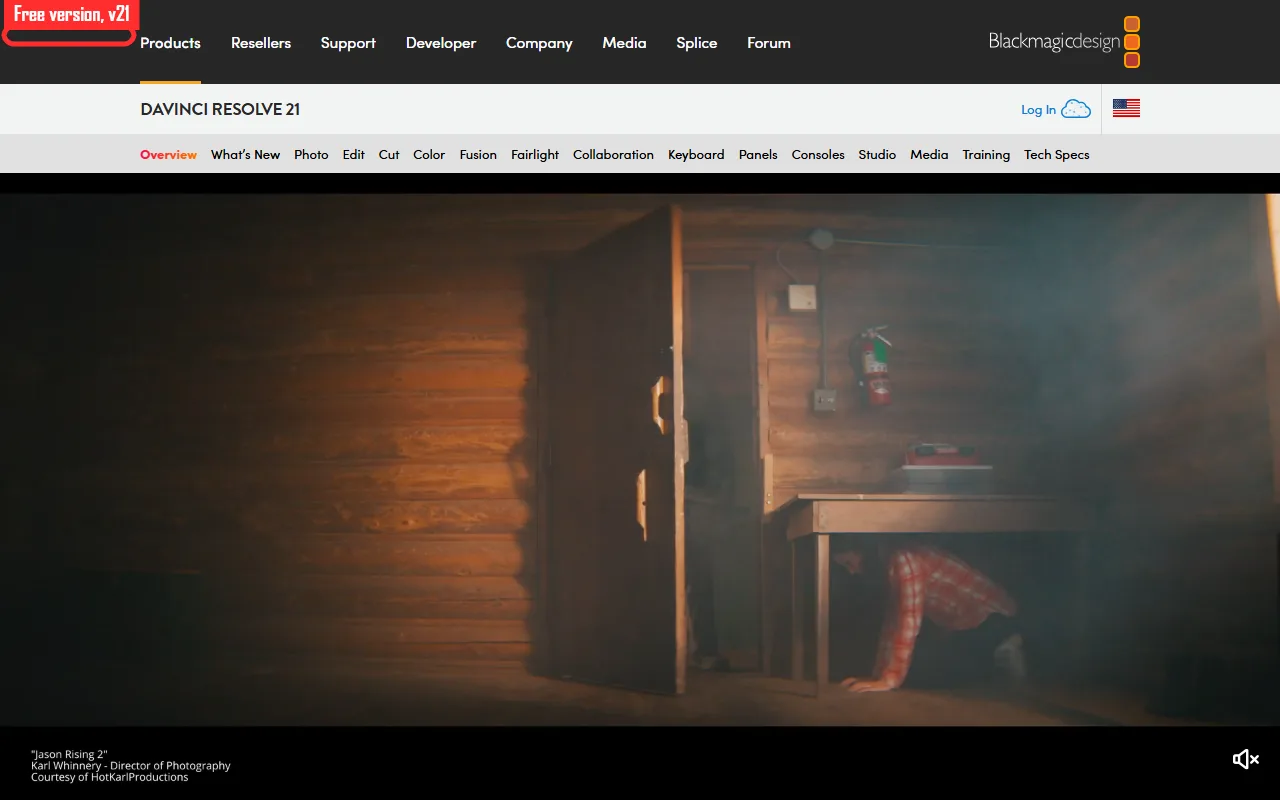 DaVinci Resolve 21, released in June 2026. The free edition is the full app, not a trial.
What makes it stand out is that the free version is genuinely complete, not a trial. There is no watermark, no export time limit, and no nag screen, and you can export up to full 4K UHD without paying a cent. The AI is real too: Magic Mask tracks and isolates a subject without a green screen, voice isolation strips background noise, and auto color grades a shot in one click. These run on the free tier, not behind the paid wall, which is rare for AI features this capable.
It is the best fit for anyone who wants to learn real editing and color work and never outgrow the tool, since the same app scales from a phone clip to a feature film.
Where it falls short: the learning curve is steep. The interface is built around seven separate "pages" (Cut, Edit, Color, Fusion, and more), and a first-time editor will feel lost for an afternoon. It is also heavy: it wants a capable GPU and a lot of RAM, and it stuttered on my older laptop until I dropped the timeline to half resolution. And the most advanced AI and effects (some Neural Engine tools, higher than UHD export, multi-user collaboration) are reserved for the paid Studio version, a one-time $295 license rather than a subscription.
Pros: No watermark, 4K free export, professional color and audio, real AI tools, one-time paid option. Cons: Intimidating for beginners, demands strong hardware, top AI features are Studio-only.
Try it at DaVinci Resolve.
2. CapCut: Best for Short-Form Social Video
CapCut, owned by TikTok's parent company ByteDance, has quietly become the default editor for anyone making Reels, Shorts, and TikToks. The free desktop app is the part people underestimate: it is a real multi-track editor, not a stripped phone app, and it exports with no watermark up to 4K.
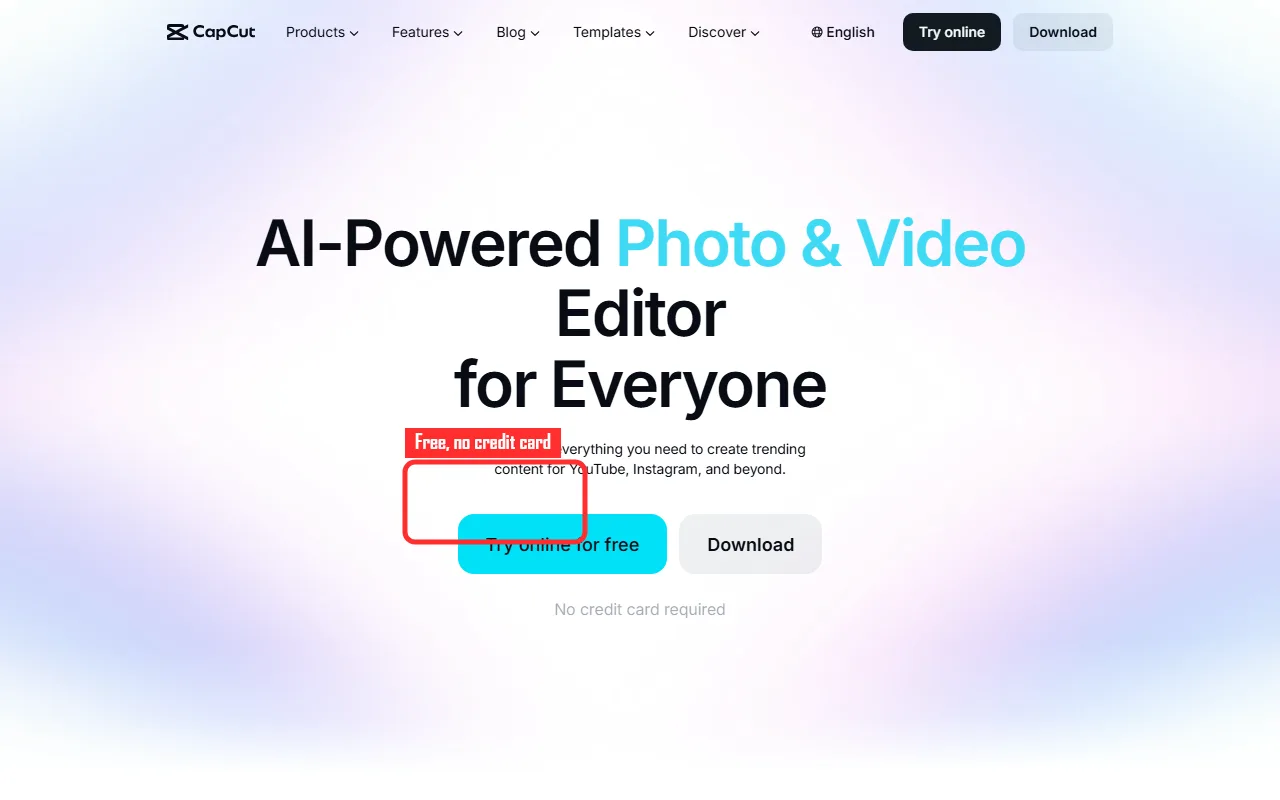 CapCut leads with a free online editor and a no credit card promise, and the desktop app exports clean up to 4K.
Its strength is speed for vertical video. The trending-template library lets you drop your clips into a structure that is already pacing-tested, and the AI auto-captions are accurate and fast, which is the single most time-saving feature for talking-head social content.
If you post short vertical video daily and want trending formats without building each edit from scratch, this is where I would start.
Where it falls short: the free AI is metered. Auto-captions are capped at 10 minutes of video per project on the free tier, and cloud storage is limited to 1 GB, so longer projects push you toward Pro. A growing number of the flashier effects, transitions, and AI tools are also marked premium and locked behind the roughly $9.99 a month Pro plan. There is also the ByteDance data question: if your content is sensitive or brand-regulated, the ownership is worth a second thought before you commit your workflow to it.
Pros: No watermark, up to 4K, excellent auto-captions, huge template and effect library, easy learning curve. Cons: AI features metered on free, 1 GB cloud cap, some effects paywalled, ByteDance ownership concerns.
Try it at CapCut.
3. Microsoft Clipchamp: Best for Fast, Simple Edits on Windows
Clipchamp is Microsoft's video editor, built into Windows 11 and free with any Microsoft account. It is the tool I reach for when I need something cut and exported in fifteen minutes with zero fuss, and it is the most beginner-friendly traditional timeline editor on this list.
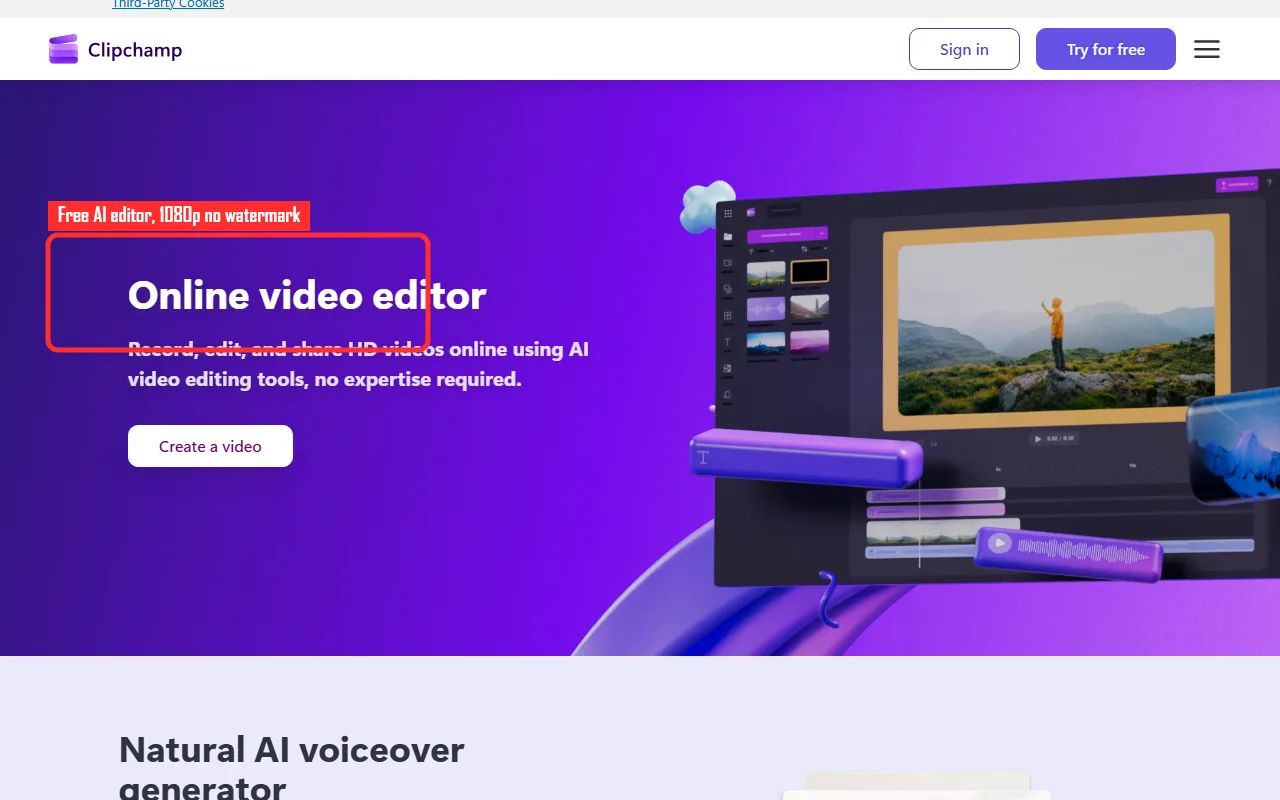 Clipchamp markets a free AI editor that records, edits, and exports HD video with no expertise required.
What sets it apart is how clean the free tier is for casual work. You get a normal drag-and-drop timeline, a library of free stock video and audio, AI text-to-speech in a range of voices, and an auto-compose feature that roughs out an edit for you. Crucially, the free plan exports at a clean 1080p with no watermark, which already puts it ahead of Kapwing and Runway for anyone publishing publicly.
Reach for Clipchamp if you are on Windows and need a quick presentation, a simple YouTube video, or a social clip without learning a heavy app.
Where it falls short: 1080p is the ceiling on free, so there is no 4K path the way DaVinci Resolve and CapCut offer. The editing toolkit is also deliberately shallow. There is no advanced keyframing, no real color grading, and the effects list is short, so it hits a wall fast on anything ambitious. Some premium stock content and a few features lean on a Microsoft 365 subscription, and the whole thing is most comfortable inside the Microsoft and Edge ecosystem.
Pros: No watermark at 1080p, genuinely easy, free stock library, AI voice and auto-compose, built into Windows. Cons: Caps at 1080p, limited advanced editing, best inside the Microsoft ecosystem.
Try it at Microsoft Clipchamp.
4. Canva: Best for Non-Editors and Brand Templates
Canva is not a video editor first, it is a design platform that grew a very capable video tool, and that heritage is exactly why it works for people who do not think of themselves as editors. If you can move boxes around a slide, you can make a video in Canva.
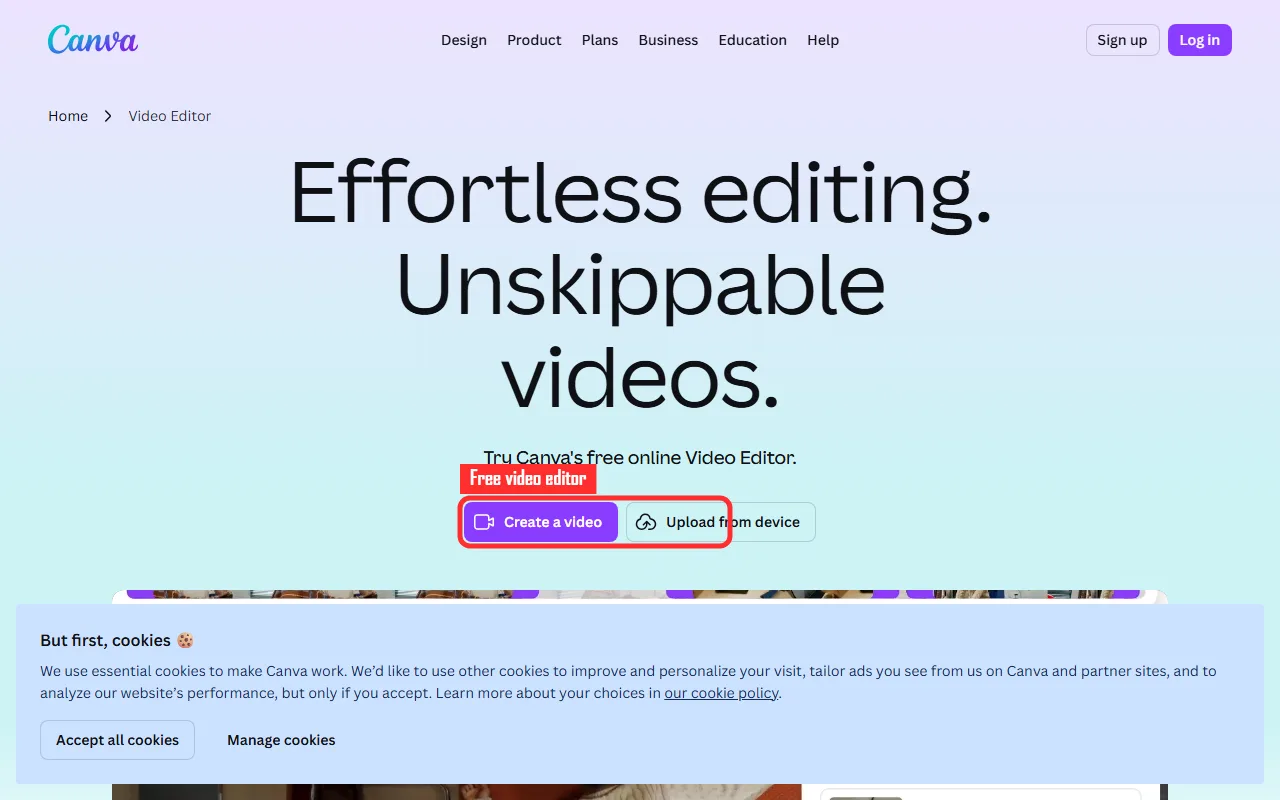 Canva pitches a free online video editor built around templates, so non-editors can start without a timeline.
Its differentiator is the template-and-brand system. You start from a designed template, swap in your footage and text, and the layout, fonts, and motion are already handled. The Magic Studio AI layer adds text-to-video generation, a one-click background remover, and auto-captions. For a small team that needs on-brand social clips fast, the shared brand kit is genuinely useful, and you can export at 1080p without a watermark as long as you stay on free elements.
It is the best fit for marketers, social managers, and small business owners who value speed and brand consistency over deep editing control.
Where it falls short: the watermark trap is real and easy to trigger. Export is clean only if every element in your design is free; the moment you drop in a Pro stock clip, a Pro graphic, or a premium font, the watermark or a paywall appears at export, and it is not always obvious which assets are premium until you hit the wall. The AI features also run on a limited free credit allowance, and Canva is a layout-first tool, so it lacks frame-accurate trimming and any real timeline precision. The full kit, including background remover and Pro assets, sits behind the roughly $15 a month Pro plan.
Pros: Easiest for non-editors, strong templates and brand kit, AI text-to-video and captions, 1080p clean export on free elements. Cons: Pro assets trigger a watermark, limited AI credits on free, not a precise timeline editor.
Try it at Canva.
5. Kapwing: Best for Browser-Based Quick Edits
Kapwing is a fully browser-based editor, which is its whole appeal: nothing to install, it runs on a Chromebook or a locked-down work laptop, and it is built for collaboration and fast repurposing of existing clips. It markets a stack of AI tools across captions, background removal, and more.
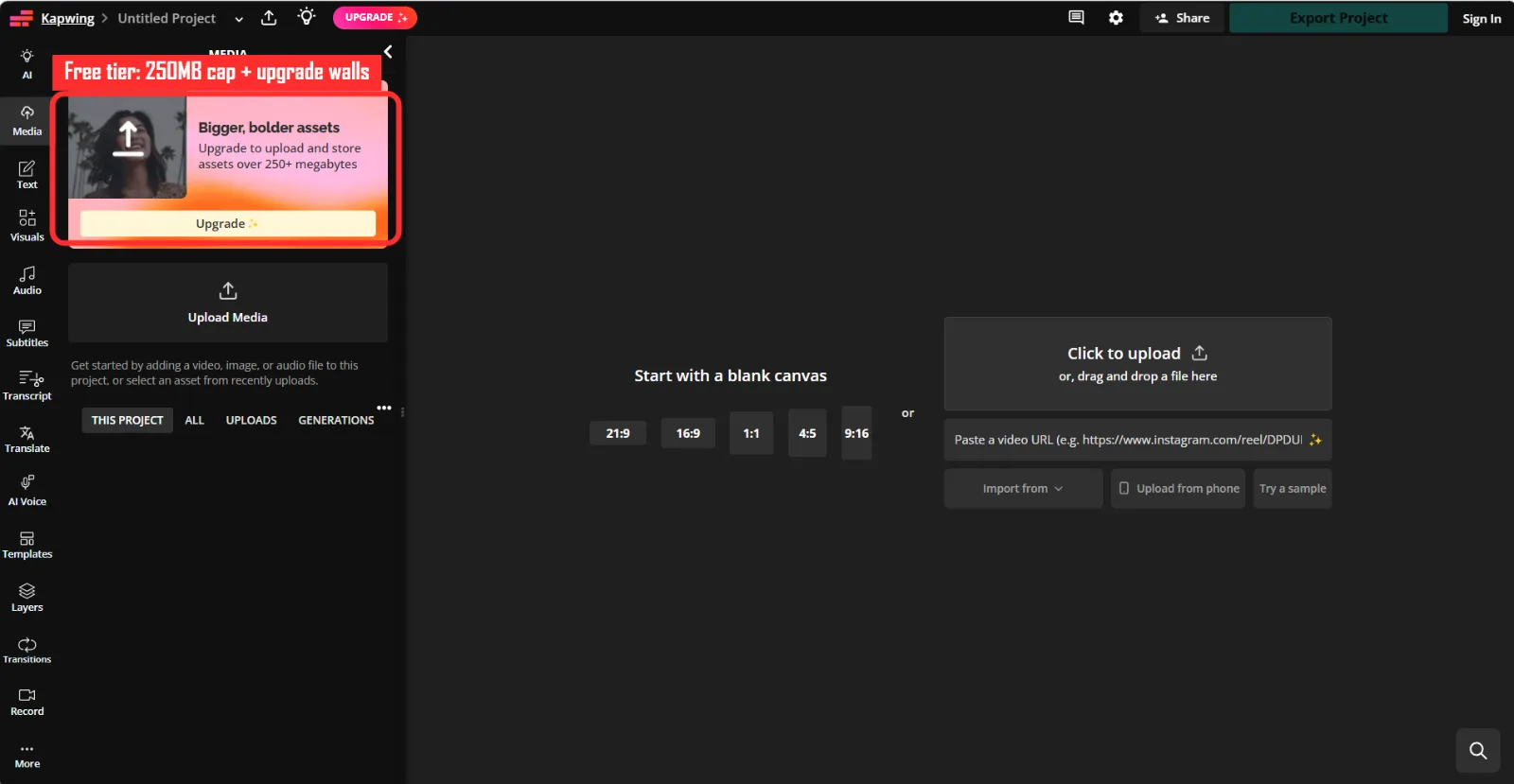 Inside Kapwing's free editor, the upgrade nudges start early, including a 250 MB asset cap on free workspaces.
The collaboration angle is the real strength. Multiple people can work in the same project link, and the repurposing tools (resize for every platform, auto-subtitle, clip a long video down) are quick. For a team that lives in the browser and needs to turn one video into ten platform versions, that workflow is smooth.
Browser-only teams and people who repurpose one piece of content across many channels will get the most out of it, as long as they do not need to publish in high resolution.
Where it falls short: this is the most restrictive free tier on the list, and I want to be blunt about it. The free plan exports at 720p only, stamps a Kapwing watermark on the output, and caps each export at 1 minute in length. On top of that, free workspaces cap uploads at 250 MB, allow only 3 projects per folder, and delete projects after 3 days, and the AI tools you came for are mostly walled, with only 10 minutes of auto-subtitles a month included. In practice the free tier is a demo, not a publishing tool, and real use starts at the $24 a month Pro plan, the steepest paid entry point here.
Pros: Nothing to install, strong collaboration, fast multi-platform repurposing, works on any device. Cons: Watermark on free, 720p ceiling, 1-minute export cap, 3-day project deletion, most AI walled, expensive Pro.
Try it at Kapwing.
6. Runway: Best for Generative AI Video and VFX
Runway is the odd one out, and I included it on purpose. It is not a traditional timeline editor; it is a generative AI studio. Instead of cutting footage you shot, you generate footage from a text description or an image, and you reach for it when you need a shot that does not exist or a VFX trick that would take hours by hand.
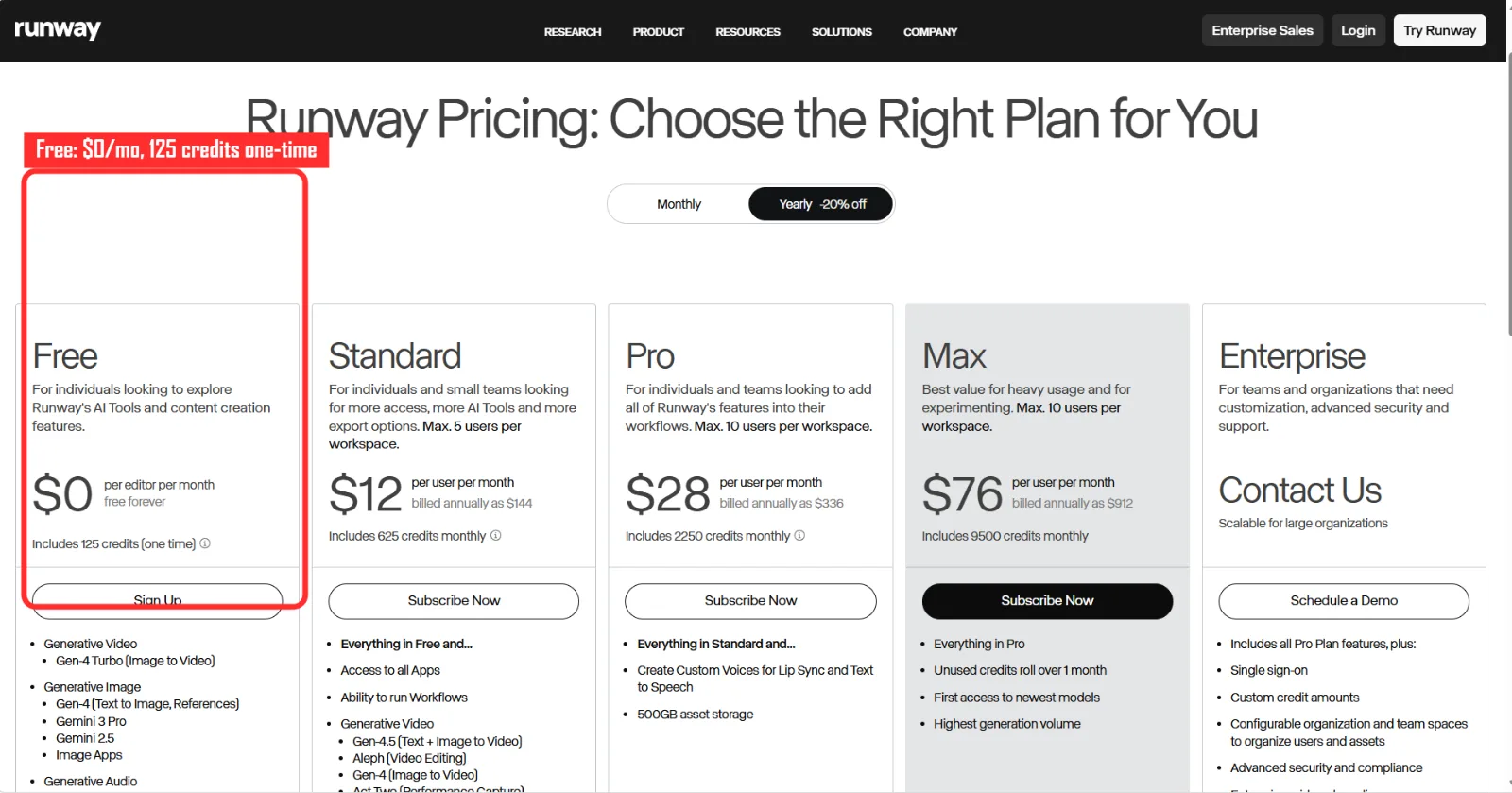 Runway's free plan gives a one time pool of 125 credits before the paid Standard plan at $12 a month.
Its standout is the Gen-4 model family plus a genuinely useful set of AI editing tools: green screen without a green screen, inpainting to remove objects, and a motion brush to animate stills. For B roll you cannot film, surreal transitions, or quick concept shots, nothing else on this list competes.
It is the best fit for creators and editors who need generative shots or AI VFX as a supplement to a main editor, not as their only tool.
Where it falls short: the free tier is the most limited form of "free" here, and the structure catches people out. You get 125 one-time credits that do not refresh monthly, which works out to roughly 5 seconds of the top Gen-4.5 model or about 25 seconds of the cheaper Gen-4 Turbo, and then they are simply gone. Every free generation comes out at 720p with a Runway watermark. It is also not a replacement for an editor: you still need somewhere to assemble the shots. Removing the watermark and getting 1080p means the Standard plan at $12 a month for 625 monthly credits.
Pros: Best-in-class generative video, real AI VFX (green screen, inpainting, motion brush), creates shots you cannot film. Cons: Free credits are one-time and tiny, 720p with watermark on free, not a full editor, credits burn fast.
Try it at Runway.
7. Movavi Video Editor: Best for Easy, Beginner-Friendly Desktop Editing
Movavi has spent two decades on a single goal: making editing feel approachable for people who have never touched a timeline. The result is a desktop editor for Windows and Mac that takes you from raw clips to a finished video without the afternoon-long learning curve that scares beginners off DaVinci Resolve. If you have been putting off editing because the "real" apps look intimidating, this is a gentle place to start.
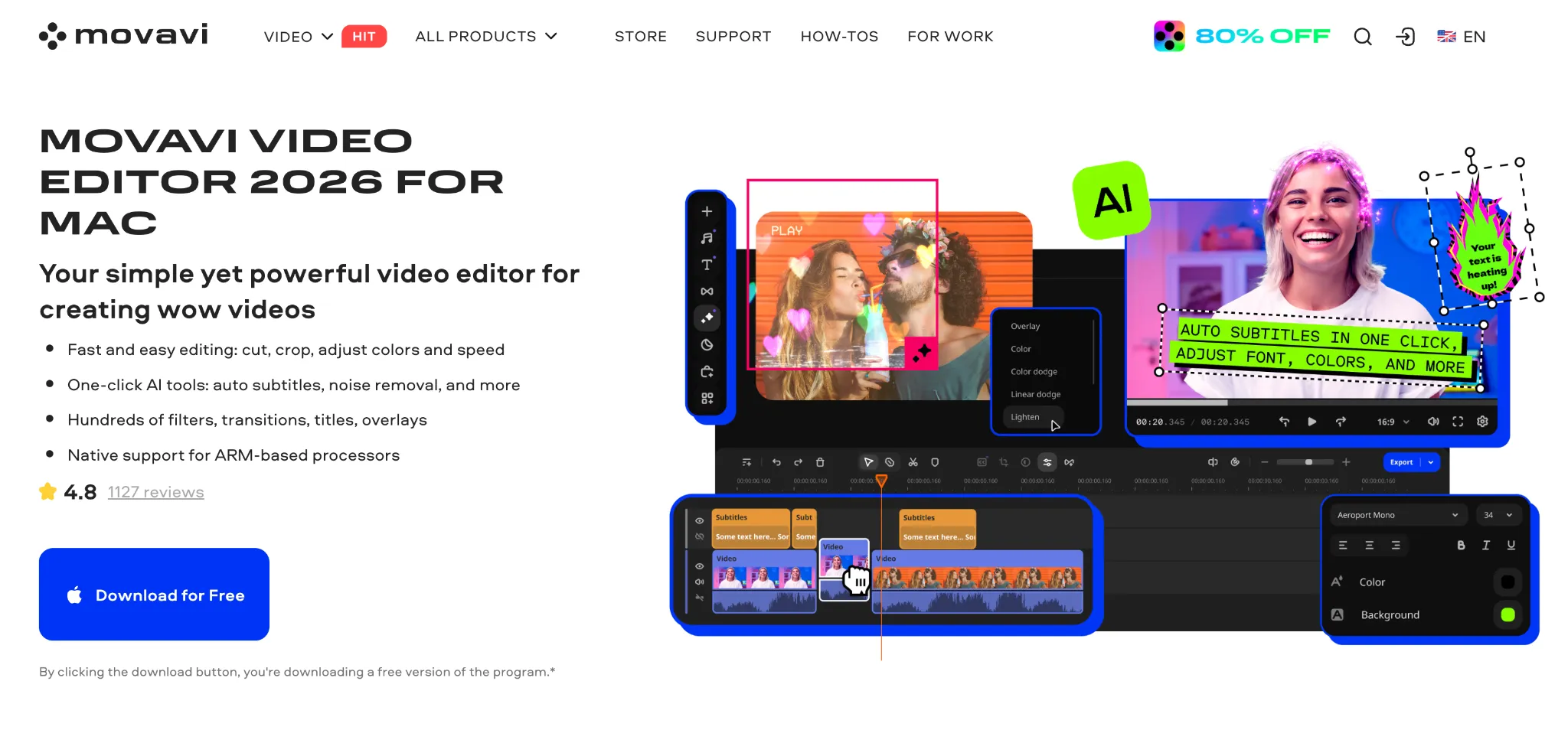 Movavi Video Editor 2026 leads with a friendly, beginner-first interface and one-click AI tools.
What makes it click is how much the AI carries for you, all one click deep. Auto-subtitles transcribe your speech in almost any language, and the newer subtitle highlighting lights each word up as it is spoken. The auto-tracked cropping is the standout: it follows your subject and reframes the shot automatically, so turning a horizontal interview into a clean vertical Reel takes seconds instead of manual keyframing. Add AI motion tracking, one-click background removal, and noise removal, and a first-time editor can turn out something genuinely polished.
Reach for Movavi if you are newer to editing, want the AI to handle the fiddly parts, and would rather have a friendly desktop app than a pro suite.
Where it falls short: here is the honest catch. Movavi is paid software, and its free download is a 7-day trial, not a free tier. Trial exports carry a watermark and are capped at 60 seconds, with some features locked at export. That lands it in the same "try before you pay" bucket as Kapwing and Runway rather than alongside the genuinely-free DaVinci Resolve.
Pros: Very beginner-friendly, strong one-click AI (auto-crop, subtitle highlighting, motion tracking, background and noise removal), Windows and Mac, gentle learning curve. Cons: Not genuinely free, 7-day watermarked trial only, export cap on the trial, not a pro suite.
Try it at Movavi Video Editor.
Blackmagic LUTs for Color Grading
Once the edit is finished, color is often the next step, especially for footage shot in flat or log profiles. FixThePhoto Blackmagic LUTs can provide a useful starting point for adjusting contrast, tones, and overall color before making more precise corrections manually.
The LUTs use the widely supported .cube format and can be imported into DaVinci Resolve as well as other common video editors. They are most useful as a base look rather than a finished grade, since exposure, white balance, and individual shots will usually still need some adjustment.
How to Choose the Right Free AI Video Editor
The honest answer is that the best free AI video editor depends entirely on what you are trying to make, so here is the decision shortcut from my testing.
If you want to learn real editing and never hit a ceiling, install DaVinci Resolve and accept the learning curve. If you make daily short-form social video, CapCut is the fastest path and the captions alone save you hours. If you are on Windows and just need something simple done quickly, Clipchamp is the lowest-friction option that still exports clean. If you do not consider yourself an editor and live on templates, Canva will feel the most natural, just watch the Pro-element watermark trap.
If you work entirely in a browser and repurpose content across platforms, Kapwing's collaboration is strong, but go in knowing the free tier is a demo and budget for Pro if you publish. And if you need shots that do not exist, Runway is the generative supplement to keep alongside whichever editor you pick, not a standalone.
A useful pattern from my own workflow: pair a strong free editor (DaVinci Resolve or CapCut) with a generative tool (Runway) for the occasional impossible shot. You get a complete pipeline for the cost of nothing but the learning time.
Conclusion
There has never been a better year to edit video for free. DaVinci Resolve gives you a professional suite with no watermark and no catch, CapCut and Clipchamp cover fast social and simple edits cleanly, Canva makes it approachable for non-editors, and Kapwing and Runway fill the browser and generative niches as long as you understand their free-tier limits going in. Start with the one that matches the work in front of you, test the export before you commit a real project to it, and you will rarely need to reach for your card.