 ChatGPT
 Perplexity
 Claude
 Gemini
 Grok
Grok



"Best free AI video tool" is one of those searches that sounds simple and turns out to be a minefield. Nearly every tool advertises a free plan, then quietly attaches the real cost: a watermark burned into the corner, a daily credit pool that runs dry after two clips, a five-second cap, or a license that forbids using the result for anything commercial. By mid-2026 the AI video space has exploded, and the gap between tools that are usefully free and tools that are free-as-a-demo has only grown.
So this is not a roundup of every tool with a free button. We tested the current options and picked five that genuinely earn their place, across three different jobs: generating clips from a prompt, editing footage with AI, and creating talking-avatar videos. For each one you will find what the free tier actually gives you, where the watermark and commercial-use catches hide, and who it suits best. There is a quick-compare table up top, then the verdicts.
What Makes a Free AI Video Tool Actually Useful
Before the picks, it helps to know what separates a real free tool from a trial in disguise. Five things decide whether "free" is worth your time.
The first is the credit or generation cap. Generative tools meter you in credits or daily runs. Some refill a generous pool every day; others give you a handful of clips total. A low cap is fine for one experiment and useless for steady output.
The second is the watermark. A visible logo across the frame makes a clip unusable for most real purposes. This is the single most common free-tier catch in AI video, far more than in still images, so check it before you invest time in a tool.
The third is the clip length and resolution. Many free tiers cap you at five seconds and 720p. That is enough to test an idea, not enough to publish a finished piece.
The fourth is commercial-use rights. This is the one most people miss. Several free tiers explicitly forbid commercial use even when the output has no watermark, so a clip that looks ready to post may not be licensed for a paid campaign. If you are creating for a business, read this column first.
The fifth is the job itself. "AI video tool" covers three very different tasks: generating a clip from text or an image, editing real footage, and producing an avatar or talking-head video. The best free pick depends entirely on which of those you need, which is why the list below spans all three.
The Best Free AI Video Tools at a Glance
Here is how the five tools compare on the factors that decide most choices. Free limits, watermarks, and prices reflect each tool's plans as of June 2026 and can change.
| Tool | Best for | Free-tier limit | Watermark (free) | Commercial use (free) | Paid from |
|---|---|---|---|---|---|
| CapCut | All-in-one AI editing | Generous; some AI templates capped | Clean on manual exports; some AI templates marked | Limited license (personal / small business) | ~$9.99/mo (Pro) |
| Google Veo 3 | Generation quality | Daily limit via Gemini | None visible (SynthID metadata) | Allowed (check terms) | $19.99/mo (AI Pro) |
| Kling AI | Cinematic clips | ~66 credits/day (~6 clips) | Yes | Not on free tier | $6.99/mo (Standard) |
| Luma Dream Machine | Image-to-video | ~30 generations/mo | Yes | Not on free tier | ~$29.99/mo |
| HeyGen | AI avatars | 3 videos/mo, 1 min, 720p | Yes | Not on free tier | $29/mo (Creator) |
A quick read: if you want to edit and finish a video, CapCut is the only true all-in-one here. For raw generation quality, Veo leads. Kling gives the most generous daily generation pool, Luma is the image-to-video specialist, and HeyGen owns avatars. The rest of the article explains the trade-offs.
How We Compared
We tested each tool in June 2026 on the job it is built for rather than forcing them all through one workflow. For the three generators (Veo, Kling, Luma) we ran the same prompt, "a calm seaside town at sunrise, slow cinematic camera push-in," and an image-to-video pass from the same still. CapCut we judged as an editor and AI-assistant, and HeyGen as an avatar tool, since that is what each does.
We scored five things: output quality and prompt accuracy, the real free-tier cap, watermark presence, clip length and resolution limits, and commercial-use rights as written in each tool's current terms. We also captured each tool's live interface so you know what you are walking into. To check our impressions against a larger sample, we cross-referenced crowd ratings on G2's AI video generators category, which collects thousands of verified user reviews.
One note on fairness: "best" depends on the job. A tool that wins for a marketer making a talking-head explainer is not the right pick for someone generating a cinematic b-roll clip. The "Best for" label on each entry is doing real work, so match it to your own use case.
The 5 Best Free AI Video Tools
1. CapCut: Best All-in-One Free AI Video Maker
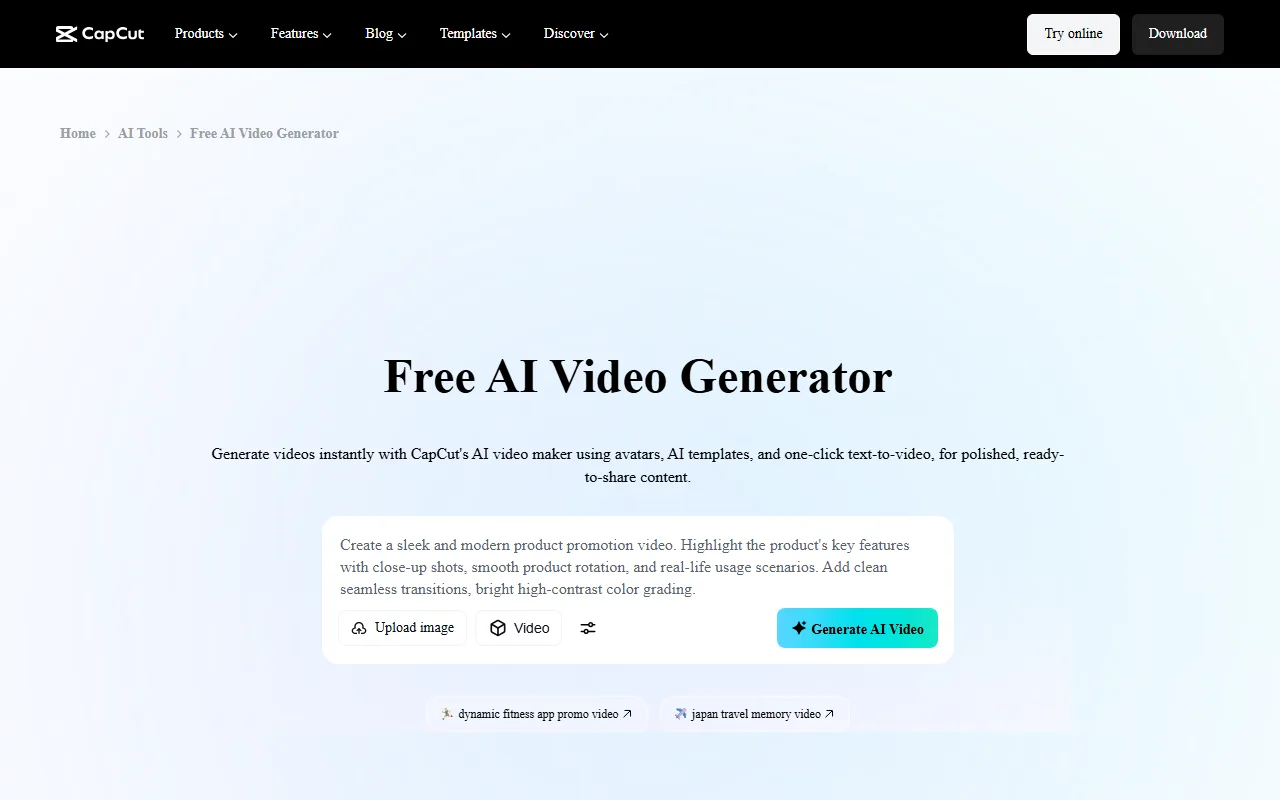 CapCut combines a full timeline editor with AI tools in one free web app.
Most tools on this list generate clips. CapCut is the one that helps you actually finish a video. It pairs a genuinely capable timeline editor with a stack of AI features (auto-captions, auto-cut, background removal, AI effects), so you can take raw footage or generated clips and turn them into something publishable without leaving the app. For most people whose real job is "make a finished video," not "generate a five-second clip," this is the most practical free pick.
The free tier is unusually generous for an editor. Standard edits exported from the manual timeline come out clean at up to 1080p, with no watermark, which already beats every pure generator here. The catches are on the AI side: features like AI Auto-Edit are capped (around five uses a month), and some AI-template and premium-effect exports carry a non-commercial watermark until you upgrade.
Who it is for: creators and small businesses who need to edit and finish videos, add captions, and polish clips, all without paying. As one of the most widely used video editors in the world, it also has the deepest tutorial ecosystem if you get stuck.
The main limitation is that its text-to-video generation is weaker than the dedicated generators below, and the free commercial license is limited to personal and small-scale business use. Heavy client or ad work needs CapCut Pro.
Pros: real timeline editor plus AI tools; watermark-free manual exports at 1080p; huge tutorial base; no time limit on the free plan. Cons: AI features are capped on free; some AI-template exports are watermarked; generation quality trails dedicated tools.
Pricing: Free with a robust feature set; CapCut Pro starts around $9.99/month (regional pricing varies) for 4K, full commercial license, and watermark-free AI templates.
Try it at CapCut.
2. Google Veo 3: Best Free Generation Quality
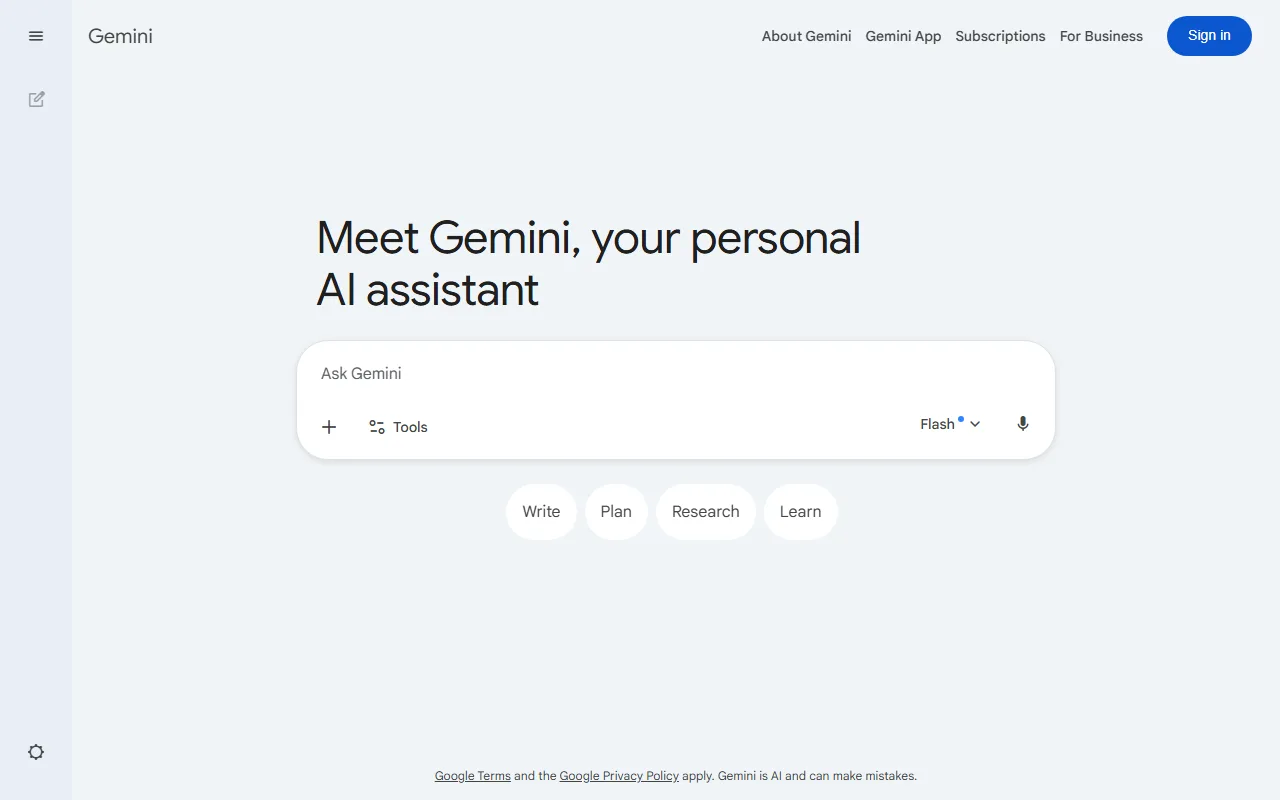 Veo 3 is available free through the Gemini app, with a daily generation limit.
If your priority is raw quality, Google's Veo 3 is the one to beat in 2026. Available free through the Gemini app, it produces clips with the most coherent motion, lighting, and native audio of anything we tested, and it handled our seaside prompt with cinematic camera movement that the others could not match. It reads plain-language prompts well, so you do not need prompt tricks to get a clean result.
The free path runs through Gemini, which applies a daily generation limit rather than a watermark. Exports on supported flows carry no visible watermark, though Google embeds its invisible SynthID marker to flag the clip as AI-made. You need a Google account to start.
Who it is for: anyone who wants the highest-quality generated clip and can work within a daily cap. It is the strongest default for short cinematic b-roll, concept shots, and social clips.
The limitations are the daily cap, which depletes faster than Kling's credit pool, and limited fine control compared with a tool built for power users. The newest models and higher limits sit behind Google AI Pro.
Pros: top-tier motion and native audio; no visible watermark; reads natural-language prompts; reliable cinematic results. Cons: daily generation limit; needs a Google account; little fine-grained control.
Pricing: Free through the Gemini app with a daily limit; higher limits and newer models come with Google AI Pro at $19.99/month.
Try it at Google Gemini.
3. Kling AI: Best Free Tier for Cinematic Clips
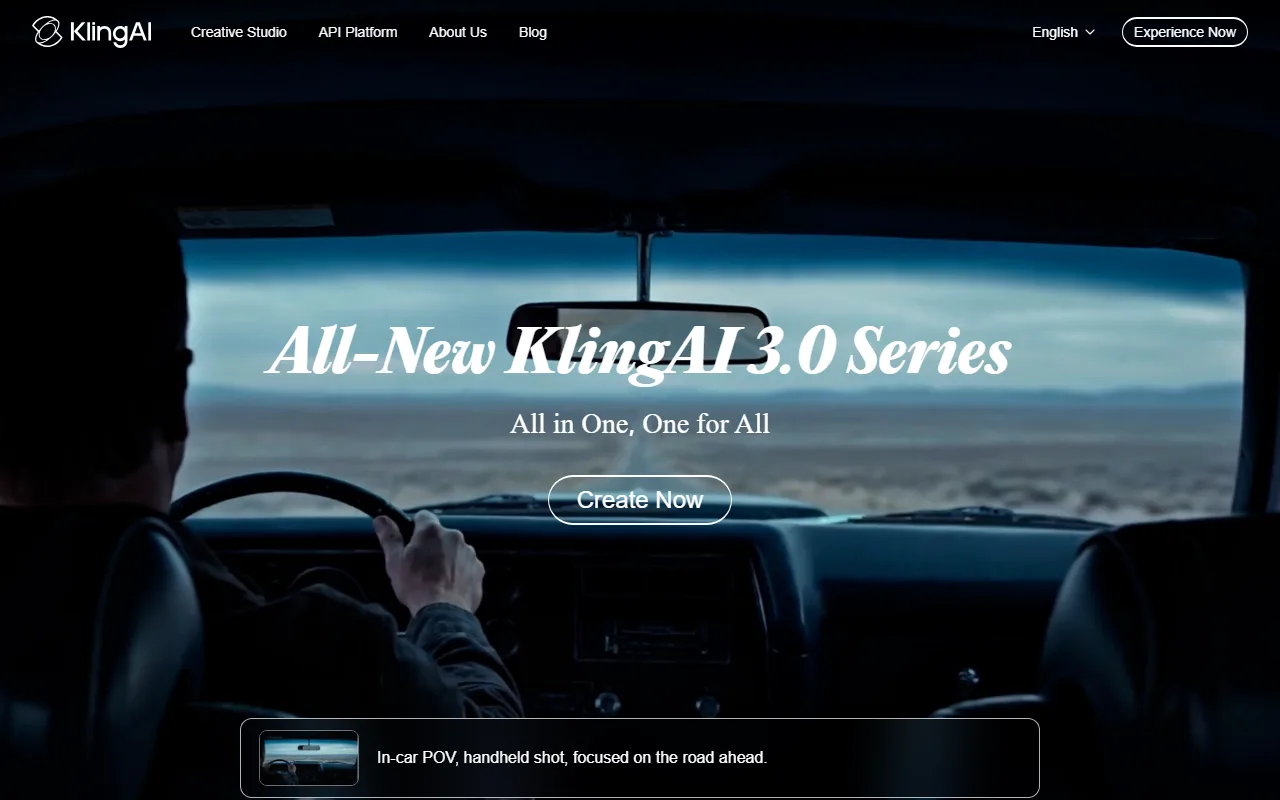 Kling AI gives free users a daily pool of credits for text-to-video and image-to-video.
Kling has held one of the most generous recurring free tiers in AI video, which makes it the best pick when you want to generate a lot and experiment daily. The free plan refills roughly 66 credits every day, enough for about six short clips, and Kling's output is genuinely cinematic, with strong instruction-following, camera continuity, and multi-shot storyboards in its newer versions.
The trade-offs are clearly drawn. Free clips carry a visible Kling watermark, are capped at five seconds and 720p, and, importantly, are not licensed for commercial use. So Kling free is excellent for ideation and practice, but a clip you actually want to publish for a business needs a paid plan.
Who it is for: creators who want the highest volume of free cinematic generations per day and are fine with watermarked, personal-use clips while they experiment.
The main limitation, beyond the watermark, is the five-second free cap, which rules out longer sequences without stitching and upgrading.
Pros: generous ~66 daily credits; strong cinematic quality and camera control; both text-to-video and image-to-video on free. Cons: visible watermark on free; five-second and 720p caps; no commercial use without paying.
Pricing: Free with daily credits; the Standard plan (watermark-free plus a commercial license) starts at $6.99/month.
Try it at Kling AI.
4. Luma Dream Machine: Best for Image-to-Video
 Luma Dream Machine specializes in turning a single still image into smooth motion.
When the job is "bring this image to life," Luma Dream Machine is the specialist. Its Ray models are particularly good at image-to-video, producing smooth, natural motion from a single still, which makes it a favorite for animating product shots, illustrations, and photographs. The interface is clean and the results feel polished even on default settings.
The free plan is the most limited on this list in volume. You get roughly 30 generations a month, the output is watermarked, and commercial use is not permitted on free. That makes Luma free a try-before-you-buy tier rather than a daily driver: enough to test whether its image-to-video quality fits your project, not enough to run a content pipeline.
Who it is for: anyone whose core need is animating still images, and who wants to sample best-in-class image-to-video before committing to a paid plan.
The main limitation is simply the small monthly free allowance, paired with the no-commercial-use rule, which together push any serious user to upgrade quickly.
Pros: excellent image-to-video motion; clean, beginner-friendly interface; strong quality on defaults. Cons: only ~30 free generations a month; watermarked free output; no commercial use on free.
Pricing: Free with ~30 generations a month; paid plans with watermark-free output and commercial rights start around $29.99/month.
Try it at Luma Dream Machine.
5. HeyGen: Best Free Tier for AI Avatars
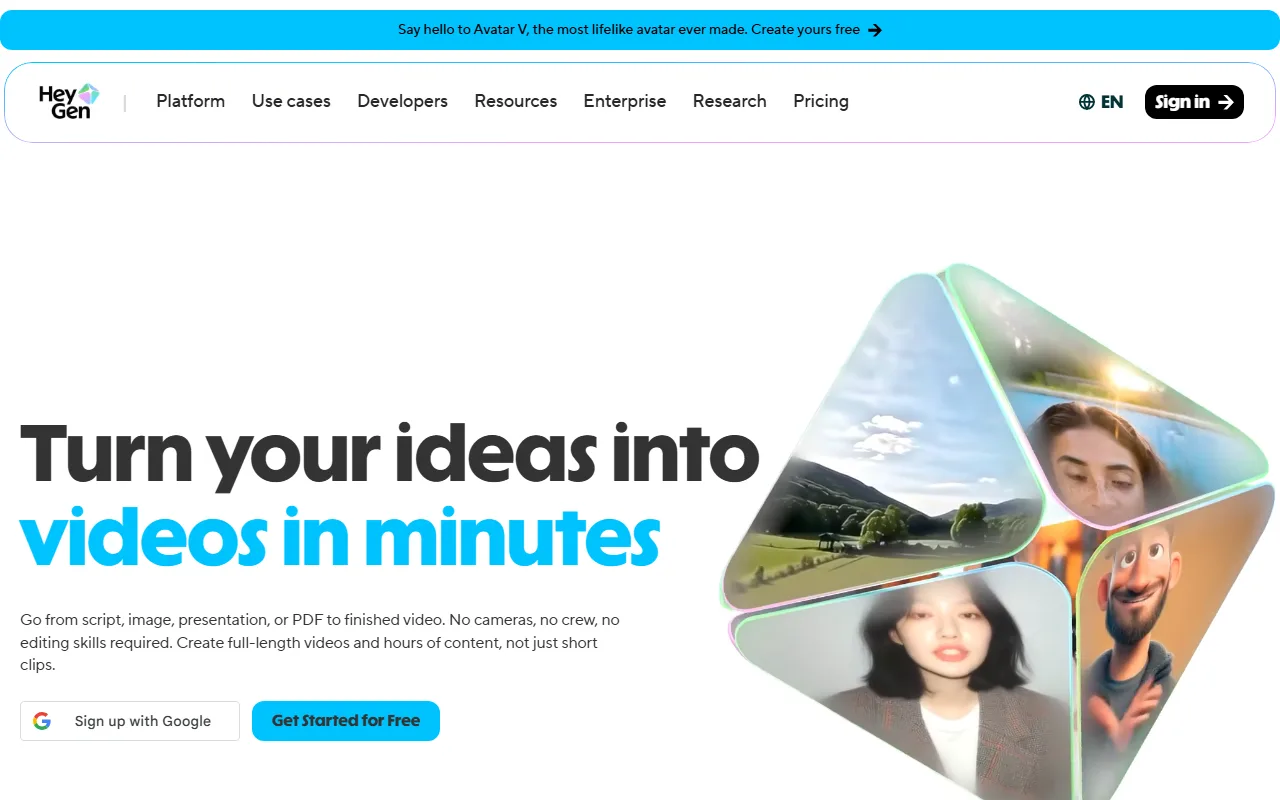 HeyGen turns a script into a talking-avatar video, with a free tier for testing.
If the video you need is a person talking to camera, a spokesperson, a training clip, a product explainer, the generators above are the wrong tool, and HeyGen is the right one. It turns a typed script into a talking-avatar video, with a large library of avatars, voice cloning, and support for 175-plus languages, which makes it the go-to free option for faceless or multilingual talking-head content.
The free plan is built as a trial. You get three videos a month, each capped at one minute and 720p, with a HeyGen watermark on every export. It is enough to test whether avatar video fits your use case and to produce the occasional short clip, but the monthly cap is tight.
Who it is for: marketers, educators, and teams who need talking-head or spokesperson videos without filming, and want to test the format before paying.
The main limitation is the strict free cap (three one-minute videos a month with a watermark), which makes HeyGen free a sampler rather than a production tool. Removing the watermark and unlocking volume requires the Creator plan.
Pros: best free path to talking-avatar video; 175-plus languages and voice cloning; no filming or editing needed. Cons: only three one-minute videos a month on free; watermark on every free export; real use needs a paid plan.
Pricing: Free for three videos a month; the Creator plan (unlimited videos, watermark-free, plus monthly credits) starts at $29/month.
Try it at HeyGen.
How to Choose the Right Free AI Video Tool
The best free AI video tool for you comes down to the job, then the catch you can live with.
Start with the job. If you need to edit and finish a video, CapCut is the only true all-in-one here. If you need to generate a clip from a prompt, choose on quality versus volume: Google Veo for the best single result, Kling for the most free generations per day. If you need to animate a still image, Luma is the specialist. If you need a talking avatar, HeyGen is the pick.
Then check the catch that matters most to you. If a watermark is a dealbreaker, CapCut's manual exports and Veo's supported flows are your cleanest free options. If you need commercial rights on free output, the field narrows sharply: Kling, Luma, and HeyGen all reserve commercial use for paid plans, while CapCut's free license covers limited personal and small-business use and Veo's terms generally allow it (confirm for your case). For any paying client or business product, treat every free tier as a testing ground and verify the license before you ship.
Conclusion
There has never been a better time to make video with AI for free, but "free" still rewards reading the fine print. For most people in 2026, the right pick depends on the job: CapCut to edit and finish, Google Veo for the best generated quality, Kling for the most generous daily generation pool, Luma for image-to-video, and HeyGen for talking avatars.
Match the tool to your job, watch the watermark and the commercial-use terms, and you can produce real video without paying a cent. When a project outgrows the free limits, you will at least know exactly which tool is worth upgrading.