ChatGPT
 Perplexity
 Claude
 Gemini
 Grok
Grok


AI is now baked into every video editor, but "AI editing" means very different things from one tool to the next: auto-cutting a long recording, generating effects, or captioning a clip in seconds. The best software depends on which of those jobs you actually have. Full disclosure before the list: we build Pexo, and Pexo is not an editor. It generates a finished video from a brief, so we kept it out of the editor rankings and added it at the end as the one honest option for people who have no footage to edit in the first place. Everything ranked below is a genuine AI video editor, assessed on its documented features, workflow, and public reviews as of June 2026.
Here is how the seven stack up, and which job each one wins.
 AI is now built into the timeline of nearly every modern video editor, but each tool applies it to a different part of the job.
What Is AI Video Editing Software?
AI video editing software is a video editor that uses AI to speed up or automate parts of post-production on footage you already have: cutting, captioning, color, audio cleanup, or effects. You import a clip and the AI assists the edit. That is the key difference from an AI video generator, which creates footage from text or images; an editor works on existing video, a generator makes new video.
In practice the "AI" in these tools shows up in three flavors. Auto-editing removes filler words, silences, and bad takes, or assembles a rough cut from a transcript (Descript, CapCut). Generative effects add or change content: background removal, object removal, generative extend, AI masks (Runway, Premiere's Firefly, DaVinci's Magic Mask). Captioning and audio auto-transcribe, translate, and clean up sound (Veed, CapCut, Descript).
The limitation that trips people up is that "AI editor" promises more autonomy than it delivers. The AI accelerates specific tasks, but you still drive the timeline, make creative calls, and fix what the AI gets wrong. None of these tools watch your raw footage and hand back a finished film. Auto-captions still need a proofread, an AI rough cut still needs trimming, and a generative effect still needs to be directed shot by shot. They make a skilled editor faster; they do not replace the editor, and they all assume you already have footage to work with.
The Best AI Video Editors at a Glance
Here is the quick comparison. Pricing is verified as of June 2026; free tiers and plans change often, so check each official page before you buy.
| Tool | Best for | AI standout | Free tier | Paid from |
|---|---|---|---|---|
| Descript | Text-based editing | Edit video by editing the transcript | 1 hour/mo | $16/mo |
| CapCut | Free social editing | Auto-captions, templates, background removal | Generous free (1080p) | ~$9.99/mo |
| Adobe Premiere Pro | Professional editing | Firefly generative extend, text-based editing | Trial only | $22.99/mo |
| DaVinci Resolve | Color and free pro editing | Magic Mask, voice isolation | Full-featured free | $295 one-time (Studio) |
| Runway | AI generative effects | Gen-4, inpainting, motion brush | Trial credits | $12/mo |
| Veed.io | Browser editing and captions | Auto-subtitles in 125+ languages | Free (watermark) | ~$18/mo |
| Pexo | Skipping editing entirely (generate, not edit) | Makes a finished video from a brief | Free to start | $30/mo |
The table is the fast answer. The sections below explain why each landed where it did, with a look at each tool, honest limitations, and the job each one is genuinely best at.
How We Evaluated These Tools
We judged every editor on five factors that decide which one fits your work:
- AI editing features: what the AI actually automates (cuts, captions, effects, audio).
- Workflow: how fast you get from raw footage to a finished export.
- Learning curve: how usable it is for a beginner versus a pro.
- Export and quality: resolution caps, watermarks, format support.
- Price transparency: free tier limits and honest paid entry cost.
We assessed each editor on its documented capabilities and public reviews (G2, official feature pages), current as of June 2026, and we weighted the factors toward the job most people actually have rather than edge-case pro features. The one exception is the last entry: because we build Pexo, we describe plainly what it does and, just as plainly, what it does not do, since it is a generator rather than an editor and belongs in the conversation only for people who have nothing to edit yet.
The 7 Best Video Editing AI Software Tools
1. Descript, Best for Text-Based Editing
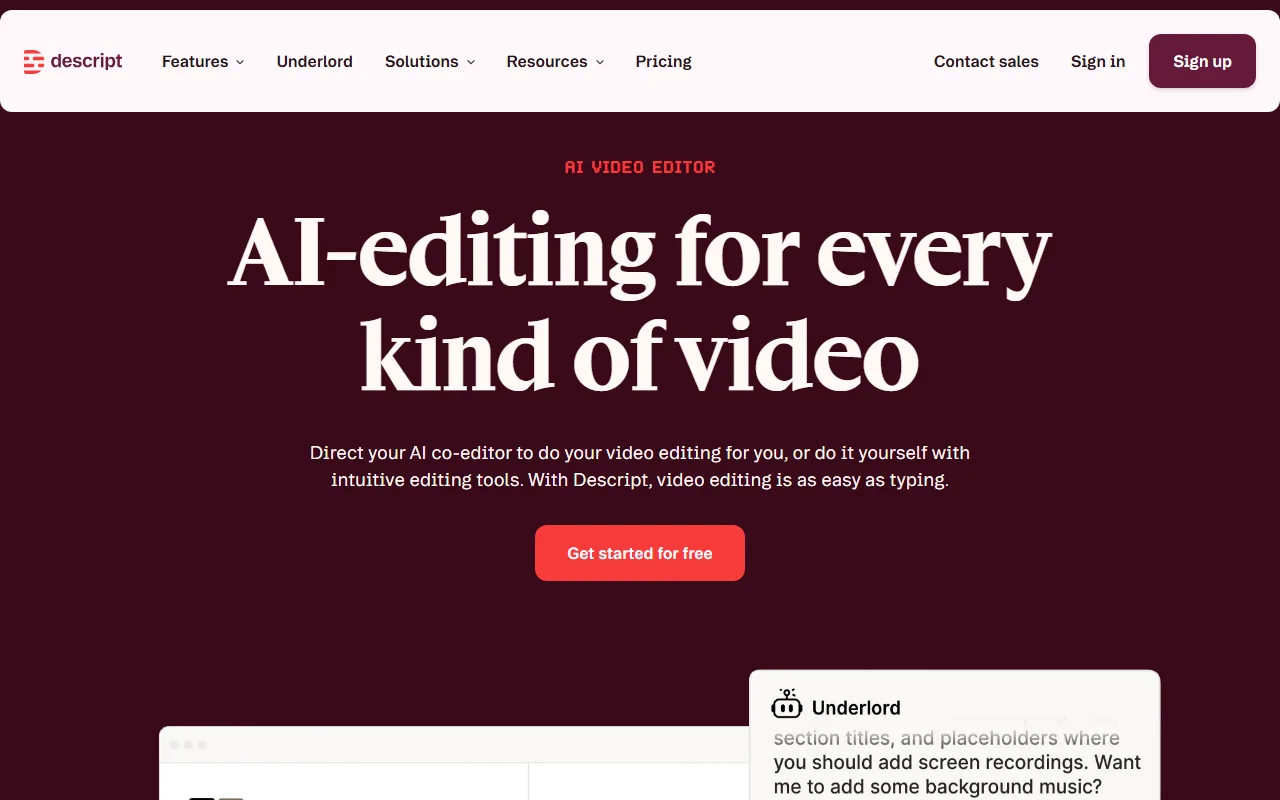 Descript's site, where you edit video by editing its transcript like a document.
Descript reinvented the editing workflow around the transcript. It transcribes your video, and you edit the footage by editing the text: delete a sentence and the matching video is cut, removing filler words ("um", "uh") across the whole project with one click. For talking-head content, podcasts, and tutorials, it is the fastest way to a clean cut, and it carries a strong reputation across G2 reviews as of June 2026.
Its AI standout is the text-based workflow plus extras like Studio Sound (one-click audio cleanup), Overdub (voice cloning to fix a flubbed line by typing), AI eye-contact correction, and Underlord, its AI assistant that can draft a rough cut, add chapters, and suggest titles. Built-in screen recording and one-click social exports make it a near-complete tool for tutorial and podcast creators. Who it is for: podcasters, course creators, and marketers editing spoken-word video who would rather work in a document than a timeline. Where it falls short: it is built for talking-head and screen-recording content, not cinematic, multi-track, or effects-heavy projects, and the free tier caps you at one hour of transcription per month, which a single long episode burns through. Pricing: free (1 hour/month, watermark on some exports); Hobbyist at $16/month (billed annually) with 10 hours/month; Creator and Business tiers add more transcription and stock. See Descript's pricing.
2. CapCut, Best for Free Social Editing
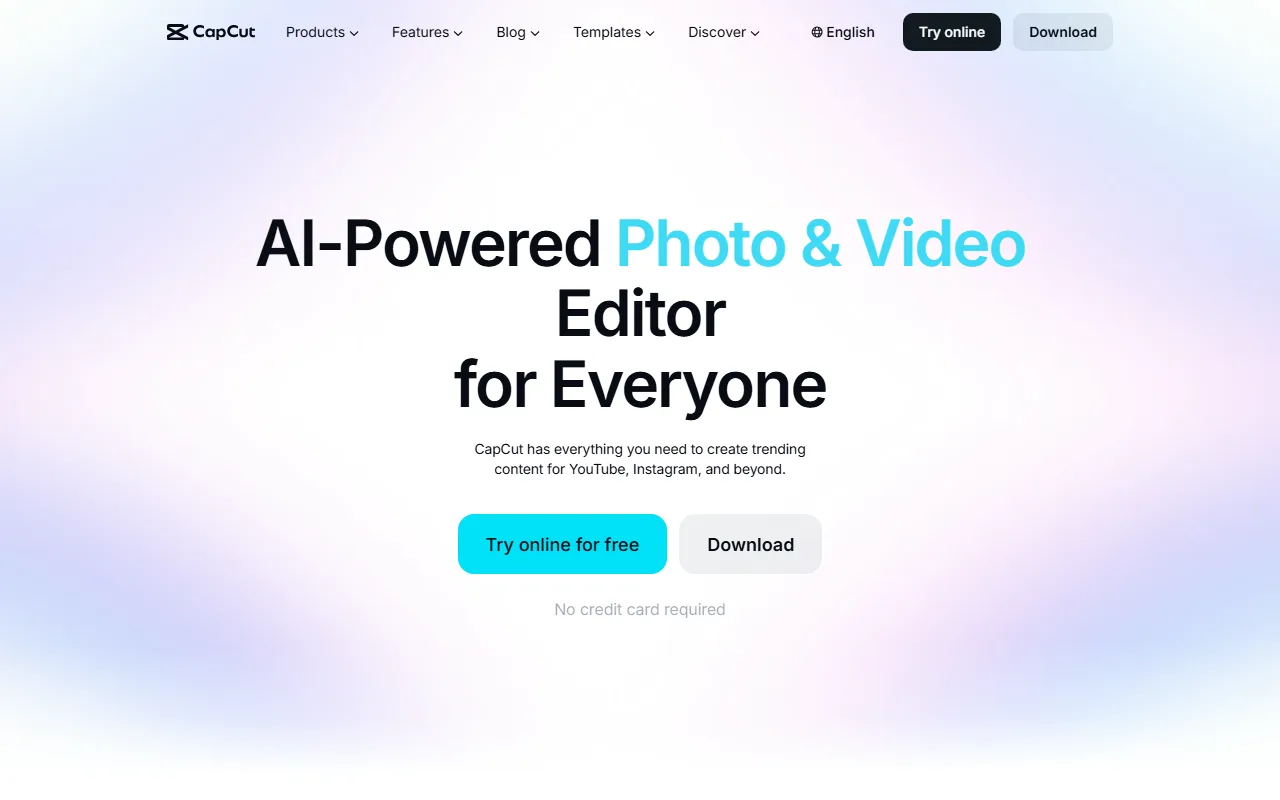 CapCut's site, the free editor built for fast social video.
CapCut is the default editor for social creators, and its free tier is unusually generous. You get the full timeline, transitions, keyframe animation, and a deep template library, plus AI auto-captions, background removal, auto-reframe for different aspect ratios, and text-to-speech, with 1080p export on the free plan. For TikTok, Reels, and Shorts, nothing else gives this much for free.
Its AI standout is the bundle of social-first automations (captions, reframe, background removal, text-to-speech) wrapped in a genuinely beginner-friendly UI, available on web, desktop, and mobile so you can start on your phone and finish on a laptop. With hundreds of millions of users worldwide, its template library is also the largest of any tool here. Who it is for: social media creators and small brands making short vertical video at volume, on a budget. Where it falls short: it is built for short social formats, not long-form or professional color and audio work; some premium templates and effects are paywalled; and because it is owned by ByteDance, some organizations have data-privacy and regional-availability concerns. Pricing: a generous free plan (1080p, most features); CapCut Pro at roughly $9.99/month unlocks premium effects, more cloud storage, and commercial assets. For the breadth of features per dollar, it is the best value of any tool here for social creators, and most users never need to pay at all. See CapCut's site for current plans.
3. Adobe Premiere Pro, Best for Professional Editing
 Adobe Premiere Pro, the industry-standard professional editor (logo shown; its workspace is a full multi-track timeline).
Premiere Pro is the industry standard for professional editing, and Adobe has layered Firefly AI throughout it. Generative Extend lengthens a clip by AI-generating extra frames, text-based editing assembles a rough cut from the transcript, and AI tools handle auto-captions, scene-edit detection, and speech enhancement. For serious, deadline-driven work with full creative control, it is the benchmark.
Its AI standout is the combination of Firefly generative tools inside a complete professional NLE, backed by Frame.io review workflows and the deepest format and plugin support of any tool here. It is the editor behind a large share of professional film, TV, and YouTube production, which is why agencies standardize on it. Who it is for: professional editors, agencies, and filmmakers who need full control, broad format support, and a deep effects ecosystem. Where it falls short: the learning curve is steep, it is demanding on your computer's hardware, and there is no free tier, only a trial, so the ongoing subscription is a real commitment for casual users. Pricing: no permanent free plan (7-day trial); the single-app subscription is $22.99/month (annual), and Creative Cloud All Apps costs more. It is the most expensive ongoing option here, but for professionals who bill for their work the cost is rarely the deciding factor against its capability and ecosystem. See Adobe's Premiere Pro page.
4. DaVinci Resolve, Best for Color and Free Pro Editing
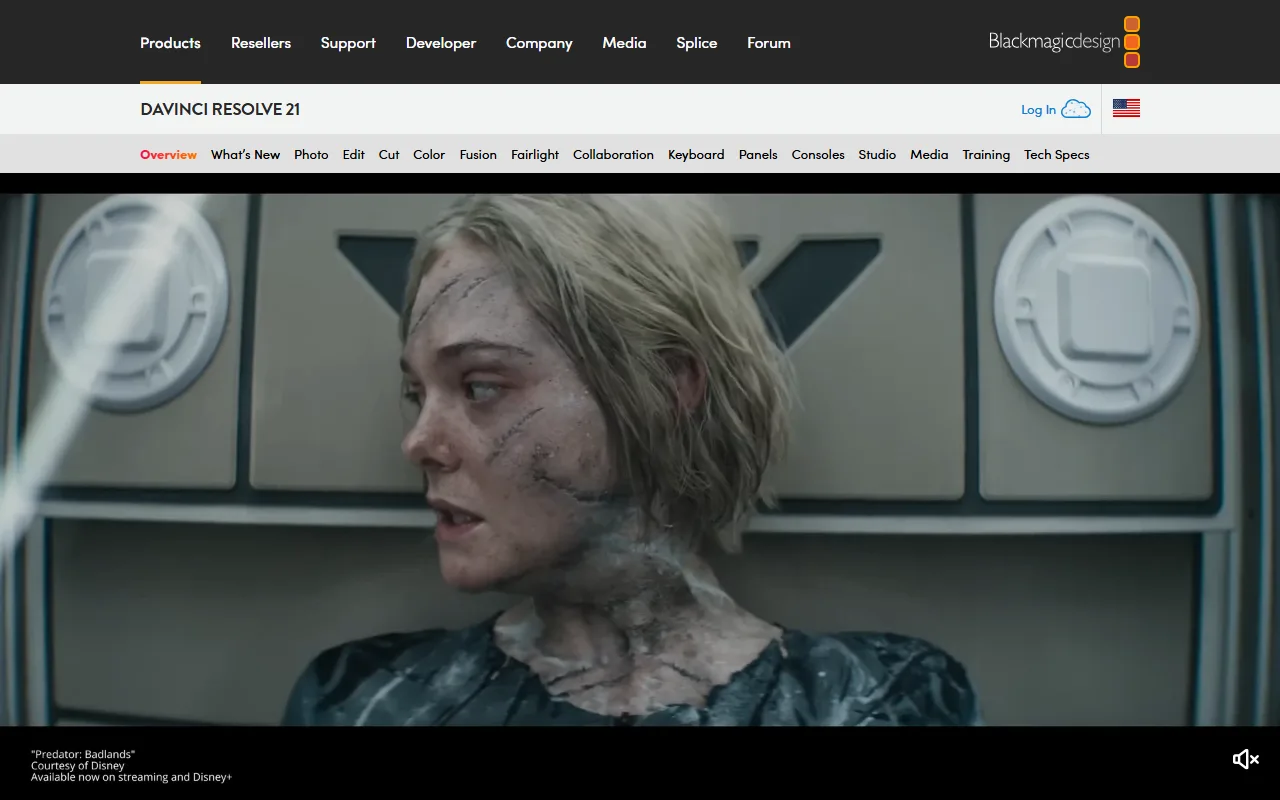 DaVinci Resolve, a professional editor whose free version is remarkably complete.
DaVinci Resolve is the most powerful free video editor available, and the gold standard for color grading. Its free version handles editing, color, audio (Fairlight), and effects (Fusion) in one app, and its AI tools, the Neural Engine, power Magic Mask (track and isolate people or objects without manual rotoscoping), voice isolation, and AI-based audio cleanup. For creators who want pro power without a subscription, nothing matches it.
Its AI standout is Magic Mask plus the Neural Engine audio tools, inside a genuinely free pro suite, with node-based color grading that has graded major Hollywood features. The paid Studio version adds SuperScale AI upscaling, AI-based face refinement, and faster rendering. Who it is for: colorists, filmmakers, and serious hobbyists who want professional control and would rather avoid a monthly subscription. Where it falls short: the learning curve is the steepest on this list, it is heavy on your computer's hardware, and several of the most advanced AI features are reserved for the paid Studio version. Pricing: a remarkably complete free version; DaVinci Resolve Studio (unlocking the full AI and effects set) is a $295 one-time purchase, not a subscription. Over a couple of years that one-time fee works out cheaper than almost any subscription editor, which makes it the best long-term value for serious users. See Blackmagic's DaVinci Resolve page.
5. Runway, Best for AI Generative Effects
 Runway's homepage, gateway to its generative AI effects and editing tools.
Runway sits at the boundary between editor and generator, and it is the pick for AI-native effects. Its toolkit includes green screen and inpainting (remove an object and let AI fill the gap), motion brush, and generative video from its Gen-4 model, so you can create or alter footage in ways a traditional editor cannot. It holds roughly 4.5 out of 5 across hundreds of G2 reviews as of June 2026.
Its AI standout is generative editing: changing what is in the frame, not just trimming it, with tools like Act-One that drive a character's performance from a video of your own face. Runway has even been used on professional film and TV VFX work, which signals how far its effects can go. Who it is for: motion designers, VFX-minded creators, and editors who want AI effects and generative shots alongside their cut. Where it falls short: it is not a full traditional NLE for long, multi-track timeline projects, the credit-based system burns through fast on heavy use, and the generative tools have a learning curve. Pricing: a free trial with limited one-time credits; paid plans from $12/month (annual) for Standard, scaling to Pro and Unlimited tiers for heavier generation. The entry price is low, but because generations consume credits, the real monthly cost depends heavily on how much AI footage you produce. See Runway's site.
6. Veed.io, Best for Browser Editing and Captions
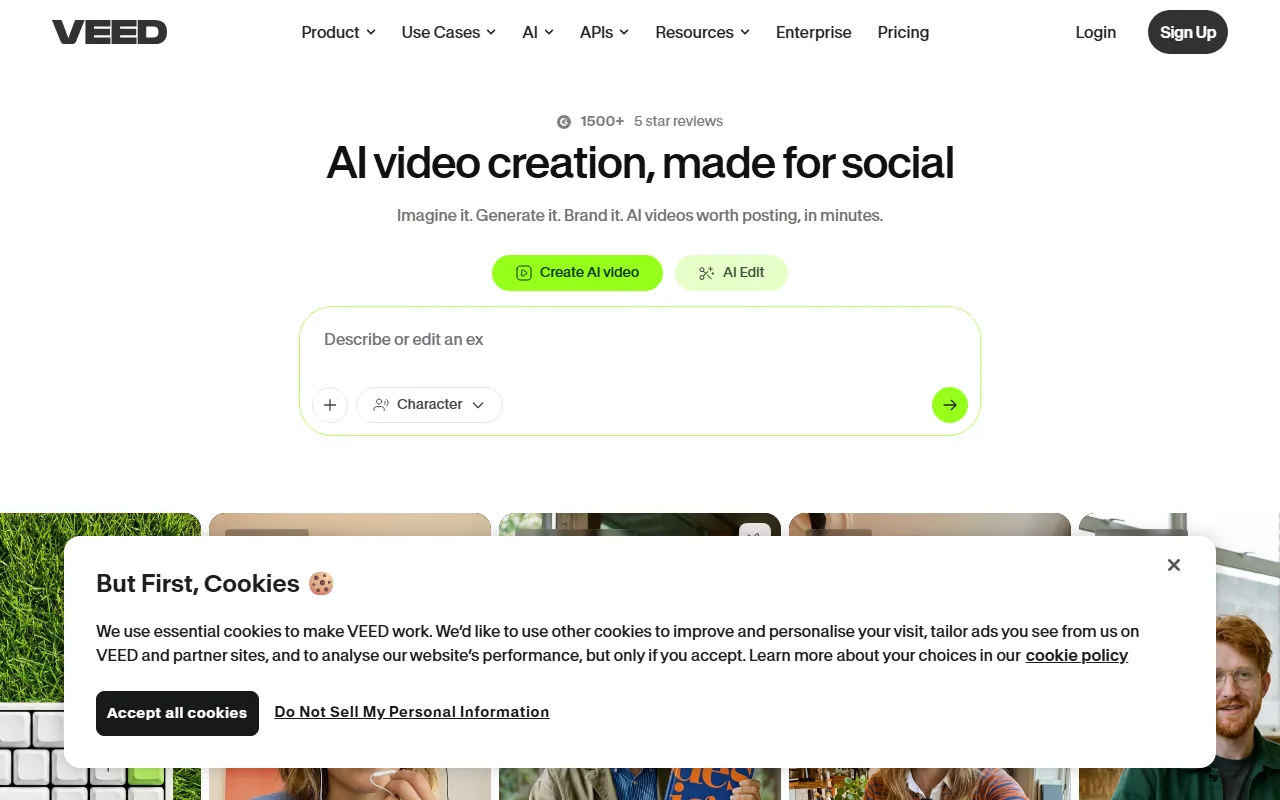 Veed.io, a browser-based editor strong on automatic subtitles.
Veed.io runs entirely in the browser, with no install, and it is the standout for captions. Its auto-subtitle feature transcribes and translates in 125+ languages with strong accuracy, and it adds AI tools for audio cleanup, background removal, and even AI avatars. For quick, caption-heavy social and marketing video you can edit from any computer, it is hard to beat.
Its AI standout is fast, accurate multilingual auto-subtitles inside a zero-install browser editor, alongside AI tools for clean audio, background removal, and brand kits for teams. It carries a strong reputation across 1,500+ five-star reviews on its own site and on G2 as of June 2026. Who it is for: marketers, social teams, and creators who want quick captioned video without desktop software. Where it falls short: browser performance limits big or long projects compared with a desktop NLE, the free plan adds a watermark and caps export quality, and it is not built for advanced color or effects work. Pricing: a free plan (watermarked, limited exports); paid plans from roughly $18/month, with Pro around $29/month adding more AI minutes and team features. It sits in the mid-range on price, fair for the captioning speed and the convenience of editing anywhere in a browser, though heavy desktop editors will find cheaper power elsewhere. See Veed's site for current plans.
7. Pexo, Best for Skipping Editing Entirely
 Pexo is not an editor: you describe the video and it generates a finished one, no timeline involved.
Here is the honest outlier. Pexo is not a video editor, and if you have footage to cut, one of the six tools above is the right pick. But a lot of people searching for "video editing software" do not actually want to edit; they want a finished video and assume editing is the only path to one. If you have no footage to start from, Pexo is the alternative: instead of a timeline, it gives you a conversation. You describe the video you want, and Pexo generates a finished video from a script, or from an image, a URL, or audio, with transitions, pacing, and sound already done.
Its real differentiator is what it removes: there is no timeline to learn and no prompt to engineer. It works with Seedance, Kling, and more and routes each job to the right model, and you can turn a script into a video in one chat. Who it is for: marketers, founders, and creators who need a finished video but have nothing to edit, and would rather generate than learn an editor. Where it falls short: it is genuinely not for editing existing footage. If your job is to trim a recording, fix color, or assemble clips you already shot, every other tool on this list does that and Pexo does not. Pricing: free to start; paid plans from $30/month (Pro), $60/month (Elite), and $100/month (Max), all credit-based with no watermarks on paid tiers.
How to Choose: Edit Existing Footage or Generate From Scratch
The first question is not which editor, but whether you should be editing at all. Match the job to the tool.
- You have footage and want to edit it fast by working with text: Descript for talking-head and podcast content.
- You want free, social-first editing: CapCut for short vertical video, DaVinci Resolve for free pro power and color.
- You need professional control and broad format support: Adobe Premiere Pro.
- You want AI generative effects, not just trimming: Runway.
- You want quick captioned video in the browser: Veed.io.
- You have no footage to edit and just need a finished video: Pexo generates one from a brief, no editing required.
Two more factors narrow it down fast: skill level and budget. Beginners are best served by CapCut or Veed, which hide the complexity; intermediate creators who want room to grow do well with Descript or Runway; and professionals gravitate to Premiere Pro or DaVinci Resolve for full control. On budget, DaVinci Resolve's free tier and one-time Studio license make it the cheapest serious option over time, CapCut is the best free pick for social, and subscription tools like Premiere and Veed make sense once editing is part of how you earn.
The honest summary: if you have raw video, pick a real editor from the first six and match it to your format and budget. If you are starting from a blank page with nothing to cut, editing software is the wrong category entirely, and generating the video is the faster path.
Conclusion
There is no single "best video editing AI software," only the best one for the footage in front of you. Descript wins for text-based editing, CapCut for free social work, Premiere Pro for professional control, DaVinci Resolve for color and free power, Runway for generative effects, and Veed.io for browser captions. Pick the one that matches your format, skill level, and budget. And if you reach the end of this list and realize you do not actually have footage to edit, that is the signal to switch categories: start creating with Pexo and generate the finished video from a brief instead.