ChatGPT
 Perplexity
 Claude
 Gemini
 Grok
Grok

 Pexo composes royalty-free background music from one plain-language description, no presets or music theory required.
Say you need background music for a 30-second product clip. The old way meant opening a DAW or scrolling three pages of a stock library, then trimming whatever you found to fit. With Pexo's music generation, I describe the vibe in one sentence, something like "warm, upbeat indie-pop for a sneaker ad, around 30 seconds," and Pexo composes a royalty-free track shaped to that brief. No prompts to engineer, no model to pick. You say what you want to hear, and Pexo, the AI video partner, composes it with you.
Below is the exact workflow I use, in four steps, plus the mistakes I learned the hard way, a few pro tips, an honest note on when AI music is the wrong tool, and the alternatives worth knowing. Try it yourself in Pexo while you read.
What Is AI Background Music?
AI background music is an original instrumental (or vocal) track composed by a generative model from a text description instead of recorded by a band or built by hand in a digital audio workstation. You describe a mood, a scene, or a genre in plain language, like "warm lo-fi for a morning routine, soft and slow," and the model returns a finished track in seconds. Most modern tools, Pexo included, output royalty-free audio you can drop straight into videos, ads, podcasts, or games.
The practical appeal is speed and ownership. A traditional library track can take 20 minutes to find and still show up in a competitor's video; a custom AI track is unique to you and ready in a couple of minutes. The catch most beginners miss is fit: a generic 120 BPM stock loop rarely matches a 15-second cut, while a described track can be shaped to the exact length, tempo, and energy of your footage. That fit is where an AI music generator earns its place, and where Pexo's conversational approach pulls ahead of preset-driven tools. Pexo runs music generation as a dedicated feature in the same chat you would use for video, so a described track comes back composed and arranged, ready to drop into the cut.
What You Need Before You Start
You need surprisingly little. No software install, no MIDI keyboard, no theory. Here is the full checklist.
- A Pexo account. Music generation runs in the same chat where you make video, so there is nothing extra to set up. Open Pexo and you are ready.
- A one-line description of the mood or scene. "Upbeat indie-pop for a sneaker ad" beats "good music." Two seconds of thought here saves three regenerations later.
- Your target length and platform. A 15-second Reel, a 30-second TikTok ad, and a 3-minute explainer want different pacing. Know roughly which one you are scoring.
- The video itself, if you have one. Optional, but if your clip already exists, Pexo can match the music's length and beats to it.
That is it. If you can text a friend a sentence, you can brief Pexo. Behind the scenes it picks the right model for the track you described, so you never stop to compare engines or read a spec sheet.
How to Create AI Background Music with Pexo (Step-by-Step)
Here is the four-step flow, start to finish, the way I actually run it.
Step 1: Open Pexo and Describe the Vibe You Want
Open Pexo and type what you want to hear into the chat, the same box you would use to ask for a video. The on-screen prompt literally reads "Describe the mood, scene, or style of music you need," so describe it the way it sounds in your head: "warm acoustic guitar, hopeful, builds toward the end, about 30 seconds." No prompt syntax, no genre dropdown to decode. Just talk, and Pexo picks up on what you actually mean.
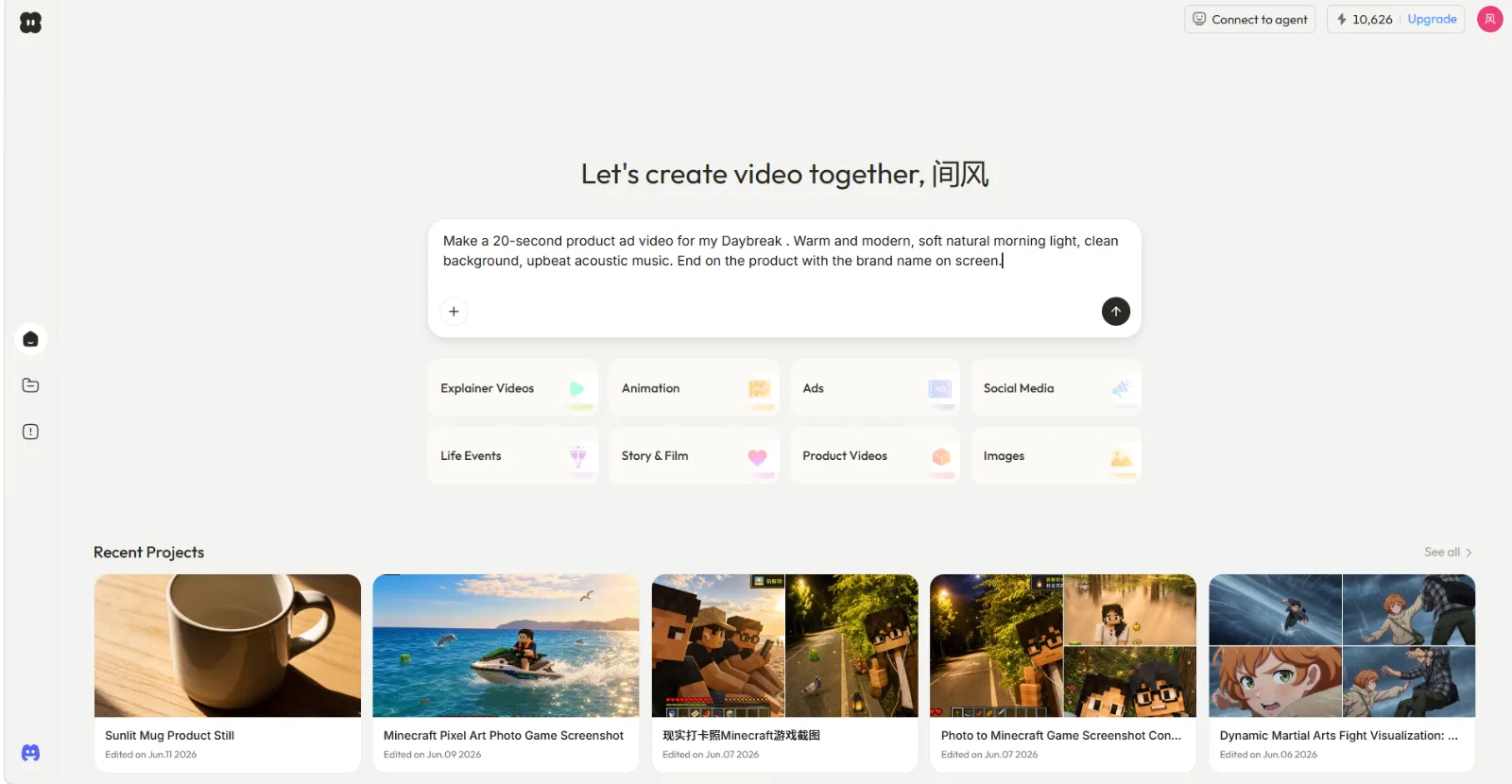 Step one: describe what you want in one sentence, music included. This product ad brief simply asks for upbeat acoustic music.
Most generators hand you a blank prompt box and a wall of toggles. Pexo reads intent instead. Want to change direction? Just say "make it darker" or "drop the drums," and keep going. Start your first music track here.
Step 2: Dial In Genre, Tempo, and Instruments by Talking
Once Pexo plays back its first pass, shape it in conversation. You can name a genre ("switch to lo-fi hip-hop"), set a feel ("slower, around 70 BPM"), or call out instruments ("a jazz trio with upright bass, no vocals"). Pexo composes and arranges the changes automatically, so you are directing the track, not operating a mixer.
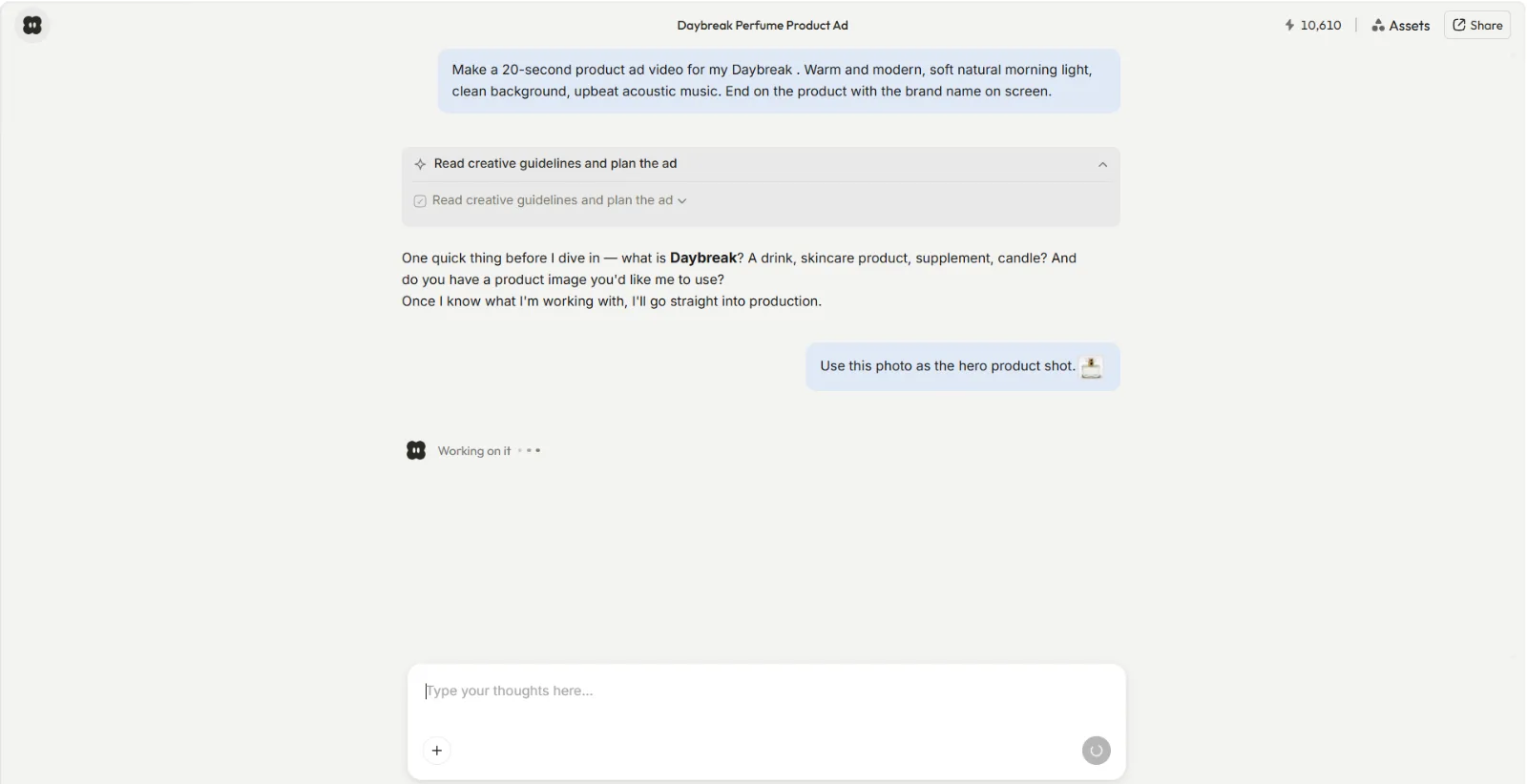 Step two: Pexo reads the brief, music direction included, and shapes the piece in conversation instead of asking you to set controls.
This is where the no-model-picking design pays off. A typical tool makes you choose an engine, then a preset, then nudge BPM math by hand. In Pexo you say the words and it handles the rest. The same way Pexo works with the best video models behind the scenes (Seedance, Kling, and more), it picks the right approach for the music you described. You never pick the model, you just get the result. Need an instrumental version and a version with vocals? Ask for both.
Step 3: Preview, Sync It to Your Video, and Refine
Preview the track against your footage before you commit. If you give Pexo your clip, it can align the music's length and beats to the edit, so a 28-second cut gets a track that lands on 28 seconds, not a 3-minute loop you hack down later. Ask Pexo to "match this to my 28-second video and line the beats up with the cuts," and it adjusts the track to fit.
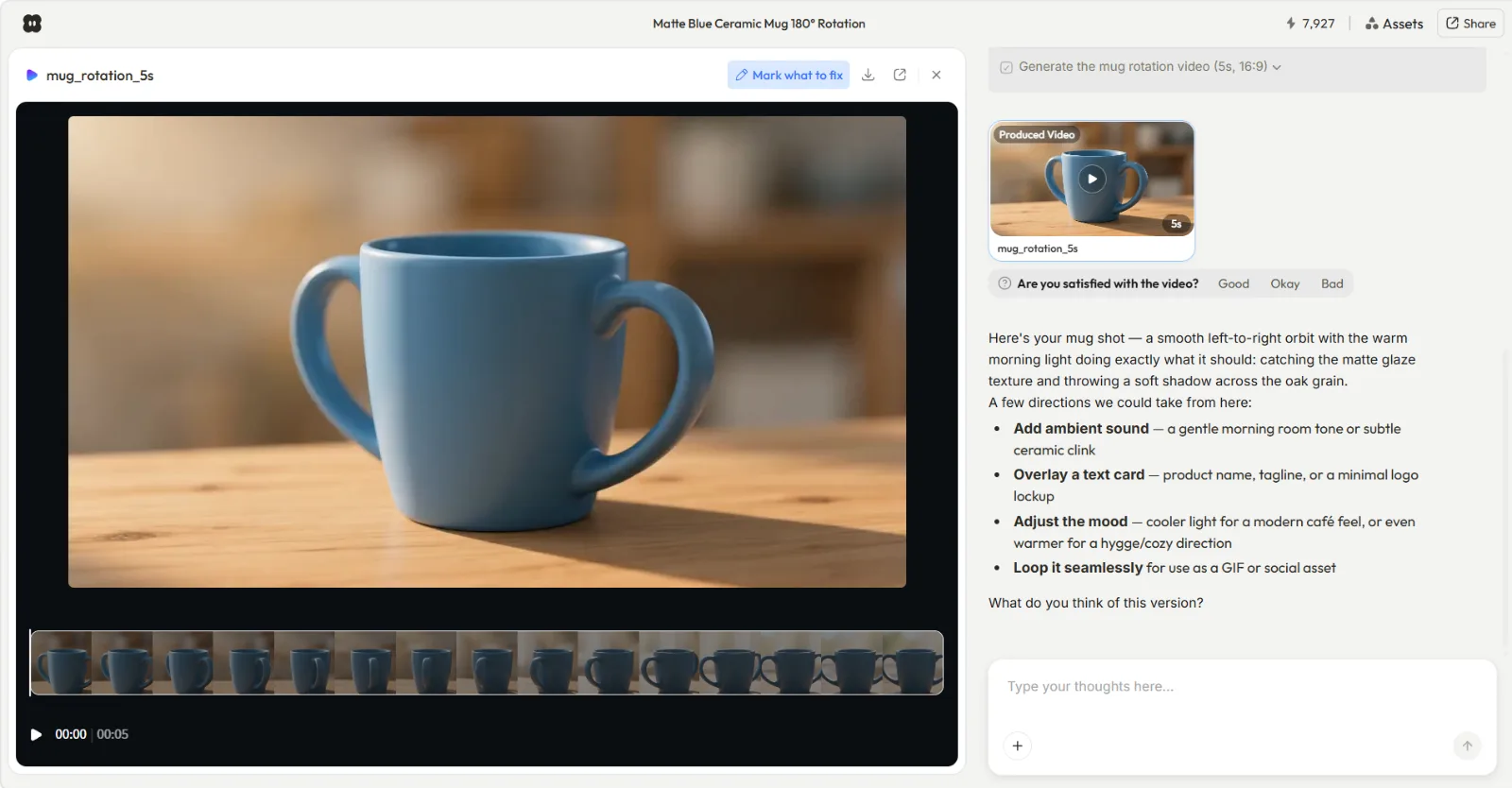 Step three: preview the clip and refine by talking. Pexo offers audio touches here like ambient sound or a seamless loop.
Refining is just more conversation. "Make the intro quieter," "loop the chorus," "extend it by eight seconds." Because Pexo shows you each pass before finalizing, you redirect early instead of discovering a problem on export. When the track and the cut feel locked, you are ready to ship. This is also the moment to turn the audio into a finished asset; you can build the music video itself in Pexo without switching apps.
Step 4: Export Your Royalty-Free Track
When the track sounds right, export it. Pexo delivers the finished audio ready to use, and every track from Pexo's music generation is royalty-free and cleared for commercial use, so you can use it in a client ad or a monetized YouTube video without buying a separate license. From here you can keep the audio on its own or turn that track into a full video in the same conversation.
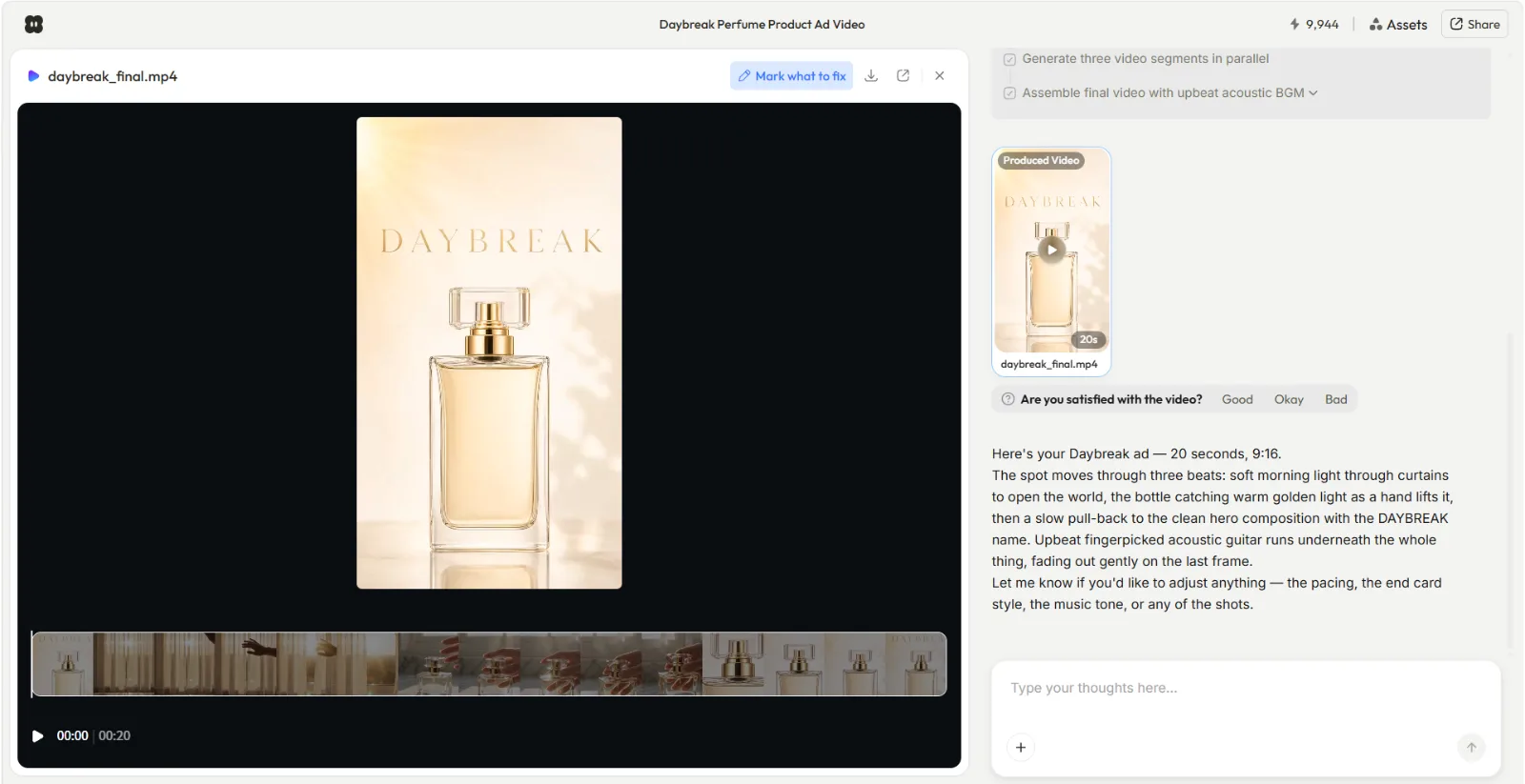 Step four: the finished 20-second ad with its AI composed soundtrack. Pexo scored upbeat fingerpicked acoustic guitar under the cut and faded it out on the last frame.
That is the entire loop: describe, shape, sync, export. Four steps, one chat, no editing skills needed. Make your first royalty-free music track now.
Common Mistakes to Avoid
A few patterns trip up almost everyone the first week. Skip them and your tracks land faster.
- Over-describing the first pass. Five adjectives and three genres in one breath confuse the intent. Start with one mood and one genre, then refine. "Calm piano, reflective" first; details after.
- Ignoring the video's pacing. A 15-second ad with a slow 60 BPM ballad feels sleepy. Match energy to cut length: short social clips usually want 110 to 128 BPM, long explainers can breathe at 70 to 90.
- Forgetting to specify instrumental vs. vocal. Vocals fight with a voiceover. If your video has narration, tell Pexo "instrumental only" up front.
- Settling on pass one. The first track is a starting point, not the final answer. The whole advantage of describing it to Pexo is that "warmer, less busy" is one sentence away.
- Skipping the length sync. Generating a generic loop and trimming it by hand wastes the best feature. Give Pexo the clip and let it score to length.
Pro Tips for Better AI Background Music
These are the habits that took my tracks from usable to genuinely good.
- Describe the scene, not just the genre. "Music for a cozy coffee-shop morning" gives Pexo more to work with than "lo-fi." Scene language carries tempo, instrumentation, and energy all at once.
- Let Pexo loop and extend. Instead of regenerating from scratch when a track is 8 seconds short, ask Pexo to extend or loop a section. It keeps the part you liked.
- Sync length first, polish second. Lock the track to your video's runtime before you fine-tune instruments. It stops you from perfecting a 40-second piece you will only use 22 seconds of.
- Keep a vibe library. Save the one-line briefs that worked so you can reuse them. A few that pull good results: "bright corporate, optimistic, 124 BPM" for an explainer, "warm lo-fi, mellow, 75 BPM, no vocals" for a tutorial voiceover, "cinematic build, strings and percussion, 90 BPM" for a product reveal. Each is a ready brief for your next social media video.
- Match music to use case. A product video wants confident, clean energy; a personal montage wants warmth. Tell Pexo the use case and it leans the right way.
When NOT to Use AI Background Music
AI music is the right call most of the time, but not every time, and pretending otherwise would not help you.
If you need a specific licensed or famous track (the actual Taylor Swift song, a recognizable movie cue), AI generation cannot give you that, and you will need to license the real recording. If your brand depends on a signature, human-composed theme that has to be consistent across years of campaigns, a human composer who knows your identity is still the safer bet. And if you need precise control over individual stems, notation, or a live performer's nuance, a full DAW and a session musician will beat any text-to-music tool today.
For everything else, fast, original, royalty-free scoring for videos, ads, social content, podcasts, and games, an AI partner like Pexo is the faster path. Being honest about the edges is exactly why I trust it for the center. See what music fits your project.
Other AI Background Music Tools to Consider
Pexo is where I make music because it lives in the same chat as my video work, but it helps to know the landscape. A few worth a look:
- Suno is strong for full songs with vocals and lyrics, popular for complete tracks rather than background beds. If that is your need, here is a deeper breakdown of Suno and its alternatives.
- Soundraw (soundraw.io) leans on a customize-by-controls interface, good if you prefer sliders and presets over conversation.
- Beatoven.ai (beatoven.ai) focuses on mood-based royalty-free tracks for content creators and is built around video and podcast scoring.
Each has its place. The reason I keep coming back to Pexo is that I never leave my workflow: I describe the music, sync it to the cut, and export the finished video without opening a second app.
Conclusion
Creating AI background music has gone from a niche skill to a one-sentence task. You describe the feeling, Pexo composes the track, and you export something royalty-free that fits your video. The only real variable left is how little friction stands between your idea and the finished audio, and that is where Pexo wins: no prompts to engineer, no models to compare, no editor to learn. Just say what you want to hear and shape what comes back. Start generating music with Pexo for free today.