 ChatGPT
 Perplexity
 Claude
 Gemini
 Grok
Grok


Introduction: Bridging the Gap Between Stillness and Motion
The landscape of digital creation is evolving at a breakneck pace. Artists and developers now have unprecedented power at their fingertips, thanks to advancements in generative AI. Tripo has already revolutionized the early stages of 3D content creation by allowing users to generate stunning 3D assets from simple text or image inputs in a matter of seconds. This capability has democratized high-fidelity 3D modeling, making it accessible to indie creators, designers, and hobbyists who may not have the time or resources for traditional modeling software.
However, a significant hurdle has persisted: the "Static Problem." While Tripo can create a beautiful dragon or a sleek futuristic car, these assets often remain frozen, viewed from a single angle in a viewport. For creators looking to produce game trailers, marketing content, or dynamic social media posts, bringing these models to life has traditionally required a completely different skill set. It meant diving into complex, expensive software like Blender or Maya, learning the intricacies of rigging, keyframing, and cinematography, and then waiting for lengthy rendering processes to complete. This transition from "model" to "motion" has been the most significant barrier for solo creators.
Today, we are thrilled to introduce a seamless solution: the "Tripo + Pexo" workflow. This is not just a collaboration; it is a complete reimagining of the production pipeline. By combining Tripo's ability to generate 3D worlds with Pexo's capacity to generate cinematic video, we create a symbiotic loop where one AI builds the stage, and the other directs the scene. This guide will walk you through how to shatter the static barrier and produce professional, animated content without ever touching After Effects or a complex DCC tool.
Product Overview: The Dynamic Duo of Creation
To understand the power of this workflow, it is essential to understand the distinct roles each tool plays in the creative process.
Tripo: The World Builder Tripo is a powerhouse of generative geometry and texture. It specializes in taking abstract ideas—whether described in words or sketched in 2D—and translating them into tangible 3D reality. In this specific workflow, Tripo acts as the foundational layer. It is responsible for the "what" of your scene: the character design, the environmental assets, the product mockups, and the intricate details that define your visual style. Whether you are crafting a gritty cyberpunk alleyway or a pristine jewelry piece, Tripo provides the raw assets with high-fidelity detail, complete with textures and lighting baked into the model.
Pexo: The Cinematic Director Pexo operates on a different dimension: time and motion. Pexo is an AI-driven video generation platform designed to understand visual continuity and camera movement. In this partnership, Pexo takes the baton from Tripo. It looks at the static assets generated in Tripo and interprets them into a sequence of motion. Pexo handles the "how" of the scene: the camera orbiting around the object, the dynamic lighting shifts, and the fluid transitions between frames. It automatically matches the aesthetic, ensuring that the motion looks like it belongs to the 3D world you built, rather than a generic animation applied on top.
Step-by-Step Workflow: Bringing Your Assets to Life
This section details the exact process to move from a text prompt to a finished cinematic video. The workflow is designed to be intuitive and accessible, requiring no prior animation experience.
Step 1: Generate Your 3D Scene in Tripo
The journey begins in Tripo. Open the platform and utilize either the text-to-3D or image-to-3D functionality to create your desired asset. For the best results in the animation phase, it is advisable to generate a scene that is visually interesting from multiple viewpoints. Generate the asset with the final cinematic presentation in mind, ensuring the lighting and textures are to your liking before proceeding.
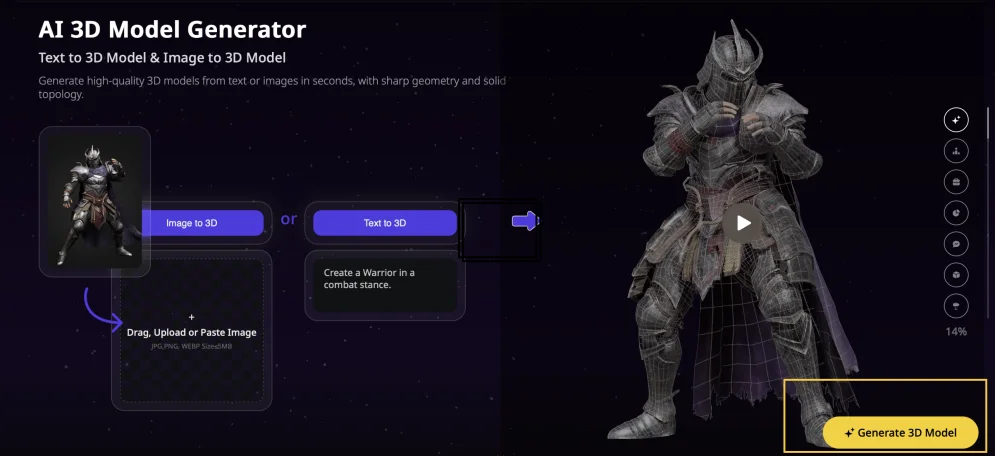 Use Tripo's text-to-3D or image-to-3D flow to generate your base asset.
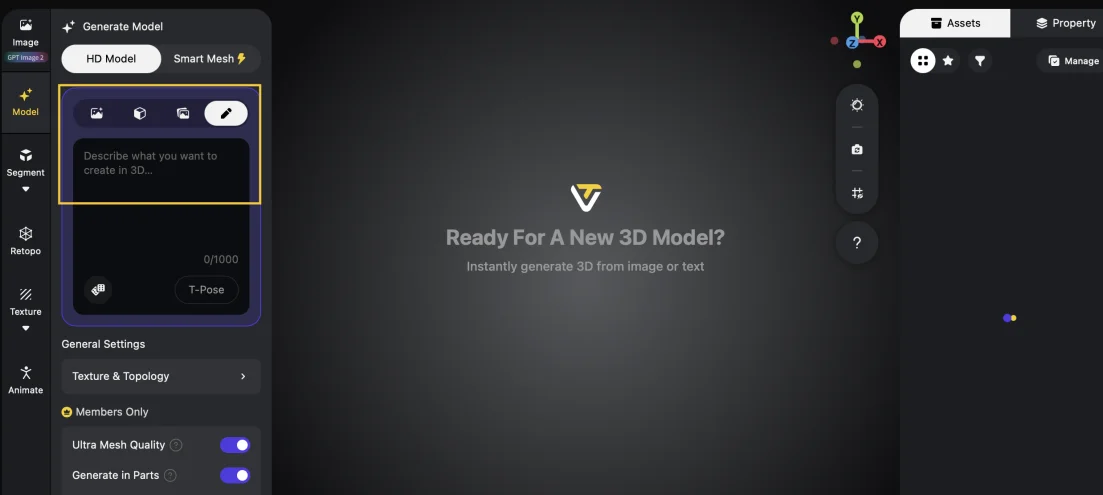 Refine textures and lighting in Tripo before moving on to the animation phase.
Step 2: Capture Film Stills & Multiple Angles
Once you have finalized your model in Tripo, it is time to prepare for the animation phase. Instead of just taking a single "perfect" screenshot, you need to capture a series of film stills from distinct perspectives. Orbit the camera around your model and take screenshots from the front, side, back, and 3/4 views. These images serve as the core reference material for Pexo. By providing multiple angles, you give the AI a comprehensive understanding of the model's geometry and details, which is crucial for generating smooth, 360-degree movements without visual glitches.
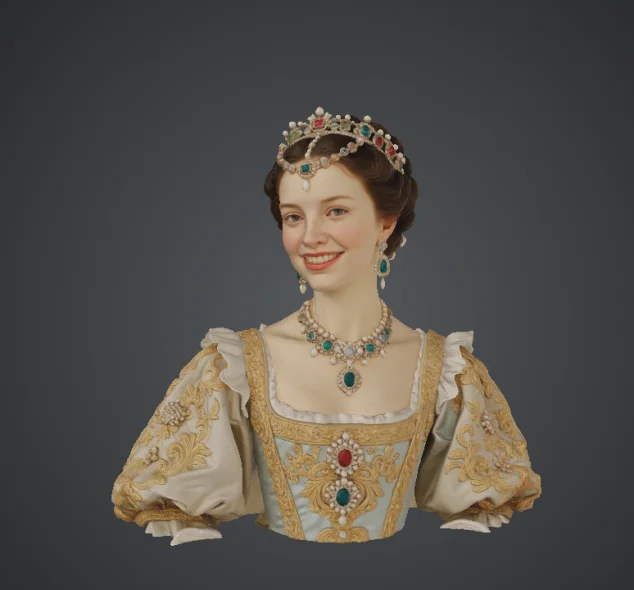 Capture stills from distinct camera angles around the model — front, side, back, and 3/4 views.
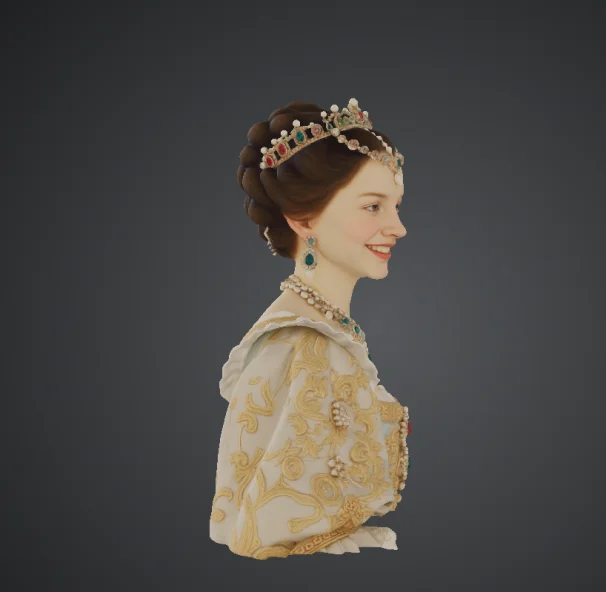 Multiple perspectives give Pexo a fuller read on the model's geometry and surface detail.
Step 3: Add Images to Pexo
Now, transition to Pexo. Open a new project and upload the screenshots you saved from Tripo. This step is critical for visual alignment. By feeding Pexo these specific images, you are locking in the aesthetic DNA of your Tripo asset. Pexo uses these images as a reference guide, ensuring that the generated video maintains the exact color palette, texture quality, and design integrity of the original 3D model. This prevents the AI from "hallucinating" new shapes or styles that don't belong.
 Drop the captured stills into Pexo so the conversation locks onto the original visual reference.
Step 4: Generate & Refine Your Video
Pexo automatically selects leading video models to match your 3D aesthetic. It handles motion, lighting consistency, and rendering to deliver a seamless, professional clip.
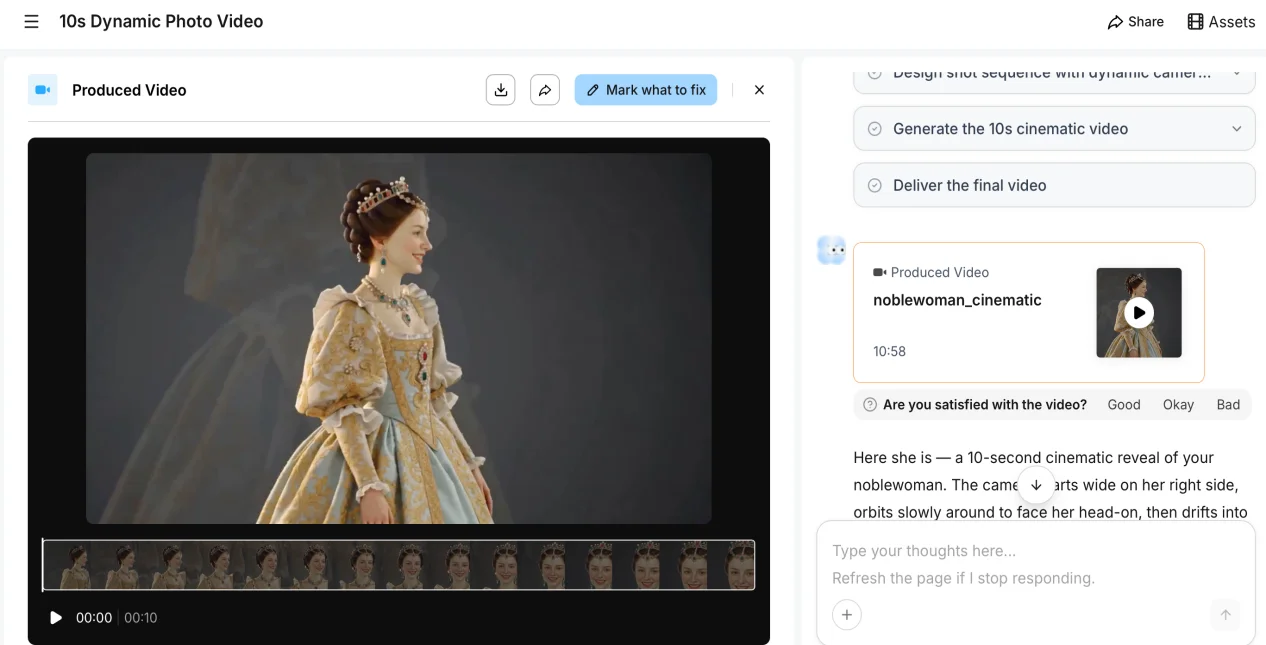 Pexo picks a matching video model and renders a cinematic, motion-consistent clip from your stills.
Use Cases and Benefits for Modern Creators
The implications of this workflow are vast and varied, touching nearly every industry that relies on visual content.
Game Developers and Indie Studios For indie game developers, marketing is often a battle of visibility. High-quality cinematic trailers are expensive to produce with traditional methods. With the Tripo and Pexo workflow, developers can rapidly produce stunning promotional content. Using original assets generated in Tripo, studios can create dynamic gameplay trailers, cinematic cutscenes, or Kickstarter pitch videos at a fraction of the cost and time. This allows teams to focus their energy on gameplay and mechanics while still maintaining a high production value for their marketing materials.
E-commerce and Product Launches In the world of online retail, static images are no longer enough. Customers want to see products in motion. This workflow is perfect for generating elegant product showcase videos. Imagine a 3D watch generated in Tripo, animated by Pexo with a slow, orbiting camera that highlights the craftsmanship under clean, premium lighting. This creates a lifestyle presentation that feels luxurious and high-end, significantly boosting consumer confidence and engagement compared to flat photography.
Concept Artists and Designers Architects, environment artists, and concept designers can now present their ideas with unprecedented dynamism. Instead of handing a client a static render of a building facade, you can generate a "fly-through" video of an entire architectural concept or a fantasy world. This allows stakeholders to experience the scale and atmosphere of a design in motion, providing a much deeper understanding of the spatial relationships and the overall vision. It transforms a portfolio piece from a simple image into an immersive experience.
Pro Tips for Mastering the Workflow
To ensure your final video looks polished and professional, consider these expert tips to maximize the potential of this AI-powered pipeline.
- Boost Cinematic Quality with Keywords: When writing your initial prompt in Tripo, do not just describe the object; describe the final look you want. Add descriptive keywords like "cinematic, Unreal Engine 5, Octane render, photorealistic, 8k resolution, dramatic lighting." This steers the visual style toward something that is inherently video-ready and high-fidelity, giving Pexo a stronger foundation to work with.
- Simplify Compositing with Clean Backgrounds: If you are creating a product animation or a character showcase, use a clean white or solid black background in Tripo. This makes it significantly easier for Pexo to isolate the subject and apply camera movements or effects without having to worry about warping or distorting a complex background.
- Maintain Consistency Using Seed Control: When creating a series of related assets—such as a character holding a specific weapon or a set of matching furniture—utilize Tripo's seed control feature. By locking the seed, you ensure that the style, scale, texture, and lighting remain consistent across all assets. This consistency is vital when animating in Pexo, as it results in a cohesive, professional-looking final video where all elements belong in the same universe.
Conclusion
The Tripo + Pexo workflow redefines speed and accessibility in 3D animation. By combining AI-powered 3D creation with AI-directed video production, we eliminate high costs, technical barriers, and long production cycles.
The future of content creation is "agentic": one AI builds the world, and another AI directs the story. With Tripo and Pexo, your imagination moves from static to motion — instantly.