 ChatGPT
 Perplexity
 Claude
 Gemini
 Grok
Grok


How to Turn a Photo Into a Cartoon Just by Chatting
You found a photo you love and, in your head, it was already a cartoon. A clean anime portrait. A comic avatar. One of those soft 3D characters half your feed uses for a profile pic. The usual way to get there is grim, though: layers in Photoshop, or a one-click app that drops you into a single canned look and calls it done.
Here's the easier version. With Pexo, you just ask. It's a conversational AI agent, so to turn a photo into a cartoon you type one sentence, no skill to learn, no tool to master. And since it's all one chat, that cartoon can keep going right up to a finished video if you want it to move. Four steps below, start to finish. Or skip ahead and start cartoonizing in Pexo now.
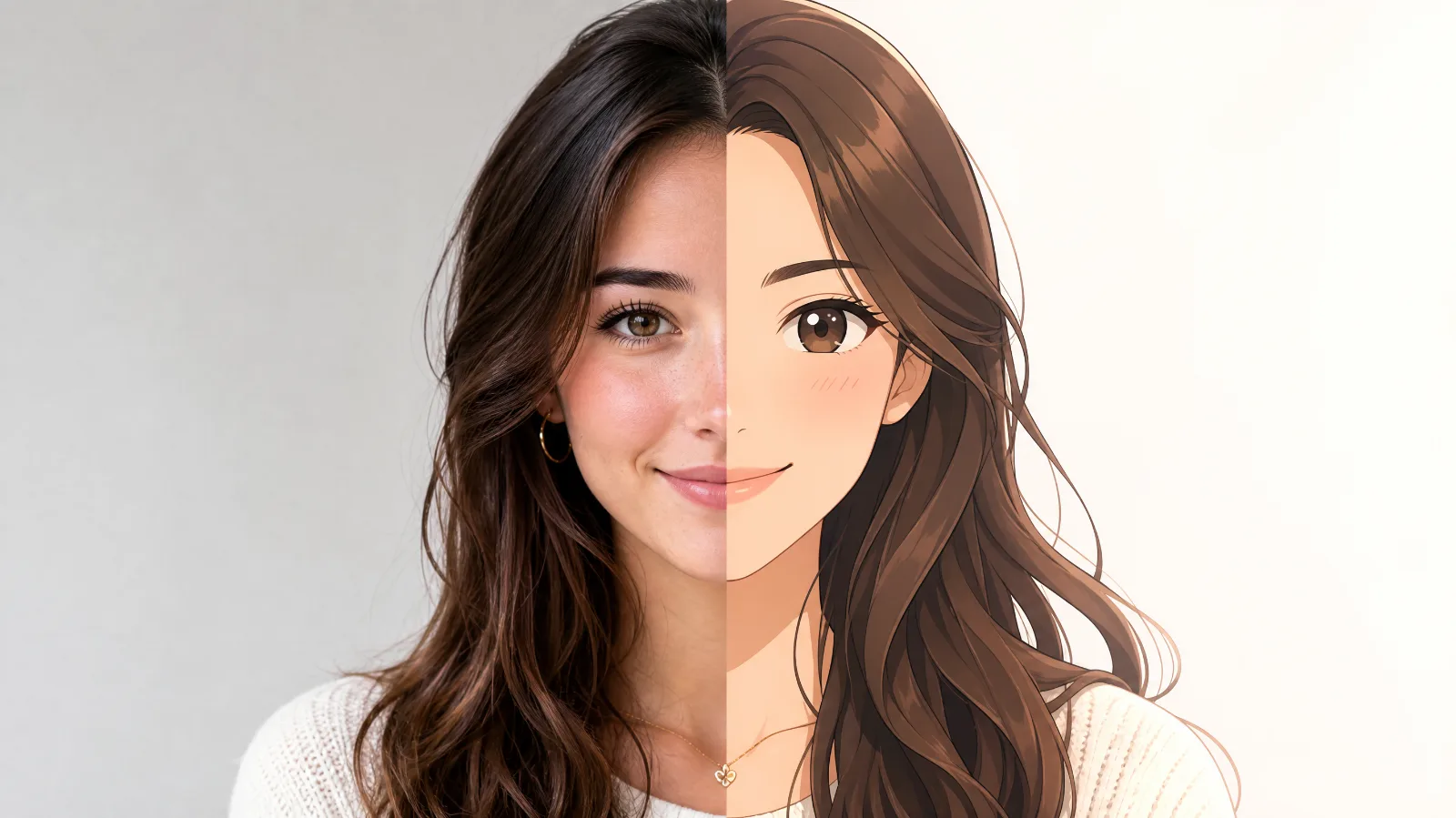 Before, after. A photo cartoonized in Pexo by typing one request.
How to Turn a Photo Into a Cartoon: The Quick Version
To turn a photo into a cartoon, upload a clear, well-lit photo to a photo-to-cartoon tool, pick a style (Pixar-style 3D, anime, comic, or watercolor), generate a few variations, check that the face still looks like the person, then export. The rule that matters: a good cartoonizer changes the style, not the identity. Free tools like Fotor, Canva, and BeFunky handle still images. When you want to take your cartoon further and turn it into a moving video, or make a video from your photos entirely, Pexo does the whole thing from a chat, which is what the rest of this guide walks through.
What You Need to Turn a Photo Into a Cartoon
Barely anything, honestly. There's no software to install, no template pack to buy, no editing skills you have to dig up first. Two things, and you're off.
- A Pexo account. Sign up, open a fresh chat, done. That's the entire workspace. No timeline, no layers, no wall of buttons to decode before you can do a single thing. If you've ever sent a text message, you already know the interface.
- A photo, or just an idea. Want to cartoonize a photo you already have, a selfie, your dog, an old holiday snap? Have it ready. No picture at all? Still fine, you can describe the character in text and Pexo builds one from nothing. Either path works, so don't let a missing photo stop you.
How to Turn a Photo Into a Cartoon in Pexo: Step by Step
The whole thing happens in a single conversation. Four steps, and the first two are where most of the magic gets decided, so don't rush them.
Step 1: Open Pexo and Add Your Photo
Start a new chat, drop in your photo. Pick a sharp one if you can. High res, subject in focus, background not elbowing into the frame. Pexo rebuilds the face and outlines off whatever detail your source hands it, so the more it has to read, the better the cartoon comes back. That's basically the whole rule.
No photo on hand? Skip the upload, type the character instead, something like "a smiling girl in a soft Pixar-style 3D look." Pexo's AI image generation conjures it out of nothing. Comes in handy when you're inventing an original character rather than cartoonizing a real face.
Step 2: Tell Pexo the Cartoon Style You Want
Now say the look out loud, plain words. "Turn this into a clean anime portrait." "Make it a bold comic-book style." "Soft 3D, warm colors." This is the bit that feels different from the usual apps: no fixed menu of presets, so you're never stuck grabbing the closest button and calling it close enough. Pexo's AI image generation takes whatever you describe, however oddly specific, and has a swing at exactly that.
Words not landing it? Hand Pexo a reference instead. Drop in an image whose style you love, a screenshot, an illustration, a frame grabbed from something, and Pexo studies that look and applies it to your photo. Under the hood it can lean on image models built for exactly this, the Nano Banana image model and GPT Image 2.0 among them, so "match this vibe" is a perfectly good instruction.
Not sure which direction fits the thing you're making? Quick map.
| If you want | Ask Pexo for | Great for |
|---|---|---|
| Clean lines, big expressive eyes | An anime portrait | Avatars, anime-style video, fan art |
| Bold outlines, halftone shading | A comic-book look | Stickers, posters, social posts |
| Soft, rounded, Pixar-ish | A 3D cartoon | Profile pictures, brand mascots |
| Sketchy or painted texture | A hand-drawn style | Invitations, gifts, editorial art |
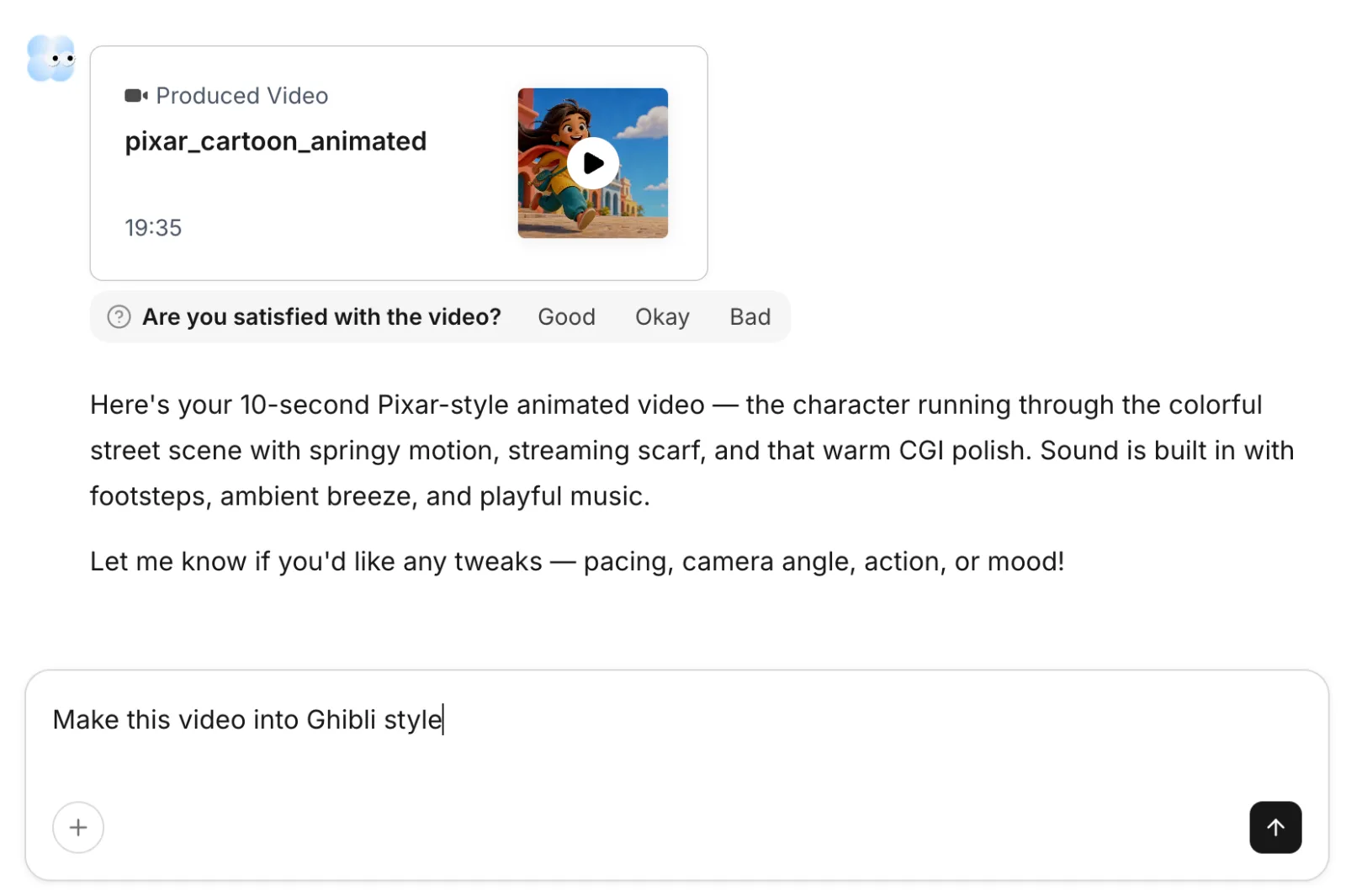 Typing the style you want, straight into the Pexo chat.
Step 3: Bring Your Cartoon to Life as a Video
Happy with the cartoon? You can stop here and save the image, plenty of people do. But you're already in Pexo, so making it move is just the next message. Ask Pexo to animate it into a video and it sets your cartoon in motion. Or skip the image entirely and generate the cartoon video straight from a description, your call, both land in the same place. And the video isn't boxed into a few seconds: keep asking for more and it keeps extending, scene after scene, with no fixed length cap, while the music, the subtitles, and the intro-outro packaging get built for you right there in the chat.
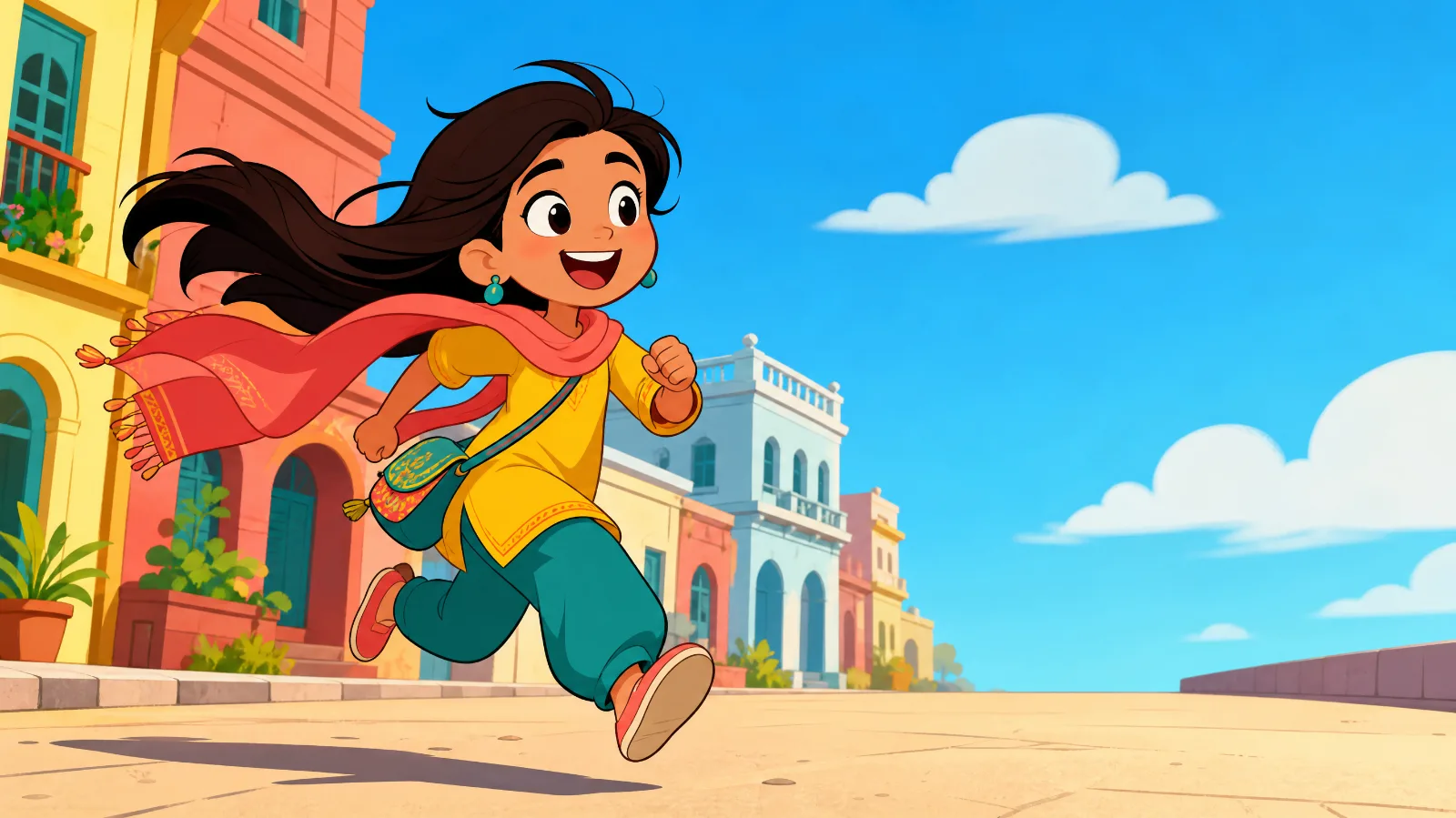 The same cartoon, set in motion as a video, all in Pexo.
Step 4: Refine It Until It's Right
First cut's in, so watch it back and clock what's off. A scene that drags. A color that's wrong. A mouth that doesn't quite match the words. Two ways to fix it. The easy one: just say so in the chat, "shorten the second scene," "warmer grade," "slower zoom," and Pexo reworks it. The precise one: tap "Mark what to fix," circle the exact spot on the frame, and leave a note right there, the way you'd annotate a doc, "remove this," "make this blue." Pexo reads the markup and patches only that piece. Repeat until it's the clip you had in your head.
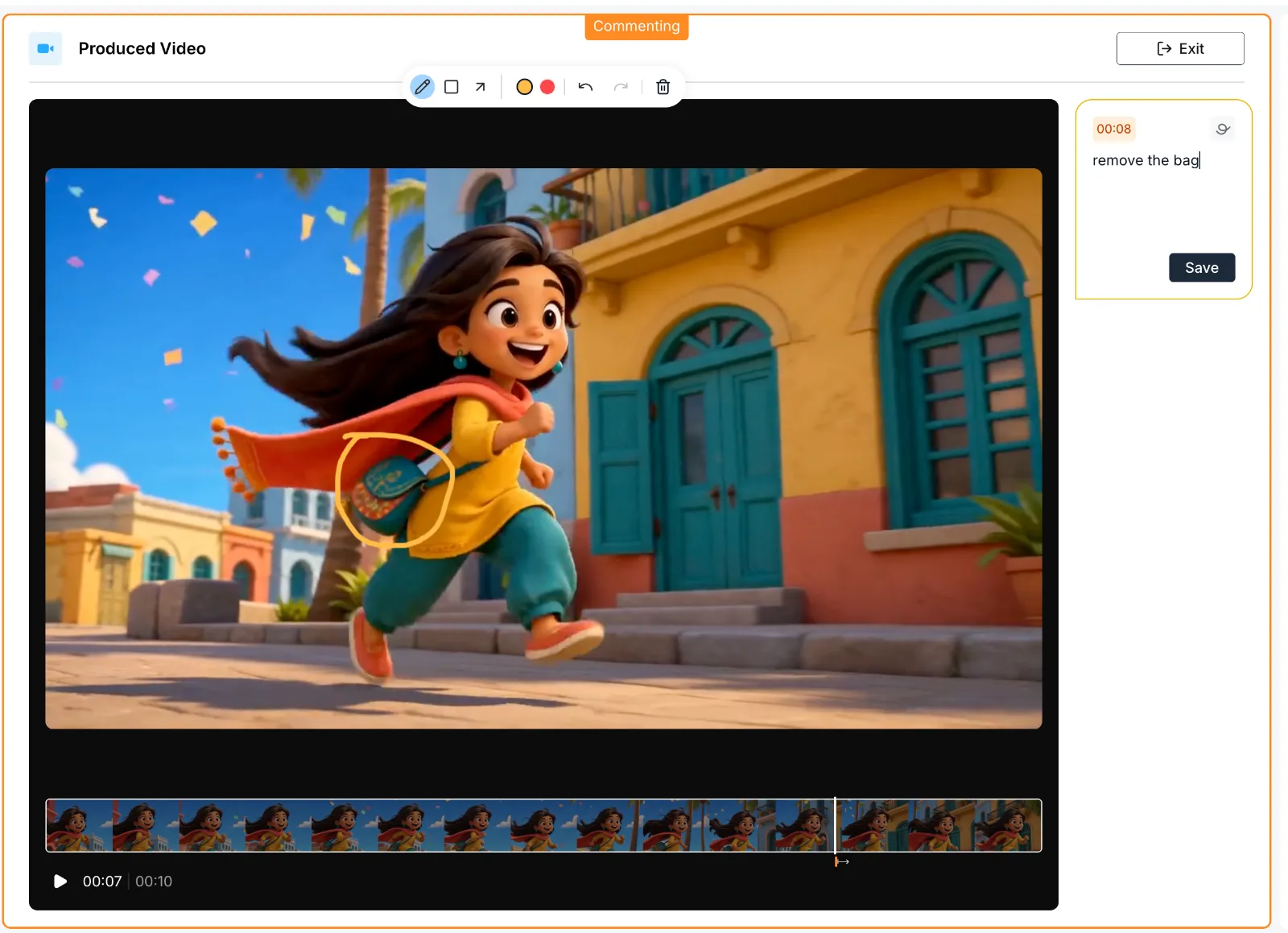 Circling a spot on the frame and leaving a fix note, like annotating a document.
Common Mistakes to Avoid
Same photo, wildly different cartoons, and nine times out of ten a small, avoidable slip is the reason. Watch for these.
- Starting from a blurry photo. Pexo can't conjure detail that was never in the file to begin with. Soft photo in, mushy cartoon out, every single time. Use the sharpest, best-lit shot you've got, an old crisp one beats a fresh blurry one.
- Being vague about the style. "Make it a cartoon" leaves way too much to chance. "Clean anime portrait, soft colors, simple background" hands Pexo something real to aim at. The more specific the words, the closer that first result lands.
- Stopping at the first draft. The entire point of doing this in a chat is that you don't have to. Something's off? Say so. Don't shrug and keep draft one.
- Forgetting the rights question. Before any commercial use of someone's photo, or a generated likeness of a real face, make sure you're actually allowed. A generated image isn't automatically cleared for an ad just because it exists.
Pro Tips for Better Cartoons in Pexo
Getting from "fine" to "oh, that's actually good" is mostly habits. These four pull the most weight.
- Keep the source plain. Clean background, flat light hitting the face head-on. That's the clearest read for Pexo, and, bonus, usually the most flattering angle for the subject anyway.
- Describe like you're briefing a friend. Style, colors, mood, background, dump it all in one go. Pexo handles natural language, so "1990s anime, warm film grain, soft light" beats one bare word like "anime" hands down.
- Iterate in small steps. One change at a time. "Bolder lines." Then "warmer." Then "bigger eyes." Easier to see what each tweak actually did than to throw five at it and guess.
- Plan for motion early. Cartoon headed for a reel or a story? Mention it up front. Pexo can carry it from still image to a finished video, music and subtitles included, in the same chat, so you're not rebuilding anything later.
Conclusion
So that's how to turn a photo into a cartoon without the old hassle: no layers, no preset menus, no second app to learn. In Pexo it's four easy moves: add a photo or an idea, name the style (or hand over a reference), chat the result into shape, and push it to a video if the mood strikes. Whether you want a fun anime avatar or a finished clip with music and subtitles, the job's the same: say what you want, refine until it's right. Want to see your own photo as a cartoon? Open Pexo and start your first one.