ChatGPT
 Perplexity
 Claude
 Gemini
 Grok
Grok

![InVideo Tutorial: How to Make a Video Step by Step [2026]](https://cdn.pexo.ai/assets/cms/draft/56eb4bae-4550-4154-9722-92680eefd318/20260605034829-13f213cd.webp)

InVideo is one of the fastest ways to turn a text prompt or a script into a finished, captioned video without touching a timeline. This tutorial walks you through the whole flow in six steps, from signing up to exporting, then covers the pricing, the mistakes that trip up first-timers, and a few alternatives worth knowing. You do not need any editing experience to follow along.
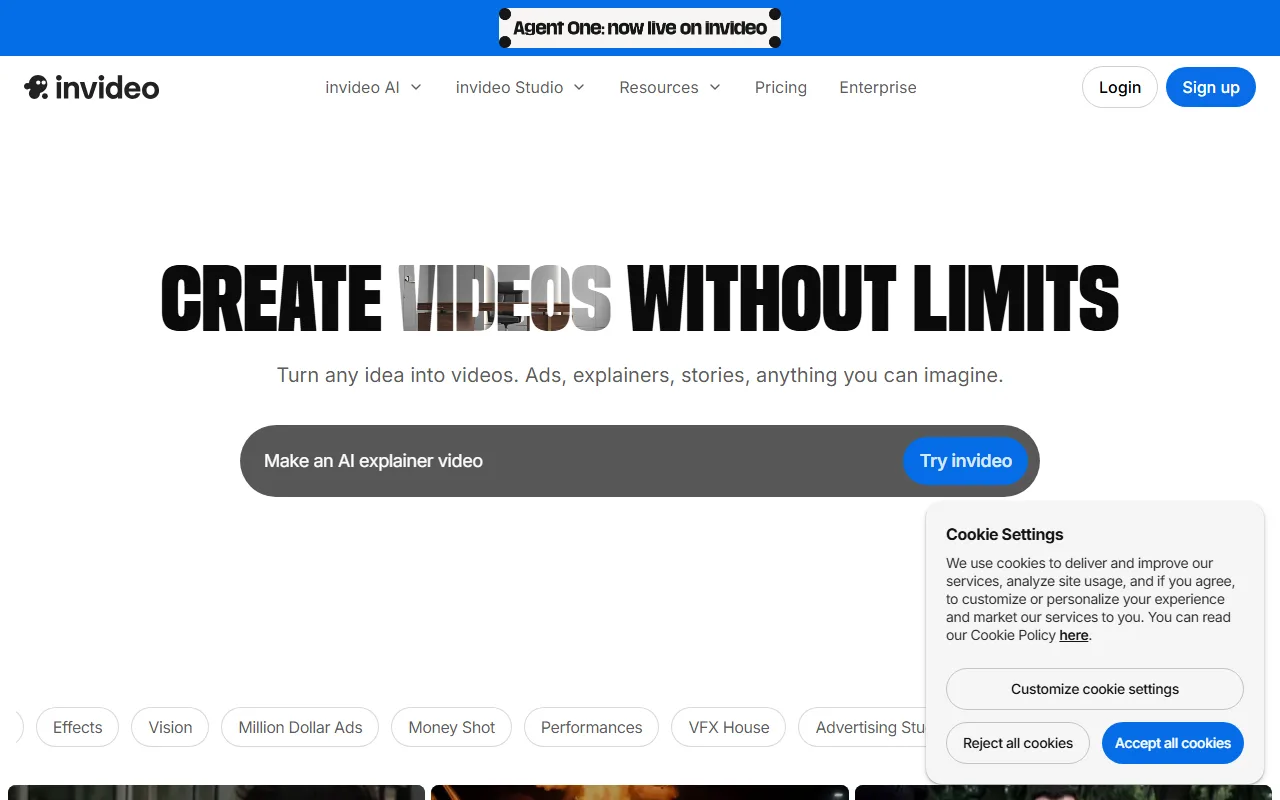 InVideo turns a single text prompt into a full edited video, complete with stock footage, voiceover, and captions.
Table of Contents
- What Is InVideo?
- InVideo Pricing at a Glance
- What You Need Before You Start
- How to Make a Video With InVideo: Step by Step
- Common Mistakes to Avoid
- Pro Tips for Better InVideo Videos
- InVideo Alternatives Worth Trying
- Conclusion
- FAQ
What Is InVideo?
InVideo is an online video creation platform that comes in two distinct modes, and picking the right one is the first decision you make:
- InVideo AI is the prompt-to-video mode. You type a prompt (for example, "a 30-second explainer about my coffee subscription"), and it generates a full video: it writes a script, pulls stock clips, adds an AI voiceover, and lays in captions and music. You then refine it by typing commands in plain language.
- InVideo Studio is the template-based editor. You start from one of thousands of templates and edit on a timeline yourself, swapping text, clips, and music manually. This is the more hands-on, traditional path.
It is popular for a clear reason: InVideo reports more than 25 million users worldwide as of mid-2026, and it sits in the top tier of AI video tools on review sites like G2. It is best for social media managers, marketers, and small teams who need a high volume of talking-head-free, stock-driven videos (explainers, listicles, news recaps, ads) without hiring an editor. The honest limit: because the AI mode leans on stock footage and templated pacing, the output can feel generic, and the AI editor sometimes misjudges timing on the first pass. You will almost always do a round of cleanup.
This tutorial uses InVideo AI (the prompt mode), since that is what most people mean by an "InVideo tutorial" in 2026.
InVideo Pricing at a Glance
InVideo runs on a credit system: every generation spends credits, and each paid tier gives you a monthly credit allowance. Prices below are the annual-billing monthly rate as of June 2026; always confirm the current numbers on InVideo's pricing page before you buy.
| Plan | Price (billed annually) | Monthly credits | Best for |
|---|---|---|---|
| Free | $0 | Limited | Trying it out (exports are watermarked) |
| Plus | $17/mo | 75 | Exploring, low volume |
| Max | $85/mo | 390 | Occasional regular use |
| Generative | $170/mo | 800 | Daily, high-volume creation |
| Elite | $900/mo | High allowance | Power users and heavy teams |
The two things to know before you commit: the free plan watermarks every export, so it is for testing only, and credits are consumed by generation, so heavy re-rolling burns through an allowance faster than you would expect.
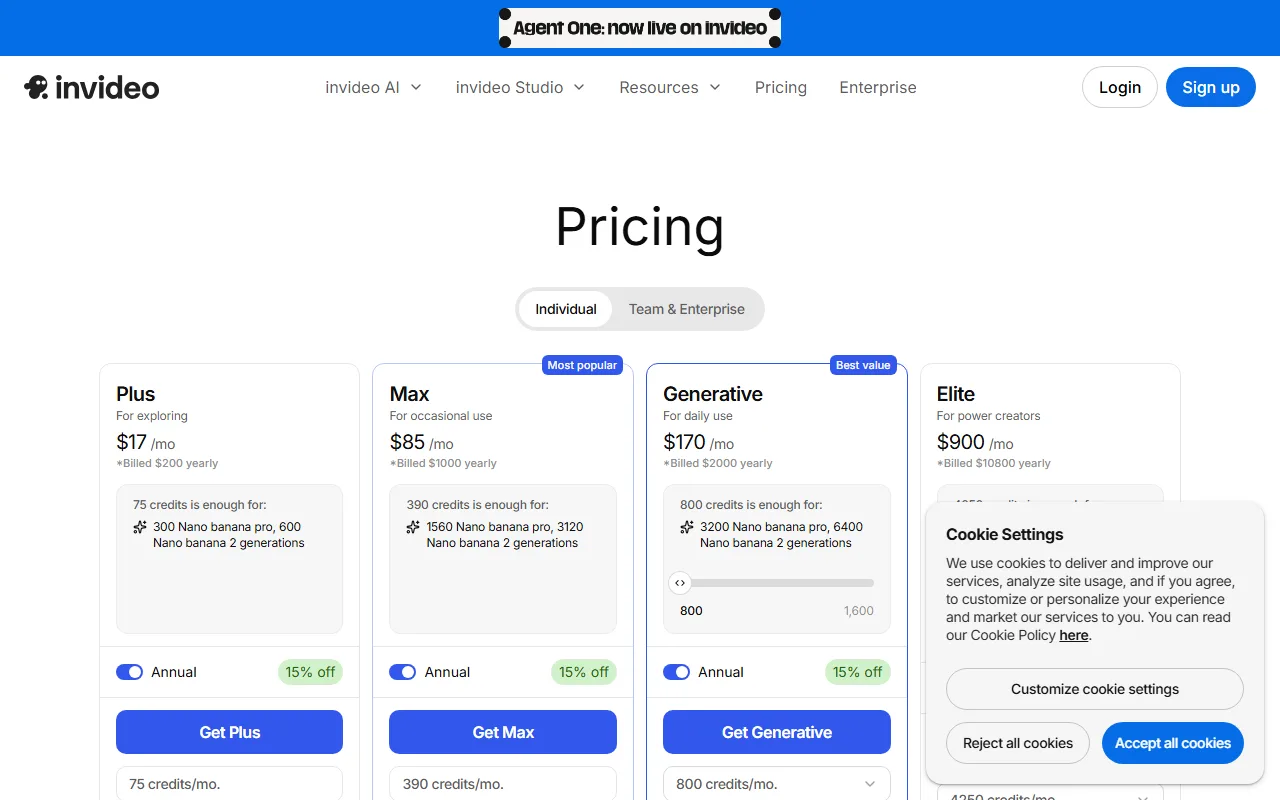 InVideo's live pricing tiers, captured June 2026. The plans are credit-based, and the free plan exports with a watermark.
What You Need Before You Start
You can start with almost nothing, but three things make the process smoother:
- An InVideo account. The free plan is enough to follow this tutorial; you only need to upgrade when you want to remove the watermark or generate at volume.
- A clear idea or a script. The AI works best when your prompt names the topic, the length, the tone, and the platform (for example, "a 20-second upbeat Instagram Reel about a new running shoe").
- Any brand assets you want to include. A logo, brand colors, or your own footage and images. You can upload these and have the AI use them instead of generic stock.
If your raw footage is shaky or your images are low-resolution, fix that first in a separate tool. InVideo will not clean up bad source material for you.
How to Make a Video With InVideo: Step by Step
The AI flow is six steps from blank page to export. Each step takes seconds to a couple of minutes.
Step 1: Sign Up and Open InVideo AI
Create a free account and open the InVideo AI workspace (not Studio). You will see a single prompt box. This is the whole interface to start, which is the point: there is no timeline to learn yet.
Step 2: Write Your Prompt
Describe the video you want in one clear instruction. Name four things for the best result: topic, length, tone, and platform. A weak prompt ("make a video about coffee") produces generic output; a specific one ("a 30-second upbeat explainer about ethically sourced coffee subscriptions, for Instagram, friendly tone") gives the AI enough to work with.
Step 3: Review the First Draft
InVideo generates a complete first cut: script, scenes, stock footage, AI voiceover, captions, and background music. Watch it once end to end before changing anything. Note what is wrong (pacing, a clip that misses, a robotic line) so you can fix it all in one pass instead of re-generating repeatedly.
Step 4: Edit by Typing Commands
This is InVideo AI's signature move. Instead of dragging clips, you tell it what to change in plain language: "make the intro shorter," "replace the second clip with something showing a cafe," "change the voice to a calmer one." It re-renders the affected section. Stack your changes from the Step 3 review so each edit is deliberate.
Step 5: Swap Media, Voice, and Music
Fine-tune the assets. You can replace any stock clip from InVideo's library, upload your own footage or logo, switch the AI voice or language, and change the soundtrack. If you have brand assets, this is where they go in so the video stops looking like a stock template.
Step 6: Export Your Video
Once it looks right, export. On the free plan the export carries an InVideo watermark; a paid plan removes it and unlocks higher resolution. Choose the aspect ratio that matches your destination before exporting: 9:16 for Reels, TikTok, and Shorts; 1:1 for feed posts; 16:9 for YouTube.
Common Mistakes to Avoid
Most first-time InVideo videos go wrong in the same predictable ways:
- Vague prompts. "Make a marketing video" gives the AI nothing to anchor on. Always specify topic, length, tone, and platform.
- Skipping the full review. People start editing scene one before watching the whole draft, then discover the pacing problem is structural. Watch it through first.
- Re-generating instead of editing. Each full re-roll spends credits and changes things you liked. Use the command-based edits to fix one part at a time.
- Ignoring aspect ratio. Exporting a 16:9 video for a TikTok feed wastes most of the screen. Set the ratio for the platform before you export.
- Shipping on the free plan. The watermark makes it look unfinished. If it is going public, upgrade or export from a paid plan.
Pro Tips for Better InVideo Videos
A few habits separate a usable InVideo video from a polished one:
- Write the prompt scene by scene for anything over 30 seconds. "Scene 1: hook with a question. Scene 2: the problem. Scene 3: the product. Scene 4: call to action." You get far more control than one long sentence.
- Replace at least one stock clip with your own footage. Even a single authentic shot makes the whole video read as less generic.
- Trim the AI voiceover. It often runs slightly long or over-explains. Tighten it with a command like "make the voiceover more concise."
- Build a brand kit (logo, fonts, colors) if you are making videos regularly, so every export is on-brand without manual setup.
- Keep a prompt that worked. When you find phrasing that produces good output, save it and reuse the structure for the next video.
InVideo Alternatives Worth Trying
InVideo is not the only way to get from idea to video. Depending on what feels fiddly, a few alternatives are worth a look:
- Pexo is an AI video partner where you skip prompts entirely and just describe your idea in a conversation; it works with Seedance, Sora, Kling, and more, and hands back a finished video. Good if InVideo's prompt-and-template loop feels like too much fiddling.
- Canva leans on a huge template library and is strong if you want to design the video yourself rather than have AI generate it. Good for brand-consistent social graphics and simple edits.
- Synthesia is the pick when you need a presenter: it generates avatar-led talking-head videos from a script, which InVideo's stock-driven AI mode does not specialize in.
Conclusion
Making a video in InVideo comes down to six steps: open InVideo AI, write a specific prompt, review the full draft, edit by typing commands, swap in your own media, and export at the right aspect ratio. Spend your effort on a precise prompt and a single deliberate editing pass, and you will get a usable video in minutes rather than re-rolling all afternoon. If the prompt-and-template workflow ever feels like more work than the video is worth, a conversational option like Pexo is worth trying for the same job.