
FLUX AI: Create and edit images from a clear brief
FLUX is Black Forest Labs' model family. This page focuses on still-image generation and editing: creating an image from text, revising a source image and combining references. FLUX 3 Image, FLUX 3 Image Klein and earlier FLUX.2 models expose different controls and deployment options. Choose the exact model for the task instead of assuming that every FLUX product has the same inputs, output settings or license.
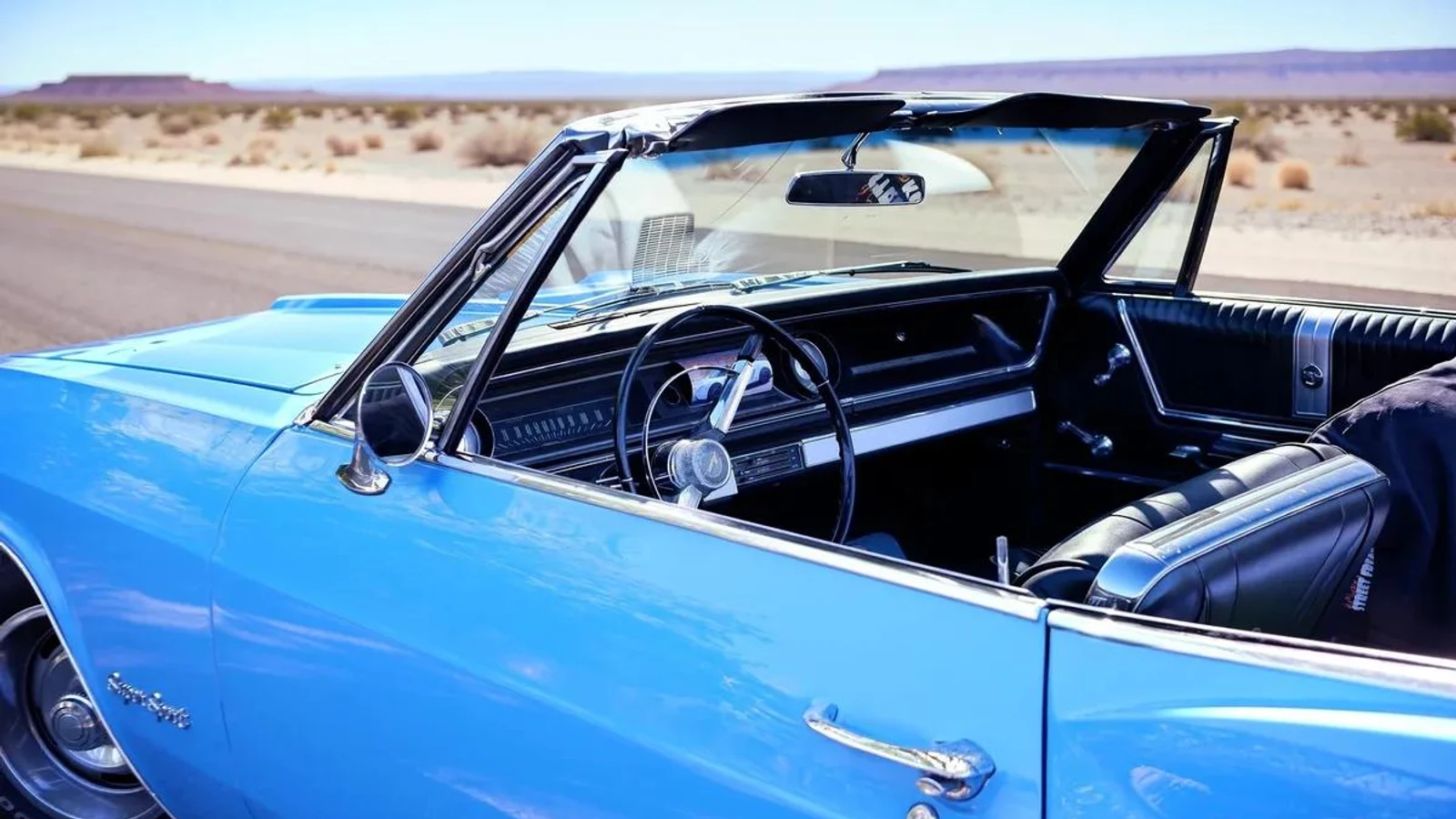
Image showcase
Official FLUX 3 Image Klein still-image examples, displayed at their full proportions.
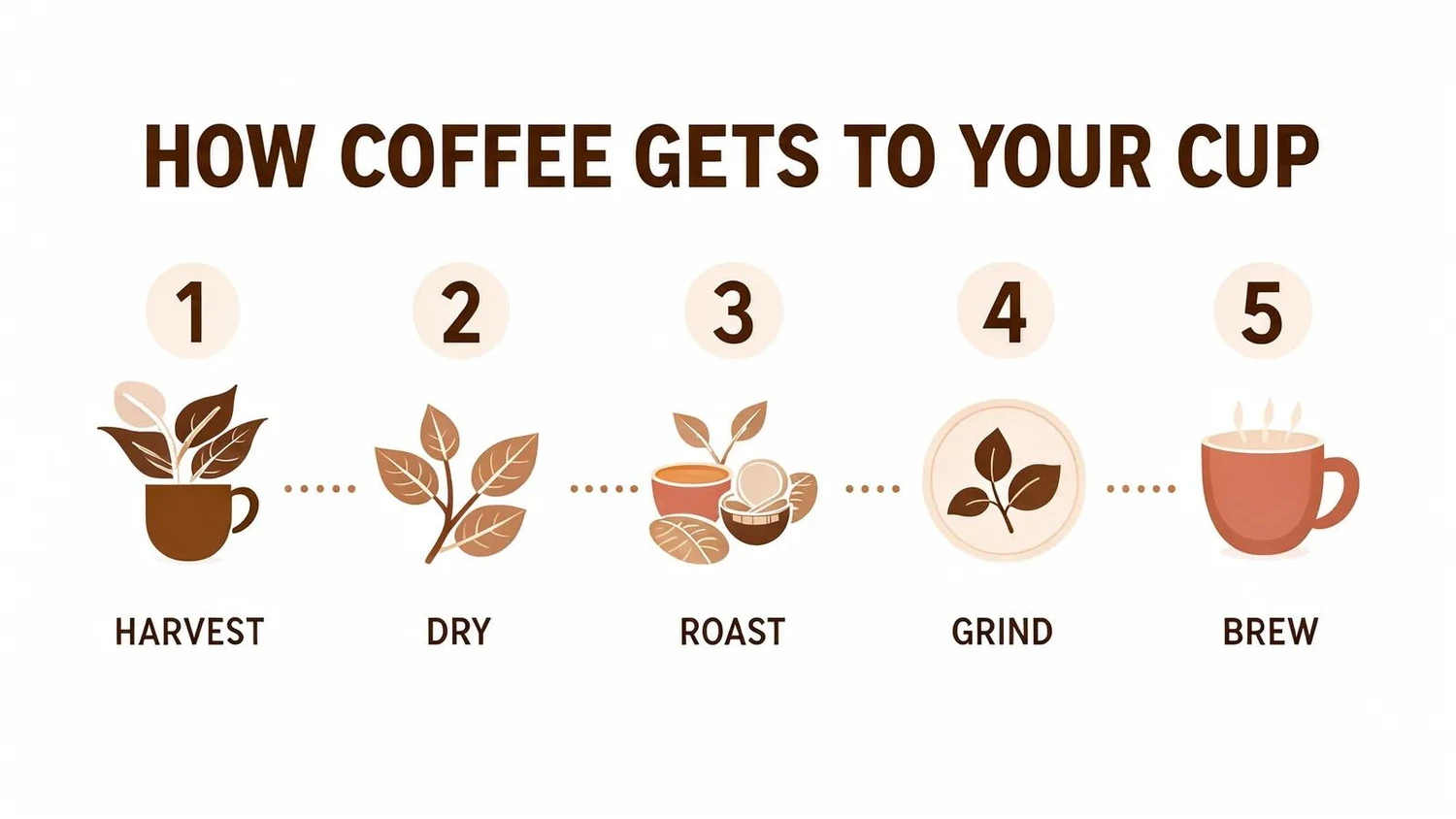

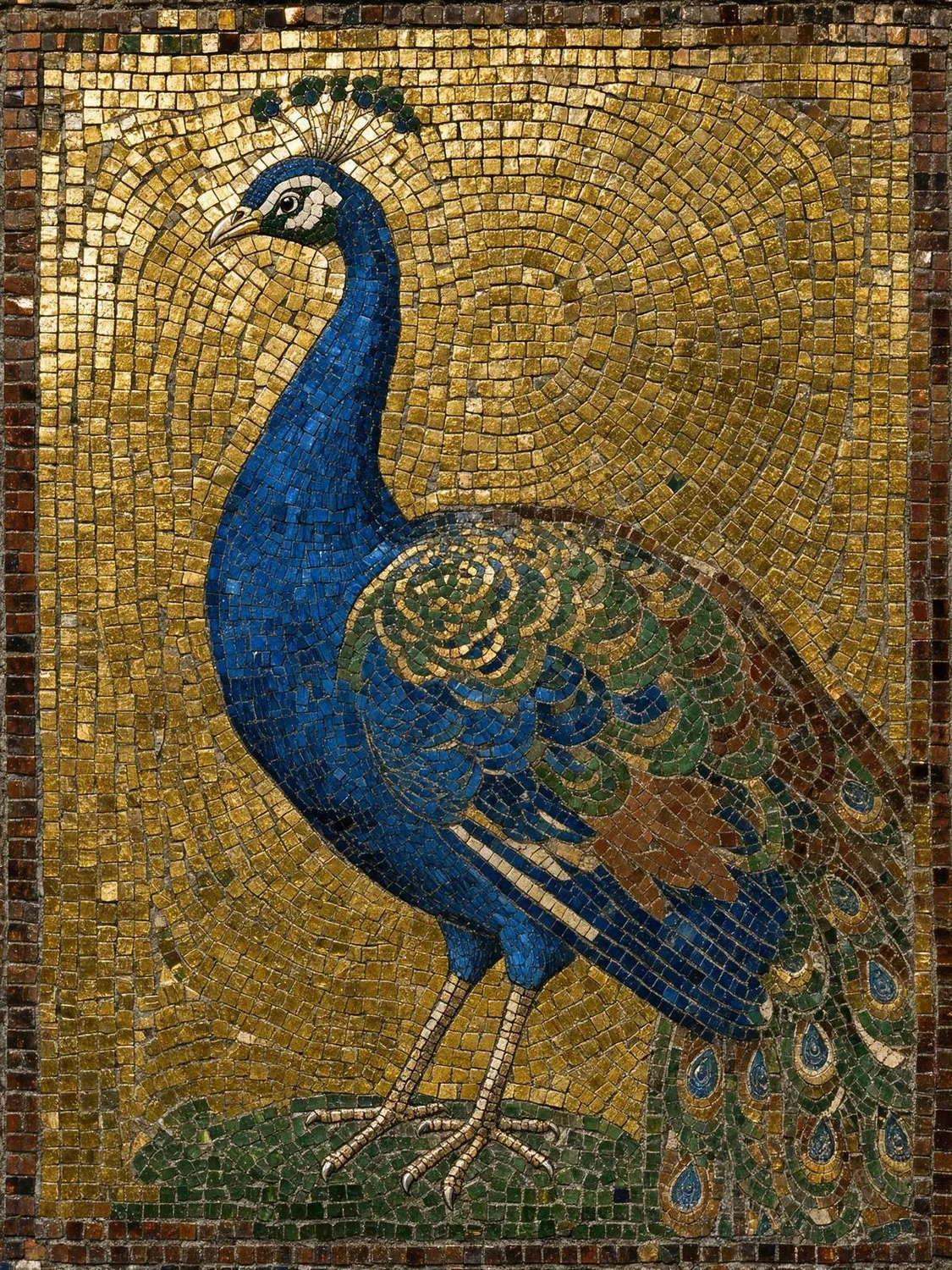

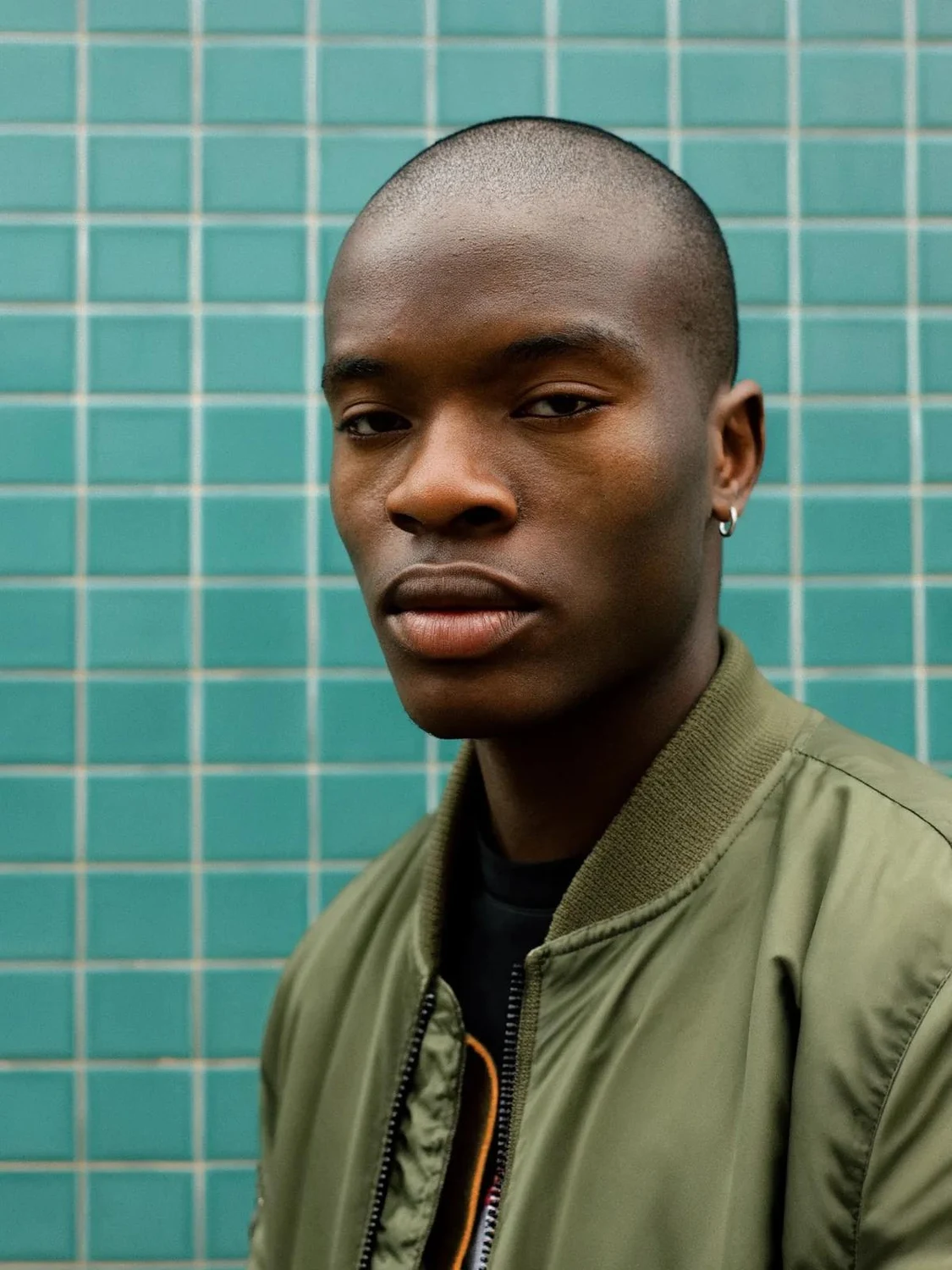
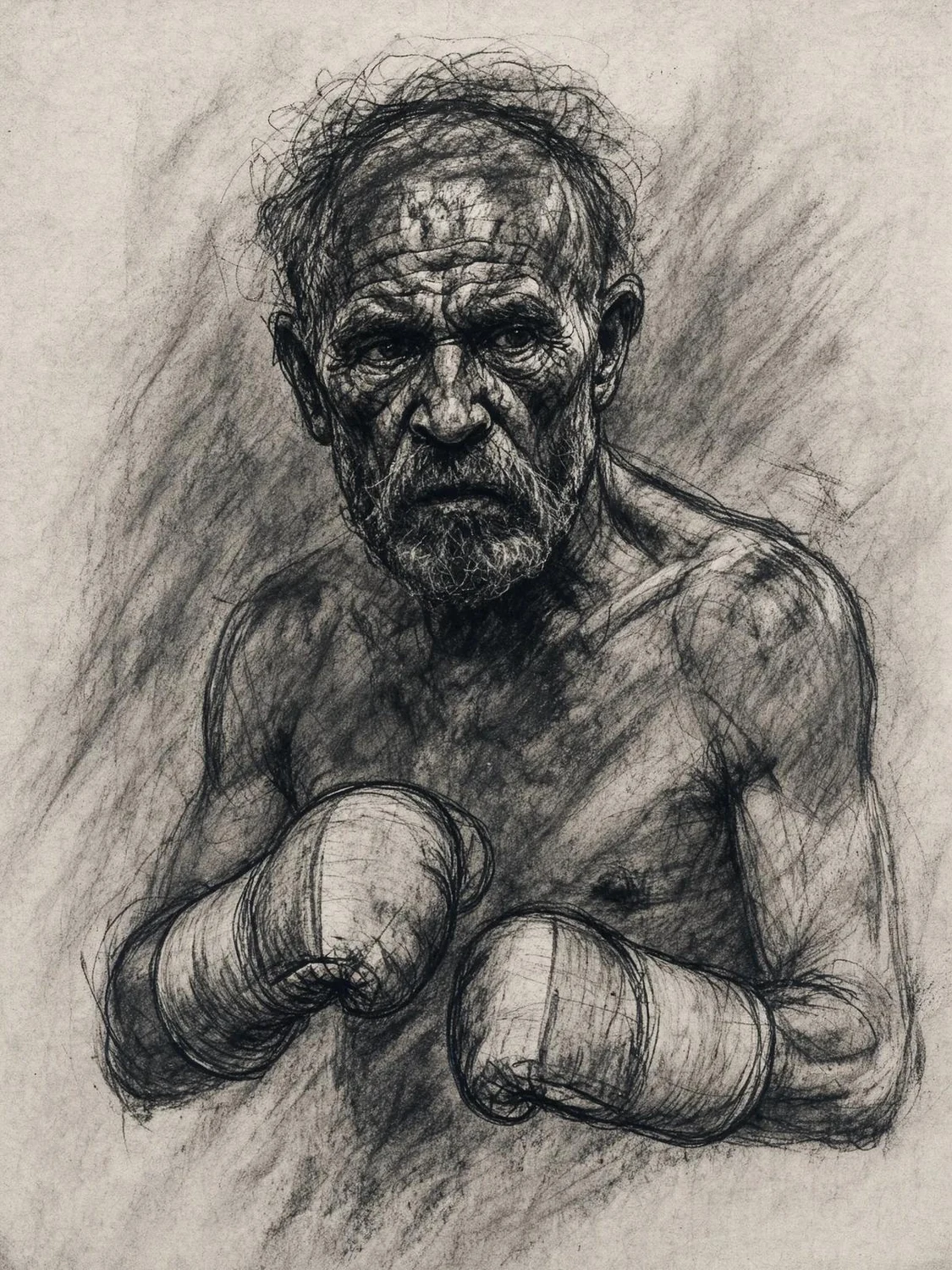
Source: Black Forest Labs' official FLUX 3 Image Klein examples, including the hero image and labeled editing pairs. Pexo workflow cards below are separate navigation previews.
FLUX image-generation and editing workflows
These official FLUX 3 Image Klein examples show distinct image tasks. Input and edited images are labeled separately; a single attractive result does not establish a general quality ranking.

Generate an image from a written scene brief
Describe the subject, environment, viewpoint and lighting before adding finer detail. The jumping-spider example shows a photographic macro scene. Inspect the result at its intended display size, especially small structures and material textures.
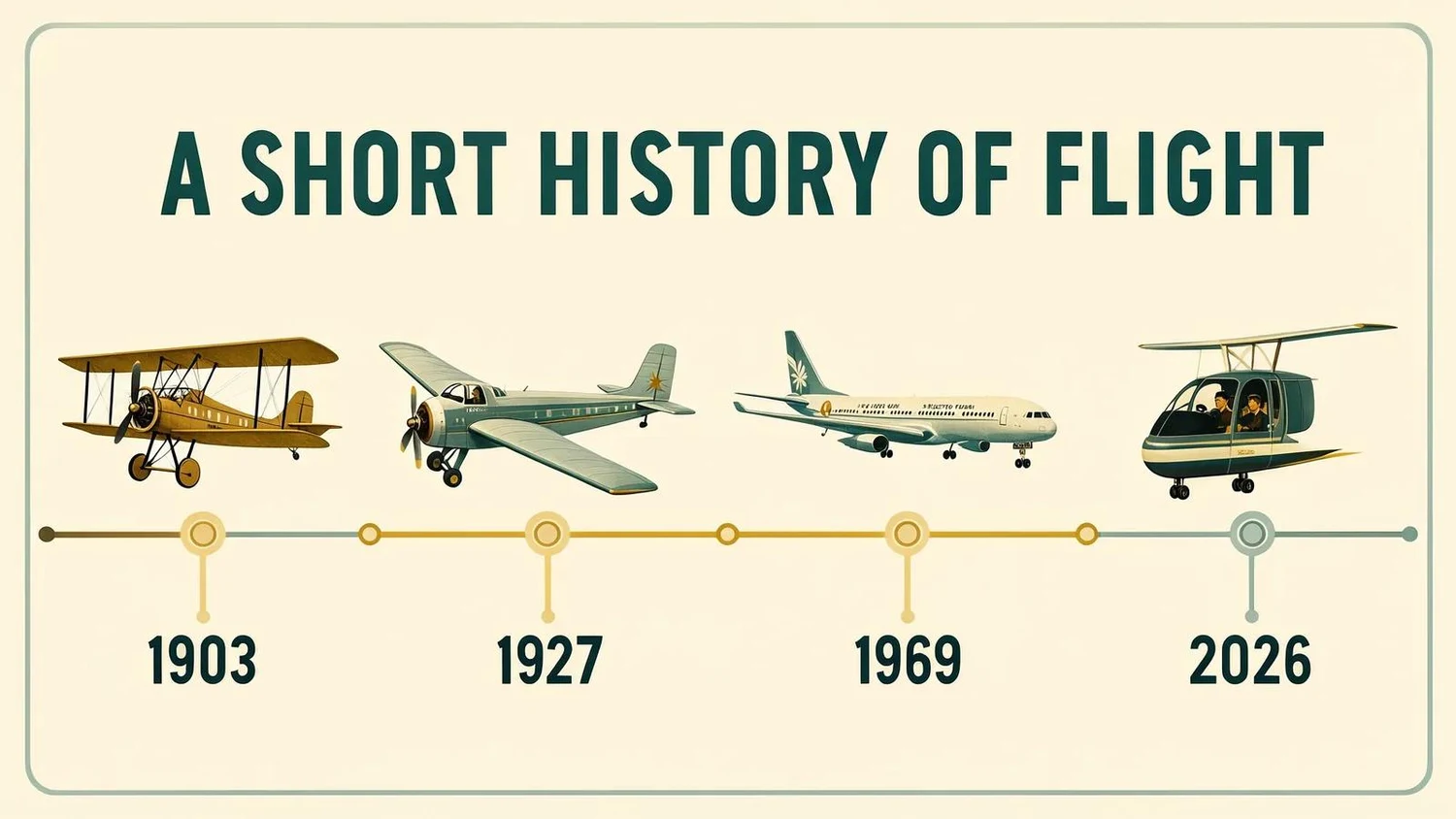
Include text in a visual layout
FLUX image models can render lettering within a composition. The flight-history example combines a headline, illustrations and dates. Supply the exact wording and read back every line; image text still needs spelling, layout and factual checks before publication.
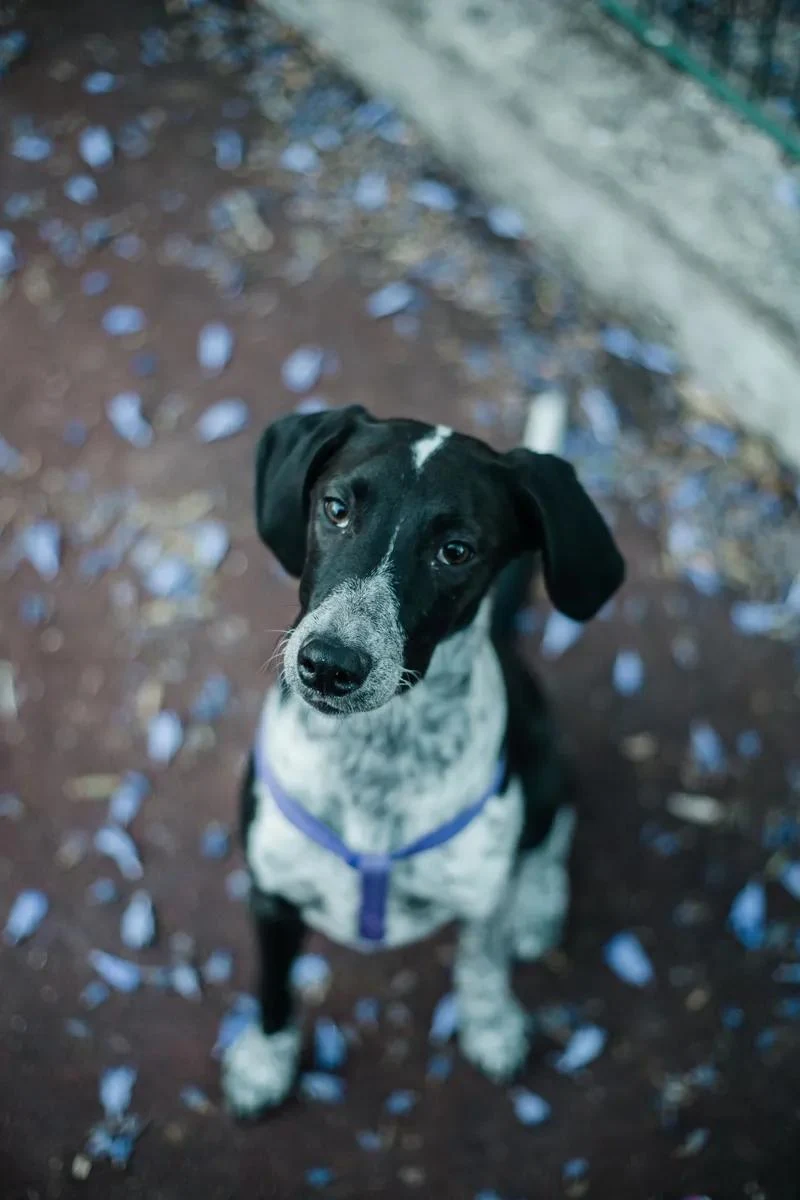
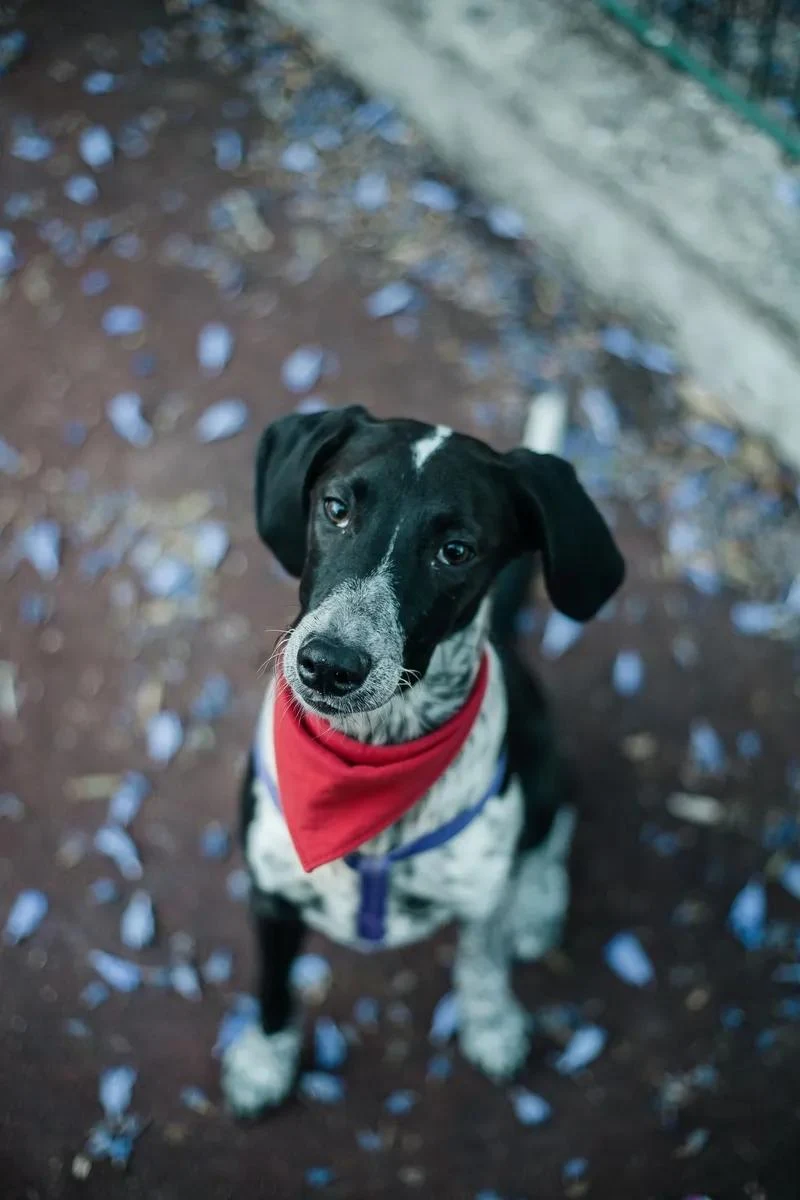
Change one element in a source image
State the intended change and what should remain. In this official editing pair, a red bandana is added to a dog. Compare the whole output with the input, including fur, pose and nearby objects, rather than inspecting only the requested addition.


Restyle an existing scene
An editing instruction can change the appearance of a setting. The street example turns a leafy scene into winter. Review the geometry, shadows and background after a seasonal or stylistic edit; a coherent overall look can still contain local changes you did not request.


Place subjects within a scene
Describe where new elements belong and how large they should appear. The dune example adds a small camel caravan along a ridge. Reference and layout controls vary by model; FLUX 3 Image also documents bounding-box-based composition and editing.
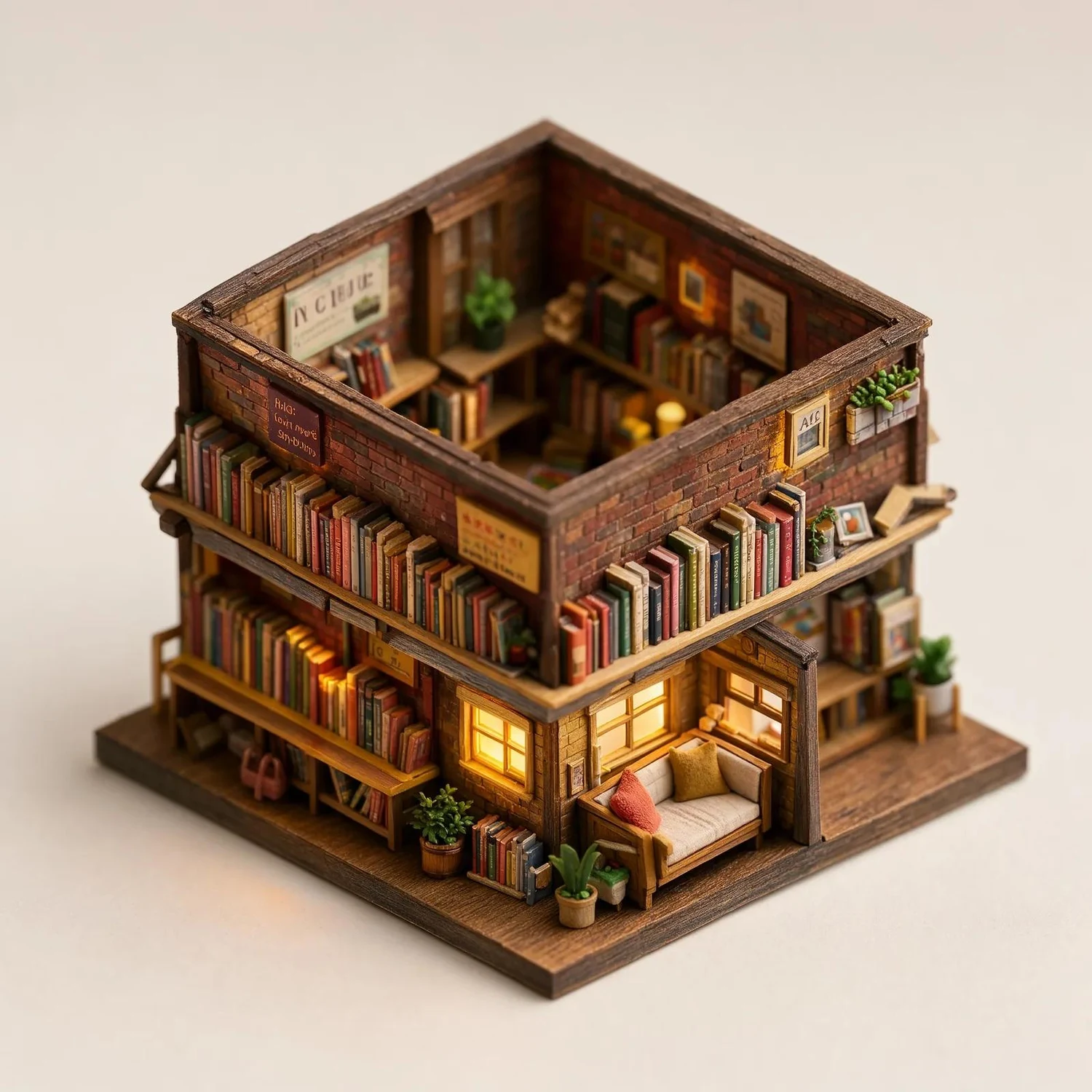
Explore illustration and designed worlds
A brief can specify a visual medium and a structured subject rather than a photographic scene. The miniature bookshop illustrates this range. Give the viewpoint and important parts of the design, then check perspective, repeated elements and small details in the output.
Compare FLUX image-model routes
Choose by the controls and deployment route the task needs. The columns below describe model roles, not measured rankings or identical service limits.
| Model route | FLUX 3 Image | FLUX 3 Image Klein | FLUX.2 |
|---|---|---|---|
| Main role | Image generation and layout-guided editing | Image generation, editing and customization | Image generation and reference-guided editing |
| Reference and layout controls | Canvas elements and bounding boxes | Reference composition and instruction-based edits | Multi-reference composition; controls vary by variant |
| Access | Hosted model and API route | Open-weight checkpoints and an API route | Hosted variants and separate open-weight options |
| Useful starting point | A composition with elements in defined positions | A custom image-editing or generation pipeline | A brief and the images needed to guide it |
| Check before choosing | Current interface and API settings | Checkpoint license, hardware and serving setup | The exact variant, input limits and license |
The FLUX family also includes video and other modalities. Image-model capabilities, pricing and licenses should not be inferred from those separate products.
Prepare a FLUX image task in three steps
Separate the creative brief from model selection, then review the image against the source material.
Define the image and references
State the subject, composition, style and intended use. For an edit, identify the source image, the requested change and the details to preserve.
Choose the exact model route
Select a model that supports the required reference, layout or editing controls. Check its output settings and, for self-hosted weights, the model card and license.
Inspect and revise
Read generated lettering and inspect edges, anatomy, product details and the wider scene. Revise the instruction or references when the result misses the brief.
Explore Pexo video workflows
Develop a creative brief into a separate Pexo video workflow. These cards link to Pexo use-case pages, rather than outputs from the model examples above.
Product Ad Video
Product marketing sequences
Social Media
Short videos for social feeds
Explainer Video
Visual explanations of a product or process
Short Story
Short narratives assembled scene by scene
Anime Video
Anime-inspired stories and characters
Music Video
Music-led visual storytelling
Frequently Asked Questions About FLUX AI
What is FLUX AI?+
FLUX is Black Forest Labs' model family. Its image models generate and edit still images, while other FLUX products cover separate modalities. Model names and variants matter when comparing features.
Can FLUX generate images from text?+
Yes. FLUX image models offer text-to-image generation. Describe the subject and composition, then check the controls available in the selected model or service.
Can I edit an existing image with FLUX?+
Supported FLUX image models accept source images and editing instructions. Some also combine several references or use layout controls. Check the exact model's documentation and compare the result with the input.
Does every FLUX model create video?+
No. This page covers still-image workflows. Black Forest Labs lists separate FLUX video models; their durations, audio options and interfaces do not describe the image models.
Where can I use FLUX image models?+
Black Forest Labs provides hosted services and API documentation, and selected models have downloadable weights. Access and supported controls depend on the exact model and route.
Are all FLUX weights free for commercial use?+
No single license covers every FLUX checkpoint. Read the selected model card, license and any commercial-use conditions. Hosted API access and self-hosted weights can have different terms.
Turn your idea into a Pexo video
Describe the video you want to make, review the result, and refine it in conversation.
Start with Pexo →