Pexo
WAND · Vega Video 1.5 Pro

Vega Video 1.5 Pro
Shape the scene before the final take

Vega Video 1.5 Pro is a video generation model in Tencent Cloud’s WAND family. Turn written scenes, images and mixed references into directed shots, with a draft-first preview workflow and clips up to 30 seconds.

Core capabilities

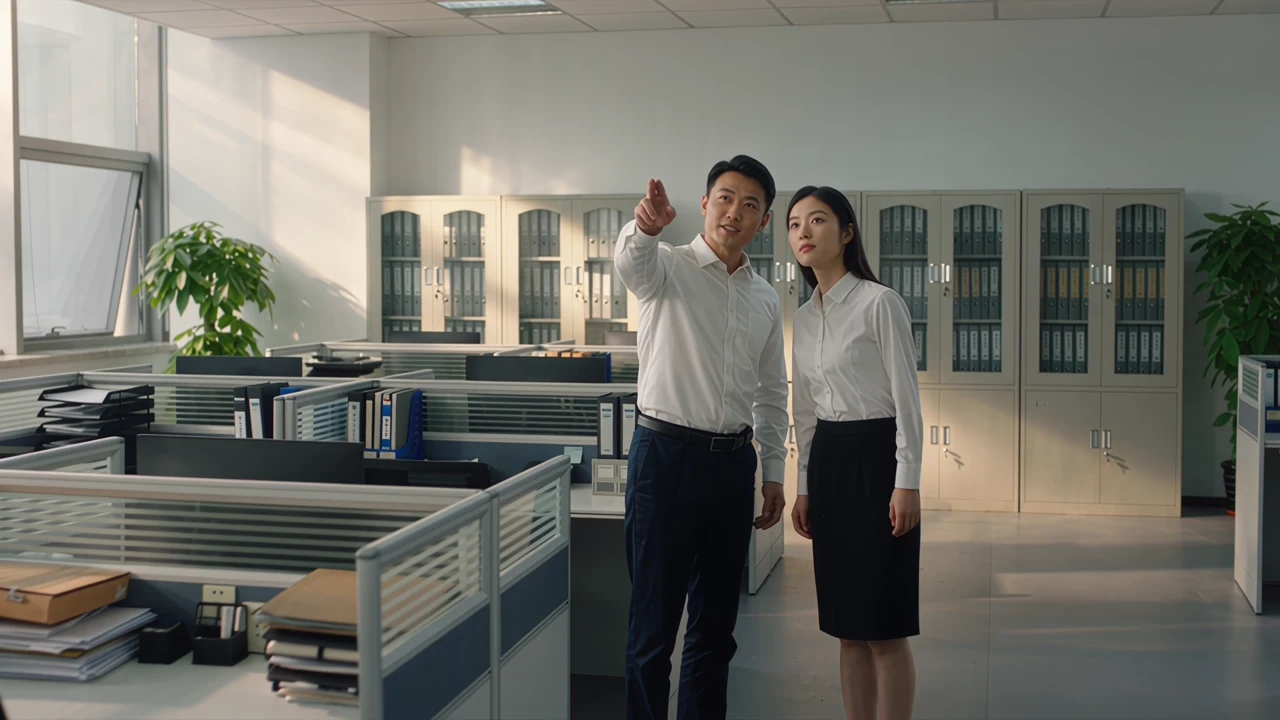
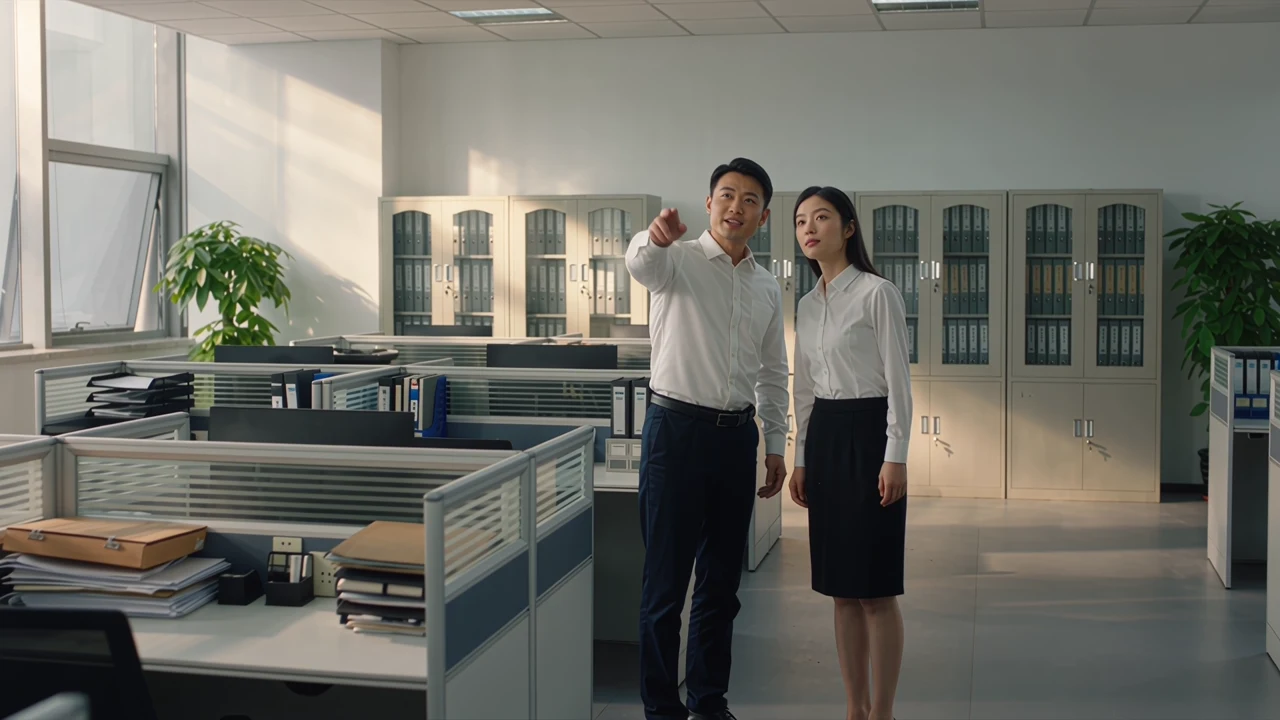
Two colleagues in a bright office
Brief summary

Two colleagues discuss something at a workstation. One gestures; the other looks and nods as the camera moves closer.

Build a shot from a written scene

Start with the action that makes the shot readable. In the office example, one colleague gestures, the other follows the gesture, and the camera moves closer. A useful brief separates subject action from camera action and specifies where the shot should settle. Review the actual movement: a well-composed frame alone cannot show whether a sequence follows the brief.

Starting image detail of a man holding a mug in an office

Starting image · cropped detail

Generated motion · silent excerpt

Reference image: WorkBuddy, cropped for this layout. The result is an actual video excerpt from the matched example.

Give a starting image a next moment

An image establishes the character and the opening composition; the prompt describes what changes next. Here the reference supplies the man, mug and office, while the result adds a head turn and a small performance. The paired video is a silent visual excerpt. Inspect the face, hands, mug and background across the clip rather than judging only the first frame.

Character and clothing reference

Character + clothing

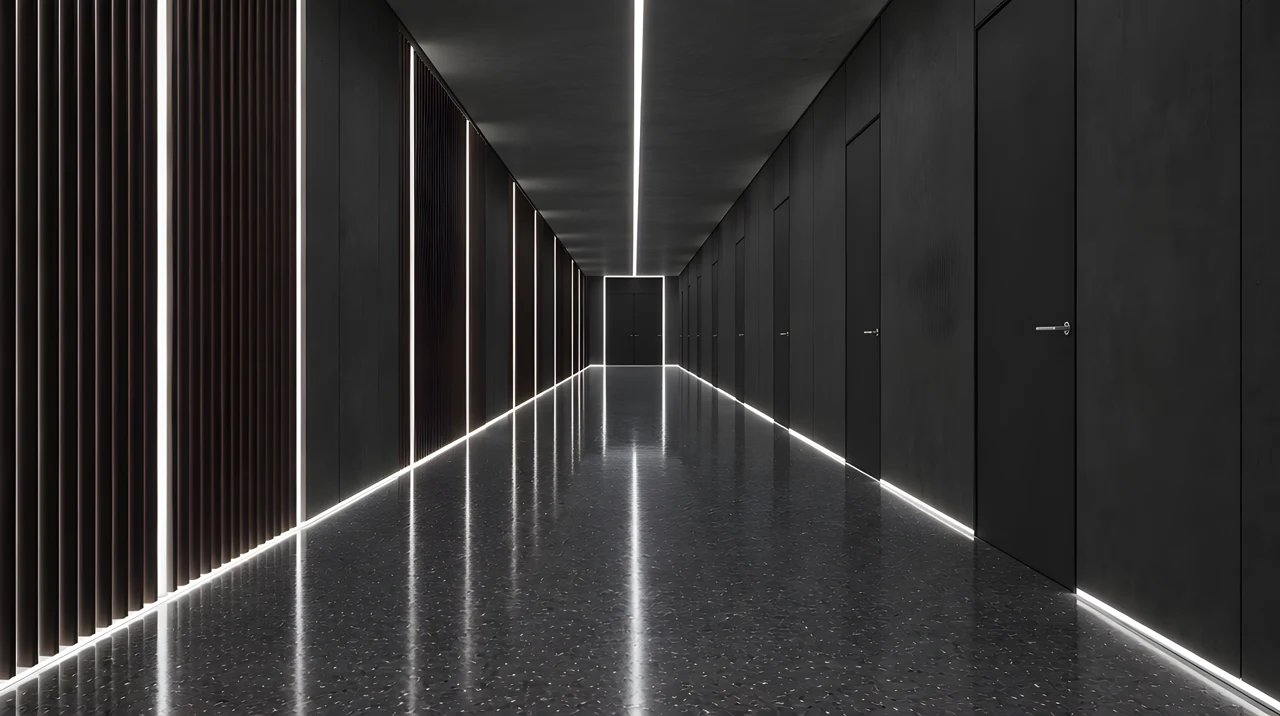
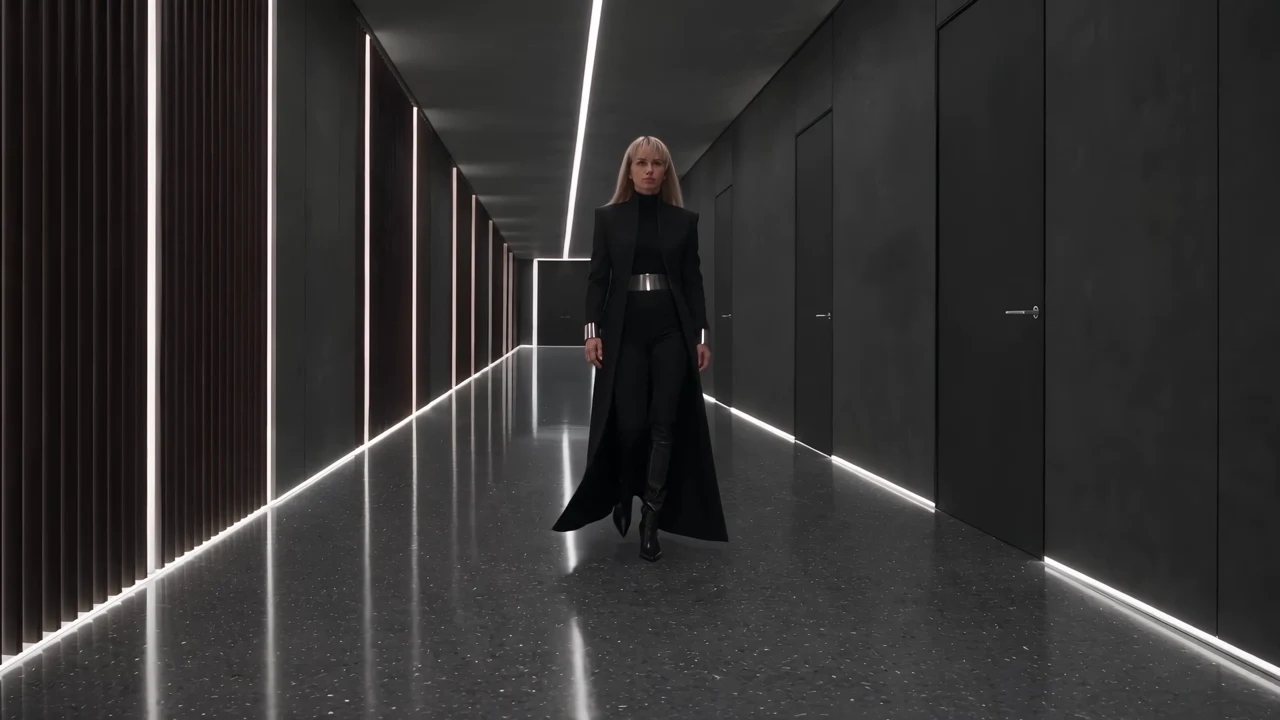
Corridor setting reference

Setting

Two actual reference images → the corresponding generated video. Silent visual excerpt.

Combine character and setting references

Assign each reference a clear role. This example supplies a character-and-clothing sheet and a separate corridor image, then generates a moving shot that combines them. Describe the camera path and the action at the door as well as the appearance. Check the whole result for changed clothing, reflections and door behavior; references guide the shot without guaranteeing perfect preservation.

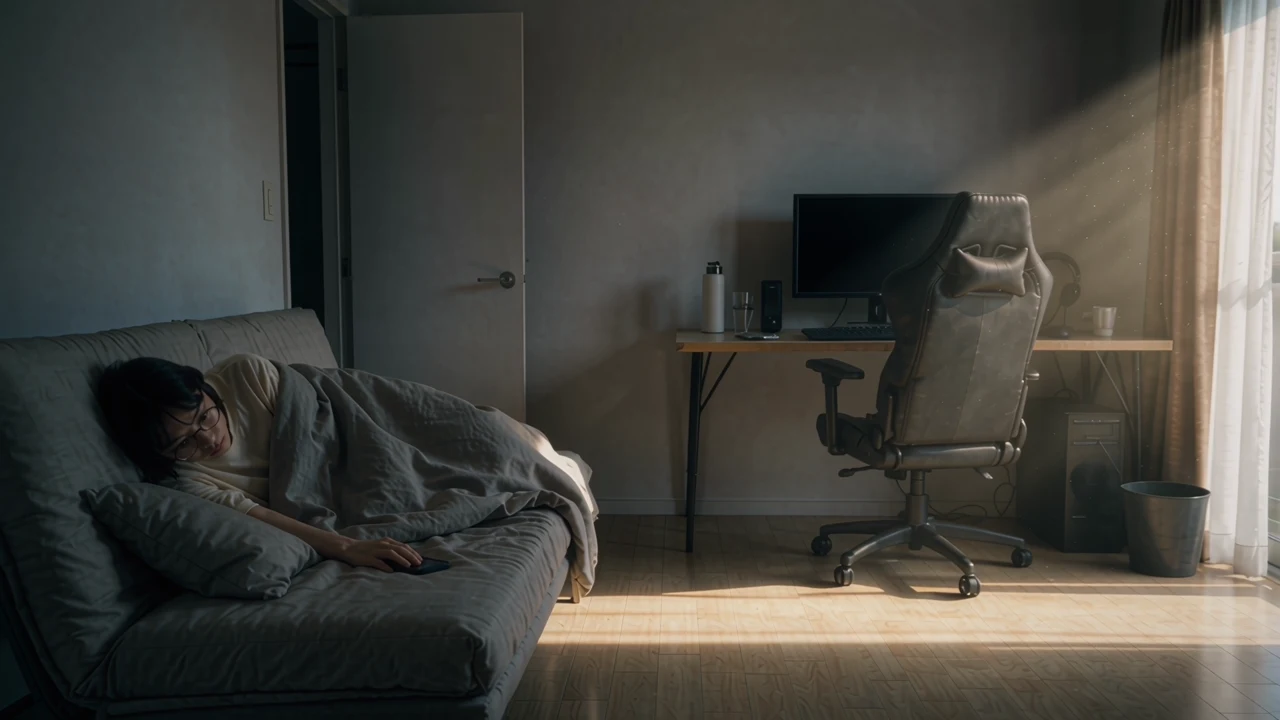
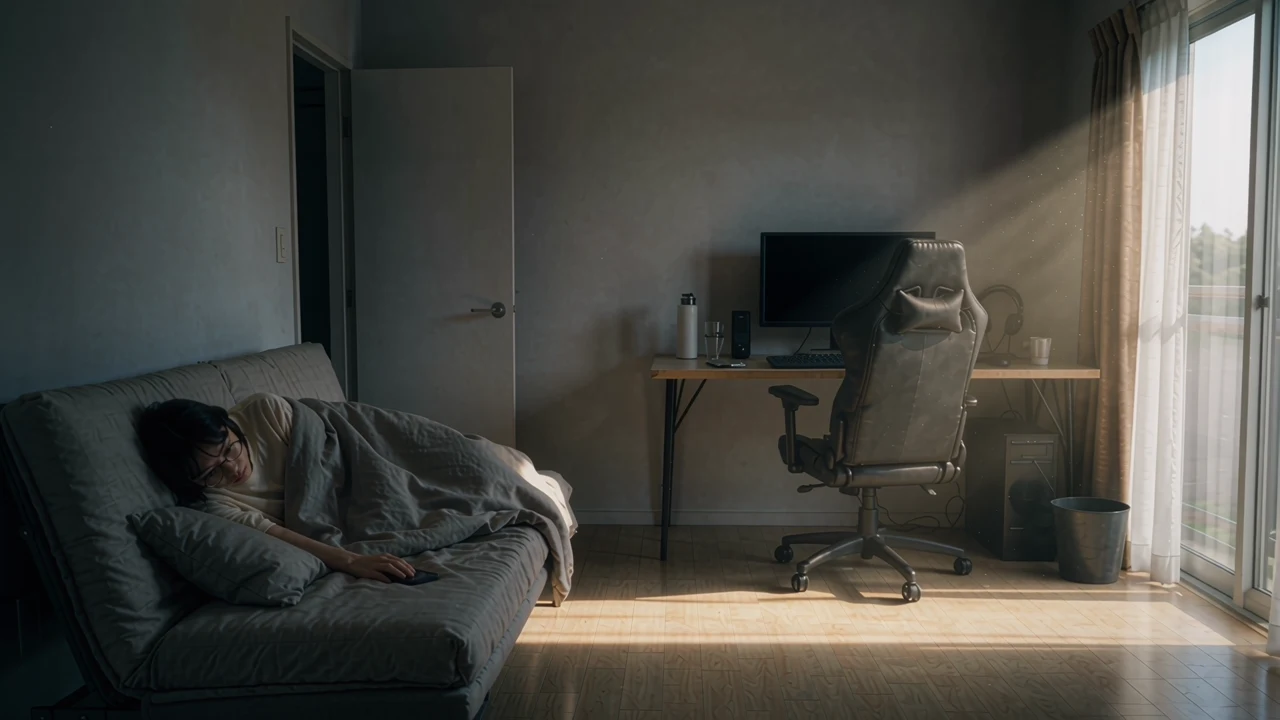
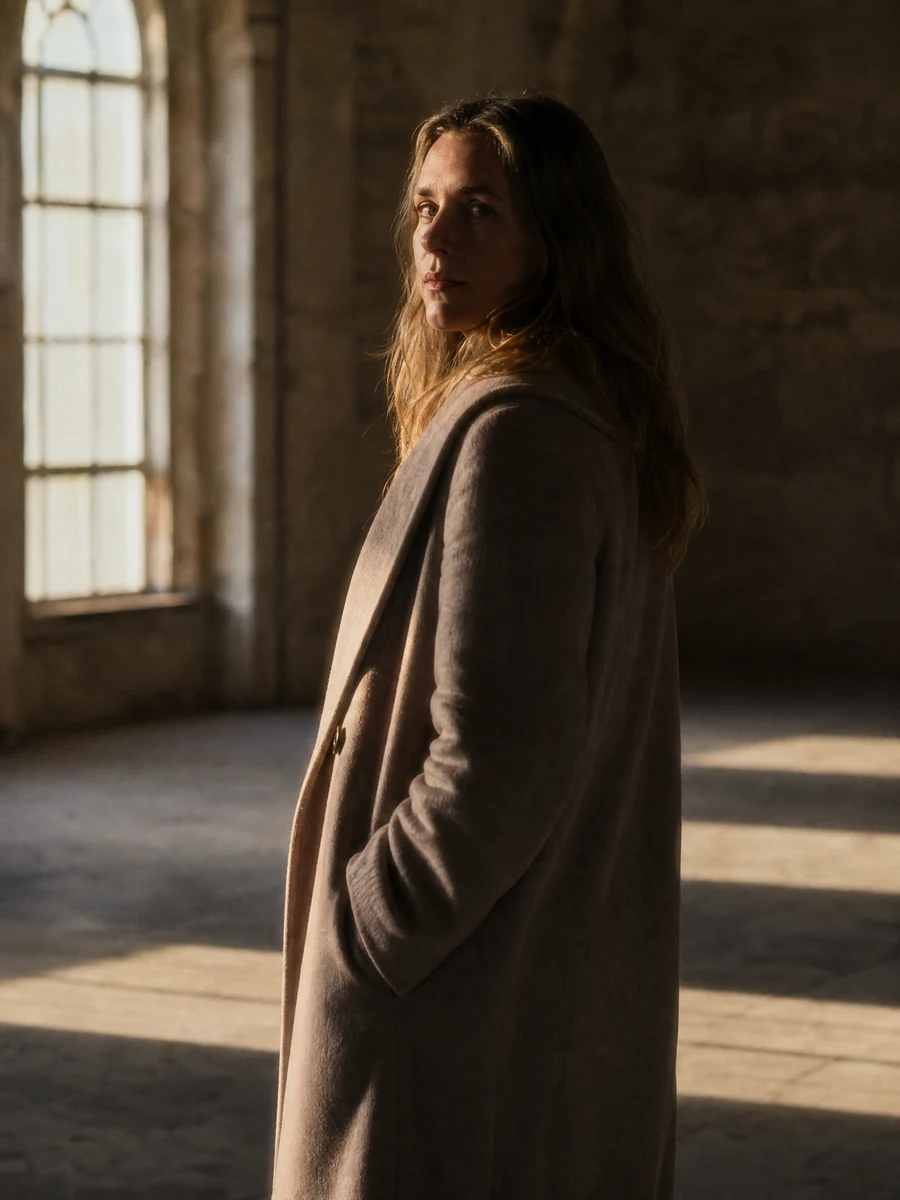
Sunlight across a quiet room
Camera brief: reveal the room slowly after the close-up. Watch the full move in the opening video.

Direct the camera and the visual mood

The opening demonstration uses a dim room, a narrow band of daylight and a slow camera move. That gives the shot a direction without filling the frame with extra action. Plan what the camera reveals and which details should remain quiet. Vega’s draft option can help review a proposed layout and movement before a final render; draft and final rendering are separate steps.

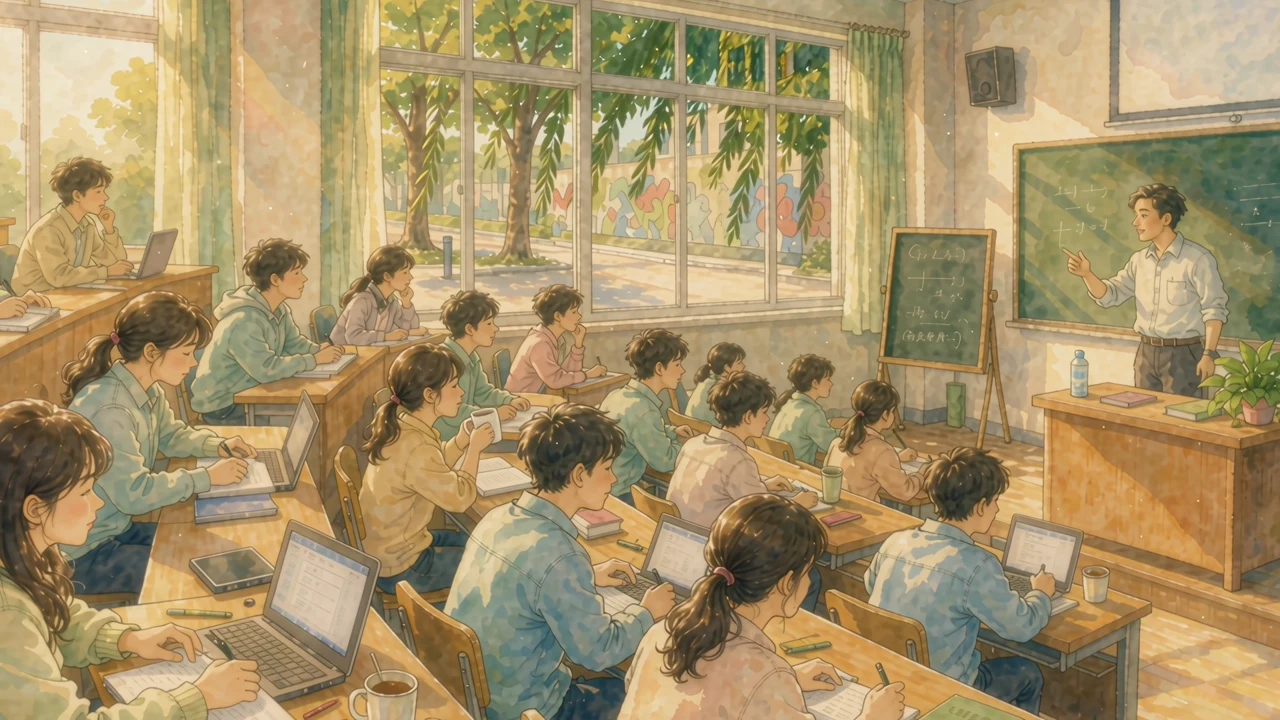
Painterly creature on a stone bridge
Brief summary

A small pale creature crosses a broken bridge at night, with lightning behind it and a painterly animated look.

Explore an illustrated motion style

A visual style belongs in the brief alongside the action. The stone-bridge example uses a small creature, a dark setting and a painterly animation treatment. Keep the main movement simple enough to read, then inspect how edges, textures and lighting behave over time. A still extracted from the result helps compare the look, while the full clip is needed to judge motion.

Image showcase

Source: published Vega Video 1.5 Pro examples in the WAND Team evaluation report; frames extracted for display and playback excerpts presented without audio.

Model comparison

DIMENSIONVega Video 1.5 ProVega Video 1.0 Pro
Clip duration4–30 seconds, with Auto available4–15 seconds, with Auto available
Workbench resolution choices480P, 720P, 1080P, 2K and 4K480P, 720P, 1080P, 2K and 4K
Draft-first workflowDedicated 480P draft preview, followed by final renderingNo equivalent draft option shown in the inspected version
Creative inputsText, frame images and mixed references; Pro editing / extension controlsText, frame images and mixed references; Pro editing / extension controls
Practical selectionWhen a longer shot or draft-first review is usefulWhen the shorter Pro workflow fits the task

Based on the public Tencent Cloud Vega workbench controls inspected November 16, 2026. This is a workflow comparison, not a matched-input quality benchmark. Other API routes may expose different settings.

Use-case scenarios

Short narrative performances

Plan a readable gesture, reaction or reveal within a single shot. Reference-led generation can help establish the performer and setting; inspect continuity before cutting several generated shots into one scene.

Reference-led visual concepts

Bring together a character sheet and a location reference to explore how they work in motion. This suits a preproduction proposal; review clothing, props, spatial relationships and identity before relying on the result.

Drafts for camera and mood decisions

Use the draft-first option to inspect scene structure and movement before committing to a final render. Keep the creative question specific, such as whether the camera reveal reads clearly; a draft is not a final delivery asset.

Use cases

Develop the wider story with Pexo’s video creation workflows.

Frequently Asked Questions About Vega Video 1.5 Pro

What is Vega Video 1.5 Pro?

It is a video generation version in Tencent Cloud’s WAND Vega family. The official workbench lists text generation, frame-guided generation and reference generation, together with Pro editing and extension controls. This page focuses on creative video output.

How long can a clip be?

The inspected 1.5 Pro workbench offers 4–30 seconds or Auto. It lists 480P, 720P, 1080P, 2K and 4K resolution choices. Treat these as route-specific controls and check the current service limits before planning delivery.

What does Draft mode do?

It creates a 480P preview to review layout, camera work, motion and prompt intent before turning that draft into a full-quality video. Draft and final rendering are separate operations; do not treat the preview as the finished asset.

Can I edit or extend a video?

The Pro workbench exposes Edit/Extend alongside text, frames and mixed references. Supply an appropriate source and review what the model changes, including joins and background details. Input restrictions and available controls can differ between service routes.

Where can I access it, and were these examples generated by Pexo?

The official Tencent Cloud WAND workbench lists Vega-Video 1.5-Pro. Use requires the relevant Tencent Cloud sign-in and service permissions; access is not guaranteed for every account. The examples on this page come from a published evaluation report, not from a generation test performed by Pexo.

Official Tencent Cloud Vega workbench

Describe your idea and start your next creation.

Start creating