
Vidu AI: Turn images and references into video
Vidu is a family of AI video models and creative tools, rather than one model with a single specification. Its services offer text-, image- and reference-guided workflows, with availability depending on the selected version. Vidu Q4 documents image-to-video and reference-to-video modes, including audio-reference options. Start with the input you have, choose a compatible route, and review the generated clip before using it in a finished production.
Image showcase
Static previews from Vidu's reference-to-video examples. The hero above is a playable Vidu Q4 demonstration.

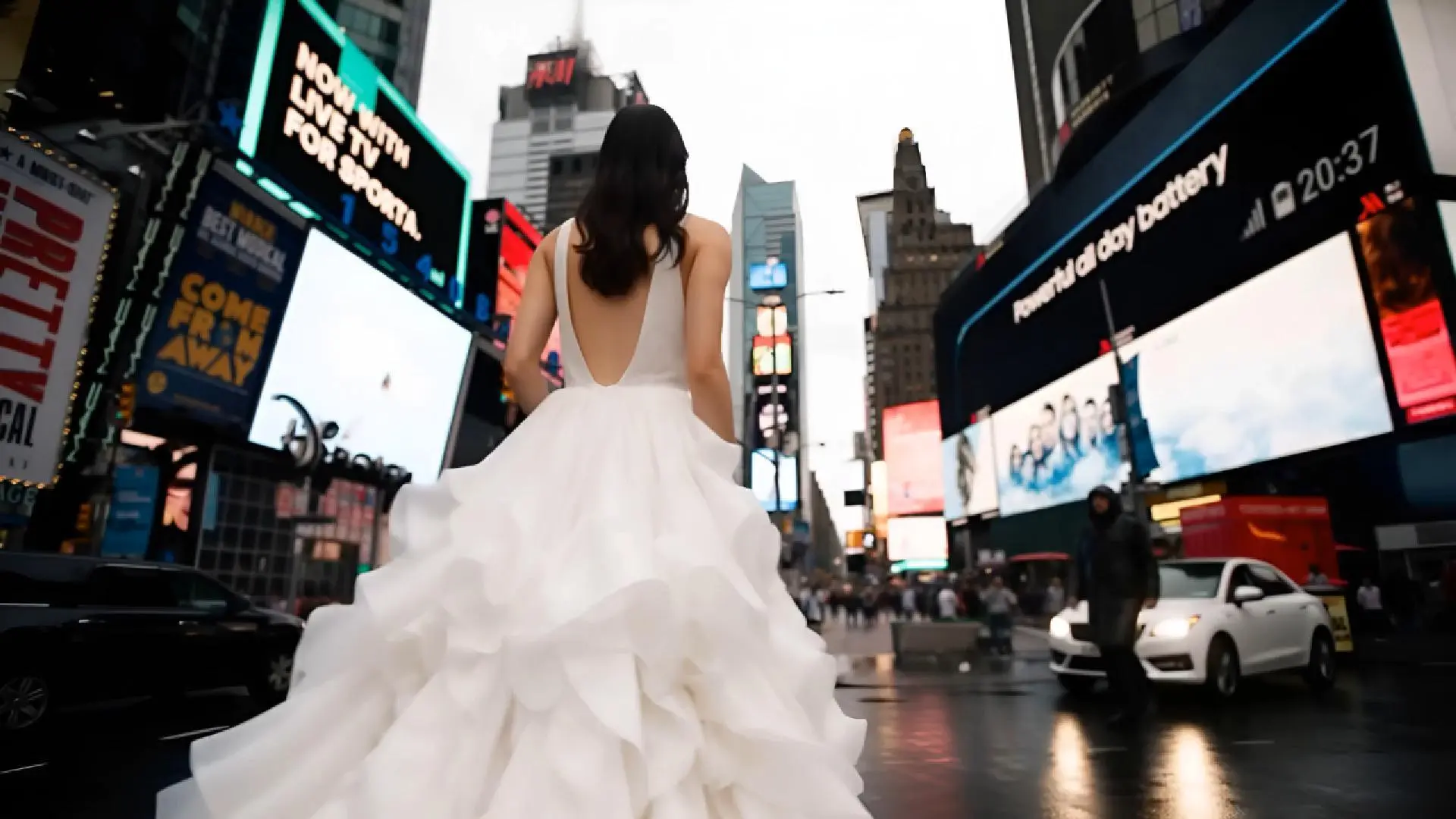

Source: Vidu's official Q4 and Reference-to-Video pages. Reference-input panels are identified in the capability descriptions; gallery images are video previews. Pexo workflow cards below are separate navigation previews.
Vidu video workflows and controls
The examples below distinguish starting images, reference inputs and output previews. They illustrate how to plan a scene without treating consistency, motion or camera direction as guaranteed.

Animate a starting image
Choose image-to-video when a selected picture defines the opening composition. Describe the subject's movement and the camera separately. Vidu Q4 documents this workflow; review the full clip for altered faces, hands or objects.

Build a scene from visual references
Reference-to-video uses images to guide characters, props, setting and style. The cloud-city frame is a Vidu Q4 demonstration. Assign a clear role to each reference instead of expecting the model to infer which details matter most.
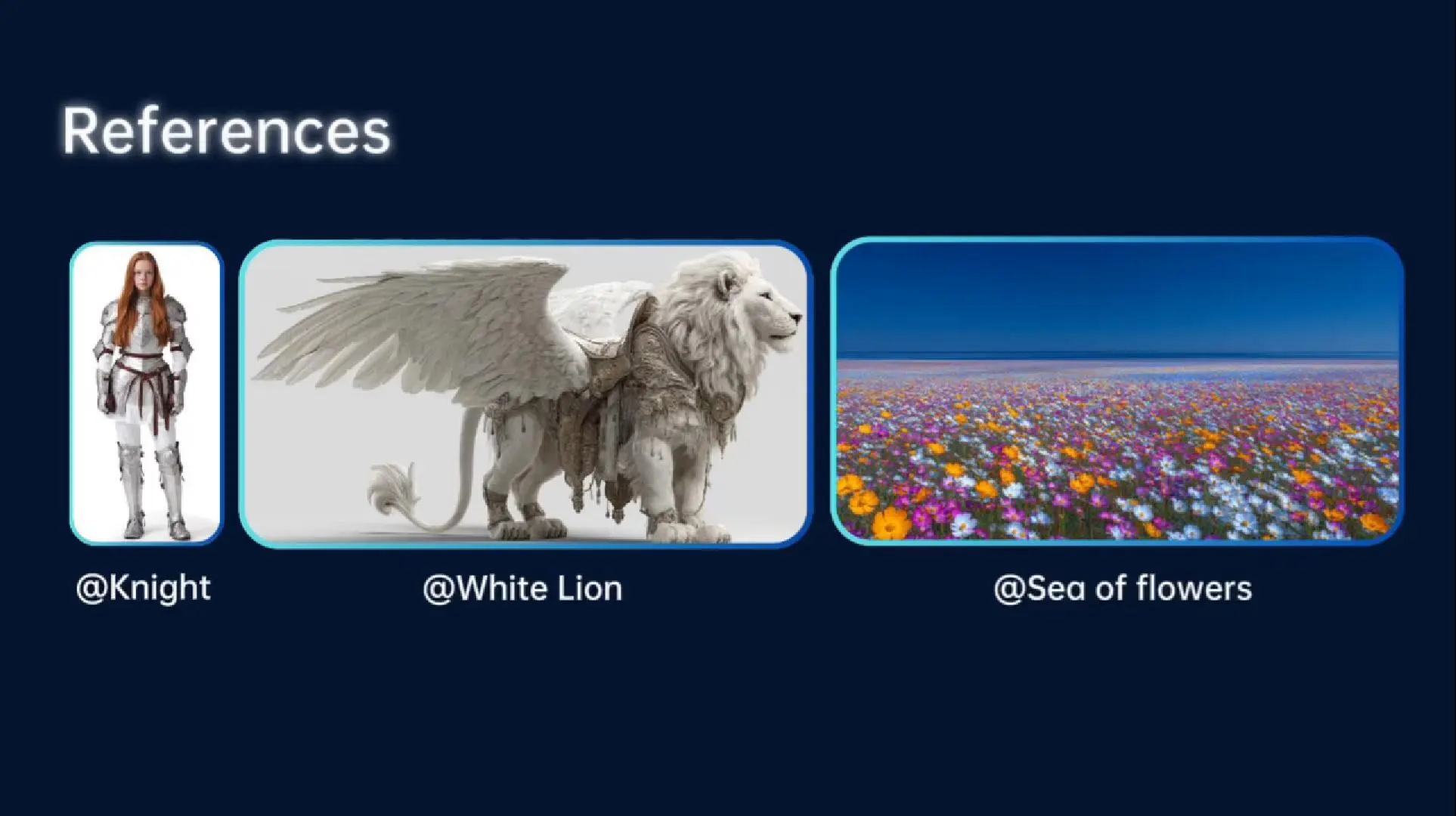
Reference inputs
Reuse a character reference
The knight, winged lion and flower-field panel shows the reference inputs for a Vidu demonstration. Clear views help define an identity to reuse across scenes. Compare faces, costume and proportions between clips; references guide consistency rather than eliminating every mismatch.
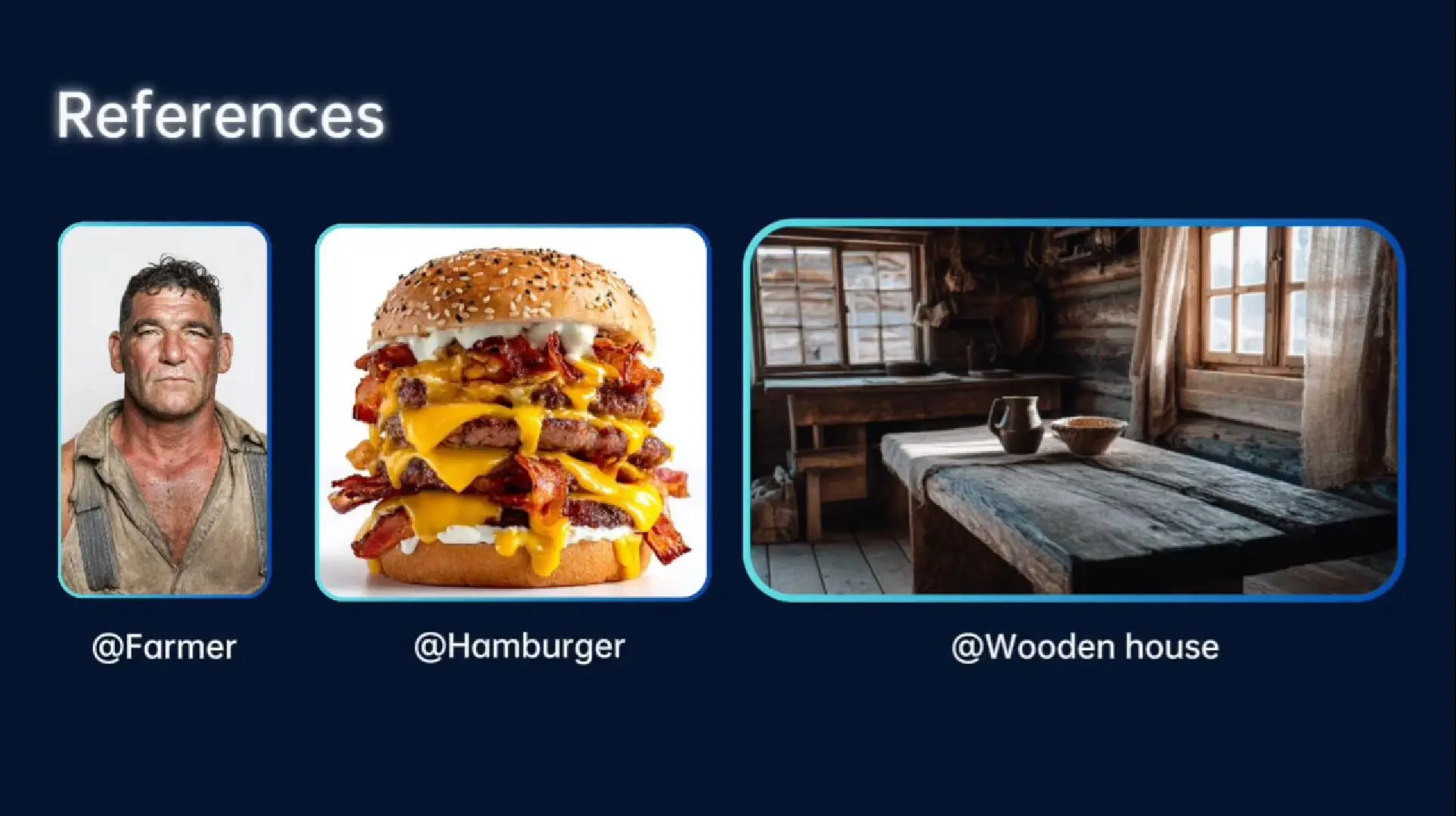
Reference inputs
Combine subjects, objects and places
A reference can describe a person, an object or a place. The farmer, hamburger and wooden-house panel illustrates these separate roles. Write who interacts with what, then inspect the result for scale and placement. Reference limits depend on the selected model and route.
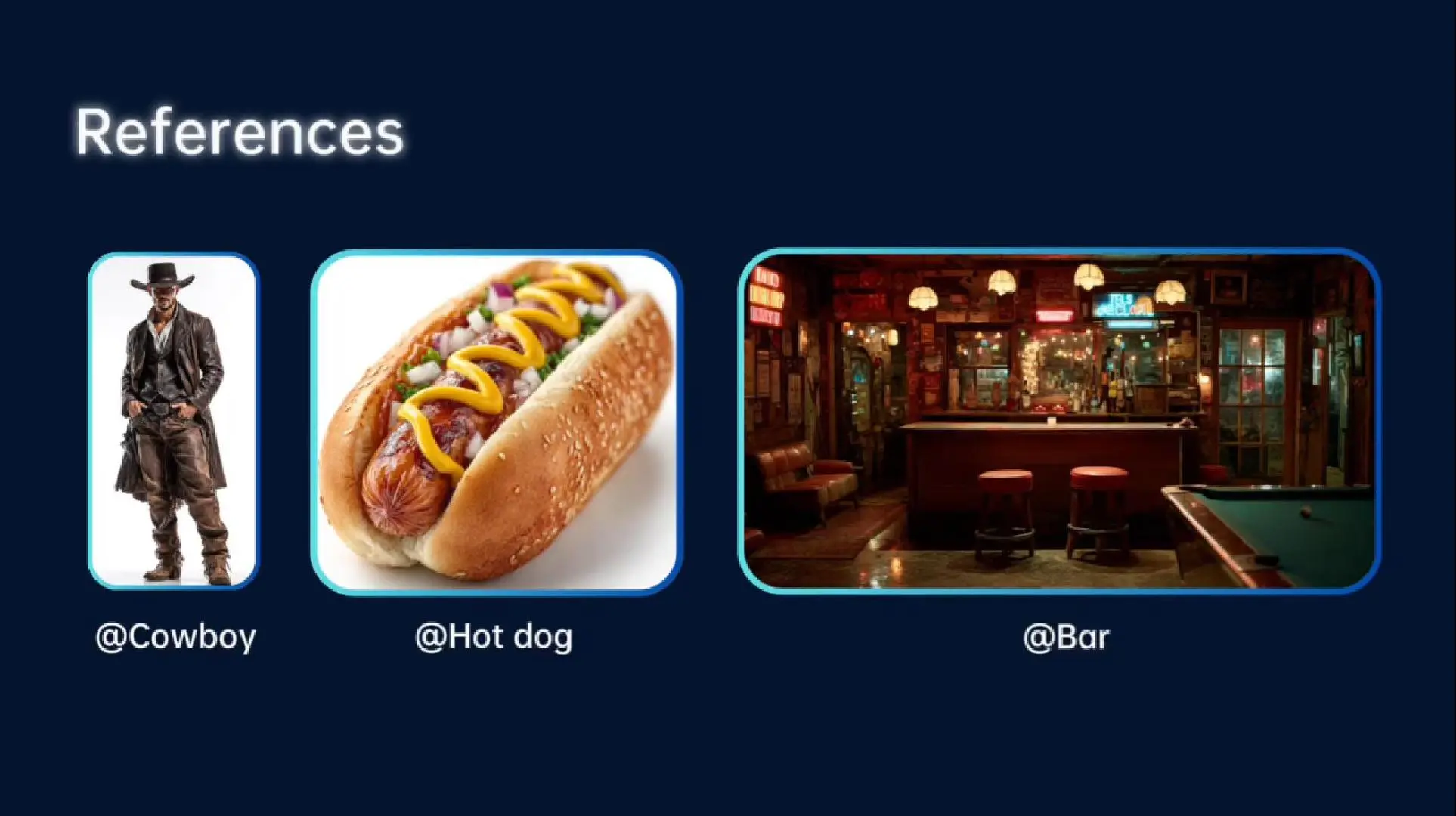
Reference inputs
Carry a setting into another shot
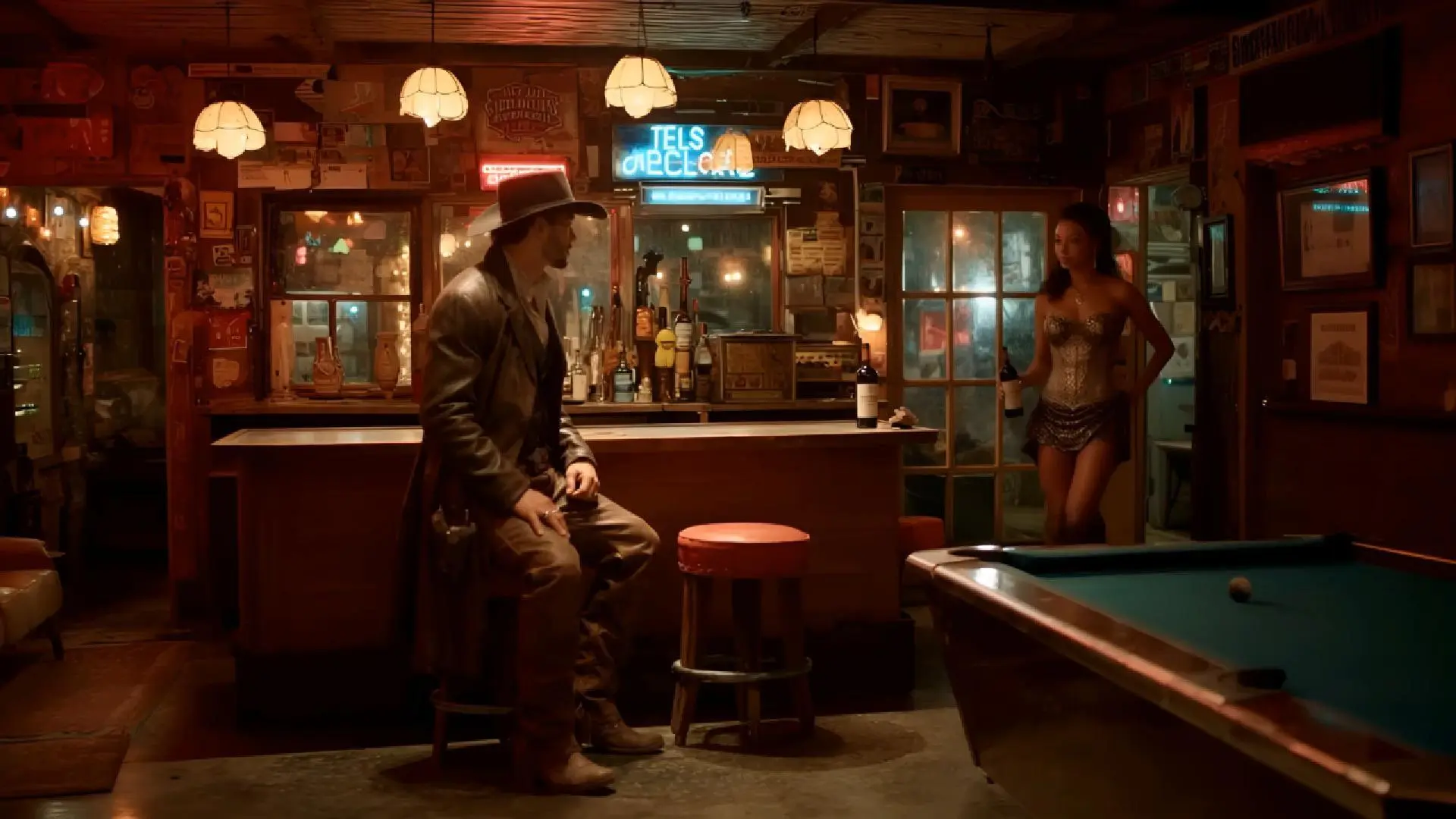
The cowboy, hot dog and bar panel is another set of reference inputs. Reuse location and style references when planning several shots, and make each shot's action explicit. Lighting, backgrounds and small props still need comparison across the generated clips.
Describe action and camera direction
Vidu's bar-scene example pairs reference subjects with an instruction describing an entrance and a camera push-in. Keep the action readable: one main movement, a clear location and an intentional camera change. Watch the resulting clip before deciding whether the direction worked.
Choose a Vidu input workflow
These are generation modes, not competing model scores. Check which modes the selected Vidu version actually exposes; the current Q4 product page documents image-to-video and reference-to-video.
| Workflow | Image to Video | Reference to Video | Text to Video |
|---|---|---|---|
| Starting material | A starting image and motion description | Subject, object or scene references and a description | A written scene description |
| Main purpose | Animate an existing composition | Guide subjects and scene elements | Explore a scene from words |
| What to prepare | A clear image and intended movement | Distinct references with clear roles | Subject, setting, action and style |
| Model availability | Documented for Q4 and other supported versions | Documented for Q4 and supported reference models | Use a version with a documented text-to-video route |
| Review before delivery | Motion and changes to the source image | Identity, interactions and continuity | Composition and interpretation of the brief |
Durations, resolutions, audio inputs and credit costs belong to the selected model and service route. A workflow name does not imply one shared limit across the Vidu family.
Prepare a Vidu video brief in three steps
Choose an input mode before refining the creative instructions. Use the options documented by the selected Vidu version.
Choose the mode and inputs
Use an image when the starting composition matters, or references when subjects and locations need visual guidance. Check that the chosen model supports the intended mode.
Describe the shot
Write the main action, setting, framing and camera movement. Give each reference a clear role. Set duration, aspect ratio and any supported audio options in the selected interface.
Review and refine
Watch the whole result, including transitions and sound. Compare identity and object details with the references, then revise the brief or settings before generating another version.
Explore Pexo video workflows
Develop a creative brief into a separate Pexo video workflow. These cards link to Pexo use-case pages, rather than outputs from the model examples above.
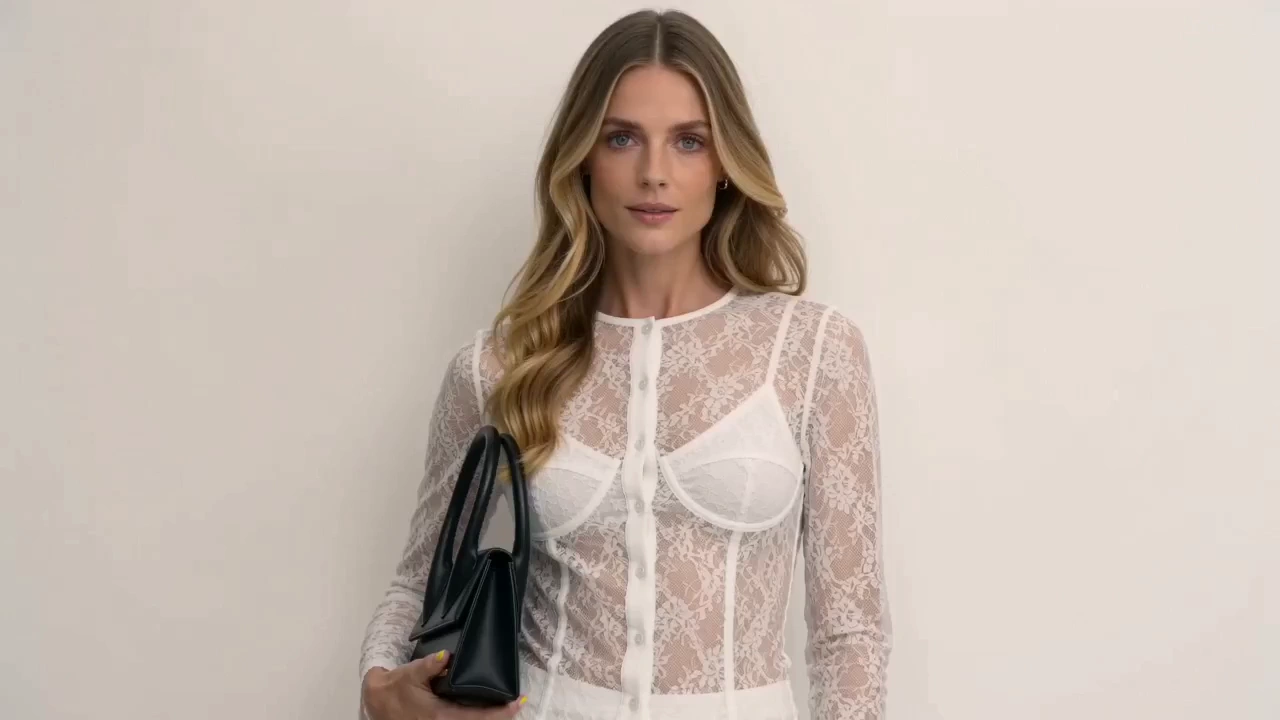
Product Ad Video
Product marketing sequences
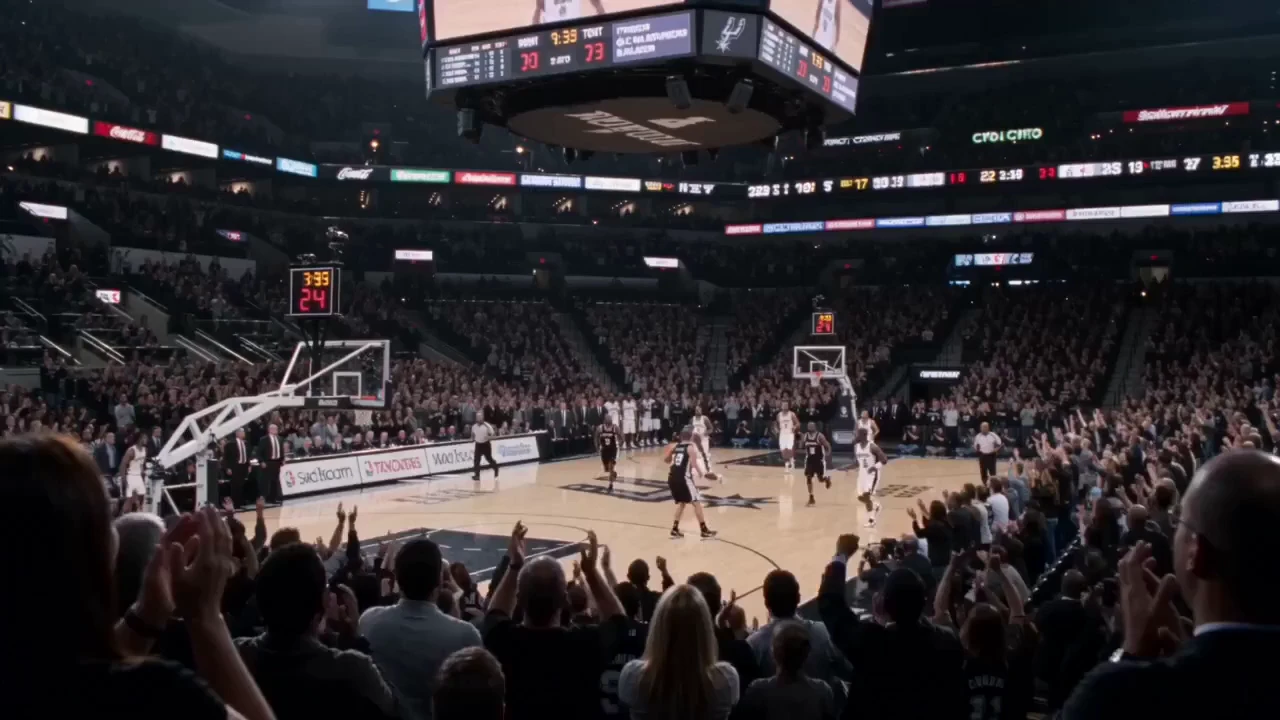
Social Media
Short videos for social feeds
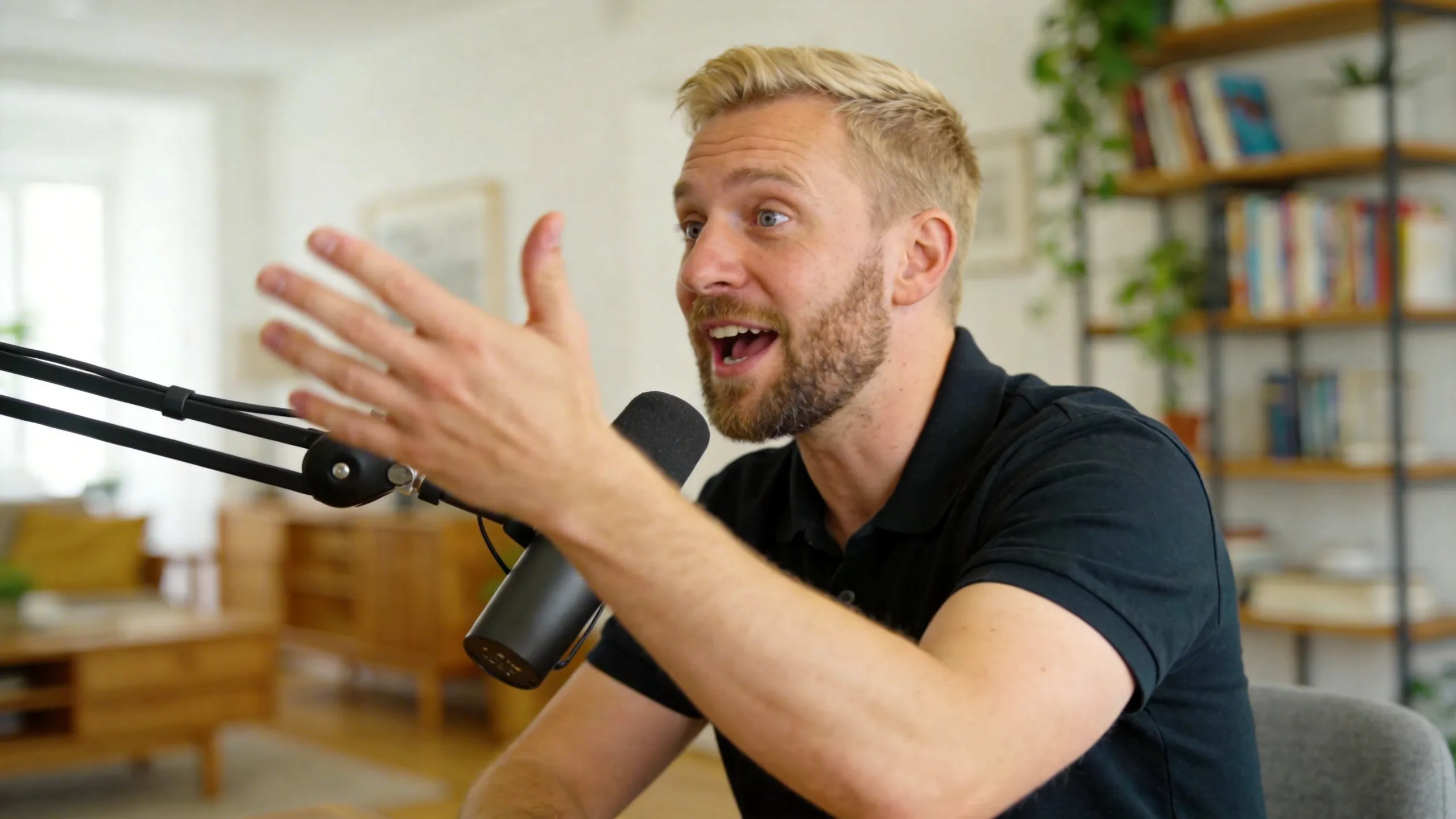
Explainer Video
Visual explanations of a product or process
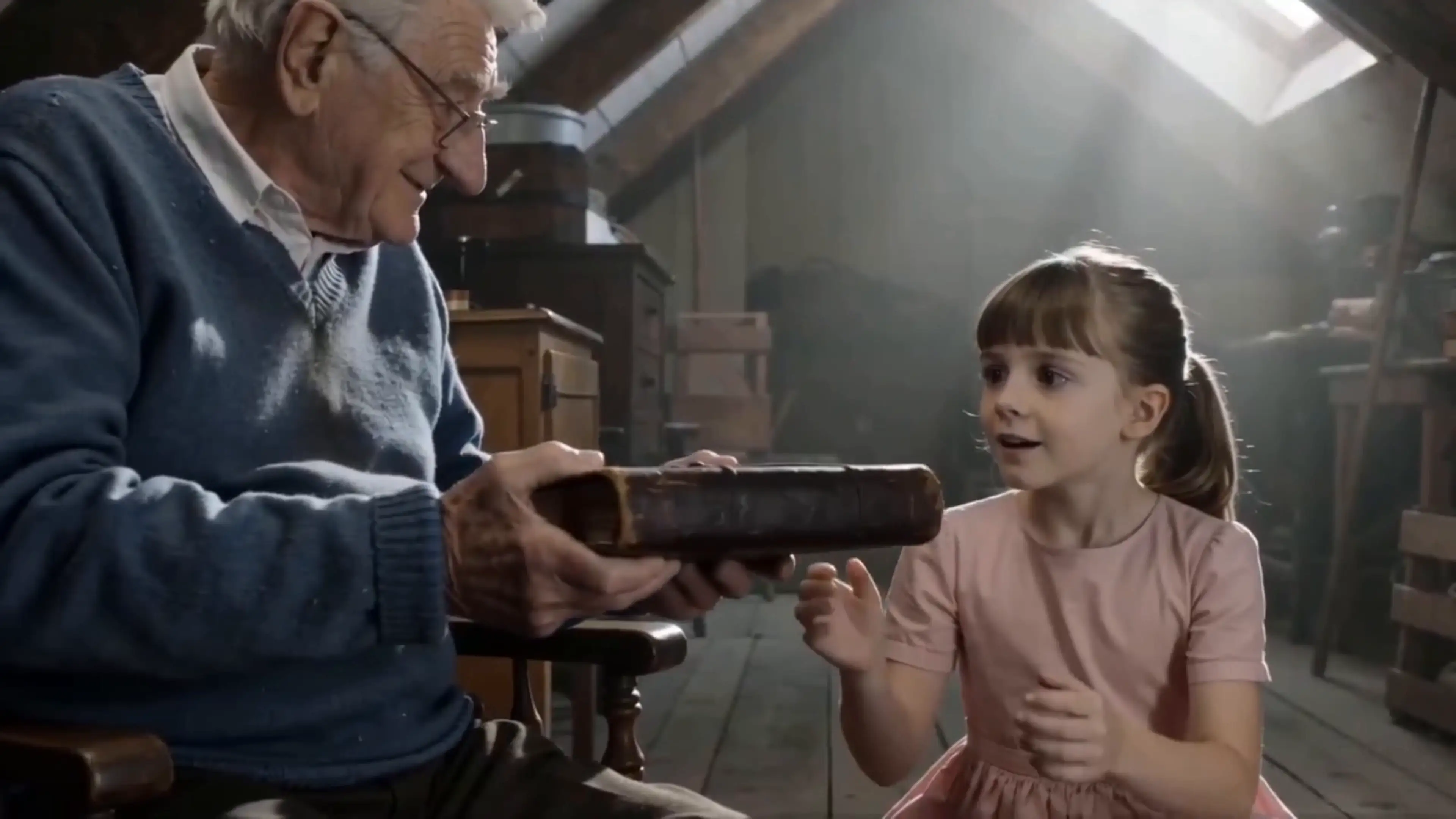
Short Story
Short narratives assembled scene by scene
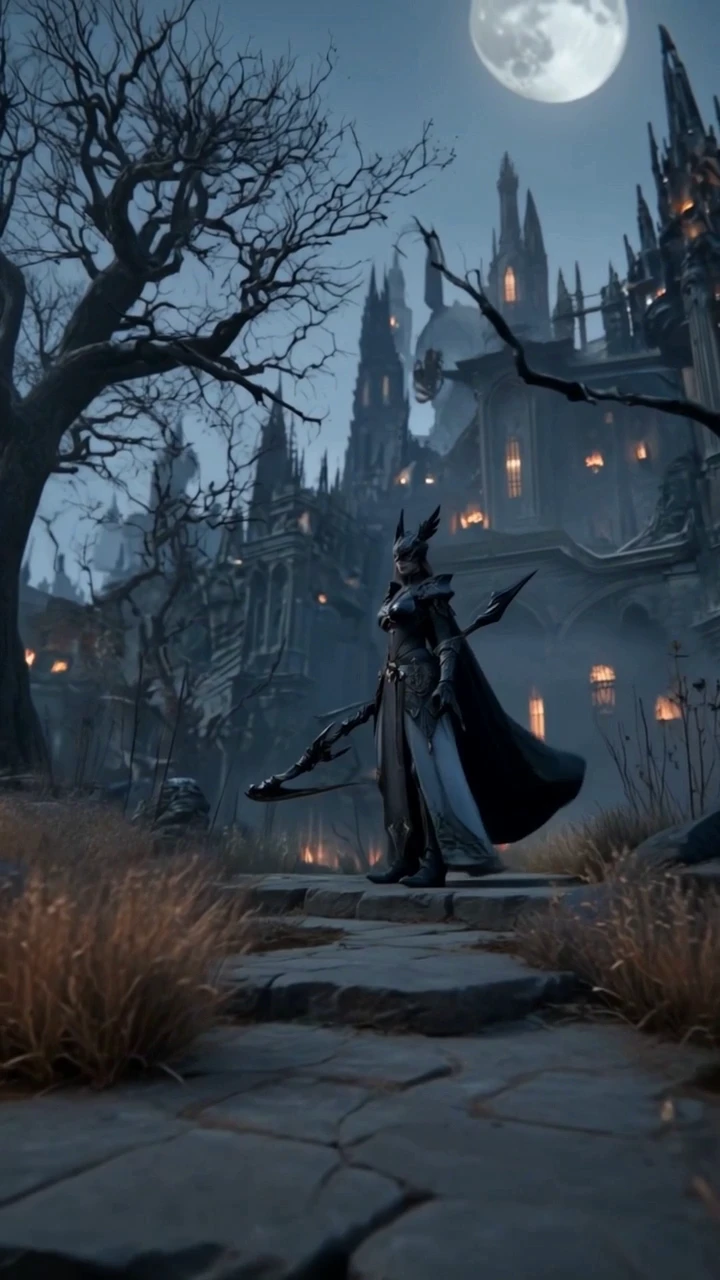
Anime Video
Anime-inspired stories and characters
Music Video
Music-led visual storytelling
Frequently Asked Questions About Vidu AI
What is Vidu AI?+
Vidu is an AI video-generation service and model family. Its products include image-to-video and reference-guided creation, with additional modes and tools depending on the selected version.
Does every Vidu model support the same inputs?+
No. Vidu Q4's product page documents image-to-video and reference-to-video, while the wider service also offers text-to-video. Check the exact model and endpoint rather than transferring another version's limits.
Can references keep a character consistent?+
Reference images guide character identity, objects and scene design. Use clear views and explicit roles, then compare the generated clips for changes in appearance, clothing and proportions.
Does Vidu generate audio?+
Audio capabilities depend on the version and route. Vidu Q4 documents synchronized audio-visual creation and voice references. Check supported inputs and listen to the complete result before delivery.
Where can I use Vidu?+
Vidu provides its own web creation tools and a developer platform. The available models, settings and access conditions are shown in the selected service.
Is Vidu free to use?+
Vidu uses credit-based plans. Free allocations, paid tiers and usage conditions can change, so check the current plan and selected model before generating. A trial allocation is different from unlimited access.
Turn your idea into a Pexo video
Describe the video you want to make, review the result, and refine it in conversation.
Start with Pexo →