Pexo

THE PEXO PROMPT LIBRARY / TEMPLATE

AI Prompt Generator Template for Video and Images

Turn a rough idea into a usable prompt by filling five fields: task, source material, opening, action and details to preserve. Copy the assembled brief into a suitable creation workflow. This is a fill-in worksheet, not an automated input box; Pexo can then help turn a video brief and authorized assets into a draft you can review.

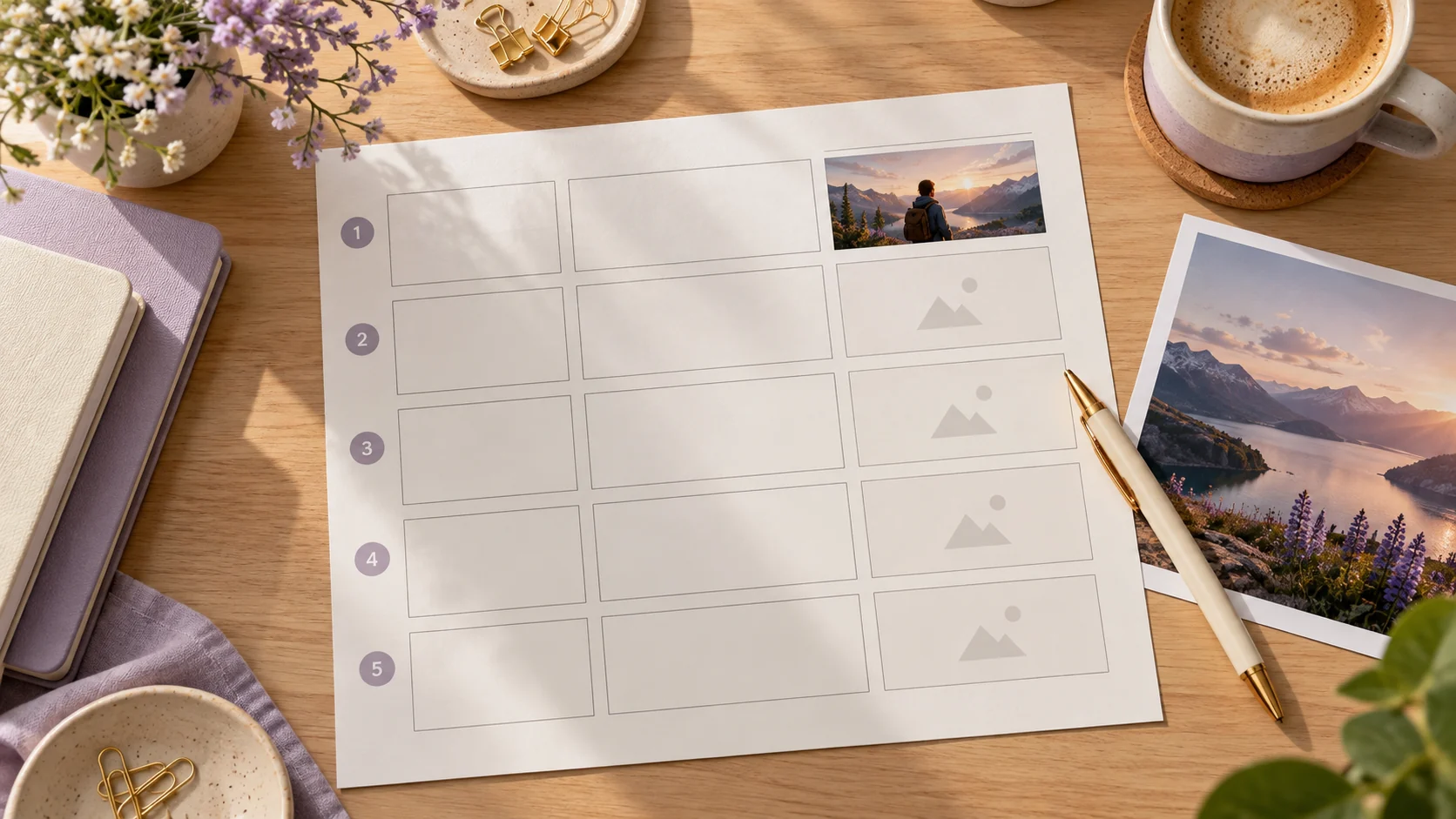
Blank five-part creative brief worksheet with video and image references
Illustrative concept image made for this page · not a tested product output.

Prompt Builder Worksheet

Fill each bracket before you use the template:

Prompt text
Create a [video or image] for [audience and purpose]. Use [approved source assets]. Begin with [opening frame or base image]. Show or change [one main action]. Use [camera, lighting or visual style only where helpful]. Finish with [end frame or composition]. Preserve [product facts, brand mark, text and other fixed details].

For an image edit, replace "show" with "change only" and state exactly which parts of the source image must remain untouched. For video, describe one beat at a time and include an end frame a reviewer can inspect.

How It Works in 3 Steps

  1. Name the job. Decide whether you need a product demonstration, explainer, social clip or image edit. Write the viewer takeaway in one sentence.
  2. Add real inputs. Attach or describe approved product photos, screens, logo and claim copy. Mark the details that must stay accurate.
  3. Assemble and review. Copy the completed brief into your creation workflow, inspect the first result and revise the one detail that missed the goal.
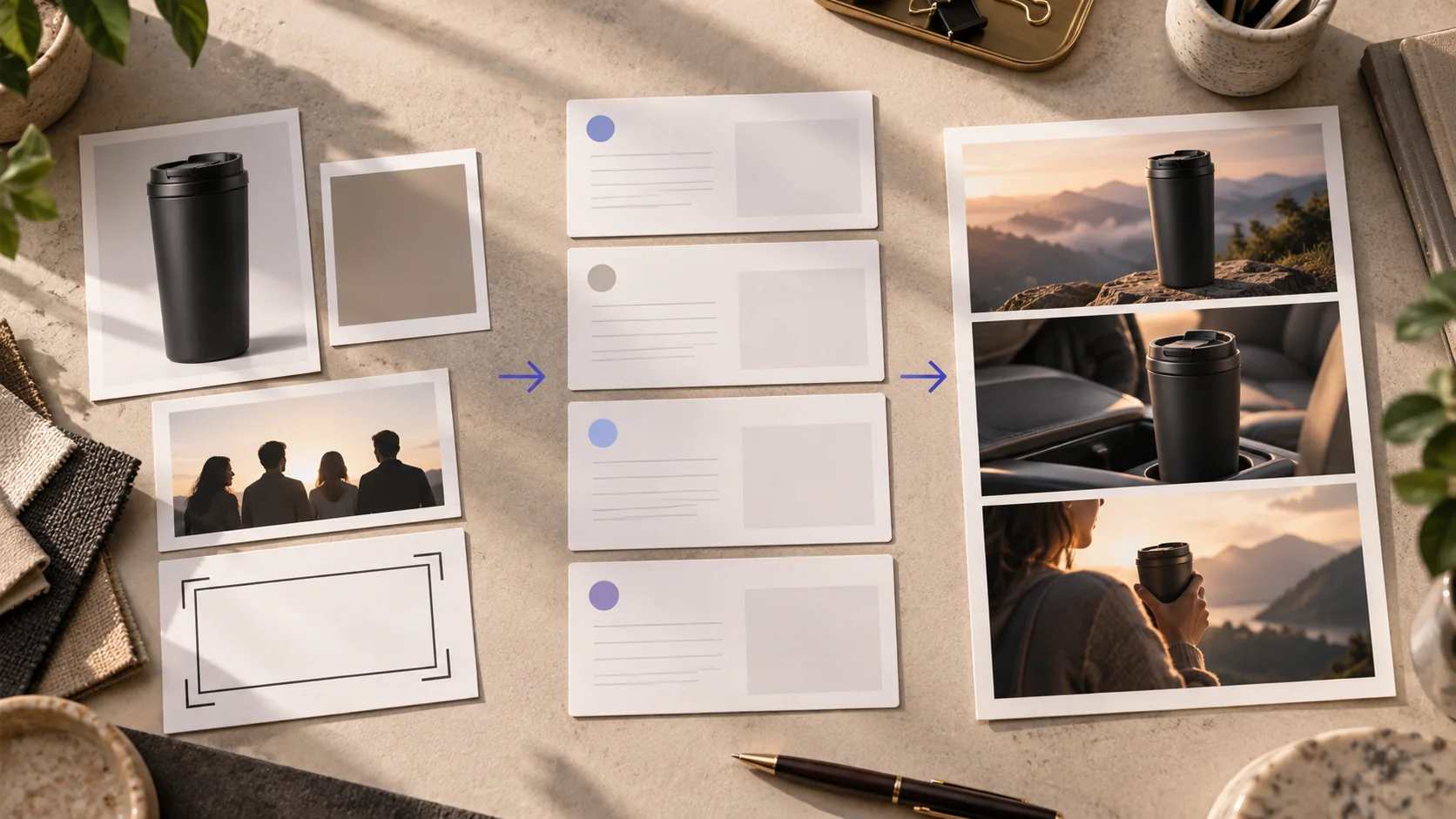
Physical planning board connecting approved product inputs to a three-frame storyboard
Start with approved assets and the viewer's goal, then turn them into a shot brief you can review. Editorial concept, not a tested Pexo output.

The worksheet gives you prompt text. A generated image or video is a separate result that needs its own review.

Build a Video or Image Prompt

Product video

Prompt text
Create a short product demonstration for an online shopper. Use the supplied travel mug photos and approved logo. Open on the real lid, show one hand operating its actual latch, then pour into a glass. End on the correct full mug profile. Keep color, hardware and brand mark unchanged.

Image edit

Prompt text
Use the photographed backpack as the source image. Change only the background to a clean home entryway in soft daylight. Keep the bag's color, straps, zipper layout and logo unchanged. Leave space above it for approved copy.

Service explainer

Prompt text
Create a short explainer using the approved three-step booking screens. Begin with the customer's question, show the time selection and confirmation actions in order, then end on the supplied success screen. Reserve space for captions that a human checks against the product.

Choose Task, Style and Length

Use task as the first control. Style should clarify the action, not replace it: soft daylight can make a product detail visible, while a slow camera move can show how an object is handled. For video, state the desired duration only when it matters to the channel and the workflow supports it. For images, state the crop and text area. The exact model settings available are determined by the creation tool, not by this worksheet.

Example: Rough Idea to Prompt

Rough idea: Make an ad for my lamp.

Assembled brief:

Prompt text
Use the approved lamp photos to make a short product video for a bedroom audience. Start close on the real control dial, show one hand turning it, then pull back to the whole lamp on a bedside table. Keep the control markings, product color and logo exact. End with a clear frame for approved copy.

The expected review goal is a clear product action with accurate controls; it is not a generated sample output.

Privacy and Usage Notes

Use material you have permission to upload. Remove customer identifiers that are not needed for the task, and check Pexo's terms before submitting sensitive assets. This worksheet stores nothing by itself; any service you paste the completed brief into has its own account and data rules.

Continue in Pexo: From Prompt to Video Draft

For a video brief, choose a matching task from Pexo's create directory. Provide the assembled prompt and real references, review the direction and preview, then ask for a targeted revision. Pexo's getting-started guide describes this conversational production flow; it is not a standalone prompt-text generator.

AI Prompt Generator Template FAQ

Does this template generate a prompt automatically?

No. Fill the fields and copy the result. The examples show how to assemble a useful brief without claiming an interactive tool.

Can I use it for both video and images?

Yes. Keep the task and reference fields, then use shot/action language for video or edit-boundary language for an image.