

Pexo

THE PEXO PROMPT LIBRARY / LISTING

3D Render Image Prompts: Characters, Products and Scenes

Materials, scale and light carry the 3D impression. Real product renders need reference images to protect design details. The copy-ready briefs below are original starting points. Adapt them to your own subject and assets; no example is presented as a tested product output.

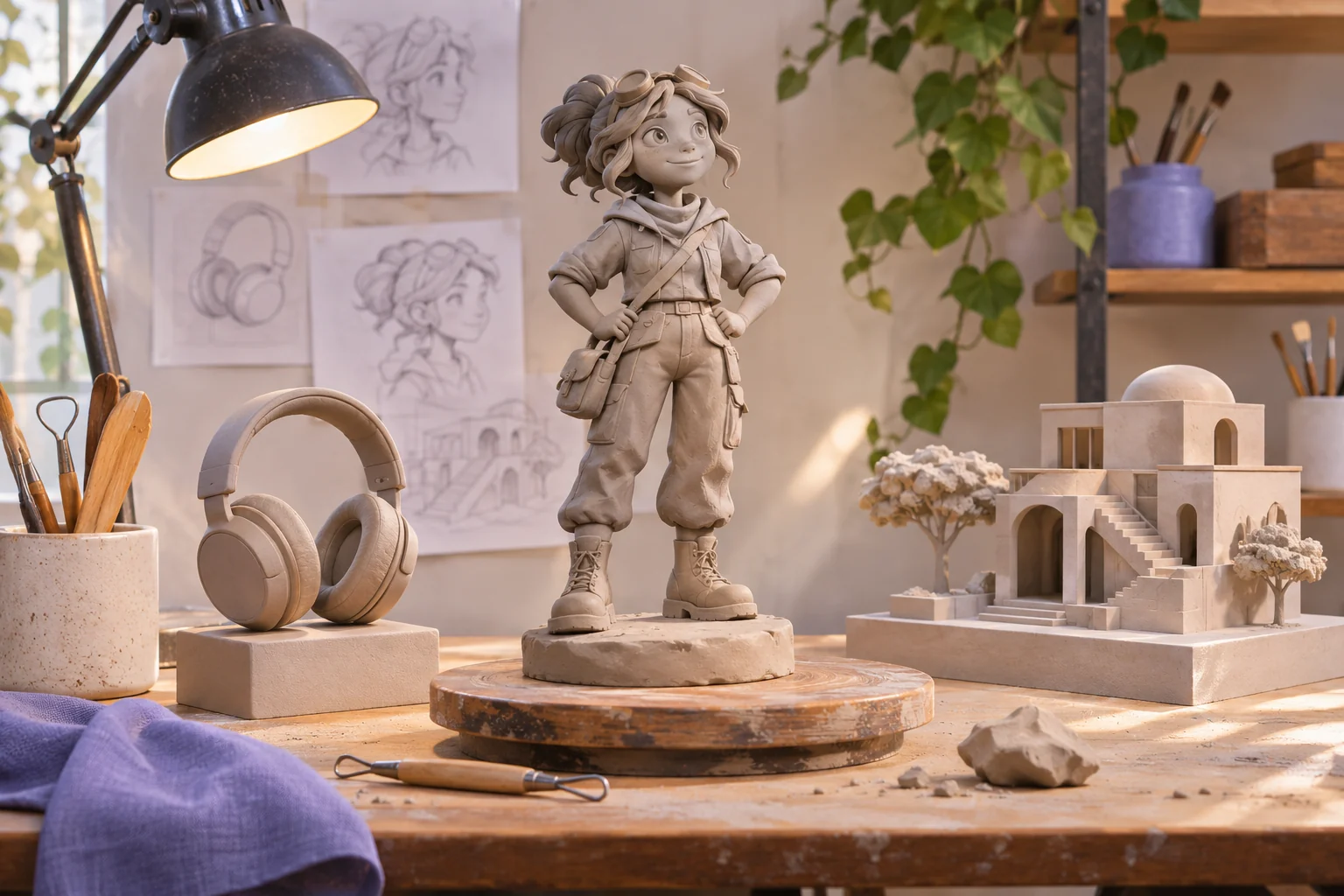
A sculptor's miniature tabletop set with original clay character, simple product maquette and architectural model under studio lights, making a plausible 3D-render concept tangible
Illustrative concept image made for this page · not a tested product output.

3D Material and Lighting Keywords

Name material, scale and light; for a real product, refer to the approved shape and controls.

Copyable starter brief

Prompt text
Create a stylized 3D render of the supplied desk lamp. Preserve its real silhouette and switch placement; use matte metal, soft studio shadows and a simple beige plinth.

Stylized character render

For a character instead of a product, specify a readable silhouette, material and pose.

Prompt text
Create an original stylized 3D character of a small courier robot carrying one canvas satchel. Give it a rounded ceramic body, two short legs and a single amber visor; show a three-quarter view against a plain slate backdrop. Keep the satchel strap visible and use soft side light without labels or logos.
An original ceramic courier robot with an amber visor and canvas satchel, in a three-quarter view.
Independent concept illustration for the second starter brief; not a tested Pexo output or a supplied reference asset.

Which brief fits your source?

Brief 1: Desk-lamp product render. Brief 2: Original courier-robot character.

Selection rule: Use the lamp route for a real design that must survive rendering; use the robot for an invented character whose shape can be specified in the brief.

Source-to-instruction relationship: A supplied lamp fixes silhouette and switch position; material and plinth are adjustable presentation attributes.

If the draft misses the brief

Visible signal: The lamp loses its switch or the robot's satchel strap disappears in the three-quarter view.

Next revision: State the missing feature as a visible close-view requirement and reduce other decorative detail.

Keep the source and review together

Source to retain: the desk-lamp product reference or the original courier-robot design brief. After an actual run: save the exact prompt version, resulting file and a review note stating whether the switch is visible on the lamp or the robot retains its amber visor and satchel strap. Until that run exists, leave the result and review fields unfilled. The Gallery cases below are separate published projects and cannot complete this record.

Animate a 3D Render

Animate a finished render with a controlled camera move or plausible object action, while protecting its established materials and layout.

Copyable starter brief

Prompt text
Use the approved miniature 3D bookshop render as the first frame. Keep the painted shelves, warm paper lamps and window placement fixed. Move the camera in a short, slow arc toward the front window while one lamp glows slightly brighter; end on the same model without adding rooms.

How to Write Your Own 3D Render Prompts

Name the object or scene, material finish, scale cues and view angle. For a real product, supply a reference and protect its controls. If you animate the render, ask for one movement and check geometry across frames.

Check the courier robot as one view

For the stylized robot brief, inspect the three-quarter still for one amber visor, a rounded ceramic body and a visible satchel strap. If the strap merges into the body, change its position or contrast before adding another camera angle. This page gives a single-view writing example; it does not show a tested front/side/back consistency set.

Animate a Reviewed Still in Pexo

Bring an approved still or source image to Pexo image-to-video, describe the motion and details to preserve, then review the preview. A requested look is not a guaranteed output; check identity, text and usage rights.

Review geometry before materials

Use this brief when: Use a supplied render when product silhouette and controls must stay exact; use an original scene when no real product is being represented.

Acceptance check: Check the lamp's switch position or the bookshop's shelf and window placement in both still and motion views.

If it fails: If a texture change alters the shape, lock the geometry and revise only the surface or light.

3D Render Prompts FAQ

What details matter in a 3D product render?

Name material, scale, view angle and the real product features that must remain accurate.

How should I animate a render?

Start from an approved still or a rendered image of your model, request one controlled motion, and check geometry and surfaces across frames.