
Pexo

THE PEXO PROMPT LIBRARY / MODEL

Seedance 2.0 Prompts: Examples and Prompt Formula

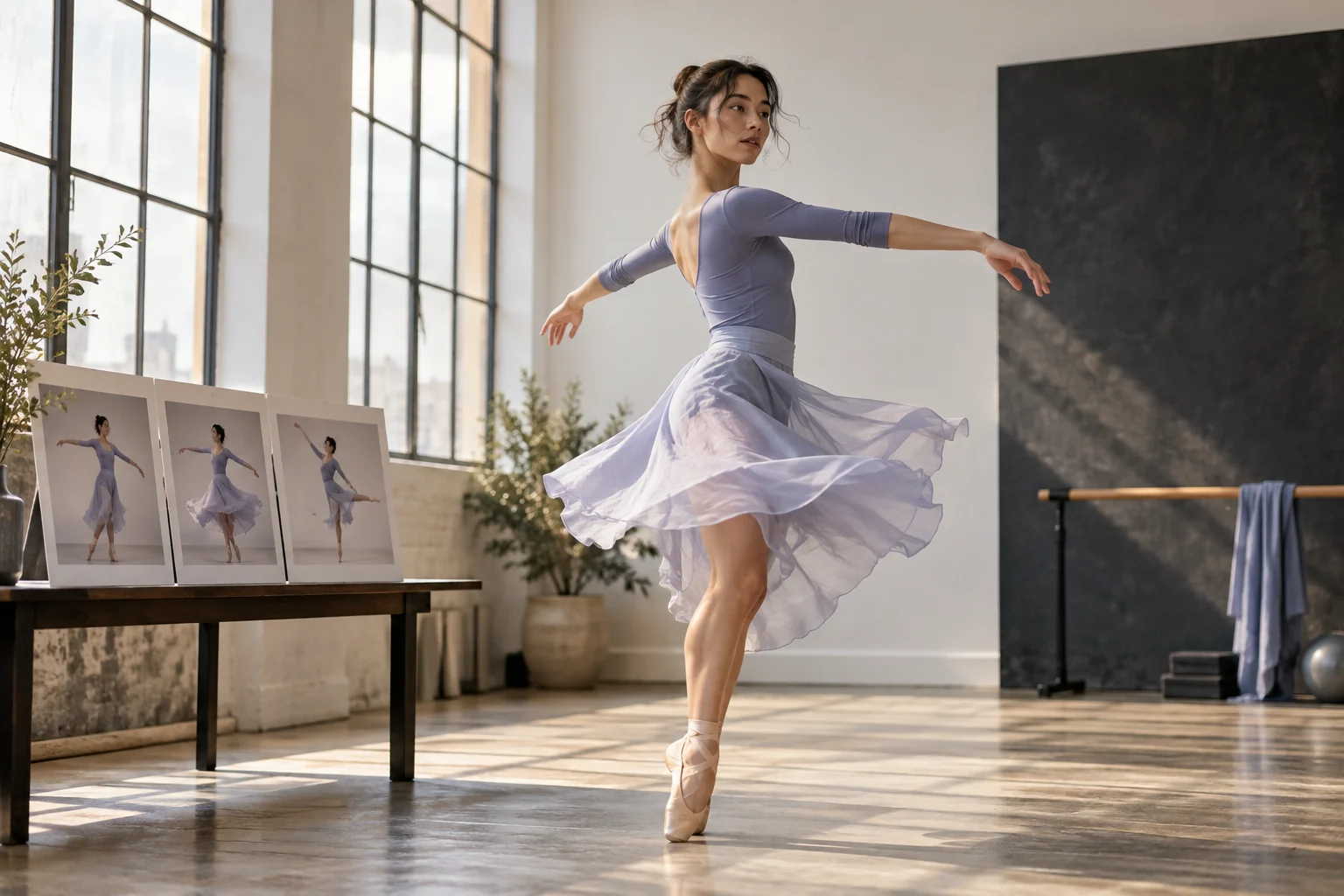
Dancer rehearsing a turning movement with sequential pose references
Illustrative concept image made for this page · not a tested product output.

What Seedance 2.0 Supports

Use Seedance 2.0 prompts to describe a subject, its motion, the camera and sound in one short scene. The prompts are original starter briefs. Output descriptions below are illustrative previews, not recorded generations.

Choose motion-led tasks such as a product reveal, a short story beat or a multi-shot scene with a recurring subject. Supply images or clips you have permission to use when consistency matters. Describe the desired result in plain language; Pexo handles model configuration in its published workflow.

The Seedance 2.0 Prompt Formula

Use four fields, then add a fifth only when sound matters: subject → action → camera → visual continuity → audio. Put the indispensable product or character detail first.

Prompt text
Subject: [person or object with stable traits]. Action: [one visible change]. Camera: [opening view, one move, end frame]. Continuity: [same clothes, prop and setting]. Audio: [one sound cue or dialogue line].

Replace every bracketed field with actual production details before generating.

Seedance-specific reference planning. ByteDance's Seedance 2.0 announcement describes text, image, video and audio inputs, reference-guided composition and motion, and 15-second multi-shot audio-video output (checked 2026-10-20). Use the formula above for a text brief; add supplied image, clip or sound references only if the workflow in your Pexo account accepts them. Keep source asset names, shot order and continuity anchors explicit. The developer's specifications do not guarantee the same input limits or controls in Pexo.

Copy-Ready Prompts and Review Goals

These review goals describe what to inspect if you run each prompt. They are not verified model outputs.

Product reveal prompt

Prompt text
Show a blue reusable bottle on a desk. A hand lifts it, turns it once, then returns it beside a notebook. Begin wide, move to a cap close-up, and finish on the supplied front-label image. Quiet room sound; no generated price.

Review goal: a three-beat desk scene ending on the bottle label. Compare the actual cap, color and label with your source photo.

Process prompt

Prompt text
Follow one florist in a green apron trimming yellow tulips, placing them into a clear vase, then setting the arrangement in a window. Use an overhead worktable view before a slow final push-in. Keep the apron and vase consistent; use natural shop ambience.

Review goal: a continuous preparation-to-display sequence. Inspect hand detail and continuity across cuts.

Story beat prompt

Prompt text
An original courier in a mustard jacket reaches a quiet riverside bridge at dawn. Track beside the bicycle, cut to a close view of the wheel crossing wet paving, then end on the courier riding away. Preserve the jacket and bicycle design; use tire and wind sound.

Review goal: one character moving through a coherent location. Check the bicycle geometry and direction of travel.

Multi-Shot and Audio Prompts

For several beats, give each shot a purpose and a shared anchor. In the florist example, the green apron, tulips and clear vase should recur across the worktable and window shots. Add one audio cue for the whole sequence, then note any moment that needs dialogue.

Prompt text
Three beats in the same bicycle workshop: hands inspect a wheel; the mechanic tightens one spoke; the wheel spins smoothly in a fixed close-up. Keep the red tool tray in every shot. Use quiet workshop ambience and one audible wheel spin at the end.

Inspect timing, sound and object continuity in the actual preview; an audio request is creative direction rather than a guarantee.

Model Comparison: When to Pick Something Else

Choose an image-generation workflow if the deliverable is one still frame rather than motion. For a short ad with deliberate cuts and native sound, Kling 3.0 is another model shown in Pexo’s directory. Compare the same brief in the tools available to your account instead of assuming a universal winner.

Use It Inside Pexo (Auto Model Routing)

Start from the Pexo Seedance 2.0 page or the model directory. Describe the task and upload authorized visual references when the account workflow allows them. Pexo says it selects and configures models from the creative brief; check the model actually used, inspect the preview and request a precise revision.

Pexo offers a free start on its model page, while generation may depend on account credits. Registration is required under the terms, so check the current balance and offer before rendering.

Seedance 2.0 Prompts FAQ

Do I need special Seedance syntax?

No. Describe the visible action, camera and sound in ordinary language. A structured brief helps you review what mattered after generation.

Are these review goals based on real Seedance renders?

No. They are illustrative checklists. Pexo’s model page has a separate gallery, but these prompt texts have not been paired with verified clips.