
Pexo

THE PEXO PROMPT LIBRARY / TEMPLATE

ChatGPT Photo Prompt Template for New Images and Edits

Use this fill-in worksheet to draft text for ChatGPT image creation or editing. It is not a Pexo tool that generates ChatGPT prompts automatically. Fill the worksheet, copy the completed prompt into the relevant workflow, and review the actual result. The examples below are editorial drafts, not observed outputs.

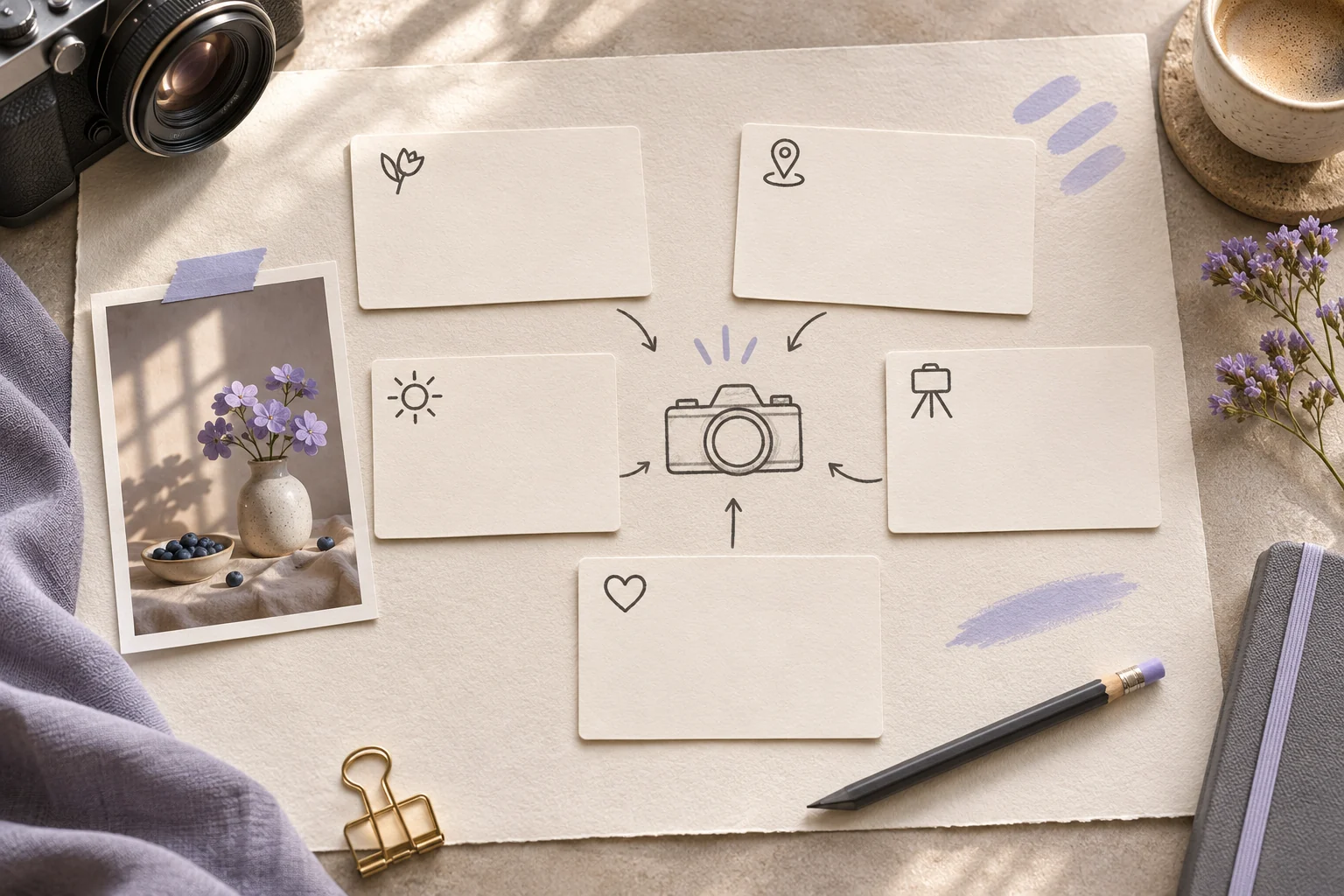
Blank physical cards for subject, setting, light, angle and mood beside a still life photo
Illustrative concept image made for this page · not a tested product output.

ChatGPT Photo Prompt Worksheet

Replace each bracket with your own information. Keep unknown facts out of the brief.

Should this worksheet create a new image or edit an upload?

Choose the task field first. For a new image, fill subject, scene, light and crop; the preserve field can say that no source photo exists. For an edit, attach the authorized image, name one change and list identity, labels or text that must remain exact. A prompt with both tasks mixed together makes a later result difficult to audit.

Prompt text
Task: [create a new image / edit an uploaded image]
Subject: [who or what]
Scene and composition: [setting, crop, viewpoint]
Light and visual treatment: [specific details]
Change only: [for an edit, list changes]
Preserve: [identity, objects, logos, exact text]
Review for: [the details a person must check]

Which brief fits your source?

Brief 1: Create-or-edit task worksheet. Brief 2: Bottle-still example.

Selection rule: Select create or edit before filling the worksheet; the bottle example is an edit-like task because a real supplied design must be retained.

Source-to-instruction relationship: The source bottle fixes cap, label and color; light and stone background are changeable scene attributes.

If the draft misses the brief

Visible signal: The generated prompt asks for both a new bottle and preservation of a specific original label.

Next revision: Choose the edit branch and name the uploaded bottle as source, then limit the requested change to setting and light.

Keep the source and review together

Source to retain: the selected create/edit task and the uploaded blue-bottle source if editing. After an actual run: save the exact prompt version, resulting file and a review note stating whether the generated still keeps the exact cap, label and color while changing only scene treatment. Until that run exists, leave the result and review fields unfilled. The Gallery cases below are separate published projects and cannot complete this record.

From Idea to New Image Prompt

For a new image, define the subject and composition before adding style. For an edit, name the source image and state the smallest intended change. The prompt should describe what to preserve as clearly as what to alter.

From Reference to Edit Prompt

For an edit, identify the authorized source image and use “change only” to define the boundary. Repeat the face, label or product details that must survive. These are draft prompts, not tested ChatGPT outputs; compare any result with the source because wording cannot guarantee pixel-level preservation.

Copyable Photo Examples

Example 1: Idea: a product still for a blue reusable bottle.

Prompt text
Create an editorial product still of the supplied blue reusable bottle on pale stone. Use soft side light and a three-quarter view. Preserve the real cap, label and color; leave clean space for approved copy.

Example 2: Edit: replace only the backdrop of an approved portrait.

Prompt text
Edit my uploaded, authorized portrait. Replace only the background with a softly lit neutral studio wall. Keep the person’s face, hair, clothing and pose unchanged. Show the result for review before any further change.

These are written example prompts; they are not screenshots or measured outputs.

Use a Reviewed Still in Pexo

Once you have a still you can use, bring it to Pexo image-to-video. Describe the motion and details to preserve, then review the video preview.

Privacy and Usage Notes

Use only references you have permission to submit. Remove unnecessary personal or customer information. Before sending sensitive material to any service, review its current terms and privacy policy; this worksheet makes no claim about storage, deletion or account conditions.

Choose creation or editing first

Use this brief when: Choose a new-image brief when there is no approved source photo; choose an edit brief when the uploaded image must remain recognizable.

Acceptance check: For an edit, compare label, cap, face and crop with the uploaded source; for a new image, check composition and the requested empty text area.

If it fails: If source details change, narrow the edit region and list fixed elements before retrying.

For current product controls, see ChatGPT image generation guidance; availability may differ by account.

ChatGPT Photo Prompt FAQ

Does this worksheet run ChatGPT for me?

No. Copy the completed brief into an available ChatGPT image workflow, review the still, then use it in Pexo for a separate video step.

What should a ChatGPT edit brief preserve?

List the face, product shape, label or other details that must remain, then compare the returned image with the source.