
Pexo

THE PEXO PROMPT LIBRARY / TEMPLATE

Photo Prompt Template: Subject, Light, Lens and Mood

Build a photo brief from a small set of visual choices. Fill in the worksheet to assemble prompt text you can copy; it is not an interactive image generator. Fill the worksheet, copy the completed prompt into the relevant workflow, and review the actual result. The examples below are editorial drafts, not observed outputs.

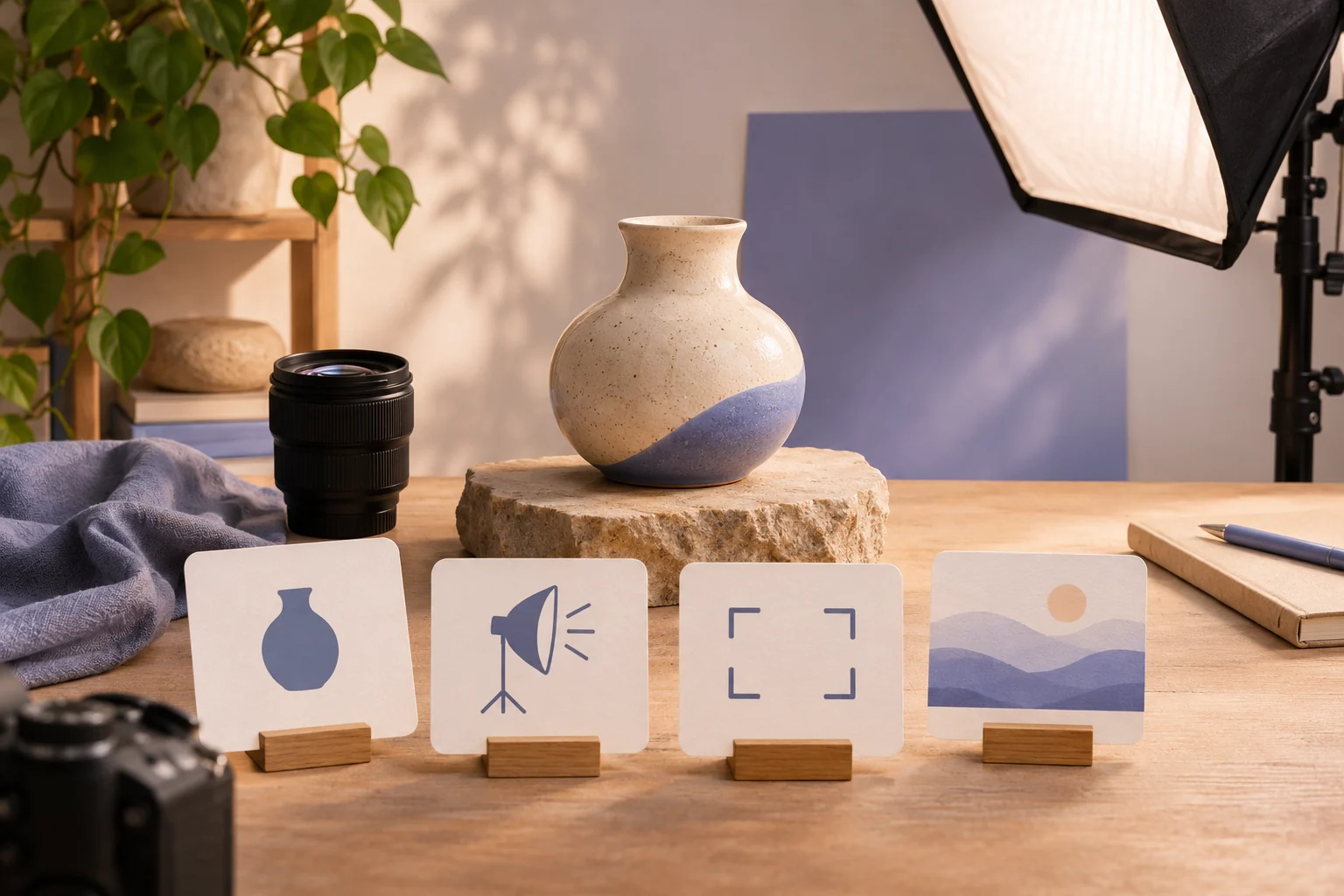
A photographer's controlled still-life setup with one ceramic object, lens, softbox and physical cards for subject, light, framing and mood, all cards blank or abstract
Illustrative concept image made for this page · not a tested product output.

Photo Prompt Worksheet

Replace each bracket with your own information. Keep unknown facts out of the brief.

Prompt text
Photo subject: [person, object or place]
Action or pose: [one observable moment]
Setting: [where the subject is]
Camera and crop: [wide, medium or close; viewpoint]
Light and color: [direction, softness, palette]
Mood: [one coherent tone]
Keep unchanged: [reference details and exact text]
Avoid: [unwanted additions]

Which brief fits your source?

Brief 1: Subject-light-lens worksheet. Brief 2: Ceramic-mug still-life example.

Selection rule: Use the worksheet to decide camera and light fields; use the mug example when a simple object still is the goal.

Source-to-instruction relationship: The mug, linen and left-window light form the visual relation; a named lens is optional unless it changes framing.

If the draft misses the brief

Visible signal: The prompt becomes a list of lens jargon but omits the mug's three-quarter view.

Next revision: Put subject and crop first, retain the left light and remove parameters that do not change an observable result.

Keep the source and review together

Source to retain: the completed subject-light worksheet and any real mug reference actually used. After an actual run: save the exact prompt version, resulting file and a review note stating whether the mug remains the focal subject under left window light and the requested three-quarter crop. Until that run exists, leave the result and review fields unfilled. The Gallery cases below are separate published projects and cannot complete this record.

Choose Subject, Light, Lens and Mood

Specify the subject first. Use camera distance and light direction to make the result reviewable; a named lens is optional and should serve a visible effect. Keep mood consistent with the scene instead of stacking unrelated styles.

Copyable Photo Examples

Example 1: Choice: ceramic mug, close view, side light, calm morning.

Prompt text
Create an editorial photograph of a plain ceramic mug beside a linen napkin. Close three-quarter view, soft window light from the left, warm neutral palette and natural shadow. No text or logo.

Example 2: Choice: approved product photo, medium crop, clean studio light.

Prompt text
Use my authorized bottle reference to create a medium product still on pale stone. Preserve the actual cap, label and bottle proportions. Use even studio light and leave space on the right for approved copy.

These are written example prompts; they are not screenshots or measured outputs.

Trace a filled worksheet into a brief

The mug example fills the subject field with a plain ceramic mug, the setting with a linen napkin, the crop with a close three-quarter view and the light field with a left window. Its review points are the mug shape, natural shadow and absence of text or logo. For the bottle example, the authorized reference adds fixed cap, label and proportions. Keeping these fields separate makes a mismatch easier to revise than adding another mood adjective.

Review the Image

These examples are written briefs, not observed image outputs. Review subject accuracy, hands, text, product details and usage rights in the generated still.

Create and Review a Still in Pexo

Paste the completed photo brief into Pexo Text to Image, inspect the generated still and revise any incorrect subject, label or crop. If you later need motion, take the approved image to Pexo Image to Video with a separate movement brief. The worksheet itself does not generate the photo.

Privacy and Usage Notes

Use only references you have permission to submit. Remove unnecessary personal or customer information. Before sending sensitive material to any service, review its current terms and privacy policy; this worksheet makes no claim about storage, deletion or account conditions.

Check a photo brief as a shot list

Use this brief when: Choose one observable moment and decide whether the brief creates a new photo or edits an authorized one.

Acceptance check: The result should have the stated camera distance, light direction, subject placement and usable negative space without invented marks.

If it fails: If the image misses the subject, remove conflicting mood words and keep the shot and lighting instructions.

Fill the same fields for a catalog job

The editorial mug example permits mood and contextual props. A catalog still needs different fields and tighter source protection:

Prompt text
Using my approved front and side photos of the plain blue travel mug, create a clean catalog still on a neutral light-gray surface. Show one three-quarter view at eye level, soft left-side light and a believable contact shadow. Preserve the real lid, handle shape and color; do not invent a logo, printed claim, extra accessory or second mug.

The source photographs, protected geometry and forbidden claims belong in the worksheet before any style words. Inspect the output against both supplied views; if the handle changes, reject the result even if the lighting is attractive. This is a copyable brief, not a verified product image.

Photo Prompt FAQ

Will this page generate a photo?

No. Fill and copy the prompt, then use it in an image workflow you select.

What if the result changes a product detail?

Compare it with the approved reference and narrow the brief to protect the cap, label, color or other affected feature.