Find the Main Quality Problem
Identify whether blur, grain, blockiness, soft edges, or another visible issue is reducing clarity.
Upload a blurry, noisy, or heavily compressed clip and describe what needs to look clearer. The Pexo AI video agent identifies the visible problems, applies a measured enhancement pass, and returns a version you can compare with the source.
Source video
Add the clip and tell the Agent which quality problem matters most.
Mention blur, grain, compression artifacts, soft edges, or another visible problem.
What it is
AI Video Enhancer improves the visible quality of an existing clip. It can make soft detail easier to read, reduce distracting noise, and clean up artifacts left by heavy compression.
The workflow does not create a new scene or guarantee details that were never captured. The Agent uses your quality goal to plan a restrained enhancement, then gives you an output to check against the source.
Identify whether blur, grain, blockiness, soft edges, or another visible issue is reducing clarity.
Balance cleanup and detail refinement so faces, textures, text, and motion do not look over-processed.
Review the enhanced version beside the original and flag artifacts or areas that still need attention.
Enhancement goals
The Agent selects an enhancement approach around the visible problems in your source and the result you want to review.
01 / Cleaner footage
Reduce distracting speckles and grain while checking that natural texture and motion remain recognizable.
Start with areas where speckles are easiest to notice, such as a dim background or a close-up face. Tell the Agent which scene needs attention and whether some original grain should remain. Afterward, check that hair, fabric and skin still look textured, rather than overly smooth.
 SourceReview
02 / Smoother detail
Soften visible blockiness, ringing, and rough transitions introduced by repeated exports or compressed copies.
Use the cleanest copy available and identify the moments where blocky patches or rough color transitions interrupt the picture. Compare both still areas and moving subjects after processing. A cleaner-looking frame is not enough if faces or fine patterns change unnaturally during playback.
 Compression detail
03 / Sharper definition
Improve the legibility of soft edges, small details, and on-screen text without relying on aggressive sharpening.
Point out the details you need to read: a product outline, a fabric pattern or existing on-screen text. Compare the same area at the same size before and after processing. Check for bright outlines, brittle-looking textures or altered letters, and request a lighter treatment if the result looks over-sharpened.
 Edges & texture
04 / Output review
Prepare a clearer output at the requested size while reviewing whether the source supports that level of enlargement.
Tell the Agent where you plan to watch or use the video and the size you need. Review the full frame and a close-up at that intended size, rather than judging a small preview alone. A larger image is not proof that missing detail has been recovered, so check faces, lettering and fine patterns against the original.




How it works
Provide the best available source, explain what looks wrong, and inspect the enhanced result before using it.
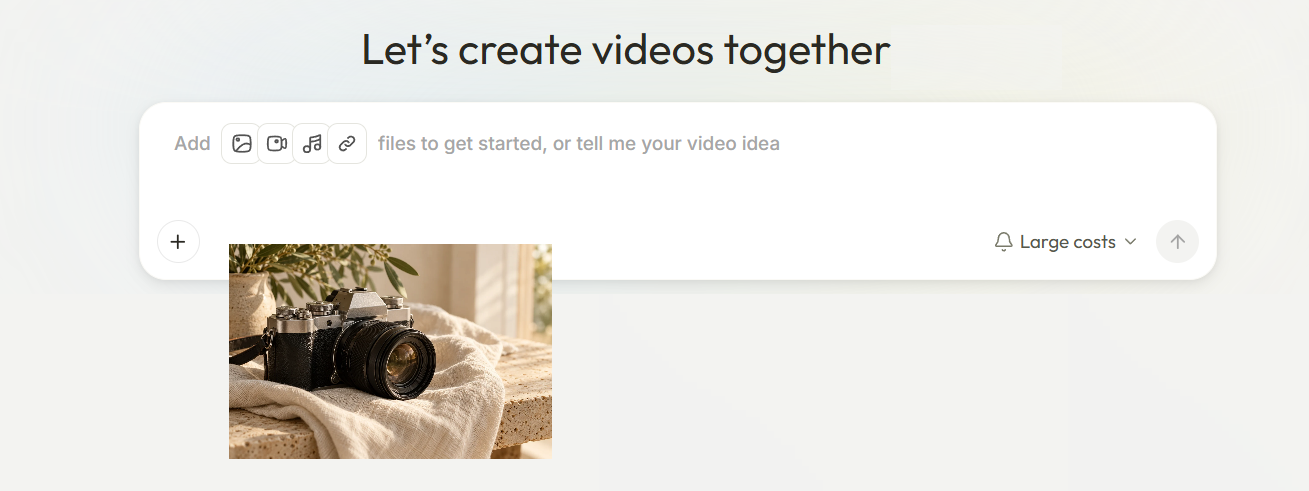
Upload the highest-quality copy you have. If only part of the video needs attention, identify the relevant scene or time range.
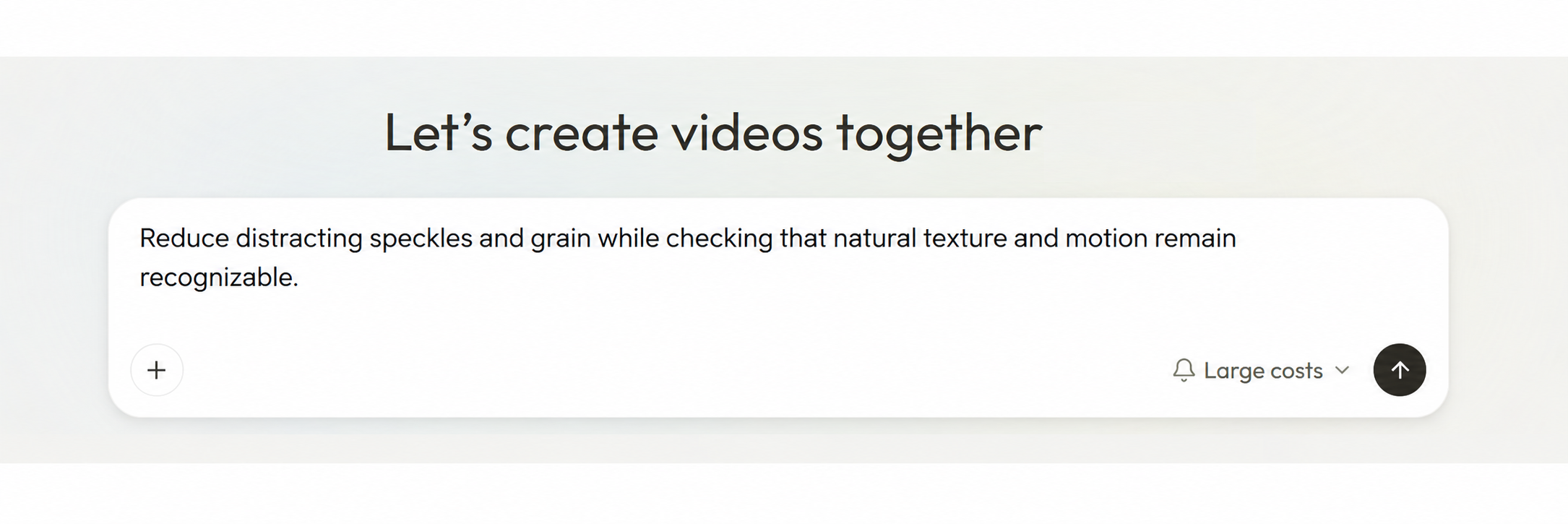
Tell the Agent what you notice, such as low-light grain, compression blocks, soft text, blurry edges, or inconsistent detail.
Compare the output with the source, check faces, text, textures, and motion, then request a lighter or stronger treatment where needed.
Product screenshots · Simulated comparison
Common questions
It can improve perceived clarity in footage affected by visible noise, soft detail, blurry edges, or compression artifacts. The result depends on the quality and information present in the source clip.
It can reduce some blur and pixelation and make existing detail easier to see. Severe motion blur, heavy cropping, or extreme compression may still limit the result.
No. Enhancement can refine visible information and estimate some detail, but it cannot verify or perfectly reconstruct information that was never captured. Always compare the result with the source when accuracy matters.
Start with the best-quality source available. Enhancement usually comes before a final resize or compression pass so the workflow is not trying to recover detail from an already reduced copy.
Yes. Review faces, text, textures, edges, and motion against the original, then tell the Agent where the treatment should be lighter, stronger, or limited to a selected range.
Start with the source
Upload your video, describe the visible quality problem, and review an enhanced version against the original.