
A Destination for the Image
Identify the intended placement so the subject, framing and space for text serve that use.
Image Generation turns a written brief and optional visual references into custom images. The Pexo AI video agent interprets the subject, setting and composition, then follows your feedback to revise the result.
Describe where the image will appear, what should be visible, and any reference details that must stay recognizable.
What it is
A campaign visual, product scene and video reference need different decisions. Start with the image’s job: what should the viewer notice, what information belongs in the frame, and where the picture will be used.
Image generation can begin with words or a reference. The first image gives you something concrete to inspect; follow-up instructions should name the change and the details you want to keep.
Identify the intended placement so the subject, framing and space for text serve that use.
Separate the product, character or composition to retain from the setting or treatment you want to change.
Check the image against the brief, including small text, object shape and the edges of the frame.
Visual decisions
Use the brief to make a visual decision, then judge the image against that decision.
01 / Describe the Scene Before Generating
Name the subject, environment, lighting and visual style. Explain what matters most rather than adding a long list of unrelated style words.
In the example, the orange lantern is the focal point, blue-hour light sets the mood, and the open left side leaves room for campaign copy.
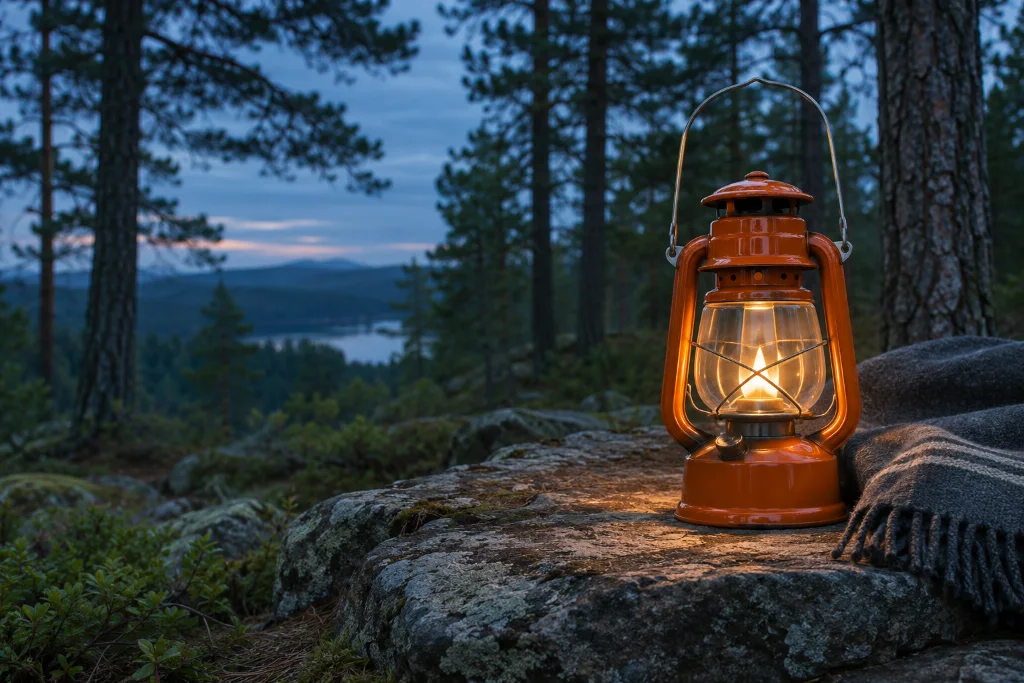
Orange lantern. Pine forest. Blue hour. Leave space on the left.
02 / Show What Should Stay Recognizable
Supply a useful reference and distinguish the object from its surroundings. Ask for a new setting while naming the shape, color and visible features that matter.
A product-scene request should be reviewed against the reference vase, especially its fluted surface, rim and silhouette. For a source-led task, use Image to Image.
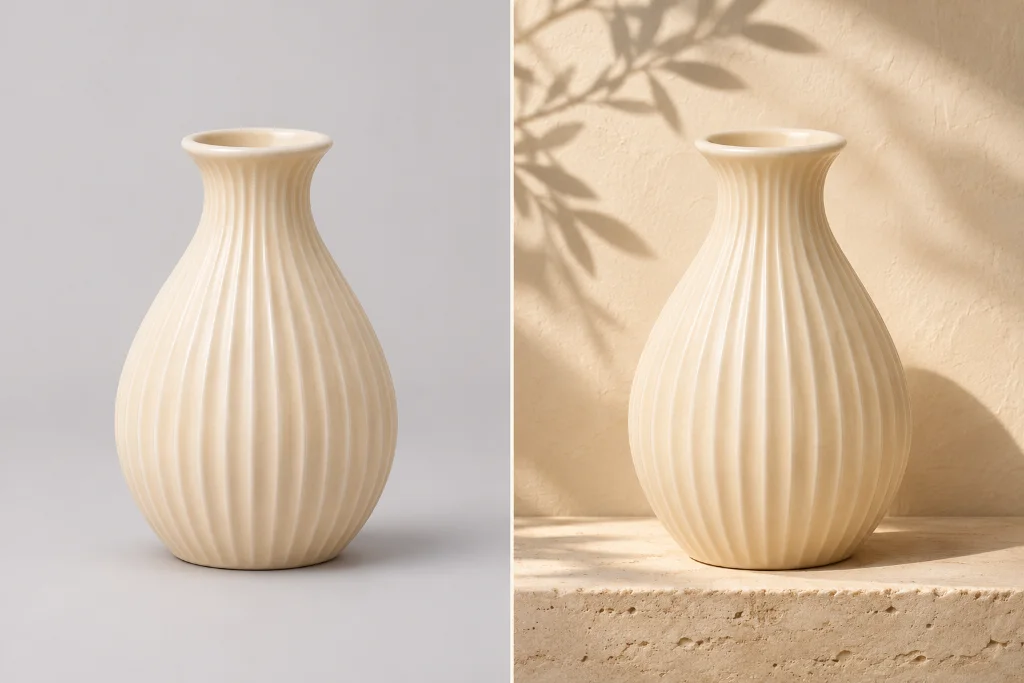
Keep the ivory vase and its fluted shape. Change the setting and light.
03 / Change One Decision at a Time
State what to change and what to preserve. A focused lighting or background request gives the next version a clearer target than “make it better.”
Here the revision changes blue hour to overcast morning. The lantern, viewpoint and setting remain the reference points for review.
Blue hour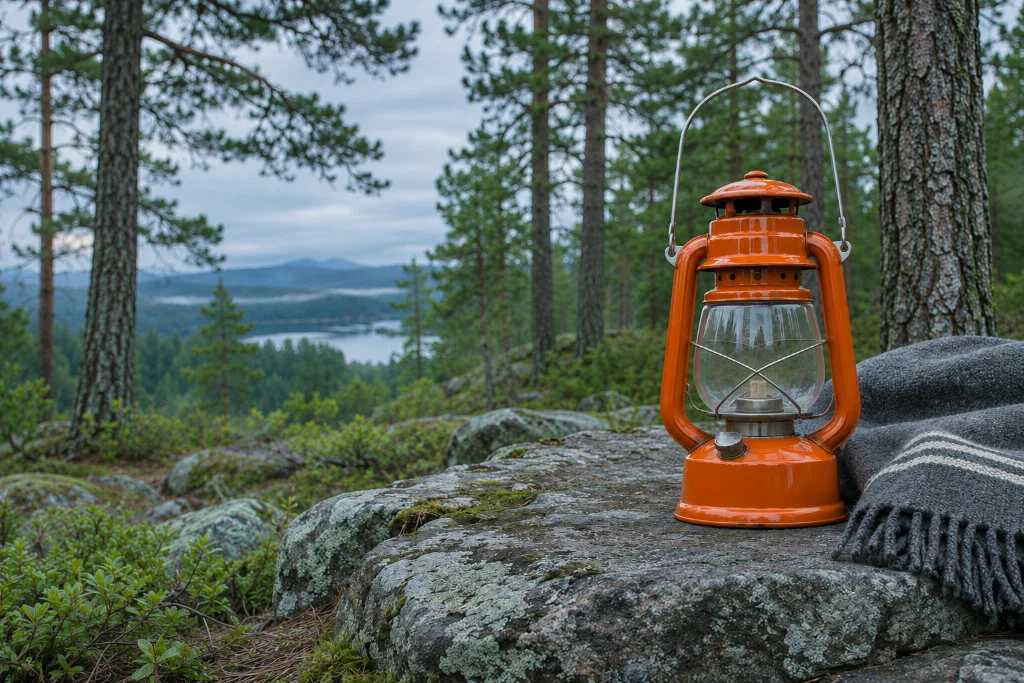 Morning daylight
Change the lighting. Keep the lantern, scene and viewpoint.
04 / Inspect the Details Before Using the Image
Provide exact wording when text belongs in the picture. Check spelling, spacing, object boundaries and small details at the size people will actually see.
The poster example puts the headline and supporting line in a clear hierarchy. A pleasing layout still needs a word-by-word check.
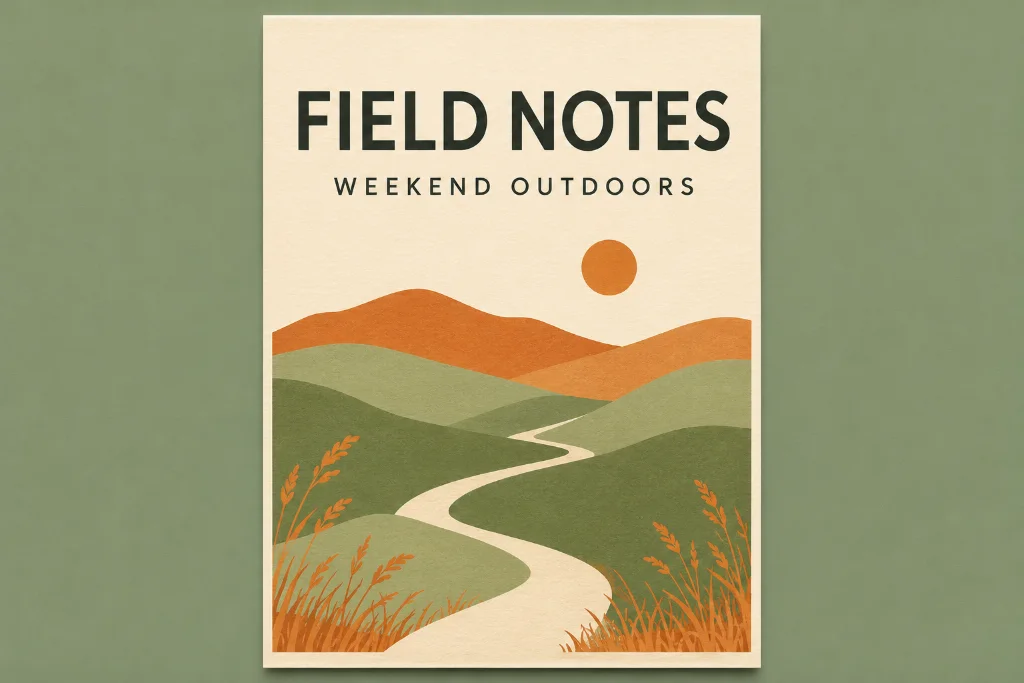
Creative illustrations; not Pexo test outputs.
How it works
Describe the first picture, inspect the result, then request one concrete change while protecting the parts that already work.
Include the subject, setting, lighting and intended use. List essential details and any wording that must appear exactly, rather than asking only for an attractive image.
02 / Review the conceptCheck whether the subject is clear and the composition fits its destination. Compare references carefully; name a specific mismatch in the object, framing or style.
03 / Refine the lightingRequest a bounded change, such as softer daylight while retaining the same object and viewpoint. After approval, Image to Video Generator can use the still as a starting reference for motion.
Common questions
Describe the subject, setting, style, lighting and composition, then explain where the image will be used. Mark essential details so they take priority over optional mood words.
Yes. Supply the reference and say which details should guide the result. Distinguish what must remain recognizable from the elements you want changed, then compare the image with the source.
Name the requested change and the details to retain, such as “change the lighting to morning; keep the lantern, viewpoint and forest.” Review the new version because a preservation request does not guarantee every detail will stay identical.
Include the exact wording and describe the hierarchy or placement you need. Check every letter, number and line break in the result before using it; do not assume text is correct because it looks convincing.
An approved still can guide a later video scene. Specify the motion, camera direction and details to preserve separately; a still image by itself does not define the full movement.
Start with a visual brief
Describe the picture, add a reference if it matters, and refine the details through conversation.