ChatGPT
 Perplexity
 Claude
 Gemini
 Grok
Grok

 Pexo turns a plain-language mood description into a finished, royalty-free track you can drop straight into your video.
The last time I needed background music for a 30-second product reel, I didn't open a DAW or scroll a stock-music library for 20 minutes. I described the vibe to Pexo's music generation ("warm lo-fi, no vocals, chill but upbeat") and had a usable loop after one short back-and-forth. Pexo is the AI video partner with built-in music generation, so the track and the video that needs it live in the same conversation. This AI music generator tutorial walks the exact four steps I use, plus the mistakes that waste your credits and the tips that get a usable track on the first or second try. Start your first music track in Pexo.
What Is an AI Music Generator?
An AI music generator is a tool that composes original audio from a text description instead of recorded instruments or a timeline editor. You type something like "cinematic build, strings and a slow drum, 60 seconds," and the system returns a finished track: melody, instrumentation, tempo, and arrangement, no music theory required. Most generators output instrumental beds; some add AI vocals. The output is typically royalty-free, which is the whole point for creators who need music they can actually publish without a copyright strike.
Where most generators stop at the audio file, Pexo keeps going. Because Pexo is a full AI video partner, the same chat that wrote your track can turn it into a beat-synced video, generate a cover image, or fit the music to a 15-second cut. That is the part this tutorial leans on, because for 9 out of 10 creators the music is in service of a video, not a standalone single. See what Pexo's music generation can do.
What You Need Before You Start
You don't need a microphone, a MIDI keyboard, or any music software. To follow this AI music generator tutorial you need exactly three things:
- A Pexo account. Pexo is self-serve and credit-based, so you can start a track without a subscription call or an install.
- A one-line description of the mood. Genre, energy, and whether you want vocals. "Upbeat indie-pop, female vocals, hopeful" is plenty to start.
- A rough length. Know whether you need a 15-second sting, a 30-second loop, or a 2-minute bed. Matching the track to your runtime up front saves a re-generate later.
That's the entire setup. If you already know the video the music is for (a TikTok cut, an Instagram Reel, a YouTube intro), keep that in mind, because Pexo can fit the track to it in the same session.
How to Generate Music With Pexo: Step-by-Step
Here is the four-step workflow, start to finish. These four steps get you a finished, royalty-free track, and there's an optional fifth move at the end that makes Pexo different from an audio-only generator.
Step 1: Open Pexo and Describe the Vibe
Open Pexo and tell it what you want in plain language. No prompt syntax, no genre dropdown to decode. Describe the mood the way you'd text a friend: "lo-fi hip-hop, mellow, no vocals, good for a study video, about 45 seconds." Name the genre, the energy, the instrumentation if you care, and whether you want vocals or instrumental. This is the "No prompts, just talk" part: you say what you're going for, and Pexo handles genre selection, instrumentation, tempo, and arrangement. Describe your first music track now.
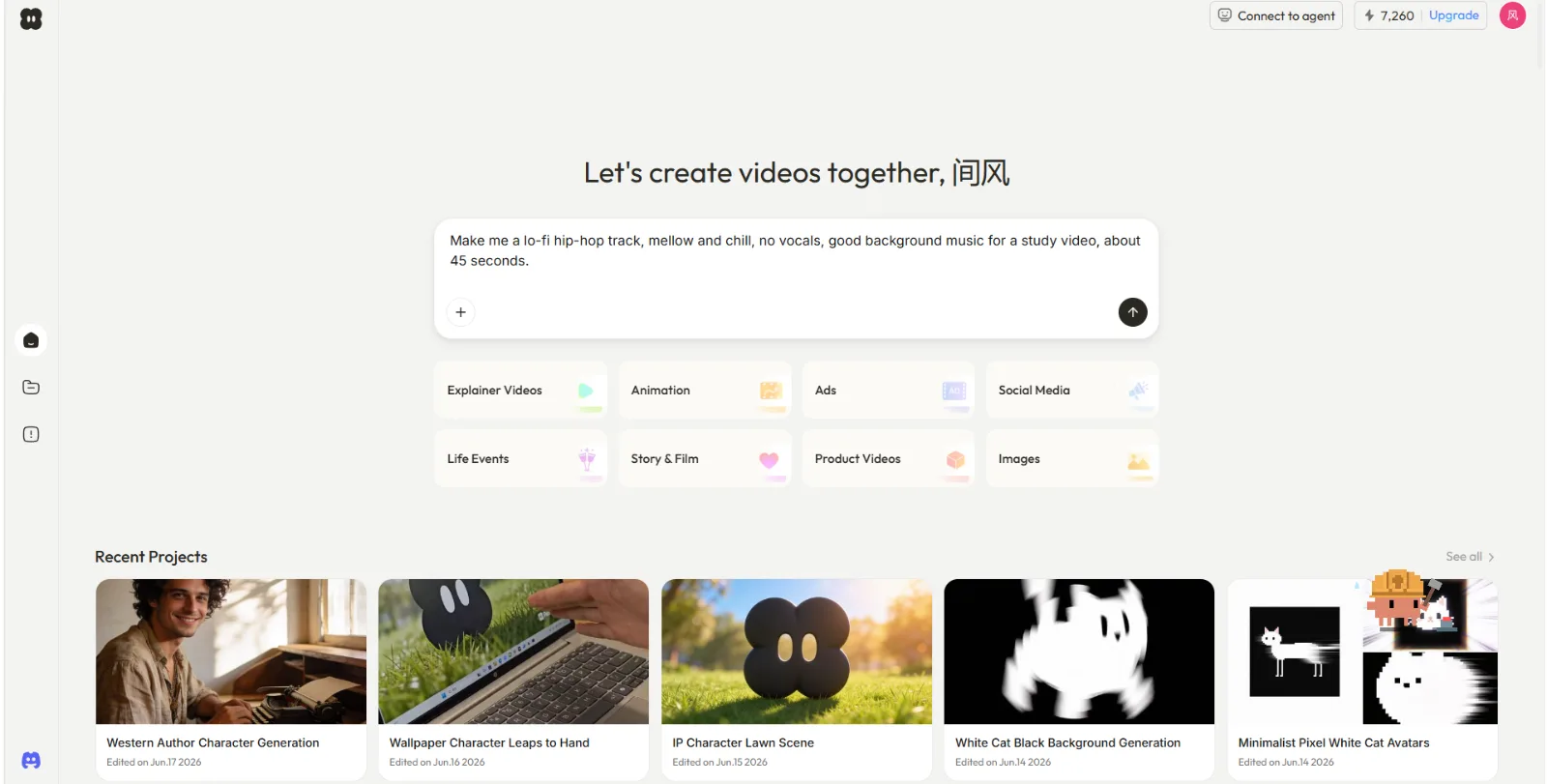 Step 1: a one-line description of mood, genre, and length is all Pexo needs to start composing.
Step 2: Review the Preview and Redirect
Pexo shows you its work before committing to a full render. You get a preview to listen to, and if the tempo is too fast or the mood landed wrong, you just say so: "make it slower and warmer," "drop the piano, add a soft synth pad." There's no settings panel to re-configure. You redirect in the same chat, and Pexo adjusts. This back-and-forth usually takes one or two rounds to lock the direction.
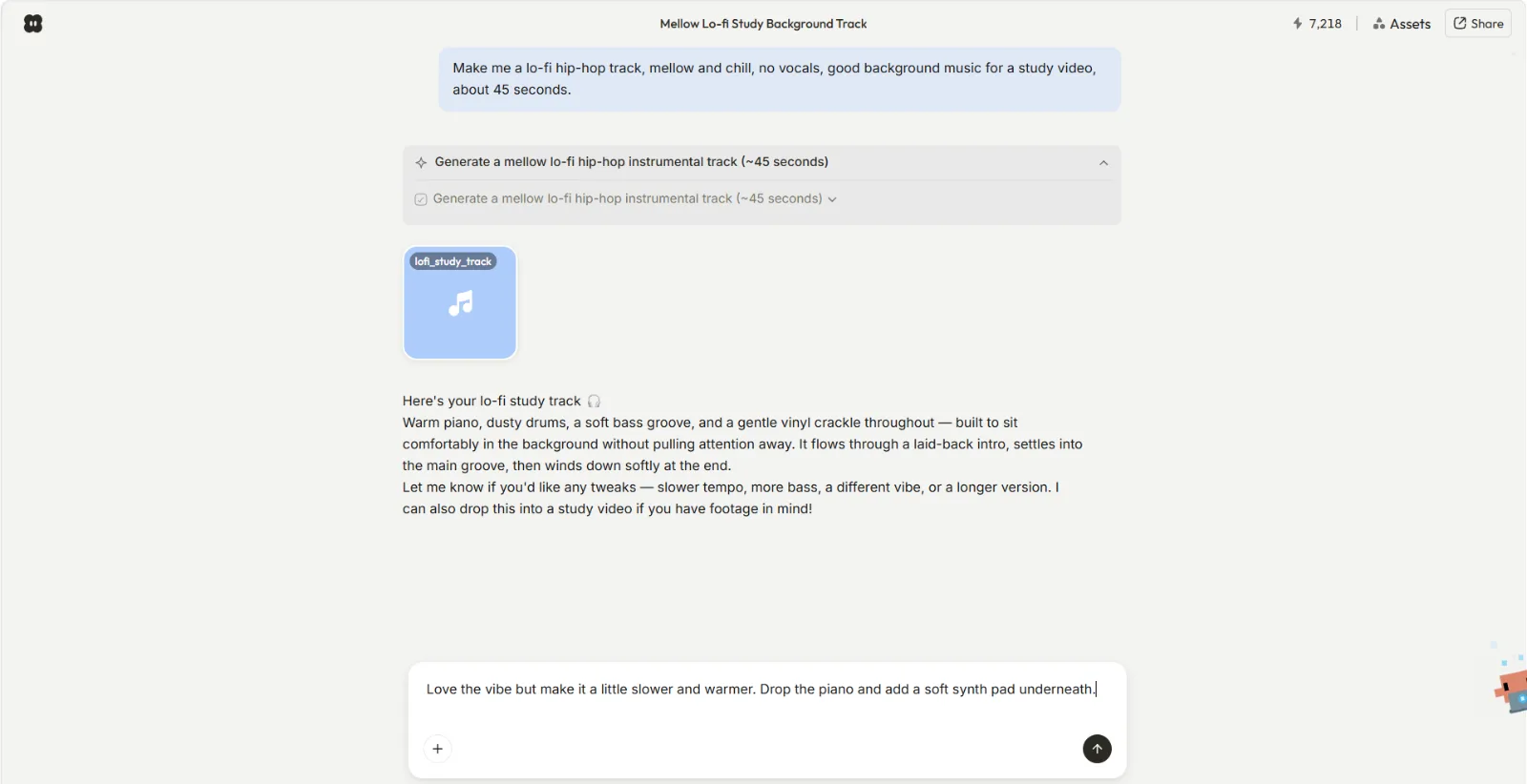 Step 2: preview first, then redirect in plain language. Two rounds is usually enough to nail the mood.
Step 3: Add Vocals, Set the Length, and Iterate
Once the direction is right, dial in the specifics. Ask for instrumental or AI vocals. Set the length to match your runtime, whether that's a 15-second hook or a 90-second bed. Want a loop that repeats cleanly under a longer edit? Ask for it. Want the track extended by another 30 seconds? Say that too. Because Pexo iterates conversationally, you shape the final cut with follow-up messages instead of re-starting from a blank field.
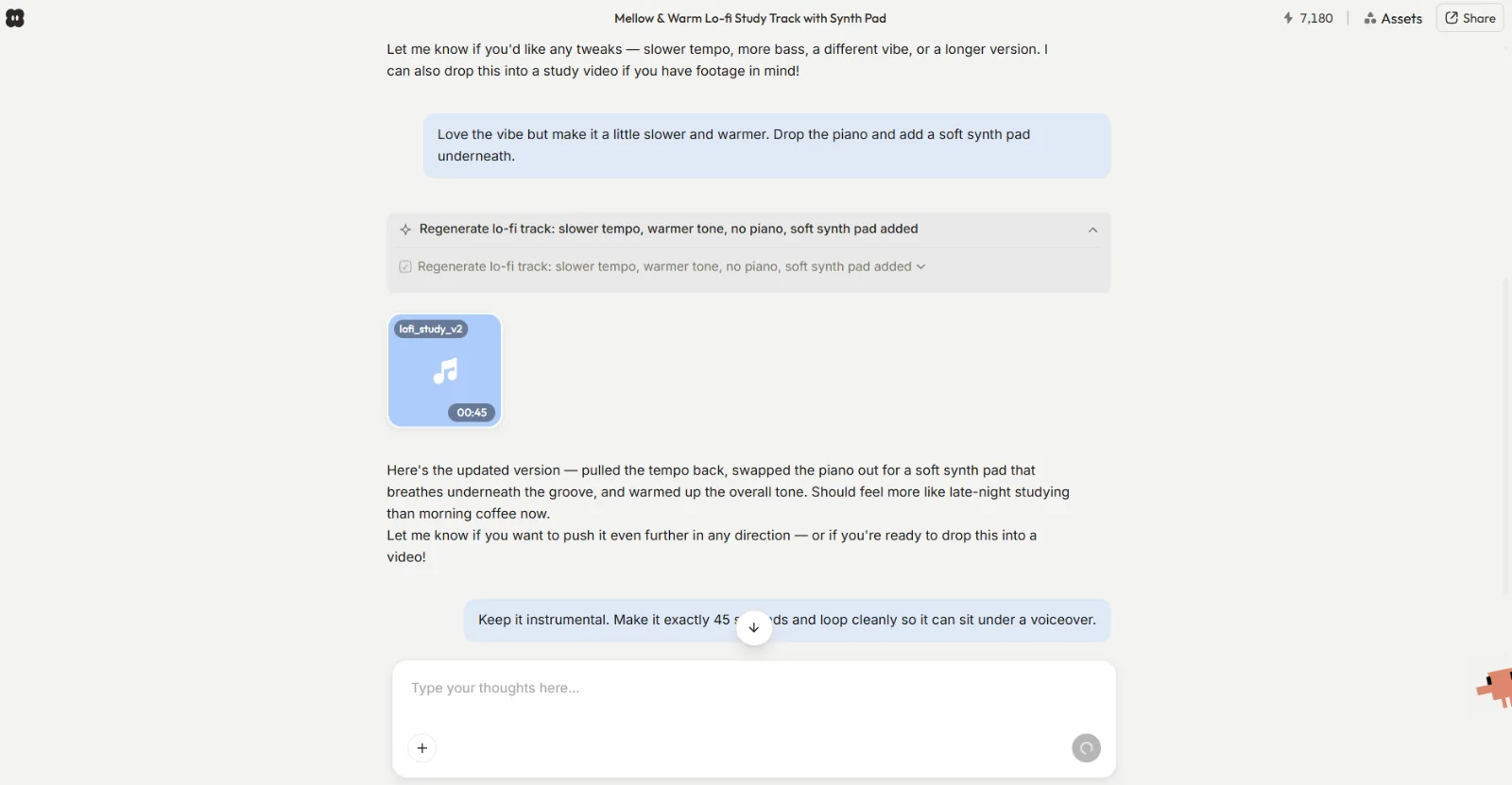 Step 3: instrumental or vocals, exact length, loop or one-shot, all set by asking.
Step 4: Download Your Royalty-Free Track
When the track sounds right, download it. Every track you make in Pexo is royalty-free and cleared for commercial use, so you can publish it on YouTube, TikTok, a client's ad, or a podcast intro without licensing fees or copyright claims. You get a downloadable audio file ready to drop into your video. For a lot of creators, this is where the job ends. Make a music track you can actually publish.
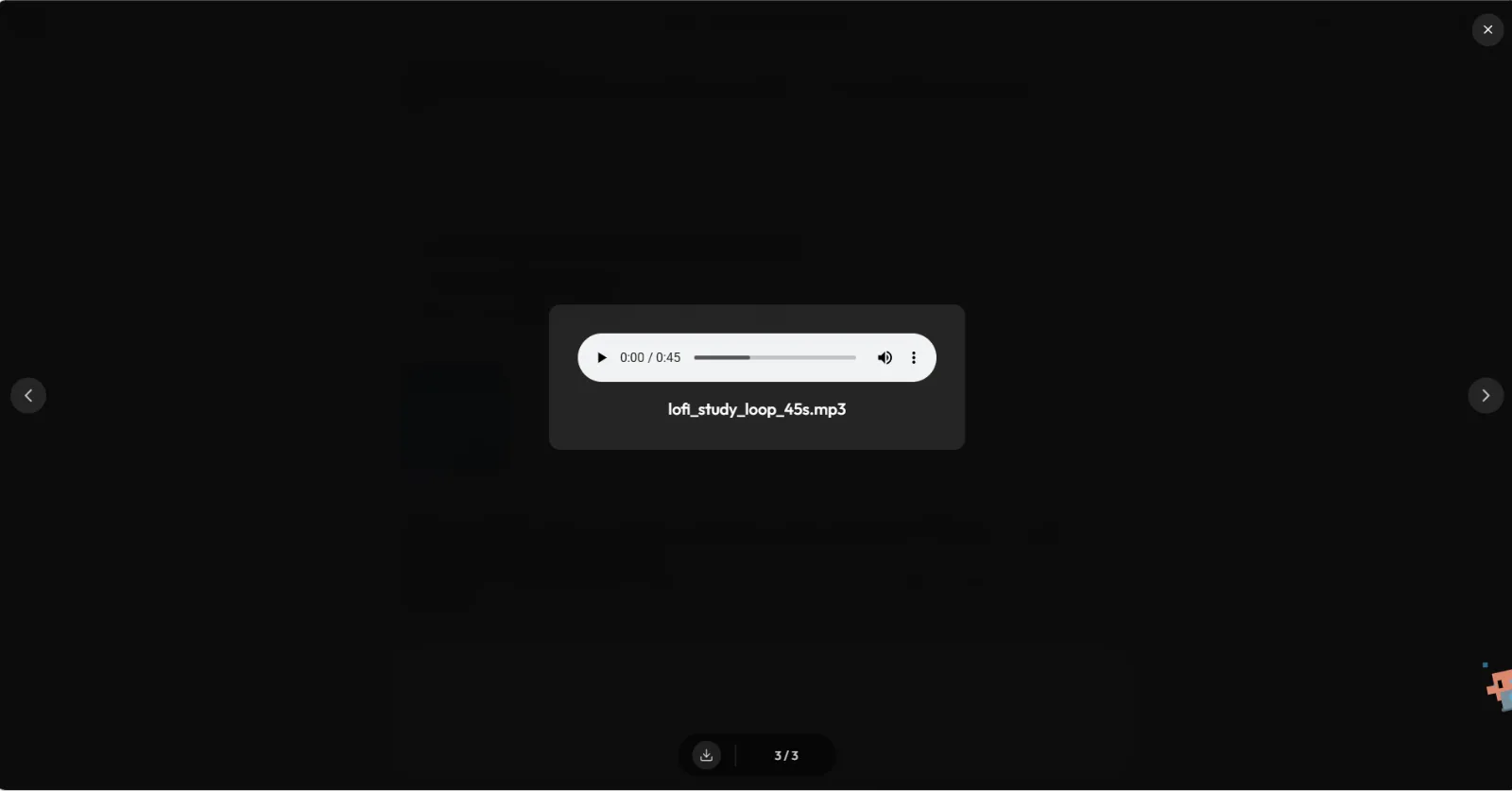 Step 4: the finished track is royalty-free and cleared for commercial use, ready to download.
Once the track is downloaded, there's one optional move a standalone music generator can't match. Stay in the same conversation and ask Pexo to build a video around your track: it analyzes the rhythm and emotional tone, aligns the visuals to the audio so the cuts land on the beat, and exports a platform-native version for YouTube, TikTok, or Spotify Canvas. No app-switching, no dropping an audio file into a separate editor. Turn your track into a beat-synced music video.
Common Mistakes to Avoid
A few habits waste credits and slow you down. Skip these:
- Over-stuffing the first description. Ten adjectives and three genres confuse the brief. Start with three or four clear signals (genre, energy, vocals, length) and refine from the preview.
- Ignoring length until the end. Generating a 2-minute track for a 20-second cut means trimming or re-rolling. Set the length in step 3 to match your runtime.
- Skipping the preview. The preview in step 2 is your cheapest correction point. Redirect there instead of downloading three near-misses.
- Forgetting commercial scope. Pexo's tracks are royalty-free for commercial use, but always confirm the use case (client work, paid ads) fits before you ship at scale.
Pro Tips for Better AI Music
These are the small moves that get a usable track faster and make it work harder in your content:
- Reference a feeling, not just a genre. "Music for a calm Sunday morning" gives Pexo more to work with than "ambient." Scene-based descriptions land better.
- Match the track to the platform. A punchy 15-second hook suits a TikTok video; a longer, evolving bed suits a YouTube explainer. Tell Pexo where it's going.
- Use the loop request for B-roll. Ask for a clean loop when the music sits under voiceover or a montage, so it never feels like it cut off.
- Generate the cover art too. Need a thumbnail or release cover? Pexo also makes images, so you can generate cover-art image in the same place instead of opening a separate tool.
- Let it sync the video. If the music is for a video, hand it straight to the audio-to-video workflow so the visuals lock to the beat automatically.
When NOT to Use an AI Music Generator
Being honest about the limits is what makes the recommendation worth trusting. An AI music generator like Pexo is the right call for content soundtracks, ads, social clips, and quick royalty-free beds. It's not the right tool in a few cases:
- You're releasing a commercial single as an artist. If you need radio-ready masters with stem separation and label-grade mixing, a dedicated production setup still wins.
- You need note-level control. Composers who want to edit individual MIDI notes, voicings, or precise arrangement changes should reach for a DAW, not a conversational generator.
- You already have the track and only need visuals. Then you're not generating music at all. Skip straight to the music video workflow and bring your existing audio.
For everyone making music to back a video, though, the conversational route is faster and the output is publish-ready.
Other AI Music Generators Worth Knowing
If you want to compare approaches, two dedicated audio generators come up often:
- Suno is a popular text-to-song generator known for full vocal tracks. Good when a standalone song with lyrics is the deliverable.
- Udio is another audio-first generator focused on high-fidelity musical output and fine-grained style control.
Both are strong at producing a track as the end product. The reason this tutorial centers Pexo is the hand-off: when your music exists to power a video, generating the track and the beat-synced video in one conversation beats exporting an audio file into a separate tool. Try the all-in-one route in Pexo.
Conclusion
Making your own music used to mean a studio, a DAW, or a long scroll through stock libraries hoping something fit. An AI music generator collapses that into a sentence: describe the vibe, review the preview, set the length, and download a royalty-free track. With Pexo, that track doesn't sit in a downloads folder. It flows straight into a beat-synced video, a cover image, or a platform-ready cut, all in the same conversation, because Pexo is the AI video partner that meets you where you are. Make your first music track in Pexo, or start the whole video in one place.