 ChatGPT
 Perplexity
 Claude
 Gemini
 Grok
Grok


"Free" is the most overloaded word in AI video. Almost every tool has a free plan, and almost every free plan has a catch it doesn't put on the button: a watermark across your export, a daily credit count that runs out after a clip or two, a resolution quietly capped at 720p, or a length limit that stops you mid-scene.
This roundup compares six of the best free AI video creators in 2026 on those exact catches, not the marketing. Some are full text-to-video generators, some are editors with AI built in, and they suit different jobs. Here's how they stack up, with a table up top and a plain decision guide at the end.
What "Free" Really Means for AI Video Creators
A free AI video creator lets you make a video without paying, but "without paying" rarely means "without limits." Before you commit to one, it helps to know the five places a free plan usually pinches.
Watermarks are the most common: many tools stamp a logo on free exports and only remove it on a paid plan. Credit or minute caps limit how much you can generate per day, week, or month. Resolution on free tiers is often 720p, with 1080p or 4K reserved for paid. Clip length is frequently capped at a few seconds to a minute. And commercial rights vary: some tools let you use free output commercially, others reserve that for paid plans, which matters if the video is for a business. Keep those five in mind as you read, because they decide whether a "free" tool is actually free for your use. It also helps to separate the two kinds of tool you'll meet below. Some are generators that invent footage from a prompt, and others are editors or template builders that assemble clips you supply or pick from a library. The free-tier limits bite differently on each, so the right choice depends as much on your workflow and the kind of video you need as on the raw size of the free plan.
The Best Free AI Video Creators at a Glance
Here's how the six compare before the detailed breakdowns. Free-tier terms change often, so treat these as a starting point and confirm the current limits on each site as of June 2026.
| Tool | Free tier | Watermark (free) | Best for | Paid from |
|---|---|---|---|---|
| InVideo AI | Weekly generation minutes | Yes | Marketing videos from a prompt | ~$20/mo |
| Canva | Generous free plan; limited AI video credits | No on most exports | All-in-one creation | ~$15/mo |
| Kling AI | Daily free credits (refreshes) | Light | Raw generation quality | Paid varies |
| Kapwing | Short clips, limited exports | Yes | Browser editing plus AI | ~$16/mo |
| Adobe Firefly | Limited monthly credits | No | Commercially safe video | Via Firefly/CC plan |
| Steve AI | Monthly credits | Yes | Animated and explainer videos | ~$15/mo |
For an independent cross-tool view, tech.co and WaveSpeed both publish 2026 "best free AI video" roundups that track how generous each free tier actually is.
How We Tested and Compared
We judged each tool on what makes a free plan genuinely usable rather than a teaser. The biggest factors, weighted in roughly this order: how much you can actually make for free (minutes or credits before a wall), whether free exports carry a watermark, output quality and resolution, clip length, and commercial-use rights. We also weighed what kind of tool it is, because a prompt-to-video generator and a template-based editor solve different problems. Our read combines hands-on use with the independent 2026 consensus from testers who retest these free tiers as they change. Where a limit shifts faster than an article can track, we point you to the tool's own pricing page rather than print a number that will be stale next month. We did not score raw model benchmarks, since those move week to week; the focus is on how usable each free plan is for a real project today.
The 6 Best Free AI Video Creators
Six tools that are genuinely useful on their free plans, with the honest catch for each.
1. InVideo AI: Best for Marketing Videos From a Prompt
InVideo AI turns a single prompt into a complete marketing video. You describe the video you want, and it writes a script, pulls stock clips, adds a voiceover, subtitles, music, and transitions, then lets you revise by typing instructions. That end-to-end automation is why it shows up at the top of so many "free AI video" lists and why marketers reach for it when they need a social or promo video quickly.
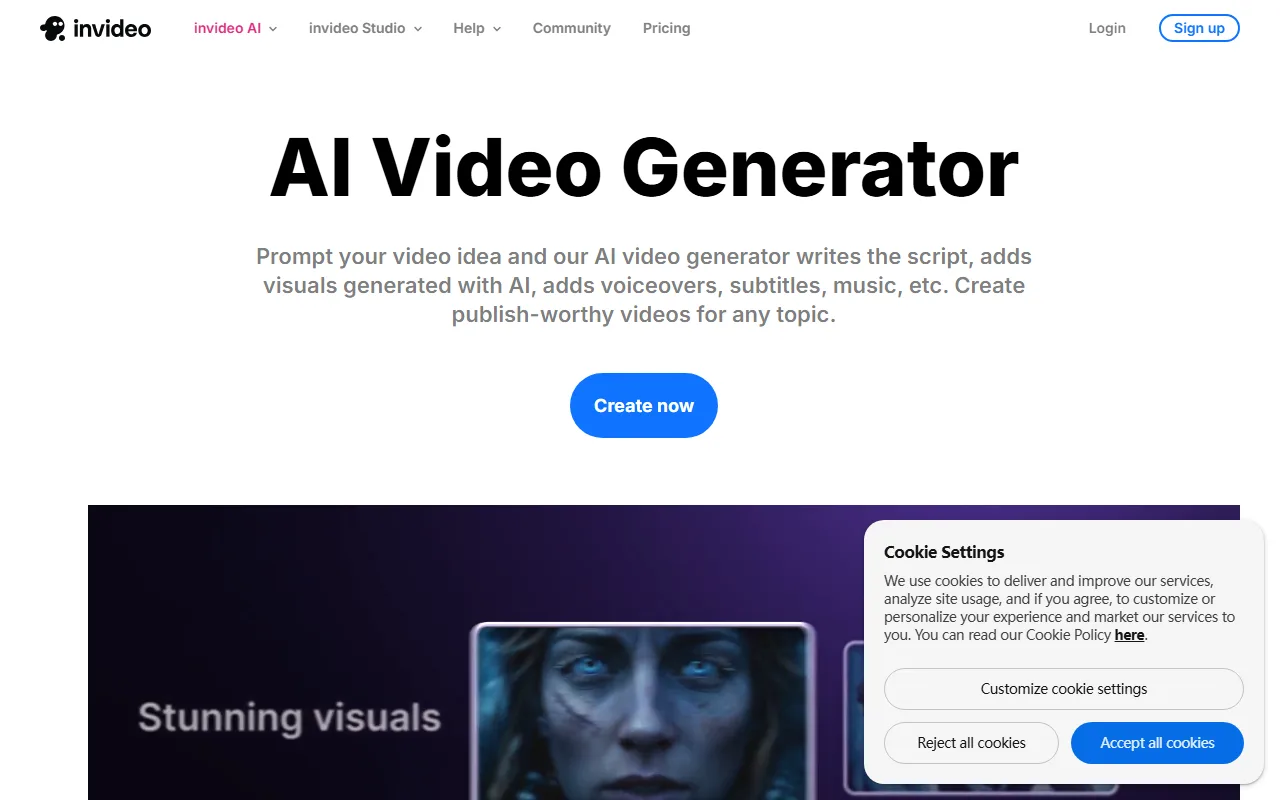 InVideo AI turns one prompt into a narrated marketing video.
It fits creators, marketers, and small businesses who want a finished, narrated video without editing it shot by shot. In practice you can go from a blog post or a few bullet points to a 60-second explainer or a product promo in minutes, and you revise by typing instructions ("make the intro shorter," "use a more upbeat track") instead of touching a timeline. For ad and social teams shipping volume, that speed is the main draw.
The free plan's catch is the familiar one: free exports carry a watermark, generation is capped to a set number of minutes per week, and the output leans on licensed stock footage rather than fully generated scenes, so it's better for explainer-and-promo styles than original cinematic shots. The weekly minute cap is the real constraint, which makes the free tier better for testing and the occasional video than for daily production.
- Pros: Prompt to a complete video; auto script, voiceover, and subtitles; fast for marketing.
- Cons: Watermark on free; weekly generation cap; stock-footage-based rather than fully generative.
- Pricing: Free plan with weekly limits and a watermark; paid plans from around $20/month (confirm current tiers on their site).
- Best for: Marketers and small teams who want a narrated video from one prompt.
2. Canva: Best All-in-One Free Creator
Canva is the safe pick when you want one free tool that does almost everything. Its video editor sits alongside its huge template and design library, and its AI video generator can turn a text prompt into a short clip. For most people the value is the combination: generate or assemble a video, then drop it into a branded social post, thumbnail, or presentation without leaving the app.
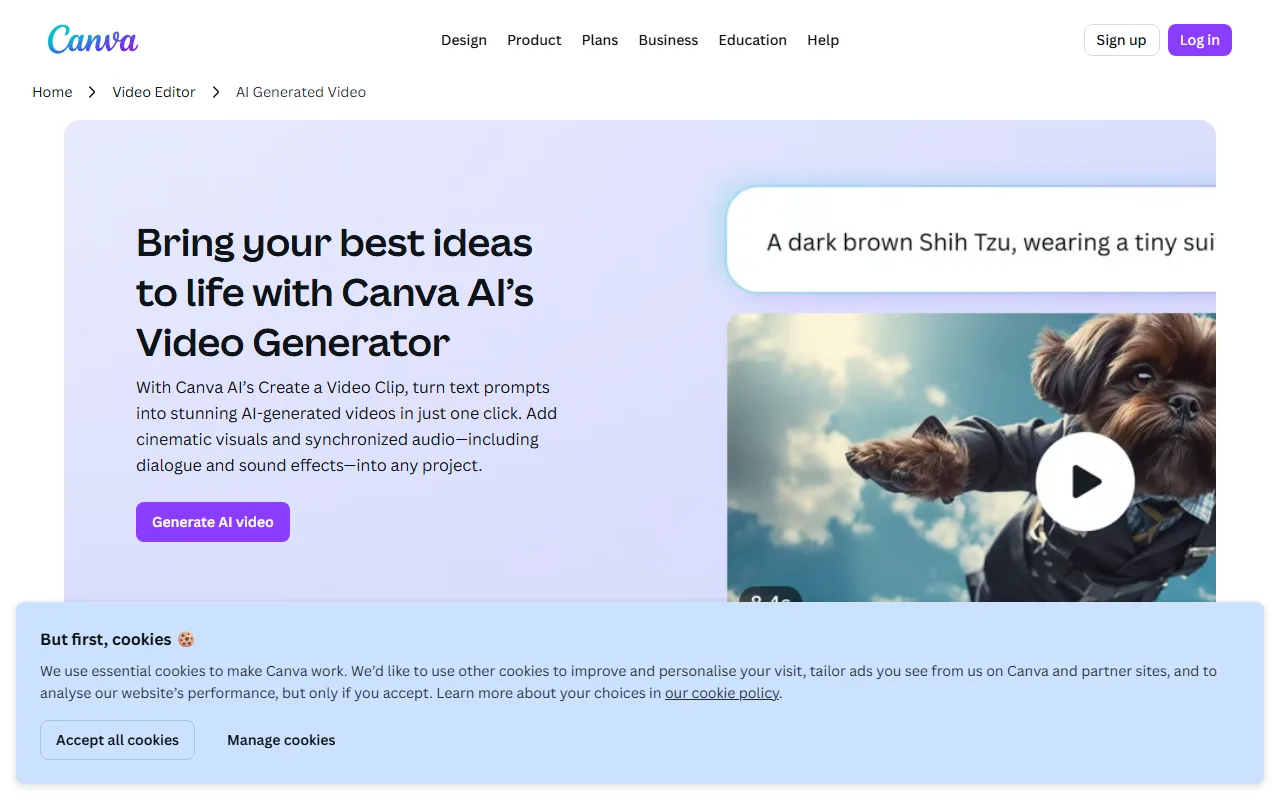 Canva pairs AI video with its full design library.
It suits social creators, students, and small businesses who already live in a design tool and want video to be one more thing they can make there. If you build social graphics or decks in Canva already, adding a generated or assembled clip is a few clicks rather than a new workflow, and Magic Design can draft a rough video from a prompt and your brand kit so everything stays on-brand.
The catch is that the AI video generation specifically is credit-limited on the free plan, and the most useful extras (background remover, brand kit, and higher-res exports) sit behind Canva Pro. The free design tier is genuinely generous; the free AI-video allowance is the part that runs out. It's also a convenience feature inside a design suite rather than a dedicated generator, so the raw clips are shorter and less cinematic than a specialist tool's.
- Pros: All-in-one design plus video; generous free tier overall; easy for non-editors.
- Cons: AI video generation is credit-limited on free; best extras need Canva Pro.
- Pricing: Free plan; Canva Pro from around $15/month for more AI credits and exports.
- Best for: Anyone who wants video plus design in a single free tool.
3. Kling AI: Best Free Tier for Raw Generation Quality
Kling AI is the strongest free option if you care most about how good the generated video actually looks. It is a true text-to-video and image-to-video generator known for realistic human motion and physics, and it has kept one of the more generous recurring free tiers, refreshing a pool of daily credits so you can keep experimenting without paying.
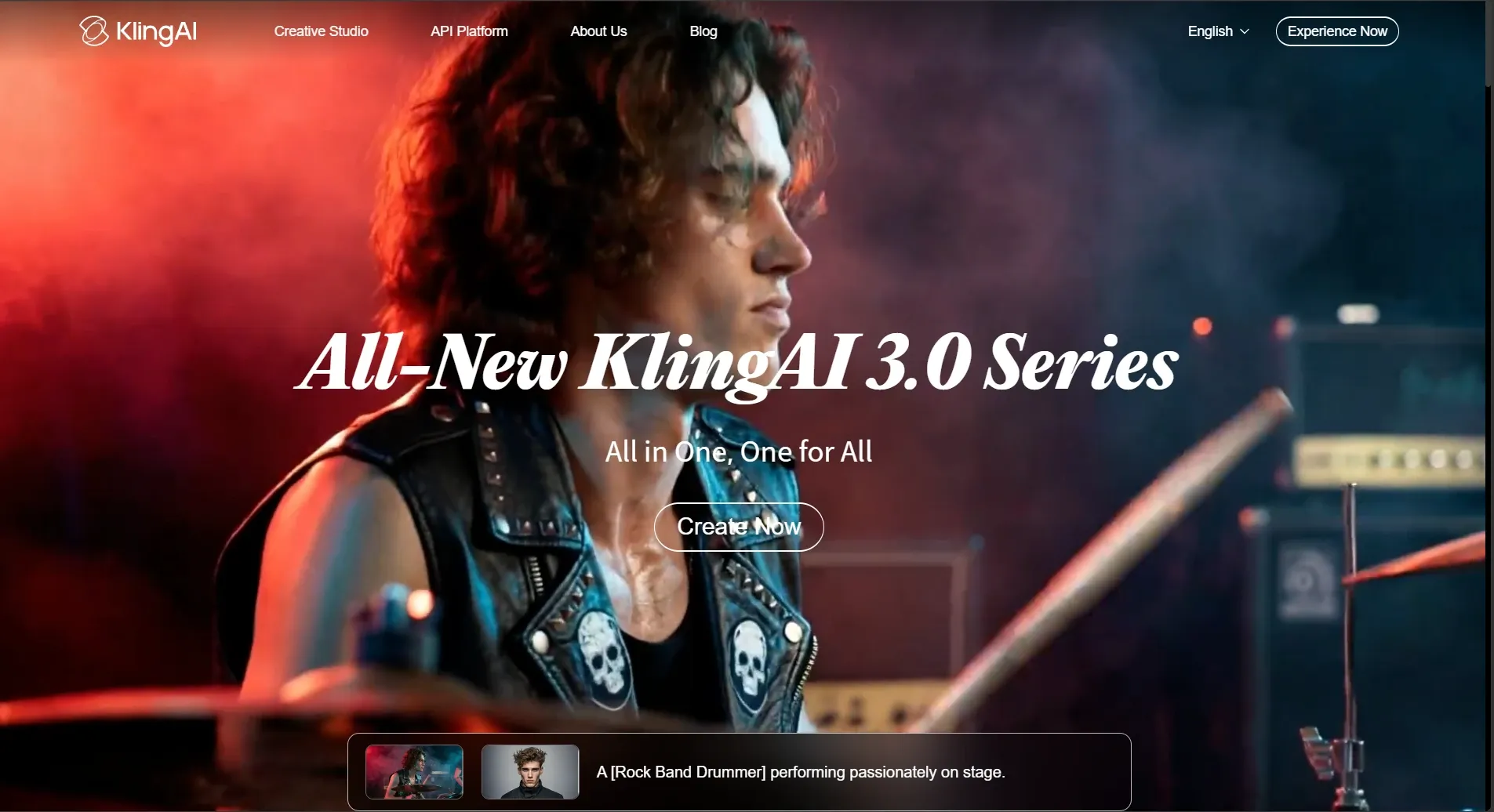 Kling pairs a generous daily free credit pool with strong generation quality.
It works for creators who want genuinely impressive, generated footage rather than stock-and-template assembly, especially shots with people. The daily refresh is generous enough to iterate on a shot several times a day without paying, which is rare among generators, and it handles camera moves and complex motion better than most free tools. Image-to-video also lets you animate a still you already have.
The catches are that it is prompt-based, so you will write and refine prompts to get what you want, busy times bring a queue, and an account is required. It is a generator first, not a full editor, and output caps at short clips, so you will generate scene by scene and assemble longer pieces in a separate editor.
- Pros: Strong generation quality; realistic human motion; generous refreshing daily credits.
- Cons: Prompt-based learning curve; can queue at peak; not a full editor.
- Pricing: Free daily credit allowance; paid plans vary by region (confirm on their site).
- Best for: Creators who want the best-looking generated clips on a free tier.
4. Kapwing: Best Free Browser Editor With AI
Kapwing is a browser-based video editor that has folded AI generation into a normal timeline. You can generate a clip from a prompt using models like Veo, Kling, Seedance, and Sora, then trim, caption, and arrange everything on a real editing canvas. That blend of generation and hands-on editing is its niche: you are not locked into whatever the AI hands back.
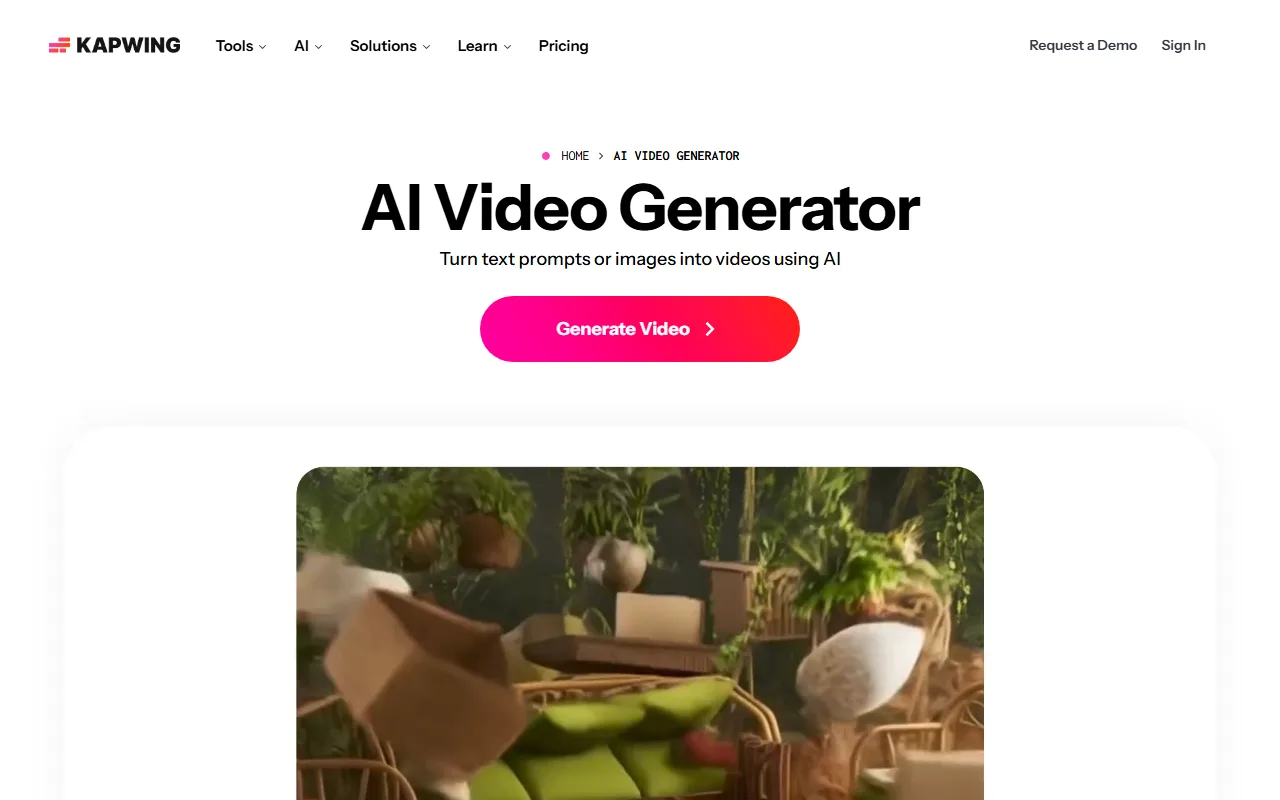 Kapwing blends AI generation with a real browser editor.
It fits creators and teams who want to both generate and edit in one place, without installing software. The practical win is that you can generate a clip, then cut it, add subtitles, resize it for a platform, and layer in your own footage on the same timeline, which a pure generator can't do. Its auto-subtitle and resize tools are genuinely useful for repurposing one video into several formats.
The free plan's catch is length and watermarking: free AI clips are short (around 30 seconds), exports carry a watermark, and longer projects or higher resolution need a paid plan. As a browser tool it is convenient but depends on a solid connection for heavier edits, and most serious team work eventually moves to a paid seat.
- Pros: Generation plus a real editor; access to several models; nothing to install.
- Cons: Free clips are short; watermark on free; heavier editing needs paid.
- Pricing: Free tier; paid plans from around $16/month for longer exports and no watermark.
- Best for: People who want to generate and edit in one browser tool.
5. Adobe Firefly: Best for Commercially Safe AI Video
Adobe Firefly is the pick when the video is for a business and you need to be careful about rights. Firefly's models are trained on licensed and public-domain content, and Adobe positions its output as commercially safe, which is reassuring for brand and client work. The free allowance lets you generate text-to-video clips through a Creative Cloud or Firefly plan.
It suits marketers, agencies, and anyone already in the Adobe ecosystem who wants generated video that slots into Premiere Pro or Express. For work that passes legal review (agencies, regulated industries, larger brands), the licensed-content training is the deciding factor, since it reduces the rights risk that comes with models trained on scraped data.
The catch is that the free generation credits are limited and refresh slowly, so Firefly is better for occasional, careful generations than high-volume experimentation, and getting real mileage usually means a paid Firefly or Creative Cloud plan. You also need an Adobe account, so it makes most sense for people already paying for Adobe rather than someone who just wants a quick one-off clip.
- Pros: Commercially safe, licensed-content model; integrates with Adobe apps; no watermark.
- Cons: Limited free credits; needs an Adobe account; built for the Adobe ecosystem.
- Pricing: Free credits via a Creative Cloud or Firefly plan; paid plans for more (confirm on Adobe's site).
- Best for: Business and client work where commercial safety matters.
6. Steve AI: Best for Animated and Explainer Videos
Steve AI leans into a style the others mostly skip: animation. It turns a script or prompt into animated and live-action explainer videos, with characters, scenes, and voiceover, which makes it a fit for training content, product explainers, and social animation rather than realistic footage. Its free plan gives you monthly credits to generate and download videos at no cost.
It works for educators, marketers, and creators who specifically want an animated or explainer look without hiring a motion designer. Its library of characters, scenes, and templates is built for explainer and training content, so you can assemble a coherent animated story rather than a single clip, and it pairs the visuals with text-to-speech voiceover in a range of languages.
The catches are the usual free-tier ones: free exports carry a watermark, monthly credits cap how much you can make, and the animation style, while distinctive, will not suit projects that need photorealism. The free tier is enough to produce a short branded explainer with a watermark; removing it and unlocking longer videos and premium assets means upgrading. Within its animation niche, though, it is one of the most capable free options.
- Pros: Strong animated and explainer output; script-to-video with characters and voiceover; free monthly credits.
- Cons: Watermark on free; monthly credit cap; animation style is not photorealistic.
- Pricing: Free plan with monthly credits; paid plans from around $15/month (confirm on their site).
- Best for: Animated explainers and training videos.
How to Choose a Free AI Video Creator
Start with what you're actually making, since these tools split into clear lanes:
- Marketing and social videos from a prompt: InVideo AI, for the auto script, voiceover, and subtitles.
- One free tool for video plus design: Canva, if you want graphics and video in the same place.
- The best-looking generated footage: Kling AI, especially for shots with people.
- Generate and edit in one place: Kapwing, for a real timeline plus AI clips.
- Business or client work that must be commercially safe: Adobe Firefly.
- Animated explainers and training videos: Steve AI.
Then check the three things that decide whether "free" works for you: the watermark (a dealbreaker for anything public-facing), the credit or minute cap (how much you can really make), and commercial rights (essential if it's for a business). Generate one test clip on your shortlist before committing, and look closely at the export, since the limits that matter are the ones the pricing page does not show you up front. And if you expect to outgrow the free plan, weigh which paid tier you would actually move to, because the most generous free experience is not always attached to the best-value upgrade.
Conclusion
There is no single best free AI video creator, because these tools are built for different jobs. InVideo AI and Steve AI turn a prompt or script into a finished narrated or animated video, Kling generates the best-looking raw clips, Kapwing adds a real editor, Canva bundles video with design, and Adobe Firefly covers commercial safety. Match the tool to your job, generate a test clip to see the real free-tier limits, and upgrade only once a tool has earned a place in your workflow. The good news is that the free tiers in 2026 are strong enough that most people can make a genuinely useful video without spending anything, as long as they pick the one built for the kind of video they need.