ChatGPT
 Perplexity
 Claude
 Gemini
 Grok
Grok



Published by the Pexo Team. We build Pexo, an AI video partner, and it is one of the seven tools below. We have kept its section to the same depth, the same pricing detail, and the same honest "where it falls short" as every other pick.
You open your editing timeline at 9 p.m., and three hours later you are still nudging clips a frame at a time. If that sounds like your week, you are the reason "best AI video editing software for YouTube" is such a crowded search. Here is the catch most lists skip: the tools that rank for it do two completely different jobs. Some, like Descript and CapCut, help you cut footage you already shot. Others, like Pexo and Invideo AI, build a finished video from a script or an idea when you have no footage at all. Pile them into one ranking without saying which is which, and you end up downloading the wrong thing.
So this roundup splits them by job. We tested seven tools across both the editing track (cut what you filmed) and the generation track (make the video from nothing), priced each one, and noted who it is genuinely for. If you have raw clips to trim, the editors will serve you. If the bottleneck is that you do not want to film or edit in the first place, the generators will. Most working YouTubers end up using one of each.
 Pexo treats video as a conversation: you describe the video you want and it produces a finished clip, no timeline required.
What Counts as AI Video Software for YouTube?
"AI video editing software for YouTube" is an umbrella over two jobs, and knowing which one you need decides everything else.
The first job is editing: you already have footage (a vlog, a talking-head take, a screen recording) and you need to cut it down, remove filler, add captions, and export. AI here speeds up manual work. Descript removes "ums" and silences from a transcript, Gling auto-detects bad takes, CapCut auto-captions a Short in seconds. You still start with a clip.
The second job is generation: you have a script, a product, or just an idea, and no footage. AI builds the video for you, from B-roll and voiceover to pacing and music. Pexo and Invideo AI live here. There is no timeline to learn because there is nothing to cut yet.
The limitation that sends people searching is almost always one of these two: editors are powerful but slow to learn (a DaVinci Resolve project can eat an evening), and generators are fast but give you less frame-level control. The right pick depends on which of those trade-offs you can live with. Keep that split in mind as you read the table below.
The Best AI Video Software for YouTube at a Glance
Here is the whole field on one screen. "Job" tells you whether the tool edits footage you have or generates a video you do not.
| Tool | Best for | Job | Free tier | Paid from | Standout spec |
|---|---|---|---|---|---|
| Descript | Talking-head and podcast channels | Edit | Yes, ~60 min/mo | $16/mo (annual) | Text-based editing of the transcript |
| CapCut | Free editing for Shorts and mobile | Edit | Yes, full editor | ~$9.99/mo | 1080p export on the free plan |
| Pexo | Making videos without filming or editing | Generate | Free to start | $30/mo | One conversation to a finished video, multi-model |
| Gling | Auto-editing raw long-form footage | Edit | 1 free video | $10/mo (annual) | Auto-cuts silences and bad takes |
| Invideo AI | Script-to-video for faceless channels | Generate | Yes, watermarked | $20/mo (annual) | Prompt to full video with voiceover |
| OpusClip | Turning long videos into Shorts | Edit/Repurpose | Yes, 60 min/mo | $15/mo | AI virality score on each clip |
| DaVinci Resolve | Pro-grade desktop editing | Edit | Yes, full app | $295 one-time | Hollywood-grade color grading |
Prices verified as of June 2026; plans and regional pricing change often, so confirm on each official site.
How We Compared
We did not score these tools on a single "best video editor" axis, because they are not all editors. Instead we ran each one against the job it claims to do and weighted five things YouTube creators actually feel:
- Time to a publishable video. How fast you get from raw clip (or blank page) to an export your audience would accept.
- Learning curve. Whether a creator with no editing background can ship something good in the first session.
- Output quality for YouTube specifically. 1080p or better, clean captions, watermark-free on a reasonable plan.
- Pricing honesty. What the free tier really allows, and what the first paid step costs.
- Fit, not hype. Who the tool is genuinely for, and where it falls short.
Every tool below carries a real limitation, including ours. A roundup that only lists strengths is an ad, not a comparison.
The 7 Best AI Video Tools for YouTube, Tested
1. Descript — Best for Talking-Head and Podcast Channels
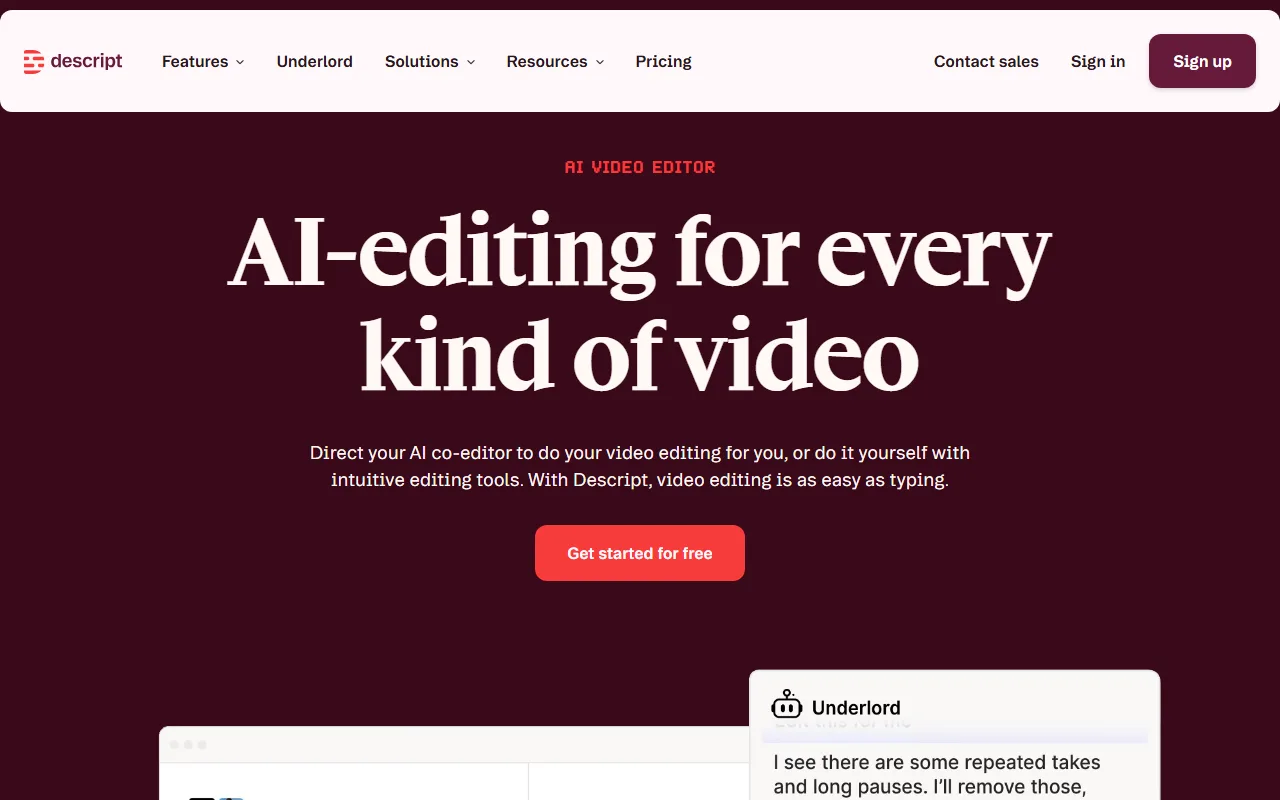 Descript edits video by editing its transcript, and its Underlord agent handles the cleanup tasks.
Descript turns video editing into word processing. It transcribes your footage, and when you delete a sentence from the transcript, the matching video disappears too. For anyone who edits a lot of talking, that single idea removes most of the tedium.
Its differentiator is the Underlord AI agent, which structures edits, strips silences, removes filler words, and handles more than 20 cleanup tasks on command. On a 30-minute talking-head recording, that is the difference between an hour of scrubbing and a few minutes of review. Descript rates around 4.5 out of 5 across hundreds of G2 reviews (as of June 2026), heavily from podcasters and interview-format creators.
Who it is for: if your channel is mostly you (or you plus a guest) talking to camera, a podcast, an interview show, or a tutorial, Descript fits the way you work. Where it falls short: it is built for speech. Edit a fast-cut, music-driven montage or heavy motion graphics and you will feel the ceiling quickly, and the free plan's roughly 60 transcription minutes a month runs out fast once you are serious.
- Pricing: Free tier (about 60 media minutes a month). Paid from $16 per user per month (Hobbyist, billed annually) or $24 billed monthly; Creator runs $24 per month annually.
- Pros: transcript editing is genuinely faster for speech; strong AI cleanup; exports clean 1080p.
- Cons: weak for motion-heavy edits; transcription minutes cap the free tier.
Try it at Descript's official site.
2. CapCut — Best Free Editor for Shorts and Mobile
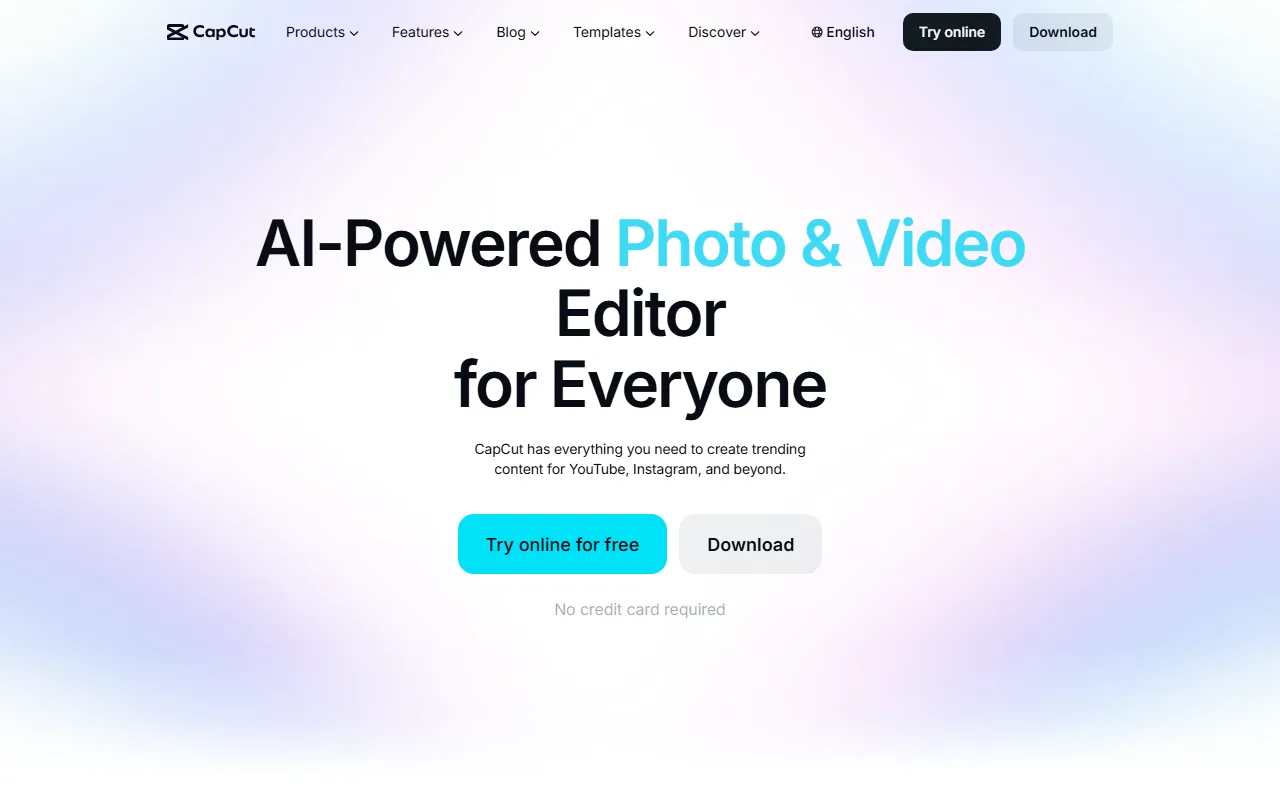 CapCut gives you a near-complete editor on the free plan, which is why it dominates short-form.
CapCut is the editor most Shorts creators already have open. It runs on phone, desktop, and browser, and its free plan is unusually generous: a real timeline, templates, auto-captions, and 1080p export without a hard feature wall.
The standout is how much it gives away for free. You can batch out five to ten Shorts in the time a traditional editor takes for one, because the templates and auto-caption tools are built for speed, not depth. That free-tier strength is why CapCut shows up in nearly every creator's stack at least once. Where it falls short: some of the slicker AI effects and commercial-use assets sit behind CapCut Pro, and for long-form 20-minute videos the mobile-first design starts to fight you.
Who it is for: you post Shorts, Reels, or TikToks daily and want zero friction and zero cost to start. CapCut is the path of least resistance for vertical video.
- Pricing: Free plan with the full editor. Pro starts around $9.99 per month (regional pricing ranges from about $7.99 to $19.99); annual is roughly $179.99.
- Pros: the most capable free editor here; fast templates; cross-device.
- Cons: best AI assets and some commercial rights need Pro; clunkier for long-form.
Try it at CapCut's official site.
3. Pexo — Best for Making YouTube Videos Without Filming or Editing
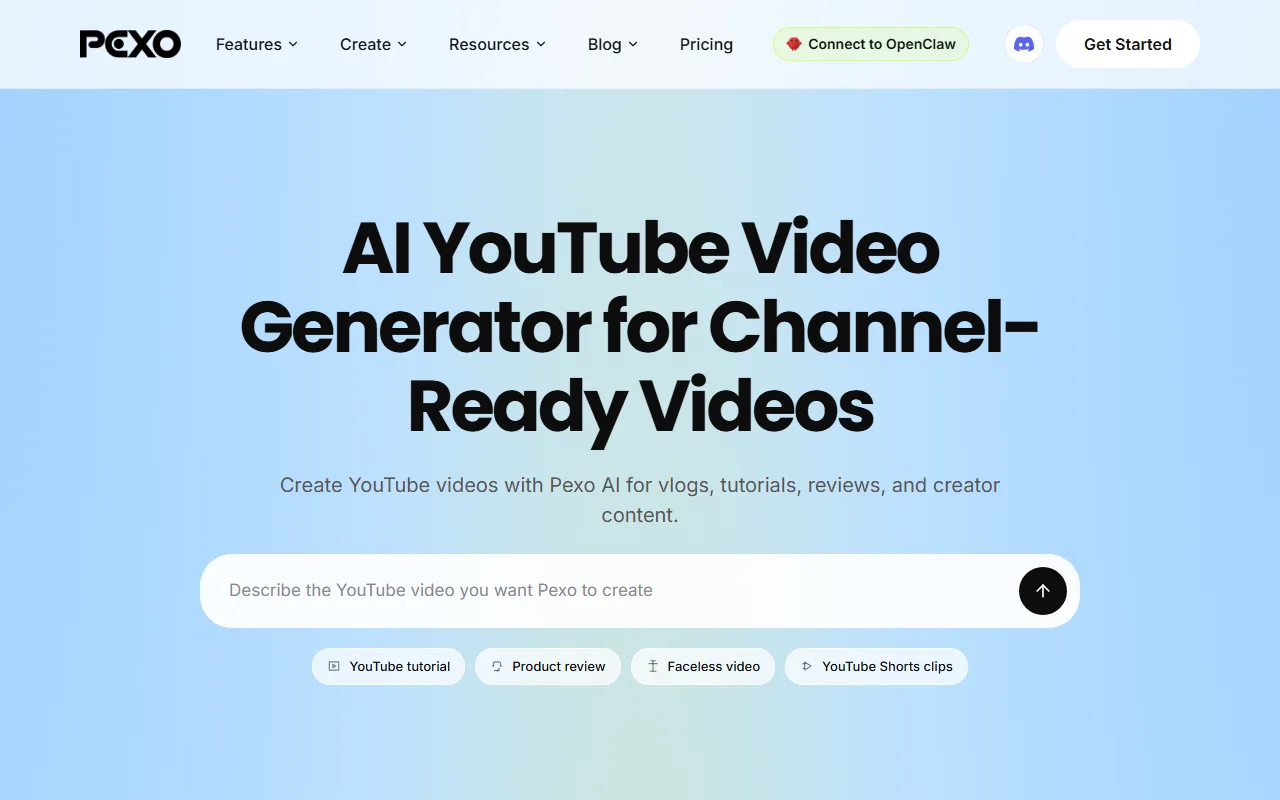 Pexo's YouTube generator: describe the video you want, pick a format like tutorial or faceless, and it produces a channel ready clip with no timeline to learn.
Here the list crosses from editing to generation. Pexo is an AI video partner, not a timeline editor, and that is the point: instead of cutting footage, you describe the video you want and Pexo produces a finished one. No prompts, just talk and no operating, just directing are the two ideas it is built on. You tell it what you are imagining, in plain language, and it plans, builds, and hands back a complete clip with visuals, voiceover, captions, and music.
Its real differentiator is that it routes across the best models for your scene instead of locking you to one. Pexo works with Seedance 2.0, Kling, Nano Banana, and more, and picks the right one for the shot so you never have to. You can turn a script into a finished video, and because it also generates stills, you can make a thumbnail in the same place. Inputs can be text, an image, a URL, or audio, never existing video, which is the tell that Pexo's job is creating footage, not cutting it.
Who it is for: you run a faceless channel, an explainer or product channel, or you simply do not want to film and edit. If you can describe a video, you can make one. Where it falls short: Pexo will not cut your existing vlog footage, so if you already shot raw clips you want trimmed, an editor like Descript or CapCut is the right tool, not Pexo. It is also credit-based, so heavy output costs real money, and as a newer name it has less community tutorial content than CapCut or DaVinci.
- Pricing: Free to get started, then credit-based. Pro is $30 per month for 4,800 credits (roughly two to five minutes of finished video); Elite $60 per month for 10,000 credits; Max $100 per month for 18,000 credits. No watermarks on paid plans.
- Pros: fastest path from idea to finished video; no editing skills needed; multi-model routing; makes stills and thumbnails too.
- Cons: not for trimming footage you already have; credits meter heavy use; smaller tutorial ecosystem.
See it at Pexo's official site or make a YouTube video with Pexo. If generation is not your need, the editors above and below are the honest alternatives.
4. Gling — Best for Auto-Editing Raw Long-Form Footage
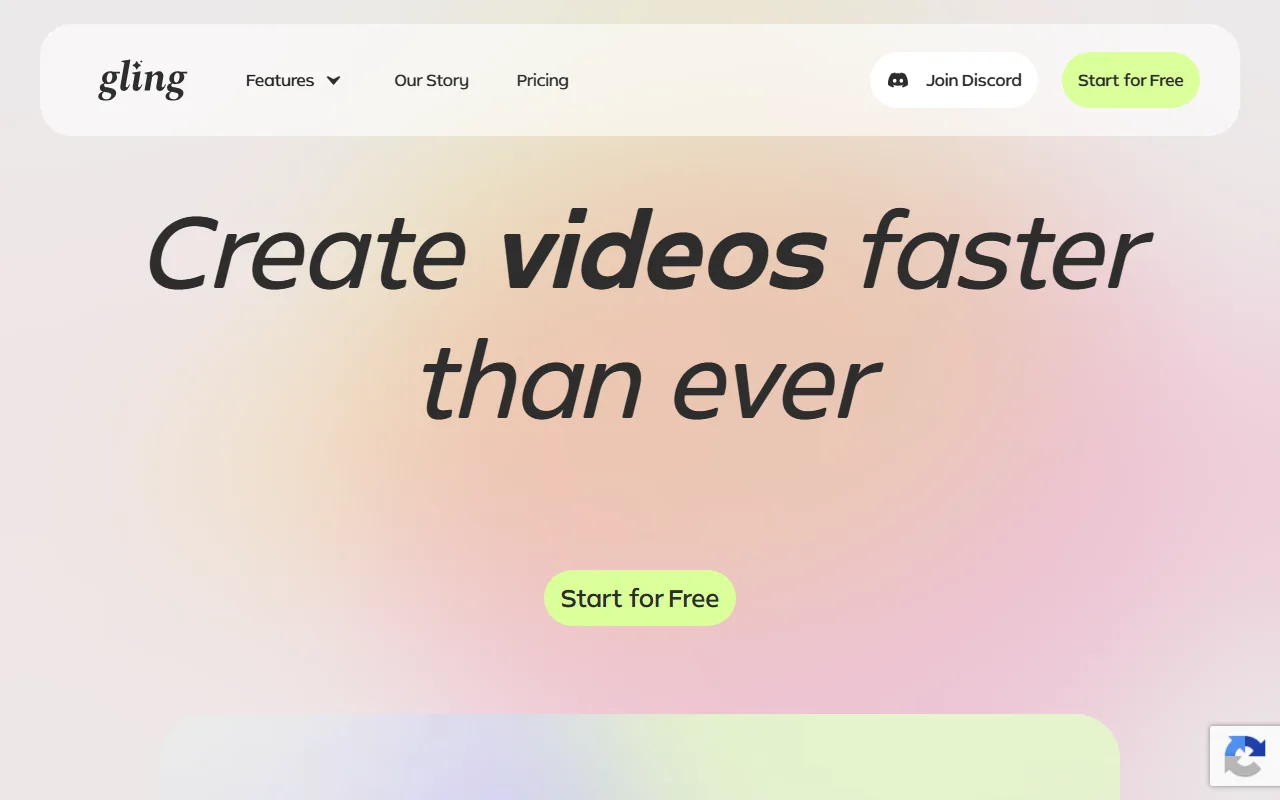 Gling is purpose-built for YouTubers, auto-removing silences and bad takes from raw footage.
Gling is the specialist on this list. It does one thing for one audience: it takes a long, raw YouTube recording and automatically cuts the silences, the "ums," and the bad takes, then generates titles and chapters tuned for YouTube.
The differentiator is focus. Where Descript is a broad editor, Gling is built around the single workflow of cleaning up a talking-to-camera recording, and it auto-detects retakes so you keep only the good one. On an hour of raw footage that judgment call is where most of your editing evening goes. It rates well on Capterra among solo YouTubers (as of June 2026) precisely because it is not trying to be everything. Where it falls short: that narrow focus is also the limit. It is not a general editor, it has minimal effects and motion tools, and the free offering is a single trial video rather than an ongoing free tier.
Who it is for: you publish long-form talking-head videos weekly and want the silence-and-retake cleanup done for you before you do any fine editing.
- Pricing: A one-time free trial (one video, up to an hour). Paid is $15 per month, or $10 per month billed annually ($100 a year).
- Pros: purpose-built for YouTube cleanup; auto-cuts silences and retakes; YouTube titles and chapters.
- Cons: narrow use case; light on effects; no ongoing free tier.
Try it at Gling's official site.
5. Invideo AI — Best Script-to-Video for Faceless Channels
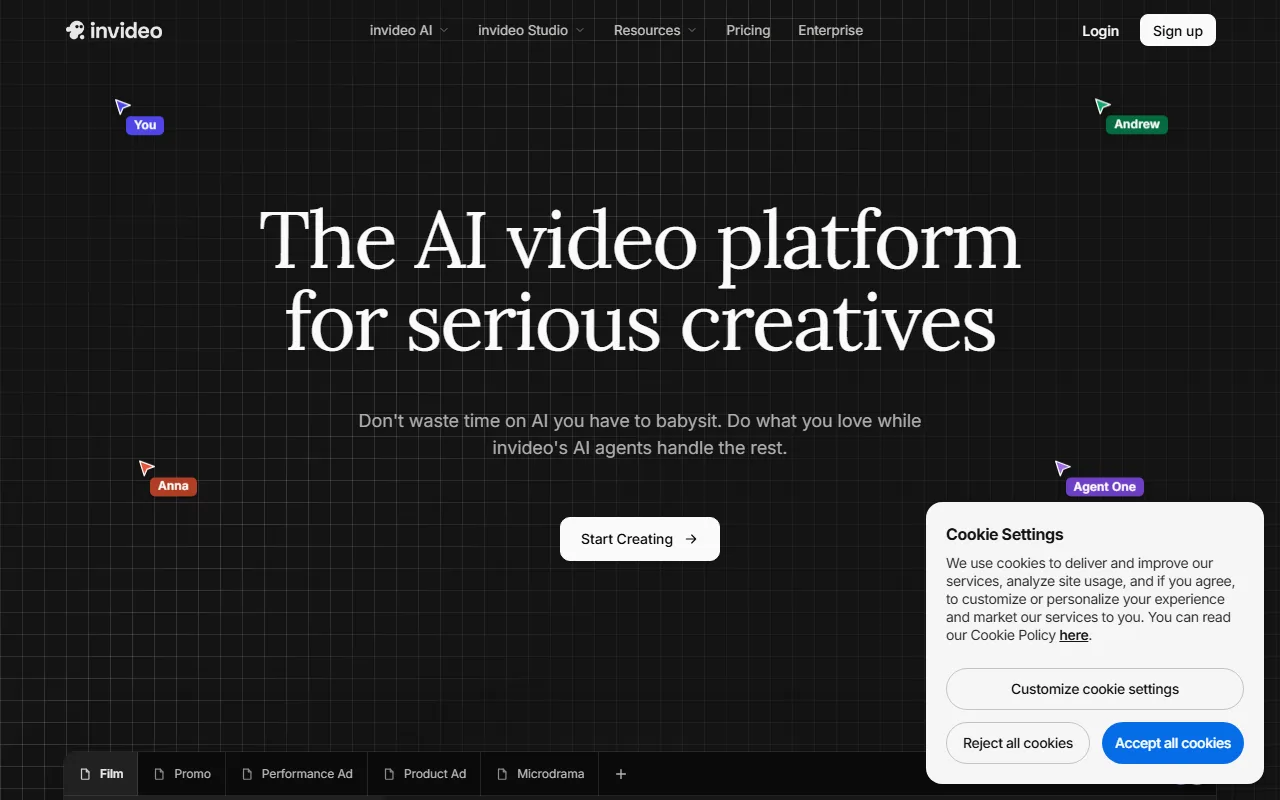 Invideo AI turns a single text prompt into a full video with B-roll, voiceover, and captions.
Invideo AI is the other generator on this list, and a close comparison point to Pexo. You type a prompt like "a five-minute video about the history of coffee," and it assembles stock B-roll, an AI voiceover, on-screen text, and music into a complete draft you can then refine with more text commands.
Its differentiator is scale for faceless content. Invideo reports more than 25 million users (as of June 2026), and its library of stock footage plus text-to-speech voices makes it fast to spin up the kind of narrated, no-face videos that fill many niches. Where it falls short: the output leans on stock footage, so videos in a popular niche can start to look like everyone else's, and the free plan stamps a watermark on exports and caps you at 10 per week.
Who it is for: you run a faceless, narration-driven channel (list videos, explainers, history, finance) and want volume from scripts rather than original footage.
- Pricing: Free plan (watermarked, 10 exports per week). Plus is $20 per month billed annually ($25 monthly); Max is $48 per month annually ($60 monthly).
- Pros: fast script-to-video; large stock and voice library; good for volume.
- Cons: stock-heavy look; watermark and export caps on free; refinement is prompt-based.
Try it at Invideo's official site.
6. OpusClip — Best for Turning Long Videos Into Shorts
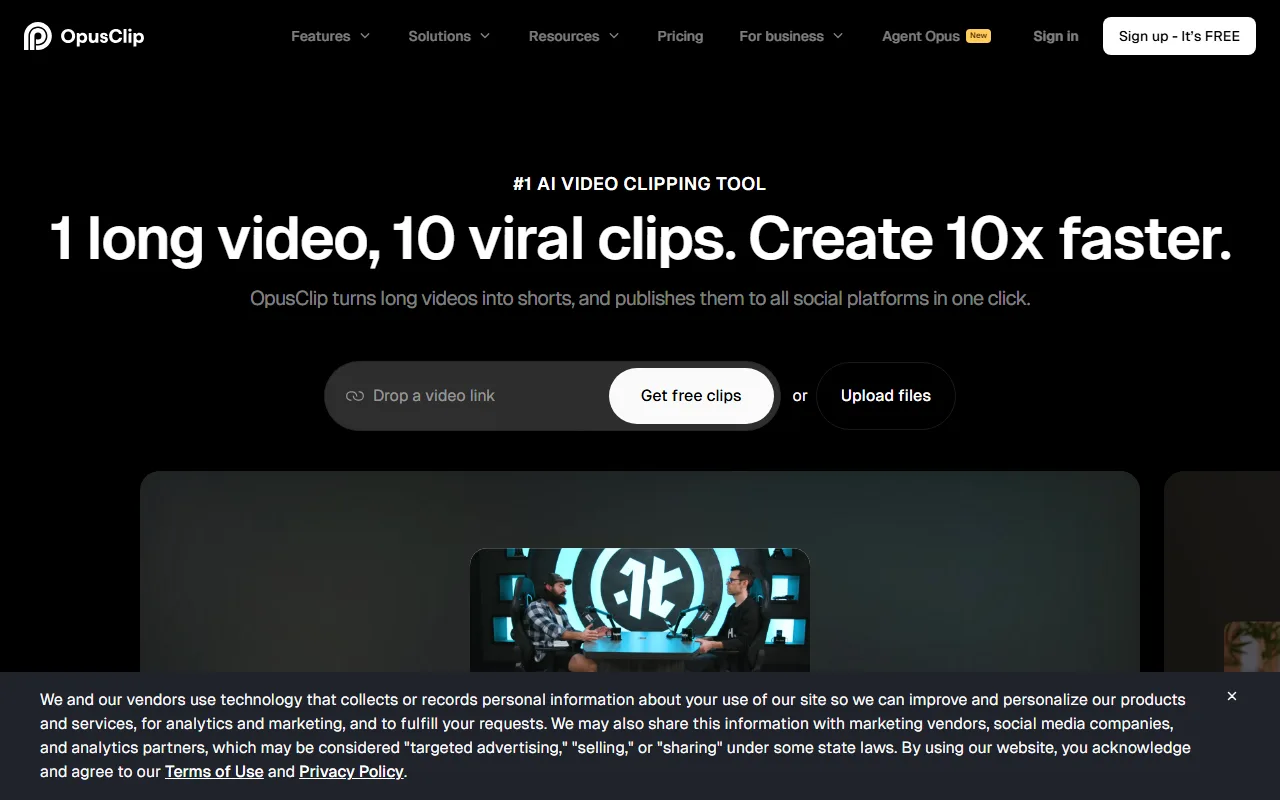 OpusClip scans a long video and pulls the most engaging moments into ready-to-post Shorts.
OpusClip solves a job neither the editors nor the generators above do directly: it repurposes. Feed it a long video (a podcast, a livestream, a 20-minute upload) and it finds the most engaging moments, reframes them vertically, adds captions, and gives each clip a virality score.
The differentiator is that scoring and reframing pipeline. Instead of you scrubbing an hour of footage to find the ten quotable seconds, OpusClip ranks candidate clips for you, and it reports more than 10 million users leaning on exactly that (as of June 2026). Where it falls short: it needs an existing long video to work, so it is useless if you are starting from nothing, and the AI's idea of a "viral" moment still needs a human pass before you trust it.
Who it is for: you already publish long-form and want to mine each upload for five or ten Shorts without manual hunting.
- Pricing: Free-forever plan (60 minutes of processing a month, watermarked). Starter is $15 per month; Pro is $29 per month; Business is custom.
- Pros: removes the clip-hunting grind; auto-reframes and captions; virality scoring.
- Cons: needs existing long footage; "viral" picks need review; free minutes are limited.
Try it at OpusClip's official site.
7. DaVinci Resolve — Best Free Pro-Grade Desktop Editor
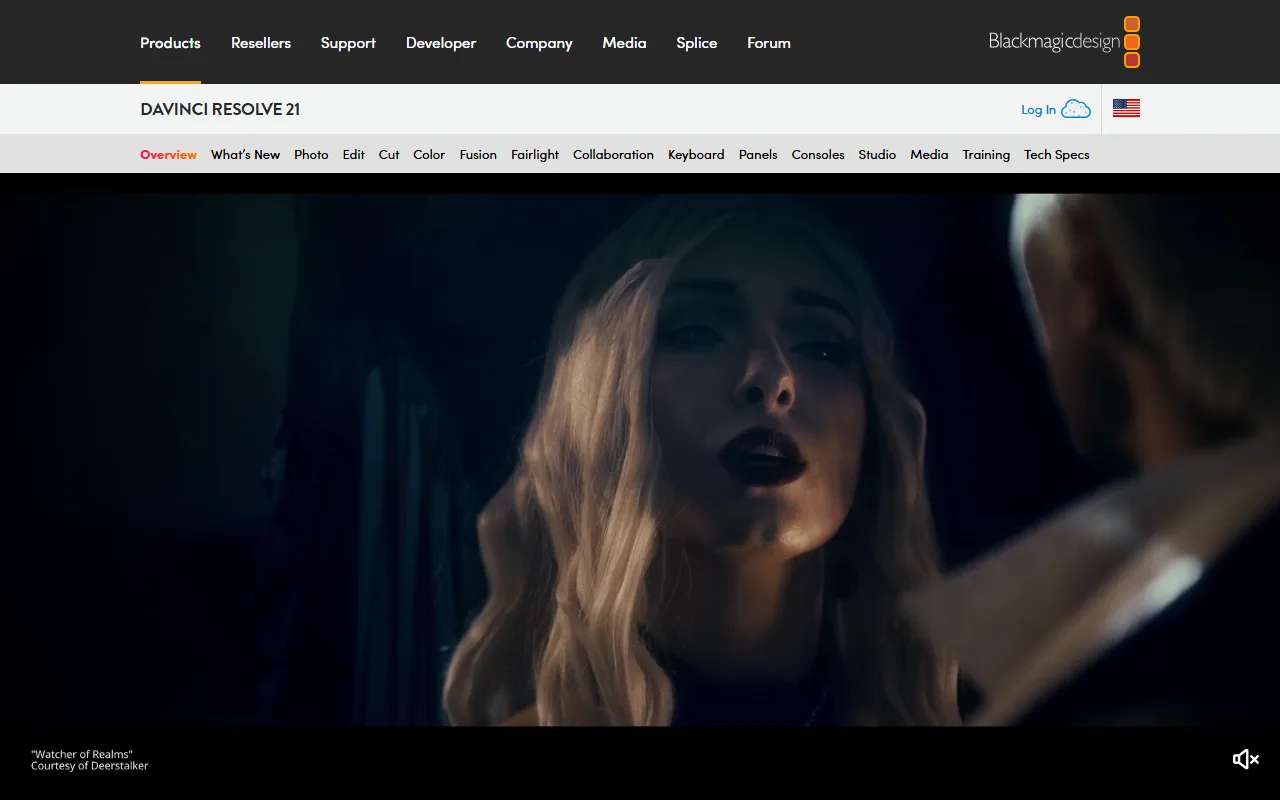 DaVinci Resolve gives you Hollywood-grade editing and color tools, and the base app is genuinely free.
DaVinci Resolve is the professional's pick, and remarkably, its base version is free. It is one of the industry's big editing platforms alongside Premiere and Final Cut, with a color-grading suite used on actual films, and Blackmagic gives the core app away to pull creators into its ecosystem.
The differentiator is ceiling. You can edit and finish up to 60 fps at Ultra HD (3840 x 2160) on the free version, with color, audio (Fairlight), and visual-effects (Fusion) tools that no browser editor here matches. The AI features in the paid Studio version (Magic Mask, voice isolation, smart reframe) save real time once you know the software. Where it falls short: the learning curve is the steepest on this list by a wide margin, and it is a heavy desktop application, so a casual creator who just wants captions on a Short will find it overkill.
Who it is for: you are ready to invest in real editing skills and want a tool you will not outgrow, especially if color and finishing matter to your channel.
- Pricing: The full app is free. DaVinci Resolve Studio is a one-time $295 purchase (no subscription), with free updates after.
- Pros: professional-grade and largely free; best color and finishing; one-time paid price.
- Cons: steepest learning curve here; heavy desktop install; overkill for quick Shorts.
Try it at DaVinci Resolve's official site.
How to Choose the Right Tool for Your Channel
Start with the question that splits this whole list: do you have footage, or do you need it made?
- You shot a talking-head video or podcast and want it cleaned up fast: Descript (transcript editing) or Gling (auto-cleanup) will save you the most time.
- You post Shorts daily and want free and frictionless: CapCut, with DaVinci Resolve waiting for when you outgrow it.
- You have one long video and want ten Shorts from it: OpusClip is the direct path.
- You have no footage and do not want to film or edit: this is where generation wins. Pexo builds the whole video from a description and routes across the best model for each shot, while Invideo AI is the stock-and-voiceover option for faceless volume.
- You want pro-grade control and will invest the hours: DaVinci Resolve has the highest ceiling, free.
Many creators run two: a generator to produce the video and an editor to polish or repurpose it. There is no single winner, only the right tool for your job this week.
Conclusion
The phrase "AI video editing software for YouTube" hides two jobs, and the fastest way to waste a weekend is to pick a tool built for the other one. If you have footage, the editors here (Descript, CapCut, Gling, OpusClip, DaVinci Resolve) each win a clear lane. If your real bottleneck is that you do not want to film or edit at all, generation is the unlock, and that is the lane we built Pexo for: describe the video, and it directs the whole production for you across multiple models, no timeline required. You can make a YouTube video with Pexo free to start, and reach for one of the editors above when you have raw clips to cut. Pick by the job in front of you, not by the longest feature list.