 ChatGPT
 Perplexity
 Claude
 Gemini
 Grok
Grok



Search "best AI video editor for YouTube" and the results throw two very different tools into the same list. A vlogger sitting on two hours of raw talking head footage needs something that cuts the dead air and tightens the pace. A creator running a faceless channel has no footage at all and needs to generate video from a script. Calling both an "AI video editor" hides the one decision that actually matters: are you editing something you have, or making something you don't?
This roundup is written by the team behind Pexo, the conversational AI video partner you will see at number two, so we will be direct about where it fits and where it does not. The other six tools are genuinely better picks for certain jobs, and we say so. Below are seven options worth your time in 2026, split cleanly by the job they do, with the honest version of who each one suits.
 A cinematic scene generated with Pexo from a few sentences, with no footage shot and no timeline editing.
What to Look for in an AI Video Editor for YouTube
Before the list, it helps to name the split that runs through it. AI video tools for YouTube fall into two groups, and the right pick depends entirely on which group you need:
- Editors work on footage you already have. You upload a recording, and the tool trims, captions, cleans, or clips it. Gling, Descript, OpusClip, and CapCut live here.
- Creators build video you do not have yet. You give them a script, an idea, an image, or a prompt, and they generate a finished clip. Pexo, Runway, and InVideo AI live here.
Within that split, a few criteria separate a tool that genuinely saves time from one that just adds steps:
- Format range. Can it handle both 16:9 long form and 9:16 Shorts without making you relearn the workflow?
- Starting point. Does it begin from footage you filmed, or from a script, idea, image, or prompt?
- Captions and pacing. Auto captions and tight pacing drive YouTube retention more than raw cinematic polish.
- Speed to publish. How quickly does it get you from a blank screen to an upload ready file?
- Learning curve. A timeline with 200 buttons is powerful but slow to learn. A conversational or transcript based flow is faster to pick up.
- Price at your volume. Watermarks, export caps, and resolution limits decide whether a free tier is usable or just a demo.
No single tool wins all six, which is exactly why the right answer depends on your channel.
The 7 Best AI Video Editors for YouTube at a Glance
Here is the quick view before the detail. Prices are the lowest advertised monthly rate, some billed annually, and are current as of June 2026. Always check each site for the latest.
| Tool | Best for | Free option | Paid from |
|---|---|---|---|
| Gling | Auto cutting raw long form footage | 1 hr/mo of AI editing, watermark | Plus $20/mo, Pro $40, Elite $100 |
| Pexo | Creating a video from a description | Trial credits, credit based, no free forever | Pro $30/mo, Elite $60, Max $100 |
| Descript | Text based editing and repurposing | 60 min/mo, 720p, watermark | Hobbyist $16/mo, Creator $24, Business $50 |
| OpusClip | Turning long videos into Shorts | 60 credits/mo, watermark | Starter $15/mo, Pro $29 |
| CapCut | Hands on editing for free | 1080p exports, no watermark on basic edits | Standard $9.99/mo, Pro $19.99 |
| Runway | Cinematic AI B roll and scenes | 125 one time credits, watermark | Standard $12/mo, Pro $28, Max $76 |
| InVideo AI | Full videos from a text prompt | 720p, watermark | Plus $20/mo, Max $48 |
How We Compared
This is a capabilities comparison grounded in real use, and it is worth being clear about that. We build Pexo, so our experience with it is hands on and daily. For the other six, we worked from each product's current site, documentation, and pricing page as of June 2026, alongside published user ratings on G2 and Capterra and each tool's own usage figures. For every tool we looked at the same things: what input it starts from, the formats and resolutions it exports, how it handles captions and pacing, the learning curve, and the free and paid tiers. Where a tool is strong at one job and weak at another, we say so, because on YouTube the right fit beats the longest feature list.
The 7 Best AI Video Editors for YouTube
The list starts with the strongest pick for the most common job, tidying raw footage, then moves through the create from scratch tools and the specialists. Your number one is whichever matches the job in front of you.
1. Gling: Best for Fast YouTube Cuts
Gling is editing software built specifically for YouTubers, and that focus is its biggest strength. You upload a raw recording and Gling automatically removes silences, filler words like "um" and "uh", and bad takes, handing you a tight rough cut in minutes instead of hours. From there it can add captions, generate chapters and title ideas, auto frame for different aspect ratios, and drop in AI B roll. For a talking head creator or vlogger, it attacks the single most tedious part of YouTube editing: the first pass.
The trade off is scope. Gling is built around the cut down, not full creative control, so it is not where you craft elaborate motion graphics or multi layer sequences. And like every tool in the editor camp, it only works on footage you already filmed; it cannot generate a video you have not shot. The free tier covers one hour of AI edited media a month with a watermark, which is enough to test the workflow but not to run a channel on.
Pros:
- Removes silences, filler words, and bad takes automatically, saving hours on the rough cut
- Purpose built for YouTube, with chapters, titles, captions, and auto framing in one place
Cons:
- Works only on footage you already filmed, not a from scratch generator
- Free tier is capped at one hour of AI editing a month with a watermark
Pricing: Free (1 hr/mo, watermark); Plus $20/mo (10 hrs, watermark free); Pro $40/mo; Elite $100/mo. Annual billing roughly halves those rates.
Data point: Gling is built specifically for the YouTube workflow and features creators with audiences in the millions of subscribers among its users (gling.ai).
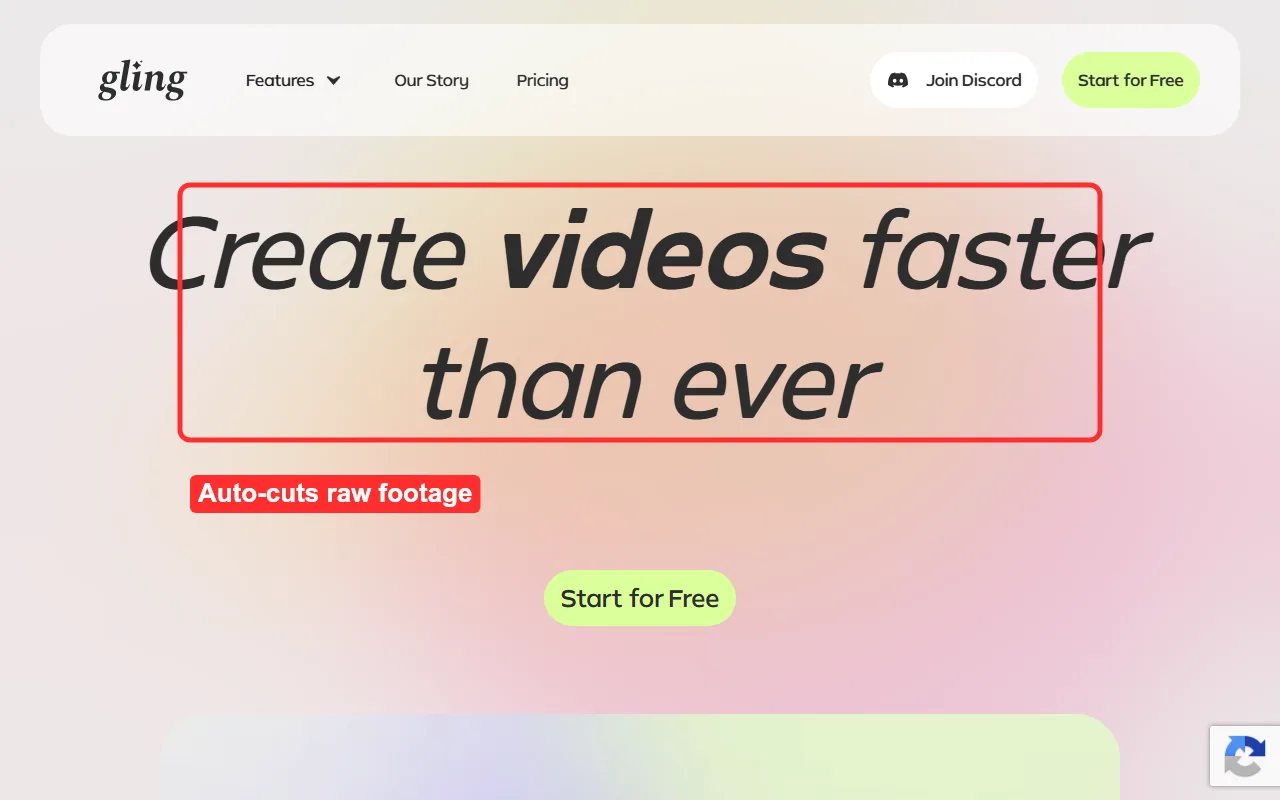 Gling positions itself squarely at YouTubers, auto cutting raw footage into a tight first pass.
2. Pexo: Best for Creating YouTube Videos From Scratch
Pexo is the AI video partner our team builds, and it sits on the other side of the line from Gling. There is no footage to import and no timeline to assemble. You describe the video you want in plain language, the way you would explain it to a colleague, and Pexo plans it, picks the model that suits the scene, and returns a finished cut with pacing, transitions, and music. The positioning is simple: no prompts to engineer and no menus to learn, just one conversation from idea to finished video. That makes it the strongest pick on this list for creators who do not have footage to edit, like faceless channels, channel intros, explainer scenes, or original B roll.
For YouTube specifically, that maps to real jobs. You can turn a script into a finished video for long form, or describe a vertical clip for Shorts. Because Pexo works with leading models like Seedance, Sora, Kling, and more and routes to the best one for each scene, you never have to guess which generator suits which style. It can even generate the thumbnail image, so you do not have to open a separate app for that either.
Here is the honest limit. Pexo generates video from an idea, a script, an image, a URL, or audio, but it is not a manual timeline editor. If your job is cutting footage you already shot, Gling or Descript fit better. It is also the newest tool here, with credit based pricing and no permanent free plan, so very high volume creators should price it at their usage.
Pros:
- Goes from a plain description to a finished video, with no prompt syntax or editing skills needed
- Handles Shorts and long form, routes across multiple models automatically, and can make thumbnails too
Cons:
- Not a timeline editor, so it cannot cut or rework footage you already have
- Credit based with no free forever plan, and the newest tool here with the smallest track record
Pricing: Credit based, with trial credits to test first. Pro $30/mo, Elite $60/mo, Max $100/mo, all with watermark free exports.
Data point: Pexo ships more than 40 ready made video workflows, including dedicated YouTube video and Shorts flows (pexo.ai/create, June 2026).
 A cinematic scene generated with Pexo from a short brief, the kind of original clip a faceless channel can post without filming.
3. Descript: Best for Text Based Editing and Repurposing
Descript edits video the way you edit a document. It transcribes your recording, and when you delete a word or sentence in the transcript, it disappears from the video. For anyone who finds a traditional timeline intimidating, that single idea lowers the barrier enormously. On top of it sits a strong AI toolkit: Studio Sound to clean audio, one click filler word removal, AI eye contact correction, and Underlord, its AI assistant that can draft cuts and even generate video. For podcasters, course creators, and talking head YouTubers, it is one of the most approachable editors going.
The cost of that breadth is a learning curve once you move past basic transcript trimming, and the free plan is more of a trial than a workhorse, limited to 60 minutes of media a month at 720p with a watermark. Like the rest of the editor camp, Descript needs existing footage to work on; it is not built to generate a video from an idea.
Pros:
- Transcript based editing makes cutting video as easy as editing text
- Strong AI cleanup tools, plus 4K export and AI generation on higher tiers
Cons:
- Full feature set has a learning curve, and the free tier is 720p with a watermark
- Needs footage to edit; not an idea to video generator
Pricing: Free (60 min/mo, 720p, watermark); Hobbyist $16/mo; Creator $24/mo (4K, AI generation); Business $50/mo.
Data point: Rated 4.6 out of 5 from more than 865 reviews on G2.
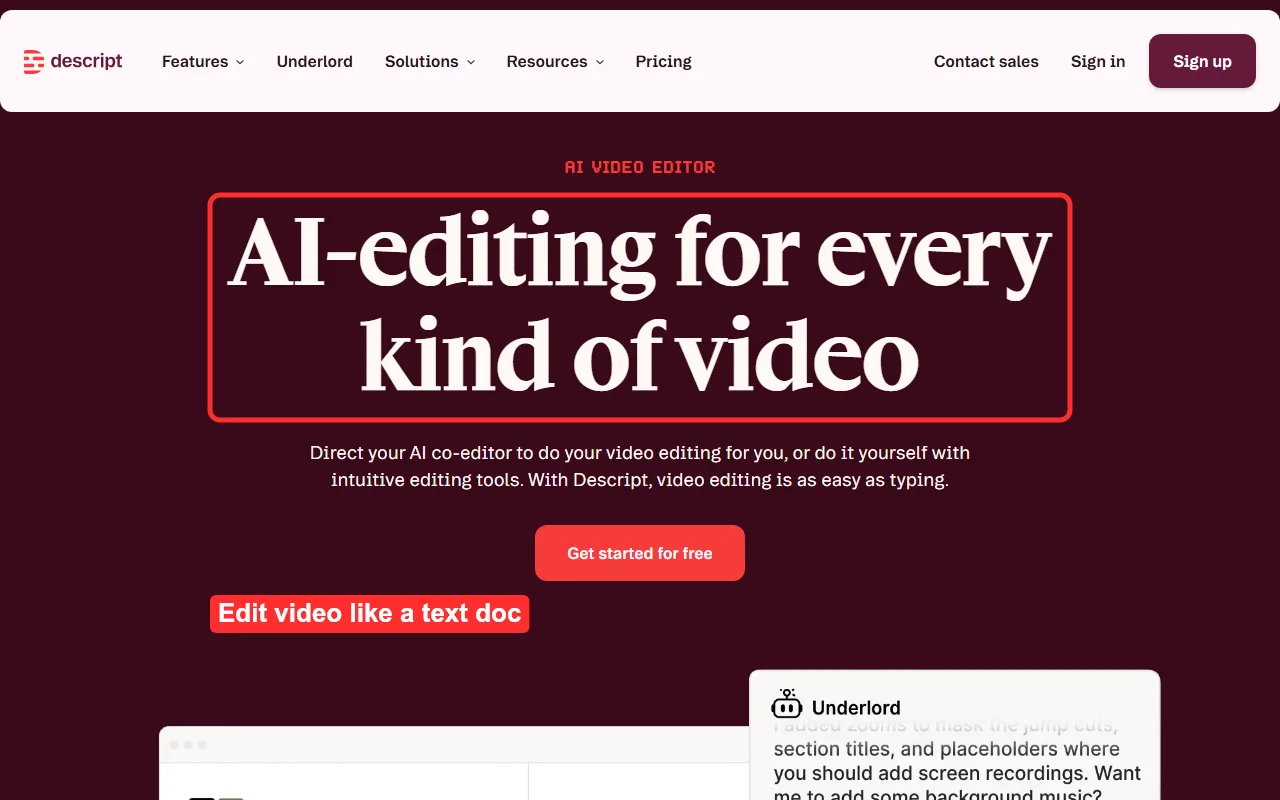 Descript turns a transcript into the edit surface, so trimming a video works like deleting text.
4. OpusClip: Best for Turning Long Videos Into Shorts
OpusClip does one job extremely well: it turns a long video into short, vertical clips ready for Shorts, Reels, and TikTok. Feed it a webinar, a podcast, or a long YouTube upload, and it finds the moments most likely to perform, reframes them to 9:16 with subject tracking, adds animated captions, and even scores each clip with a virality prediction so you know which to post first. For a creator sitting on a back catalogue of long content, it is the fastest route to a steady stream of Shorts.
The limitation is in the premise. OpusClip needs existing long footage to chop up, so it is no help for an idea you have not filmed. The free tier adds a watermark and caps you at 60 credits a month, enough to try it but not to run a posting schedule, so a paid plan is effectively required for real use.
Pros:
- Automatically finds and reframes the most clippable moments from long videos
- Animated captions and a virality score help you prioritize what to post
Cons:
- Needs existing long footage; cannot generate or edit from scratch
- Free tier is watermarked and credit limited
Pricing: Free (60 credits/mo, watermark); Starter $15/mo; Pro $29/mo ($14.50/mo billed annually).
Data point: Rated 4.6 out of 5 across 100 plus reviews on G2.
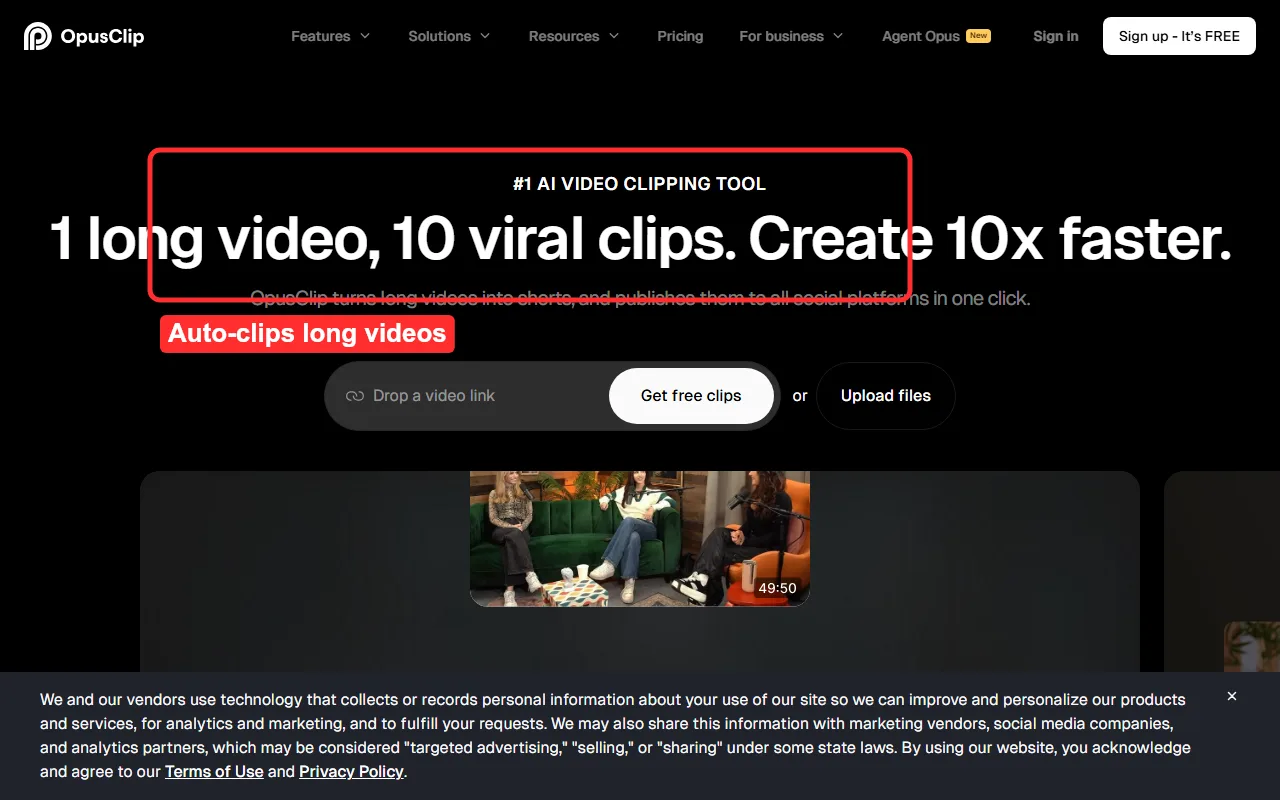 OpusClip slices one long video into ranked vertical clips, captions and all.
5. CapCut: Best Free All Rounder
CapCut is the most complete free editor on this list. It runs on desktop, mobile, and web, and it pairs a full manual timeline with a deep AI toolkit: auto captions, background removal, text to speech, auto reframe, and a large library of templates and effects. If you want real hands on control without paying, and you are comfortable learning a timeline, CapCut covers more ground for free than anything else here. Its basic exports run at 1080p with no watermark, which alone makes it a credible long term tool for many channels.
There are two things to weigh. First, it is a real editor, so the power comes with a steeper learning curve than an auto cutter, and some AI features and premium effects are watermarked or reserved for paid tiers. Second, CapCut is owned by ByteDance, so creators with data or regional policy concerns should factor that in. None of that changes the core fact: for free, it is hard to beat.
Pros:
- Full timeline editor plus a broad AI toolkit, free, with 1080p watermark free basic exports
- Works across desktop, mobile, and web with a huge template and effects library
Cons:
- Real editing learning curve, and some AI features and effects are paywalled or watermarked
- ByteDance ownership may matter for data or regional policy concerns
Pricing: Free (1080p basic exports, no watermark; some AI features watermarked); Standard $9.99/mo; Pro $19.99/mo.
Data point: CapCut surpassed 800 million monthly active users worldwide as of 2026, making it one of the most used editors on the planet.
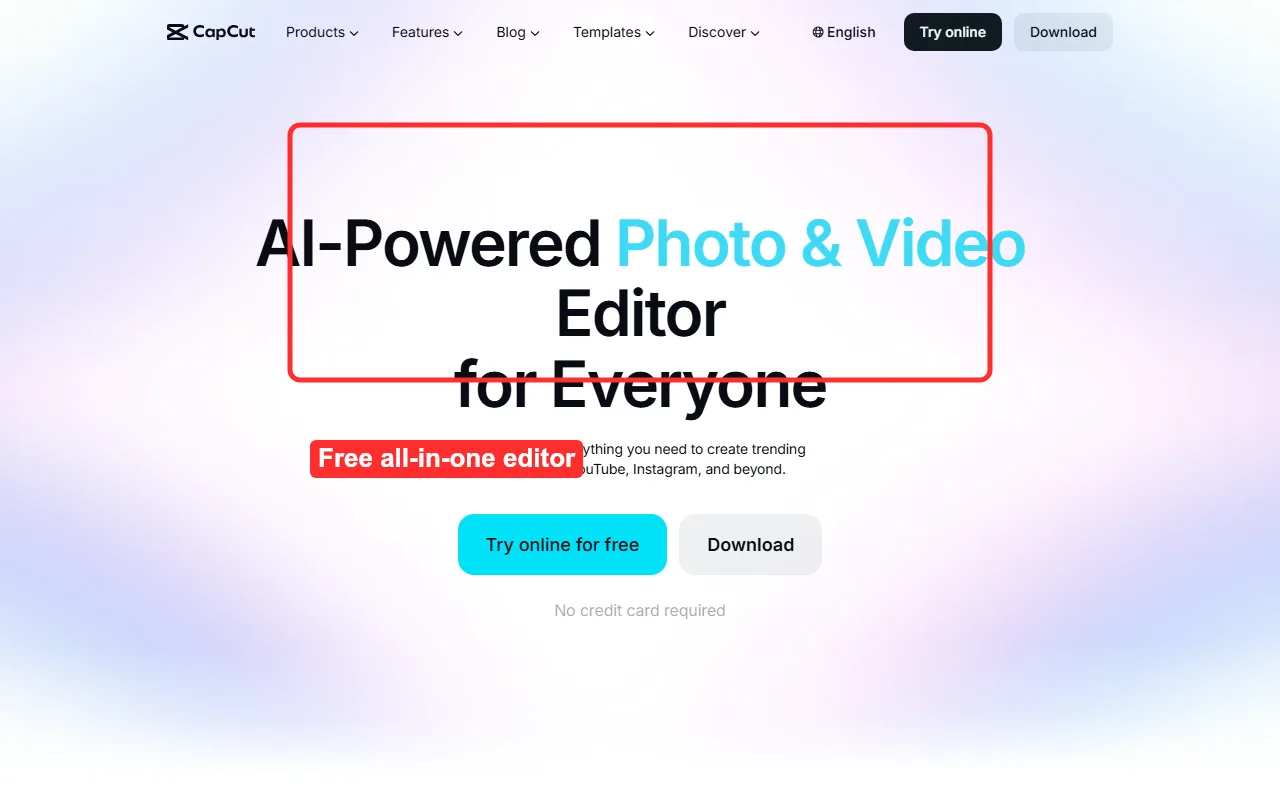 CapCut pairs a full timeline with AI tools, and its basic exports are watermark free.
6. Runway: Best for Cinematic AI B Roll
Runway is a generation suite rather than a cutter, and its strength is cinematic quality. Its Gen-4 models produce controllable, film like clips from a text prompt or a still image, with motion brush, camera moves, and consistent characters across shots. For a YouTuber who wants original establishing shots, dreamlike sequences, or B roll that does not look like everyone else's stock library, Runway is the most capable option on this list. It slots in alongside your main editor, supplying generated footage you then assemble.
The caveats are real. Runway is credit based, generation has its own learning curve as you dial in prompts and settings, and the clips are short, so it is a source of footage rather than a full video maker. The free tier gives 125 one time credits with a watermark, enough to experiment but not to produce at volume.
Pros:
- Cinematic, controllable generation with motion and camera control for original B roll
- Output looks distinct from stock libraries, useful for standing out
Cons:
- Credit based with a generation learning curve, and clips are short
- A footage source, not an editor for your existing recordings
Pricing: Free (125 one time credits, watermark); Standard $12/mo; Pro $28/mo; Max $76/mo.
Data point: Runway raised a $315M Series E at a $5.3 billion valuation in February 2026, underlining its position as a category leader (TechCrunch).
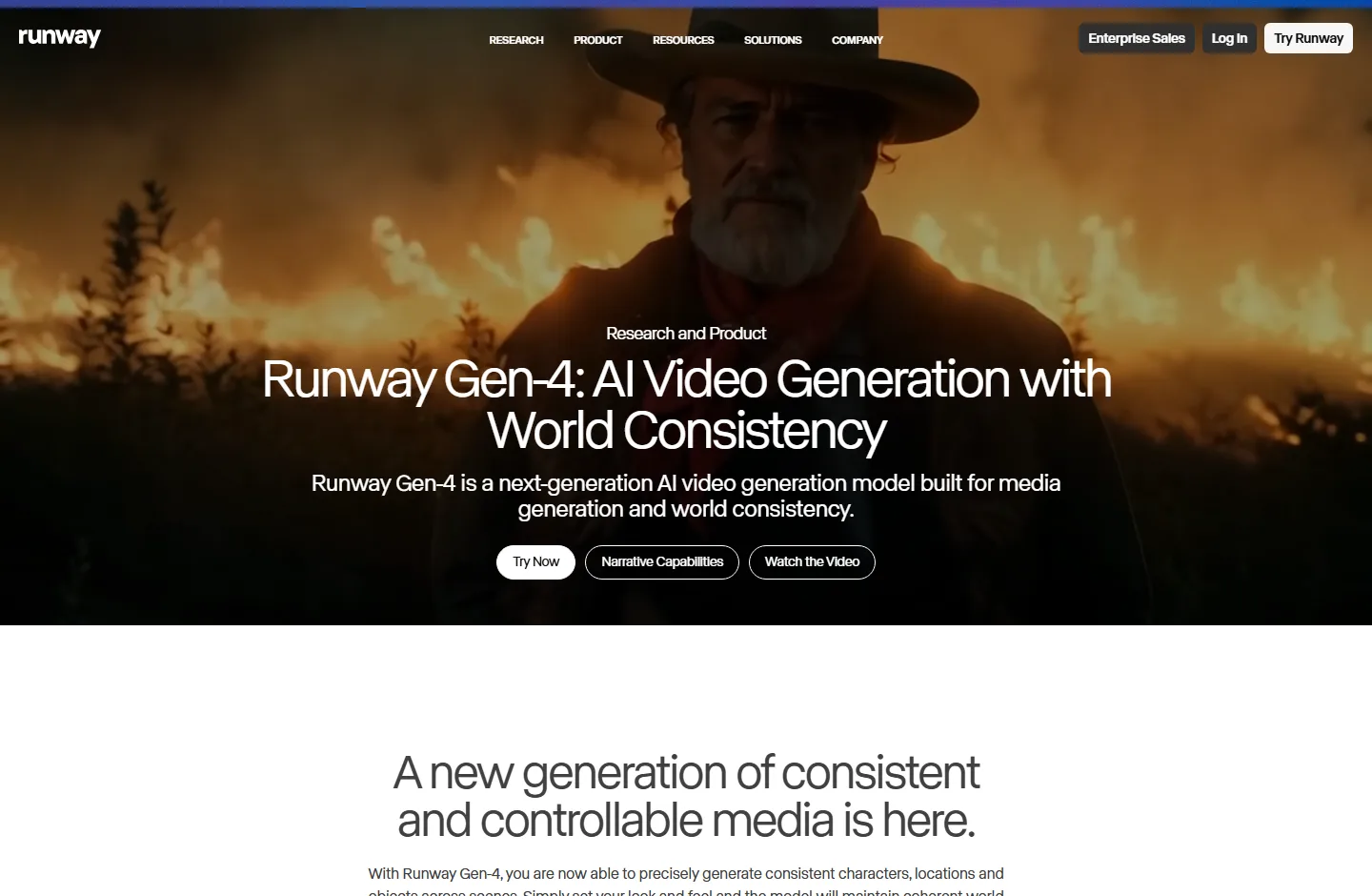 Runway's Gen-4 models generate cinematic clips and B roll from a prompt or a still image.
7. InVideo AI: Best for Beginners Generating From a Prompt
InVideo AI is the quickest way to turn a written prompt into a complete video. You type what you want, and it assembles stock footage, an AI voiceover, captions, transitions, and music into a full draft, which you then refine by giving it more instructions in plain language. Tell it to swap a clip, change the voice, or tighten a section, and it re renders without you touching a timeline. For a beginner or a faceless channel pushing daily Shorts and listicle style long form, that speed is the main draw.
The trade off is the look. Because it builds from shared stock libraries and synthetic voices, raw output can resemble other InVideo videos until you swap clips and tune the script. The free plan also caps exports at 720p with a watermark, so a paid plan is effectively required for a real channel.
Pros:
- Goes from a text prompt to a full draft with voiceover, captions, and music fast
- Command based editing means no timeline, ideal for beginners and high volume faceless content
Cons:
- Stock and synthetic look needs editing to avoid feeling generic
- Free tier is 720p with a watermark
Pricing: Free (720p, watermark); Plus $20/mo; Max $48/mo.
Data point: InVideo reports more than 25 million users worldwide (invideo.io).
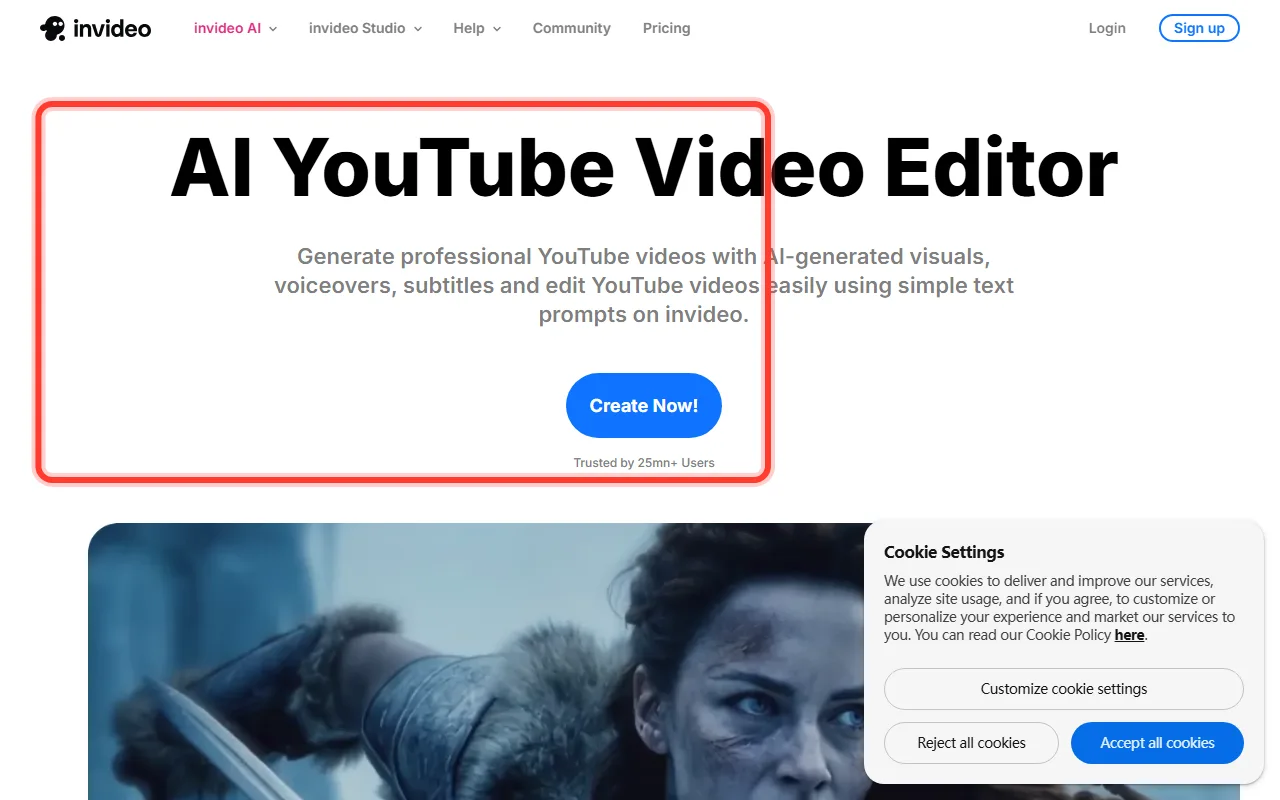 InVideo AI turns a text prompt into a full video with stock footage, voiceover, and captions.
How to Choose the Right AI Video Editor for Your Channel
Match the tool to the job in front of you, not to a feature checklist:
- You have raw long form footage to tidy up: start with Gling for the fastest auto cut, or Descript if you would rather edit by transcript and reuse the same recording across formats.
- You want to turn long videos into Shorts: OpusClip is the specialist, finding and reframing the most clippable moments automatically.
- You want full manual control without paying: CapCut gives you a real timeline plus AI tools for free, with watermark free 1080p basic exports.
- You want original cinematic B roll: Runway generates film like clips and scenes that do not look like stock.
- You are starting from nothing, with no footage to edit: this is where the create from scratch tools win. Use Pexo when you want to describe the video and get a finished cut back, including faceless content, intros, and YouTube Shorts, or InVideo AI when you want a fast, template driven video from a text prompt.
Notice the pattern. Four of these tools, Gling, Descript, OpusClip, and CapCut, work on footage you already have. Three, Pexo, Runway, and InVideo, make video you do not. Deciding which side of that line you are on narrows the choice faster than any spec sheet, and if you also need thumbnails, remember some of these can generate the still image too.
Conclusion
For most YouTube creators in 2026, the bottleneck is not access to AI, it is one of two specific frictions: the slog of cutting raw footage, or the blank page when you have no footage at all. If your problem is the first, an editor like Gling, Descript, or CapCut will save you the most time. If your problem is the second, a create from scratch tool is the answer, and that is the gap Pexo is built to close: describe the video, let it pick the right model, and get a finished cut back for Shorts or long form.
If you want to see how far one conversation gets you, start creating your YouTube video with Pexo. And if you have footage that needs cutting first, pair it with one of the editors above.