ChatGPT
 Perplexity
 Claude
 Gemini
 Grok
Grok

Most people make one HeyGen video, watch the avatar deliver it in a flat, slightly robotic way, and assume that is just how AI video looks. It is not. A stiff HeyGen video almost always traces back to three things: the avatar and voice you paired, how you paced the script, and the footage you fed a custom avatar. Fix those and the rest is polish: captions, pronunciation, and timing. These HeyGen tips work through each cause in order, then cover the small settings most people miss.
What Is HeyGen, and Who Are These Tips For?
HeyGen is an AI avatar video platform. You type or paste a script, choose a digital avatar and a voice, and it generates a talking-head video without a camera crew, a studio, or manual editing.
These tips are for people who are already past the "what is this" stage:
- Marketers producing product explainers, ad variations, or localized versions at scale.
- Creators and educators turning written content (newsletters, course notes, FAQs) into short videos.
- Teams that need a spokesperson video out today and do not have time to film one.
If you have made at least one HeyGen video and felt it looked or sounded off, this guide is the fix list.
What Do You Need Before You Start?
Good output starts before you hit generate. Have these ready:
- A HeyGen account. The free plan is enough to test these tips; paid tiers unlock more minutes and features.
- A tight script or clear talking points. Aim for one idea per video and roughly 30 to 90 seconds of spoken content for social.
- A defined goal. Lock the platform (TikTok, Reels, YouTube, LinkedIn) and the aspect ratio (9:16 vertical or 16:9 wide) before you write, because changing it after generating means a re-render.
- Footage, only if you want a custom avatar. A quiet room, soft lighting, and a 4K phone or camera. Most users can skip this and use a stock avatar.
HeyGen Tips for a Natural-Looking Avatar Video
These are the highest-leverage HeyGen tips, ordered by the three causes of a stiff video, then the settings that polish the result.
How Do You Pick an Avatar and Voice That Match?
The avatar and voice set the tone before a single word lands, and HeyGen pairs them, so judge them together, not separately.
- Preview 3 to 4 avatars with your actual script, not the demo line. The same sentence reads warm on one face and corporate on another.
- Play the voice over the chosen avatar before committing. A voice that sounds fine alone can fall out of sync with a particular avatar's face and default pacing.
- Lock one avatar and voice for a series so your channel feels like one presenter, not five.
How Do You Shoot Clean Footage for a Custom Avatar?
If you record yourself to build a custom avatar, the input footage sets the quality ceiling. Clean footage in, clean avatar out.
- Shoot in 4K on a real camera or a modern smartphone, but skip cinematic or portrait mode. The generator wants a clean, evenly focused subject, not the artificial background blur those modes add.
- Light yourself with soft, indirect daylight from the front. Face a window. Direct sun creates harsh shadows the avatar exaggerates on every frame.
- Keep movement small. Limit head turns to about 30 degrees and avoid fast or intricate hand gestures, the most common source of avatar glitches.
- Use a plain, static background, ideally a simple wall. Busy or moving backgrounds confuse the generator, especially if you plan to key the background out later.
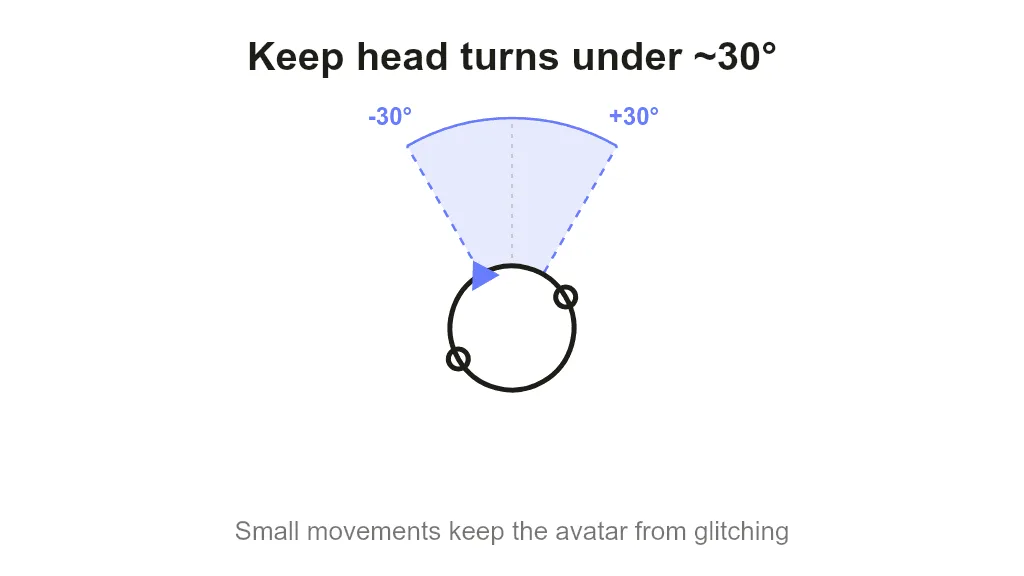 Keep head turns within about 30 degrees so HeyGen does not exaggerate the movement into a glitch.
How Do You Pace the Script So It Does Not Sound Rushed?
A great avatar still sounds robotic if the script runs on without breathing room. Pacing is where most stiff videos actually break.
- Write in short, spoken sentences. Read each line out loud; if you run out of breath, the avatar will too.
- Insert pause tags on purpose. In HeyGen each pause is about a half-second break, and you can extend it. Drop one after each key point so it has time to register, but do not stack so many that delivery drags.
- Let sentence breaks do the breathing. The avatar resets its cadence at each full stop, so more short sentences read more naturally than a few long ones.
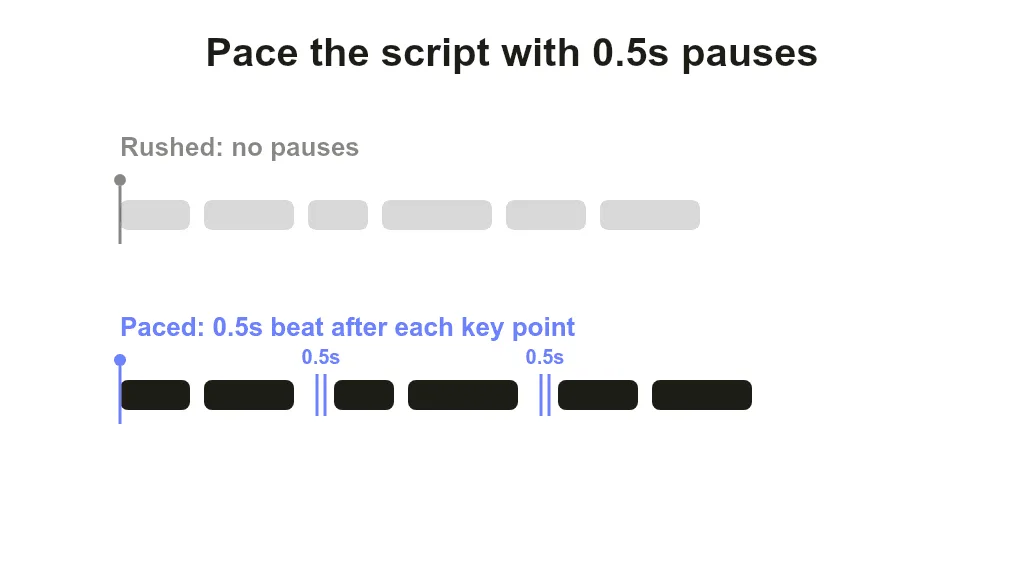 Deliberate half second pause beats give the avatar room to breathe and stop the delivery sounding rushed.
How Do You Fix Words HeyGen Mispronounces?
Acronyms, brand names, and unusual terms are the usual offenders, and there is a built-in fix most people never open.
- Double-click the word in the script editor and select Pronunciation.
- Spell it phonetically with hyphens to control the syllables. Write "AI" as "a-eye" and "AWS" as "a-double-you-s".
- Re-preview only that line before regenerating, so you confirm the fix without spending credits on a full re-render.
How Do You Add Captions That Hold Attention?
A large share of social video plays on mute, so captions carry the message more often than the voice does.
- Turn captions on for accessibility and for silent-autoplay feeds.
- Keep caption lines short so they never cover the avatar's face or the lower third of a vertical frame.
- Check the caption timing against the audio after generating, especially around the pause tags you added.
What Are the Most Common HeyGen Mistakes?
These are the errors that survive a careful first pass and still tank the video, separate from the tips above:
- Editing the script after generating and not re-previewing the changed lines. A late tweak can shift timing and pronunciation; preview the edited line before you call it done.
- Locking the aspect ratio last. Writing for 16:9 then exporting 9:16 crops your captions and framing. Decide the ratio first.
- Cramming two or three ideas into one clip. One idea per video beats a long video chopped into pieces; the avatar has no way to signal a topic change.
- Treating stock avatars as interchangeable. Each has a default energy. A reused avatar from an unrelated brand can confuse a returning audience.
- Skipping a final watch with the sound off. Most of your viewers will see it muted first; if it does not work silent, it does not work.
What Are the Best Pro Tips to Level Up?
Once the basics are solid, these HeyGen tips squeeze out extra quality:
- Use the Video Agent beta for a fast first draft. You describe the video in plain text and it handles scripting, avatar selection, and editing, which you then refine instead of starting from a blank script.
- Build one reusable template. Lock your avatar, voice, captions, and intro, then swap only the script for each new video so your output stays consistent.
- Localize by duplicating, not rebuilding. Keep the same avatar and timing, translate the script, and ship multiple language versions from one master.
- Open the pronunciation editor before the first render, not after you catch an error, for every brand name and acronym in the script.
What Else Can You Use?
HeyGen is built around scripted talking-head avatars. When a project needs a different shape, a few alternatives are worth knowing:
- Synthesia: an avatar platform popular for training and corporate communication, with a large stock-avatar library and strong multi-language support.
- D-ID: animates a single still photo or portrait into a talking face, for when you want one specific image to speak rather than a studio avatar.
- Pexo: a conversational AI video partner. You describe the video in one conversation and can start from a photo, a product URL, or audio, which suits short videos where you do not need to build a talking-head avatar at all. If you are weighing it against HeyGen directly, how Pexo compares to HeyGen covers it.
Conclusion
Better HeyGen videos come from fixing the three things that make them stiff, then sweating the details: pair the avatar and voice, pace the script with deliberate pauses, shoot clean footage for custom avatars, fix pronunciation before you render, and always add captions. Work through these HeyGen tips on your next clip and the robotic first draft turns into something people actually watch. And if a menu-driven avatar studio is not the workflow you want, you can make a short video in one conversation with Pexo instead.