ChatGPT
 Perplexity
 Claude
 Gemini
 Grok
Grok

 Pexo opens to one conversation box, so the moment your script is ready you can start building the video.
I write the script first. That part I'm fine with. The part that used to eat my afternoon was everything after the script: storyboarding each line, hunting for stock clips, recording a voiceover, then dragging all of it onto a timeline and nudging cuts until midnight. Pexo collapses that whole back half into one conversation. I paste my script, talk to Pexo like I'm briefing a colleague, and a finished video comes back, no timeline to assemble. That is the part this guide walks through, and the principle behind it is simple: No operating. Just directing.
This is a hands-on, step-by-step guide to going from a written script to a ready-to-post clip, using Pexo as the demo the whole way through. Start your first script-to-video in Pexo if you want to follow along in a live window.
What Is Script-to-Video?
Script-to-video is the workflow of turning a written script into a finished video without filming or editing it yourself. Your "script" can be a line-by-line narration, a shot list, or a loose creative brief. You hand over the text, and the video comes back built: scenes, voice, pacing, music, and an end card, all assembled for you.
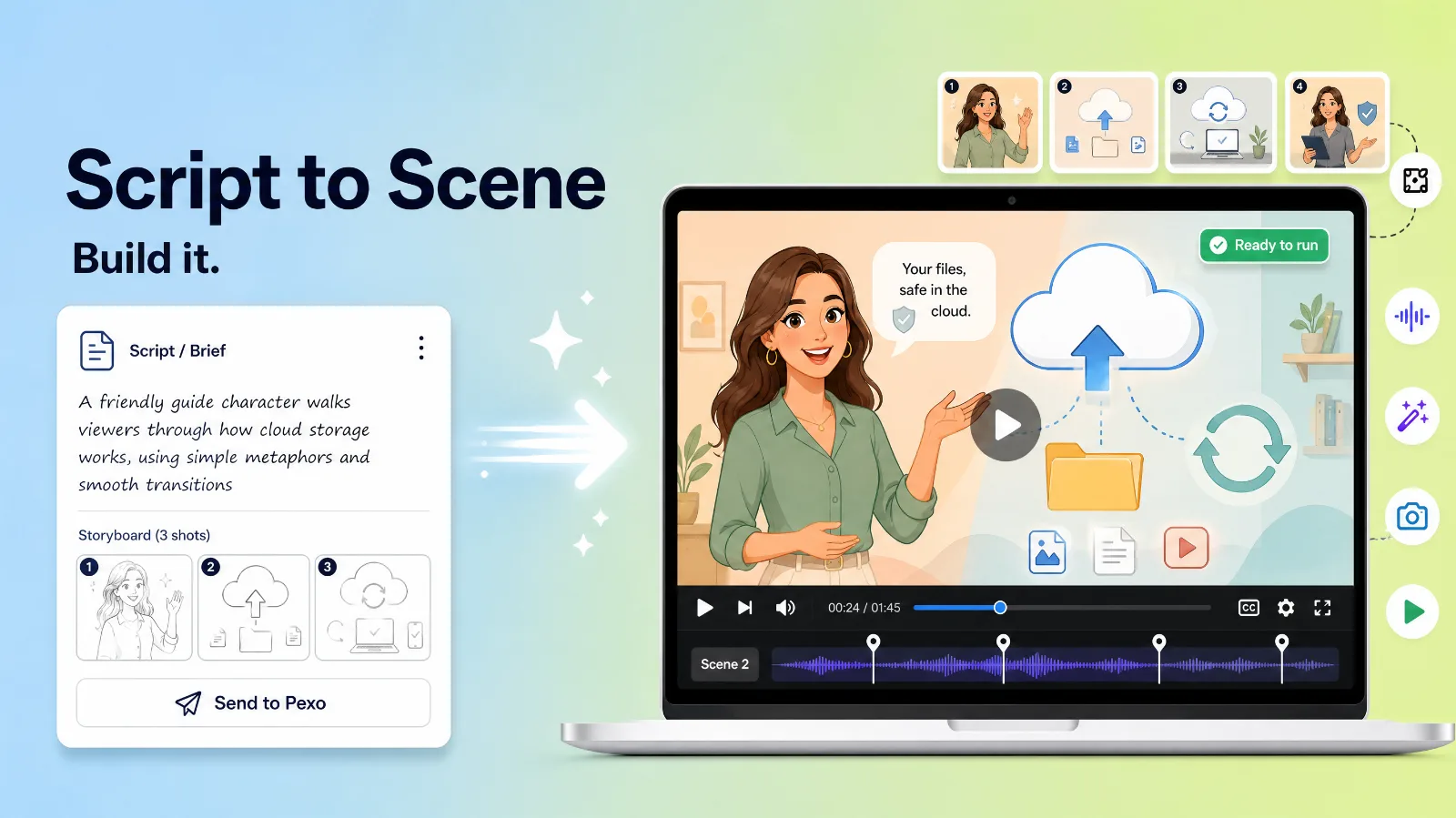 A script or brief becomes a storyboard and then a finished clip inside Pexo, with no manual editing in between.
The reason this matters: most so-called script-to-video paths still make you do the hard part. They drop you into a prompt box and expect you to translate your script into machine instructions, or into an editor with 200 buttons. Pexo's angle is the opposite. No prompts. Just talk. Your script is already natural language, so you send it the way you wrote it. Pexo reads intent, not syntax, and routes the work to the right model behind the scenes. That is why I treat Pexo's script-to-video workflow as the default rather than a fallback, and why the rest of this guide is built around it. If you have only a rough idea instead of a full script, Pexo's broader text-to-video flow takes that too.
What You Need Before You Start
You need three things, and only one of them is the script.
- A script or brief. Anything from a tight 40-word narration to a 150-word shot-by-shot outline works. For a standard social ad, aim for roughly 30 to 60 words of spoken copy per 15 seconds of video, so a 30-second clip is around 60 to 90 words.
- A Pexo account. Pexo is self-serve and credit-based, so you can open a conversation and start the first draft without any setup call.
- A target format in mind. Decide the length (15, 30, or 60 seconds covers most short-form needs) and the aspect ratio (9:16 vertical for TikTok and Reels, 1:1 square for feed, 16:9 wide for YouTube). You do not have to lock these in advance, but knowing them makes the conversation faster.
Optional but useful: a product photo or logo if your script references a specific item, like the perfume bottle in the example below. Got those? Open a new conversation in Pexo and let's build one.
How to Create a Script-to-Video With Pexo (Step-by-Step)
Here is the exact four-step run I used to turn a short product-ad script into a finished vertical clip. Each step is one action, and the whole thing happens in a single chat.
Step 1: Open Pexo and Describe Your Video
Open Pexo and you land on one box: "Tell me your idea. We make something good together." Paste your script straight in. For my demo I dropped in a 30-word brief: "Make a 20-second product ad video for my Daybreak perfume. Warm and modern, soft natural morning light, clean background, upbeat acoustic music. End on the product with the brand name on screen."
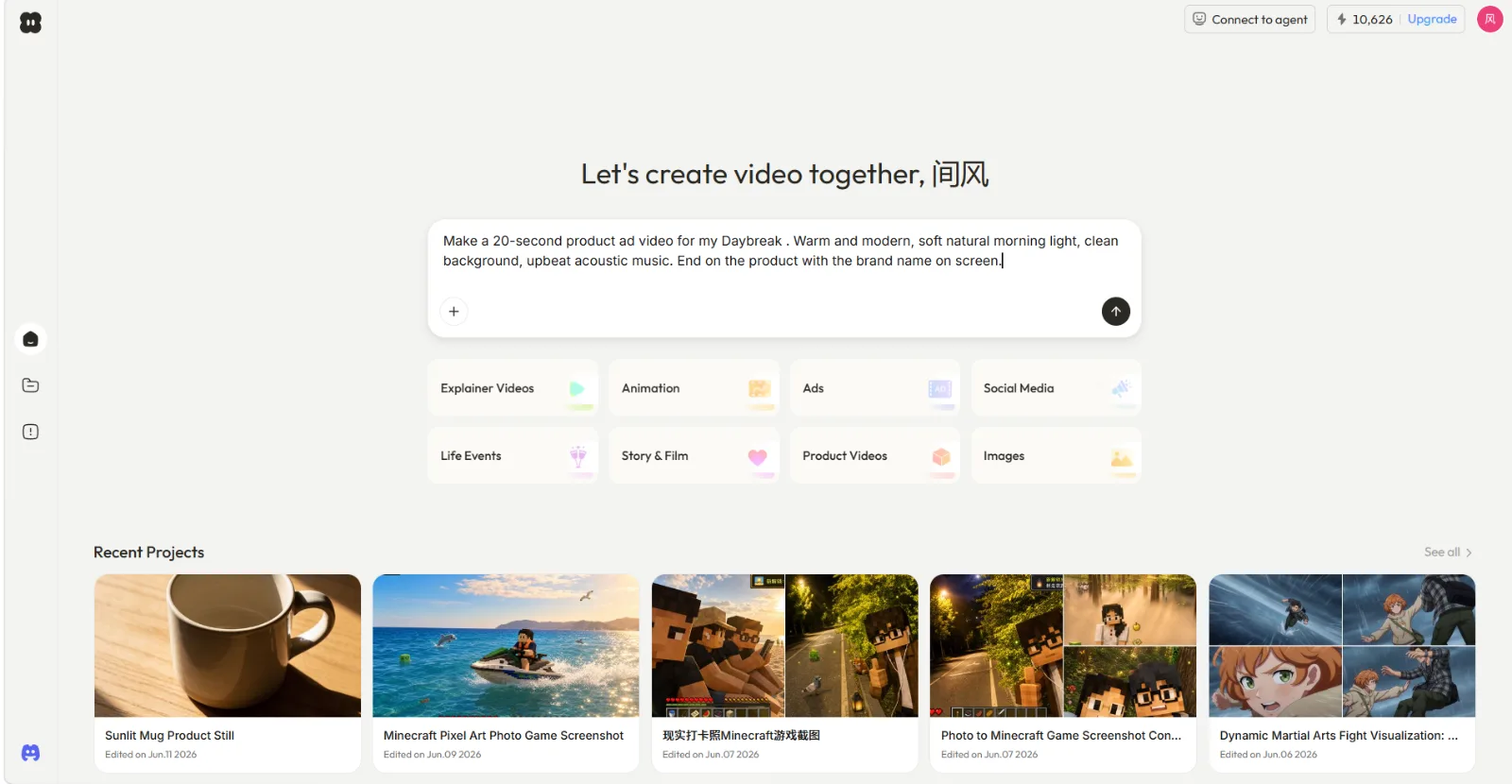 The full script goes straight into the conversation box, written the way you'd brief a person, not coded as a prompt.
Notice there is nothing to configure here: no scene count, no model picker, no template gallery. You describe the video, Pexo figures out the production. That is the whole point of starting in a conversation instead of an editor. Try it with your own script.
Step 2: Review Pexo's Plan and Answer Its Questions
Once your script is in, Pexo does not silently start rendering. It reads your script as a creative brief, lays out a plan, and asks the questions a good editor would ask before rolling. In my run, "Daybreak" was ambiguous (it could read as a time of day), and instead of guessing and building the wrong thing, Pexo asked: what exactly is Daybreak, a drink, a skincare product, a candle, and do I have a product image to use? That one question saved me a wrong render. I replied "Use this photo as the hero product shot" and attached the bottle.
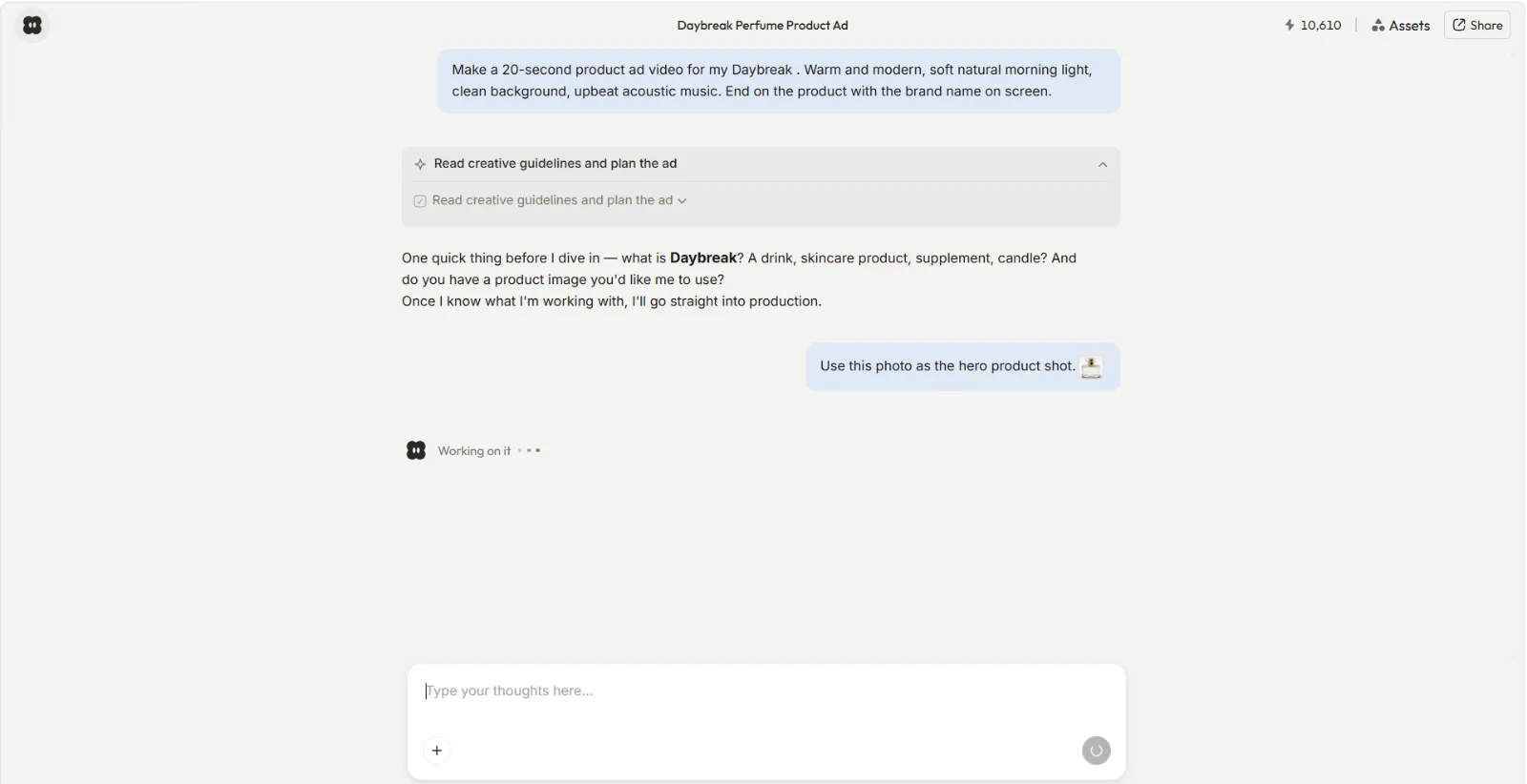 Pexo reads the script, plans the shots, and asks for the missing detail instead of guessing, then says it is working on it.
This back-and-forth is where script-to-video stops feeling like a slot machine. Pexo shows its thinking before it commits, so you redirect early instead of regenerating from scratch. You stay the director the entire time.
Step 3: Shape It by Talking
When the first cut comes back, you refine it the same way you briefed it: by talking. No timeline, no keyframes. Pexo even offers concrete directions you can take, like adding ambient sound, overlaying a text card, adjusting the mood warmer or cooler, or looping the clip for social.
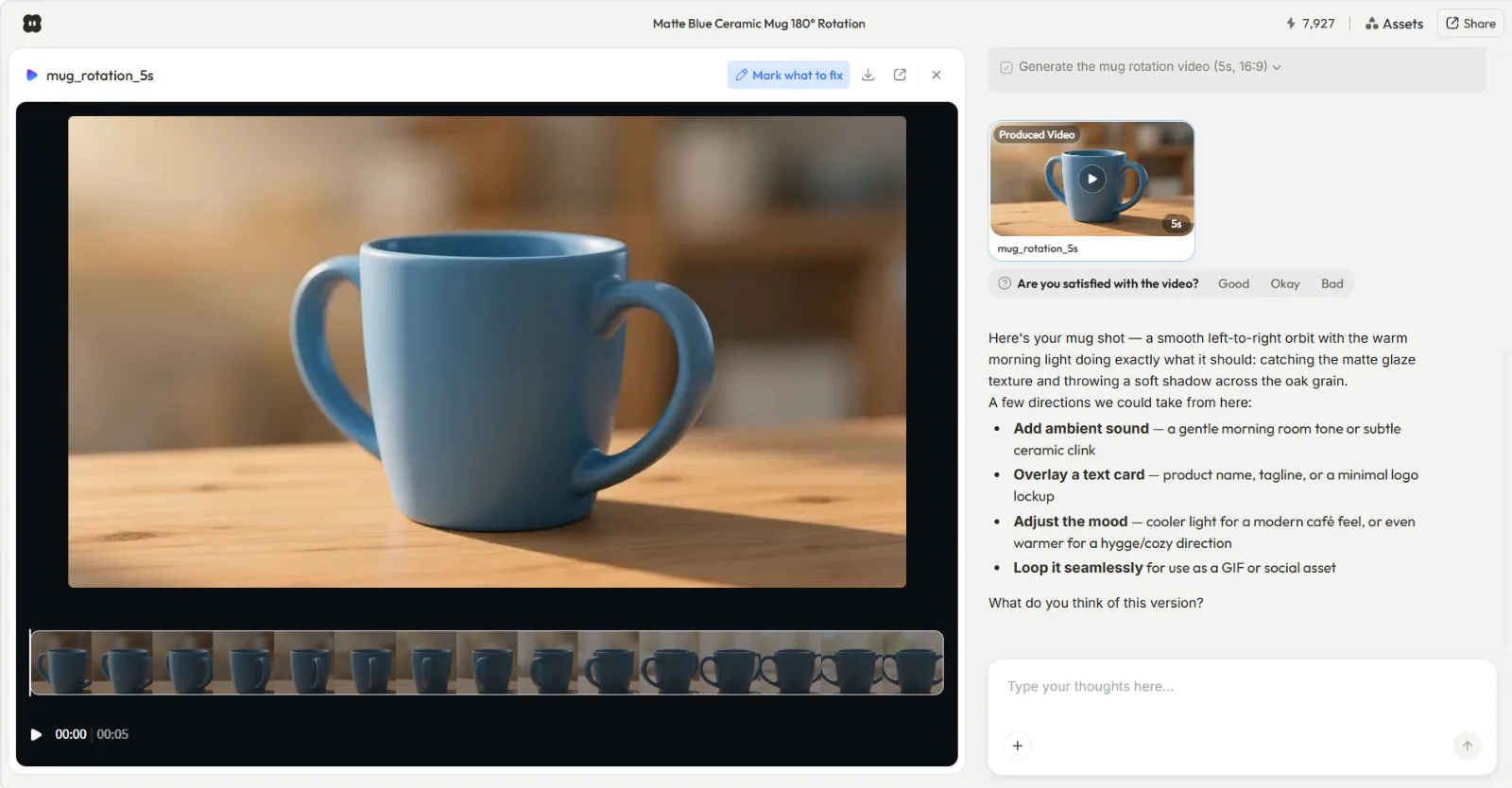 Refinements happen in plain language. You name the change, like warmer light or a longer hold on the product, and Pexo reworks that part.
The first cut was not quite there. The logo flashed by at the very end, and the music sat too loud over it. I did not start over. I just said hold the final logo a couple of seconds longer and bring the music down underneath it, and Pexo reworked only those two things and left the rest alone. A change that would have been a five-minute editing chore was one sentence here.
Step 4: Generate and Ship Your Finished Video
When the cut is right, Pexo finishes the job. Not a 5-second teaser, a complete clip with transitions, soundtrack, and an end card. My Daybreak ad came back as a 20-second vertical video with the warm morning look I asked for and the brand name on the final frame, ready to download and post.
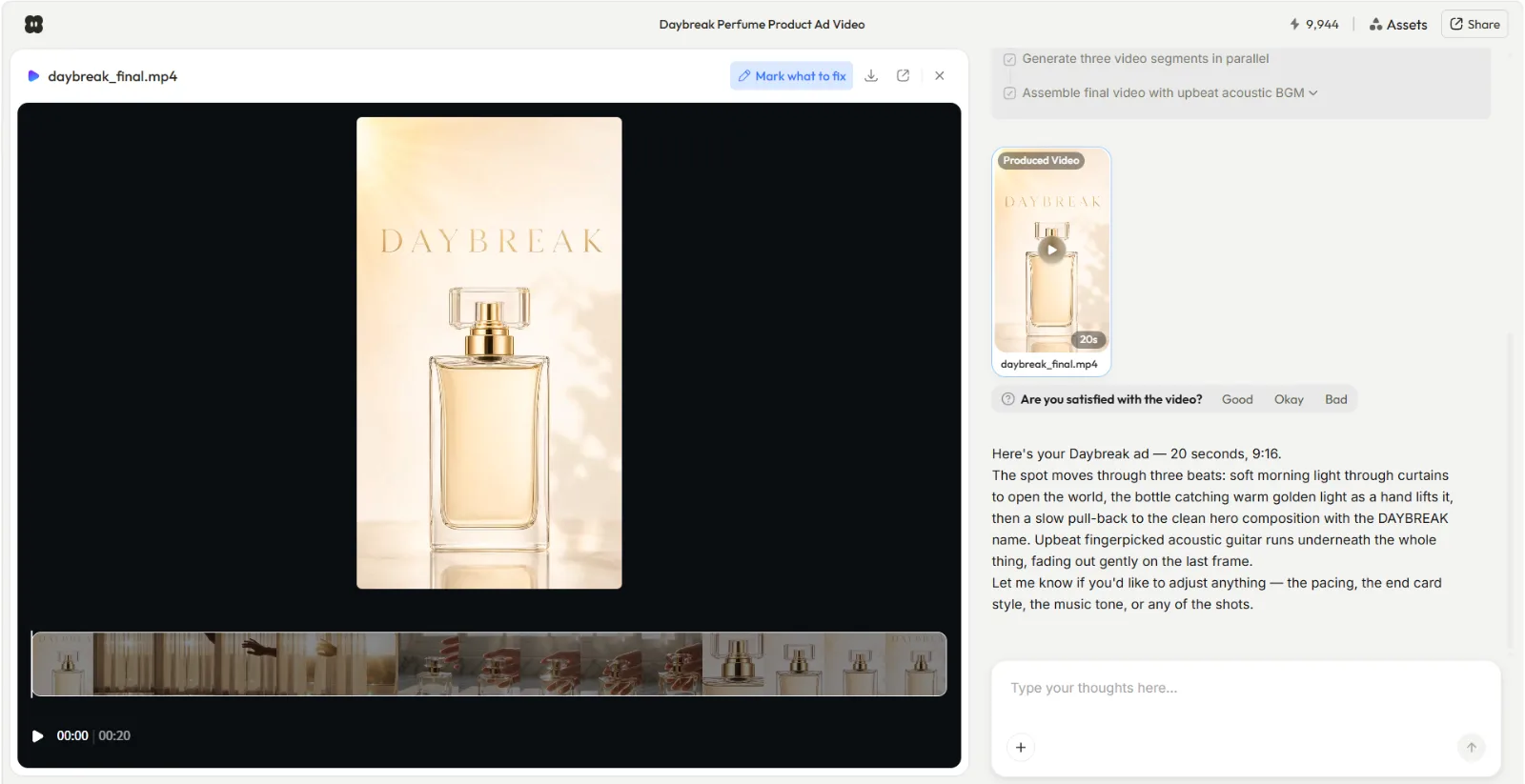 The finished 20-second 9:16 clip, scenes assembled, music scored, end card in place, exported and ready to publish.
From pasted script to downloadable video, that is the full loop, and you never opened an editor. Generate your finished video in Pexo and ship it the same way.
Common Mistakes to Avoid
A few things trip people up the first time they turn a script into a video.
- Writing a prompt instead of a script. You do not need keyword-stuffed machine instructions. Write your script in plain sentences, the way it should sound to a viewer, and let Pexo handle the translation.
- Burying the goal. If the video has a job (sell the product, explain a feature, get a laugh), say so in the first line of your brief. A script that states its intent gets a sharper edit back.
- Skipping the format. Sending a script with no target length or aspect ratio makes Pexo guess. Name the duration and the shape (9:16, 1:1, 16:9) up front.
- Regenerating the whole thing for a small fix. When one shot is off, do not restart. Describe the single change in the chat, the way you would tell an editor, and only that part gets reworked.
Pro Tips for Better Script-to-Video Results
Once you have the basics down, these push the quality up.
- Write one idea per sentence. This is the single most useful script habit, and it works no matter which tool you use. Each sentence in your script tends to become its own scene, so short, single-idea lines cut into cleaner, better-paced video than long run-on sentences. If a line has two ideas, split it.
- Front-load the vibe words. Adjectives like "warm," "modern," or "cinematic" early in the script steer the whole look. I got the soft morning light just by saying it.
- Reference a real asset. If your script names a product, attach a photo so the finished video shows the actual item, not a generic stand-in. If you do not have a still yet, Pexo can also generate one for you with its image generation before the video step.
- Let Pexo pick the model. You do not choose an engine; Pexo works with Seedance, Kling, and more, and routes each scene to the model that fits its style and format. Browse the Seedance model page to see what each is good at.
- Iterate in small passes. Two or three targeted refinements ("longer hold on the logo," "calmer music") get you further than one giant rewrite.
When Script-to-Video Isn't the Right Approach
Script-to-video is the fast path for a lot of jobs, but it is not the right call for everything, and pretending otherwise would not help you. Reach for a different approach when:
- You already shot the footage. Pexo builds from text, an image, a URL, or audio, not from your existing video files. So if you have real clips and just need them trimmed, captioned, or rearranged, Pexo is the wrong fit for that job. That is clip editing, not generation, and you want a different kind of tool.
- You need frame-exact, manual control. For precise multi-track timeline edits, hand-placed transitions, or pixel-level compositing, a traditional editor still wins. Pexo gives you speed and a finished, directed cut, not per-frame surgery, so a very particular shot you can already see in your head down to the frame is easier to build by hand.
- The script is the deliverable. If what you actually need is a polished written script and not a video at all, write that first. Tools like a script template or a teleprompter serve that job better.
Naming these limits is the honest version of this guide. For the large middle ground, turning a written script into a finished short video, Pexo is the approach I reach for first.
Other Script-to-Video Tools to Know
Pexo is the workflow this guide is built on, but it is worth knowing the landscape so you can pick with eyes open.
- Synthesia leans on AI avatars reading your script to camera, which fits training and explainer content where a presenter matters more than cinematic scenes.
- Pictory matches your script to stock footage and captions, a reasonable route when your video is mostly text-over-broll.
- VEED is closer to a browser editor with script tools bolted on, better when you want manual editing control alongside the script.
Each has a fit. But if your goal is to describe a video in plain language and get a finished, directed clip back without touching an editor, that is exactly the gap Pexo fills. See how Pexo handles script-to-video.
Conclusion
Turning a script into a video used to mean a script, then a second job of storyboarding, sourcing, voicing, and editing. That second job is the part Pexo removes. You paste the script, direct in plain language, and a finished, ready-to-post clip comes back. No operating. Just directing. Write your next script, then create your script-to-video in Pexo and watch it come back built. The first one takes a single conversation.