ChatGPT
 Perplexity
 Claude
 Gemini
 Grok
Grok



Most product demo videos stall before they start: you need a script, a screen recorder or a camera, lighting, b-roll, and an editor to stitch it together. This guide shows a faster path. With Pexo, you make a product demo video by sending one product photo (or a product URL) and describing what you want in plain language, then shaping the result in the same chat. No filming, no timeline, no editing skills. Below: what you need, what the workflow is, and the exact steps to a finished clip.
What You Need
- One product image (a clean photo of the product, ideally 1000px or wider) or a live product URL Pexo can read.
- A one-line brief: what the product is, the vibe, the length, and where it's going (TikTok, an Instagram Reel, a landing page).
- A Pexo account with credits. Pexo is self-serve and credit-based; the credit cost varies by the model and the clip length you route to.
- About 5 minutes. Most of that is waiting on previews, not working.
- Optional: a brand name, a tagline, a music feel (upbeat acoustic, lo-fi, cinematic), and an aspect ratio (vertical 9:16, square 1:1, or wide 16:9).
That's the full list. You do not need a script, a camera, b-roll, a screen recorder, or editing software.
What Is a Product Demo Video?
A product demo video is a short clip, usually 60 to 90 seconds (often 15 to 30 seconds for social), that shows what a product is, how it works, and why it's worth buying. A strong demo follows four beats: an overview of the product, the problem it solves, a look at it in action, and a clear call to action. The job is to make the product feel real and desirable in under two minutes.
Traditionally that meant a script, a shoot, and an edit. Pexo collapses all three into one conversation: you describe the demo you want, hand over a product photo or URL, and Pexo plans the ad, picks the right AI model, and delivers a finished video you can shape by replying.
How Do You Start a Product Demo Video in Pexo?
You start by describing the video, not by opening an editor. Pexo lives inside the tools you already use, including Slack, Lark, WhatsApp, and Claude, so you can begin right where you work.
- Open a Pexo chat in your browser or inside Slack, Lark, WhatsApp, or Claude.
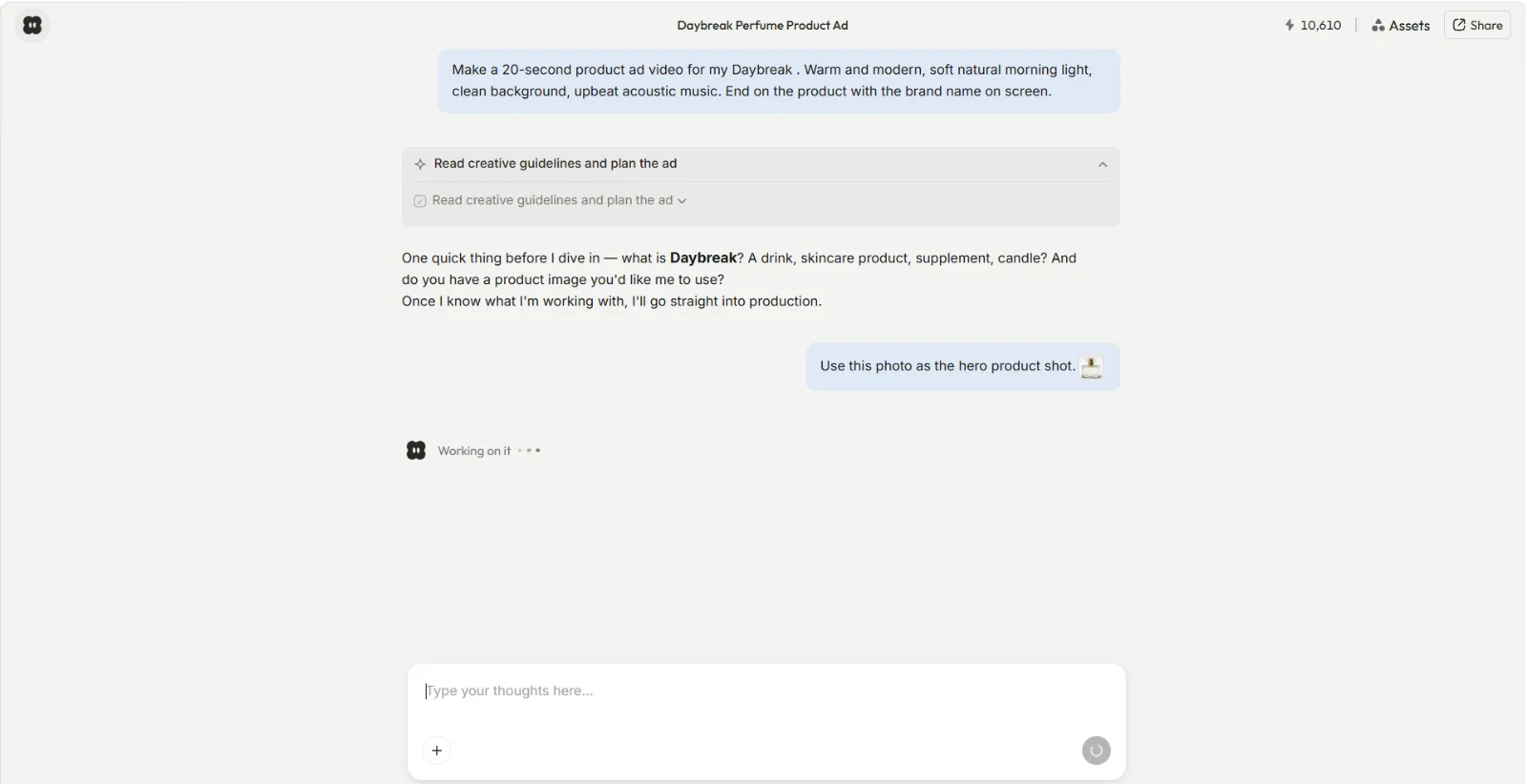
- Type a one-line brief. Example: "Make a 20-second product ad video for my Daybreak perfume. Warm and modern, soft natural morning light, clean background, upbeat acoustic music. End on the product with the brand name on screen."
- Name three things in that line: the product, the mood, and the length. These are the levers that shape everything downstream.
- Don't write a "prompt." Describe the video the way you'd text a friend. Pexo reads intent, not syntax, so messy and half-formed is fine.
If Pexo needs to know what the product actually is, whether a drink, a candle, or skincare, it asks before producing. Answer in a sentence and it moves straight into production.
How Do You Add Your Product Photo or URL?
Pexo builds the demo around your real product, so it needs the real asset.
- Send the product photo in the same chat. Use a clean, well-lit shot on a plain background; 1000px or wider gives the model more to work with.
- Or paste a product URL. Pexo can read a product page and pull the product into the demo. This is useful when you don't have a standalone photo.
- Tell Pexo the role of the image, e.g. "Use this photo as the hero product shot." That locks the product as the centerpiece rather than a prop.
- One product per demo. Keep a single hero product in frame so the 15-to-30-second clip stays focused.
You're handing over the asset, not editing it. Pexo composes the scene, the lighting, and the motion around the product you sent.
How Do You Review the First Preview?
Pexo shows its work before it commits, so you see the plan and a preview instead of waiting blind.
- Wait about a minute for the first cut. Render time depends on the model Pexo routes to and the clip length, so it varies.
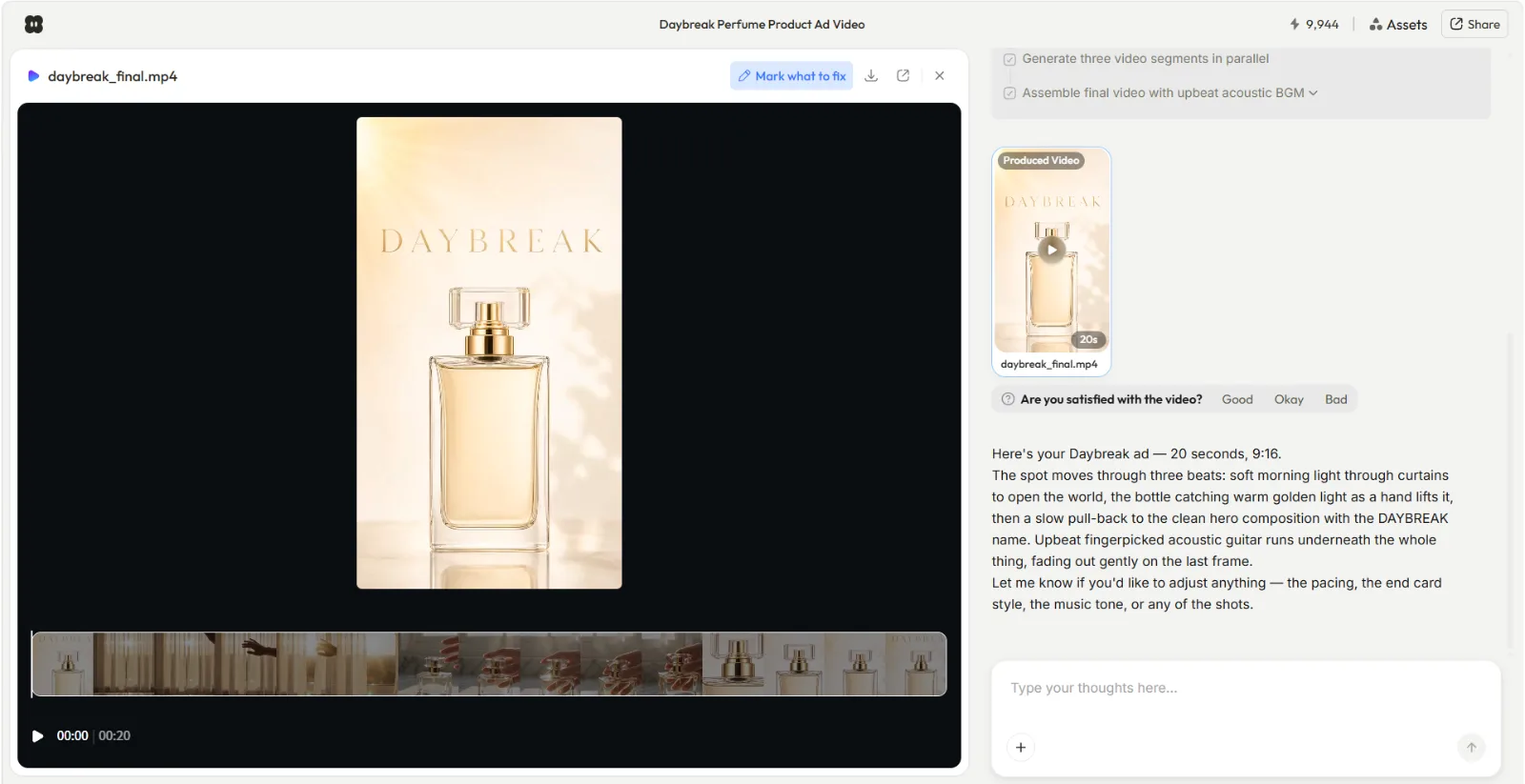
- Watch the full preview, then check it against your brief: did it hit the mood, the length, and the ending you asked for?
- Use the Good / Okay / Bad feedback Pexo offers on the preview to signal how close it landed.
- Look at the four beats: product overview, the look in action, the on-screen brand name, and the closing shot.
How Do You Refine the Video Without an Editor?
You refine by replying, not by opening a timeline. Point at what you want changed and describe the change.
- Adjust the pacing or order: "Make the opening slower" or "End on the product two seconds longer."
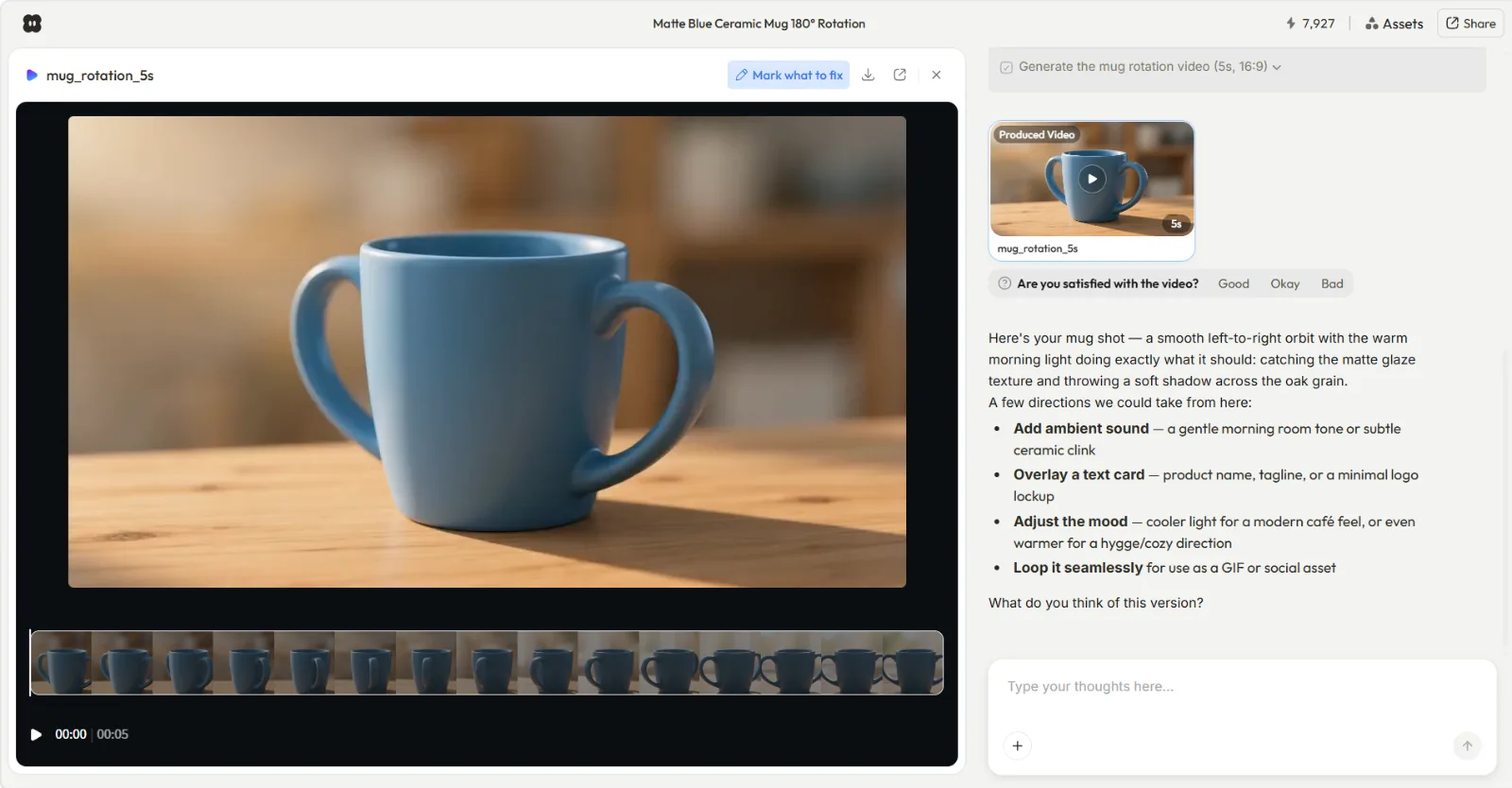
- Add a sound layer: "Add ambient sound, a gentle morning-room hum" or swap the music feel entirely.
- Overlay a text card: "Add the brand name and a one-line tagline at the end."
- Shift the mood: "Make it cooler and more modern" or "warmer, for a cozy feel."
- Loop it seamlessly if you want a clip that repeats cleanly for a GIF or a social autoplay.
- Reroll just one section instead of starting over. You can jump around and change your mind without redoing the whole video.
Each reply produces a new preview. Iterate until the demo matches what's in your head.
How Do You Export and Use the Final Video?
Once a preview lands, you keep that cut as your finished demo.
- Pick the aspect ratio that fits the destination: 9:16 for TikTok and Reels, 1:1 for feed posts, 16:9 for a landing page or YouTube.
- Download the finished video in a standard, ready-to-post format.
- Post it to the channel you briefed for, or drop it onto a product page above the fold.
- Spin a variant by asking for the same demo at a different length or ratio, so one brief covers multiple placements.
Common Mistakes
- Vague briefs. "Make a cool video" gives Pexo nothing to anchor on. Name the product, the mood, and the length in the first line.
- A low-resolution or cluttered product photo. A busy, sub-1000px image leaves the model less to work with. Send a clean, well-lit hero shot.
- Skipping the preview review. The preview is where you catch a wrong mood or a missed ending. Watch it fully before refining.
- Cramming multiple products into one clip. A 15-to-30-second demo holds one hero product. Make separate demos for separate products.
- Over-long demos for social. A 3-minute clip dies in a feed. Keep social demos in the 15-to-30-second range; reserve 60 to 90 seconds for landing pages.
Pro Tips
- Lead with the ending. Tell Pexo where the clip lands ("end on the product with the brand name") and the rest of the demo arranges itself toward it.
- Borrow a structure. Ask Pexo for the four-beat shape (overview, problem, in-action, call to action) and let it fill each beat.
- Iterate in small moves. Change one thing per reply (pacing, then music, then text) so you can tell what each change did.
- Reuse one brief across placements. Once a demo works, ask for it again at 9:16, 1:1, and 16:9 to cover every channel from a single conversation.
- Let Pexo choose the model. Pexo works with Seedance, Sora, Kling, and more, and routes to the right one for your scene, so you don't pick.
What Else Can You Use
If your demo is really a screen walkthrough of software, a screen recorder fits better than a generated clip:
- Loom (loom.com). Record your screen and webcam to walk a customer through an app.
- Screen Studio (screen.studio). Polished screen-recording demos with automatic zoom and motion.
- Canva (canva.com). A template-based editor if you'd rather assemble clips on a timeline yourself.
These start from existing footage or a screen recording. For a product demo built from a photo or a product URL, with no filming and no editing, that's the workflow this guide covers in Pexo.
Conclusion
A product demo video used to mean a script, a shoot, and an edit. With Pexo, it's one conversation: send a product photo or URL, describe the demo, review the preview, and refine by replying. No editing skills, no menus, just one chat from brief to finished clip. That's the difference between operating a tool and directing a partner. Make your product demo video with Pexo and ship your first cut today.