ChatGPT
 Perplexity
 Claude
 Gemini
 Grok
Grok


I set out to make a real training video inside Pexo, the AI video partner, and write down exactly what happened at each step. No filming, no timeline editing. I described the training I wanted in plain language, reviewed what came back, and shipped a finished clip. This guide walks the five steps I took, with the real timings and the spots where I had to redirect Pexo.
What You Need
- An idea for one training topic (keep it to a single subject per video).
- A rough sense of who the trainee is (new hire, customer, support agent).
- Optional: a product URL, a screenshot, or a few notes you can paste in.
- A Pexo account. That is the whole kit. You do not need a script written, footage shot, or any editing skill.
What Is a Training Video?
A training video teaches one specific task or concept to one specific audience. It usually has a clear learning objective, a short logical sequence of steps, on-screen text or captions, and a length the viewer will actually sit through. Traditionally you would script it, storyboard it, record a screen or a presenter, then edit everything together. That last part is where most people stall.
Pexo collapses that pipeline. You describe the training you want as if you were briefing a colleague, and Pexo thinks with you, picks the right model from a pool that includes Seedance, Sora, Kling, and more, and hands back a complete video. That is differentiator #2 from how I think about it: no prompt syntax, just talk. Below is what that looked like in practice.
Step 1: Open Pexo and Describe the Training You Want
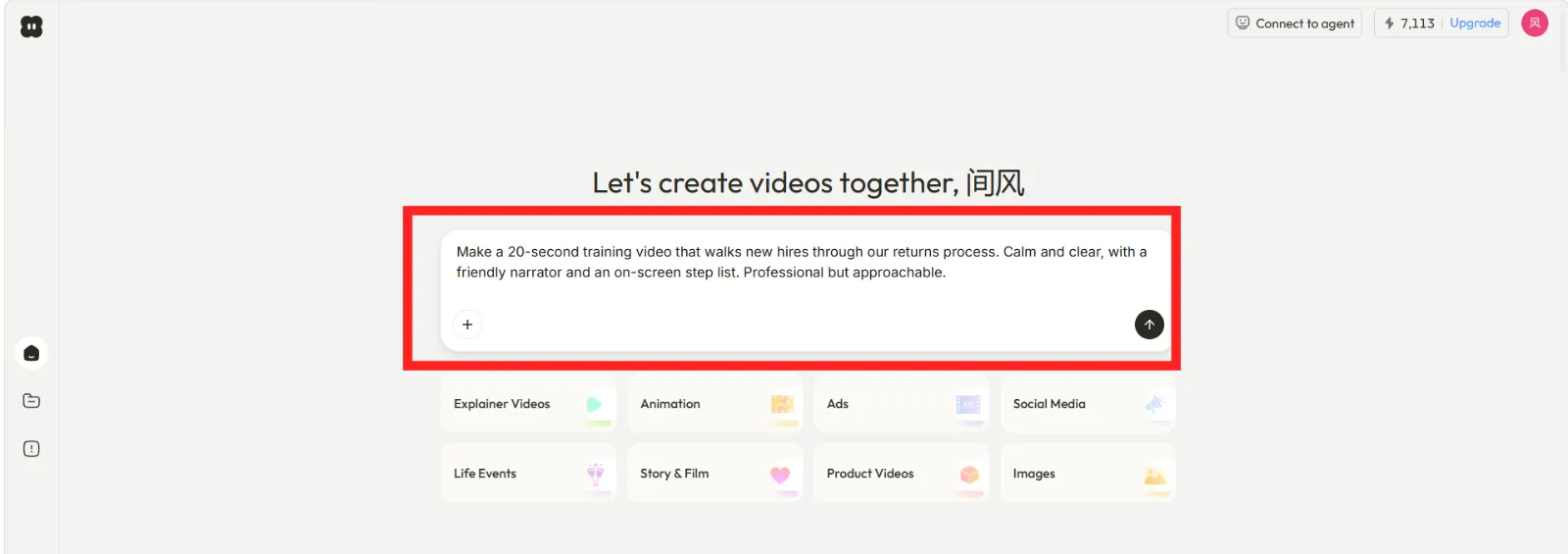
The first thing I did was open Pexo and type out the training in one message, the way I would explain it to a new teammate. I did not write a formal script. I wrote something like: "Make a 60-second onboarding training video that explains how a new support agent logs a customer ticket. Friendly tone, clean on-screen text, simple workplace setting."
I implemented this step in about 40 seconds of typing. The thing that surprised me on my first run: I tried to over-specify, listing eight separate scenes, and the result felt cramped. The second time I described the goal and the tone and let Pexo propose the structure. That worked far better.
Step 2: Review Pexo's Plan Before Anything Renders
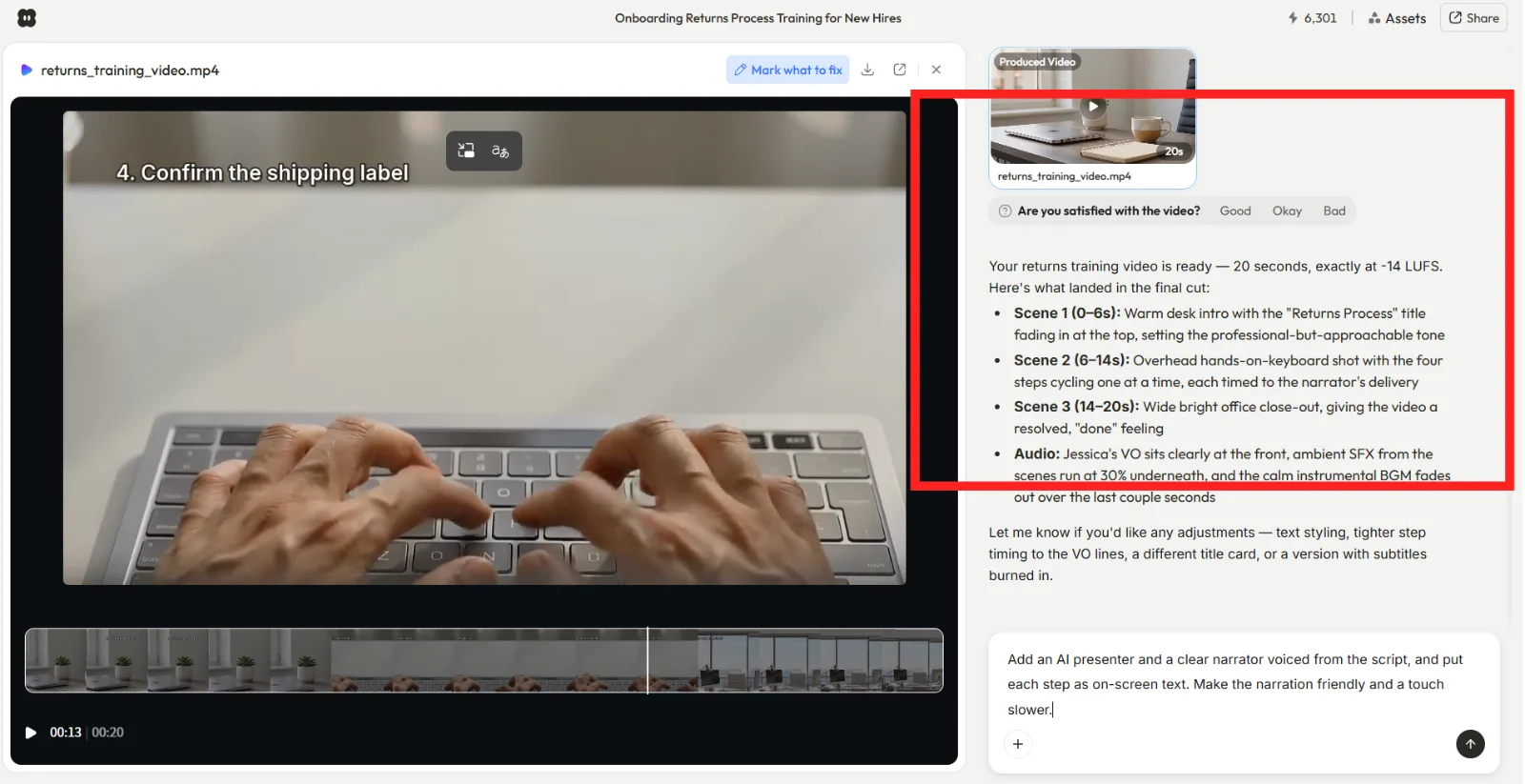
Before producing the full video, Pexo showed me its plan: the scene breakdown, the on-screen text it intended to use, and the overall flow. This is the part I now refuse to skip. I read through the proposed scenes and caught that it had labeled the second scene as "create ticket" when I wanted "log ticket." I corrected it in one line.
Reviewing the plan took me roughly 30 seconds. It is faster to fix the outline here than to regenerate a finished video later.
Step 3: Tell Pexo What to Change
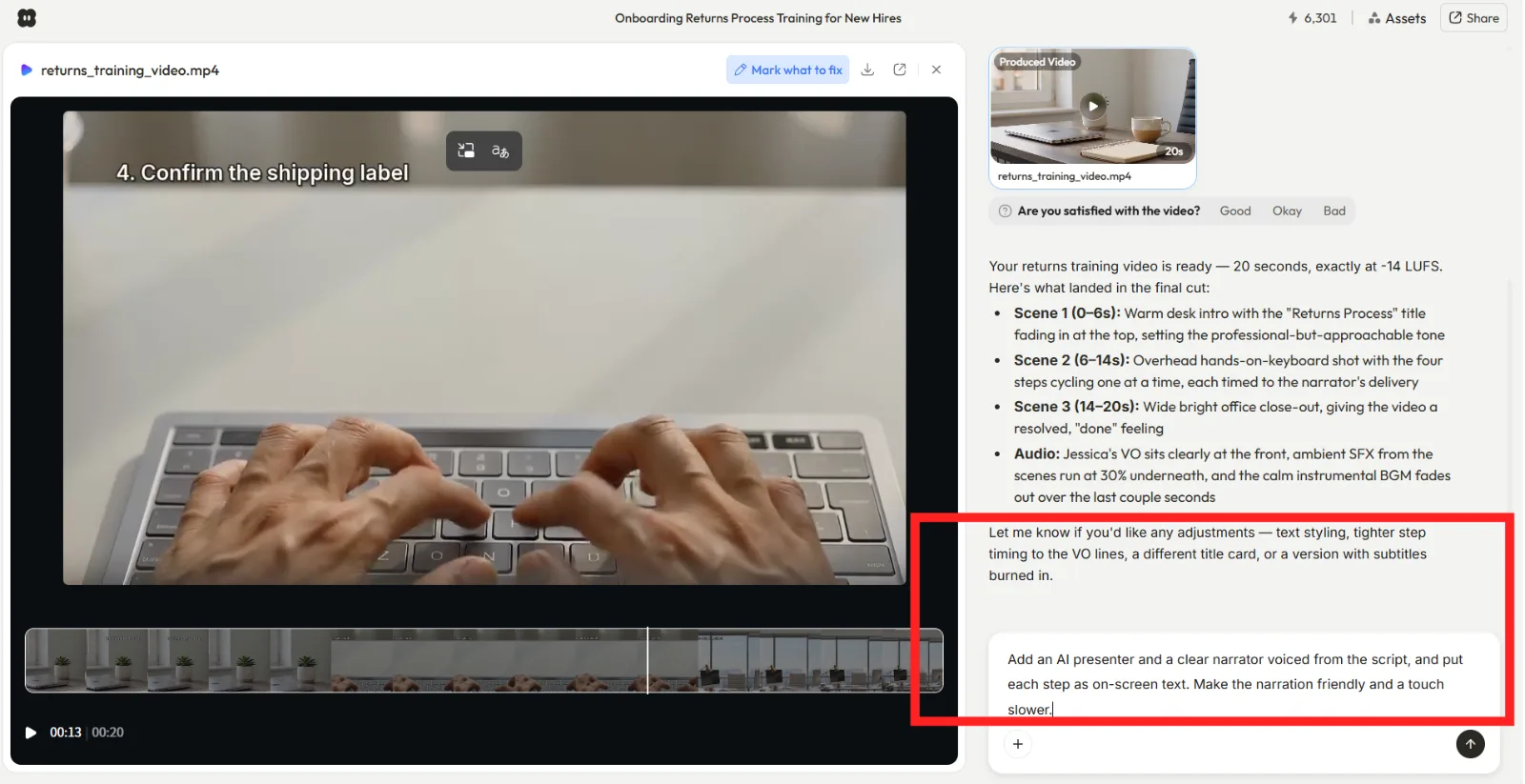
I did not open an editor. I just typed the change: "Scene 2 should say 'log a ticket,' and slow the pacing in the first scene." Pexo took the natural-language note and adjusted the plan. I did one more pass to swap a stock-feeling office shot for a more neutral desk setup.
This redirect loop took me about 25 seconds per note. The mental shift here is real. I kept reaching for a timeline that does not exist, then remembered I could just say what I wanted in words.
Step 4: Generate the Full Training Video
Once the plan looked right, I asked Pexo to produce the full video. It assembled the scenes, on-screen text, pacing, and a soundtrack into one finished piece. I did not stitch anything together myself.
The render itself ran in the background while I did something else, so the wall-clock time depends on the model Pexo routes to and the length you asked for. What matters is that I got back a complete video, not a five-second clip I would have to assemble.
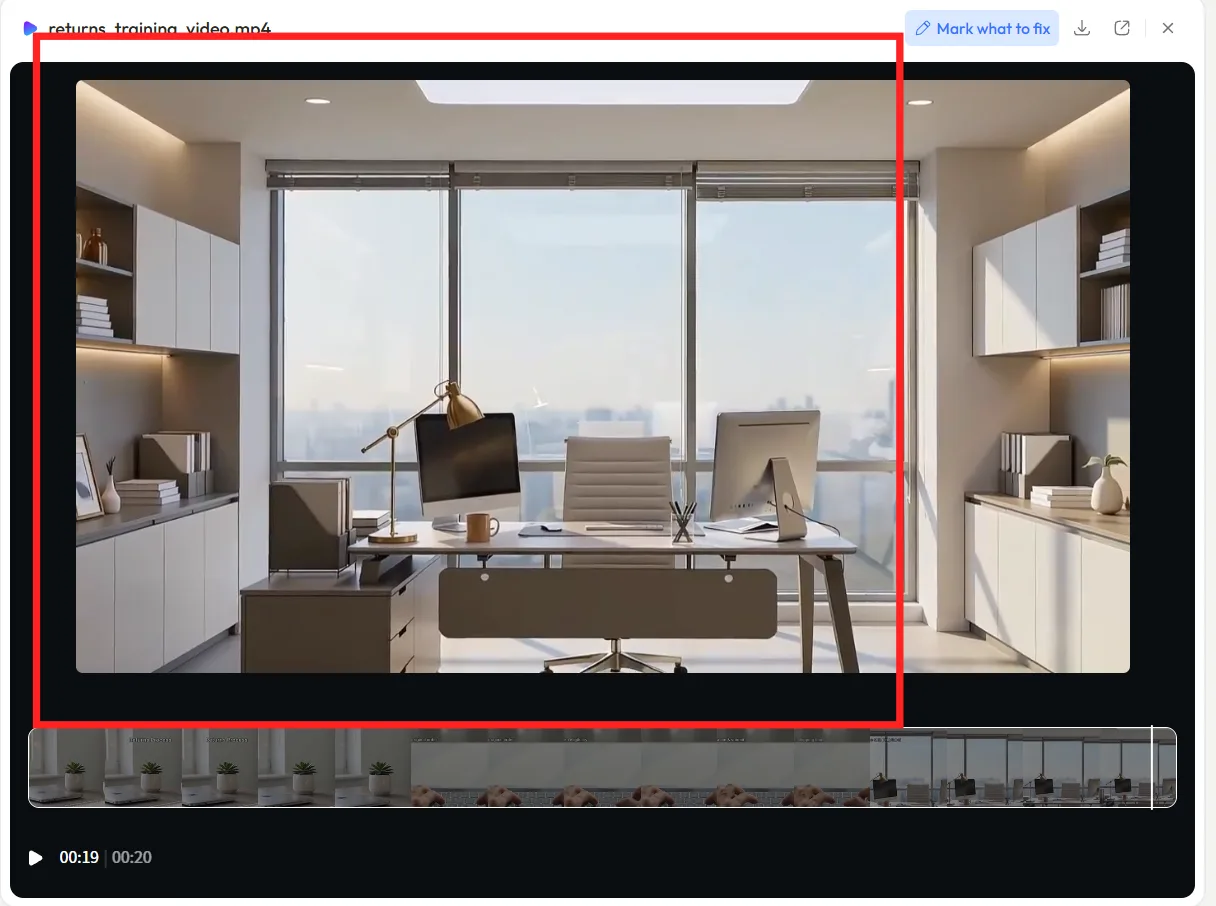
Step 5: Watch It, Tweak, and Ship
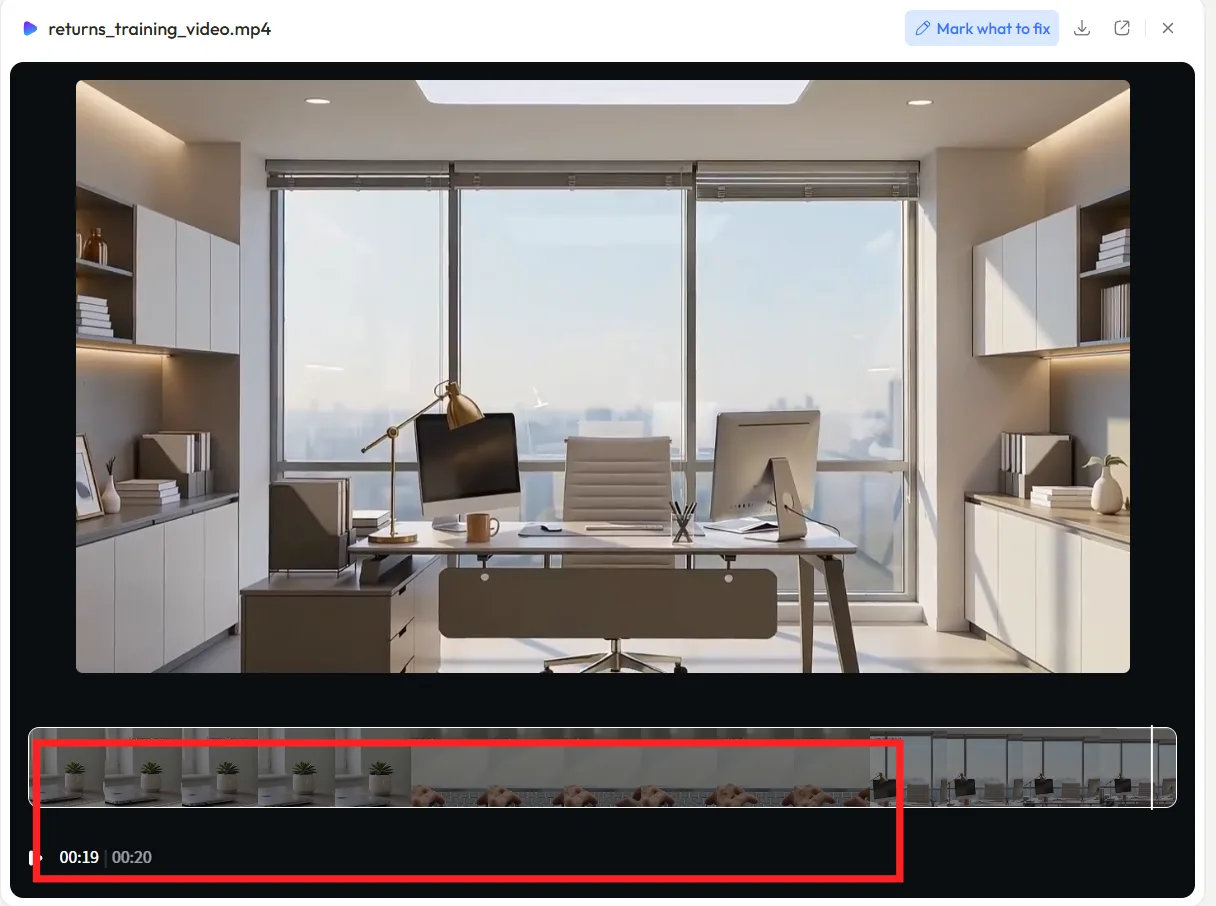
I watched the finished training video end to end. The on-screen text matched my correction, the pacing held, and the flow made sense for a new agent. I made one final spoken note to shorten the closing scene, regenerated just that part, and then downloaded the video.
This last review and tweak took me a couple of minutes, mostly watching playback. Then I shipped it.
Common Mistakes
- Over-scripting the first message. My first attempt listed every scene in rigid detail and the result felt stiff. Describe the goal and tone; let Pexo propose the structure.
- Skipping the plan review. I almost let the "create ticket" wording through. Read the plan in Step 2; fixing the outline is far cheaper than regenerating a finished video.
- Cramming several topics into one video. I tried to teach ticket logging and escalation in the same clip. It got muddy. One topic per training video.
- Reaching for an editor that is not there. I kept hunting for a timeline. Just say the change in words.
- Asking for too long a video. A tight 60 to 90 seconds held attention better than a sprawling version I tested earlier.
Pro Tips
- Name the trainee out loud. Telling Pexo "this is for a brand-new support agent" shaped the tone and the level of detail more than any scene direction I gave.
- Lock the on-screen text in the plan stage. It is much easier to correct a label in the outline than to re-watch a full render looking for it.
- Iterate one note at a time. Single, specific change requests landed cleanly. When I bundled four edits into one message, one always got missed.
- Paste a URL or screenshot for product training. When the topic is "how our app works," giving Pexo the product page as context kept the steps accurate.
- Reuse the conversation for a series. After the first video, I asked for a matching second module in the same chat and the tone carried over.
What Else Can You Use
If you want to assemble a training video from footage you already filmed, a screen recorder and editor fits that job better. A few neutral options:
- Loom — quick screen-and-camera recording for walkthroughs you narrate live.
- Canva — template-based assembly when you have your own clips and want to arrange them.
- ScreenPal — screen recording with light editing for screencast-style tutorials.
These start from footage you capture. Pexo is the fit when you want to generate the training video from a description instead.
Conclusion
Making a training video used to mean scripting, recording, and editing. Running it through Pexo, I described one training topic, reviewed the plan, redirected in plain language, and shipped a finished clip. No prompts, no timeline. If you have a topic and a sentence to describe it, start with Pexo and see your first training video come back from one conversation.