ChatGPT
 Perplexity
 Claude
 Gemini
 Grok
Grok

Seedance 2.0 produces some of the most realistic human motion in AI video right now, but its multimodal input system has a learning curve: which input combination to use, how to structure a description for consistent character identity, and what camera language the model actually responds to. This tutorial covers the Seedance-specific techniques that determine output quality, walked through inside Pexo (which routes to Seedance automatically). If you want direct parameter access instead, ByteDance's Dreamina and the BytePlus API docs are the official paths. Everything below about layered descriptions, camera vocabulary, and input stacking applies regardless of which interface you use.
What Is Seedance 2.0?
Seedance 2.0 is ByteDance's second-generation multimodal AI video model, released in February 2026. Its architecture is built around multi-input fusion, which is the key difference from single-prompt models:
- Multi-input fusion: Seedance accepts multiple simultaneous inputs (text + images + video clips + audio) and treats every input as a constraint on the output. A reference image locks visual identity. An audio track sets rhythm. Text fills in what's missing. The model fuses all of them rather than processing each separately.
- Realistic human motion: Seedance handles subtle body mechanics (weight shifts, gaze direction, hand gestures) more consistently than most competitors, and maintains character identity across frames without LoRA fine-tuning.
- Cinematic camera: The model interprets specific camera language (dolly, rack focus, handheld shake) as generation parameters, not prompt decoration.
Pexo works with Seedance 2.0 alongside other models like Kling and more, and picks the right one for each job. When your scene involves realistic motion, multi-input coherence, or specific camera work, Pexo typically routes to Seedance.
What Do You Need Before Starting?
-
A Pexo account. Free to start; Pexo runs on a credit-based system.
-
At least one input asset. Seedance gets stronger with more inputs. Priority order:
- Text description (required): what happens in the scene, who is in it, what the environment looks like
- Reference image (strongly recommended): a photo of the product, person, or scene you want Seedance to anchor identity to. This is the single biggest quality lever.
- URL (optional): a product page or blog post for Pexo to extract visual context from
- Audio file (optional): Seedance can sync motion to music beats or voiceover timing
-
A specific output format in mind:
- Duration: 5, 10, or 15 seconds (start with 5 for testing)
- Aspect ratio: 9:16 (TikTok, Reels), 16:9 (YouTube, ads), 1:1 (social)
- Style: realistic, cinematic, anime, 3D render
How to Use Seedance 2.0 in Pexo: Step-by-Step Guide
Step 1: How Do You Set Up Your Input Stack?
Seedance's output quality is directly proportional to the specificity of your inputs. Before opening Pexo, prepare your input stack:
- Product video: 1 clean product photo (white background, 1024px+), a camera movement choice (orbit, slow zoom, rack focus), and a 1-sentence scene description
- Character-driven clip: 1 clear reference photo (face visible, even lighting), plus a description of the action and environment
- Cinematic scene: Subject, action, environment, camera, and mood as separate clauses: "A woman in a red dress / walks through a neon-lit Tokyo alley / at night / slow tracking shot from behind / melancholic mood"
- Audio-synced video: An audio file (MP3 or WAV). Seedance maps motion intensity to audio amplitude, so dynamic tracks produce more interesting results than flat beats
Watch out: Seedance treats every attached file as a hard constraint. Attaching a reference image of a beach and then describing a mountain scene creates a conflict. Make sure all inputs point the same direction.
Step 2: How Do You Describe the Scene for Seedance?
Open Pexo, start a new conversation, and describe your scene. Seedance responds best to descriptions structured in layers:
- Subject layer (who/what): "A ceramic coffee mug with a matte blue glaze" or "A 30-year-old man in a grey hoodie"
- Action layer (what happens): "rotates 180 degrees on a wooden table" or "turns to face the camera and smiles"
- Environment layer (where): "soft morning light from the left, blurred kitchen background" or "standing on a rooftop at dusk, city skyline behind"
- Camera layer (how the viewer sees it): This is where Seedance differentiates itself. Use specific terms:
slow dolly in→ camera moves toward the subject, 2-3 second durationorbit left to right→ camera circles the subject (great for product shots)rack focus from foreground to subject→ depth-of-field pullhandheld with slight shake→ simulates real camera operator
- Style/mood layer (optional but effective): "cinematic color grading," "warm tones," "high contrast," "soft focus background"
- Attach your reference image(s) alongside the description
- Specify duration and aspect ratio: "10-second 9:16 vertical"
- Pexo translates this into the right model parameters. No prompt syntax or parameter tuning required.
Key Seedance behavior: The model weights subject and camera layers most heavily. Vague camera instructions ("make it cinematic") produce random camera movement. Specific camera terms produce specific results. This is the single most common failure point: people spend 10 minutes writing a detailed scene description and then add "cinematic look" at the end, handing Seedance's strongest controllable axis back to randomness.
Step 3: How Does Seedance Generate Your Video?
After you submit, Pexo routes to Seedance and generation begins. Here is what happens under the hood:
- Input fusion: Seedance processes all inputs simultaneously, with a priority hierarchy: reference image (visual identity) > text (action and camera) > audio (temporal rhythm). When inputs conflict, the image wins. This is why Step 1 emphasizes matching all inputs to one scene.
- Generation time: 30 to 90 seconds for a 5-second clip; 60 to 120 seconds for 10-second clips. Complexity (multiple characters, detailed environments) adds time.
The techniques you applied in Steps 1 and 2 are the actual Seedance skills: your input stack defines the visual constraints, your layered description sets the motion and camera, and the specificity of your camera language is the difference between a controlled shot and a random one. These techniques work whether you access Seedance through Pexo, Dreamina, or the API.
Step 4: How Do You Refine the Output?
First-generation results from Seedance are strong on structure but often need 1-2 adjustments. Use Pexo's conversational feedback:
- Camera: "Slow the camera orbit down by half" / "Switch to a static shot for the first 2 seconds, then dolly in"
- Motion: "Make the hand gesture slower and more deliberate" / "The character should pause for a beat before turning"
- Lighting: "Warmer tones, shift toward golden hour" / "Increase the contrast between subject and background"
- Identity correction: "Match the face more closely to the reference photo I attached"
Seedance regenerates from the refined description, keeping what worked. Each round takes 30 to 90 seconds. Most projects reach a final version in 2 to 3 rounds.
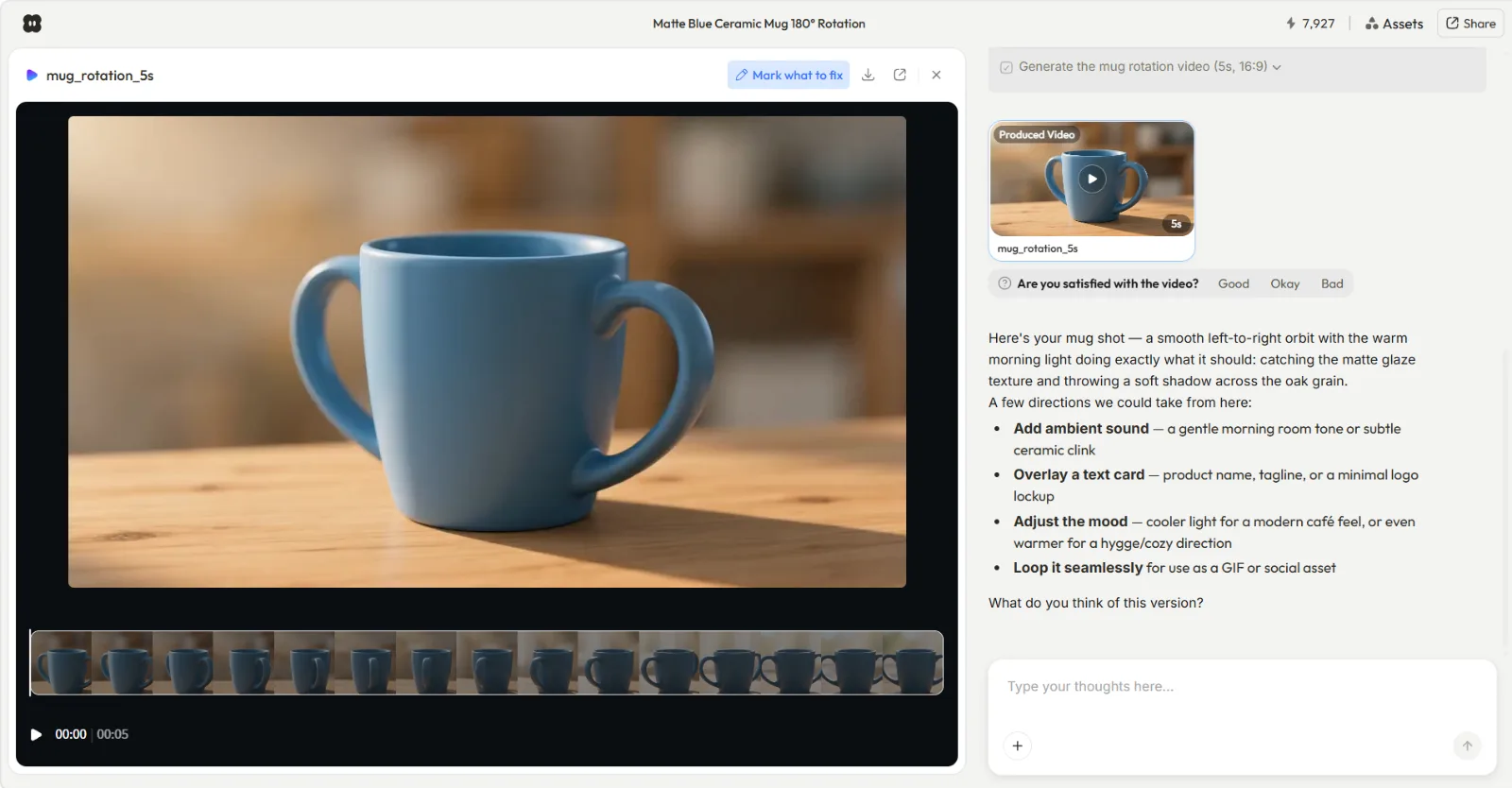 A 5-second product orbit video generated through Seedance 2.0 in Pexo. The matte blue ceramic mug rotates on an oak table with warm morning light, matching the layered description from Step 2.
Example: Product Video From Start to Finish
Here is a complete Seedance workflow for a ceramic mug product ad:
- Input stack: 1 product photo (matte blue mug on white background, 1200x1200px). No audio, no video clip, just the photo + text.
- Description sent: "A ceramic coffee mug with a matte blue glaze / rotates 180 degrees on a light oak table / soft morning light from the left, shallow depth of field / orbit left to right / warm tones, minimal background"
- First output (42 seconds): Mug shape and orbit motion matched the description, but the orbit completed in about 3 seconds, too fast for a product showcase. The glaze also shifted slightly warmer than the reference.
- Round 1: "Slow the orbit to half speed, match the glaze color more closely to the reference photo"
- Second output (38 seconds): Speed and color corrected. Background showed a faint grain pattern that was not described and not wanted.
- Round 2: "Clean background, no grain, keep everything else"
- Final result: 5-second orbit, smooth rotation, color-accurate to the reference, clean background. Usable for an Instagram product carousel or a Shopify product page hero. Total elapsed time from first description to export: under 4 minutes.
The takeaway: the reference photo locked identity on the first try. Without it, the mug's color and glaze texture would have drifted between generations, and every refinement round would have been spent re-establishing what the product looks like instead of adjusting motion and environment.
What Are the Most Common Seedance Mistakes?
-
Conflicting inputs. Attaching a beach photo while describing a forest scene forces Seedance to reconcile two competing visual identities. The result is usually a muddy compromise. Rule: every input should reinforce the same scene, not introduce a new one.
-
Vague camera instructions. "Make it look professional" or "cinematic style" doesn't translate into specific camera behavior in Seedance. The model maps camera terms to motion parameters, so
slow dolly inproduces a specific result whilecinematicproduces a random one. Always use directional camera language. -
Skipping the reference image. Seedance can generate from text alone, but character identity drifts significantly without a visual anchor. A face that changes between frames, a product that shifts color mid-shot: these happen when Seedance has no reference image to lock to. Always attach one for character or product work.
-
Overloading a single generation. Requesting a 15-second video with 3 scene changes and 2 characters stretches Seedance's consistency window. Start with 5-second single-scene clips and combine them in post.
Pro Tips for Better Seedance Results in Pexo
-
Layer your camera instructions over time. Instead of one static camera direction, describe changes within the clip: "Start with a wide static shot for 2 seconds, then slow dolly in to a medium close-up." Seedance processes camera as a motion parameter, not a static attribute, so temporal camera changes work better here than in most models.
-
Use audio input for rhythm-matched videos. Seedance maps motion intensity to audio dynamics. A beat drop triggers faster movement; a quiet passage slows motion. Upload a music track or voiceover alongside your description for product reveals and music videos.
-
Test one variable at a time. If your first output has three problems, fix one per refinement round. Seedance preserves what you don't mention, so single-variable iterations converge faster. See the Seedance 2.0 prompt guide for more advanced techniques.
-
Batch scenes in one Pexo session. If you need 5 product videos with the same style, run them in one conversation. Pexo maintains consistent style parameters across the session.
What Else Can You Use?
-
Dreamina: ByteDance's own direct interface for Seedance 2.0. Full parameter control (CFG scale, motion intensity, seed values), but requires manual prompt formatting. Best for users who want raw access to every generation parameter.
-
Runway: Gen-3 Alpha uses a different architecture with strengths in artistic/abstract generation. Better for stylized, non-realistic work. Weaker on realistic human motion.
-
Kling AI: Another model Pexo also routes to. Strong for character animation and exaggerated motion. Handles up to 10-second clips natively.
Conclusion
Seedance 2.0's multi-input fusion treats every attached image, audio file, and text description as a constraint, producing more controllable results than single-prompt models. The techniques that matter most: attach a reference image for identity consistency, use specific camera language instead of vague aesthetic terms, and keep each generation focused on a single scene. Using it through Pexo takes 4 steps: prepare your input stack, describe the scene in layers, generate, and refine through conversation.