ChatGPT
 Perplexity
 Claude
 Gemini
 Grok
Grok


Your product page may hold six benefits and three screenshots. A product explainer video has one sequence. Which buyer question should it answer first?
That question determines which claims need proof, which assets belong on screen, and what to revise in the first cut.
What should a product explainer help a buyer understand?
A product explainer should show a buyer what changes with the product, how, and why the claim is credible. If the viewer can repeat a feature name but not its effect, revise the story.
For an unfamiliar buyer, “See which stores need stock first” may beat a tour of dashboard tabs. A returning customer may need the steps instead. That calls for a product demo.
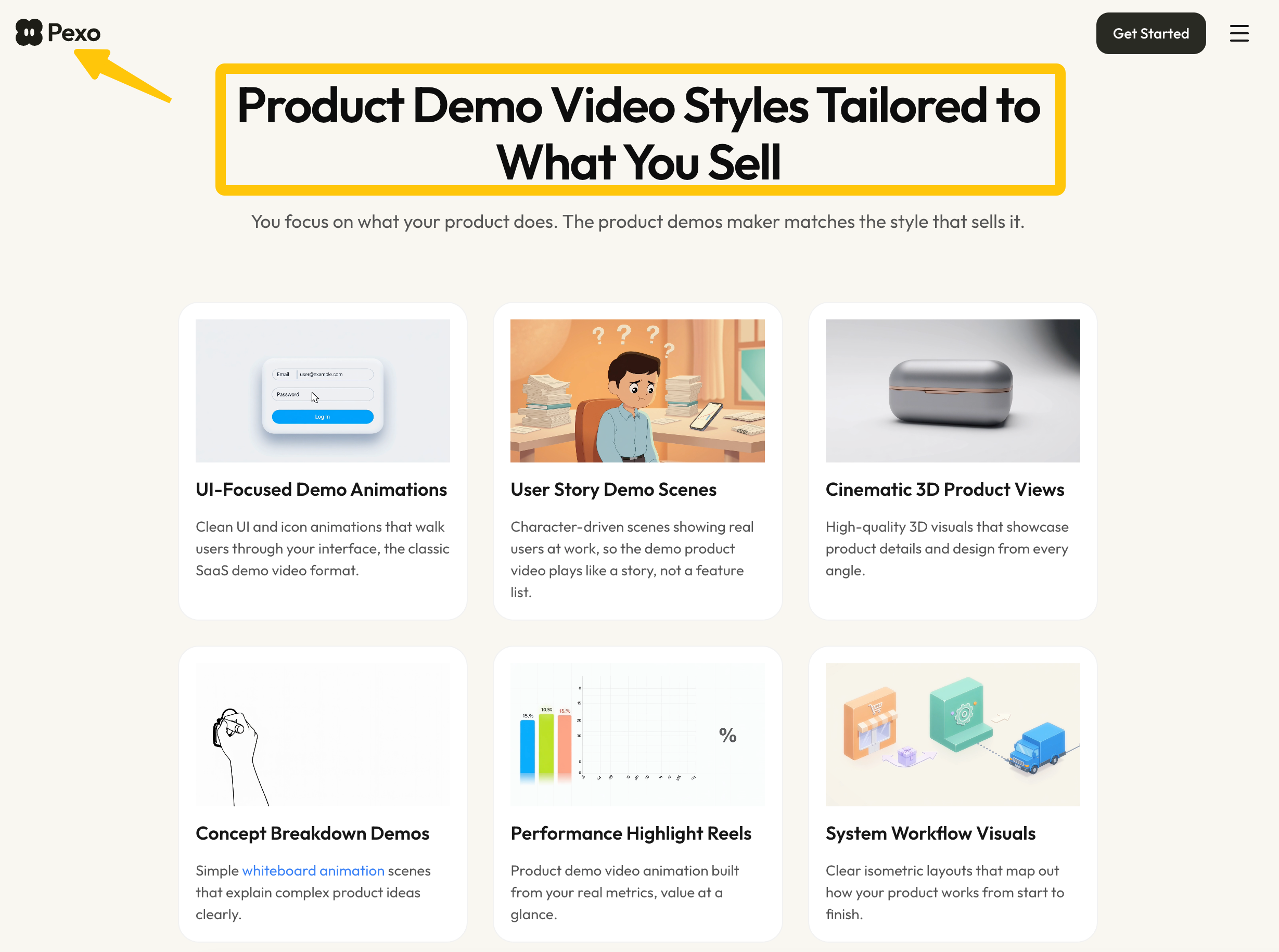
Animated product explainer video examples suggest visual styles. Judge your own image and spoken claim together.
Turn product sources into a one-page brief
Give production a short decision document. This fictional inventory dashboard illustrates the fields; its features and claims describe no real product or Pexo output.
| Brief field | Fictional example to replace with your approved facts |
|---|---|
| Buyer and placement | A regional retail manager seeing the video on a product page |
| One buyer question | “Which store needs restocking first?” |
| Core claim | “The dashboard groups low-stock alerts by store.” |
| Evidence owner | Product lead confirms the current rule; marketing links the approved product-page wording |
| Source assets | Current product page, an approved sample-data screenshot, logo, and brand colors |
| Visual boundary | Show sample store names only; do not invent a live alert or animate a control the interface lacks |
| End action | Open the feature page to inspect how alerts are set up |
| Review owners | Product checks behavior; brand checks presentation; marketing accepts the buyer story |
Keep source links beside each claim. If a screenshot conflicts with the approved description, resolve it before making a scene.
Claims and supporting evidence
Put a source beside each spoken claim. “Groups alerts by store” does not support “predicts shortages.” Have the product owner confirm the behavior and version shown; remove the prediction claim unless supported.
A physical product photo shows appearance, not necessarily mechanism. Supply approved footage or a verified diagram when the claim depends on an action. Generated movement alone cannot prove real behavior.
Product assets and brand constraints
Provide approved product images, current screens, logo files, and exact on-screen wording. Mark old screens and draft claims as unusable. Specify what animation may clarify and what must stay faithful to the product.
Check permission before submitting client or third-party assets. As checked October 11, 2026, Pexo’s Terms on user content require necessary rights and a lawful basis for personal data. Remove customer and confidential details before upload; the Privacy Policy describes content processing. For advertising or other commercial use, confirm the current terms and permissions before publishing.
Shape the scene sequence around one claim
Let each scene do one part of the explanation. For the fictional dashboard, a four-scene route might be:
-
Question: A manager must decide which store needs attention. Show the decision, not a generic frustrated office worker.
-
Source: Show the approved sample-data view with store names and the low-stock indicators that actually exist.
-
Meaning: Explain how grouping alerts by store helps the manager compare locations. Do not add a forecast the source cannot support.
-
Next step: Point to the feature page for setup detail, leaving the operational walkthrough to that page or a demo.
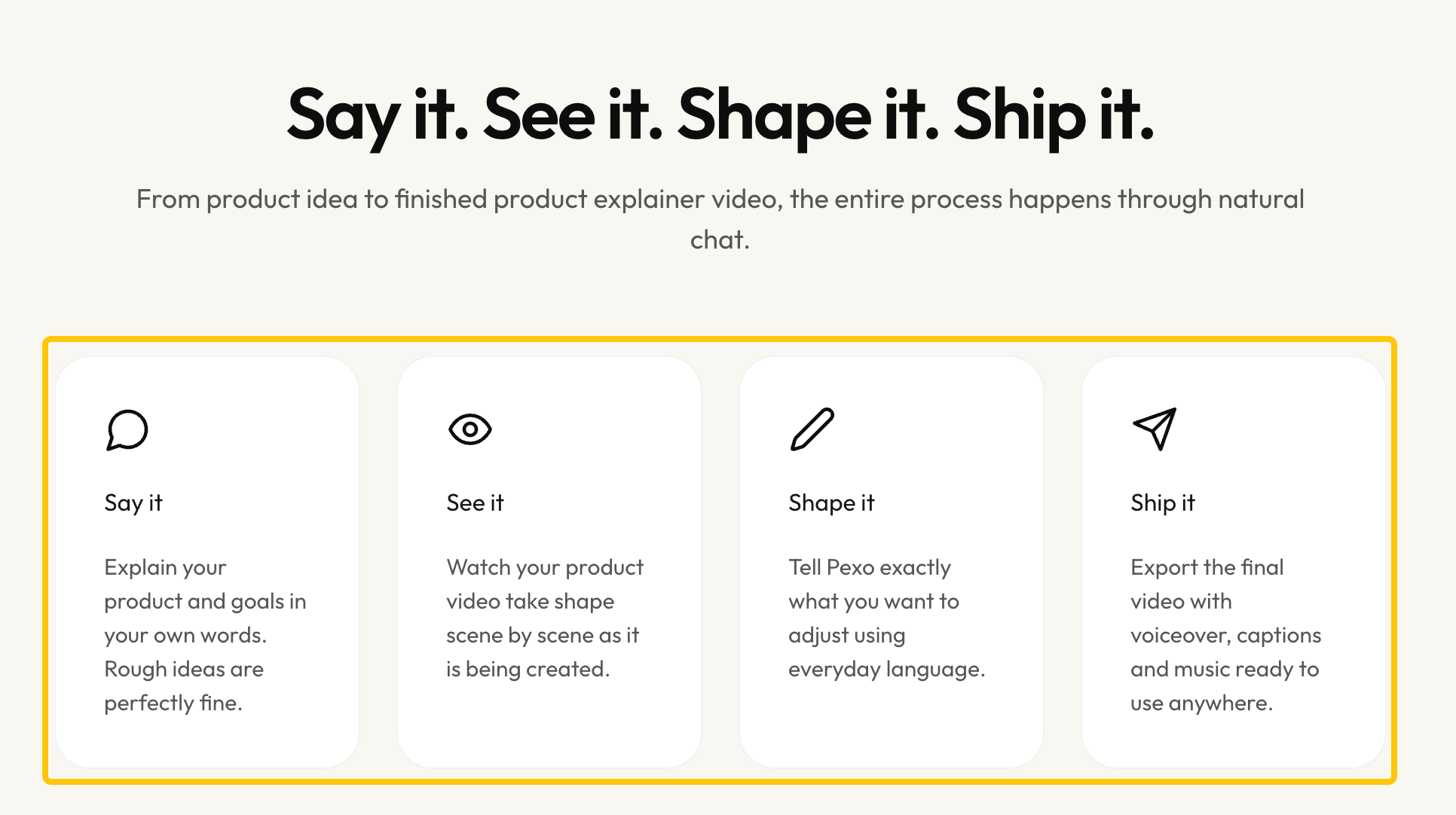
Pexo’s product explainer page describes turning plain-language direction into a script and scenes. Supply the buyer question and approved sources, then check the proposed direction. A polished dashboard animation can still show an alert the product never sends.
Review the first cut against the brief
Watch once as a buyer, then again against the brief. Record a decision for each scene. These are fictional example notes, not results from a generated video.
| Scene | Acceptance question | Example decision and feedback |
|---|---|---|
| Buyer question | Is the restocking decision clear before the feature appears? | Keep the store comparison; shorten an opening that only introduces the company. |
| Product view | Does the image match the approved screen and use sample data? | Change an invented alert label; use the supplied screenshot and remove customer names. |
| Claim | Does the voiceover say only what the source supports? | Change “predicts shortages” to the approved grouping claim. |
| Ending | Does the next action follow from what the video explained? | Keep a link to setup detail; remove an unsupported promise of automatic ordering. |
Name what to preserve and change: “Keep the store comparison. Replace the second screen with approved sample data. Say ‘groups low-stock alerts by store.’” Pexo’s revision guide describes conversational changes and “Mark to fix” for a specific area. Recheck the whole cut after revising.
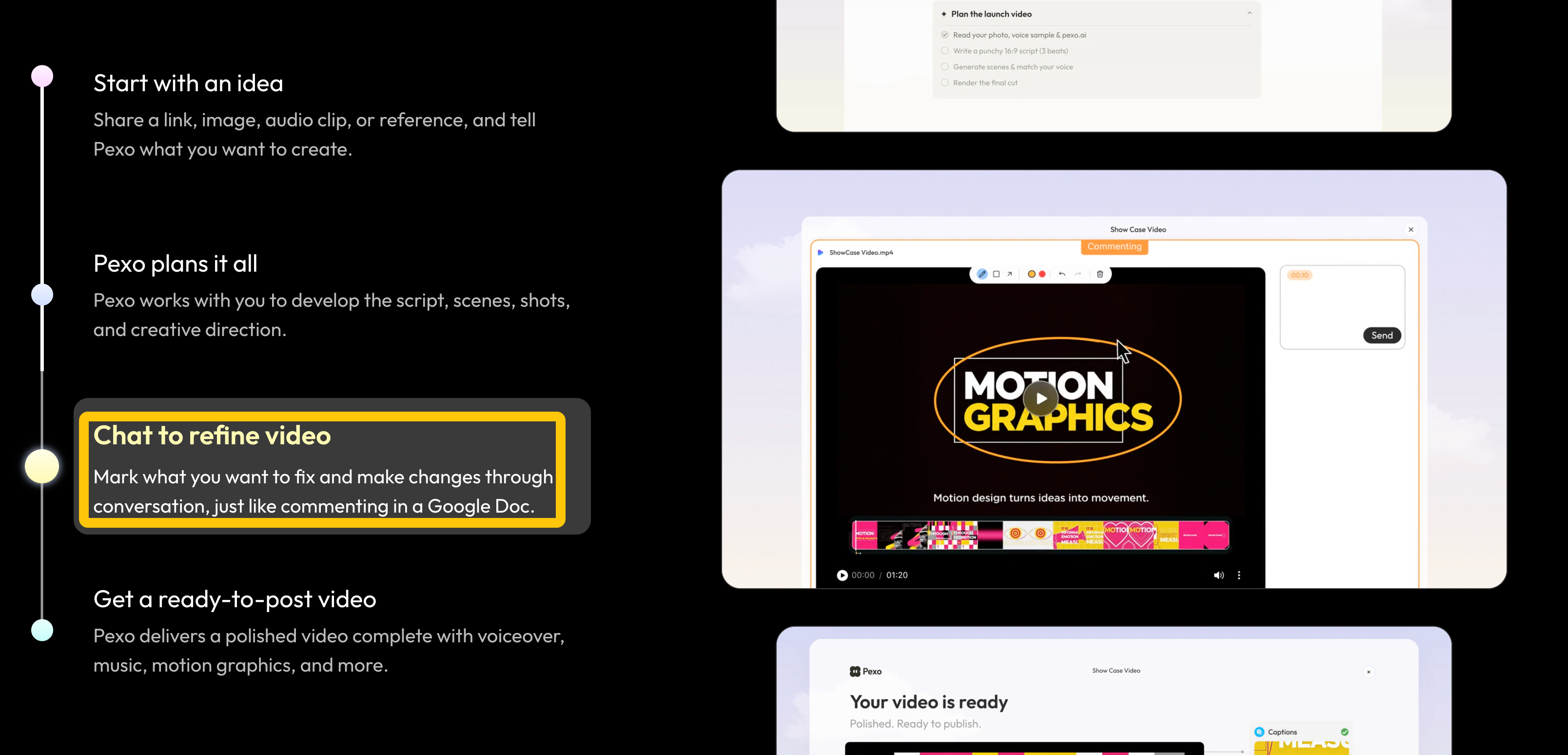
Read captions and interface labels, listen for unsupported claims, and confirm the destination works.
When is a product demo the better asset?
Use a product demo when buyers need exact steps or controls. An explainer establishes value; a demo answers “Where do I click, and what happens next?” Send that buyer to a verified walkthrough.
The explainer can retain its buyer-level story while a narrower demo carries current steps, provided both stay accurate.
If your sources and buyer question are ready, take the one-page brief to Pexo’s product explainer page. Review the proposed direction against your approved claims before deciding what to refine.