ChatGPT
 Perplexity
 Claude
 Gemini
 Grok
Grok

Whether you're cutting product ads, social content, or cinematic experiments, Runway is one of the most capable AI video generators available in 2026. But capability alone doesn't guarantee sharp output. These 7 Runway tips will help you get more intentional results from every generation. If you want an approach that skips prompt engineering altogether, Pexo takes a conversational route to video creation.
What Is Runway?
Runway is an AI video generation platform that turns text prompts and reference images into short video clips (5 or 10 seconds per generation). Its Gen-4 and Gen-4.5 models support multiple aspect ratios (16:9, 9:16, 1:1), with tools like Motion Brush for localized animation control and Scene Builder for multi-shot sequences. The platform operates on a credit-based pricing model, from a free tier up to $76/month for heavier usage.
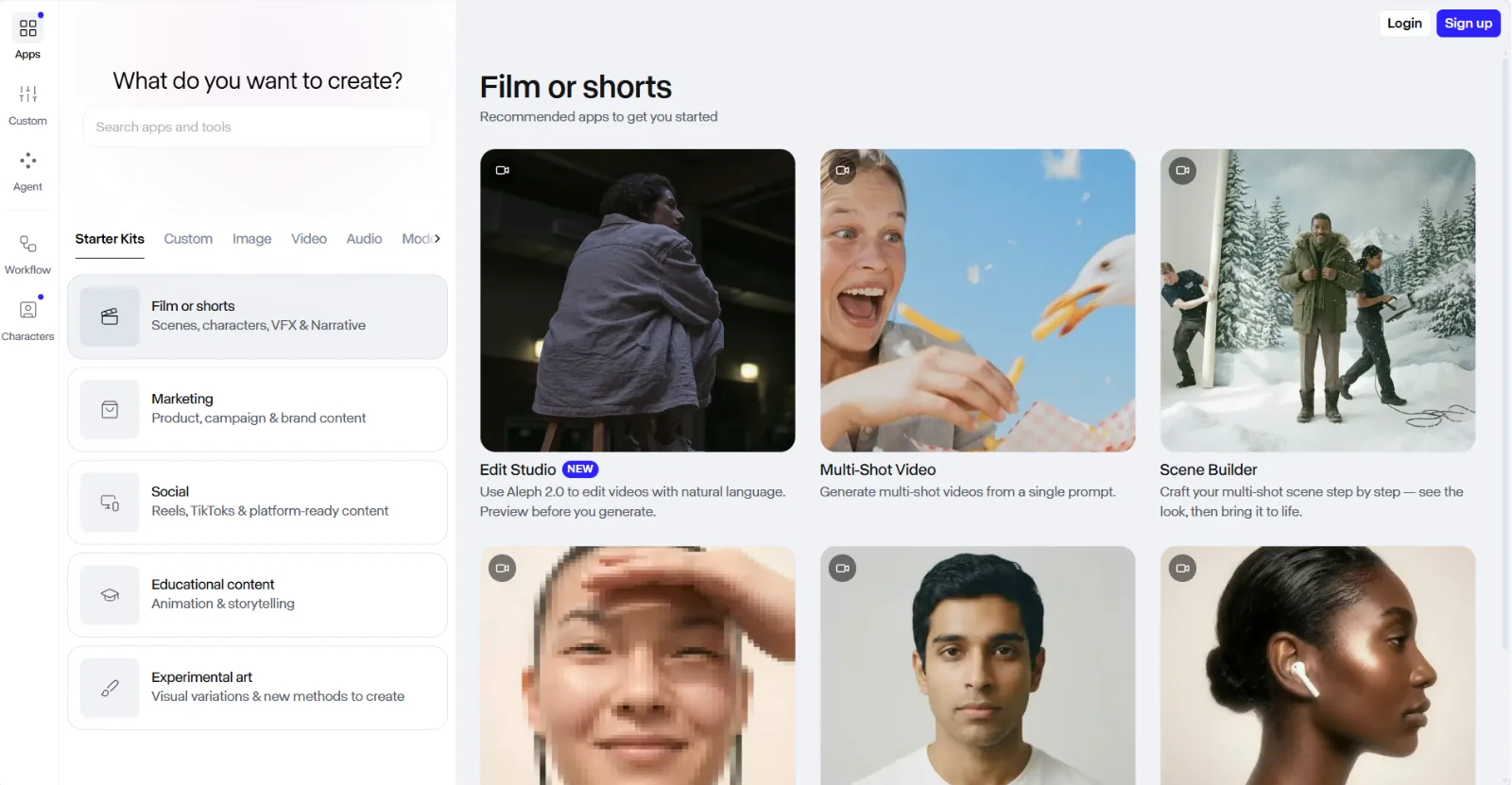 Runway's creation dashboard as of June 2026, with content categories and specialized generation tools.
What You Need Before You Start
Before working through these tips, make sure you have:
- A Runway account (the free tier includes limited credits for testing)
- Source assets: at least one reference image or a written concept for your video
- A clear output goal: the target platform (YouTube, TikTok, Instagram), format (vertical, square, wide), and approximate length
7 Runway Tips for Better AI Videos
Tip 1: Structure Your Prompts Like a Shot List
Break your prompt into shot type, subject, action, lighting, and style instead of writing a single run-on sentence. Runway's Gen-4 engine responds to structured, specific prompts far more reliably than loose conversational descriptions. Instead of "a woman walking in a city," try: "Medium tracking shot, 35mm lens, a woman walking through rain-slicked Tokyo streets, neon reflections on wet pavement, cinematic lighting, shallow depth of field." Each element gives the model a concrete visual anchor. Structured prompts of 40–75 words consistently outperform longer, unfocused descriptions. A 5-second Gen-4 generation typically takes 30–90 seconds to render depending on your plan tier and queue load.
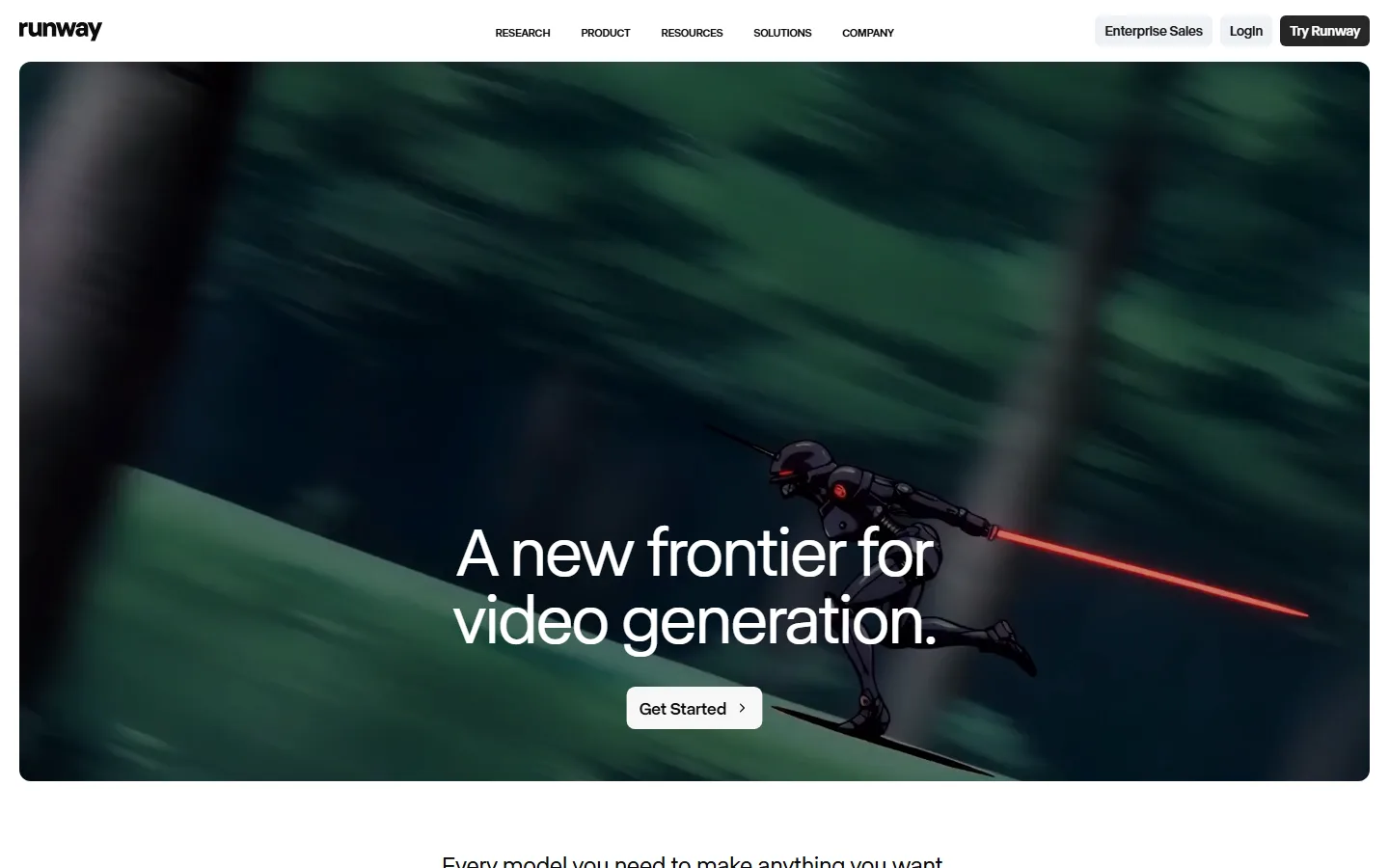 Runway's homepage as of June 2026 — the starting point for creating structured, intentional AI video prompts.
With Pexo, you skip prompt syntax entirely. Describe what you're imagining in natural language, and Pexo's agent structures the technical parameters behind the scenes.
Tip 2: Feed Runway a Reference Image for Style Lock
Upload a reference image alongside your prompt to anchor the visual style across generations. Text prompts alone often produce style drift between clips. Uploading a reference frame (a still from a previous generation, a mood board image, or a product photo) locks the color palette, texture, and overall aesthetic. For clean results, use a source image at 1024×576 or 1280×768 minimum resolution.
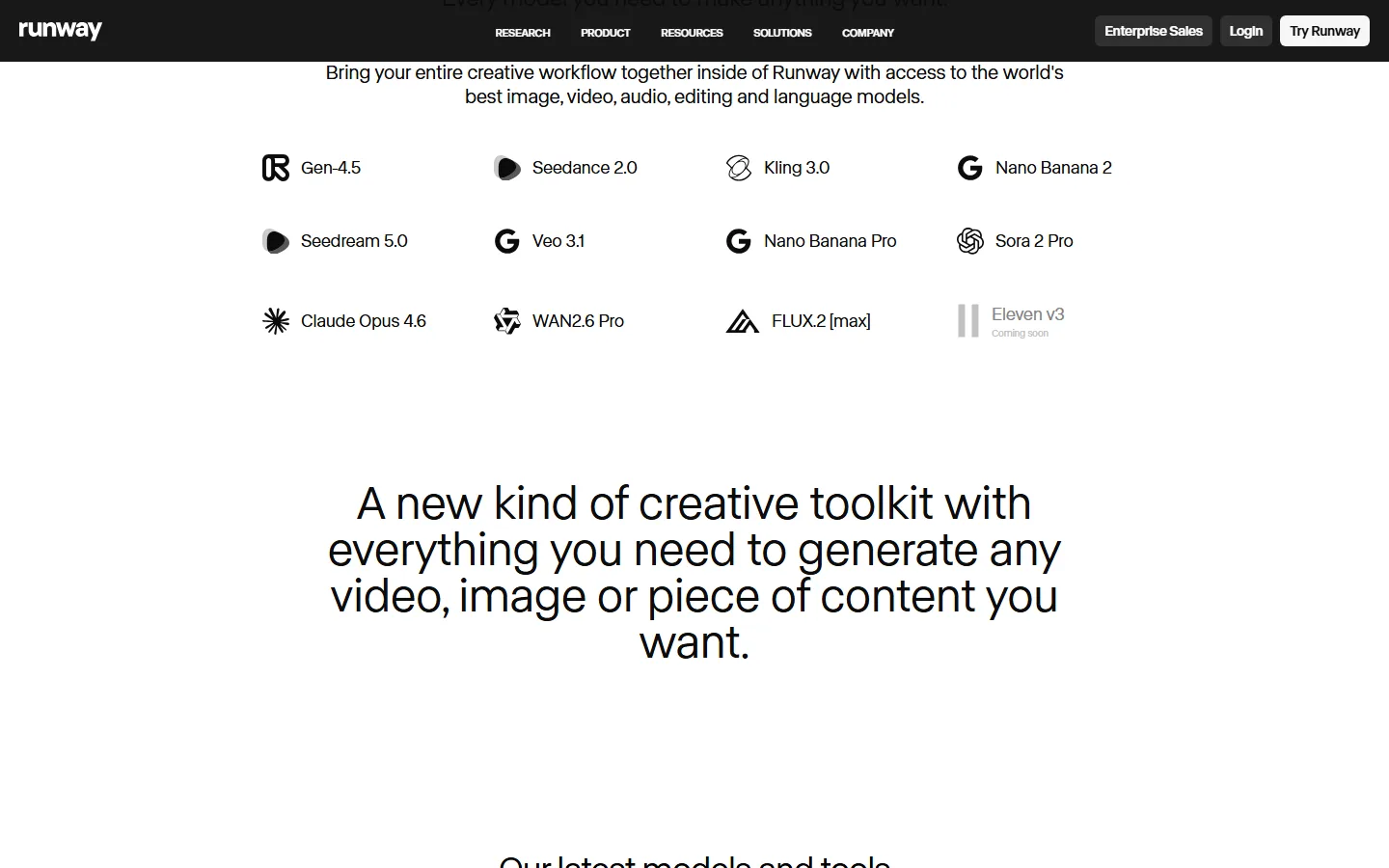 Runway's model ecosystem as of June 2026 — multiple AI models available for different generation and editing tasks.
With Pexo, you drop a photo into the conversation and describe what you want. The agent uses it as context for every clip in the thread. You can turn any image into video with Pexo without managing separate upload flows.
Tip 3: Direct Camera Movement in Your Prompt
Add explicit camera-movement keywords like "slow dolly forward," "static wide," or "orbit left" to control motion direction. Without camera direction, Runway defaults to subtle or random motion that often looks aimless. Adding a specific camera instruction (pan, tilt, dolly, orbit, crane, or static) gives the clip purposeful movement. Combine with subject movement for dynamic footage: "Slow dolly forward as the subject turns to face camera." Camera movements render most cleanly in 5-second clips. At 10 seconds, complex moves like orbits can introduce drift, so keep multi-directional motion to 5-second generations and chain them.
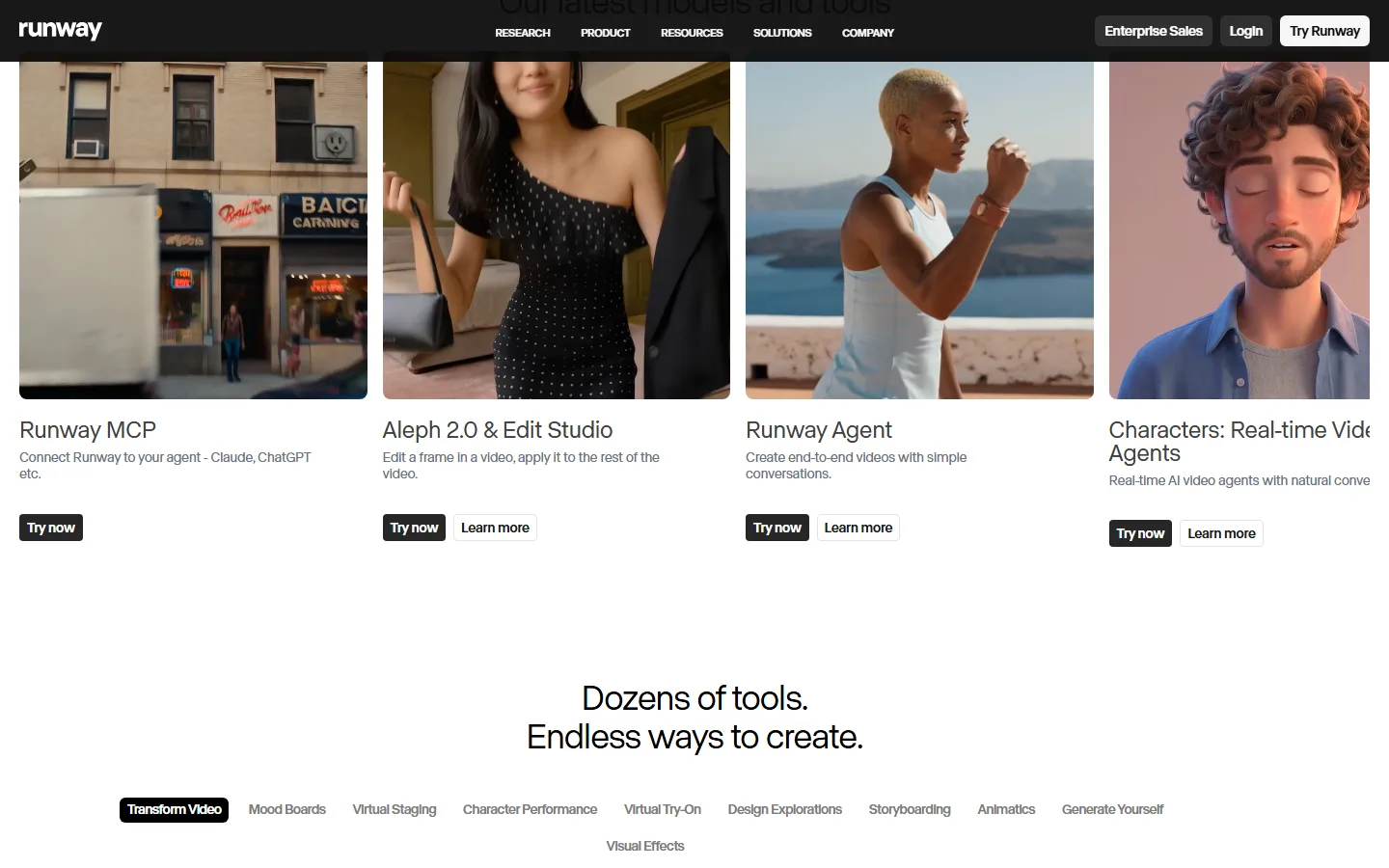 Runway's creative tools — from AI agents to character generation, each offering different motion and control options.
Tip 4: Match the Right Model to Your Scene
Use Gen-4.5 for final renders and Gen-4 Turbo for fast iteration and draft exploration. Runway offers multiple model tiers with different speed-quality tradeoffs. Gen-4.5 produces the sharpest output with the best motion coherence but uses more credits per generation. Gen-4 Turbo generates faster at lower fidelity and uses roughly half the credits per clip. The practical workflow: test compositions and prompts with Turbo (15–30 seconds per 5-second render), then switch to Gen-4.5 (45–90 seconds, higher credit cost) for the version you'll publish.
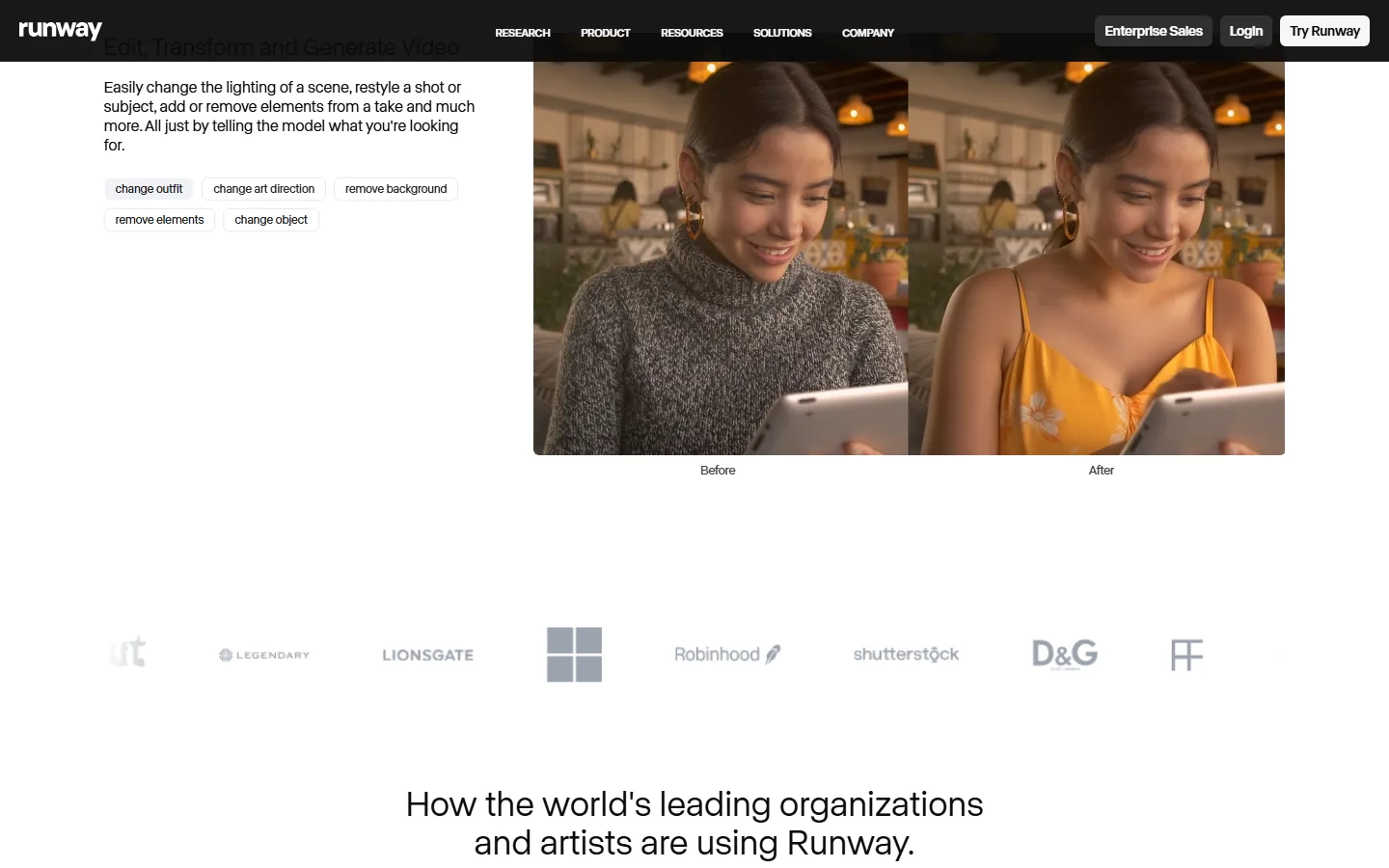 Runway's editing capabilities — fine-tune lighting, art direction, and scene elements to match your creative vision.
Pexo works with multiple AI video models, including Seedance 2.0, Kling, and more, and picks the best one for each scene automatically. No manual model switching.
Tip 5: Use Motion Brush With a Light Hand
Start Motion Brush at 30–40% strength and align the brush direction with your text prompt to avoid artifacts. Motion Brush lets you paint localized motion onto specific parts of the frame while keeping the rest static. The most common mistake is cranking strength too high, which causes warping and ghosting. Start low, increase in small steps, and make sure the brush direction matches your text prompt. Conflicting instructions (prompt says "static" while brush pushes motion) produce visible glitches.
 Enterprise-level productions powered by Runway — from streaming series to branded commercials.
Tip 6: Keep Character Descriptions Identical Across Clips
Copy-paste the exact same character description into every generation to maintain visual consistency across a multi-clip project. Changing even a few words between clips can shift facial features, hair color, or clothing. Save your character prompt as a reusable template (typically 30–50 words covering face, hair, build, clothing, and one distinguishing feature) and paste it verbatim. For extra consistency, use the final frame of a previous clip as the input image for the next generation, exported at the native 1280×768 resolution.
 Runway's app ecosystem — purpose-built tools for specific creative workflows, helping maintain consistency across projects.
Tip 7: Export in the Right Aspect Ratio for Your Platform
Set your aspect ratio before generation (16:9 for YouTube, 9:16 for Reels and TikTok, 1:1 for feed posts) to avoid cropping after the fact. Runway defaults to 16:9. If you're generating for vertical platforms, switch to 9:16 before you hit generate. Post-generation cropping cuts into the composed frame and removes important visual elements. Compose your prompt with the target framing in mind: vertical shots benefit from close-ups and portrait framing.
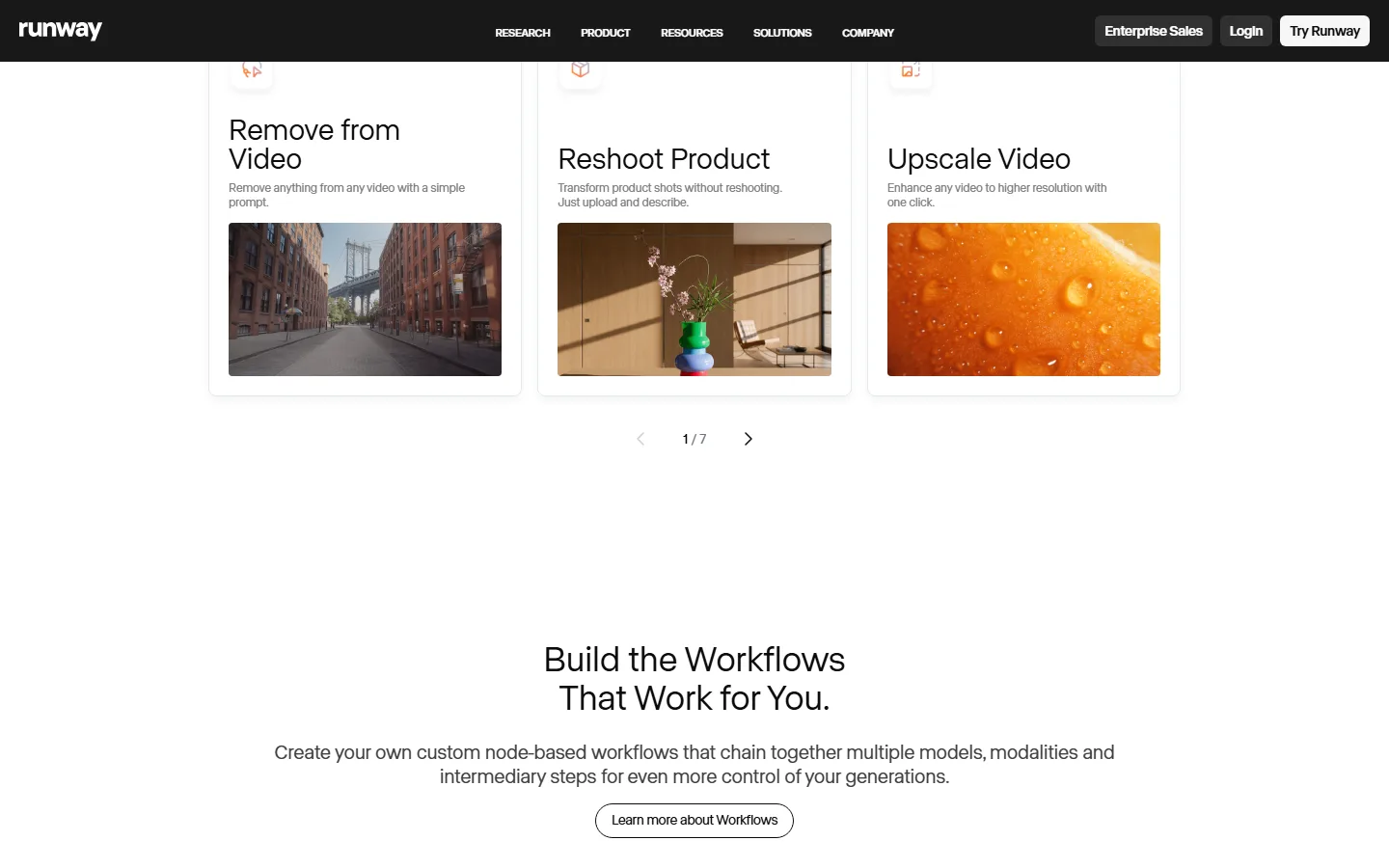 Runway's post-production tools — remove objects, reshoot products, upscale resolution, and build custom workflows for your export pipeline.
Common Mistakes Runway Users Make
-
Over-prompting. Stuffing 200+ words into a single prompt dilutes every instruction. Keep prompts under 75 words and prioritize the 5 key elements: shot type, subject, action, lighting, style.
-
Conflicting Motion Brush and text. If your text says "static background" but you paint motion across the entire frame, you'll get warping. Align both inputs.
-
Switching character descriptions mid-project. Even changing "brown hair" to "dark hair" is enough to break visual consistency. Use one locked template for the entire project.
-
Using Gen-4.5 for every draft. It burns credits and slows iteration. Save it for final output.
Pro Tips to Push Your Results Further
-
First-frame chaining. Export the last frame of a clip and use it as the input image for the next generation. This chains visual continuity across a multi-clip sequence without relying on character descriptions alone.
-
Negative prompts for cleanup. Add "blurry, distorted, morphing, text, watermark" as negative prompt terms to filter out the most common generation artifacts.
-
Batch across aspect ratios. Generate the same scene in 16:9, 9:16, and 1:1 in a single session. This gives you a complete asset set for YouTube, Reels, and feed posts without re-prompting from scratch.
What a Polished Runway Output Looks Like
When you apply all 7 tips to a single project, the difference is visible. A polished Runway output: a 10-second 1280×768 clip at 24 fps with stable character rendering across shots, intentional camera tracking (no random drift), clean Motion Brush application without warping, and a consistent color palette locked by the reference image. Total generation time for a 3-clip sequence using Turbo drafts and one Gen-4.5 final render: approximately 5–8 minutes and 25–30 credits.
 Runway's latest research — Gen-4.5 and the General World Model family powering the next generation of AI video.
What Else Can You Use
If you want a different approach to AI video, these alternatives are worth exploring:
- Pexo: An AI video partner built around conversation rather than prompt engineering. Describe what you want in natural language. Pexo's agent handles model selection (it works with Seedance, Kling, and more), aspect ratio, and motion parameters automatically. No prompt syntax, no manual model switching, no brush tools. You can also start creating directly from text, images, or a product URL.
 Pexo's conversational interface: describe your video idea in plain language, and the agent handles the rest.
-
Kling AI: Strong text-to-video and image-to-video model with up to 10-second generations and growing character consistency features.
-
Luma Dream Machine: Focuses on fast generation with natural motion, particularly effective for landscape and environment shots.
Conclusion
These 7 Runway tips cover the fundamentals that separate polished AI video from random output: structured prompts, reference images, intentional camera movement, smart model selection, careful Motion Brush use, character consistency, and correct aspect ratios. Apply them in order, and you'll see a significant quality jump in your next generation.
If you want to skip the prompt engineering entirely, start creating with Pexo. Describe your video in a conversation, and let Pexo handle the technical complexity for you.