
A Recognizable Presenter
Provide a clear authorized portrait or character reference, with the face visible and the intended appearance easy to identify.
The AI Avatar workflow turns a presenter reference, script and voice direction into a speaking video. The Pexo AI video agent connects the character, spoken delivery and facial timing so you can review the scene against all three inputs.
Describe the presenter and message here. Add the portrait, script or authorized audio reference when you continue in Pexo.
What it is
An AI avatar is the on-screen presenter in a generated speaking video. The visual reference establishes who appears; the script supplies the message; generated or supplied speech guides the words and timing.
Treat those inputs as separate creative decisions. A photo does not contain a voice, and a convincing face does not prove that the wording, pronunciation or mouth movement is correct. Review the complete performance against your sources.
Provide a clear authorized portrait or character reference, with the face visible and the intended appearance easy to identify.
Separate the exact words from stage directions, emphasis, pauses and pronunciation notes.
Describe the tone and pace, or provide suitable speech audio. Check delivery and facial timing together.
Presenter decisions
Appearance, wording, delivery and timing each need their own instructions and checks.
01 / Establish the On-Screen Identity
Choose the reference that represents the presenter you want. Name the visible details that matter, including hairstyle, clothing, framing and the setting around the face.
Check the face through the scene rather than relying on one flattering opening frame. A fictional character can be directed as a character; a real person’s likeness requires appropriate permission.

02 / Keep the Spoken Words Separate from Direction
Paste the script and identify lines that must remain exact. Put tone, pronunciation and pause notes alongside the words instead of mixing instructions into what the avatar should say.
For generated speech, Text to Speech uses the script and delivery brief. Review names, numbers and product terms before judging the visual performance.

03 / Describe How the Message Should Sound
Specify whether the read should feel calm, energetic, formal or conversational. Mark the words that need emphasis and the pauses that help the listener follow the message.
If you supply speech audio, make clear whether that recording should drive the performance. The portrait supplies appearance; it does not recreate the person’s voice.
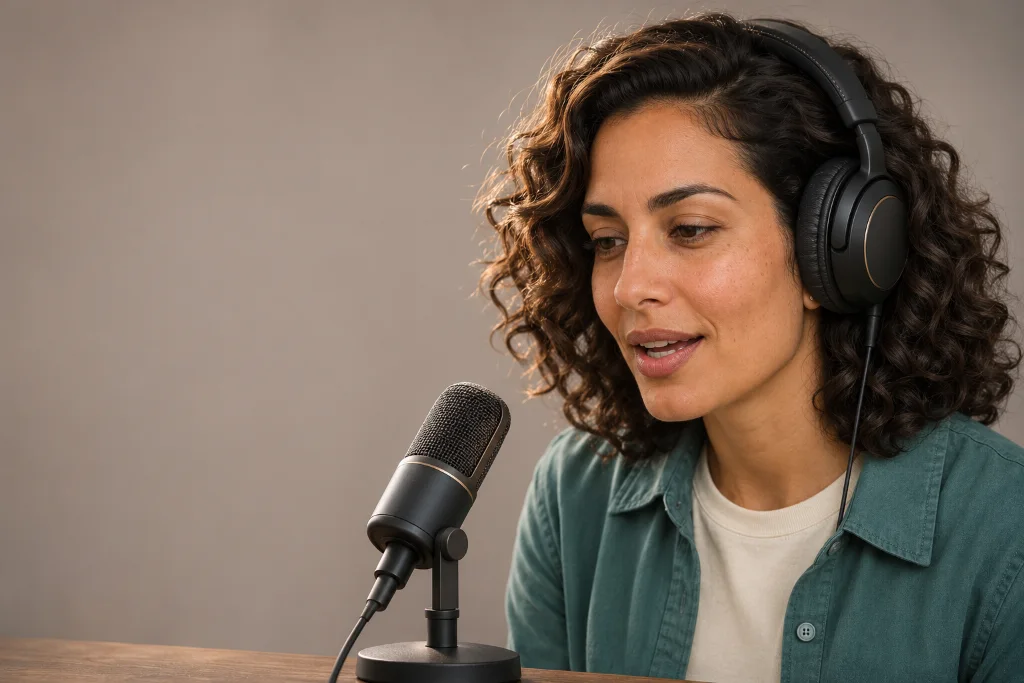
Conversational tone
Measured pace
Emphasize “review”
04 / Check Speech and Face Together
Watch the speaking scene while listening to the approved audio. Check mouth timing, facial detail, expression and the moments when the head turns or a shot changes.
Lip Sync addresses mouth movement against speech. Request a correction at a specific line or moment so the intended presenter and message remain clear.
 “I’ll show you where to find your project settings.”
Creative illustrations with a fictional presenter; not Pexo test outputs.
How it works
Choose the presenter, approve the words and delivery, then review the speaking scene against the reference and audio.
01 / Presenter referenceAdd an authorized portrait or character reference and explain the audience, setting and purpose of the message. Identify the person who should speak if more than one face appears.
Welcome.
I’ll show you where to find
your project settings.
Conversational · Pause after “Welcome”
Provide the final wording or identify the source to adapt. Mark pronunciation, emphasis and pauses, and say whether to generate speech or follow a supplied recording.
03 / Scene illustrationCheck the words, voice, mouth timing and appearance together. After reviewing the performance, Add Subtitles to Video can add readable captions with the wording and placement you specify.
Common questions
A suitable portrait or character reference can provide the visual starting point. Add a script or speech audio and identify the intended presenter; use an image you have permission to animate.
No. A photo supplies appearance, not a voice recording. Describe the desired voice or provide an authorized audio reference, and make clear which speech should guide the video.
Provide the approved script or the speech recording you want the avatar to follow. Keep pronunciation and performance notes separate from the spoken words, then verify the wording and delivery in the result.
Describe the intended delivery, important pauses and the expression that fits the message. Review the generated scene and request a focused change when the performance is too fast, too flat or more expressive than intended.
The Talking Avatar Video Generator page is the focused entry point for that task. Keep the same portrait, approved words and voice instructions together so the speaking performance can be checked against them.
Bring the presenter and message together
Provide the appearance, approved words and voice direction, then review how they work together on screen.