ChatGPT
 Perplexity
 Claude
 Gemini
 Grok
Grok

The fastest "edit" I made this week took one sentence and a short wait, and I never opened a timeline. I described what I wanted to Pexo, my AI video partner, and it handed back a finished cut, then let me reshape it the same way: by saying what to change. That is the whole idea behind this AI video editing tutorial. Four steps, real screenshots, no dragging clips across a track.
Most tutorials for this keyword teach you a timeline: trim here, keyframe there, layer three audio tracks. That works, but it is slow, and it assumes you already shot the footage. The approach below is the opposite. You direct, Pexo produces. No operating, just directing.
 Pexo positions itself as a video partner you talk to, not a timeline you operate.
What Is AI Video Editing (and the Faster Way to Do It)?
AI video editing is using artificial intelligence to assemble, trim, restyle, or polish a video instead of doing every cut by hand. It usually splits into two jobs. The first is AI assisting a classic timeline editor: auto-captions, auto-reframe, silence removal on footage you already have. The second is the one this guide covers: generating an edited, finished video from a description and refining it through conversation, so the "editing" happens when you tell the system what to adjust.
Pexo lives in that second lane. You describe the video in plain language, Pexo plans it, picks the right model, and returns a complete cut with transitions, soundtrack, and pacing already handled. When something is off, you do not reopen an editor. You point at it and describe the change. That difference, no menus and no manual assembly, is what makes the no-timeline route fast enough to do in a single sitting.
What You Need Before You Start
You need surprisingly little. This is roughly the whole checklist:
- An idea you can say in a sentence, even a messy one ("a 20-second product ad, warm morning light, upbeat music").
- One optional asset to anchor the look: a product photo, a logo, or a product page URL Pexo can pull from.
- A target length and shape in mind (a 15 to 30 second clip in 9:16 vertical for social, or 16:9 wide for YouTube).
- A free Pexo account. It is credit-based, and you can start without paying.
No footage library, no editing software install, no prompt-engineering cheat sheet. If you want to see the kinds of outputs this fits, the social video templates are a good preview of the range.
How to Edit an AI Video Without a Timeline, Step by Step
Here is the full workflow on a real example: a 20-second perfume ad I built for a fictional brand called Daybreak.
Step 1: Describe the Video You Want
Open Pexo and type the video the way you would text a friend. For the Daybreak ad I wrote: "Make a 20-second product ad video. Warm and modern, soft natural morning light, clean background, upbeat acoustic music. End on the product with the brand name on screen." No prompt syntax, no settings panel. You can also start from a category like Ads, Product Videos, or Social Media if you want a nudge on format. The point is that the brief is a sentence, not a timeline.
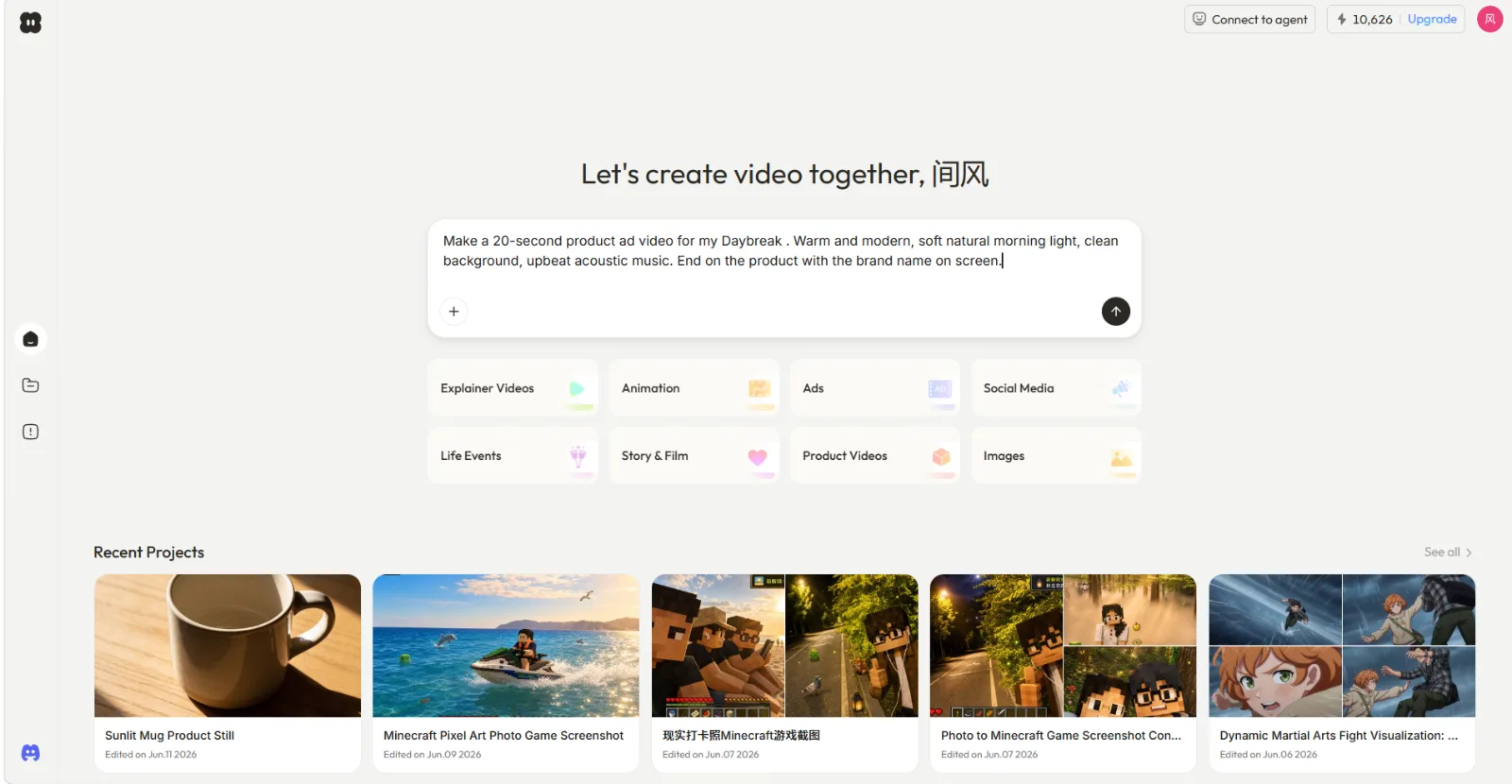 Step 1: the entire brief is one plain-language sentence typed into Pexo.
Step 2: Let Pexo Plan and Build the First Cut
Here is where the conversation earns its keep. Pexo reads your brief, plans the ad, and asks the right question before it spends a single render: it wanted to know what Daybreak actually was and whether I had a hero product shot. I sent a photo, said "use this as the hero product shot," and Pexo went to work, routing the job to a strong model for the look. You are not choosing between Seedance, Kling, and more by hand; Pexo picks the right model (like Seedance) for the scene and builds the first cut for you.
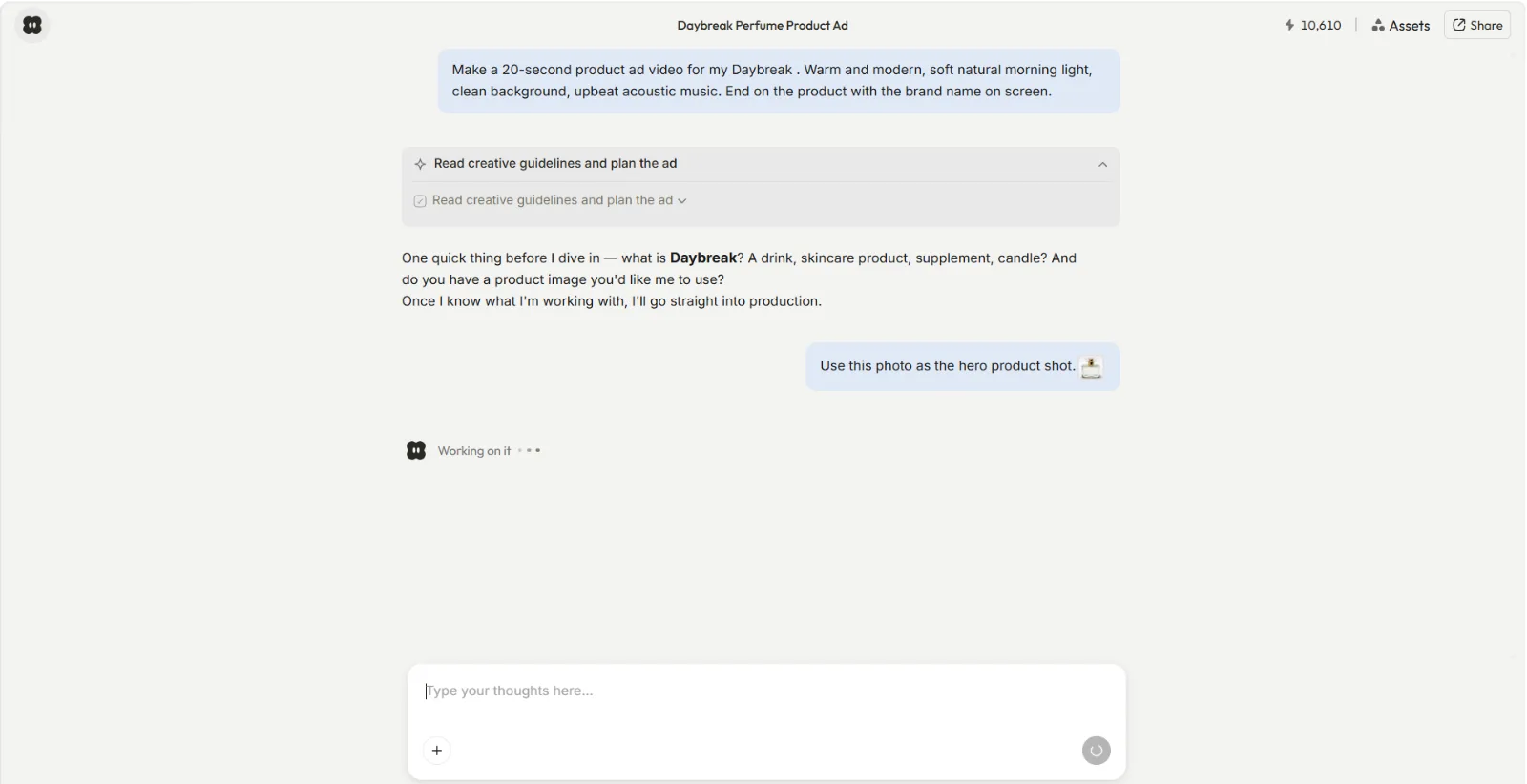 Step 2: Pexo plans the ad and asks a smart question before producing, instead of guessing.
Step 3: Review the First Cut
A short wait later, Pexo returns a complete video, not a raw clip you have to assemble. My first cut came back as a finished 20-second ad in 9:16 vertical, with the morning-light look, the acoustic track, and an end card holding the brand name, exactly the shape I described. Pexo shows its work and asks whether the cut lands, with simple Good, Okay, or Bad feedback so you can react fast. Watch it once, note what you would change, and move on. There is no timeline to scrub through to understand what you got.
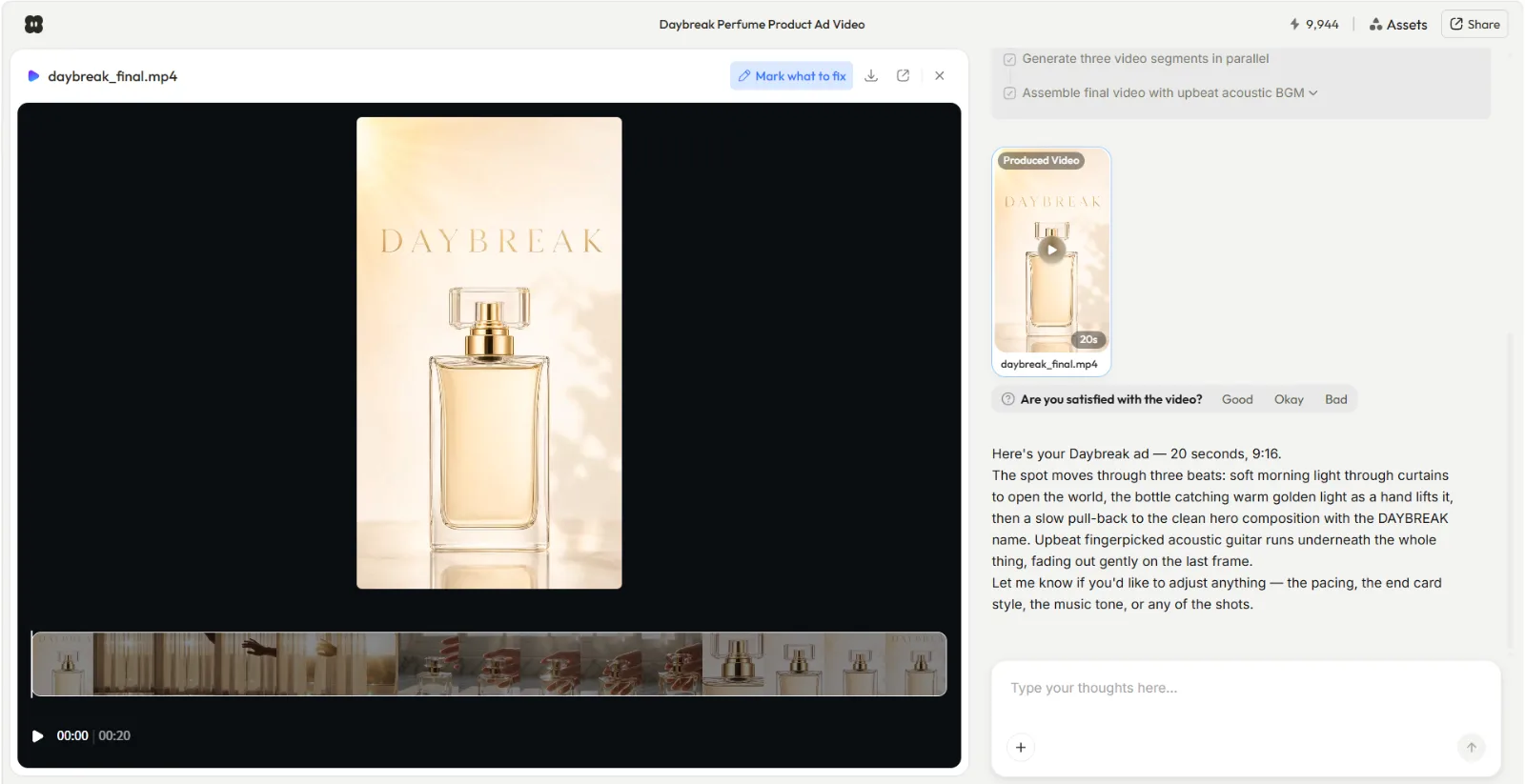 Step 3: the first cut is already a finished 20-second, 9:16 ad, not footage to assemble.
Step 4: Edit by Describing the Change
Here is the part that replaces the timeline. Instead of opening an editor, you tell Pexo what to adjust in words, and it reworks that piece. Want a different feel? Say "make the lighting cooler for a modern cafe mood." Music wrong? Ask Pexo to swap the music soundtrack. You can also re-pace a section, add a text card, change the end frame, or loop it for a social GIF, all by describing it. Pexo keeps the rest of the cut intact and changes only what you asked. When the version is right, you export the finished file and ship it, no render farm and no timeline export dialog.
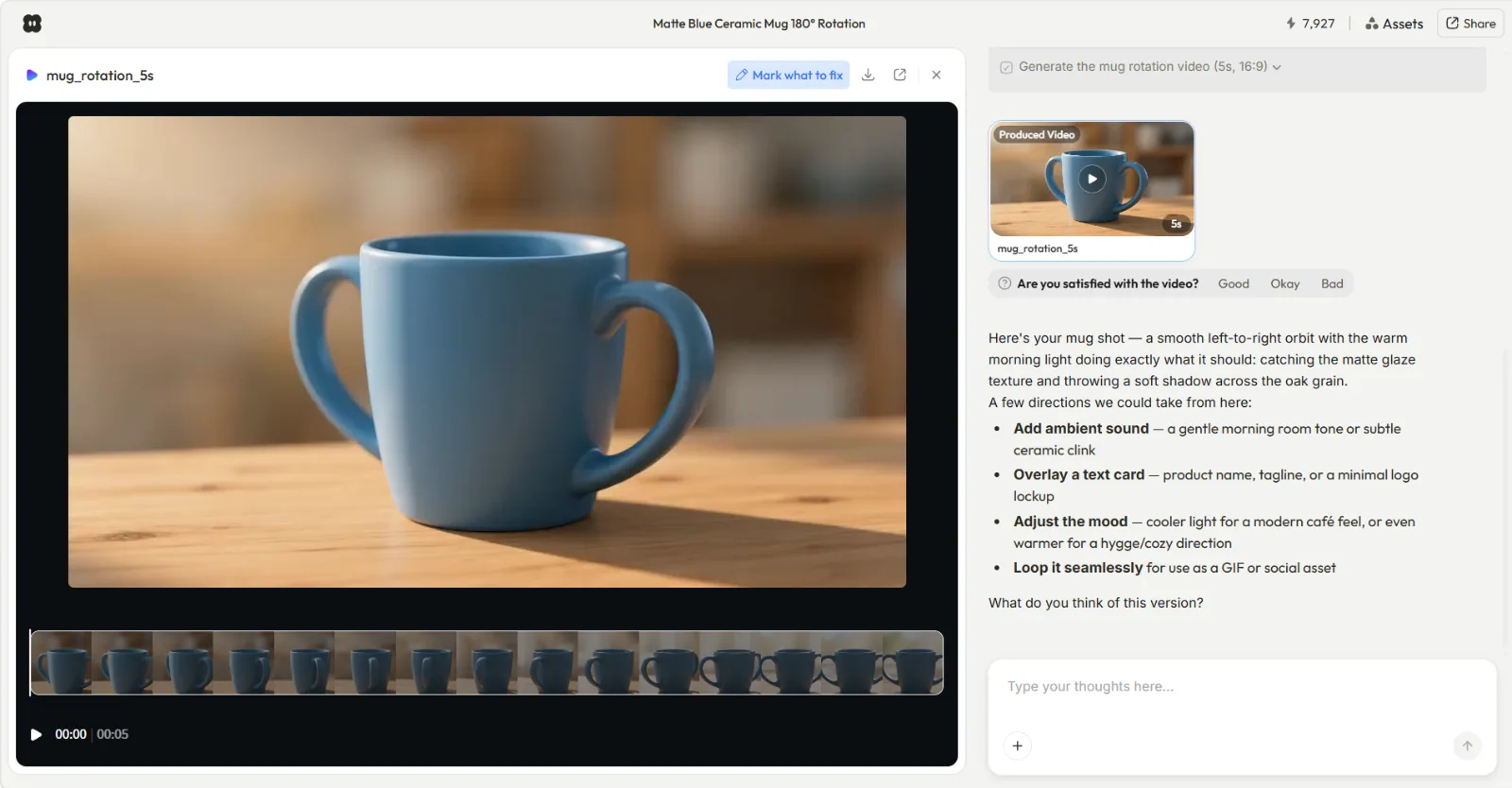 Step 4: every "edit" is a sentence. Adjust the mood, swap the music, add a card, and Pexo reworks just that piece.
Common AI Video Editing Mistakes to Avoid
Three patterns slow people down more than anything else:
- Over-specifying the first brief. You do not need a shot list. Give Pexo the vibe and one or two non-negotiables (length, brand name on screen), then refine. A 1-sentence brief plus 2 rounds of changes beats a 200-word prompt.
- Treating a change request like a re-do. Asking for a brand-new video when you only wanted cooler lighting wastes a render. Describe the single change instead, and Pexo keeps the parts that already work.
- Ignoring the output shape. Generating a 16:9 video and then trying to force it into a 9:16 Reel later is the timeline-era mistake. Tell Pexo the aspect ratio up front so the framing is built correctly the first time.
Pro Tips for Faster, Cleaner Edits
A few habits make the no-timeline workflow noticeably better:
- Anchor the look with one real asset. A single product photo or a product page URL gives Pexo a concrete reference and cuts the number of refine rounds.
- Change one thing per message. "Cooler lighting" then "tighten the first 3 seconds" is easier to judge than five edits at once, and you can always reroll just that section.
- Decide the platform first. A TikTok-style vertical cut and a wide YouTube intro want different pacing; naming the destination shapes the edit.
- Keep your end card simple. One line of brand text on the final 2 seconds reads better than a busy outro, and it is a one-sentence request.
When NOT to Use This Approach
Honesty matters more than a pitch here, so here is where the no-timeline route is the wrong tool. If you already shot real footage and need frame-accurate control, multi-track audio mixing, hand-placed transitions, or precise trims down to the frame, a classic timeline editor is the right call, not a conversational workflow. The same is true if your whole job is repurposing existing clips: cutting a long podcast or livestream into shorts, or adding captions to a video you already own. Pexo builds videos from a description, an image, a product URL, or audio. It does not import your raw footage to edit it. Use this approach when you want to create and finish a video from scratch fast. Reach for a traditional editor when the job is precision surgery on clips you already have.
What Else Can You Use
If the no-timeline path is not your fit, a few well-known tools cover the other lanes:
- CapCut is a free, beginner-friendly timeline editor with solid AI assists (auto-captions, auto-reframe), good when you have footage to cut.
- Runway offers AI generation plus editing features like in-painting and motion tools for more hands-on creative control.
- Descript edits video by editing a transcript, strong for talking-head and podcast repurposing.
Conclusion
AI video editing does not have to mean a timeline, a learning curve, and an afternoon. The whole Daybreak ad, brief to finished 20-second 9:16 cut, came from one sentence, one photo, and a couple of described changes. That is the shift: you stop operating software and start directing a partner that finishes the job. If you want an edited, ready-to-post video without touching a track, describe your first social video to Pexo and reshape it by saying what to change. That is AI video editing without the timeline.