ChatGPT
 Perplexity
 Claude
 Gemini
 Grok
Grok

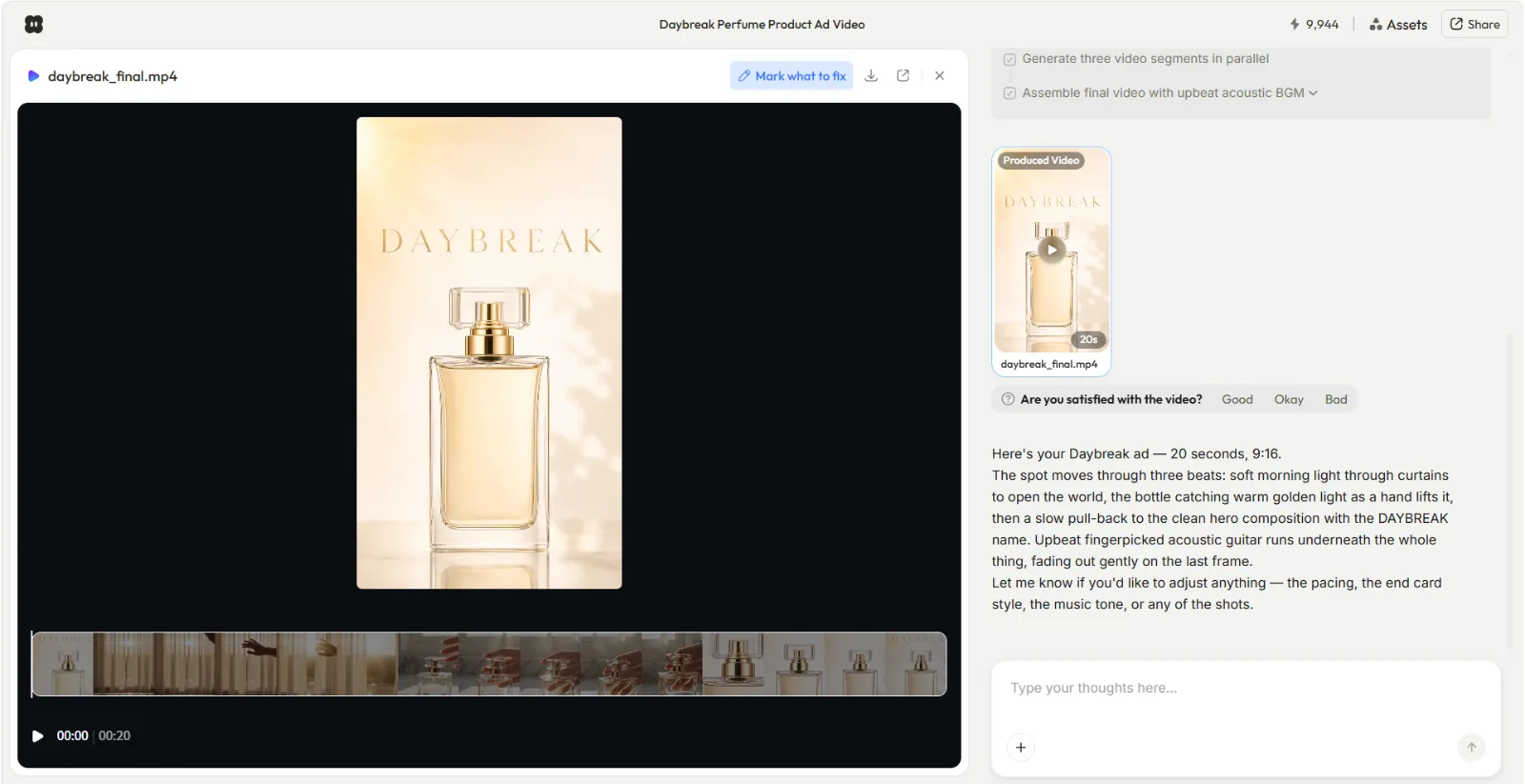 A finished 20-second, 9:16 product ad I made in Pexo by describing it in two sentences. No prompt syntax, no timeline.
I have made a lot of AI video, good and bad, and most of the bad came down to one thing: fighting a prompt box. The workflow that finally fixed that for me is Pexo, an AI video partner you direct by talking rather than by engineering prompts.
So the real lever is not a longer prompt. It is clearer direction, the right starting asset, and fast iteration, and that is what these AI video generator tips are about. I walked them end to end inside Pexo on one real project, a 20-second perfume ad for a brand called Daybreak, and the screenshots below are that actual session. You will see the workflow, the mistakes that quietly ruin a clip, the pro moves that sharpen one, and the honest cases where you should not reach for AI video at all. Start a clip in Pexo and follow along, or read first and try after.
What Is an AI Video Generator (and Why Most Tips Fall Flat)
An AI video generator is software that turns a non-video input, a line of text, a still image, a product URL, or an audio track, into a finished video clip, usually 5 to 60 seconds, without filming or editing. You describe a scene, the system generates motion, pacing, and often sound, and you get a downloadable video in common aspect ratios (9:16 vertical, 1:1 square, 16:9 wide).
Most "tips" articles fall flat because they assume you are wrestling a prompt box: write longer prompts, stack 15 style keywords, memorize camera-move jargon. That advice exists because traditional generators hand you a blank field and say "figure it out." Pexo does not work that way. As your AI video partner, Pexo reads how you naturally describe an idea, half-formed or specific, and picks up on what you actually mean. So the real tips are not about prompt engineering. They are about giving clear direction and iterating fast, which is exactly what the rest of this guide covers. Try describing one idea to Pexo and you will feel the difference in the first reply.
What You Need Before You Start
You need less than you think. There is no script, no footage, and no editing skills required. Before you open Pexo, get three things straight so your first clip lands closer to the target.
- One concrete idea, in one or two sentences. "A 20-second product ad for my Daybreak perfume, warm and modern, soft morning light." That is enough for Pexo to start.
- Any asset you already have. A product photo, a logo, a product-page URL, or a voice clip. Pexo takes text, image, URL, and audio as inputs, so a single bottle photo can become the whole ad. (Note: existing video is not an input, AI video generators build clips, they do not re-cut footage you already shot.)
- Your output target. Platform and aspect ratio decide a lot: 9:16 for TikTok and Reels, 1:1 for feed posts, 16:9 for YouTube. Pick the duration too, most social clips live at 15s to 30s.
Have those ready and the workflow below takes one conversation. Open Pexo and let's walk it.
How to Get Better AI Video Results, Step by Step (in Pexo)
This is the core workflow. Five steps, one conversation, and Pexo does the heavy lifting at each one. I will use the perfume ad as the running example, but the same loop works for a social short, an explainer, or a fun personal clip.
Step 1: Describe Your Idea in Plain Language
Tell Pexo what you want the way you would text a colleague: what it is, who it is for, the mood, and the length. For the perfume spot I typed, "Make a 20-second product ad video for my Daybreak. Warm and modern, soft natural morning light, clean background, upbeat acoustic music. End on the product with the brand name on screen." No keyword stacking, no --ar 9:16 flags. Pexo reads the intent and starts shaping a direction instead of waiting for a perfect prompt.
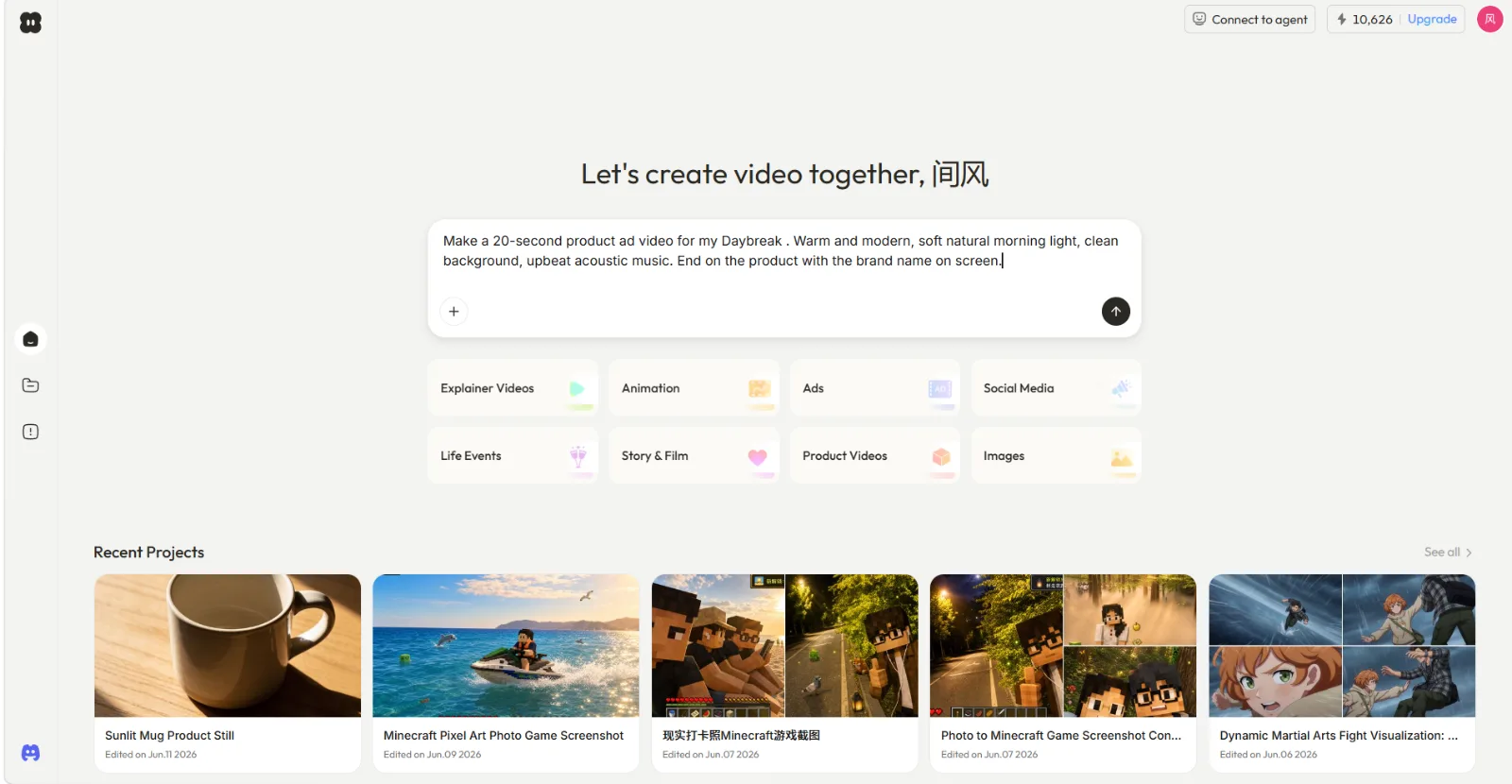 Step 1: I described the ad in two sentences on Pexo's start screen. That is the whole "prompt."
Step 2: Review Pexo's Plan and Quick Preview
Before producing the full clip, Pexo reads the brief, plans the ad, and tells you its thinking. In my case it came back with a question first: what exactly is Daybreak, and do I have a product image to use? That is the partner behavior you want, it brings ideas and catches gaps before generating, instead of guessing and wasting a render. I sent the bottle photo as the hero shot and it went into production.
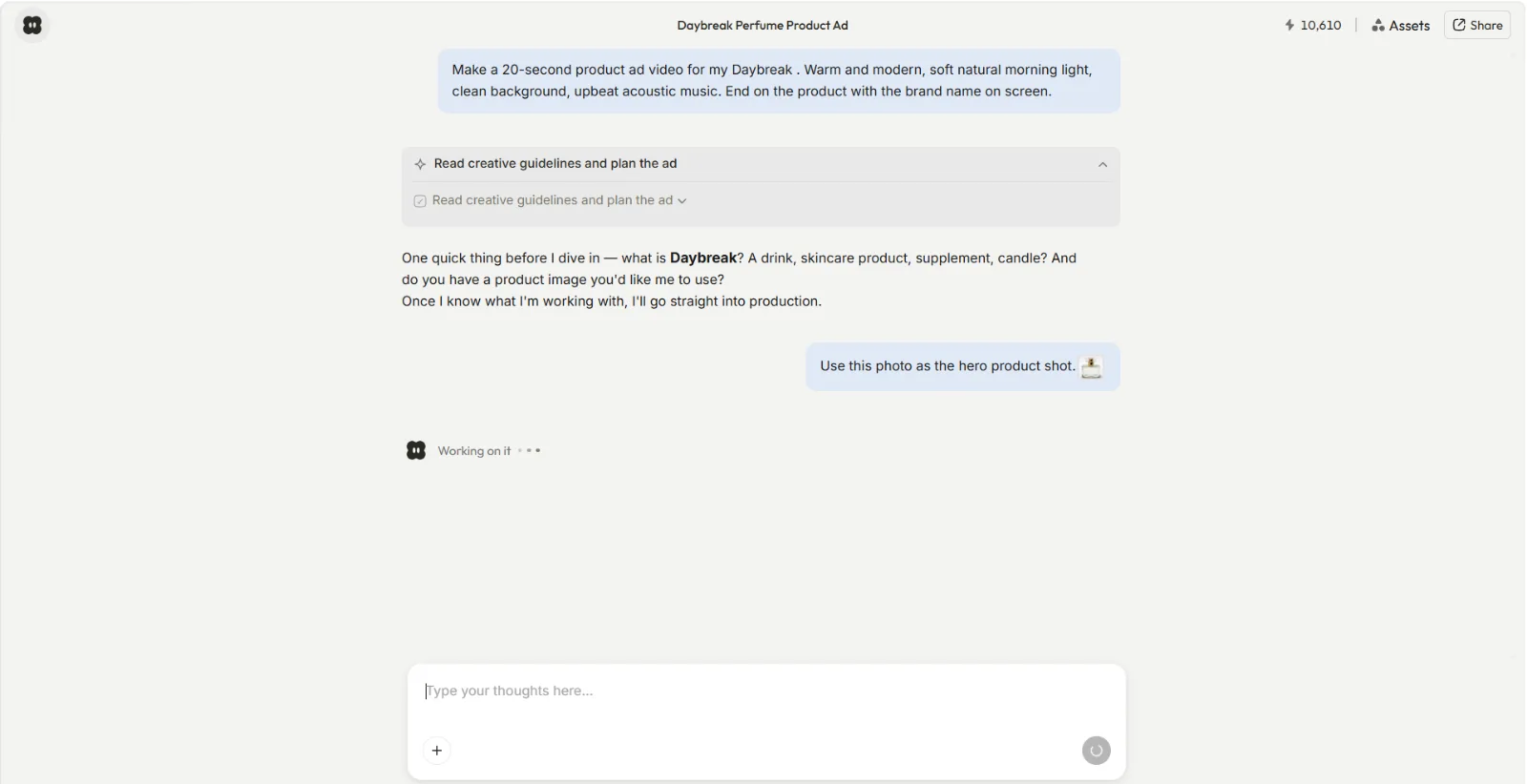 Step 2: Pexo plans the ad and asks the right question before it produces anything. No black box.
Step 3: Redirect by Talking, Not Re-Prompting
This is the step that separates a flat clip from a sharp one. When Pexo hands back a clip, it ends with a plain "what would you change?" and options like adjusting the mood, adding ambient sound, or looping the ending. If something is off, you do not redo everything and reroll from scratch. You just say the change: "make the lighting warmer," "slow the first two seconds," "swap the music for something lo-fi." Pexo adjusts that piece and keeps the rest. I usually run two or three of these small redirections per clip.
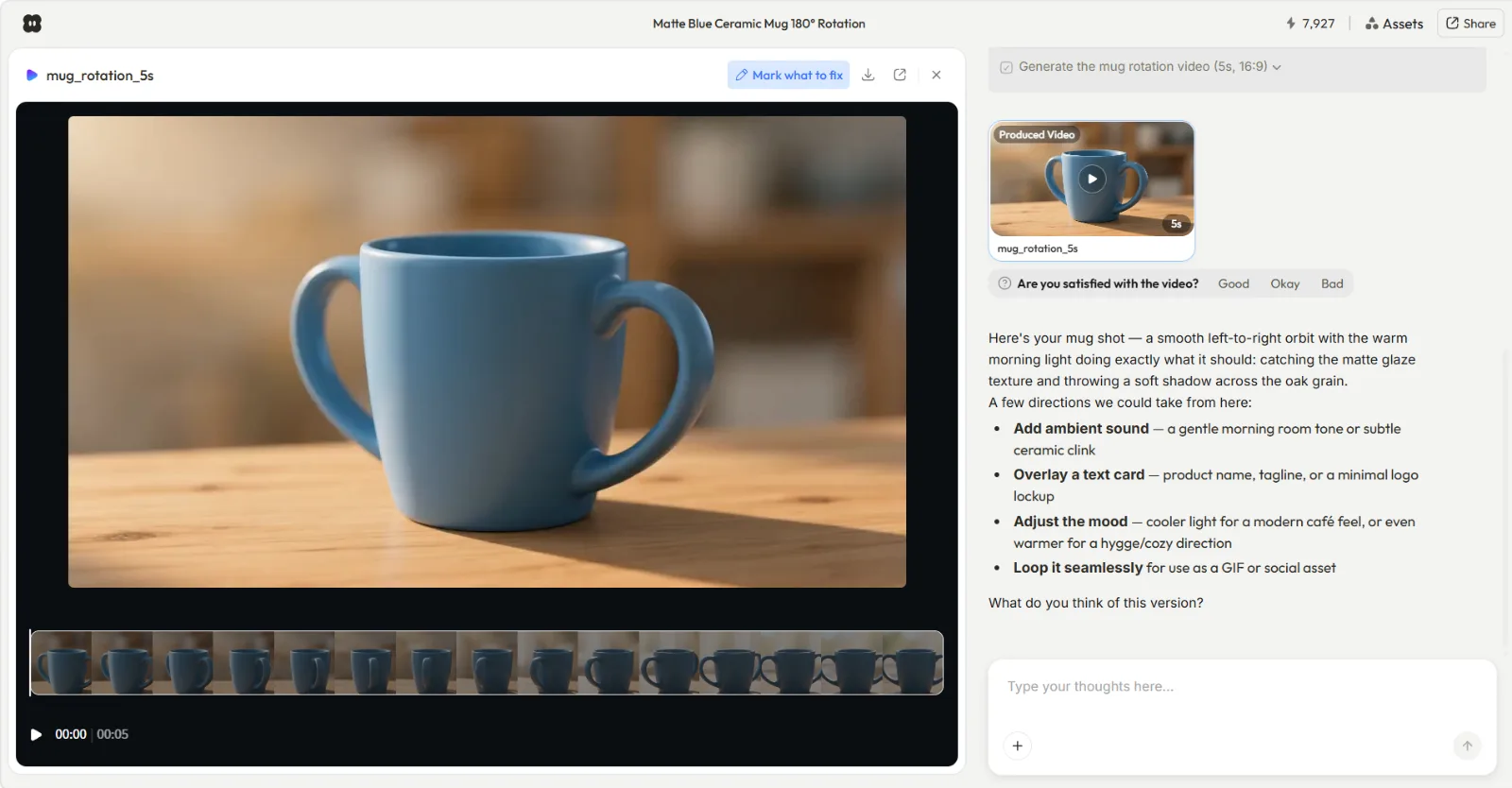 Step 3: Every clip comes back with a "what to change" prompt, so you redirect by talking, not by re-prompting.
Step 4: Pick the Look and Format
Now lock the output to your platform. Tell Pexo the aspect ratio (9:16, 1:1, or 16:9), the duration (15s or 30s for most social, 20s here), and any final style notes. Behind the scenes Pexo routes to the right model for the job, it works with Seedance, Kling, and more, so you are not stuck choosing a model or learning which one is best for a soft-morning-light product shot. You direct the look; Pexo picks the model so you do not have to. See how Pexo's multi-model routing works.
Step 5: Ship to Your Platform
When the clip matches, Pexo hands you a complete, polished video, transitions, soundtrack, and pacing already in place, in a standard downloadable format. The Daybreak ad landed as a 20-second, 9:16 spot that moved through three beats and faded the music on the last frame. Export it, drop it on TikTok, Reels, or your product page, and you are done. One conversation in, a ready-to-post clip out. Make your first clip in Pexo now.
Common AI Video Generator Mistakes to Avoid
Most bad AI video is not the model's fault. It is direction. These are the mistakes I see wreck results most often, and the fix for each.
- Overstuffing the description. Early on I stacked 15 style keywords and three camera moves into a single request and got back a slideshow of unrelated shots, the model tried to honor everything and committed to nothing. Lead with the subject and the mood, then refine in follow-ups. With Pexo you have room to iterate, so you never need the perfect one-shot description.
- A vague subject. "A nice ad for my product" gives the AI nothing to anchor on. Name the product and the feeling: "calm, premium, morning ritual." Specific subject in, specific clip out.
- Wrong aspect ratio. Generating 16:9 for a TikTok crops your subject or adds bars. Decide the platform first, then set 9:16, 1:1, or 16:9 before you generate, not after.
- Fiddling with models by hand. Hopping between model A and model B to find the "best" one wastes time and rarely helps. Let Pexo route to the right model and spend your energy on the creative direction instead.
Avoid those four and your hit rate jumps immediately. Test the loop in Pexo on a clip you actually need.
Pro Tips for Sharper AI Video Output
These work on any AI video generator, so take them to whatever tool you use. I will show how each one plays out in Pexo.
- Iterate by conversation, not by reroll. Treat the first result as a draft. Ask for one targeted change at a time ("punchier opening," "warmer grade") and let Pexo refine in place. Two or three rounds usually gets you there.
- Lock platform specs first. Set aspect ratio and duration up front so every preview is already framed for where the clip is going. It saves a re-generation later.
- Start from an image when you have one. A real product photo or a generated still gives the AI a concrete anchor and a more on-brand result, exactly what the Daybreak bottle shot did above. You can generate that still inside Pexo too, with text-to-image, then bring it straight into the video without leaving the app. Pexo makes images as well as video, so you never need a second tool for the still.
- Describe motion and mood, not jargon. "Slow push-in, soft daylight, calm" beats "dolly 35mm f1.8 golden hour." Plain creative language is what Pexo reads best.
- Feed a URL for product work. Have a product page? Pexo can turn a product URL into a video, pulling the visuals and details so you are not rebuilding the brief by hand.
When NOT to Rely on an AI Video Generator
Honest part, because it makes the rest of this guide trustworthy: AI video is not always the right call. Reach for a camera or an editor instead when:
- You need frame-exact control. Precise on-screen text timing, exact brand-color matching across every frame, or pixel-level layout still belongs in a manual editor.
- You need real footage of real people or events. A genuine customer testimonial, a live event recap, or anything that must be documentably real should be filmed, not generated.
- You are making regulated or claims-heavy content. Medical, legal, or financial videos with strict accuracy and disclosure requirements need human review and real sourcing, not generated scenes.
For everything else, ads, social shorts, explainers, personal clips, an AI video partner like Pexo is faster and far less painful. Knowing the boundary is what makes the speed worth it.
Other AI Video Generators You Can Try
Pexo is what I reach for because of the conversational workflow, but it is worth knowing the landscape. If you want to compare approaches, these are common options:
- Runway leans toward creators who want fine-grained, control-heavy generation and editing-style tooling.
- Google Veo is Google's text-to-video model, strong on cinematic, high-fidelity output.
- Kling is known for fluid motion and longer-form clips.
Each is a capable AI video generator. The difference with Pexo is that you direct a partner in one conversation instead of operating a tool, no prompt engineering, no app-switching, and the right model picked for you every time.
Conclusion
Better AI video does not come from longer prompts. It comes from clear direction and fast iteration, which is exactly what Pexo is built for. Describe your idea in plain language, review the plan, redirect by talking, lock your format, and ship, that is the whole loop, and it fits in one conversation. No prompts, just talk: skip the syntax, skip the timeline, and let your AI video partner do the heavy lifting. Make your first clip in Pexo and put these tips to work on something you actually need to post this week.