ChatGPT
 Perplexity
 Claude
 Gemini
 Grok
Grok


Kling AI is one of the most capable AI video models available right now, and this Kling AI tutorial walks you through making your first clip with it — from creating an account to exporting a finished video — in five steps. Before you dive in, one shortcut worth knowing: if you'd rather skip prompt formulas and credit math, Pexo is an AI video partner that already works with Kling (alongside Sora, Seedance, and more) and routes to the right model from a single conversation. We'll cover that path at the end. First, here's how to use Kling AI directly.
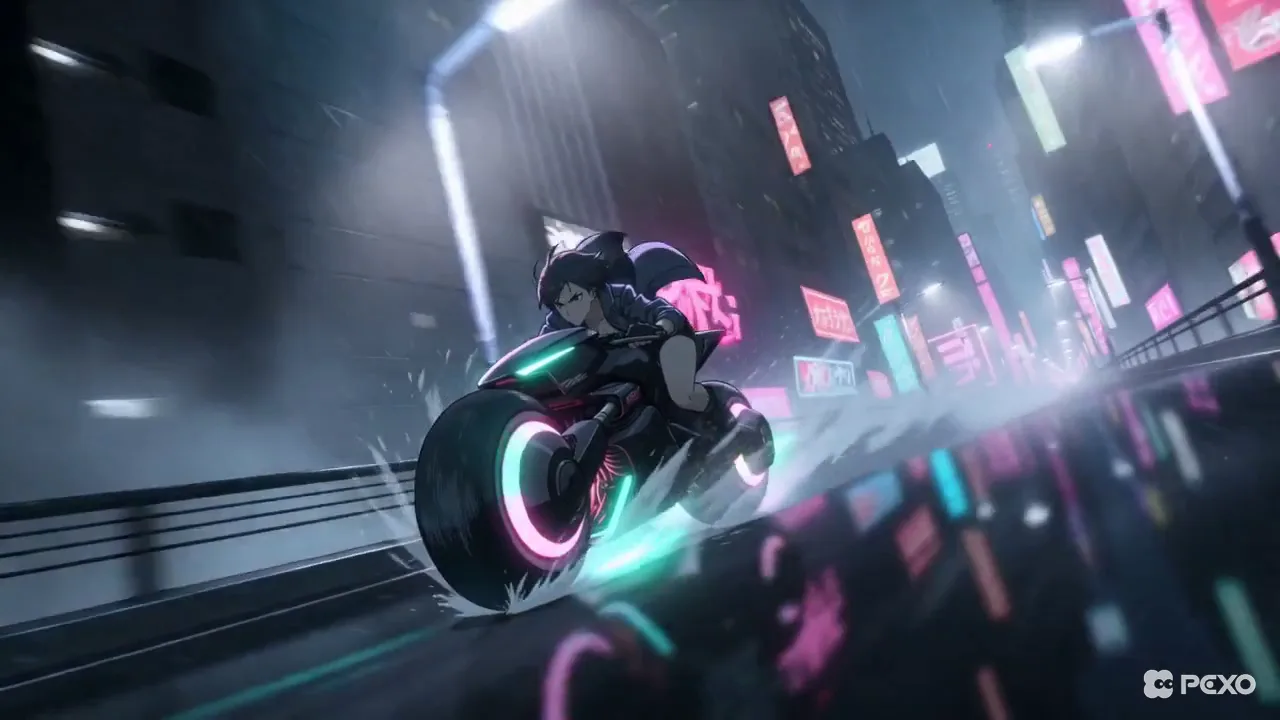 A cinematic clip generated with Pexo — the kind of result a strong AI video model like Kling can produce.
What Is Kling AI?
Kling AI (sometimes written Kling, or 可灵 in Chinese) is a text-to-video and image-to-video model developed by Kuaishou. You describe a scene — or upload a still image — and Kling generates a short, cinematic video clip from it. As of mid-2026, its latest models (the Kling 3.0 series and the O1 line) are known for fluid motion, strong prompt-following, and believable physics. It's a favorite for short social clips, product teasers, and cinematic experiments. Like most generation models, Kling runs on credits and rewards a well-structured prompt — which is exactly what the rest of this guide will help you write.
What You Need Before You Start
You don't need any editing experience to follow along — just a few things ready before you open Kling:
- A Kling account — free to create at klingai.com.
- A clear idea or a source image — Kling can start from a written description or from a photo you upload.
- A few credits — Kling gives free users a daily credit allowance (around 66 credits a day as of mid-2026, refreshed every 24 hours; check Kling's site for the current amount).
- A sense of the format — the aspect ratio, length, and style you're aiming for.
If your source photo is soft or low-res, run it through a cleanup tool like Remini first — sharper input gives Kling noticeably cleaner motion.
How to Use Kling AI: Step by Step
Here's the full workflow, from sign-up to a downloaded clip.
Step 1: Create Your Kling AI Account
Go to klingai.com and sign up with an email or Google account. Once you're in, you'll land on the creative dashboard, with your daily credit balance shown near the top. Free accounts can start generating right away — no payment needed to test the waters.
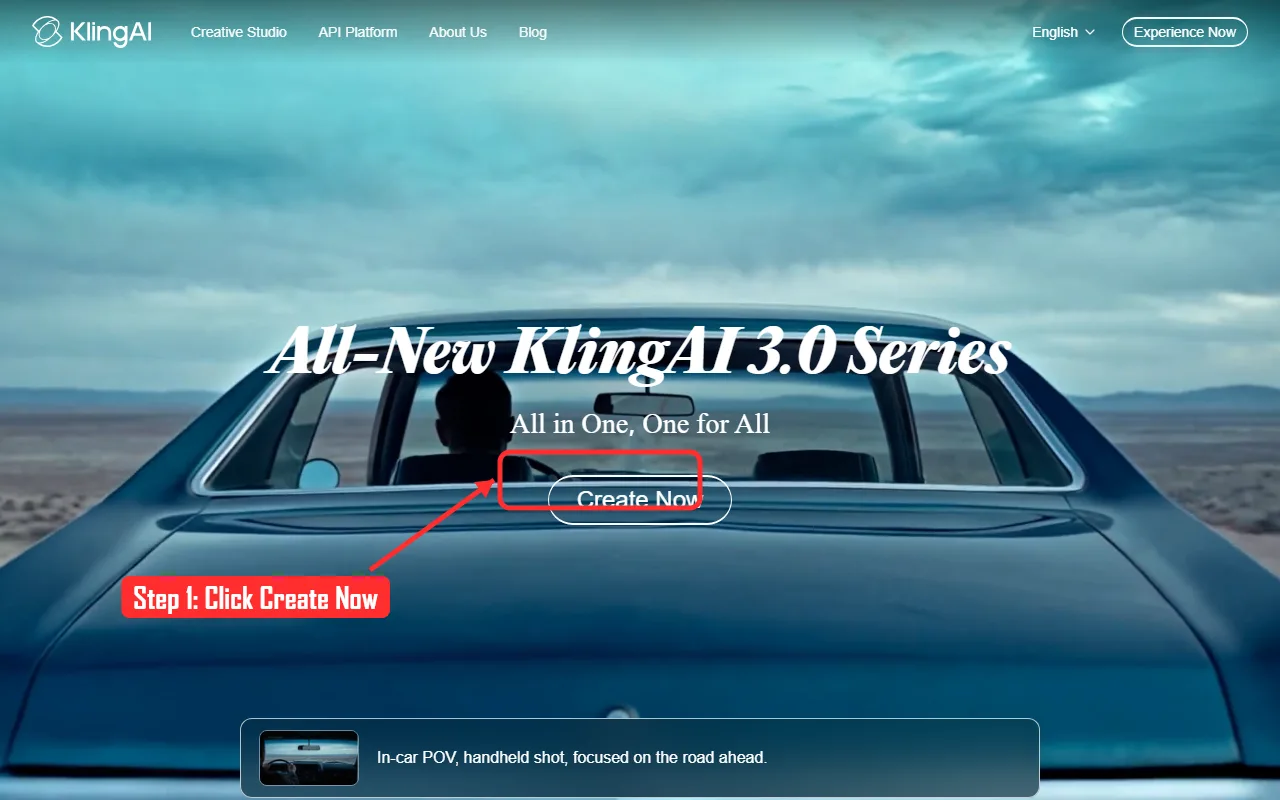 Step 1: head to klingai.com and click Create Now to make a free account.
Step 2: Choose Text-to-Video or Image-to-Video
Pick your starting point. Text-to-Video turns a written description into a clip from scratch; Image-to-Video animates a still photo you upload, keeping its composition and style. Choose Image-to-Video when you already have a product shot or a character you want to move, and Text-to-Video when you're building a scene from an idea alone.
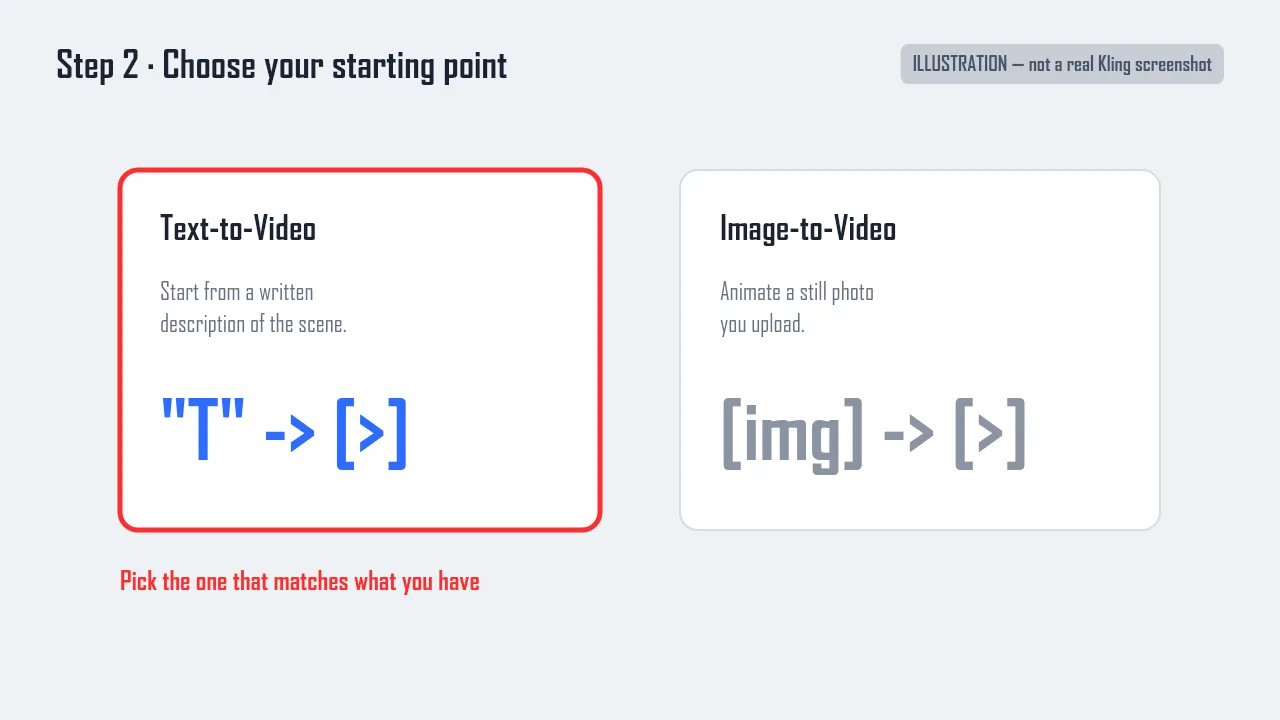 Illustration of Step 2: pick Text-to-Video to start from a description, or Image-to-Video to animate a photo. (Diagram, not a Kling screenshot.)
Step 3: Write a Prompt That Works
This is where most results are won or lost. Kling follows a clear structure best: Subject + Action + Scene + Camera + Lighting. Instead of "a cat in a city," write "a ginger cat trotting along a neon-lit Tokyo street at night, slow tracking shot from the side, warm streetlight glow." Name the camera move and the lighting explicitly — Kling reads cinematic direction, not just a list of objects.
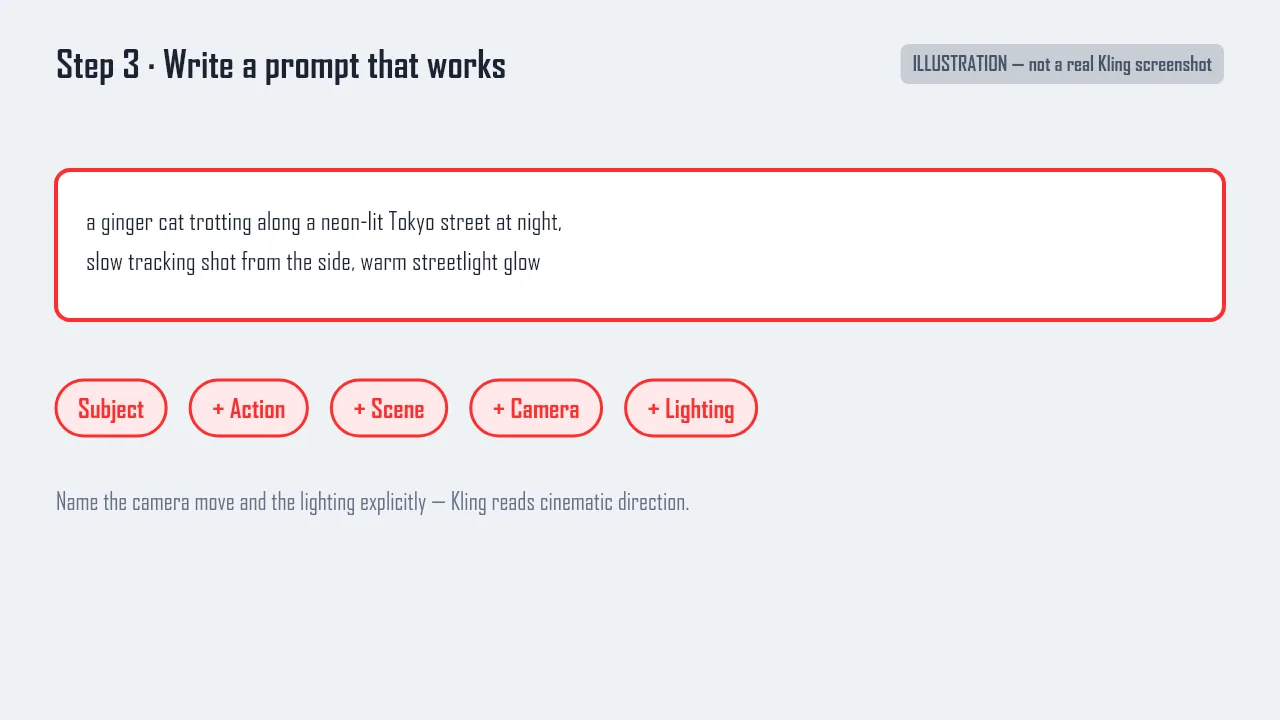 Illustration of Step 3: structure your prompt as Subject plus Action plus Scene plus Camera plus Lighting. (Diagram, not a Kling screenshot.)
Step 4: Set Duration and Mode, Then Generate
Choose your clip length, aspect ratio, and quality mode. Standard mode is faster and lighter on credits; Professional (or the higher-tier model) costs more but gives sharper, steadier motion. Credits are charged per generation based on length, resolution, and mode, so confirm your settings — then hit Generate and wait for the render.
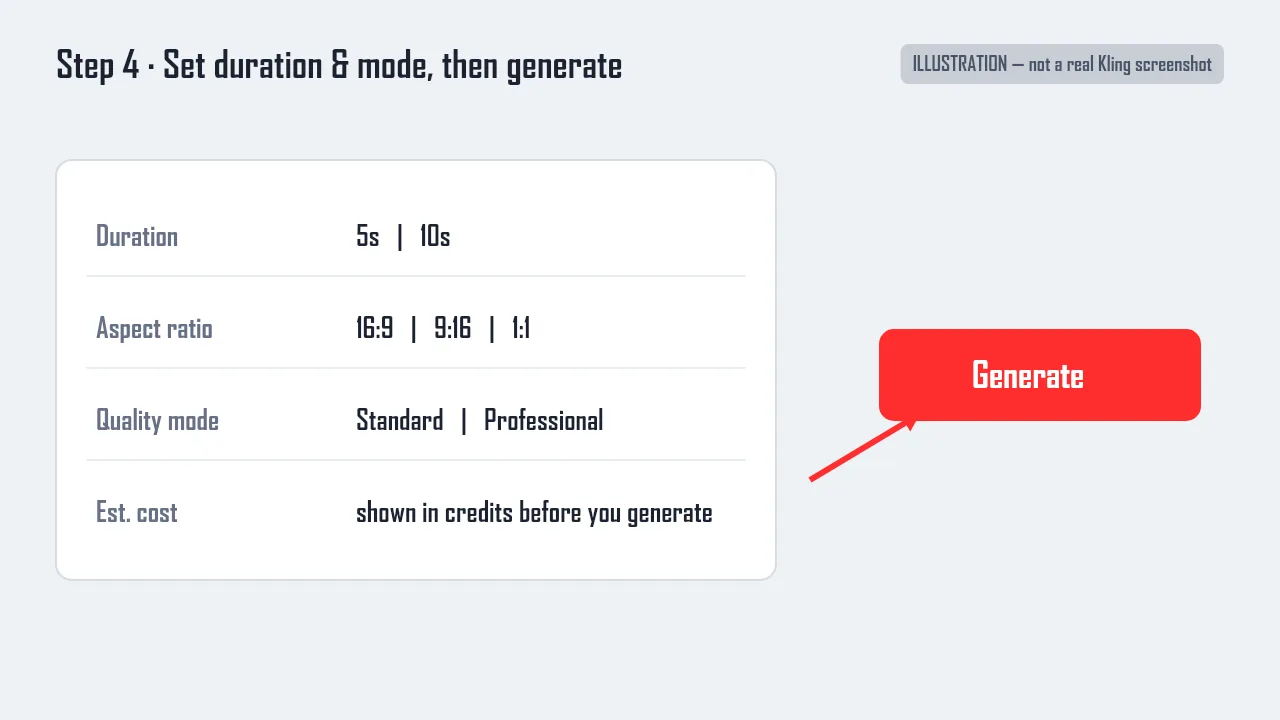 Illustration of Step 4: set duration, aspect ratio, and quality mode, then click Generate. (Diagram, not a Kling screenshot.)
Step 5: Review, Refine, and Export
When the clip is ready, play it back. If the motion drifts or the subject warps, change one variable at a time — tighten the prompt, switch the mode, or adjust the duration — and regenerate rather than rewriting everything. Happy with it? Download the clip in a standard video format, and it's ready to post or edit further.
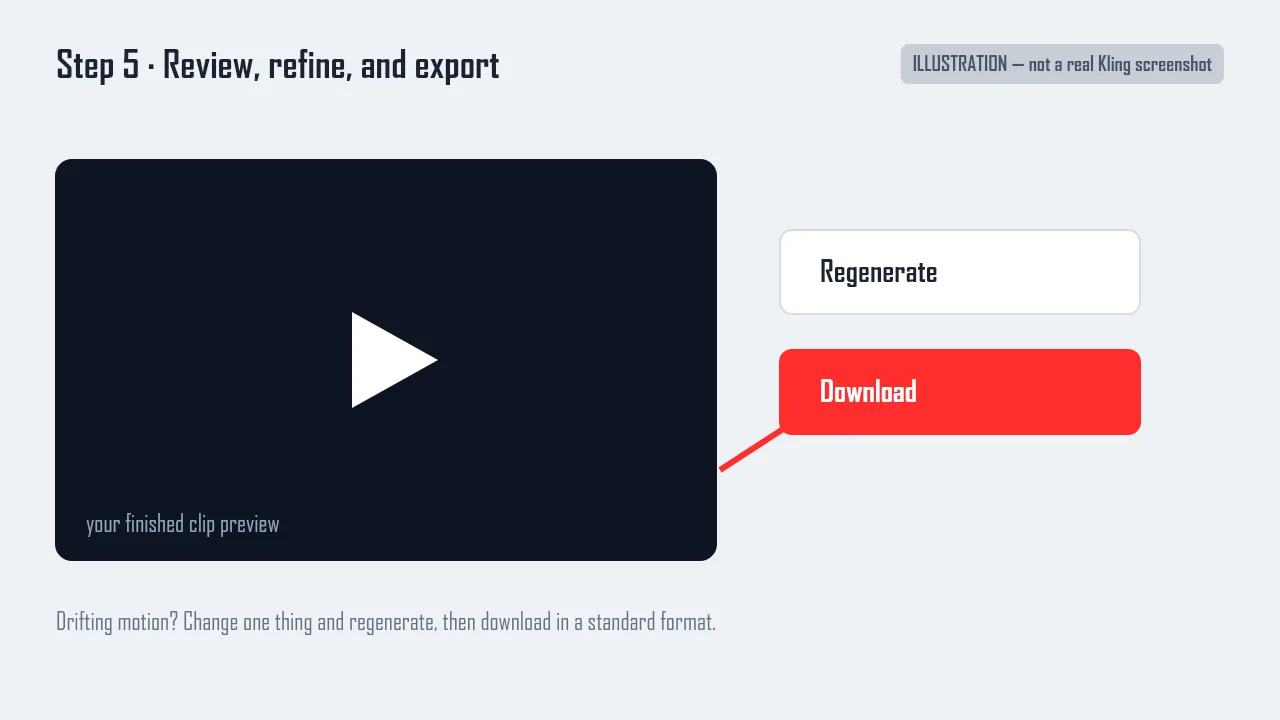 Illustration of Step 5: preview the clip, regenerate to refine one variable at a time, then download. (Diagram, not a Kling screenshot.)
Common Kling AI Mistakes to Avoid
A handful of errors trip up almost every beginner. Steer clear of these and your hit rate jumps:
- Vague prompts. "A nice video of a beach" gives Kling nothing to lock onto. Name the subject, the action, and the setting.
- No camera or motion direction. Without a specified move ("slow push-in," "orbit") and a motion endpoint, subjects tend to drift or freeze.
- Overloading the shot. Cramming six ideas into one prompt confuses the model — keep it to two to four clear elements.
- The wrong mode for the job. Burning Professional credits on a rough test is wasteful; draft in Standard, then finalize in Professional.
- Ignoring credit burn. Long, high-resolution clips eat credits fast — check the cost before you queue a batch.
Pro Tips for Better Kling AI Videos
Once the basics click, these tips sharpen your output:
- Use a prompt structure. The F.O.R.M.S. pattern (Focus on subject, Outcome/action, Realism/style, Motion/camera, Setting) keeps prompts complete and repeatable.
- Be concrete about lighting. Skip "dramatic lighting" — say "golden hour," "neon signs," or "flickering candlelight" for predictable results.
- Add motion endpoints. "The camera tracks the runner, then settles as she stops" tells Kling where the shot resolves.
- Iterate on one variable. Change a single element per regeneration so you can see what actually moved the needle.
- Start from a strong image. For Image-to-Video, a clean, well-lit source photo produces far steadier motion than a noisy one.
Skip the Setup: Get Kling (and More) Through Pexo
Here's the honest trade-off with Kling: the results can be excellent, but you're still learning prompt syntax, picking modes, watching your credit balance, and committing to one model's strengths and blind spots. If that's more setup than you want, there's another way to get there. Pexo is an AI video partner that works with Seedance, Sora, Kling, and more, and picks the right model for each shot — so you don't have to choose. No prompts. Just talk. You describe what you're imagining in plain language — "a moody neon street scene, slow tracking shot" — and Pexo handles the model choice, the prompt structure, and the finishing, then hands you a complete clip.
Because Kling is one of the models in that lineup, you're not trading away its quality — you're skipping the part where you operate it. You can start from text-to-video or animate a photo with image-to-video, and if you want to see exactly where Kling sits among the models Pexo draws on, there's a breakdown on the Kling AI model page. For anyone who'd rather direct than operate, that's the shortcut.
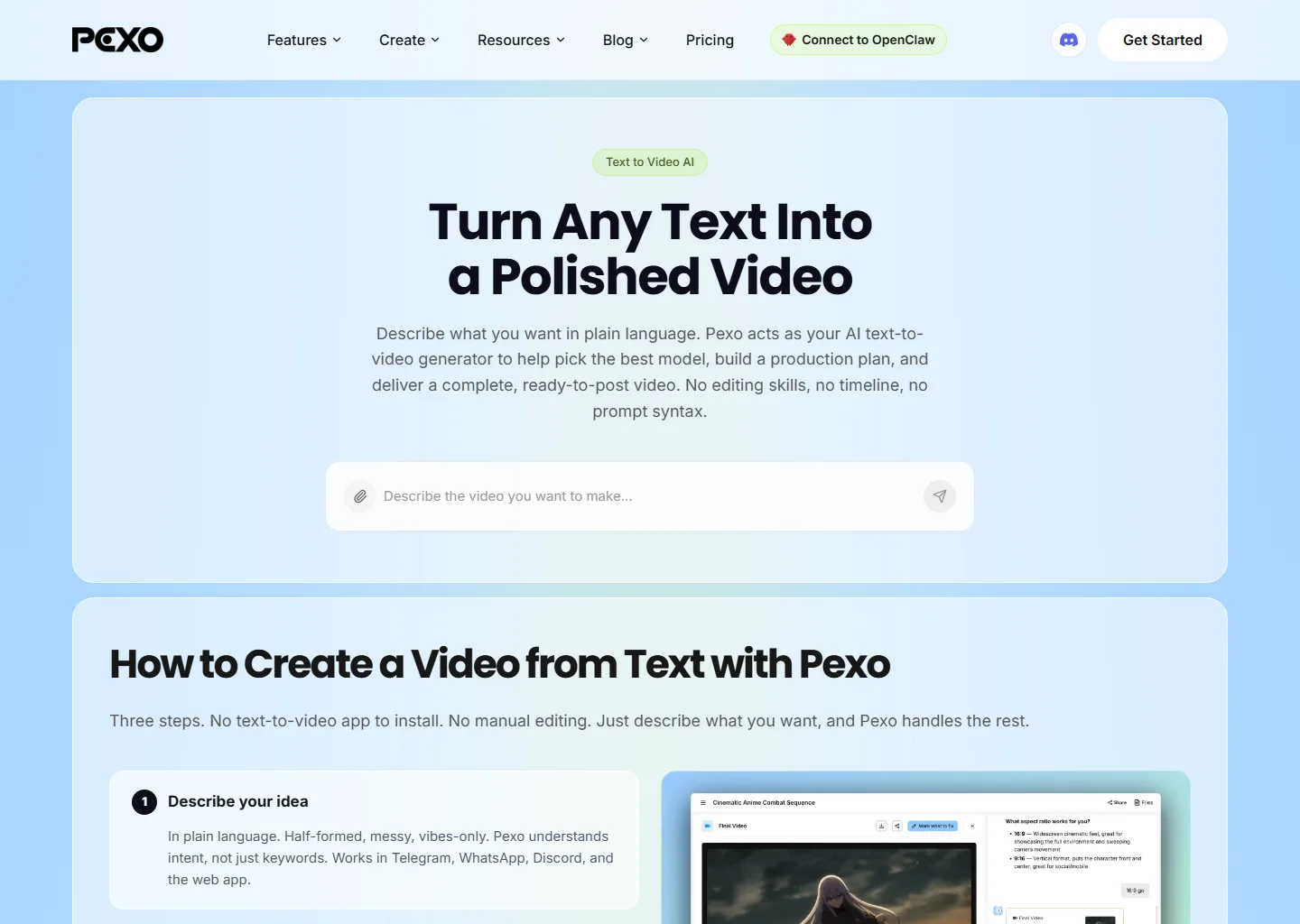 With Pexo you describe the video in plain language and it routes to the right model, including Kling — no prompt formulas to memorize.
What Else Can You Use
Kling isn't the only model worth knowing. A few alternatives, depending on what you need:
- Runway — strong creative control and editing-style features; good when you want fine-grained direction over each shot.
- Luma Dream Machine — fast, fluid image-to-video and camera motion; handy for quick cinematic clips.
- Pika — playful, effects-driven generation that's popular for short, stylized social videos.
Each has its own sweet spot — try a couple and see which one matches your style.
Conclusion
That's the full Kling AI tutorial: create an account, pick text- or image-to-video, write a structured prompt, set your mode, and refine until the clip lands. Get the prompt structure right and Kling can produce genuinely cinematic results. And if the setup feels like a lot, remember you can skip straight to directing — describe your idea to Pexo and make your first short video without touching a prompt formula. Either way, the best way to learn is to generate your first clip today.