ChatGPT
 Perplexity
 Claude
 Gemini
 Grok
Grok


A play button occupies space that could hold a product answer. Give it that space when watching helps a visitor decide. A website explainer video works when the question, surrounding copy, and next click point in the same direction.
Imagine a fictional modular desk lamp. Its video shows the arm folding and shade tilting, motion a still photo may leave unclear. The footage could appear on three page types, each with a different job. These examples are illustrations, not live-site results.
Which visitor question should the video answer?
Answer the question between the visitor and the next useful action. On the lamp’s product page: “How does the arm fold?” A close view of the hinge answers it. Room shots do not.
Write that question beside the proposed player. Watch the cut with the page copy in view. Does the opening show the object named in the headline? Does the ending prepare a visitor to check dimensions or finishes? The video explains an action, the page supplies precise details, and the button lets the visitor continue.
Choose placement by page intent
Placement follows the page’s job. This fictional example helps decide whether the player belongs near the top or beside a specific claim. Some pages need no video.
| Page | Visitor question | What the video should add | Useful next click |
|---|---|---|---|
| Homepage | “What kind of desk products does this brand make?” | A short orientation showing the lamp in a working space and one recognizable movement | Explore the lamp collection |
| Product detail page | “How does this particular lamp fold and tilt?” | A close sequence of the hinge, shade, and folded profile | Check dimensions and finishes |
| Campaign landing page | “Does the compact-desk promise match the product?” | The folding moment that supports the campaign claim, with no unrelated features | View the included items or choose a finish |
Homepage orientation
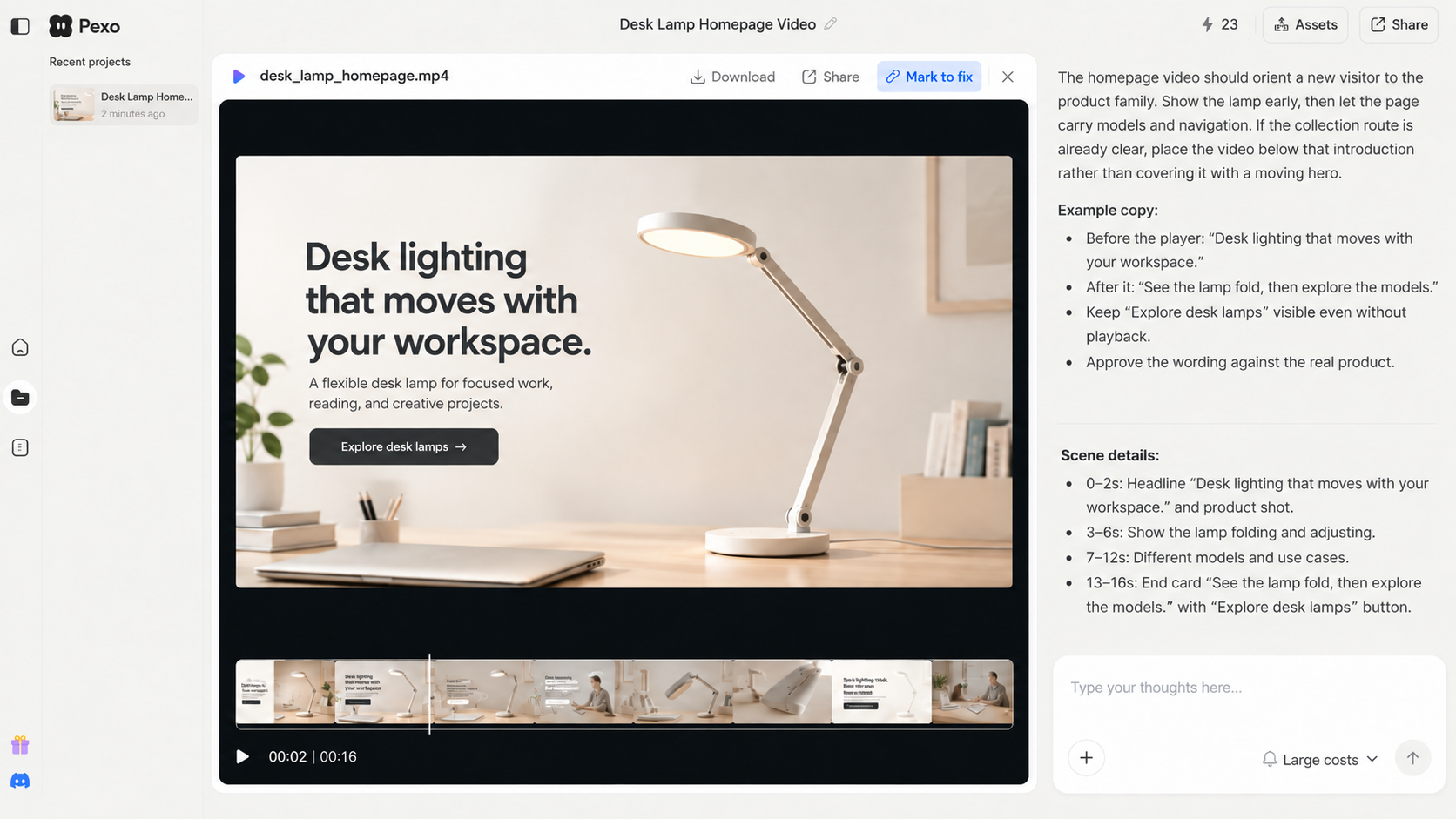
The homepage video should orient a new visitor to the product family. Show the lamp early, then let the page carry models and navigation. If the collection route is already clear, place the video below that introduction rather than covering it with a moving hero.
Example copy: before the player, “Desk lighting that moves with your workspace.” After it, “See the lamp fold, then explore the models.” Keep “Explore desk lamps” visible even without playback. Approve the wording against the real product.
Product detail clarification
Use the product page when motion answers a specific doubt. Place the fold-and-tilt sequence near the hinge description and stills. Keep dimensions, materials, and price in precise text.
Before the video: “Watch how the arm folds.” After it: “Check the folded dimensions before choosing a finish.” The movement is clear; the measurement still matters. For a complex control, an existing product demo may serve better than a broad product explainer video.
Campaign landing page reassurance
A campaign page should confirm the claim that brought the visitor there. If the ad promises a compact desk setup, show the lamp folding and keep the headline aligned. The visitor came to check that promise.
Before the player: “See how the lamp folds for storage.” After it: “Compare the folded size and what is included,” linked to those details. A folding shot cannot establish bundle contents.
Give the player a clear next click
Make the next click useful without playback. The product page can jump to dimensions, the homepage to the collection, and the campaign page to offer details. Keep each button in the page layout, not only in the final frame.
The poster should match the first scene. Show the lamp partly folded, labeled “See the folding arm.” After playback, leave the button in view. If the cut ends on a different offer, fix that disagreement first.
Pexo’s URL-to-video guide describes using a public page as source, directing the message, and reviewing the result. Your site team supplies the player and click tracking. Use assets you may reuse, and check visible text and product details before placement.
Keep essential information available outside the video
Keep the answer and next action readable on the page. Visitors may skip the player or encounter a failed embed. The lamp page still needs the hinge description, dimensions, and destination link in text. Video adds motion; material facts remain available without it.
Caption meaningful speech and sound; describe visual steps in a text alternative when they carry information. W3C’s media guidance covers captions, transcripts, visual descriptions, and players. Test your chosen player. web.dev’s performance guide explains how a poster can give context before user-initiated playback.
Evaluate page behavior without assuming causation
Measure page visits, player starts if available, clicks to details, and completed orders or inquiries. Define each event first. A player start is not a detail click, and a detail click is not an order.
Analytics needs a setup check. Google’s event documentation explains collecting site interactions, but verify what your player sends. Compare equivalent pages and windows. If the headline, price, or traffic also changes, a higher click rate cannot be assigned to the video alone. Use a controlled test when that causal claim matters.
After review, move the player, change its opening, clarify nearby copy, or remove a video that answers no page question. A separate distribution plan can cover ads, email, and social; this review concerns the website page.
With approved page assets, start a conversation with Pexo about the visitor question. Review the cut against the page before your site team publishes it.