

AI Footwear Showcase Video
Make a footwear showcase video with Pexo. Show the profile, lacing, and walking view with actual footage and prepare a short, clear product demo.
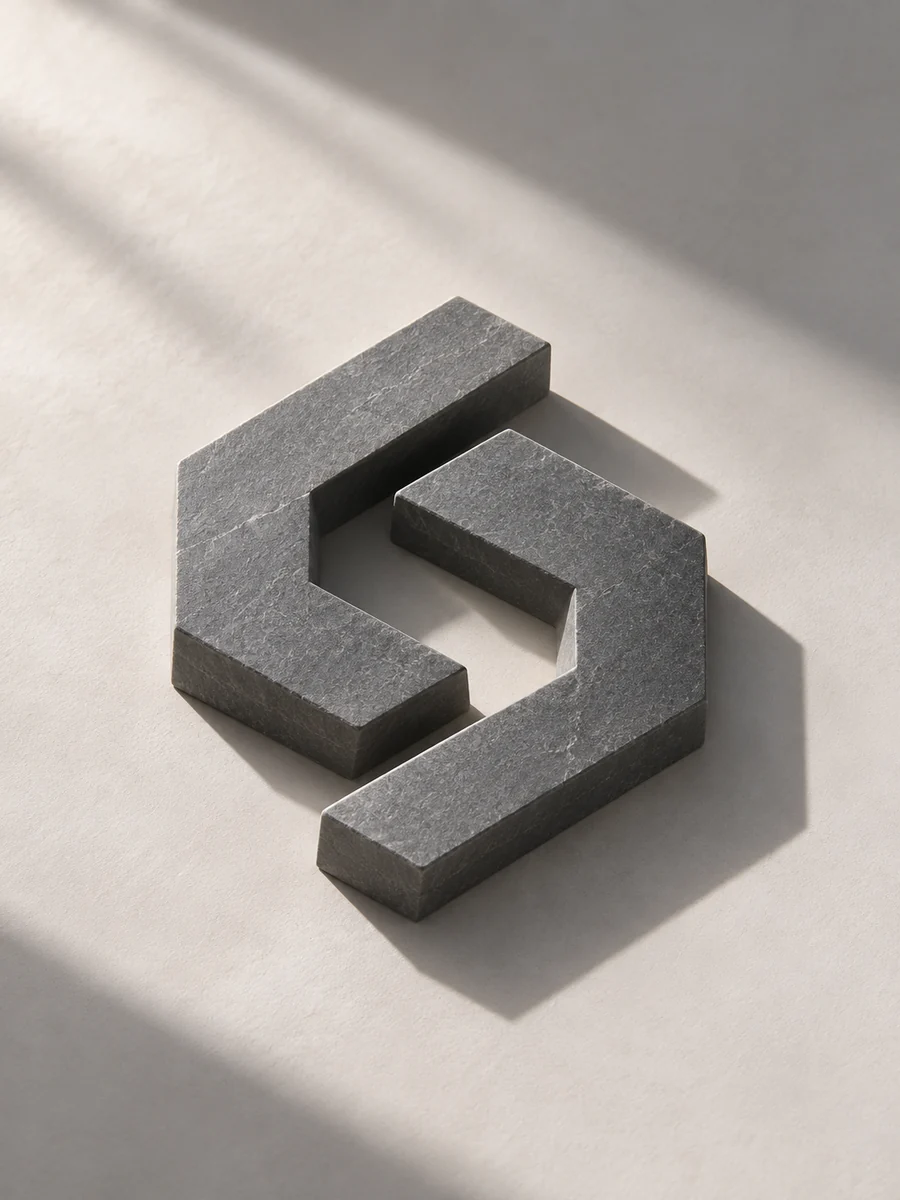
Make an AI 3d logo reveal video. Give your brand mark a dimensional reveal with a clear final angle. Use your own source material and review the dimensional mark turning into the approved view in the finished cut.
Bring the approved mark, a color reference, and any exact wording for the opening. In Pexo’s 3d logo reveal video maker, give the opening just enough space to identify the dimensional mark turning into the approved view, then make the light across the volume the center of the first cut. Use Image to Video with your brief, then review the dimensional mark turning into the approved view.

The result preview focuses on the dimensional mark turning into the approved view. Review each of the checks before shaping the complete cut.
What to review
Begin with a partial view and use a simple moving light or camera angle to make the depth visible. Choose a final view where the letters or symbol have the expected proportions. Keep one floor or shadow reference so the turn reads clearly.
Use a short low sound as the shape reaches the full view and keep it faint under any launch music. Watch the preview with and without sound so the reveal also reads as visual motion. Use Music Generation to try the treatment and listen against the actual pictures.
Hold the approved front view or a clean lockup after the animated turn. Review the texture, type, and edge shapes against the brand file. Export the result as a video for the opening where it will play.
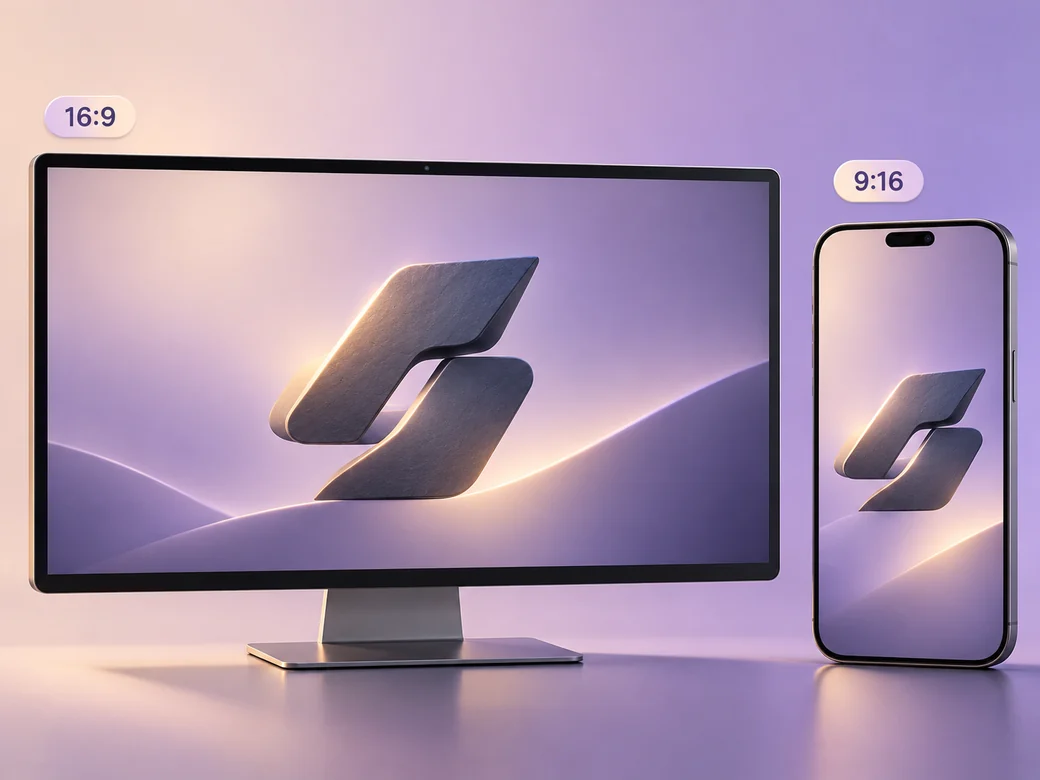
Keep a wide cut for a launch video, brand book preview, or keynote opening. For a 9:16 excerpt, retain the dimensional mark turning into the approved view and review how it fits on a phone. Check the start and the last frame at the intended size and give any text enough time to read.
“In Pexo, I check the light across the volume at normal playback speed. It should build to the approved mark.”

“I test one short cue against the final frame. The cue should arrive where the shape resolves.”

“I compare the last frame with the supplied brand file. It has to read at the smallest size we plan to use.”

A 3d logo reveal video is a finished edit that helps you give your brand mark a dimensional reveal with a clear final angle. It can be prepared for a launch video, brand book preview, or keynote opening, with enough context for the viewer to follow the dimensional mark turning into the approved view. Choose a few moments that improve the final result and give each one time to read before the next cut.
Bring the approved mark, a color reference, and any exact wording for the opening. Give each source a short name that describes where it belongs, and include any exact wording that should appear. Tell Pexo which part matters most and how you plan to show it. That gives you a clear first version to review.
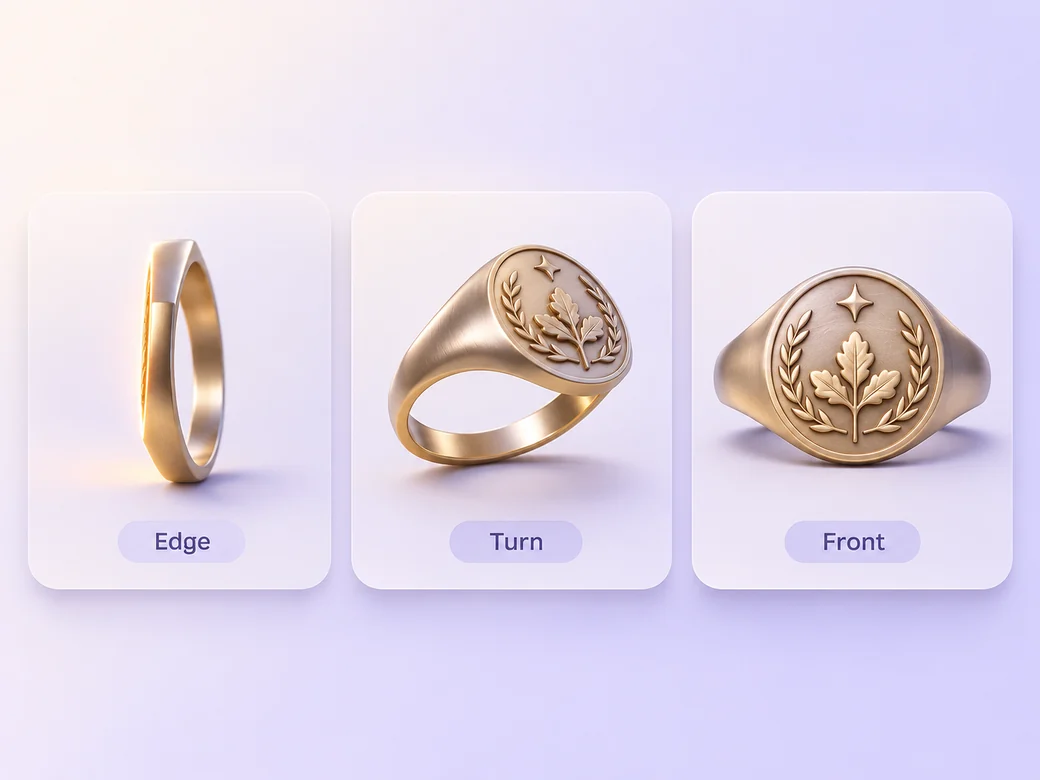
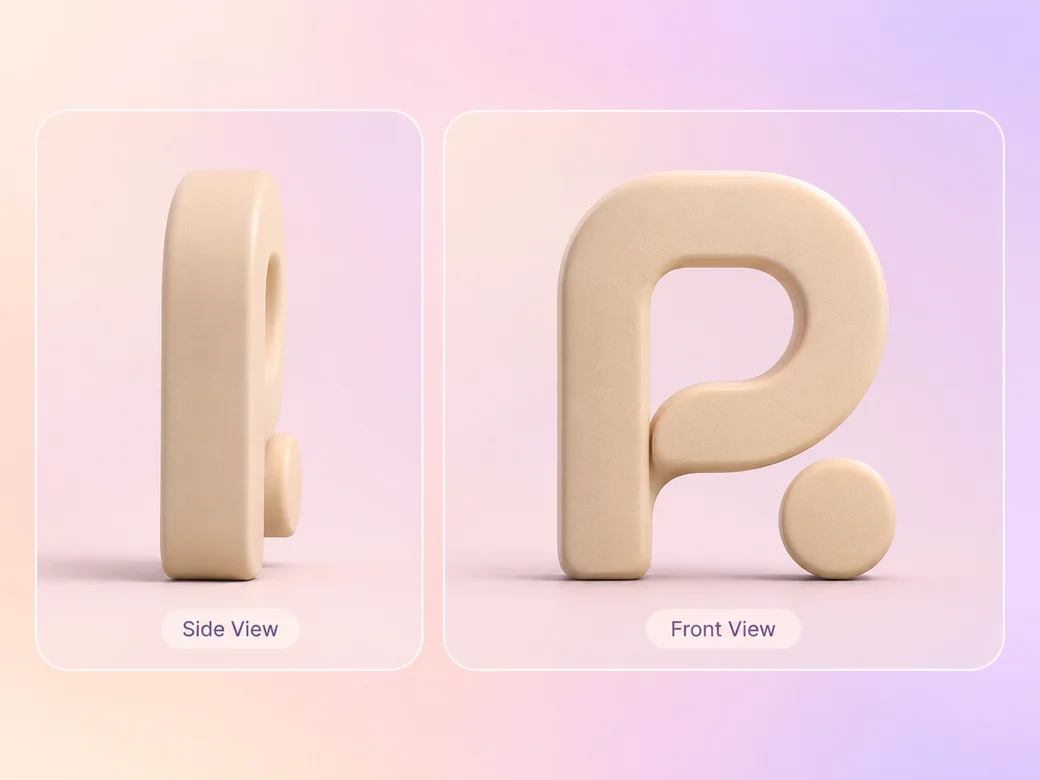
Bring the approved mark as a clean reference. Build the motion from its real shapes, and inspect the preview against the original artwork. Use an approved final logo image where exact lettering, spacing, and geometry matter. Check the shape and background once more at the size where the clip will appear.
Pexo helps organize your material and revise the framing, pacing, and sound after you review the result. Use the source that documents your actual subject for the dimensional mark turning into the approved view. For a separate illustrative insert or visual opening, Kling AI 3.0 can animate an approved reference image.
This logo video focuses on the dimensional mark turning into the approved view and holds the final mark long enough to recognize it. A wider motion graphics project can include titles, graphic explanations, or an entire campaign. Choose this format when the logo’s first appearance is what people need to remember as the next scene begins.
Use subject + action + camera movement + setting + style. Try ‘Use approved references for the dimensional mark turning into the approved view. Light the edge of the mark and reveal the full shape. Start wide and move closer when the main action begins. Keep the original texture and colors in the scene. Show the complete mark at rest.’
Bring the approved mark, a color reference, and any exact wording for the opening. Start with the dimensional mark turning into the approved view and review the first cut at the intended size.
Make a footwear showcase video with Pexo. Show the profile, lacing, and walking view with actual footage and prepare a short, clear product demo.
Make a food product showcase video with Pexo. Show the packaging, texture, and serving view with actual footage and prepare a short, clear product demo.
Make a pet supplies showcase video with Pexo. Show the setup and supervised pet interaction with actual footage and prepare a short, clear product demo.
Make a sports and outdoor product showcase video with Pexo. Show the folded size and setup sequence with actual footage and prepare a short, clear product demo.
Make a jewelry product showcase video with Pexo. Show the finish, closure, and scale with actual footage and prepare a short, clear product demo.
Make an apparel product showcase video with Pexo. Use approved footage to show the shape, fit, and knit. Review the finished video for your product listing.
Make an electronics product showcase video with Pexo. Show the hinge and lighting change with actual footage and prepare a short, clear product demo.
Make a home and kitchen product showcase video with Pexo. Show the lid, stack, and storage fit with actual footage and prepare a short, clear product demo.