Pexo

ChatGPT Images 2.6

ChatGPT Images 2.6
Create the still. Refine the details. Add a little motion.

ChatGPT Images 2.6 is OpenAI’s image generation and editing release, announced November 4, 2026. Its Flare and Sunburst API models offer two starting points for creative work: rapid iteration or detailed visual production. The release adds markup-guided edits, vector SVG export and animated GIFs alongside still-image creation.

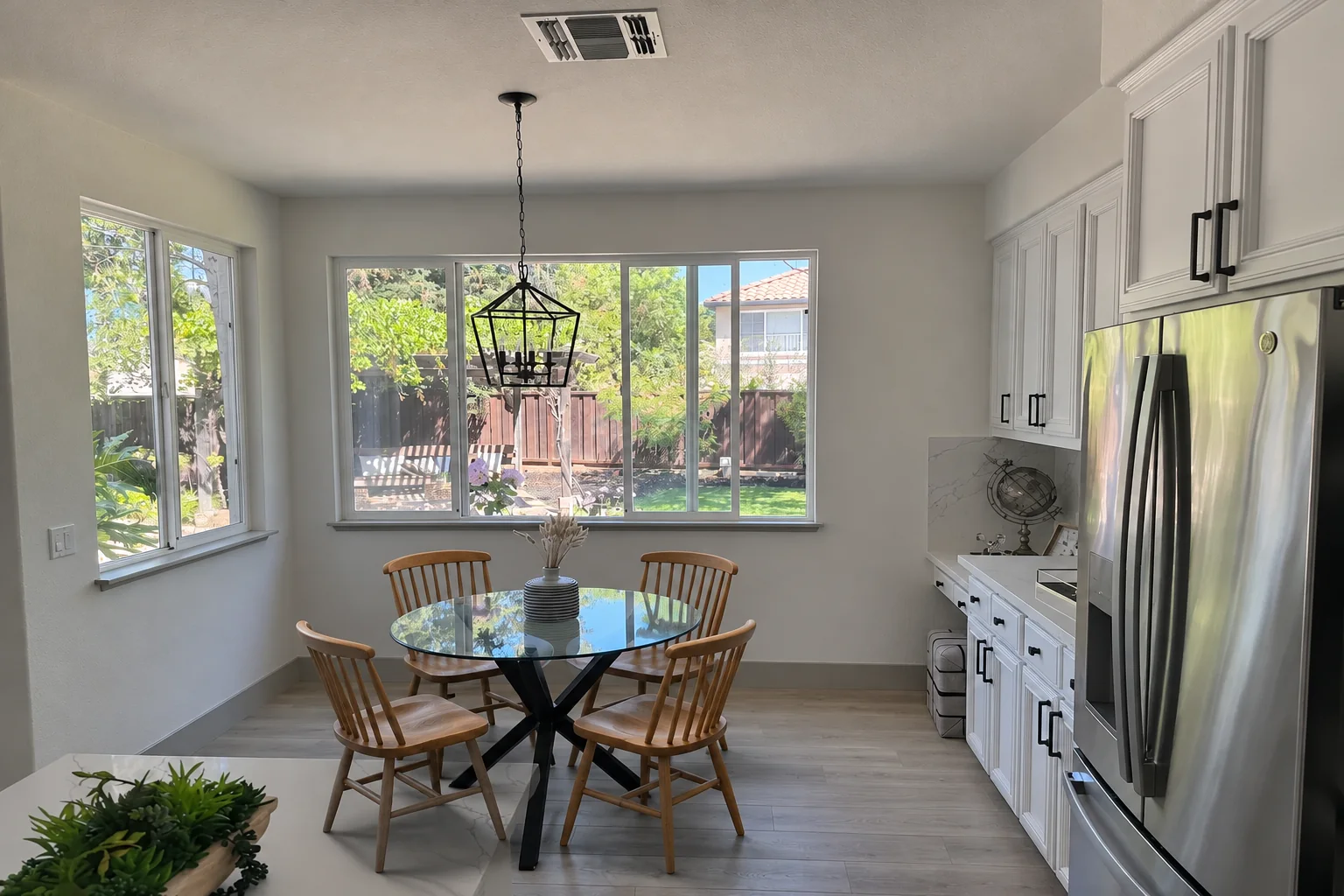
Kitchen with replacement wooden chairs — GPT Image 2.6 Sunburst

Core capabilities

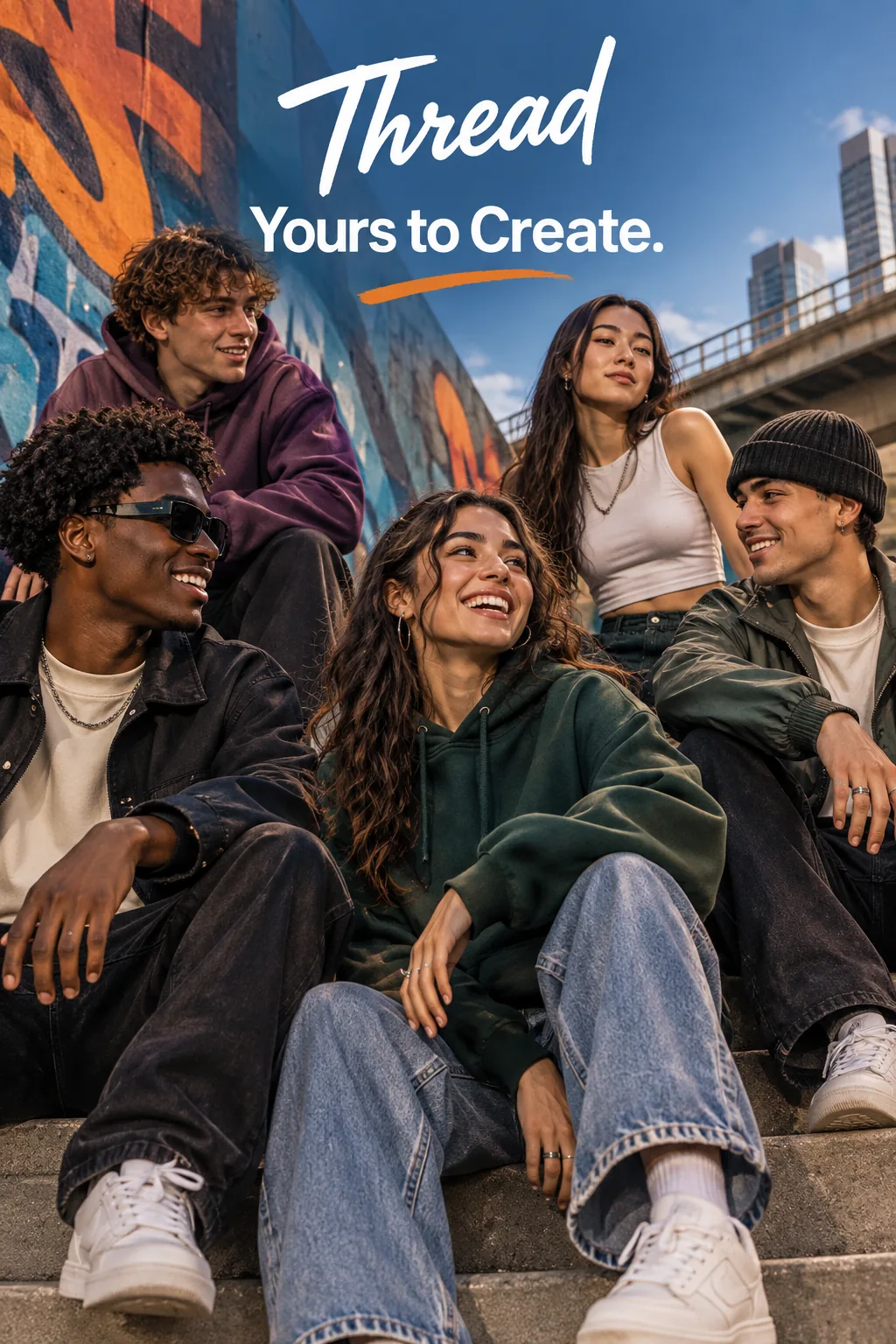
Thread streetwear campaign with the requested tagline — GPT Image 2.6 Flare

Flare example

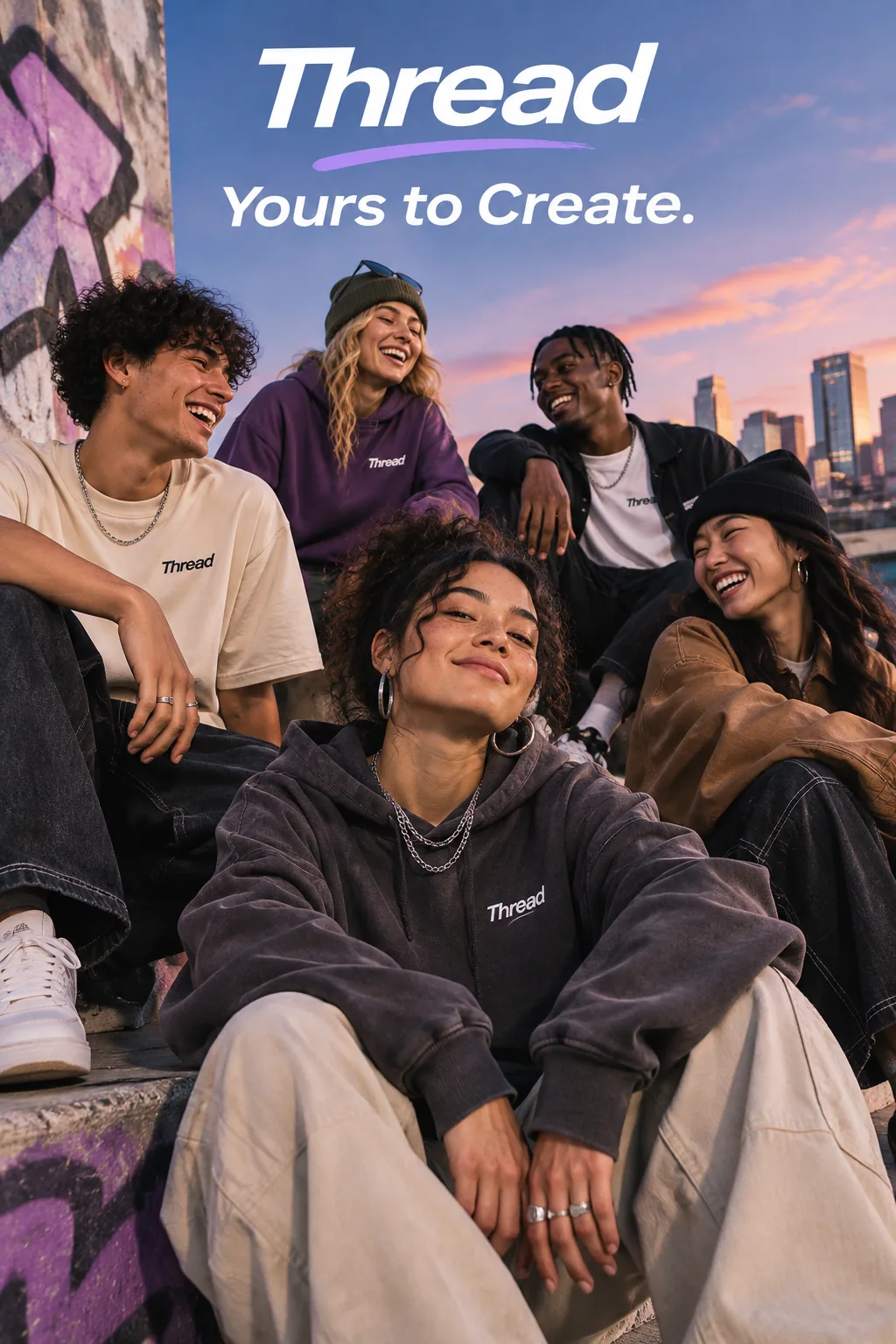
Thread streetwear campaign with the requested tagline — GPT Image 2.6 Sunburst

Sunburst example

Create a relaxed streetwear campaign. Show friends together and include one short, legible brand headline.
Example prompt

Build campaign images from a written brief

Create stills for a launch, a social post or a visual concept. A short brief can define the people, setting and lettering, as in this streetwear example. Flare is positioned for quick iteration; Sunburst is the option to test for more demanding detail. Proofread every headline before delivery.
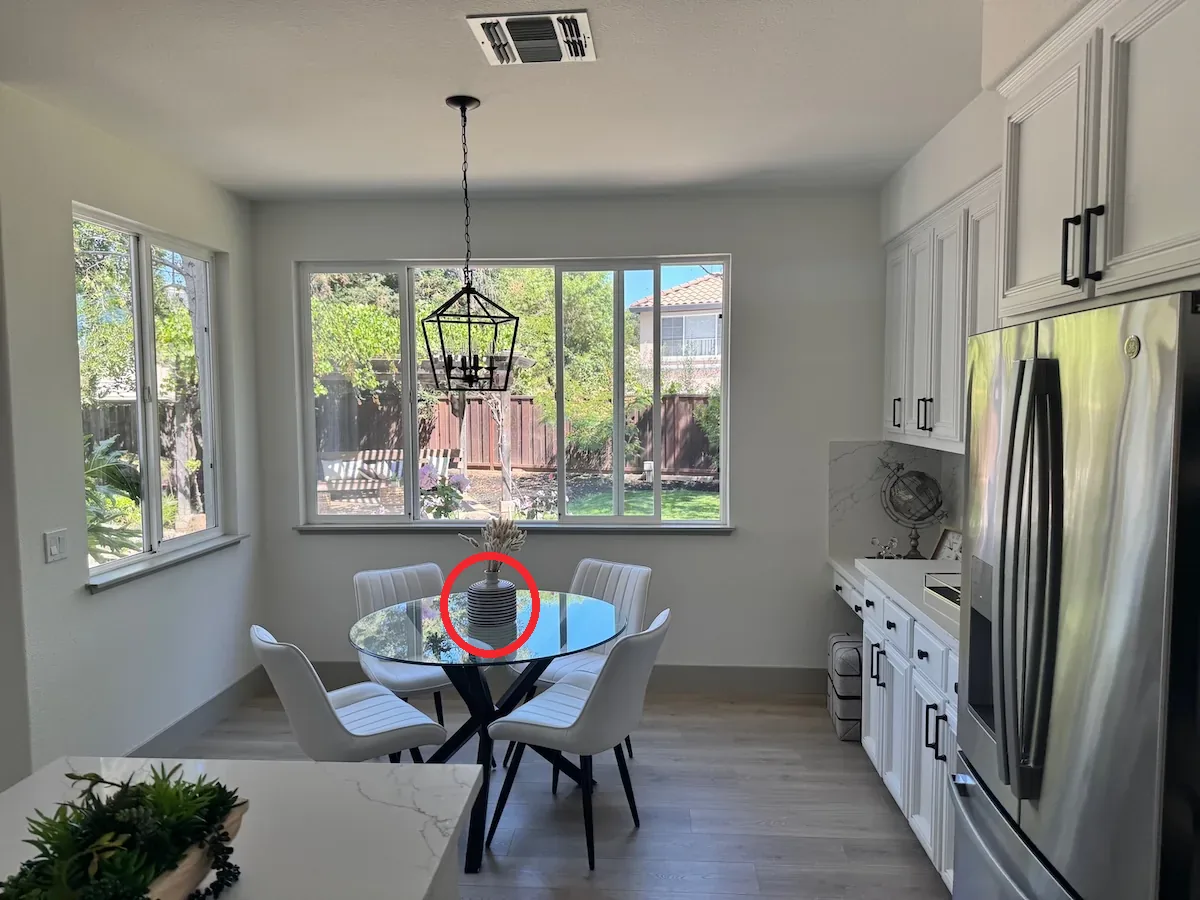
Kitchen photo with a red circle around the striped vase on the dining table

Marked input

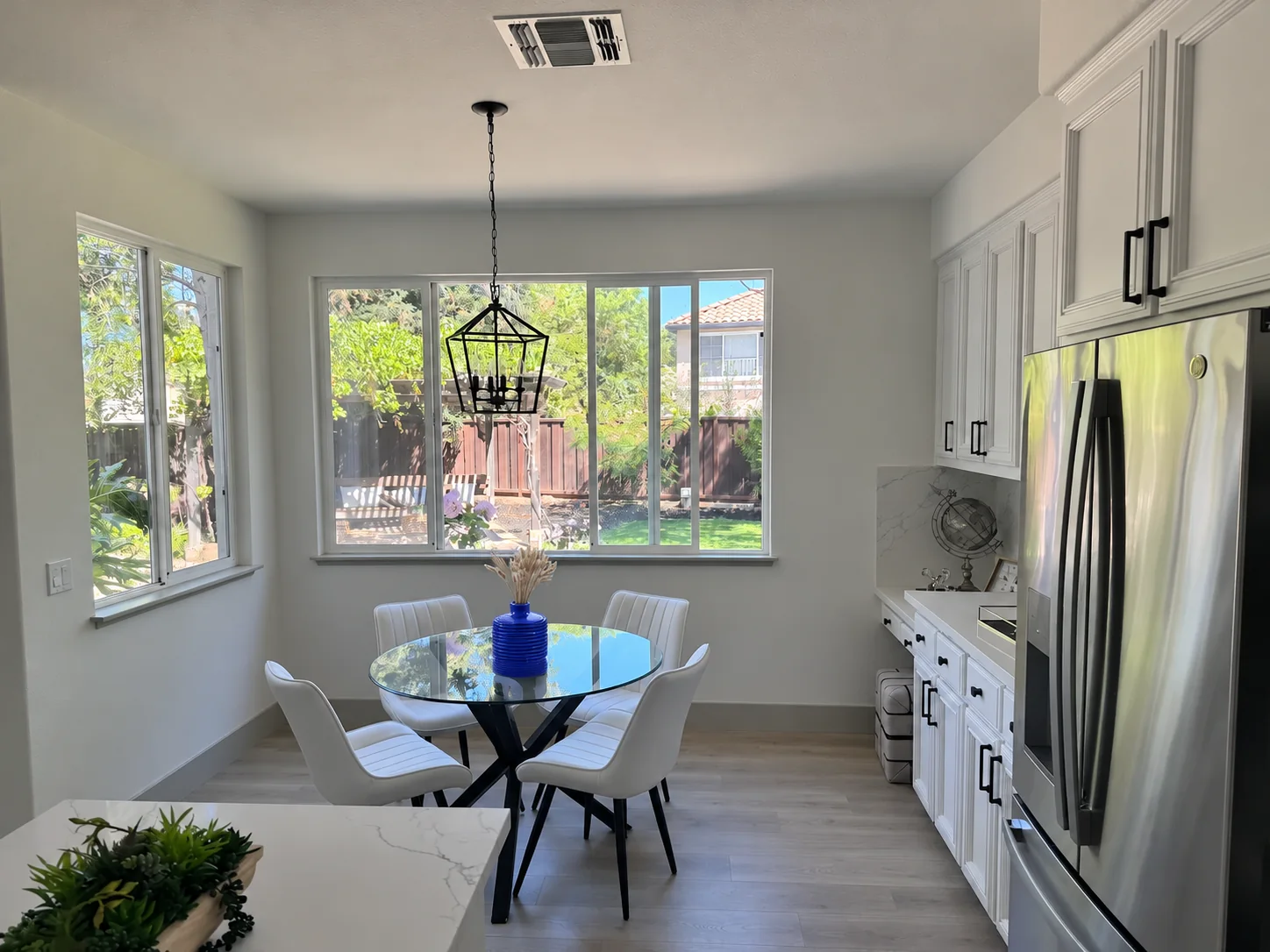
Sunburst edit of the kitchen with the same vase in cobalt blue and the red circle removed

Sunburst edit

Edit instruction: turn the marked vase blue; keep the room and stems. → Review the result.

Point to the part you want to change

Markup adds a visual instruction to an image edit. The official example marks a vase, then changes its surface to blue. Use a circle or arrow to make the target clear, and describe the change in words. Inspect the rest of the room after the edit rather than assuming perfect preservation.

A monkey in a green coat lifts a glowing lantern, blinks, and lowers it again in front of a snowy cabin.
Actual animated GIF · The lantern is lifted and lowered in a repeating gesture.

Turn an image idea into a looping GIF

Give a character one readable movement and a starting pose it can return to. The official lantern example demonstrates a compact, repeating gesture. GIF output belongs to the Image API generation route, rather than the edit route. Plan a short loop; use a video workflow when you need a longer sequence or sound.

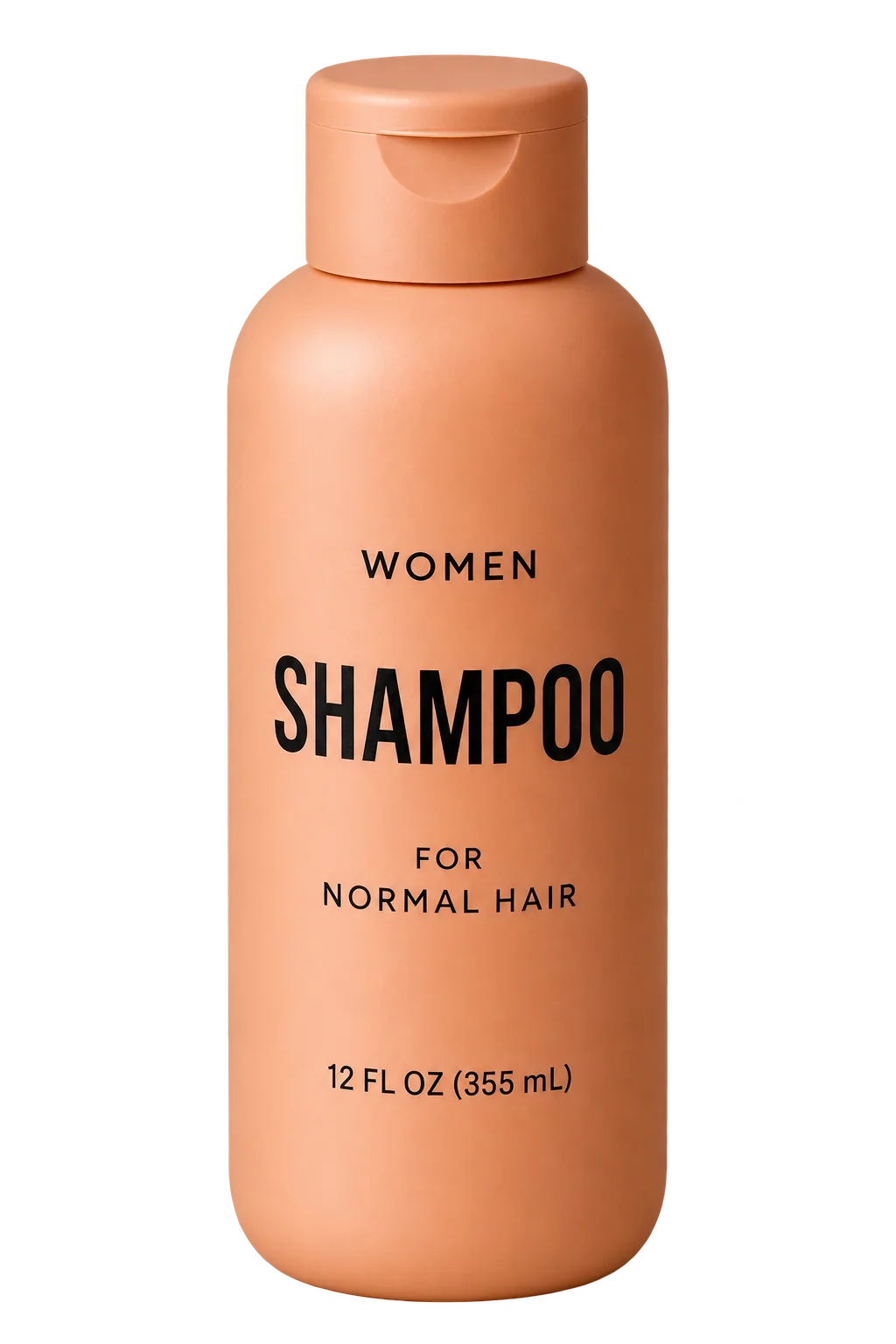
Isolated shampoo bottle on a transparent background — GPT Image 2.6 Sunburst
Isolated product output · Check the file’s transparent edges before placing it in a layout.

Prepare isolated product assets

A transparent product image can sit over a campaign background or a presentation layout. Request the cutout and choose a format that retains transparency. This official shampoo example shows the intended isolated subject. Check fine edges and lettering against both light and dark surfaces before using the asset.

Sunburst SVG with a steaming loaf between wheat sprigs above the Field & Flour wordmark and a rolling pin.
Actual SVG example · Scalable bakery artwork from the official 2.6 guide.

Export graphics as editable vectors

For a mark or illustration that needs to scale, the generation route can return SVG. This bakery example is an actual vector file, rather than a raster picture styled to look like one. SVG export has its own request restrictions. Inspect its shapes and lettering before adapting it for an application or print layout.

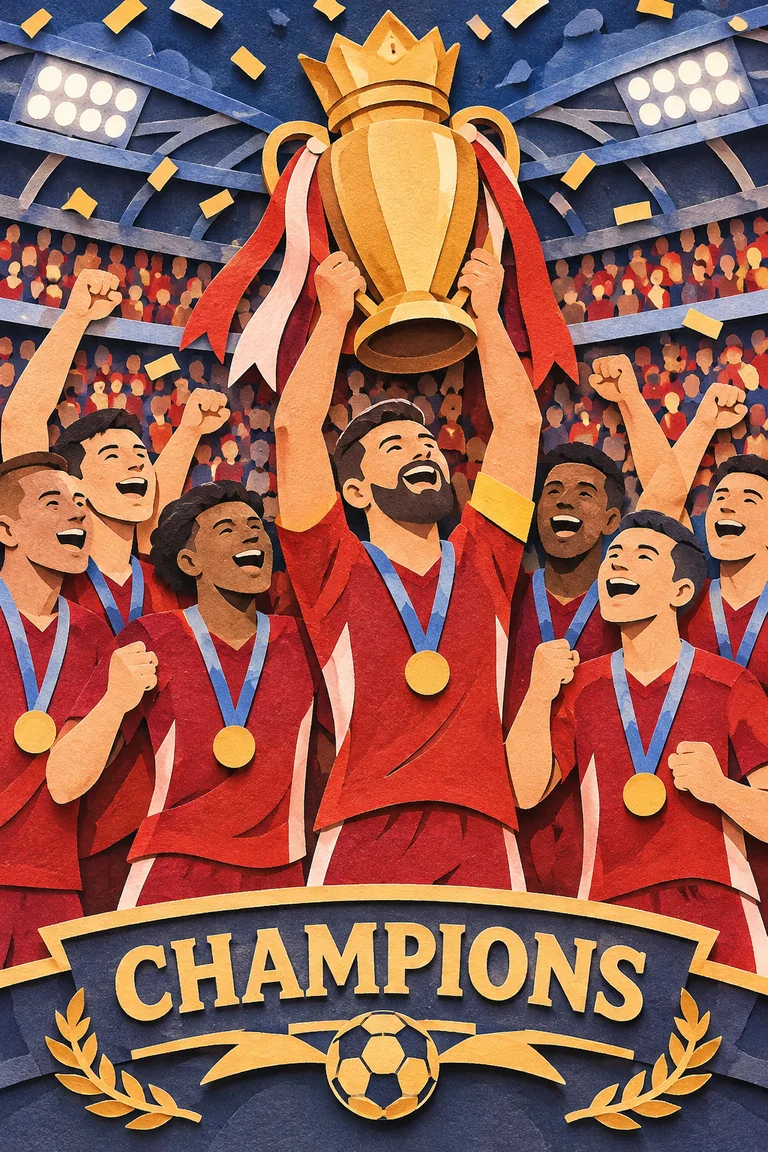
Players in red lift a trophy topped with a crown. A CHAMPIONS banner spans the foreground.

Low complexity

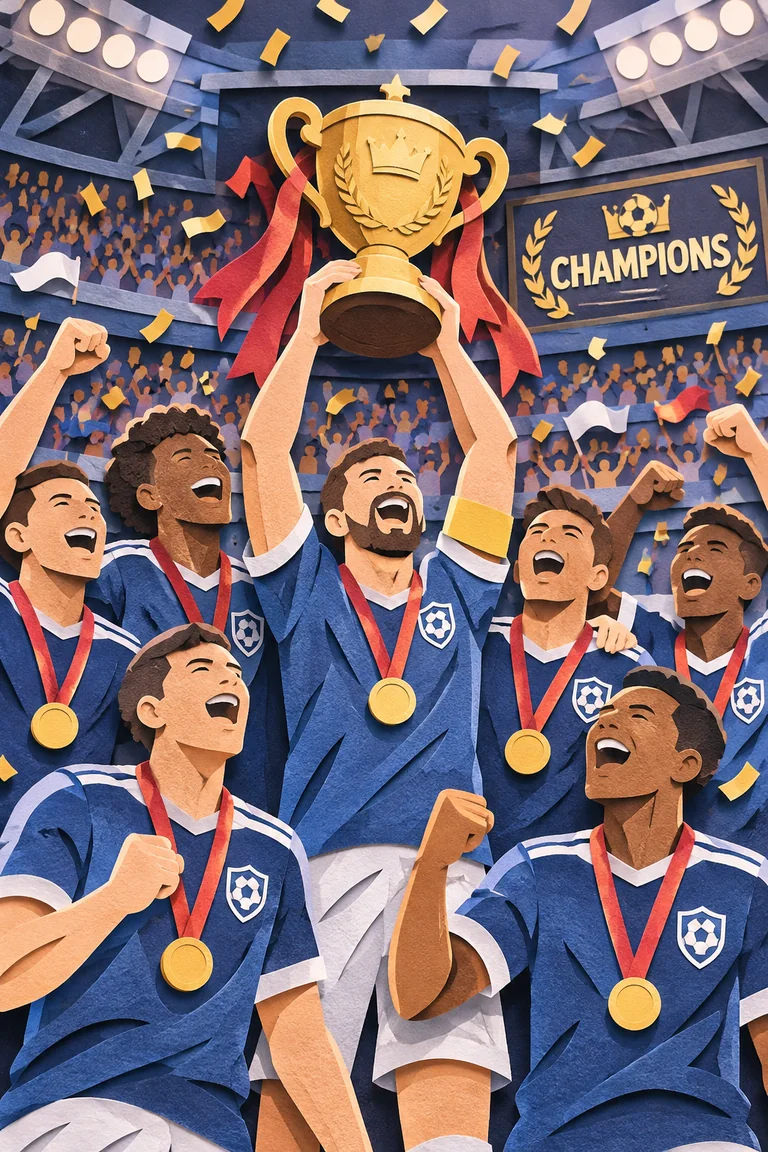
Players in folded blue paper jerseys fill the foreground. A CHAMPIONS sign hangs in the stands behind them.

High complexity

Same prompt and medium quality. Compare the trophy, uniforms and position of the headline.

Separate scene planning from visual detail

Complexity controls planning; quality controls rendering detail. The two football examples use the same prompt but arrange the scene differently. Low, medium and high complexity are documented, with high as the default. Start with a focused edit, compare settings on the same task and keep the version that meets your brief.

Image showcase

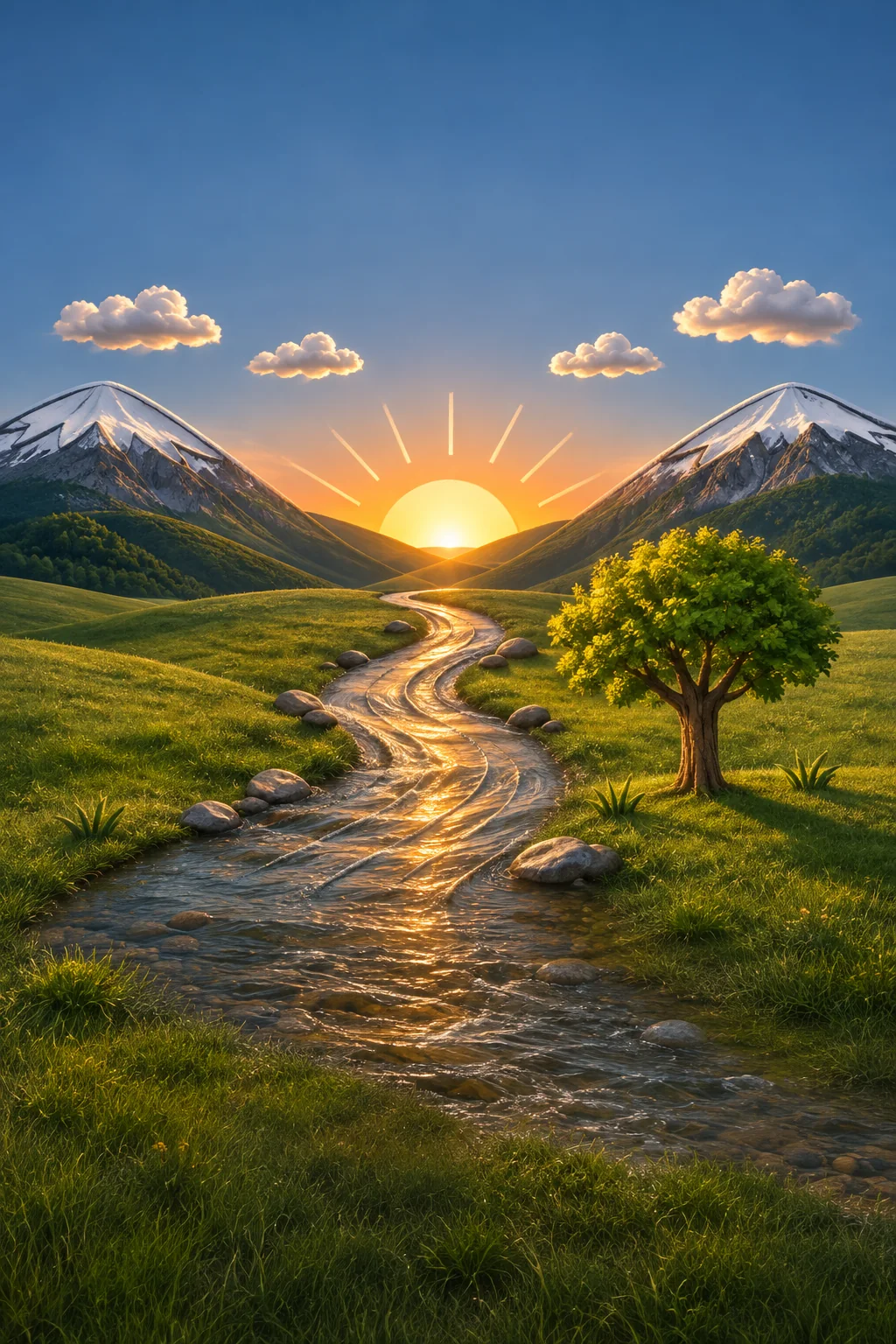
Photorealistic river valley rendered from the drawing — GPT Image 2.6 Sunburst
Landscape from a drawing
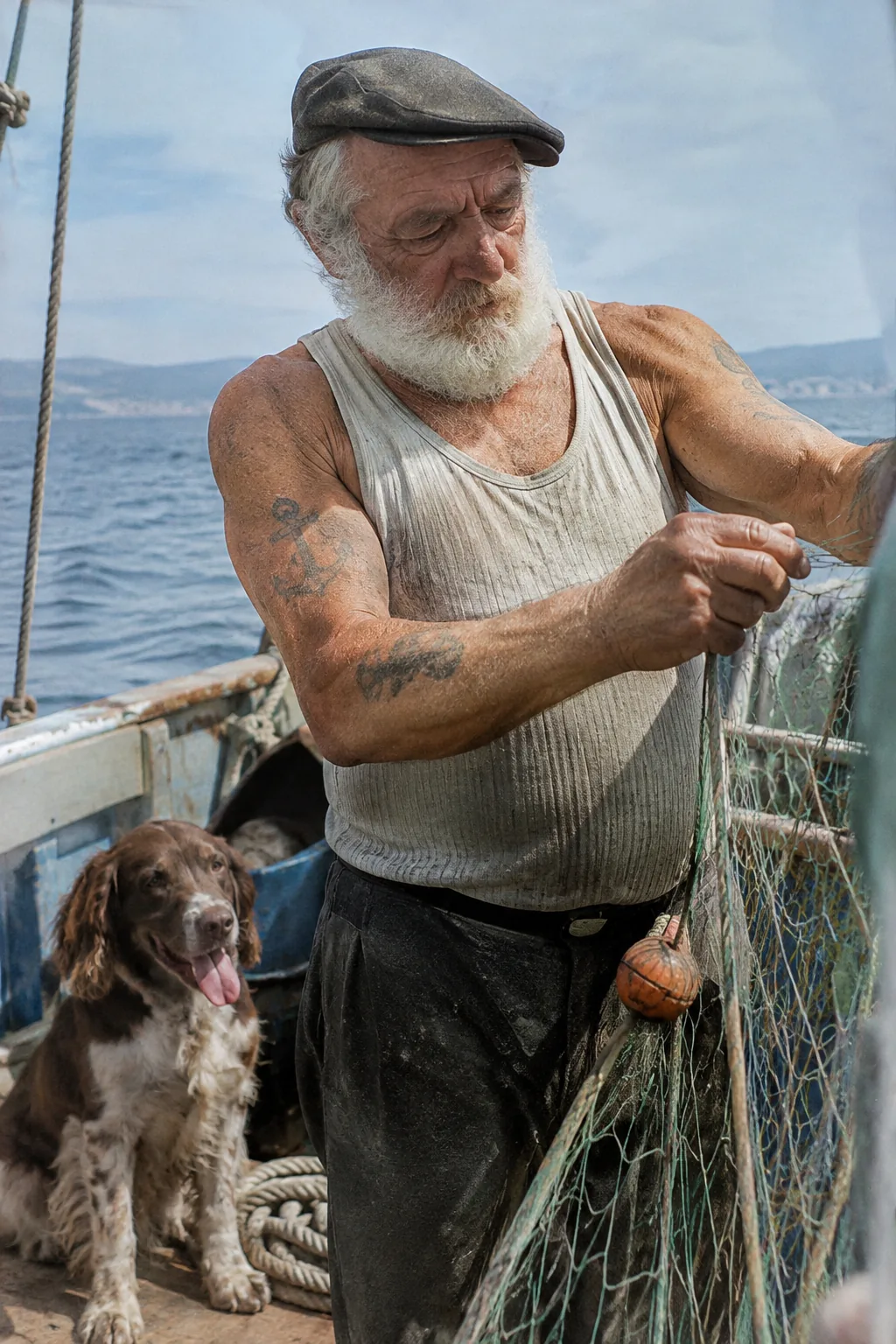
Photorealistic portrait of a sailor repairing a net — GPT Image 2.6 Sunburst
Documentary-style portrait
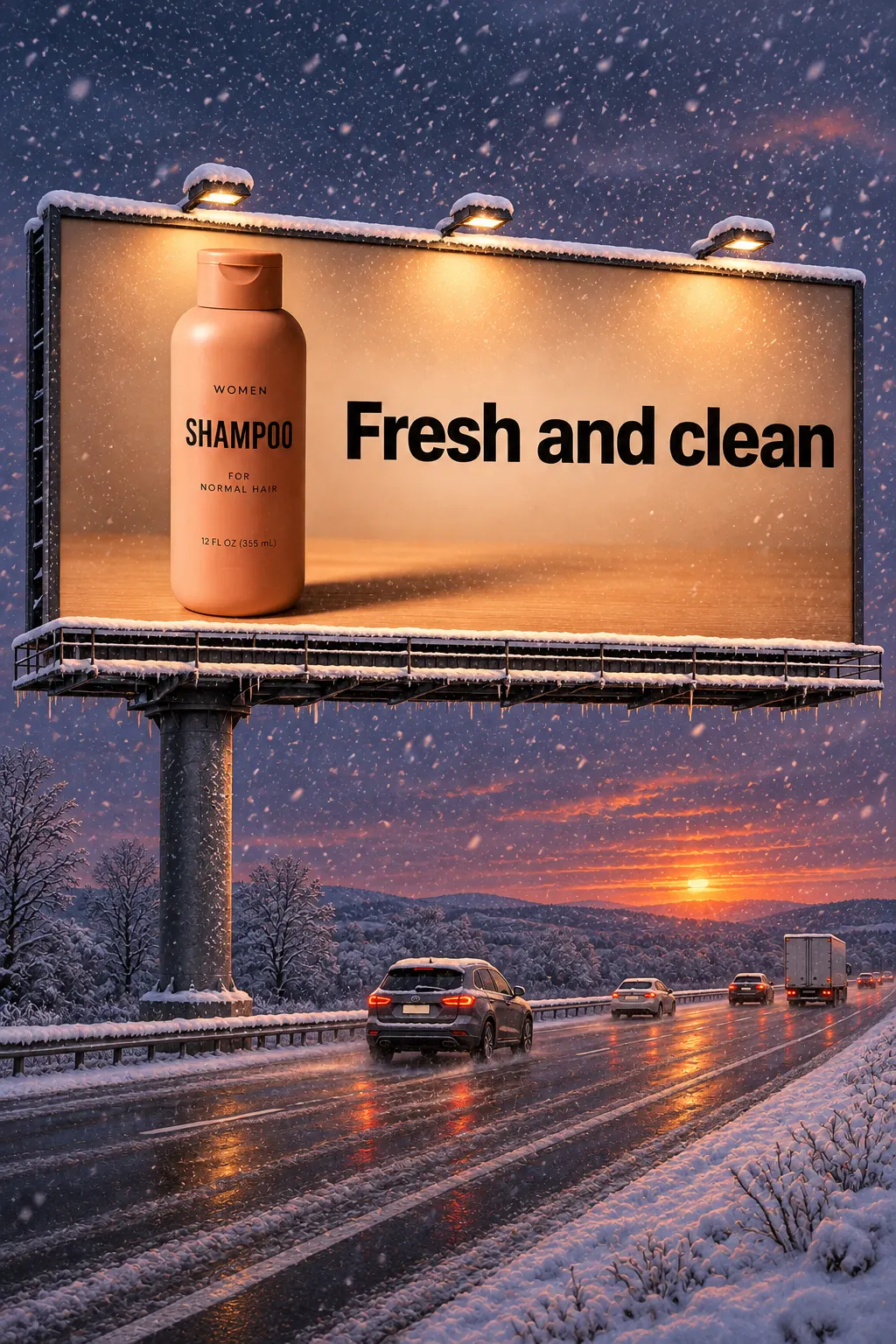
Shampoo billboard in a snowy evening scene — GPT Image 2.6 Sunburst
Winter campaign billboard
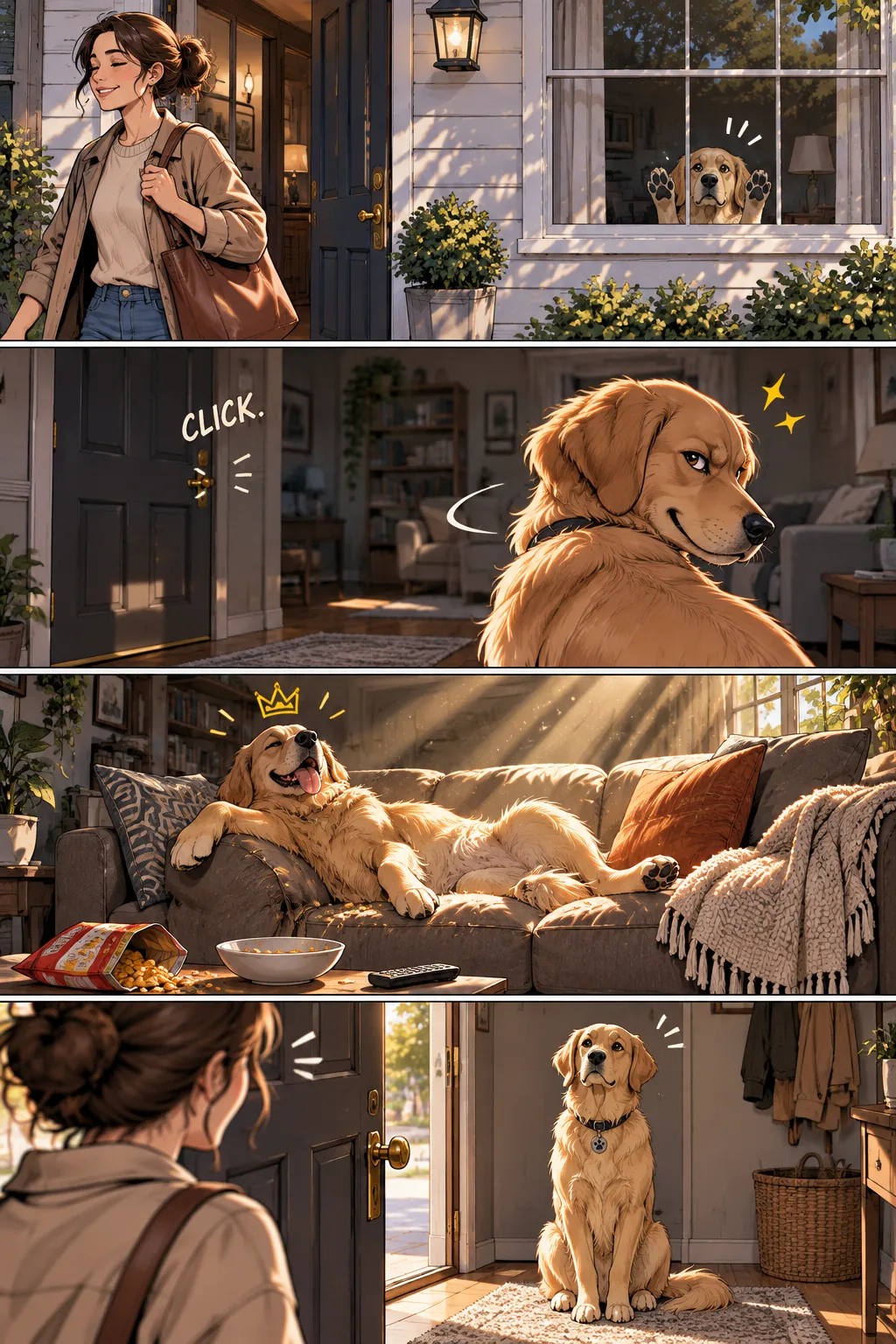
Four-panel comic about a pet at home — GPT Image 2.6 Sunburst
Four-panel visual story
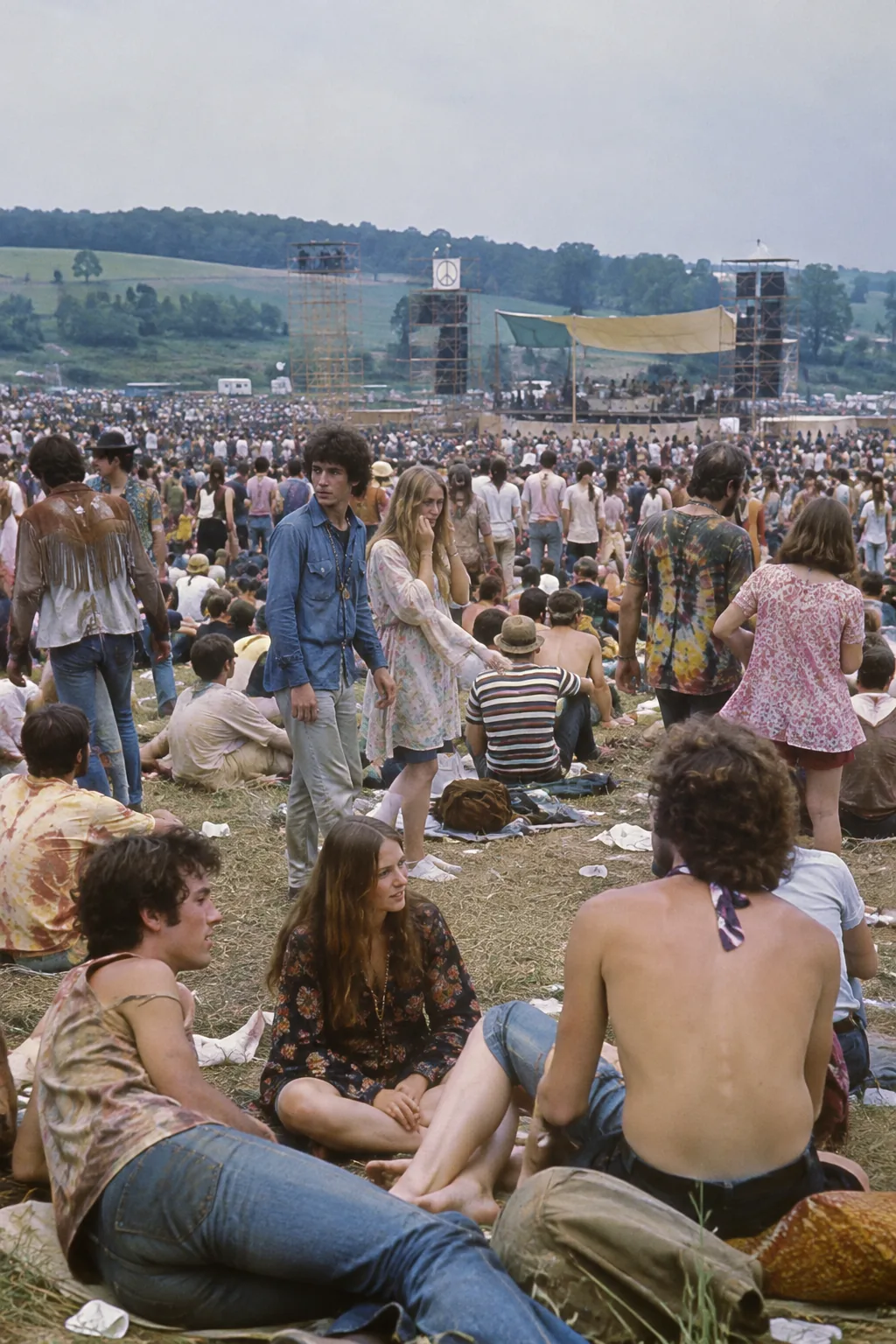
Crowd scene in Bethel, New York, in August 1969 — GPT Image 2.6 Sunburst
Outdoor crowd study
Collectible toy airplane in holiday packaging — GPT Image 2.6 Sunburst
Collectible product detail

Source: OpenAI official GPT Image 2.6 Flare and Sunburst examples.

Flare or Sunburst?

DIMENSIONGPT IMAGE 2.6 FLAREGPT IMAGE 2.6 SUNBURST
Creative starting pointFast drafts and interactive iterationDetailed compositions and careful edits
InputsText and imagesText and images
Generation and editingBoth supportedBoth supported
Planning controlLow, medium or high complexityLow, medium or high complexity
Specialized outputGIF and SVG on the generation routeGIF and SVG on the generation route
How to chooseTest response time and acceptable detailTest the details that decide usability

OpenAI’s best-case six-second Flare example uses low quality. It is not a fixed time for every request. Compare both models with your own prompts and constraints.

Use-case scenarios

Campaign iteration

Start with a clear product message, then explore composition and headlines. Separate a promising concept from a final asset by checking the wording, proportions and brand details.

Local image revisions

Use the approved picture as the next input. Identify one change at a time, compare the entire output with the original and keep a record of the versions you accept.

Story and motion studies

Develop still frames or a short character loop before planning a larger sequence. A readable gesture or composition can help a team discuss what the finished production should communicate.

Continue a creative brief in Pexo

Explore Pexo’s video workflows for the next stage of a creative project.

Frequently Asked Questions About ChatGPT Images 2.6

What is ChatGPT Images 2.6, and when did it launch?

OpenAI announced Images 2.6 on November 4, 2026 for ChatGPT, Codex and the API. The API family includes GPT Image 2.6 Flare and GPT Image 2.6 Sunburst. Both create and edit images from text and image inputs; GIF generation adds short animated loops.

Should I choose Flare or Sunburst?

Start with Flare for interactive drafts and frequent changes. Try Sunburst when a composition or edit needs more detail. Compare both on your actual inputs before choosing. OpenAI describes six-second generation for Flare at low quality as a best-case result, not a guaranteed response time.

How do markup-guided edits work?

The Image API accepts a transparent PNG annotation overlay aligned to the first input image. A circle or arrow can identify the intended change. Pair the annotation with a short instruction and inspect the entire result: guidance does not guarantee that everything outside the marked area stays identical.

Can it make GIFs, SVGs and transparent images?

Yes. The Image API generation endpoint supports GIF and SVG output. Those formats are not supported as output from its edit endpoint. Transparent raster assets use PNG or WebP. SVG is suited to editable graphic shapes; a looping GIF is a different deliverable from a long video with sound.

What should I check before using a generated image?

Review spelling, fine detail, product geometry and changes outside an edited area. Inspect transparent edges on different backgrounds. For animation, check the loop. Output quality and response time vary with the request; review each asset in the format and size you intend to deliver.

Official OpenAI guide

Turn your visual idea into a video with Pexo.

Start creating