Pexo
Kimi K3.1 Pro

Kimi K3.1 Pro
Shape an idea in 3D Make

Kimi K3.1 Pro is Moonshot AI’s model behind Kimi 3D Make, a conversational workspace for creating 3D scenes, interactive experiences and model files. Start with a description, sketch or reference image, refine the work in conversation, and choose the deliverable you need. The demonstration below shows a model-built Blender scene and its rendered presentation.

Core capabilities

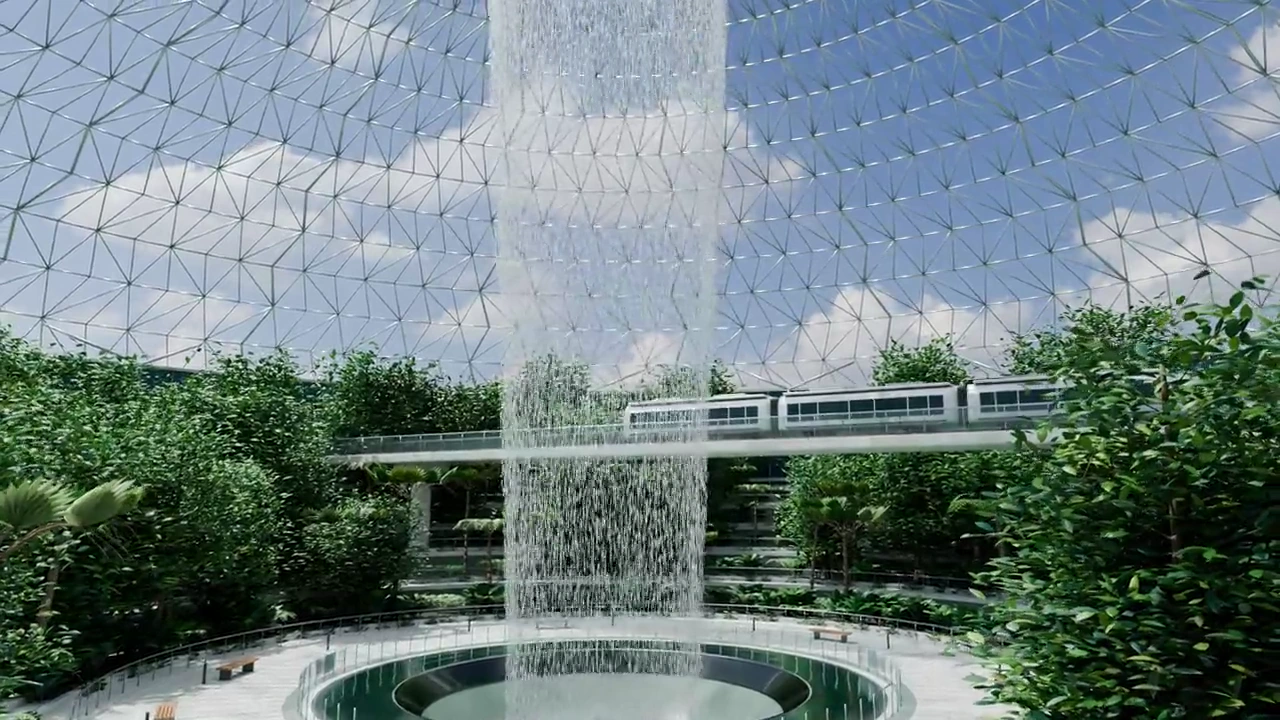
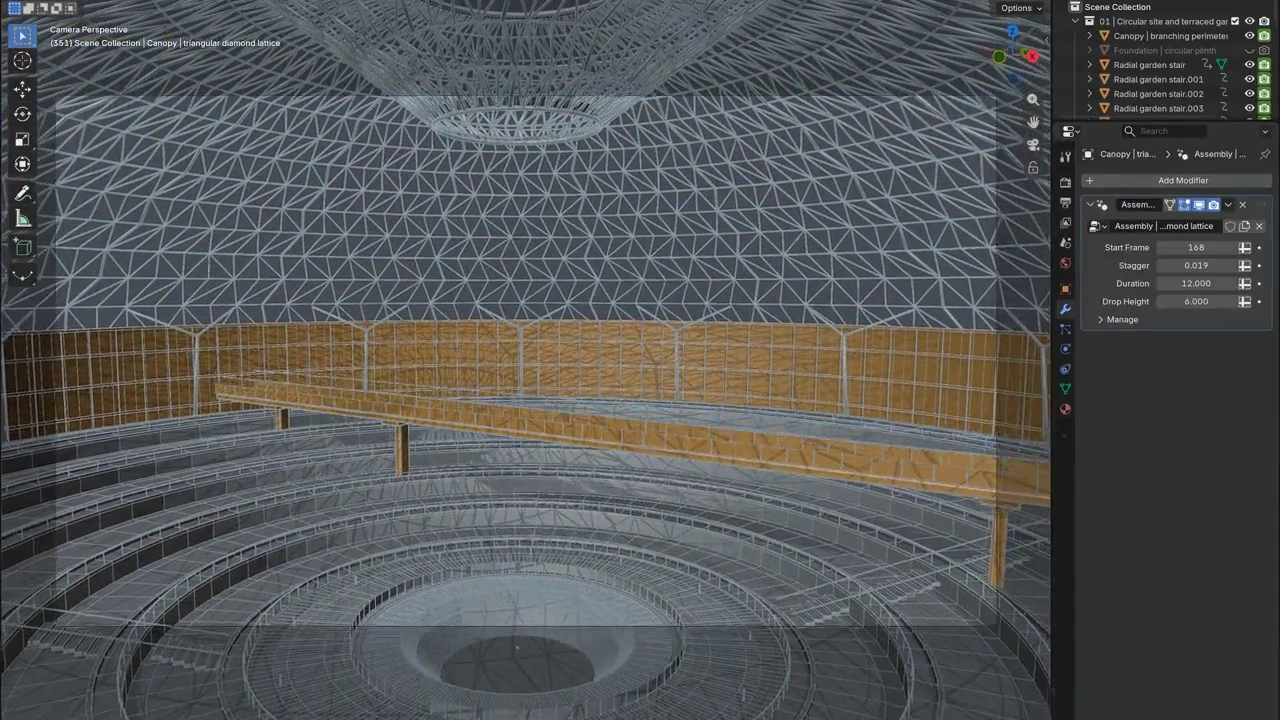
Blender mesh view of the airport rainforest scene built by Kimi K3.1 Pro
Example brief · editorial suggestion
Build a glass-roofed indoor rainforest around a circular waterfall. Keep the structure readable from an elevated view.

Turn a visual brief into a 3D scene

Describe the subject, proportions, materials, lighting and camera position. K3.1 Pro can write and run Blender or CAD scripts to construct and refine a scene. The airport demonstration makes that process visible, moving from modeled structure to a rendered environment. A sketch or reference can guide the result; dimensions and unseen surfaces still need an explicit brief.
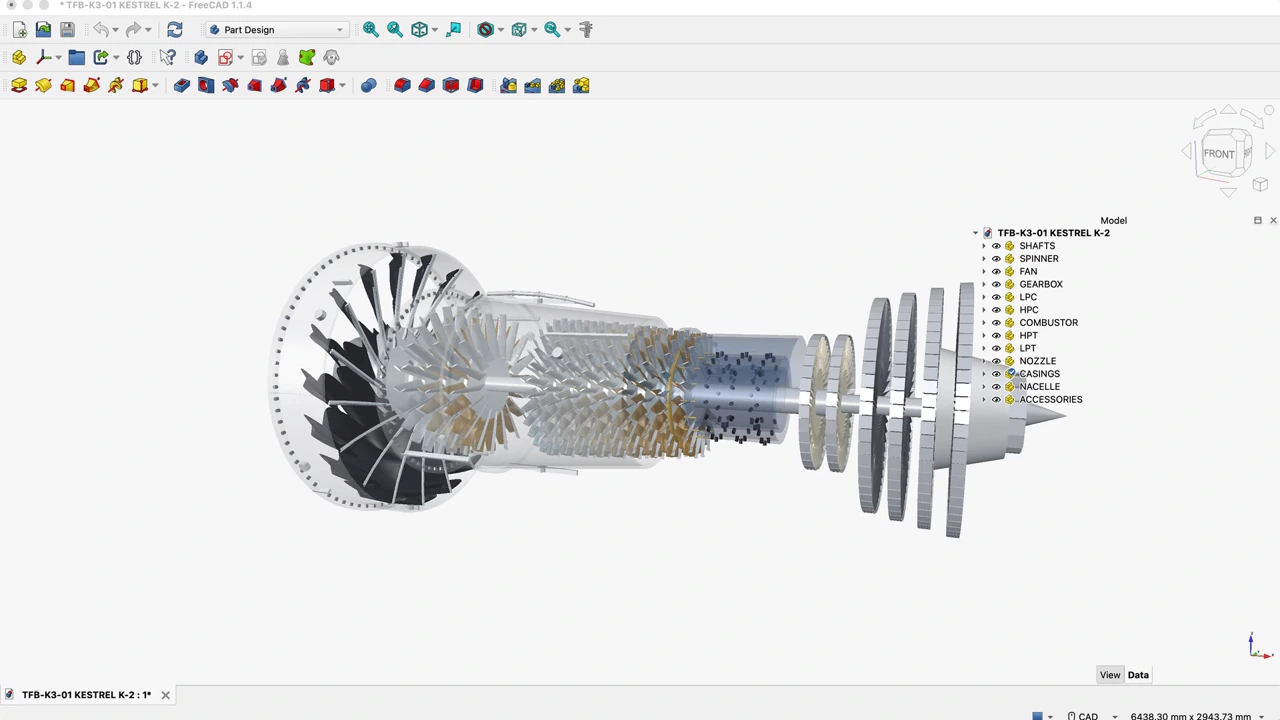
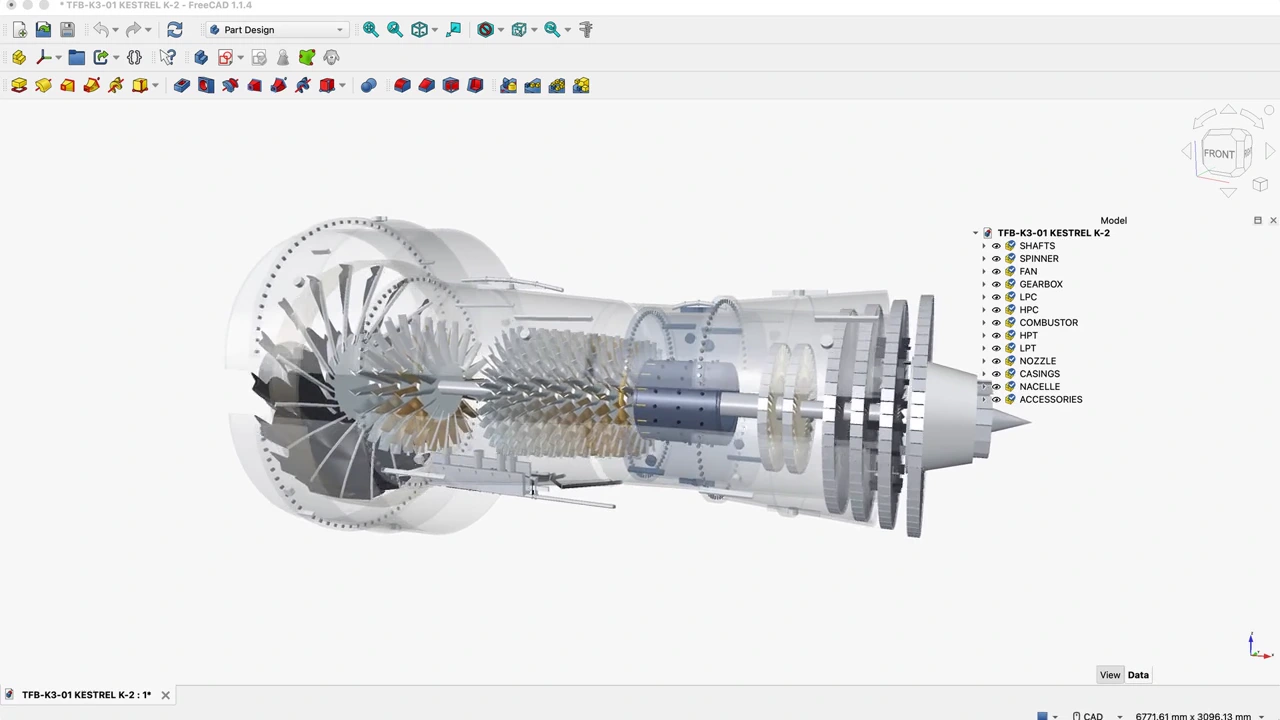
Exploded turbofan assembly in FreeCAD with multiple mechanical components
FreeCAD assembly · exploded component view

Work with components and parametric structure

For an object with several parts, specify their relationships as well as its appearance. Moonshot’s turbofan example uses Python and FreeCAD to build a mechanical assembly with an exploded view and rotational animation. This is useful for explaining how a design fits together. Inspect the actual geometry and constraints before treating a generated assembly as an engineering-ready design.

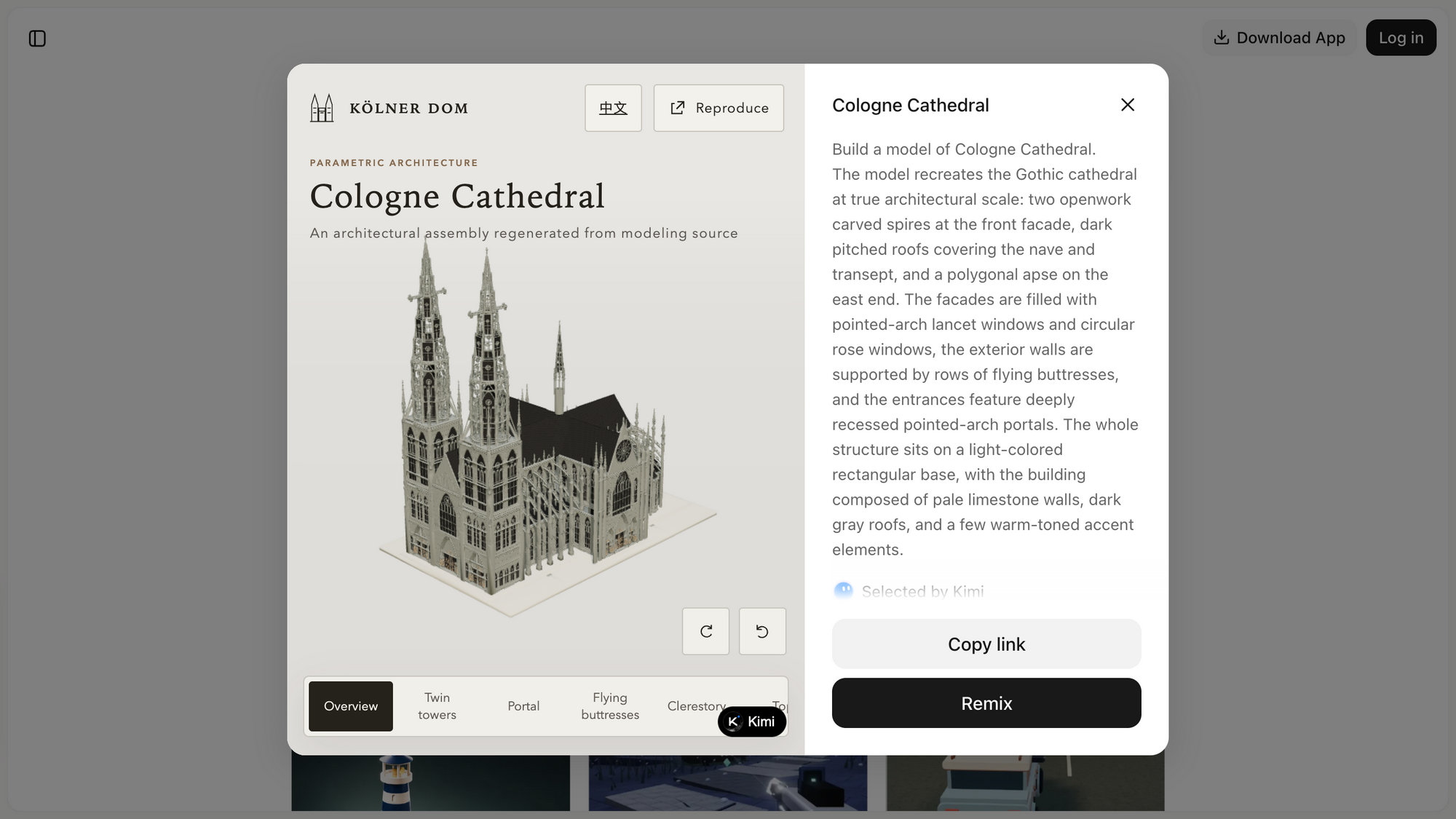
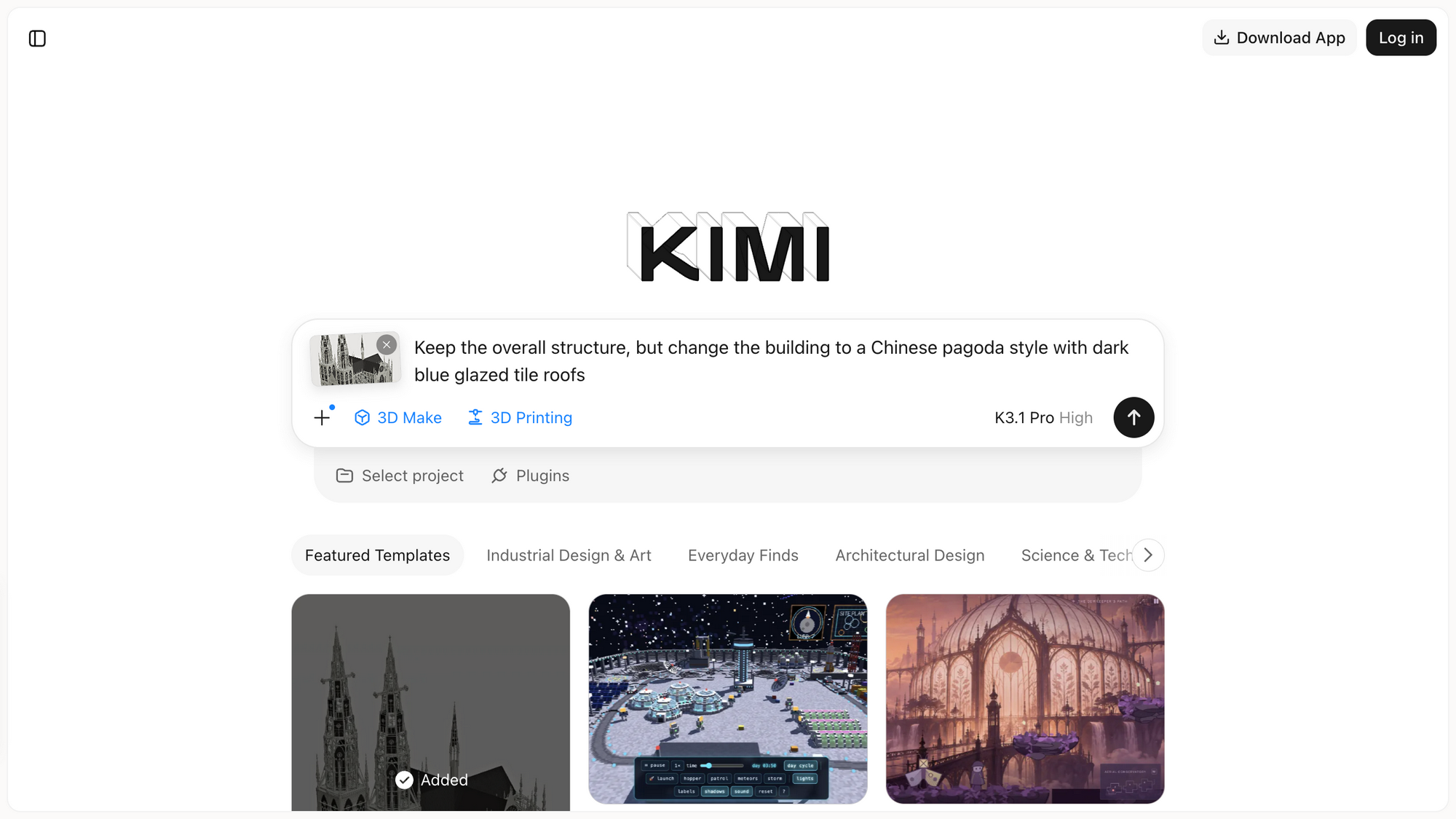
Official English 3D Make interface with a follow-up instruction to revise a building
3D Make interface · a follow-up revision instruction

Refine the work through conversation

Keep iterating when the overall direction is right. State the change and the elements that should remain: the material, silhouette, layout or interaction. The official 3D Make interface illustrates a follow-up building revision. Review the updated result from several angles, because an edit can affect more than the requested area. Templates and Remix can provide a starting brief when a relevant example exists.

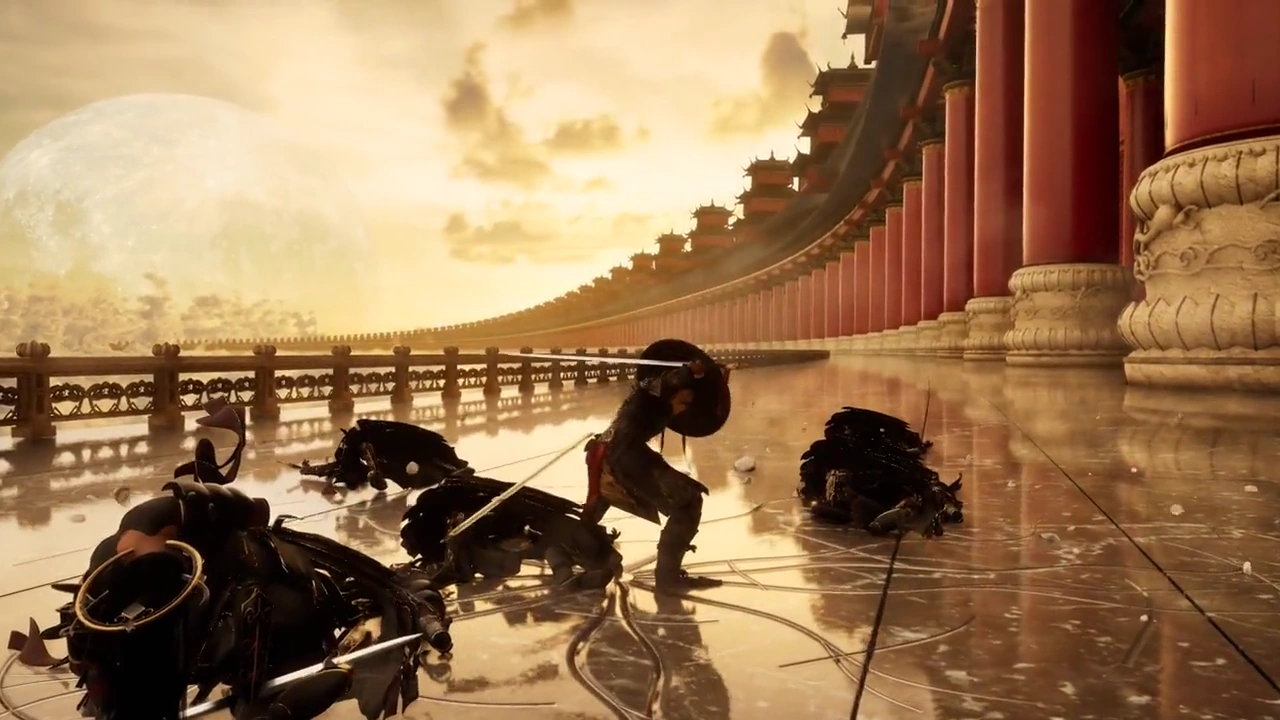
A character inside an ornate palace environment in an official Kimi K3.1 Pro game demonstration
K3.1 Pro interactive-world demonstration · recorded view

Build an interactive 3D experience

Choose 3D Web when the goal is an experience people can explore. Describe what a click, drag or movement should do, alongside the scene itself. The palace example comes from Moonshot’s K3.1 Pro game and interactive-world demonstrations. Test the delivered interactions directly; a polished recording or screenshot does not establish that every control works in the shared project.

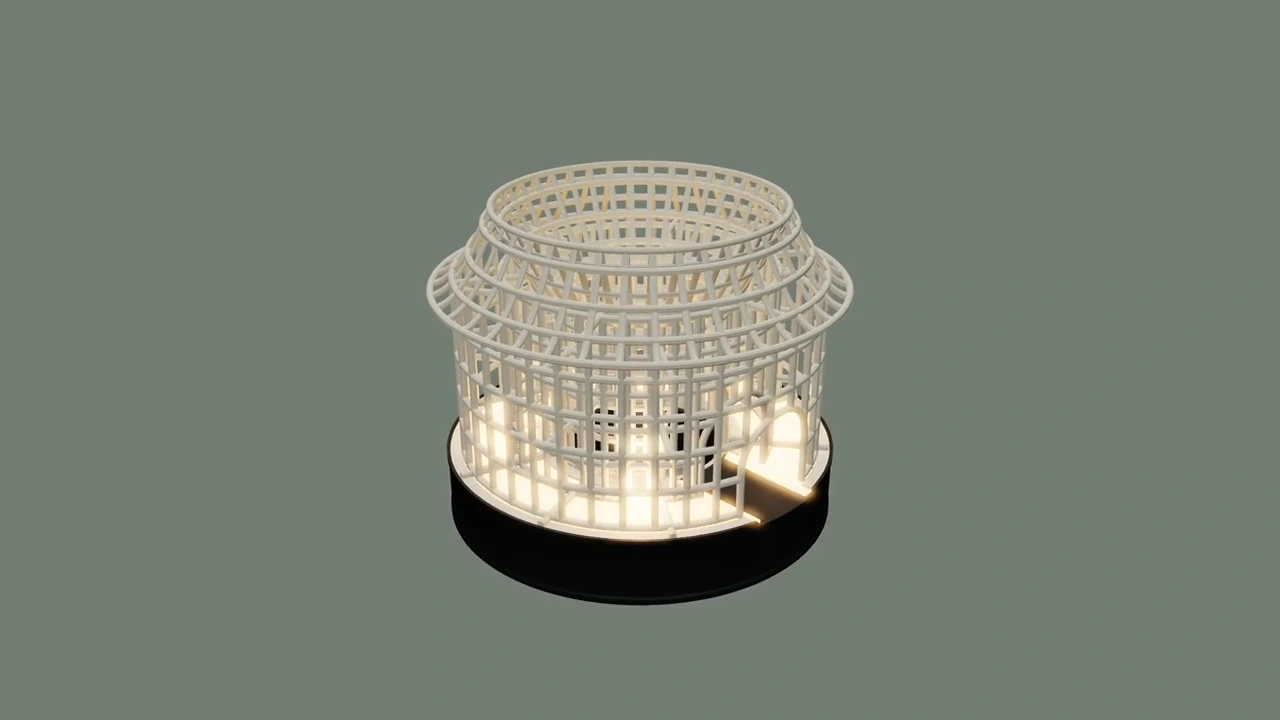
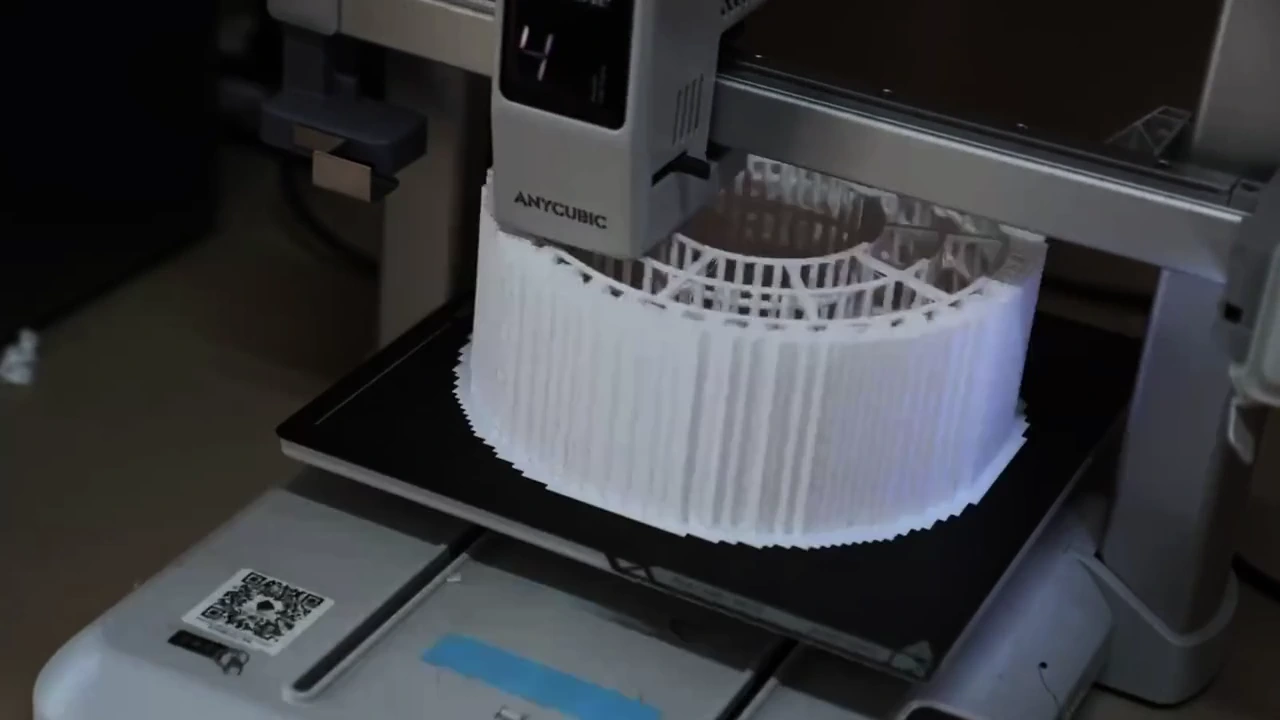
Lattice table lamp design from the official Kimi K3.1 Pro trimesh demonstration
Documented export options: STL · 3MF · OBJ · STEP · GLB. Availability depends on the creation and delivered files.

Choose model files for the next step

3D Make separates web experiences, 3D modeling and print preparation. Its guide lists STL, 3MF, OBJ, STEP and GLB export options; choose a format for the software you will use next. The modular lamp demonstration connects a modeled design with fabrication. Inspect dimensions, joints and wall thickness before slicing. A browser preview alone cannot confirm printability.

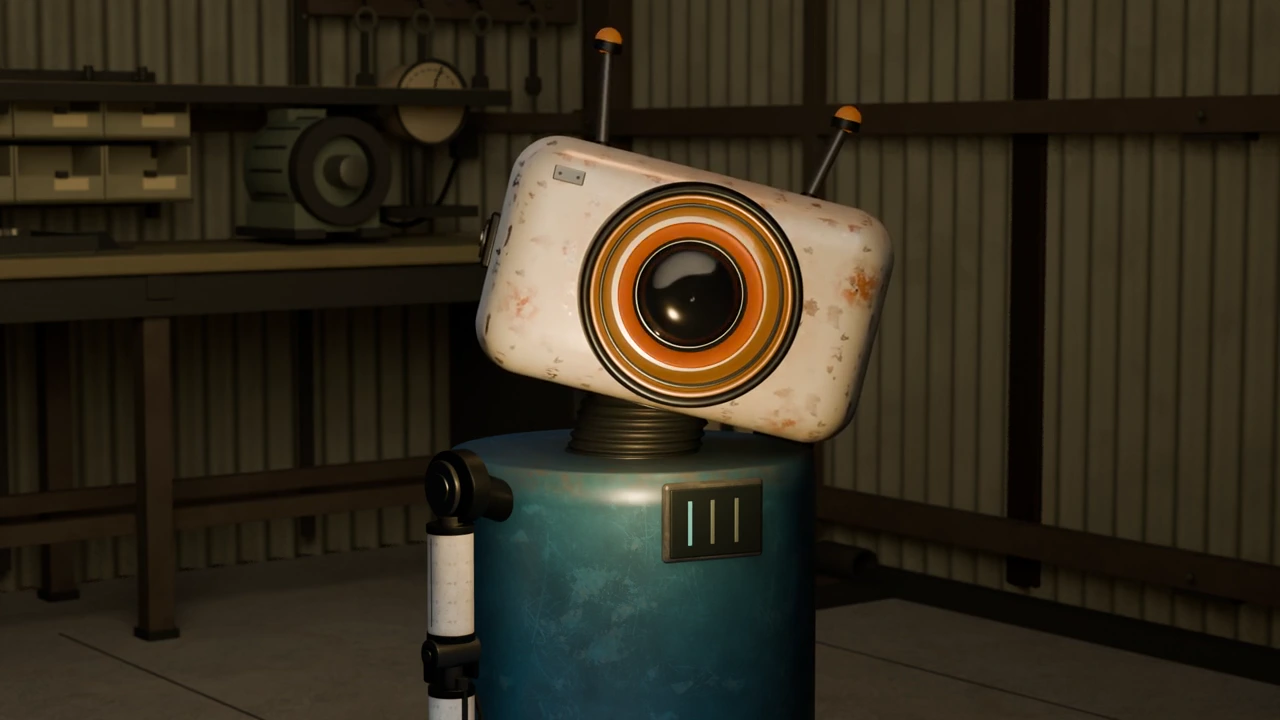
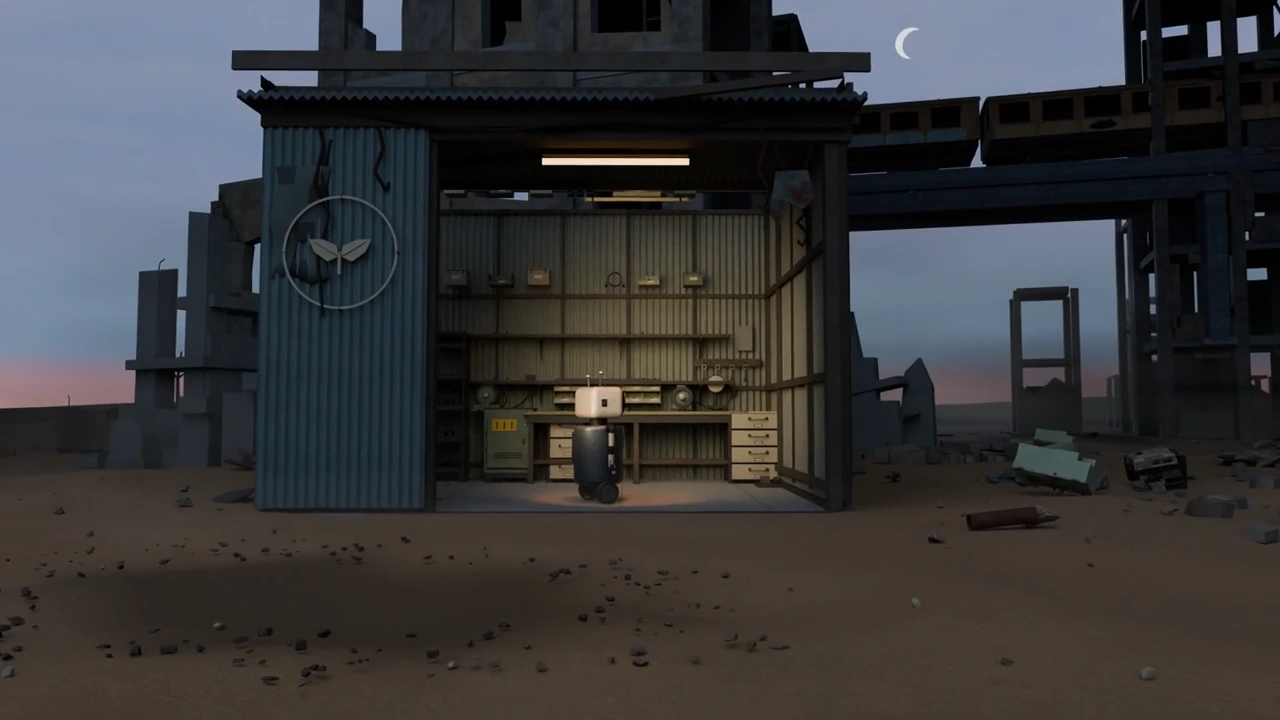
A small weathered robot in a workshop in the official Blender animation
3D scene → animation and rendering → shareable clip · Blender workflow

Present the result as motion

3D Make documents video and Live Photo export for sharing a creation. K3.1 Pro can also construct scenes and animations through tools: the robot example was made with Blender and Python, then rendered and encoded. Plan the camera move and visible action together. A rendered 3D animation follows a different production path from direct text-to-video generation.

Image showcase

Source: Moonshot AI’s official Kimi K3.1 Pro demonstrations and Kimi 3D Make interface examples. Stills are selected recording frames; the lamp gallery image shows printing. Suggested briefs are editorial. Pexo use-case previews below are separate product images.

Model comparison

DIMENSIONKimi K3.1 ProKimi K3
Model relationshipPost-trained version of Kimi K3Predecessor in the Kimi family
Published context window1 million tokens1 million tokens
3D creation emphasisParametric modeling, spatial reasoning and asset refinement3D reasoning, game development and CAD through coding
Examples discussed hereBlender scenes, FreeCAD assemblies and a trimesh lampEarlier general coding and digital-creation examples
3D Make relationshipNamed as the model powering the current 3D Make productEarlier model; the current 3D Make guide names K3.1 Pro
Official API model IDkimi-k3.1-prokimi-k3

Based on Moonshot’s model announcements and 3D Make documentation. K3.1 Pro is emphasized as this page’s subject. This is a workflow and version comparison, not a Pexo performance benchmark.

Use-case scenarios

Product and object studies

Explore the silhouette, materials and assembly of an object before preparing a presentation. Ask for the editable model or source you need, then inspect it in your target software.

Spatial explanations and virtual scenes

Build an environment or component view that helps explain a space or mechanism. Decide whether the audience needs an interactive page, a model file or a rendered sequence.

Short 3D animation concepts

Plan a character, setting and camera move as a small scene. Review the animation and rendered output before developing a longer story, narration or edit.

Use cases

Develop 3D concepts into explainers, animated mockups and product demonstrations.

Frequently Asked Questions About Kimi K3.1 Pro

What are Kimi K3.1 Pro and 3D Make?

Kimi K3.1 Pro is Moonshot AI’s model, while 3D Make is its conversational 3D creation product. The official guide names K3.1 Pro as the model behind it. You can describe a creation, supply reference material and revise it through conversation. The model and the product are different parts of that workflow.

Can I start with a sketch or reference image?

Yes. The 3D Make guide supports sketches and reference images. Explain which shape, material or proportion matters, and describe unseen surfaces and exact dimensions separately. A reference guides the creation; it does not guarantee a precise reconstruction of every hidden detail.

Does 3D Make generate videos directly?

The product documents video and Live Photo export for sharing 3D creations. K3.1 Pro’s official demonstrations also show tool-built scenes and animations rendered through software such as Blender. These workflows do not establish that the language model natively synthesizes video frames from a prompt.

Which model files can I export, and are they ready to print?

The official FAQ lists STL, 3MF, OBJ, STEP and GLB. Check what the particular creation actually delivers and whether the file opens in your target software. Printing also requires dimensional, structural and slicing checks. 3D Make does not connect to or operate a 3D printer.

How do I access 3D Make, and what should I check?

Open Kimi’s 3D Make entry in a supported browser or the Kimi app and sign in. Choose 3D Web, 3D Modeling or 3D Printing for your intended deliverable. Plugin availability, export controls and usage limits follow the current product and plan. Test interactions, inspect the model from several angles, and verify the downloaded files before relying on the result.

Official Kimi 3D Make guide

Describe your idea and start your next creation.

Start creating