Pexo
PixVerse V6 Max

PixVerse V6 Max
Bring the scene to life, with sound.

PixVerse V6 Max generates short videos from a text prompt or a starting image, with optional synchronized audio. Direct the scene, describe the camera movement, and develop a sequence of shots for a product film, a short story, or a social video.

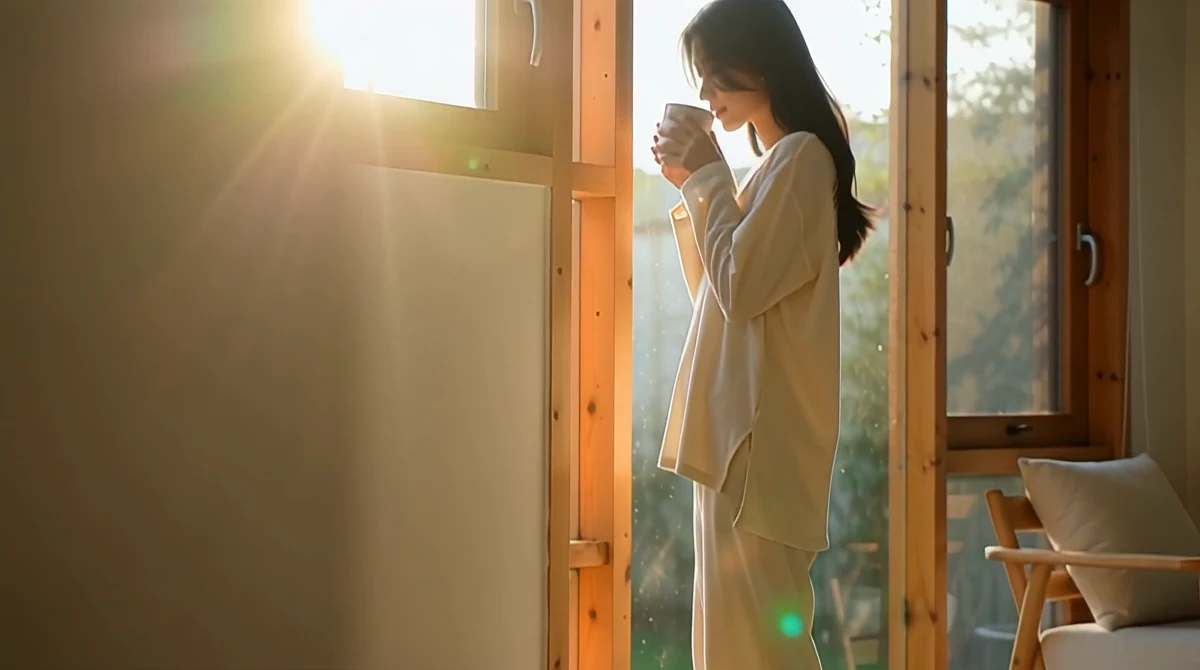
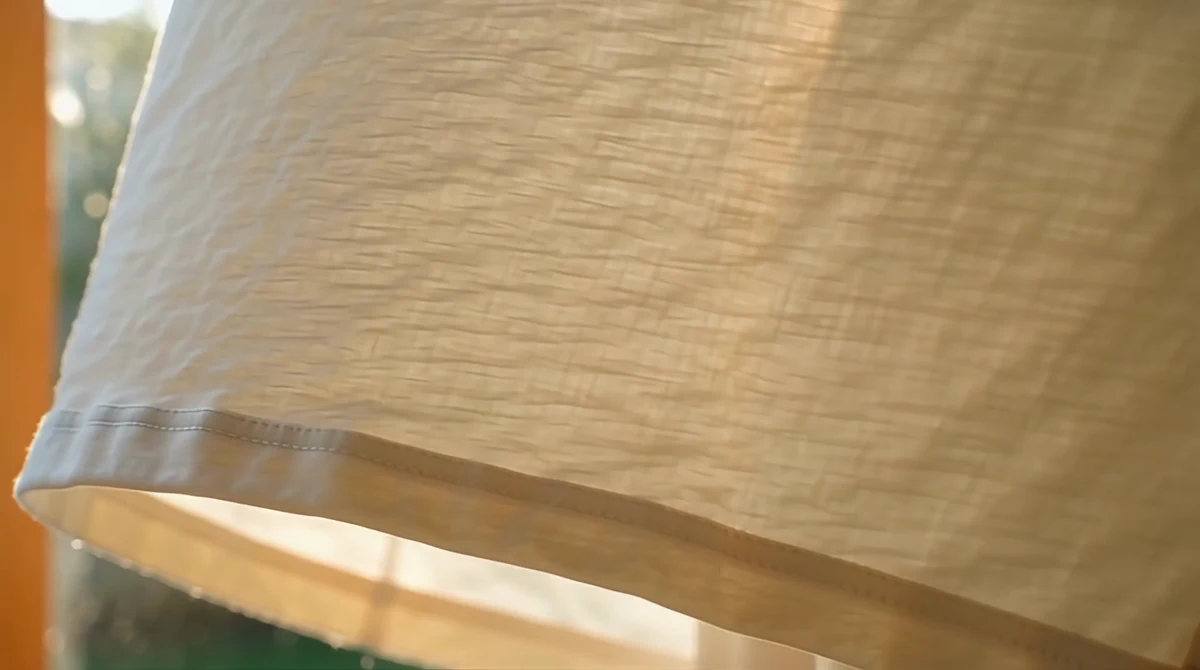
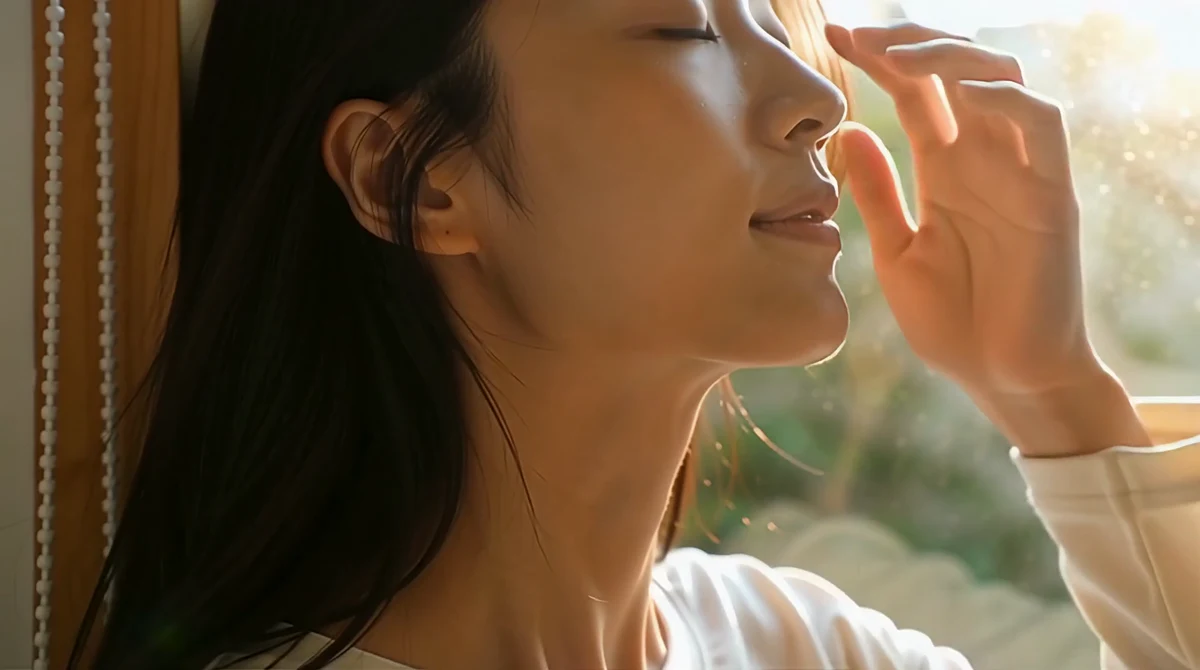
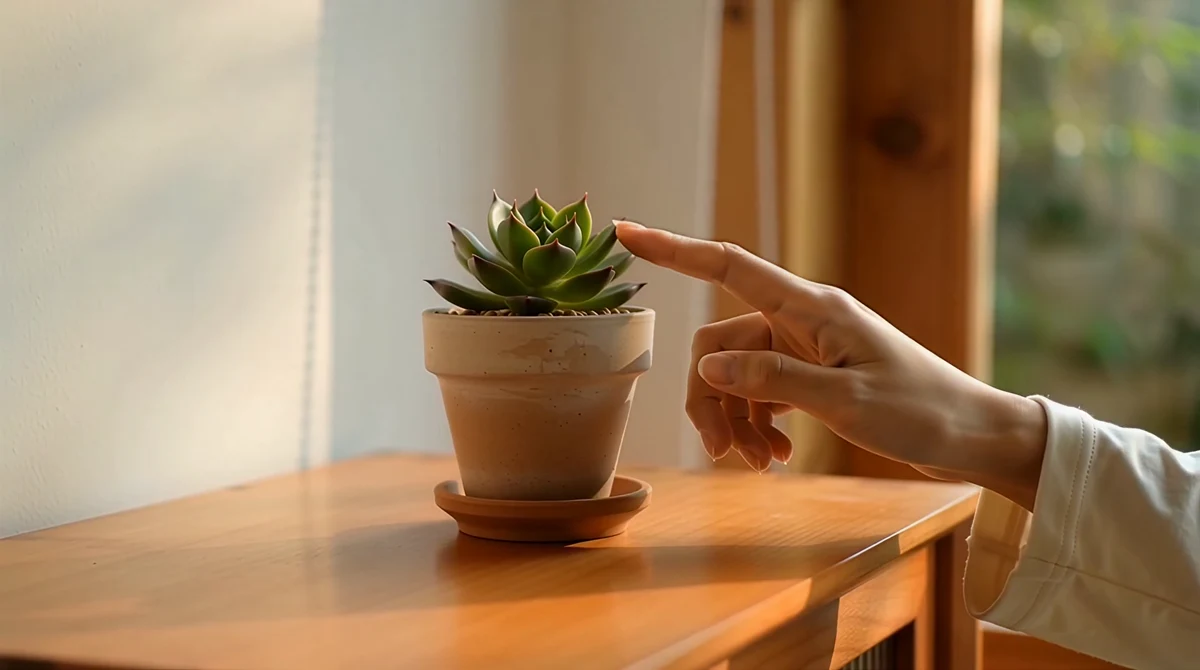
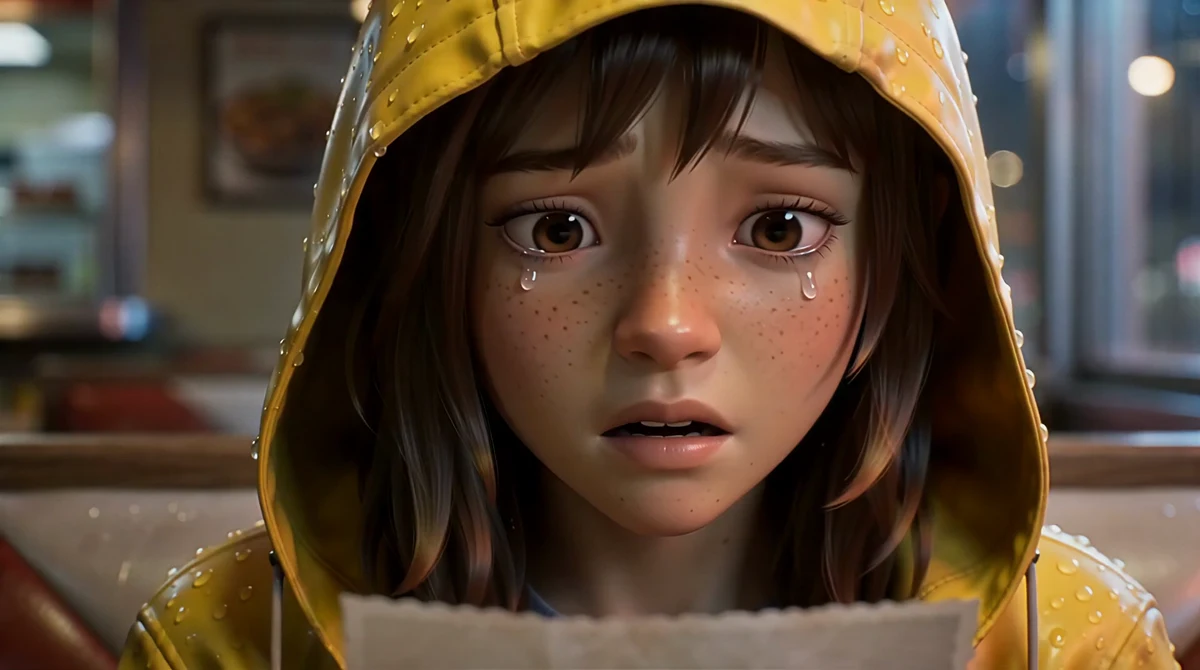
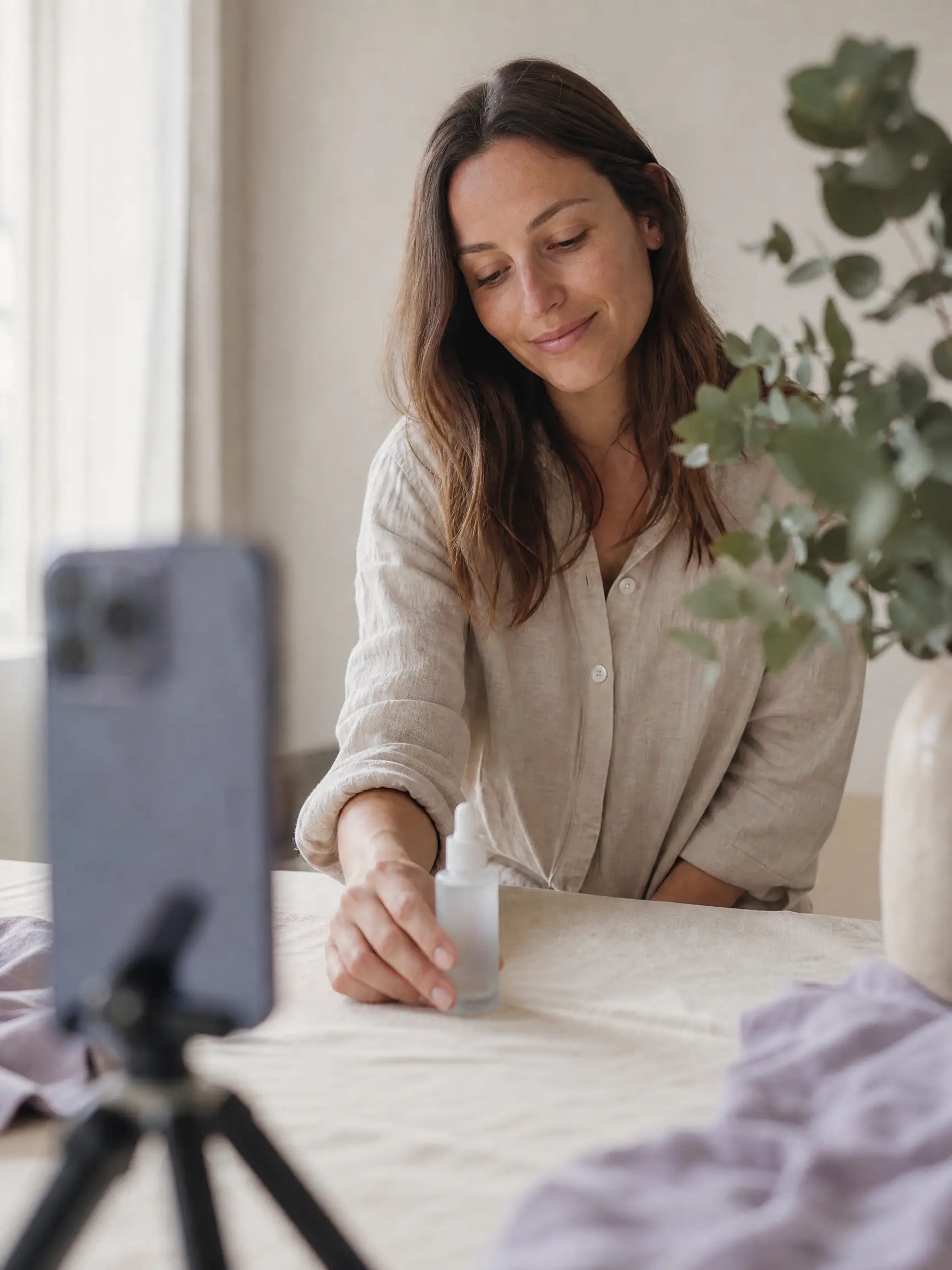
Official PixVerse V6 Max example · Loungewear lifestyle film.

Core capabilities

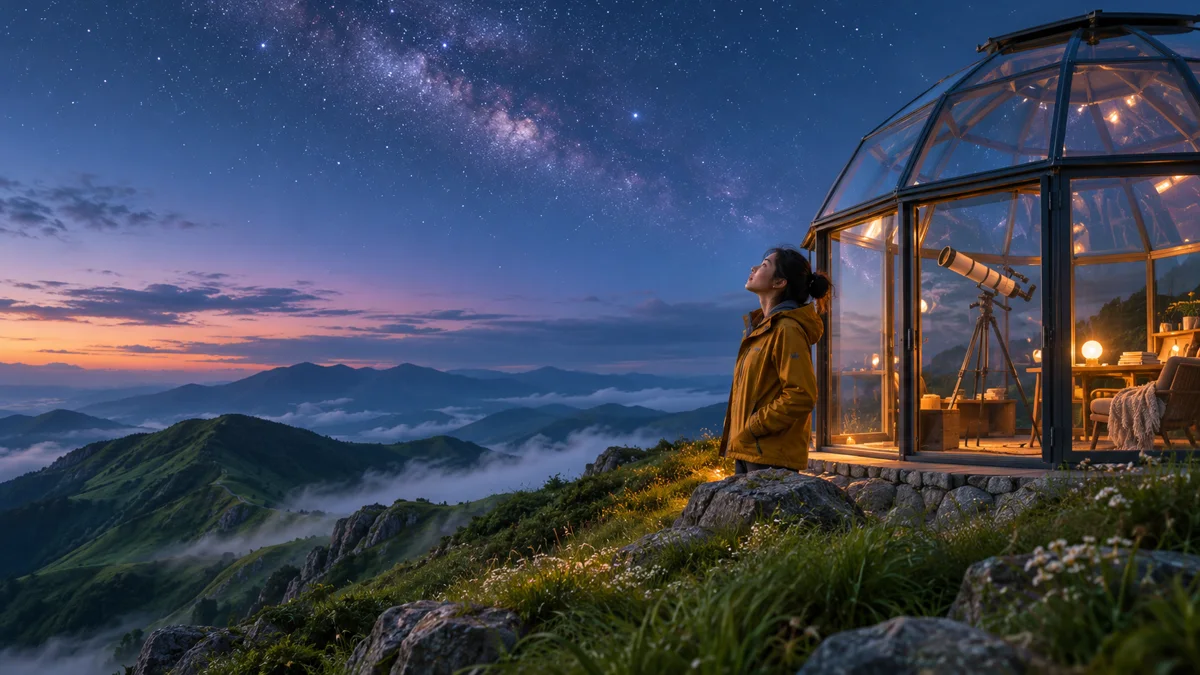
A woman beside a mountain observatory beneath a starry sky
Creative illustration

Direct a scene from a written brief

Describe the subject, action, setting and camera movement, then turn the brief into a short video. A landscape establishing shot and a close-up need different instructions: name the framing and the movement that matter. Keep the prompt focused enough for the chosen duration, and review whether the result follows the intended action.

Ivory ceramic teapot and cups in warm morning light
Creative illustration

Give a starting image movement

Begin with one product photo, portrait or scene image, then describe what should move. The image establishes the opening frame and its shape determines the video aspect ratio in image-to-video mode. For a teapot reveal, specify a gentle camera move and changes in light. Max does not accept a separate ending frame.

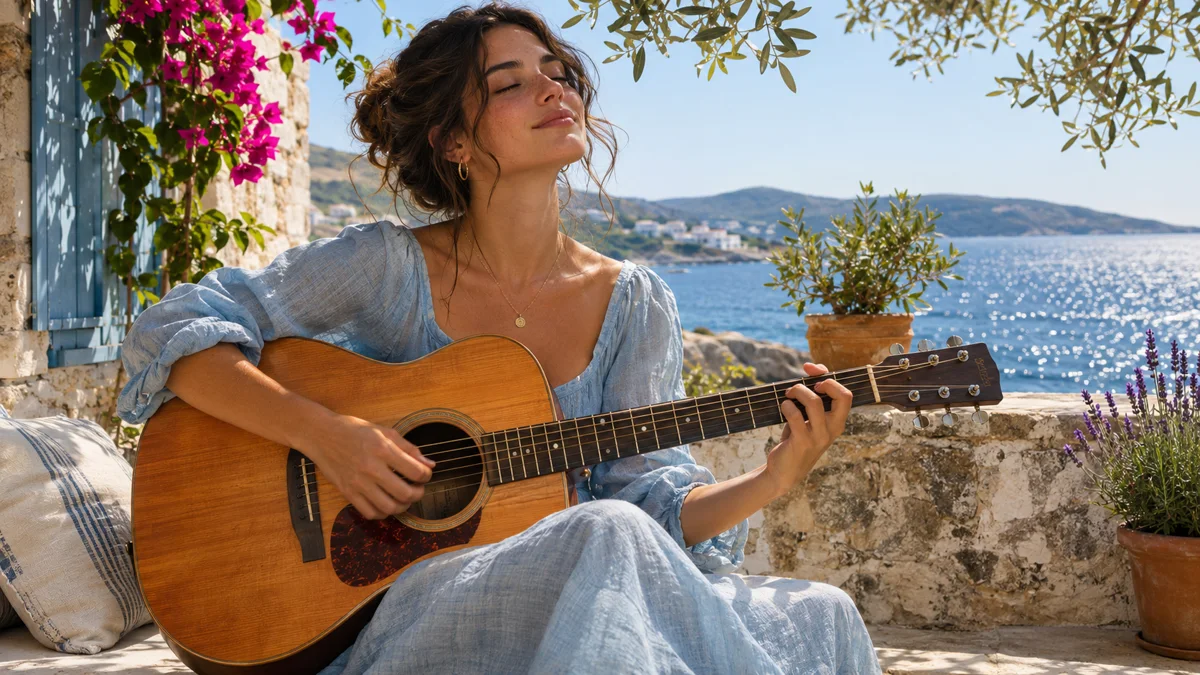
A woman playing acoustic guitar on a Mediterranean terrace
Creative illustration

Create sound alongside the picture

Enable generated audio to add sound to the video in the same generation. Describe the ambience, music or dialogue alongside the visible action, such as guitar playing on a terrace or a quiet room with birds outside. Listen back for timing and speech clarity; audio is an option, rather than a requirement for every clip.

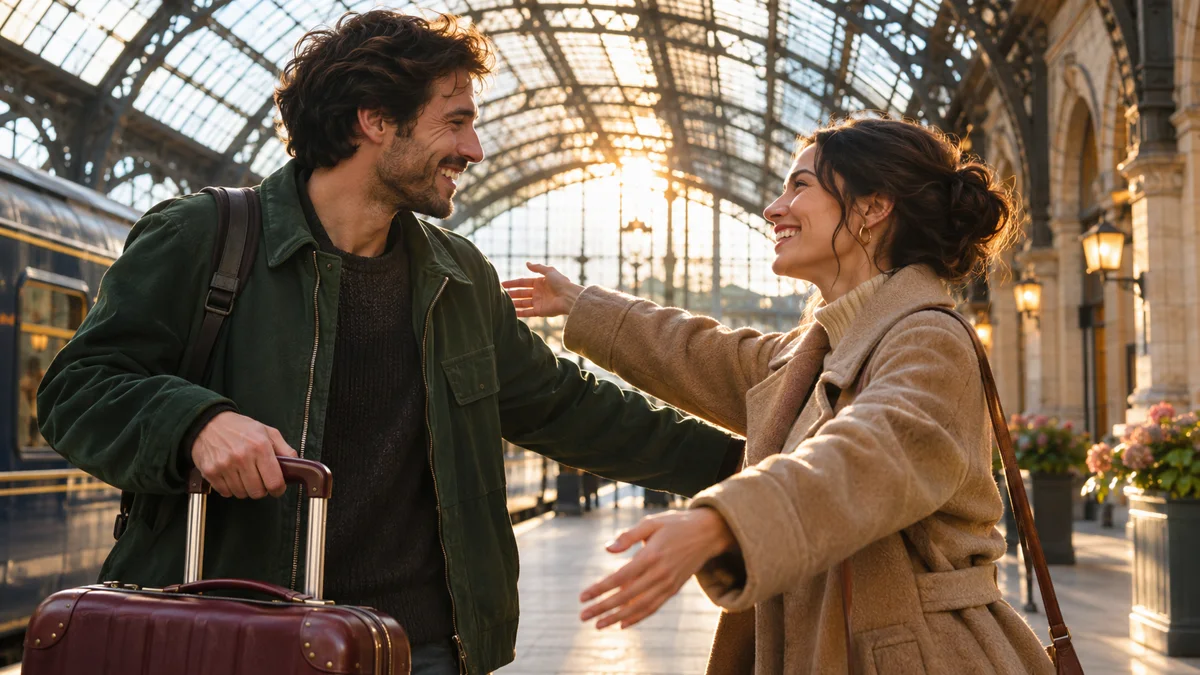
Two friends meeting at a sunlit train station
Creative illustration

Write a sequence of shots

Use the multi-clip option and divide the prompt into clear shots: an establishing view, a reaction close-up and a final reveal. Repeat essential character and setting details when continuity matters. The whole sequence must fit within the selected clip length; precise cuts, identity and timing still need review in the generated result.

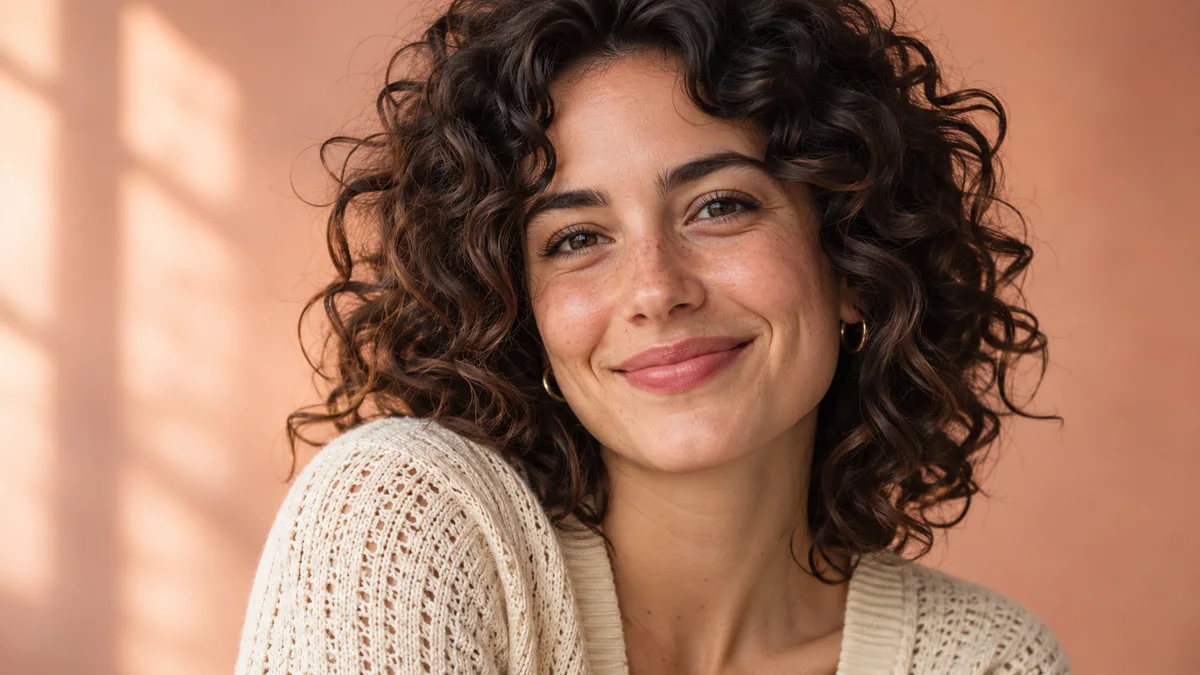
Close portrait showing natural curls and cream knit fabric
Creative illustration

Inspect the details at up to 1080p

Choose from 360p, 540p, 720p and 1080p output. A close-up makes fabric, hair, faces and small objects easier to judge before a clip goes into an edit. Lower resolutions can help explore a direction first. Higher resolution does not guarantee correct hands, readable lettering or continuity, so inspect the result at its intended viewing size.

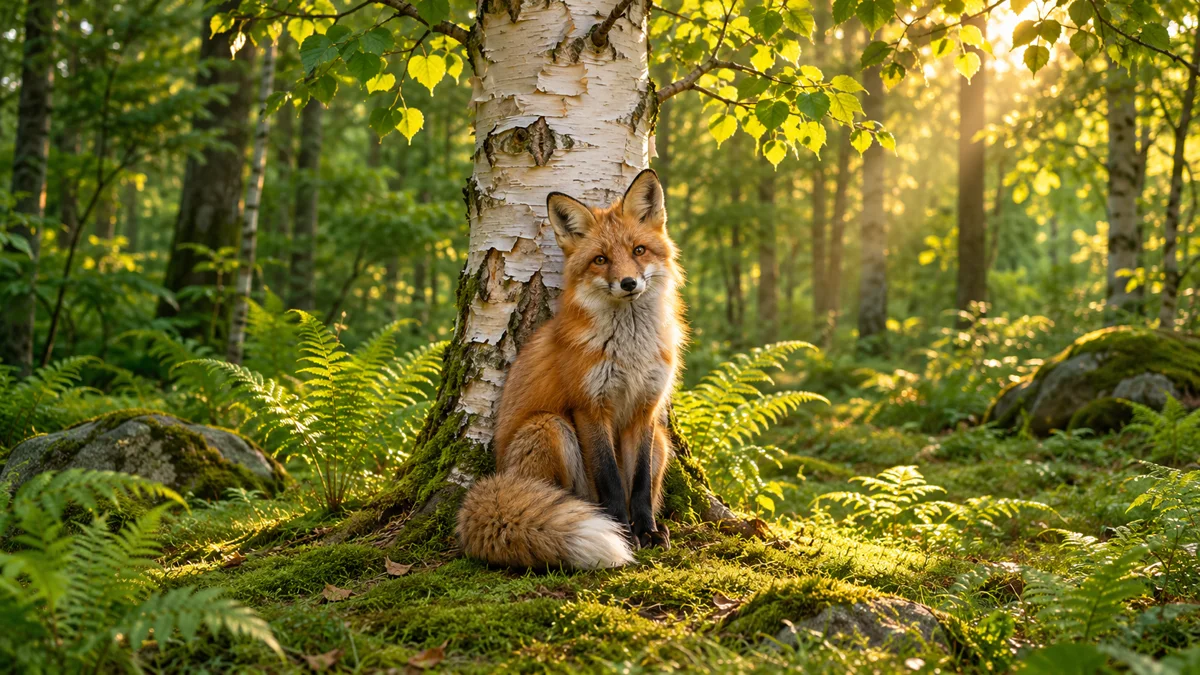
A red fox centered beside a white birch in a sunlit woodland
Creative illustration

Compose for the destination

For text-to-video, choose a supported frame shape, from vertical 9:16 and square 1:1 to widescreen 16:9 and 21:9. Keep the main subject and important action inside the chosen composition. With image-to-video, prepare the input image in the shape you want: the output follows that image rather than a separate aspect-ratio setting.

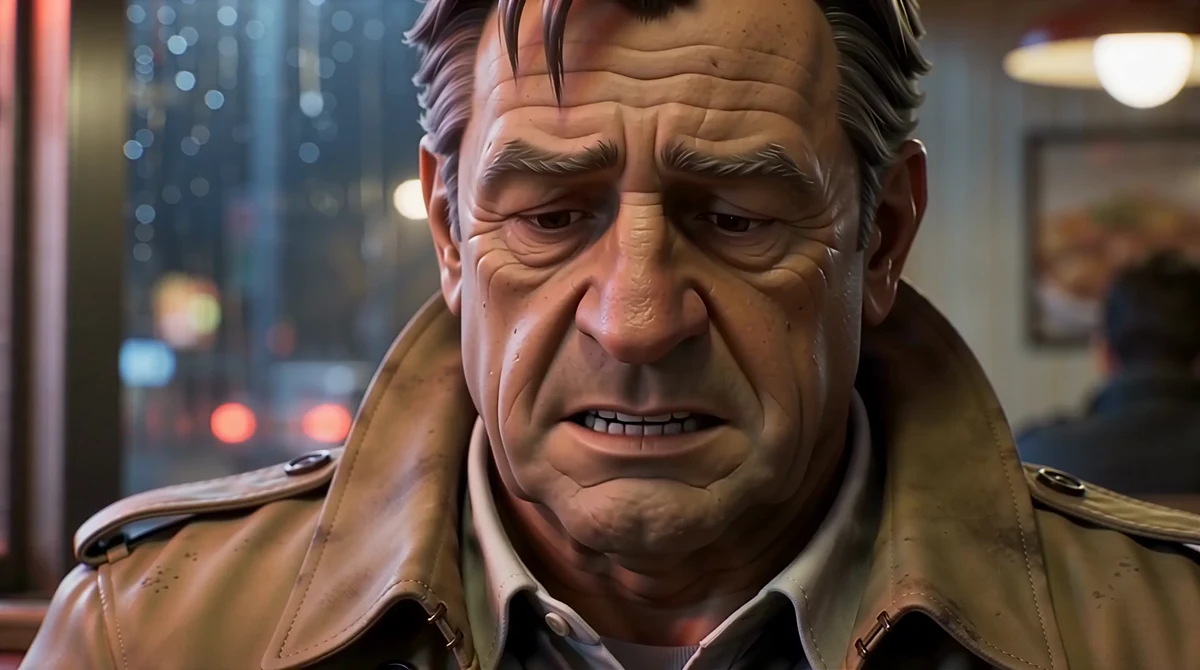
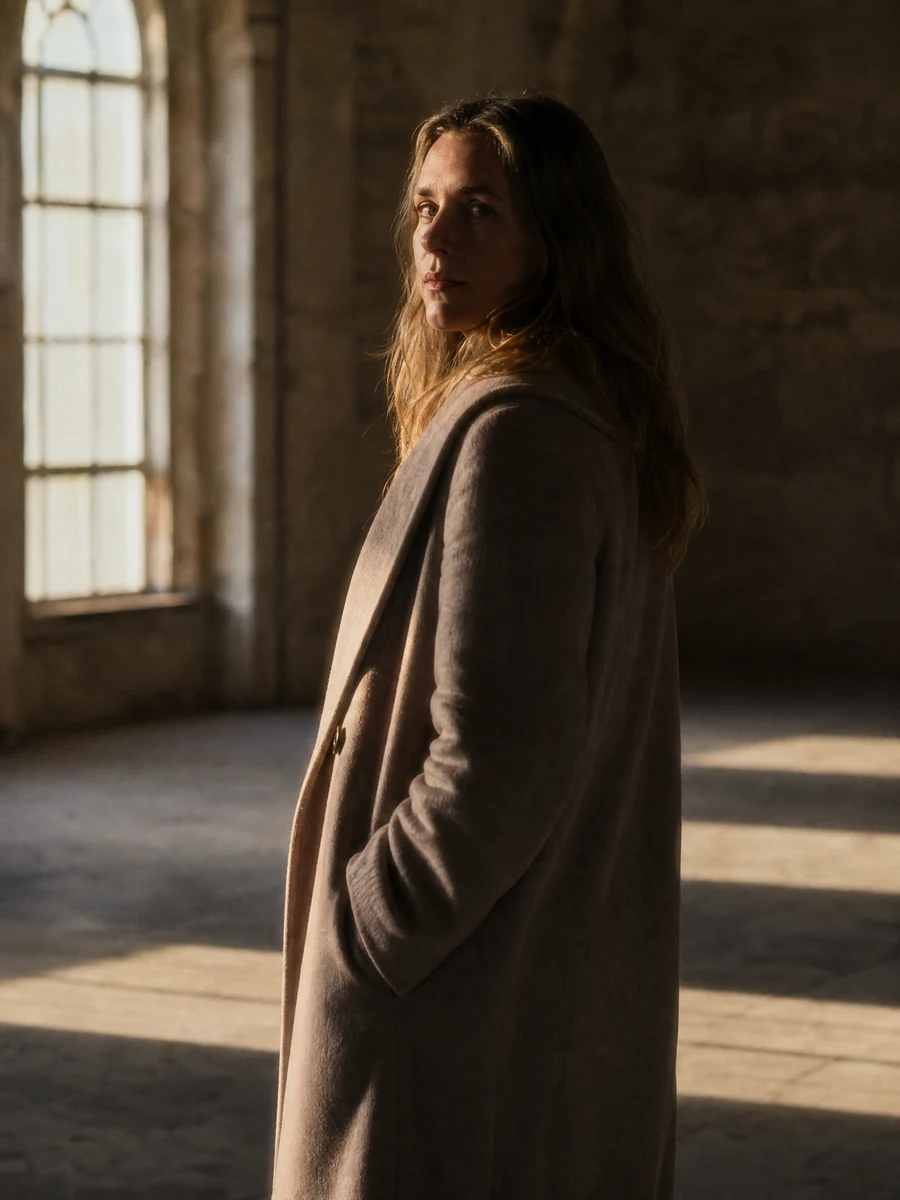
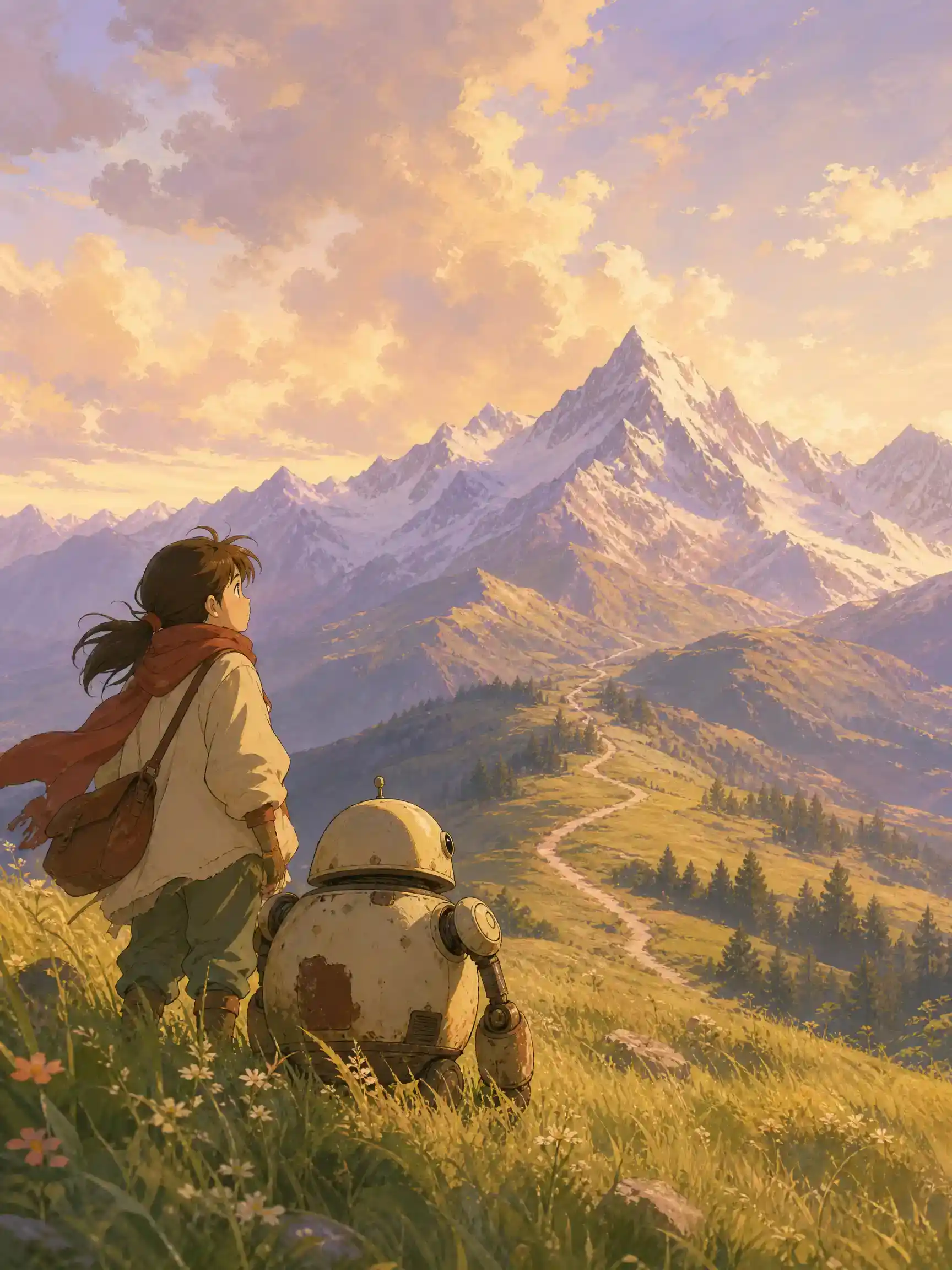
Image showcase

Frames from official PixVerse V6 Max examples. Source: PixVerse

Model comparison

DimensionPixVerse V6 MaxPixVerse V6
Starting inputsText or one starting imageText, images, and supported video references
Output settings1–15 seconds; 360p, 540p, 720p or 1080p1–15 seconds; 360p, 540p, 720p or 1080p
Generated audioOptional native audioGenerated audio on supported generation routes
First and last framesStarting image only; no separate last-frame inputFirst-and-last-frame generation supported
Subject and video referencesNo multi-subject reference or video-reference modeMulti-subject image references and video references supported
Video extensionNot supported in the V6 Max generation modesExtension supported
Suggested choiceA short text-led or image-led scene, with optional audio and multiple shotsA workflow that needs reference controls, a target ending frame or clip continuation

Settings follow the official PixVerse capability map; individual services can expose a smaller set of options. This is a feature comparison, not a quality ranking.

Use-case scenarios

Lifestyle and product films

Develop a short clothing, homeware or beauty story from a clear scene brief. Describe the material, lighting and movement that matter, then review the product appearance across cuts. A starting image can anchor the opening composition.

Short dialogue scenes

Plan a brief exchange with a small cast. Identify who speaks and what the other person does while listening. Keep the lines short enough for the clip, then check the generated voice, lip movements and character continuity.

Social and campaign variations

Explore one message in different settings or frame shapes. Choose a vertical composition for a mobile placement or a wider scene for a landscape edit. Treat each result as a take to review, rather than a finished campaign by default.

Use cases

Develop the wider creative project with Pexo, from product imagery to cinematic scenes and illustrated stories.

FAQ

What is PixVerse V6 Max?

PixVerse V6 Max is a PixVerse video generation model for creating short clips from text or one starting image, with optional generated audio. The official publisher also exposes a multi-clip option for describing several shots within one generated sequence. It is a distinct option from the regular PixVerse V6 workflow.

How long can a video be, and what resolutions are supported?

The official PixVerse capability map lists 1–15 second videos at 360p, 540p, 720p and 1080p. Available choices depend on the service: for example, the Replicate route exposes 5, 8, 10 and 15 second durations. Check the selected service before preparing a brief around a particular duration or frame shape.

Does PixVerse V6 Max generate sound and dialogue?

Yes. Generated audio is optional and can include ambience, music, sound effects and dialogue. Describe the intended sound alongside the scene and identify the speaker when writing dialogue. Review the actual clip for voice quality, pronunciation, timing and lip movements before using it.

How is V6 Max different from regular PixVerse V6?

V6 Max supports text-to-video and image-to-video with one starting image. The official capability map does not list first-and-last-frame generation, multi-subject image references, video references or extension for Max; regular V6 supports those controls. Choose around the inputs and editing steps your scene needs, rather than assuming Max includes every V6 feature.

Where is PixVerse V6 Max available, and when was it released?

PixVerse documents V6 Max in its developer platform, and the official PixVerse publisher offers it on Replicate. The PixVerse changelog records added text-to-video and image-to-video support on October 22, 2026. That is a documented capability-update date; a separate first-release date has not been confirmed. Service settings, access and pricing can differ.

Turn your next idea into a video with Pexo.

Start creating