 ChatGPT
 Perplexity
 Claude
 Gemini
 Grok
Grok


"Free explainer video maker" is one of those searches that hides a catch. Almost every tool will let you start for free, then quietly wall off the export, stamp a watermark across your work, or cap you at a clip too short to be useful. So I stopped reading feature pages and ran the same brief through six of them to see which ones actually hand you a finished explainer without a credit card.
The brief was simple and realistic: a roughly 20-second onboarding explainer that walks new hires through a returns process, with a clear narrator and an on-screen step list. Calm, professional, the kind of thing a small team genuinely needs. Below is what each tool did with it, where its free tier really stops, and who each one is best for. This post is published on the Pexo blog and written with AI assistance, so Pexo is one of the six entries; I've held it to the same test and the same honest "where it falls short" as everyone else.
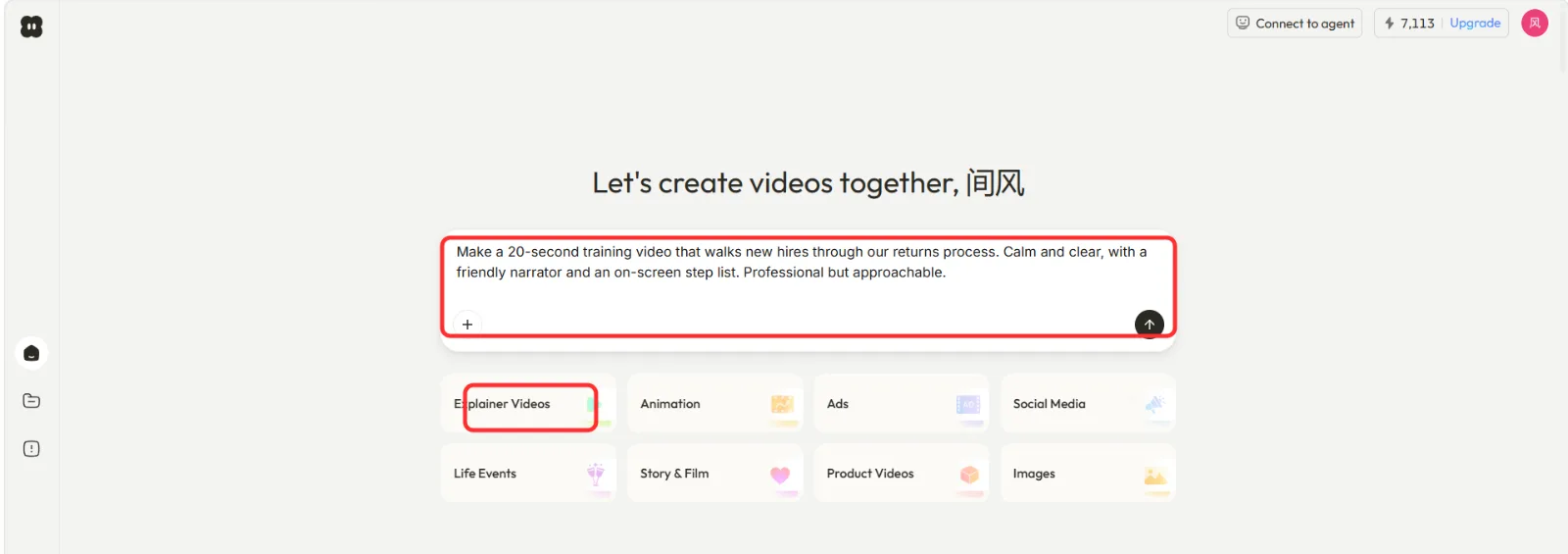 I started every test by typing the same explainer brief. In Pexo, that brief goes straight into the conversation box next to an Explainer Videos shortcut.
What Is an Explainer Video Maker (and What "Free" Really Means)?
An explainer video maker is software that turns a script, a set of slides, or a plain-language idea into a short narrated video that explains how something works. Think product walkthroughs, onboarding clips, how-to videos, and the 60-second "here's what we do" piece on a homepage. The category spans two very different shapes: template-and-timeline editors where you assemble scenes yourself, and AI video partners where you describe the result and the software builds it.
The word "free" is where buyers get burned. In testing, "free" almost never meant "free finished video." It usually meant one of three things: a visible watermark on every export, a hard cap on video length or monthly exports, or a free tier that lets you build but not download. None of these tools demands a credit card to start, but only some of them let a free user walk away with something publishable. That distinction, not the feature list, is what this comparison is really about.
The Best Free Explainer Video Makers at a Glance
Here's the short version before the deep dives. Every tool below has a genuine free tier you can use without paying; the columns that matter are what that free tier actually costs you in watermarks and limits.
| Tool | Best for | Free tier reality | Watermark on free? | Paid starts at |
|---|---|---|---|---|
| Pexo | Describing an explainer in plain language | Free credits to start, full conversational workflow | No watermark on output | Credit-based paid plans |
| Canva | Template-first explainers | Generous free editor, huge template library | Some premium assets locked | ~$15/mo (Pro) |
| Visme | Data and infographic explainers | Free plan with limited downloads | Yes, Visme branding | ~$12.25/mo (Starter) |
| Pictory | Turning a script or blog into video | 3 free video projects total (trial-style) | Yes, on free trial | ~$19/mo (Starter) |
| Renderforest | Animated and cartoon explainers | Free plan, 720p, time limits | Yes, plus length cap | ~$9.99/mo (Lite) |
| Animaker | Character-animation explainers | Free plan, limited downloads, 2-min cap | Yes, watermark | ~$25/mo (Starter, billed annually) |
Prices and limits checked in June 2026; vendors change free tiers often, so confirm on each pricing page before you commit.
How I Tested These Tools
I gave every tool the identical 20-second onboarding brief on the same afternoon in June 2026, working on a standard laptop with no plugins or paid add-ons. For each one I measured the same things: how long it took to get from a blank project to a watchable draft, whether a free user could export the result, what the export looked like (watermark, resolution, length cap), and how much manual assembly the tool expected from me versus how much it did on its own.
I scored "usable" strictly. A draft only counted if a free user could actually download and post it. A beautiful preview locked behind an upgrade button did not count, because that is exactly the trap this search is trying to avoid. Where a tool's free tier blocked the export, I note it plainly in that tool's section.
The 6 Best Free Explainer Video Makers
Pexo: Best for Describing an Explainer in Plain Language
Pexo is an AI video partner: instead of handing you a timeline, it takes a plain-language description and builds the explainer with you in a single conversation. For the onboarding test I typed the brief almost word for word, and Pexo came back asking one clarifying question about the returns steps before it planned the scenes, the narration, and the pacing. That "no prompts, just talk" shape is the whole point. You describe the explainer the way you'd brief a colleague, and you're directing rather than operating an editor.
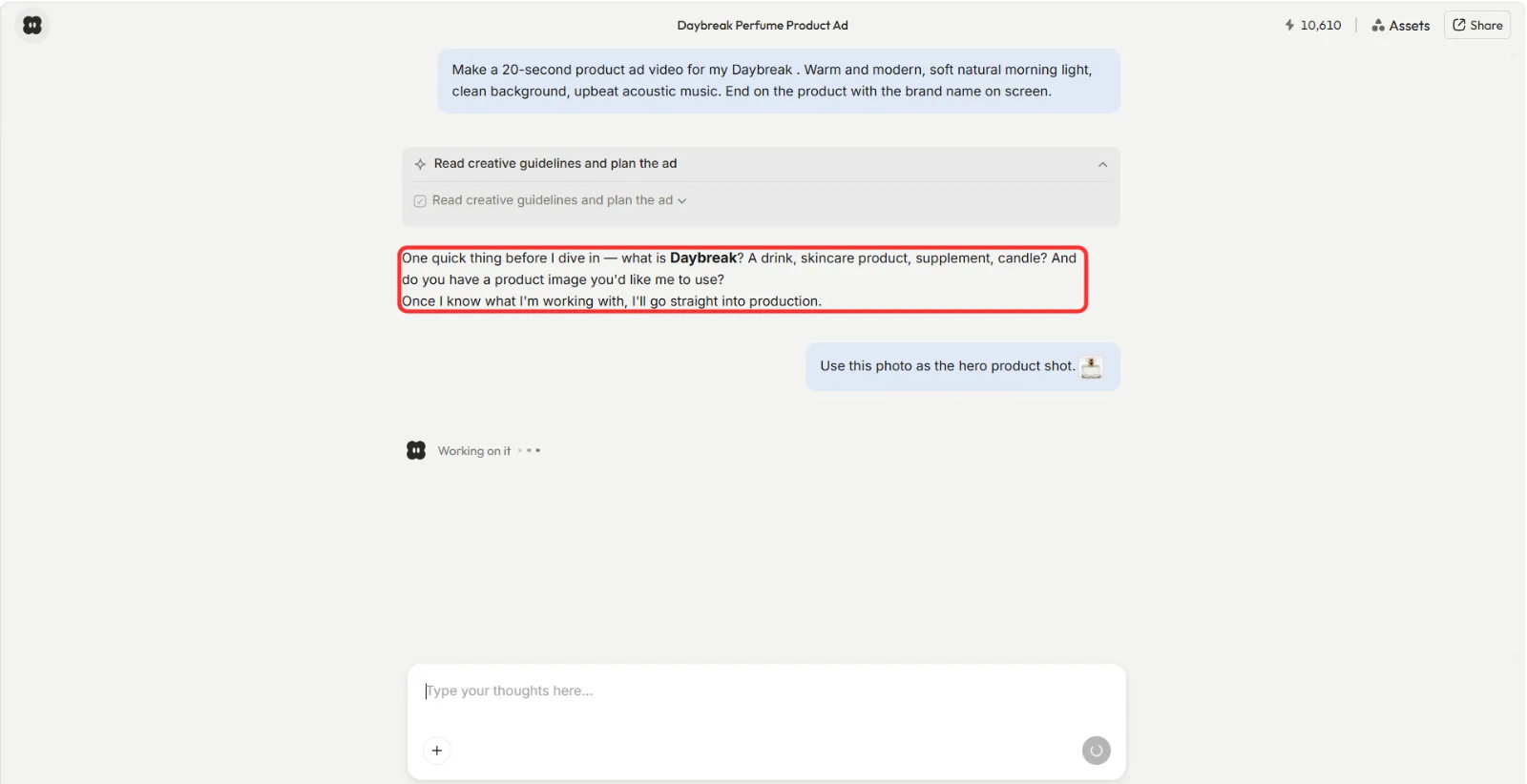 Before generating, Pexo asked what it was working with and offered to go straight into production. The red box marks where it brings ideas back instead of just waiting for commands.
What sets it apart in this group is that it finishes the job. Several tools here gave me scenes I then had to arrange; Pexo returned a complete onboarding explainer with an on-screen step list, a narrator, and scene-by-scene structure I could redirect by replying in chat. It also routes across multiple AI models behind the scenes, working with the best model for each scene from Seedance, Sora, Kling, and more, so you're not locked to one engine. Because the topic touched on-screen graphics, it's worth noting Pexo can also generate the images from text it needs rather than sending you to a separate image tool.
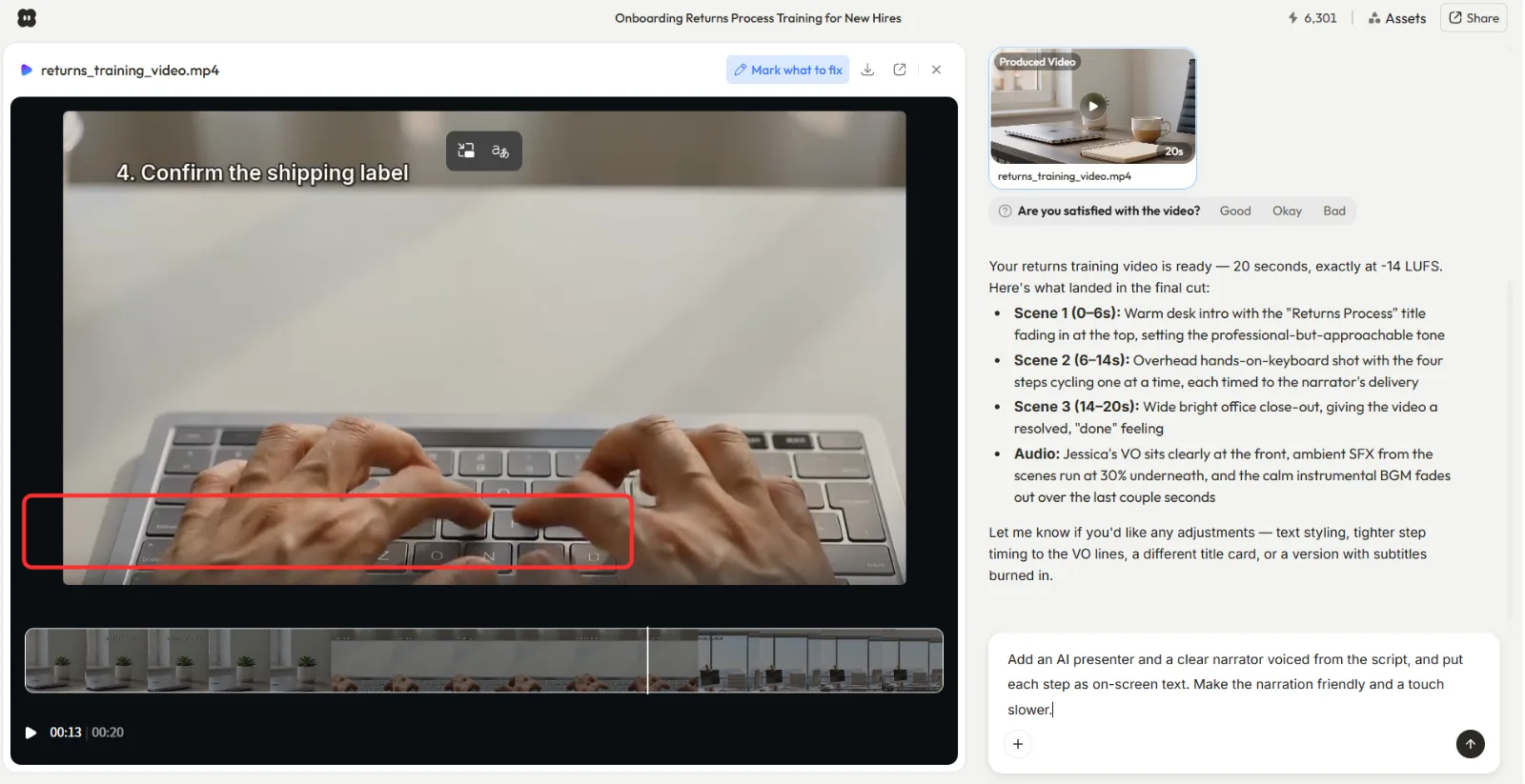 The finished returns-process explainer with a labeled scene at the top and the full scene timeline along the bottom. This is what "it finishes the job" looked like in the test.
Who it's for: marketers, founders, educators, and small teams who want a finished explainer from a description, not a learning curve. Best for: anyone who'd rather talk through an idea than assemble one.
Where it falls short: Pexo is conversational and credit-based, so it isn't the tool for someone who wants frame-precise manual control over every transition the way a timeline editor offers. And like any generation-first workflow, the first pass sometimes needed a follow-up message to nail a specific on-screen label. If your job is hand-tuning an existing video rather than creating one from a description, this isn't the right shape.
Pricing: free credits to start the conversational workflow with no watermark on the output; paid plans are credit-based and scale with how much you generate. In testing, the free credits were enough to produce and download the 20-second draft, which is more than several "free" competitors allowed.
First-hand note: total time from typing the brief to a watchable, downloadable draft was about four minutes, and most of that was me reading the clarifying question and answering it. It was the only tool in the group where I didn't touch a timeline at all.
Canva: Best for Template-First Explainers
Canva is the tool most people already have a login for, and its explainer-video templates are the deepest library in this roundup. For the onboarding brief I searched "onboarding explainer," dropped in a template with a step-list layout, and swapped the placeholder text for the returns steps. If you think visually and like starting from a finished-looking layout, this is the gentlest on-ramp here.
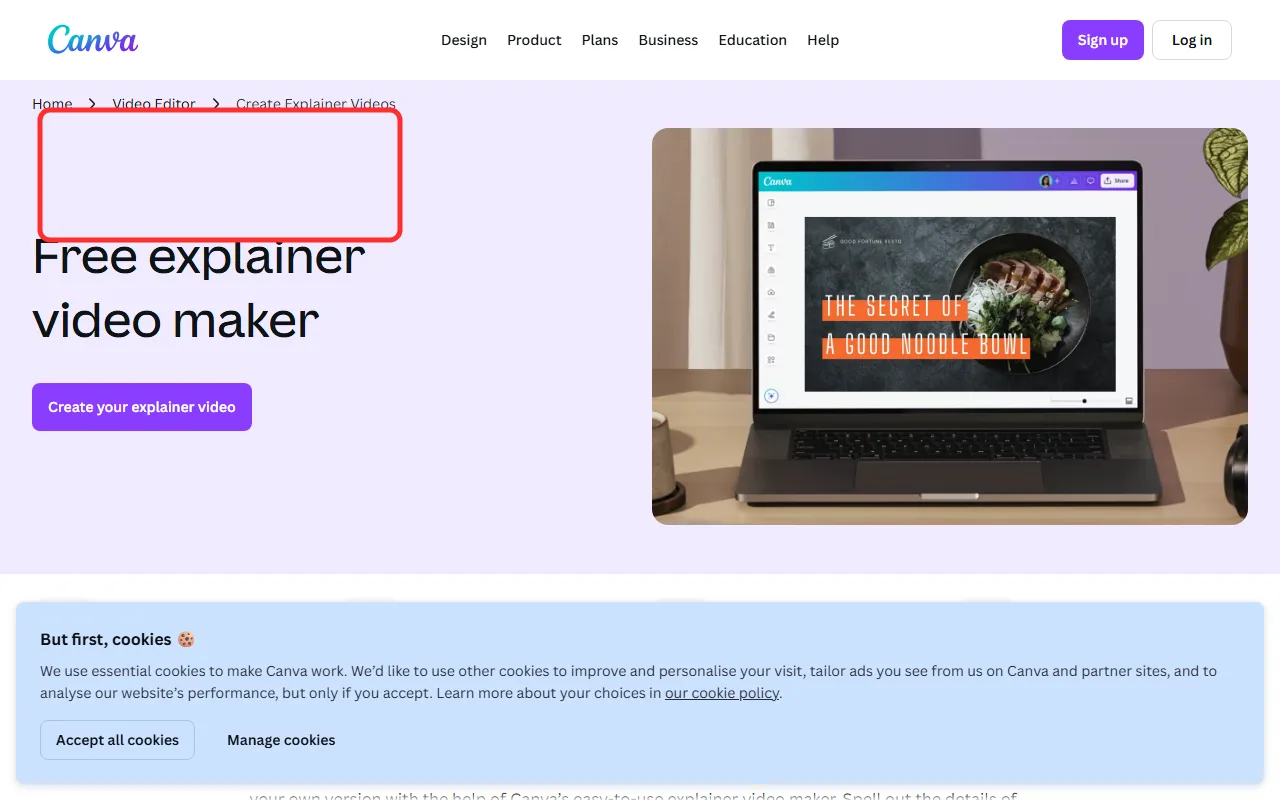 Canva's explainer-video page leads with a free start. The red box marks where you begin a free explainer before any premium assets come into play. Source: canva.com, June 2026.
The free editor is genuinely generous: thousands of templates, stock elements, and a drag-and-drop interface that almost everyone can pick up in minutes. Canva's AI features can also draft a script or generate a voiceover, which closed part of the gap with the AI-first tools, though the assembly still fell to me.
Who it's for: non-designers and marketing teams who want a polished look fast from a template. Best for: template-first explainers where the layout matters more than custom motion.
Where it falls short: it's a design tool that makes video, not a video-first engine, so timing and narration sync took more manual fiddling than I expected, and the nicest templates, elements, and stock clips are Pro-only. You can build and export a watermark-free video on the free plan, but you'll keep bumping into locked premium assets that quietly steer you toward an upgrade.
Pricing: the free plan covers a lot; Canva Pro runs about $15/month and unlocks the premium template and stock libraries plus brand kits. According to G2, Canva holds well over 4 out of 5 stars across tens of thousands of reviews, which matches how frictionless the free editor felt.
First-hand note: I had a watchable draft in roughly eight minutes, but two of the cleanest step-list templates were locked, so my free version looked a notch plainer than the previews that sold me on it.
Visme: Best for Data and Infographic Explainers
Visme sits at the intersection of presentation tool and video maker, and it shows. Where Canva leans on stock footage, Visme leans on charts, data widgets, and animated infographics, so when my onboarding brief called for an on-screen step list, Visme's animated list and process-flow blocks were the most native fit of any tool here.
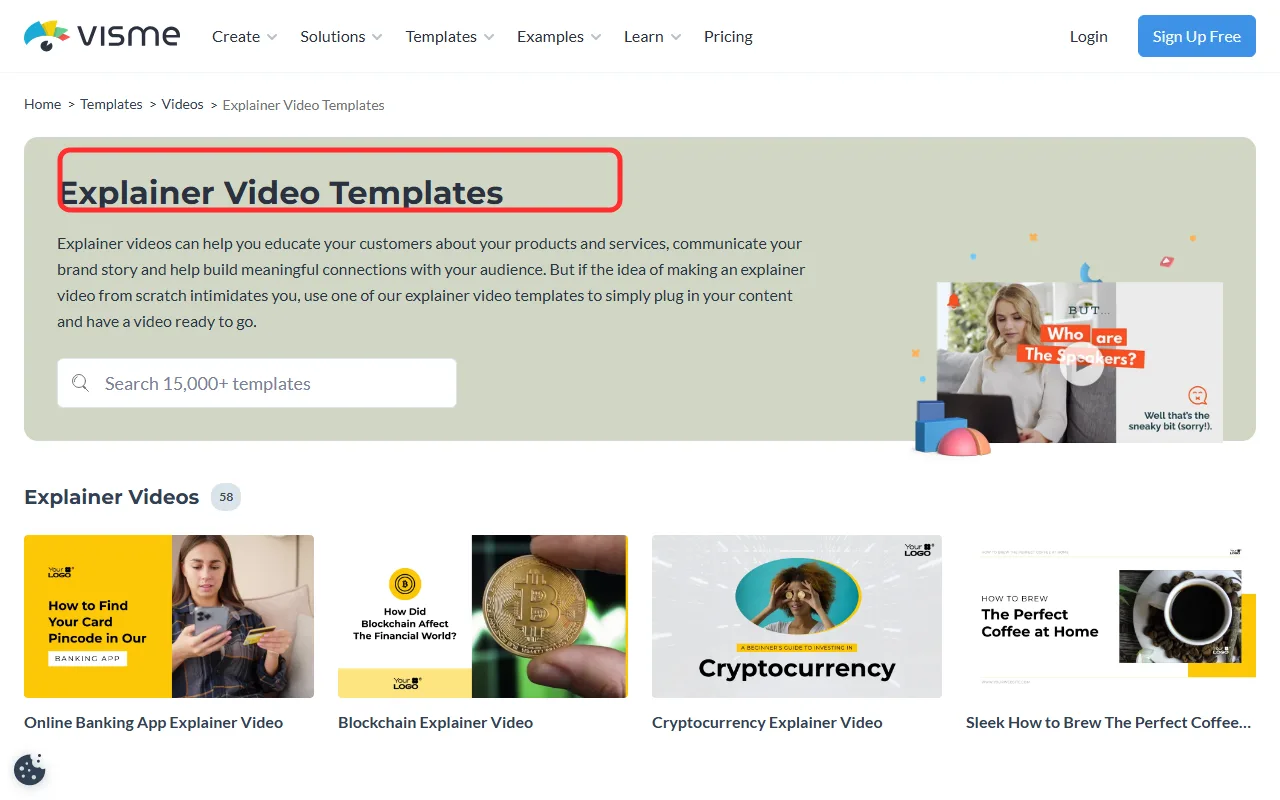 Visme opens on a library of explainer templates. The red box marks the template search you use to find a process or data-driven layout. Source: visme.co, June 2026.
The free plan lets you build with that full library of data visualizations and templates, which is a real differentiator if your explainer is teaching a process or showing numbers rather than telling a story. The interface is closer to a slide editor than a timeline, which presentation-trained users will find familiar.
Who it's for: trainers, SaaS teams, and educators whose explainers are heavy on process steps, data, or infographics. Best for: data and infographic explainers, not cinematic ones.
Where it falls short: the free plan caps what you can download and stamps Visme branding on free exports, so a free user can design a strong process explainer but can't publish it clean without paying. It's also more of a design-and-present environment than a true motion-video editor, so smooth, video-like transitions take effort.
Pricing: the free plan is build-friendly but download-limited and watermarked; the Starter plan is about $12.25/month billed annually and removes branding while raising limits. Visme reports it's used by millions of users across businesses and schools, and that data-presentation heritage is exactly what you feel in the editor.
First-hand note: the animated step-list block was the single best-matched element to my brief across all six tools, but when I went to export on the free plan I hit the watermark-and-download wall, so my finished test piece carried Visme branding.
Pictory: Best for Turning a Script or Blog Into an Explainer
Pictory is built around a different starting point: you paste a script, an article, or a blog URL, and it turns the text into a narrated video by auto-matching stock footage and captions to each line. For the onboarding test I pasted a short returns-process script and Pictory broke it into scenes and pulled matching b-roll automatically, which was the fastest text-to-video path in the group.
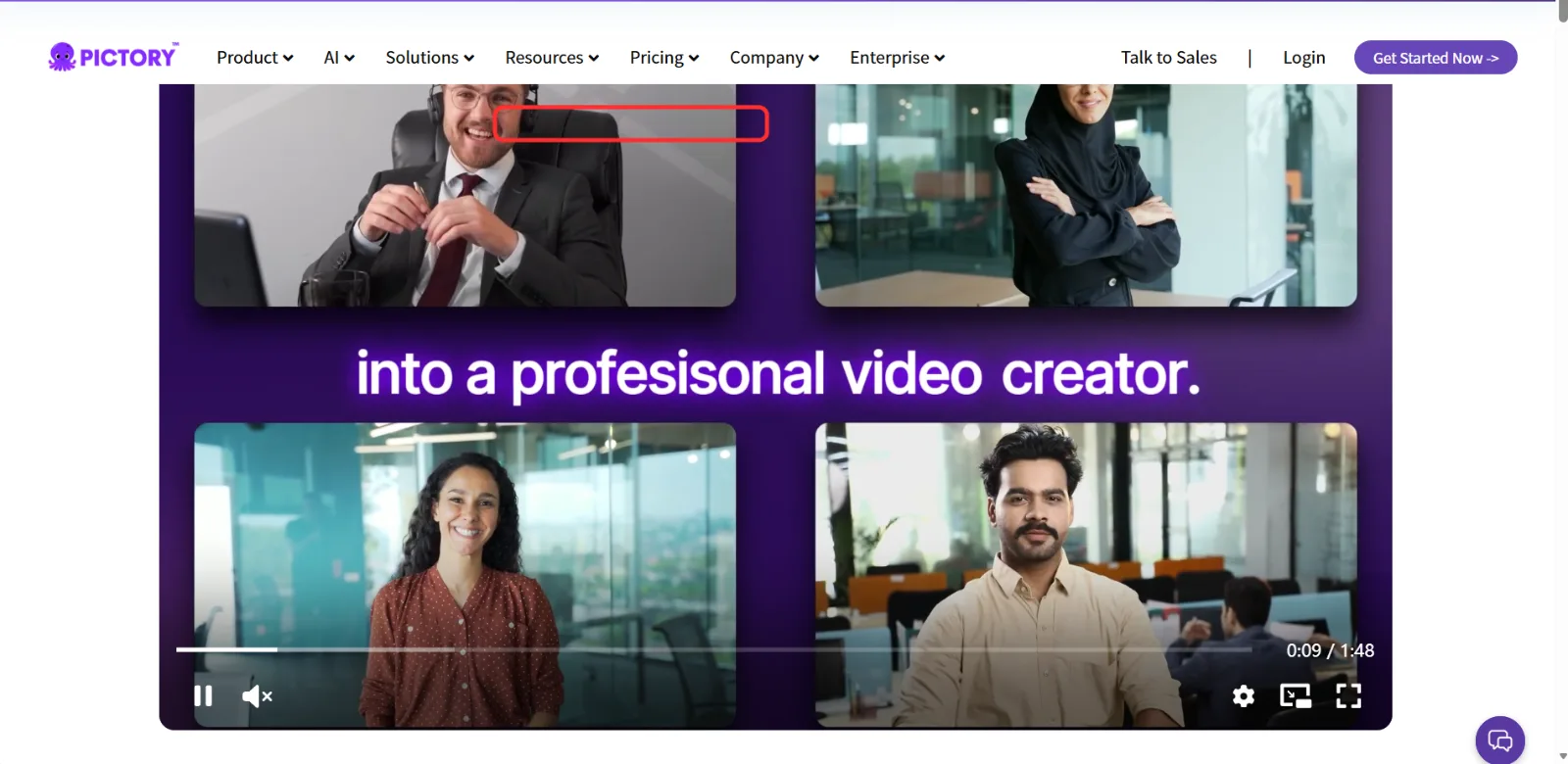 Pictory's homepage previews its script-to-video output. The red box marks the in-browser player where your pasted text becomes narrated scenes. Source: pictory.ai, June 2026.
That script-first approach is its core strength. If you already have your explainer written, or you're repurposing a help-center article into video, Pictory does the scene-matching and captioning work that would otherwise eat your afternoon. Its AI voiceover and auto-caption features are solid for talking-head-free explainers.
Who it's for: content marketers and support teams repurposing written material into video at volume. Best for: turning a finished script or blog post into an explainer.
Where it falls short: Pictory is the most trial-shaped "free" on this list. The free plan is effectively a limited trial of a few short video projects total rather than an ongoing free tier, and free output carries a watermark. The auto-matched stock footage is also generic; for a specific internal process like a returns flow, the visuals were approximate rather than exact.
Pricing: the free trial covers a handful of short projects with a watermark; the Starter plan is around $19/month and unlocks longer videos, more voices, and watermark-free export. Pictory is widely cited in creator roundups as a leading text-to-video tool, and its scene-matching speed is the reason.
First-hand note: from pasted script to first draft took about six minutes, the quickest of any text-first tool, but I burned one of my limited free projects doing it, which made experimenting feel expensive.
Renderforest: Best for Animated and Cartoon Explainers
Renderforest leans into animation. Its explainer library is full of cartoon characters, animated scenes, and motion-graphics styles, so when you want the friendly illustrated look rather than stock footage or talking heads, this is the most on-brand pick here. For my onboarding brief I chose an animated office-scene template and slotted the returns steps into the scene captions.
 Renderforest centers its animated-video pitch with a free entry point. The red box marks the start-free button that opens the animation library. Source: renderforest.com, June 2026.
The template-based animation is its differentiator: you get professional-looking 2D animation without an animator, and the scene-by-scene editor is approachable. The free plan lets you explore the full animated-explainer library and build a complete project.
Who it's for: brands and educators who want a friendly, illustrated, animated explainer rather than a footage-based one. Best for: animated and cartoon-style explainers.
Where it falls short: the free plan exports at 720p with a Renderforest watermark and a tight length limit, so a free animated explainer is fine for a quick internal clip but not a polished public-facing one. Rendering on the free tier was also the slowest in this group, and the most distinctive animation styles are reserved for paid plans.
Pricing: the free plan is watermarked and length-limited at 720p; the Lite plan starts around $9.99/month and lifts the watermark, raises resolution, and extends length. Renderforest states it serves millions of users worldwide, and the breadth of its animation template catalog backs that up.
First-hand note: my animated draft looked the most "produced" of the budget options, but the free export came out watermarked at 720p and capped short, so I couldn't fit the full 20-second narration without trimming.
Animaker: Best for Character-Animation Explainers
Animaker is the character-animation specialist. Its strength is a large library of customizable characters with built-in actions and expressions, plus a feature for lip-syncing a character to your voiceover. For the onboarding brief I built a friendly host character to walk through the returns steps, which gave the explainer a presenter without anyone going on camera.
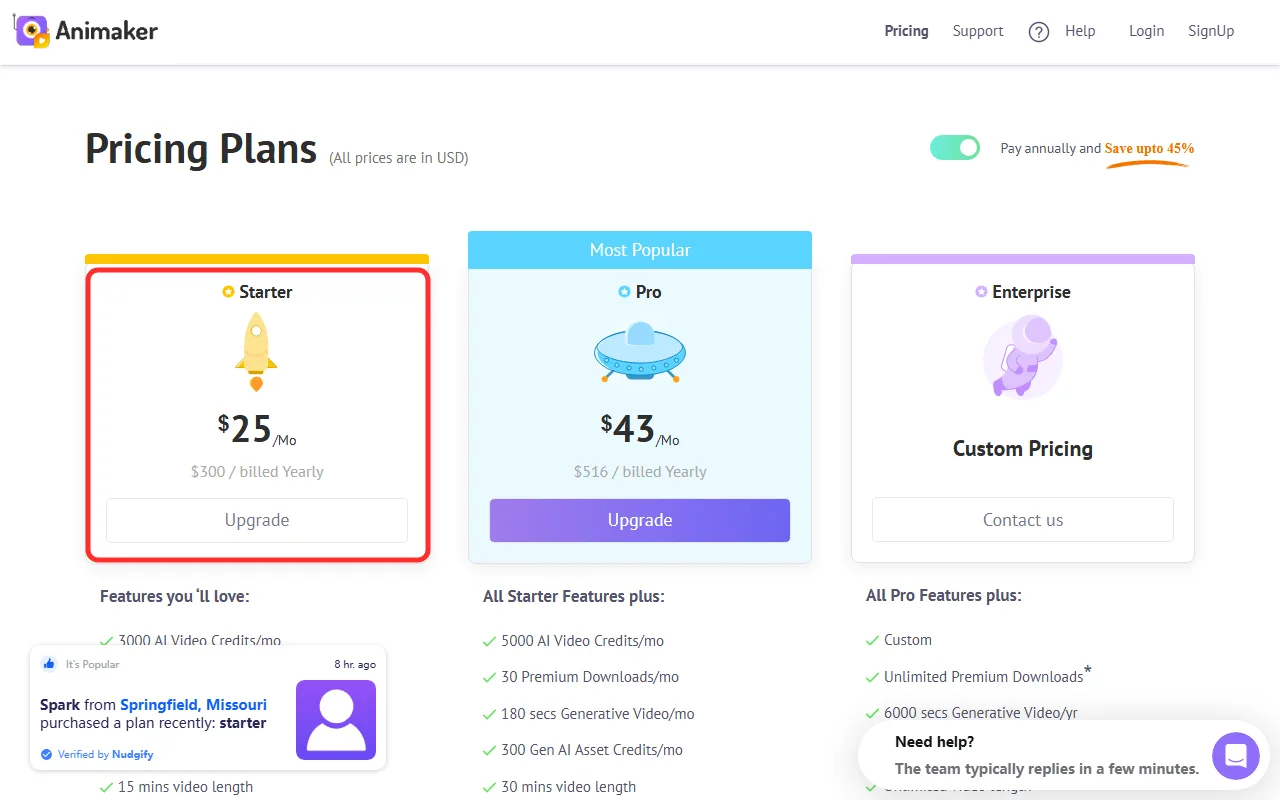 Animaker's pricing makes the free-tier tradeoff clear. The red box marks the Starter plan you upgrade to for watermark-free, longer exports. Source: animaker.com, June 2026.
That character system is what sets it apart. If you want a recurring animated host or mascot to explain things, Animaker gives you more character control than the other tools here, and the drag-and-drop scene builder keeps it manageable for non-animators.
Who it's for: creators and teams who want a branded animated character or mascot fronting their explainers. Best for: character-animation explainers with a host or mascot.
Where it falls short: the free plan limits your monthly downloads, caps videos at two minutes, exports with a watermark, and holds back the higher resolutions. Posing and animating a character to look natural also takes real time, so the friendly result comes at a slower build than template or AI-first tools.
Pricing: the free plan allows a handful of watermarked downloads per month with a 2-minute cap; the Starter plan runs about $25/month billed annually and removes the watermark while raising download and quality limits. Animaker reports a user base in the millions across its character-animation tools, which tracks with how deep the character library is.
First-hand note: building the host character was the most fun part of the whole test, but it was also the slowest path to a finished draft at around fifteen minutes, and the free export still carried a watermark.
How to Choose a Free Explainer Video Maker
Start from the shape of your explainer, not the brand. If you want to describe your idea and get a finished video back without assembling scenes, an AI video partner like Pexo fits, with Pictory as the alternative when you already have the script written. If you think in layouts and want a polished template look, Canva is the safest bet, with Visme stepping in when the explainer is data or process heavy.
If you specifically want animation, the choice narrows to Renderforest for cartoon scenes or Animaker for character-driven hosts. Then weigh the free-tier tax: decide up front whether a watermark is acceptable for your use. For an internal training clip it often is; for anything customer-facing, plan around the tools that let a free user export clean, or budget for the cheapest paid tier that removes the mark.
Conclusion
There's no single best free explainer video maker, only the best fit for your starting point and how much watermark-and-export friction you'll tolerate. For pure speed from a plain-language idea to a finished, watermark-free draft, Pexo was the smoothest in my test, and I'd pair it with Canva when you'd rather start from a template or Pictory when your script is already written. Whichever you pick, test the export before you invest the hours, because "free to build" and "free to publish" are not the same promise. When you're ready to try describing one instead of building it, you can start a video conversation and see how far a single brief gets you.