
 ChatGPT
 Perplexity
 Claude
 Gemini
 Grok




A product image can carry a video brief only when the SKU still looks like the product your customer will receive. Start with one approved photo, change one visual decision at a time, and keep a record of what remains untouched.
That is the useful role of Seedream 5.5 product video planning. Seedream 5.5 is an image editing model, not a video generator. The handoff needs a verified frame, source, and edit record.
Which SKU detail must stay unchanged?
Protect the detail that proves what the product is. For a fictional Vela desk lamp, that might be the matte olive shade, brass switch, printed 12V label, and cable entering the base.
Write those facts before opening an editor: product name, SKU, color, package text, accessories, dimensions, and the claim the frame supports. If a person appears, record whether they are approved.
The setting can change. Product facts cannot change because a background looks better.
Start from one approved product photo
Choose the clearest image that already has permission for the intended use. Keep the original separate from generated versions. Give it a stable name such as VELA-LAMP-P01-original.jpg and add a fact sheet.
Seedream 5.5's official model page describes targeted multi-turn edits that preserve unedited regions at the pixel level. Its launch article shows a 100-round demonstration. Treat that as published capability and demonstration context, not a promise that your packaging or logo will survive every round.
Use a copy for the first edit:
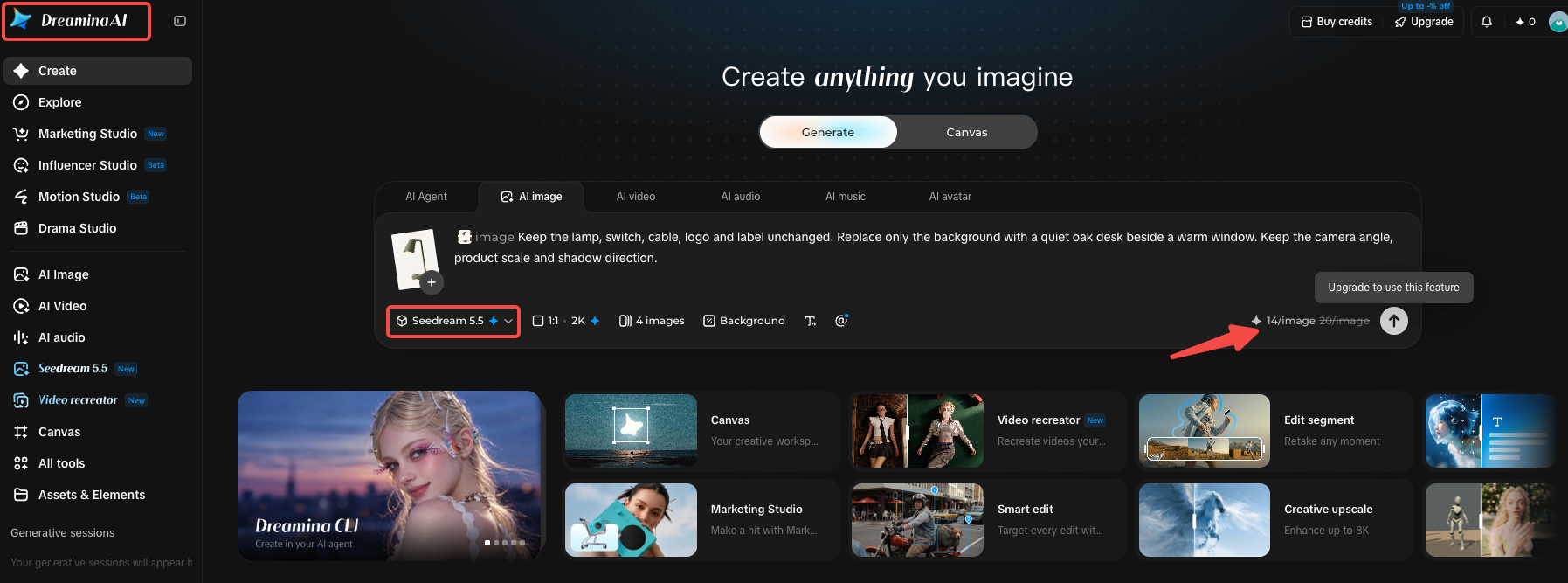
Keep the lamp, switch, cable, logo and label unchanged. Replace only the background with a quiet oak desk beside a warm window. Keep the camera angle, product scale and shadow direction.
“Only the background” gives the review a boundary. Without it, a setting request can become a product redesign.
Edit the same image in controlled rounds
Give each round one job: setting, light, then distracting props. Stop when the frame supports the brief; more edits are not automatically better.
Record each round in a small log:
| Round | Requested change | Protected details | Result | Decision |
|---|---|---|---|---|
| 01 | Replace the wall with an oak desk scene | Lamp shape, label, switch, cable | Background changed; label needs close inspection | Review |
| 02 | Warm the window light | Product color, shadow edge, package text | Color is closer; brass switch looks softer | Revise |
| 03 | Remove the extra book | All product regions and camera scale | Clean frame with readable label | Keep |
If a protected detail changes, return to the last accepted image or replace the source before continuing.
Change the setting without changing the product
Describe the new setting through things outside the SKU: surface, wall, time of day, light direction, depth of field and background objects. Then name what stays fixed.
For Vela, “sunlit study” is too loose. “Warm side light from the left, pale oak desk, empty wall, shallow blur, no new objects touching the lamp” gives the reviewer something concrete to check.
Native RGBA output can help when the product enters a later layout. Inspect packaging edges and reflective parts at final display size.
Compare untouched regions and SKU identifiers after each edit
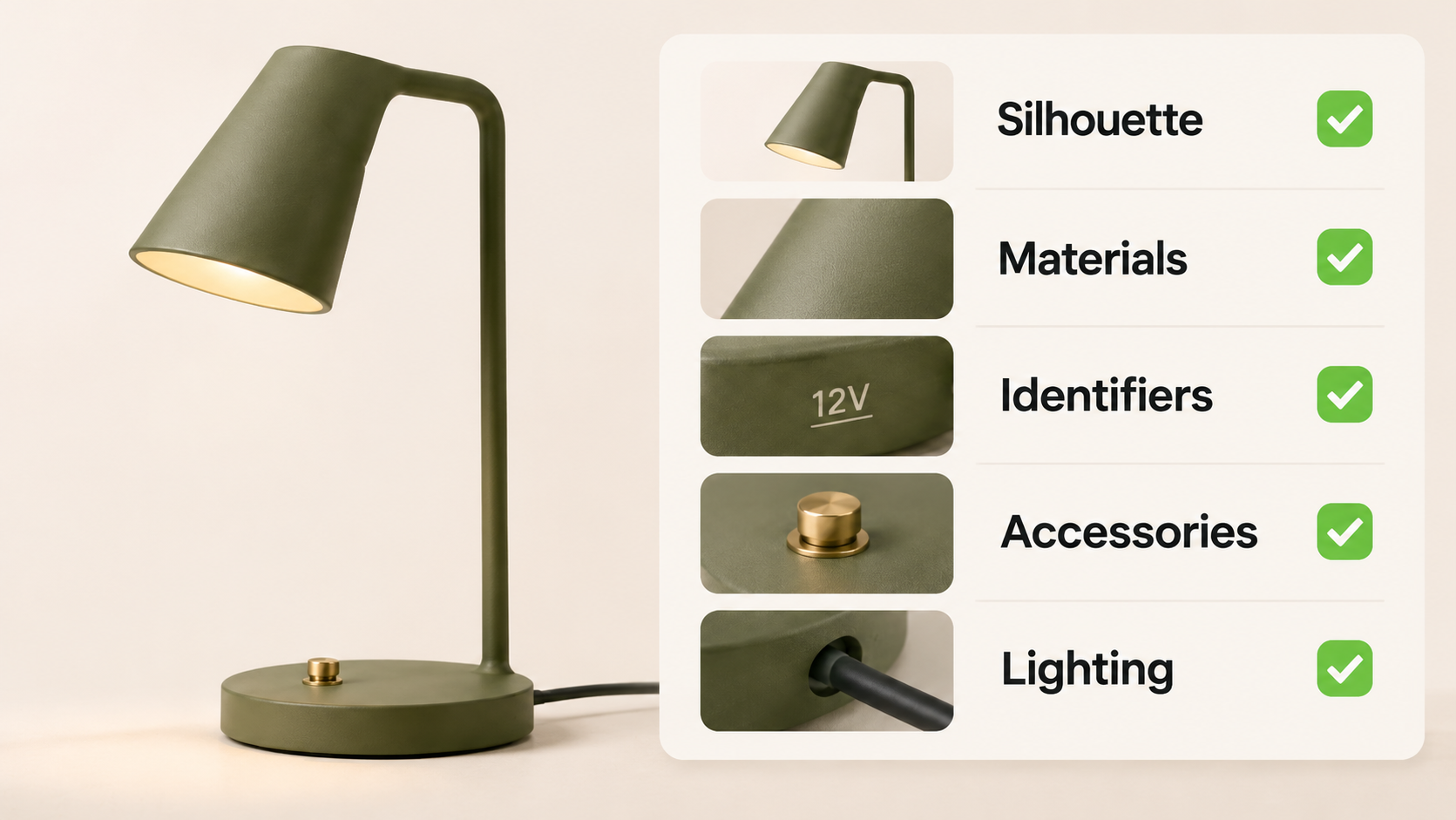
Review the new image against the original in the same order:
-
Silhouette: Is the body, handle, cap or cable shaped the same?
-
Materials: Do matte, glass, metal or fabric surfaces still describe the real item?
-
Identifiers: Are the brand mark, SKU code, capacity, voltage and warning text correct?
-
Accessories: Did the edit add, remove or relocate anything that changes the offer?
-
Lighting: Do reflections and shadows still support the product's position?
Seedream 5.5's launch material reports better small-text rendering in its own evaluations. That is context, not approval of your label. Read the rendered text at the video crop and compare purchase or safety text with the source file character by character.
If any identifier is wrong, mark the frame return to source. Do not hide it with a crop or quick cut.
Select one verified frame for the explainer
Choose the frame that proves the explainer's first visual point. A clean product view is more useful than a dramatic scene that hides the item.
Create a handoff note with:
-
accepted filename and version;
-
original photo filename;
-
protected SKU facts;
-
edits made and edits rejected;
-
the claim or step this frame supports;
-
reviewer, date and scope;
-
unresolved rights or packaging questions.
Do not send the whole experiment folder. Extra versions make it easier to pick the attractive frame instead of the accurate one.
Hand the image and edit notes to video production
The image is now a source asset, not a finished scene. Tell production what it must show, how long it may appear, what text may be added later, and which product regions remain visible during motion.
If you want a downstream production route, Pexo's product video workflow can organize an approved product image into a fuller video direction. Pexo does not claim native Seedream 5.5 project support here, so keep the accepted image and its fact sheet as the source of truth. Review the resulting preview against the same SKU checklist.
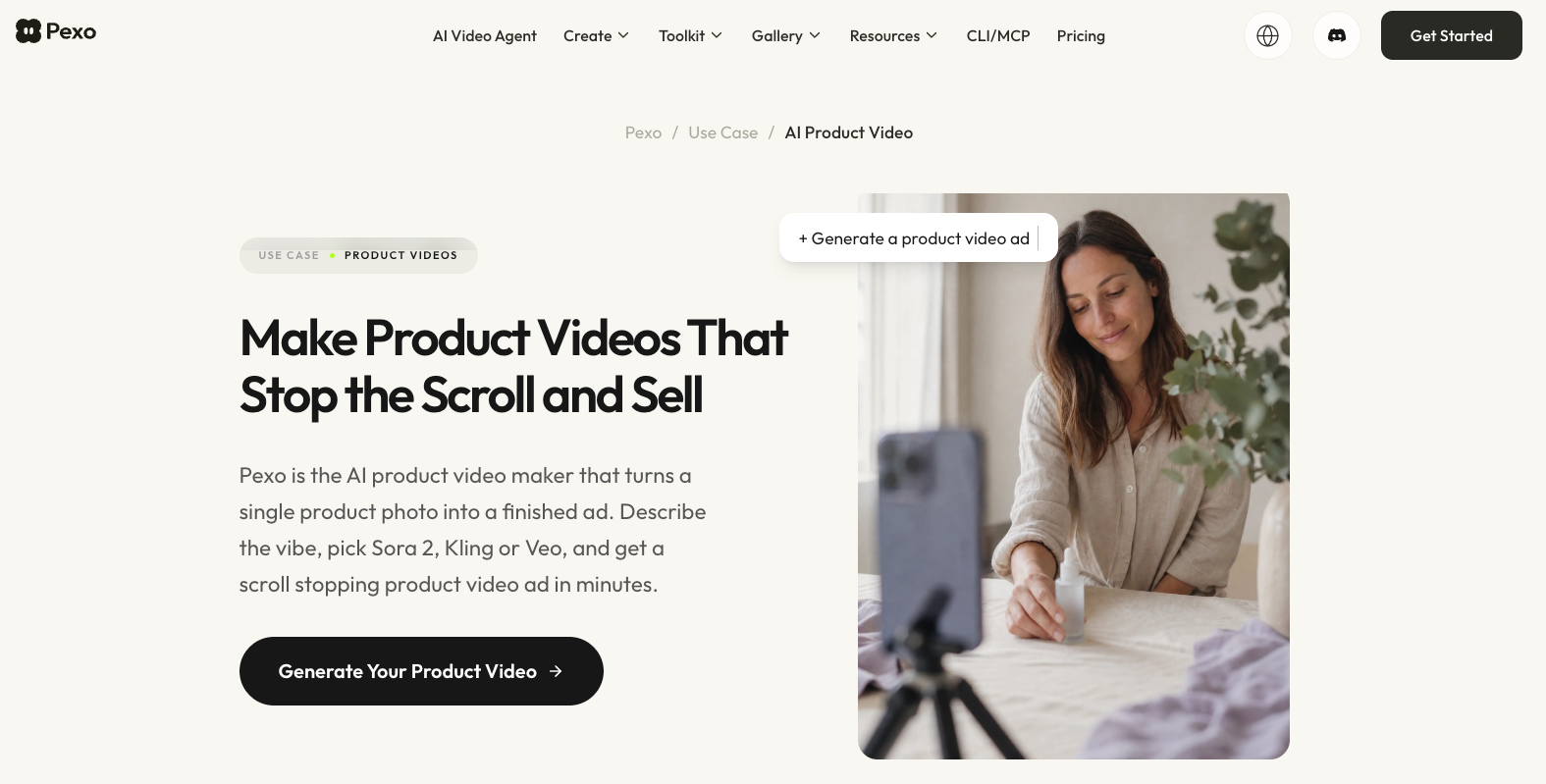
For another route, Pexo can work from an image, URL or brief. Approve it first.
Conclusion
Seedream 5.5 can support a disciplined image-to-video handoff when you edit one SKU in bounded rounds. Keep the original, protect the facts, inspect every identifier, and send production an approved frame with its edit record. The revision should earn its place by making the explanation clearer without changing what the customer is being shown.