

 ChatGPT
 Perplexity
 Claude
 Gemini
 Grok




Your Monday product clip is ready, but Wednesday's still needs a caption check. A calendar showing only publish dates hides that problem. This content calendar template puts each video's work beside its release slot. Copy the blank row, then plan your next batch.
What Does a Video Content Calendar Need to Track?
A video content calendar should show what each video says, what it uses, who must approve it, and when it can go live. A publish date alone cannot tell an editor whether the source footage is cleared or a reviewer is available.
Give each deliverable its own row, including a new hook or channel cut. Link to the approved brief and files. The brief directs one video; the calendar shows several videos competing for assets and people's time.
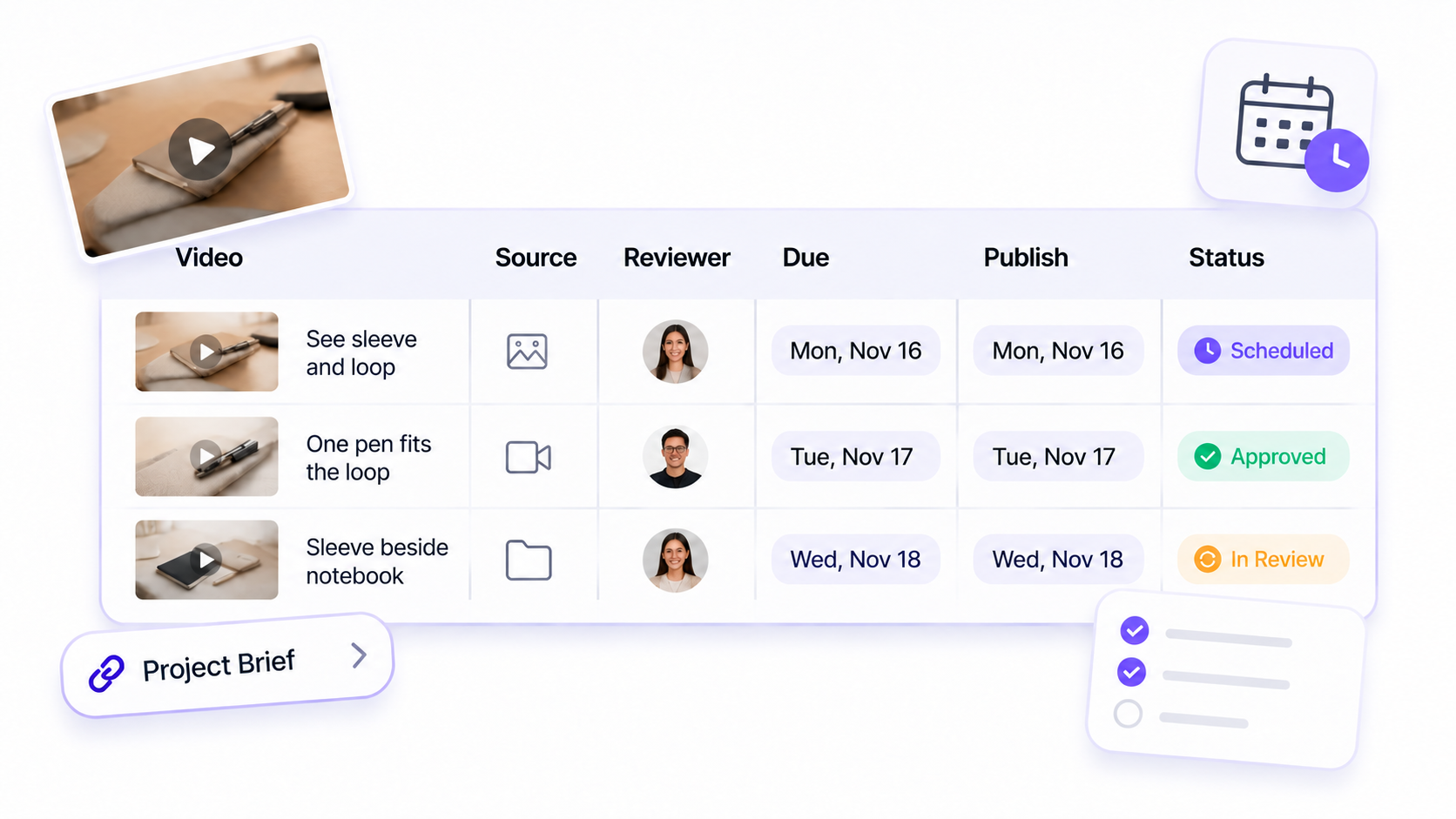
Add time zones for distributed teams. Keep review due dates earlier than publish slots so someone can fix a caption or replace a shot.
Copyable Content Calendar Template
Paste this video content calendar template into a document or sheet. Duplicate the row for each deliverable; link to files and approvals instead of pasting a brief into one cell.
| Publish slot + zone | Single message | Source asset + status | Video variant / format | Production owner | Reviewer + review due | Destination | Workflow status | Next action / final link |
|---|---|---|---|---|---|---|---|---|
| [Date/time/zone] | [Approved point] | [Link; cleared/pending/missing] | [ID; format] | [Name] | [Name; due date/time] | [Channel/account] | [Planned/producing/review/revise/approved/embargoed/scheduled/published/paused] | [Handoff/blocker/live URL] |
Message, Source Asset, Format, Owner, and Deadline
Write one message the video can show. “Show the front pen loop holding one pen” gives an editor a scene and a reviewer a fact to check. “Product benefits” gives neither.
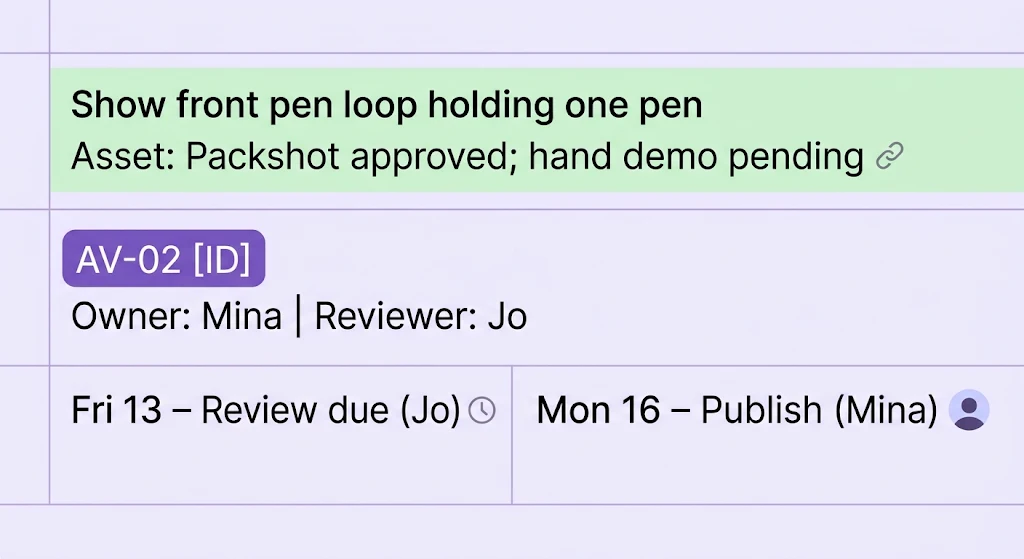
Illustrative detail from a separate calendar. The filled week below uses its own schedule.
The source-asset cell needs a link and clearance state: “Packshot approved; hand demo pending.” Name each variant and give it an ID so feedback reaches the right cut.
Name a production owner and reviewer. The owner moves the cut forward; the reviewer checks product truth. One person may hold both roles, but the review date still comes before publication.
Review Status and Distribution Destination
Keep asset status separate from workflow status. A cut can be “in review” while its music is “pending clearance.” Approve a specific export and caption together; if either changes, review the affected version again.
Name the account and placement, not “social.” An Instagram Reel and product-page embed may need different framing. Add the final export link, then the live URL after publication.
A Filled Week for a Fictional Product Launch
This fictional product campaign calendar is for the Aven notebook sleeve. Its approved sheet says the front loop holds one pen; it makes no durability claim. The team has cleared packshots, a hand demo, and a logo. Statuses are as of Friday, November 13, 2026; times are Eastern.
| Publish slot (ET) | Single message | Source asset + status | Video variant / format | Production owner | Reviewer + review due | Destination | Workflow status | Next action / final link |
|---|---|---|---|---|---|---|---|---|
| Mon Nov 16, 10 a.m. | See sleeve and loop | Packshots + logo; cleared | AV-01; vertical teaser | Mina | Jo; Fri Nov 13, noon | Brand Instagram Reel | Scheduled | Check caption |
| Tue Nov 17, 11 a.m. | One pen fits the loop | Hand demo; cleared | AV-02; vertical close-up | Mina | Jo; Mon Nov 16, 2 p.m. | Brand TikTok | Approved | Upload final export |
| Wed Nov 18, 10 a.m. | Watch pen enter loop | Demo cleared; music pending | AV-03; captioned cut | Luis | Jo; Tue Nov 17, noon | Brand Instagram Reel | Revise | Fix timing; clear audio |
| Thu Nov 19, 1 p.m. | Sleeve beside notebook | Desk footage; cleared | AV-04; vertical desk view | Luis | Jo; Wed Nov 18, 3 p.m. | Brand Facebook Reel | In review | Check color and copy |
| Fri Nov 20, 10 a.m. | See sleeve from back | Back packshot; cleared | AV-05; vertical backup | Mina | Jo; Thu Nov 19, noon | Brand Instagram Reel | Planned | Produce only if needed |
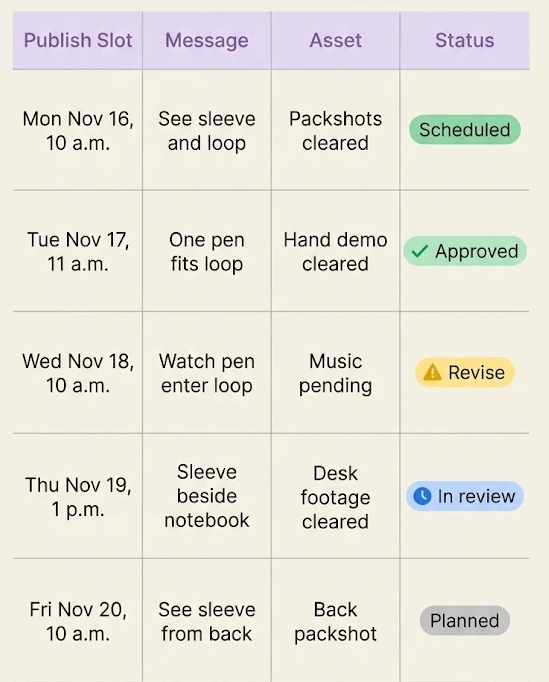
Wednesday's cut exists, but its captions need work and the music is not cleared. If Jo cannot approve it by Tuesday's deadline, move AV-03 or use an approved backup. AV-05 is only planned; it cannot replace the cut without review.
How to Plan Capacity and Revision Buffers
Five rows do not mean five shoots: Aven's hand demo supports two cuts. They do mean separate exports and approvals. If Jo can review only two cuts on Tuesday, a third Tuesday deadline cannot stand.
Work backward from publication through upload, review, correction, and first cut. Use your team's actual lead times. Leave room for a correction before the review deadline; a late change may displace the social video schedule.
Mark blockers: an unapproved claim, missing packshot, unavailable reviewer, uncleared music, or stock decision. If two videos need the same person at once, move one row before work starts.
Once the brief, copy, and assets are approved, a team can use Pexo's product-video workflow to make a cut for review. Keep scheduling, approval, and publication with the team; Pexo produces the video, not the calendar or automatic post.
How to Use the Calendar After Publishing
Mark a row “published” after someone checks the live video, caption, link, and product details. Add its URL. If a scheduled post did not go out, keep the row open.
Before planning next week, look at missed review dates. Was the cause a missing asset, a claim correction, or too many cuts for one reviewer? Adjust the next week's capacity accordingly.
Add a performance check date if useful. Keep approval and export links when making a new hook, so you know which version aired and whether an old claim needs removal.
Conclusion
A useful calendar shows the claim, asset, reviewer, and time left to change a video before it becomes a missed post. Copy the table for next week and fill the review dates first. Once a cut is approved, add its final link so the publisher knows which version to use.