
Recruitment Video
Make a recruitment video with team clips, workplace photos, and a clear job brief. Show candidates what the role involves and where to apply.
Make an AI social media cover video from your logo, headline, and clips. Design the frame visitors see first, then carry the same look into a pinned Reel or YouTube channel trailer.
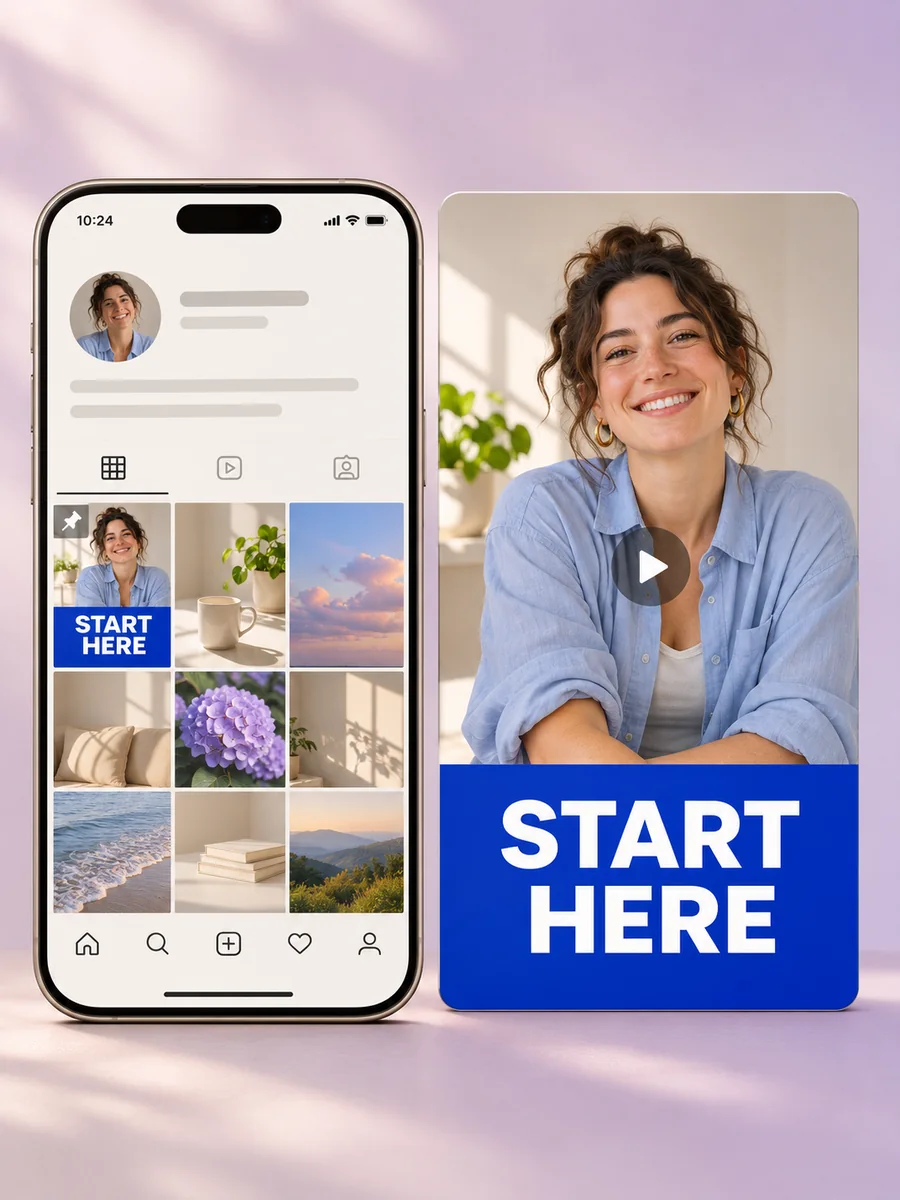
Give Pexo your logo or account name, a short headline, and a photo or clip. In the social media cover video maker, keep the headline and focal point in the center area. Preview the frame at thumbnail size to see whether visitors can recognize your account and understand what the clip is about.

The opening frame is ready to review at profile-thumbnail size.
Cover adjustments
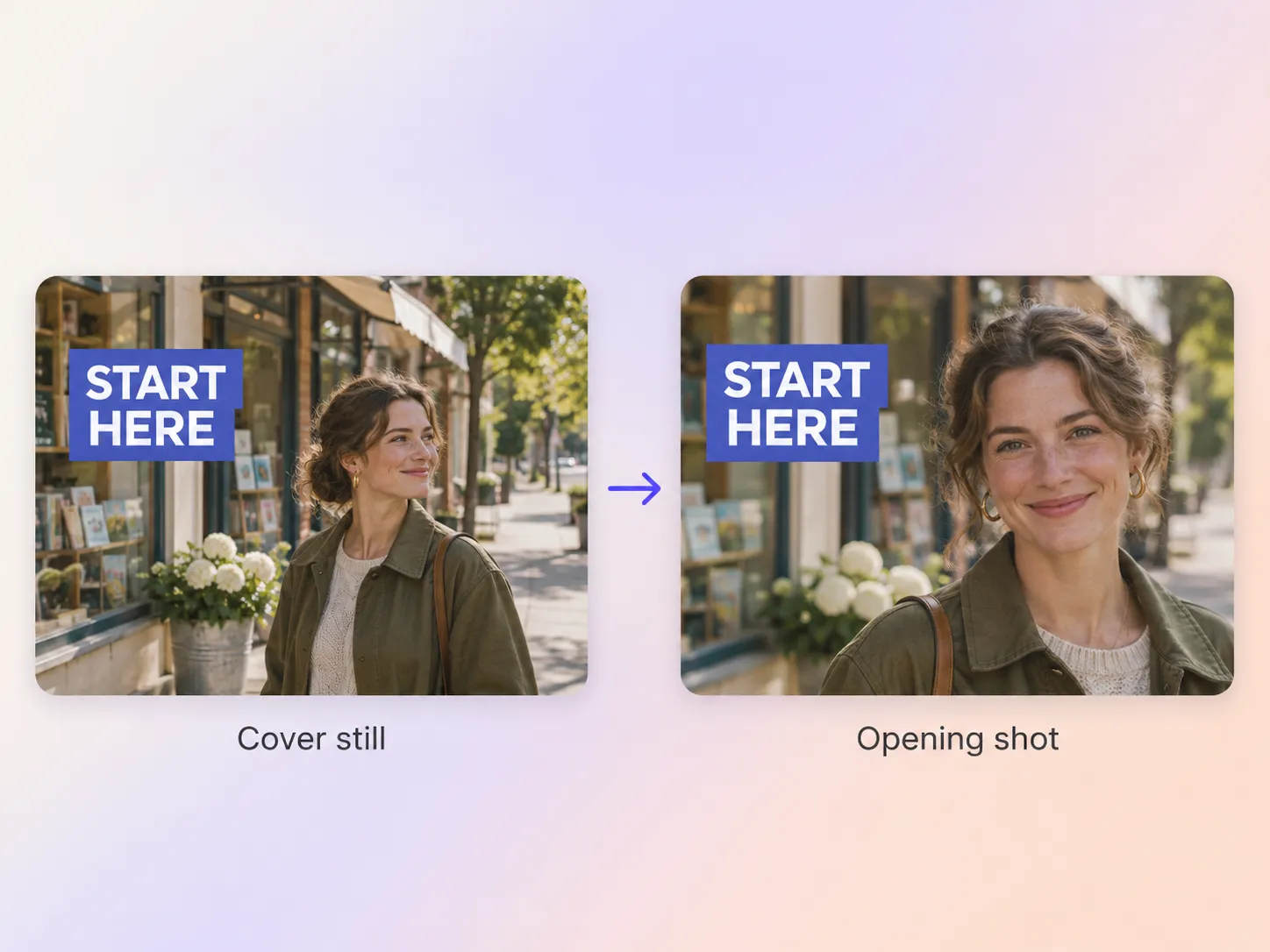
Start on your cover image and tell Pexo what should move. Use image to video for a gentle camera push, then cut to a few clips that introduce the account or featured series. Carry the cover’s colors and headline style into the edit so the video feels connected to the tile people opened.
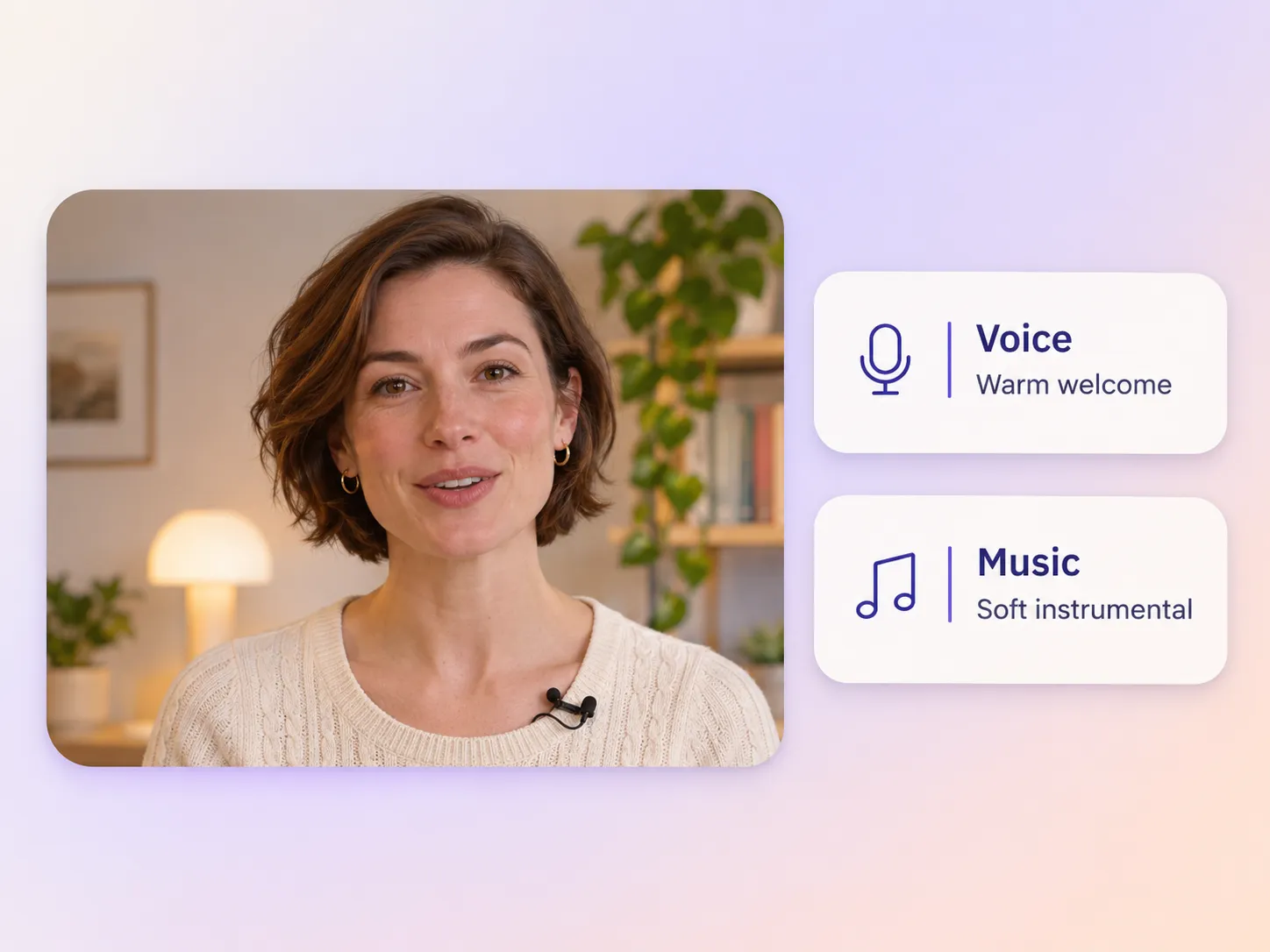
Tell Pexo how the welcome should sound. Choose a relaxed voice for a friendly introduction or a brisk read for an announcement. For a cover video led by text and motion, use an instrumental track that fits the cuts. Keep the music low under speech and check that the opening title makes sense on mute.
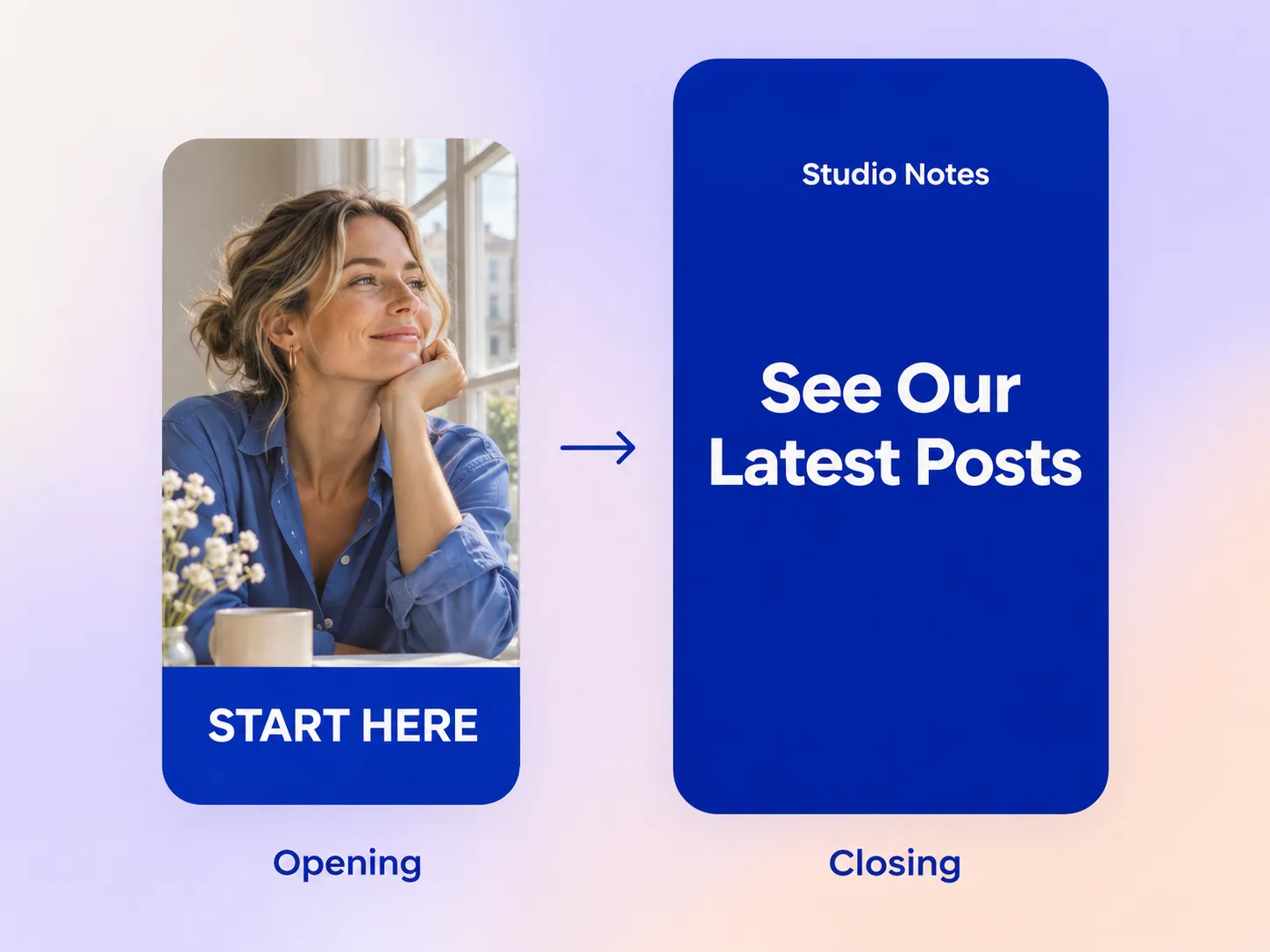
Repeat the cover’s colors and account name on the last frame. Give viewers one next step, such as ‘See Our Latest Posts’ for a profile welcome or ‘Watch Episode One’ for a featured series. Give Pexo the exact line and preview the ending on a phone to check that there’s time to read it.
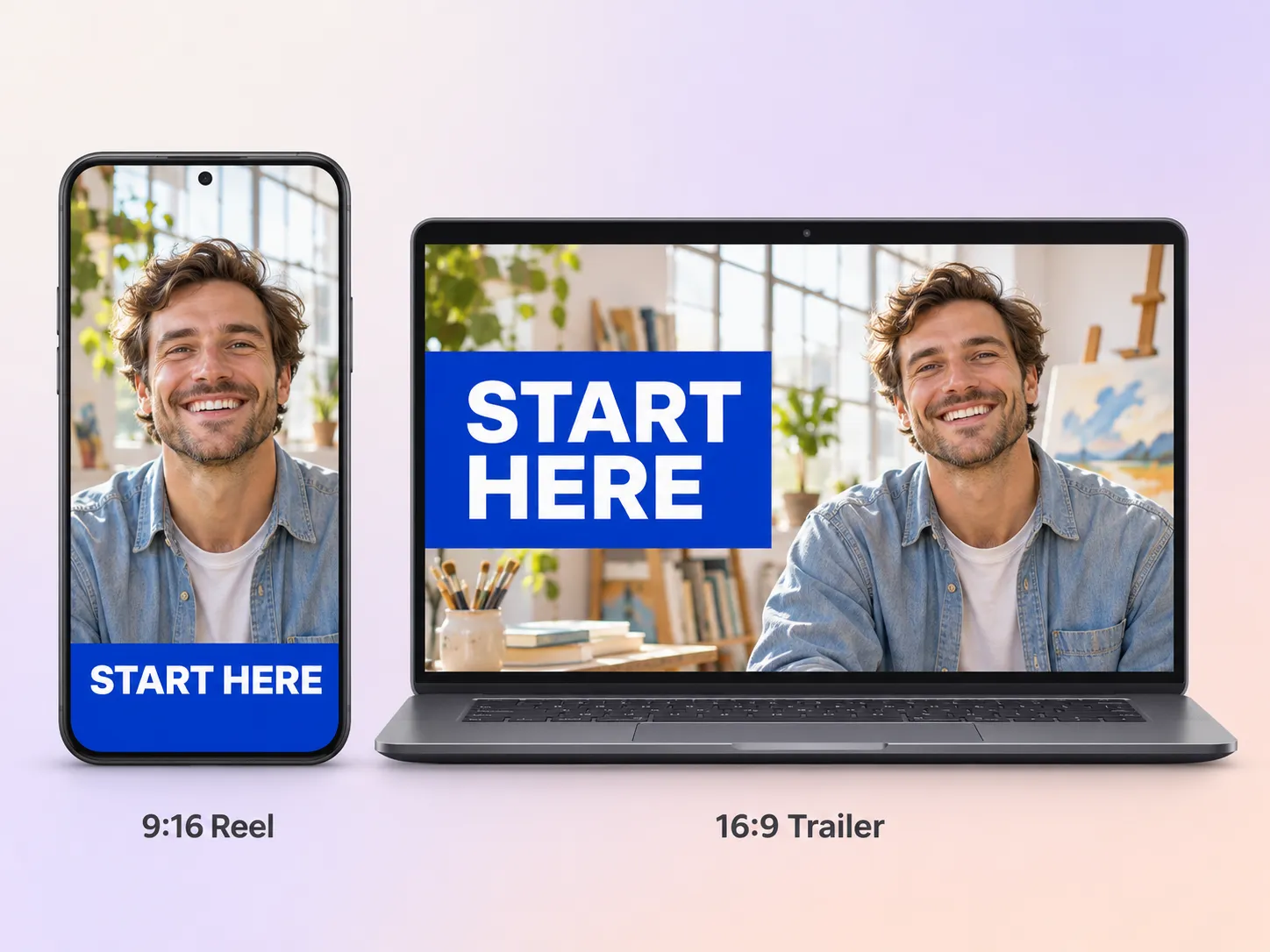
Compose a 9:16 cut for a pinned Instagram Reel or a 16:9 cut for a YouTube channel trailer. Move the headline and focal point to fit each layout. Check the Reel cover at grid size, and preview the trailer on the YouTube Home tab before you send visitors there.
“I look at the grid first. The cover works when the title is clear at thumbnail size and I recognize it again once the Reel opens. That makes it easy to tell which post to tap.”

“I judge a trailer by the first few seconds. The headline tells me what the channel is about, and the clips show me what to expect. I want visitors to know why they’d keep watching.”

“I judge the cover and the video as a pair. The same colors and type should carry through to the last frame. The welcome line should stay clear over the music.”

A social media cover video is a short clip designed for a featured spot on your profile. Its cover is the still visitors see before opening the video. The clip carries the same headline, imagery, or branding into playback. Examples include a pinned Instagram Reel and a YouTube channel trailer.
Use the video placement your platform provides. On Instagram, post the video as a Reel, choose its cover image, and pin the Reel in the profile grid. On YouTube, feature your video as a channel trailer on the Home tab. YouTube’s channel banner is a separate image. Instagram pinning · YouTube channel customization
Use a frame with a clear focal point and a short headline or account name. Leave room around both so they stay visible after cropping. On the Reel share screen, set the cover image and review the preview at a size close to the profile grid. Instagram cover settings
Pexo is a good fit for planning the cover frame and the video from the same brief. Share your logo, headline, and clips, then revise the opening, pacing, and voiceover in chat. Use an image-to-video model such as Kling AI 3.0 when you want to add motion to a still.
A cover video is the playable clip you feature on your profile. A video cover is the still image people see in the grid or before playback. You can turn an existing social media video into a profile feature by giving it a clear cover frame and pinning it as an Instagram Reel.
Use subject + action + camera movement + setting + style. Add the exact cover text and aspect ratio. Try ‘Make a 9:16 cover video for my profile. Put Start Here in large white type on my opening photo. Use a slow push in, cut to the two clips I uploaded, and finish with See Our Latest Posts.’
Bring a headline, a logo, and a few clips. Build a cover frame and a matching video for the place you want to feature it.
Make a recruitment video with team clips, workplace photos, and a clear job brief. Show candidates what the role involves and where to apply.
Make a Facebook video from one line of description with Pexo. The AI Facebook video generator writes the hook, burns in captions, and renders with Sora 2, Kling and Veo in minutes.
YouTube ad creation runs on Sora 2, Kling and Veo inside Pexo. Describe your product and get a hooked, voiced, captioned ad in 16:9, 9:16 and 1:1 in minutes.
Instagram video generator that turns a prompt or a photo into a captioned vertical Reel in minutes. Pexo runs Sora 2, Kling and Veo and exports 9:16 and 1:1.
A TikTok ad generator that turns one line of text or a product photo into a native 9:16 ad. Pexo writes the hook, uses Sora 2, Kling and Veo, and delivers in minutes.
Social media video creation starts with one prompt in Pexo. The AI social media video generator writes the hook, cuts the scenes, and renders with Sora 2, Kling and Veo in minutes, up to 4K.
YouTube video ideas turn into finished uploads in Pexo. The AI youtube video generator writes the scenes, voice, and captions, then renders with Sora 2, Kling and Veo in minutes.
Pexo helps create AI YouTube intro covers from text, logos, and reference images. Build polished opening visuals for tutorials, podcasts, product videos, and creator content in minutes.