





AI Facebook Video
Make a Facebook video from one line of description with Pexo. The AI Facebook video generator writes the hook, burns in captions, and renders with Sora 2, Kling and Veo in minutes.
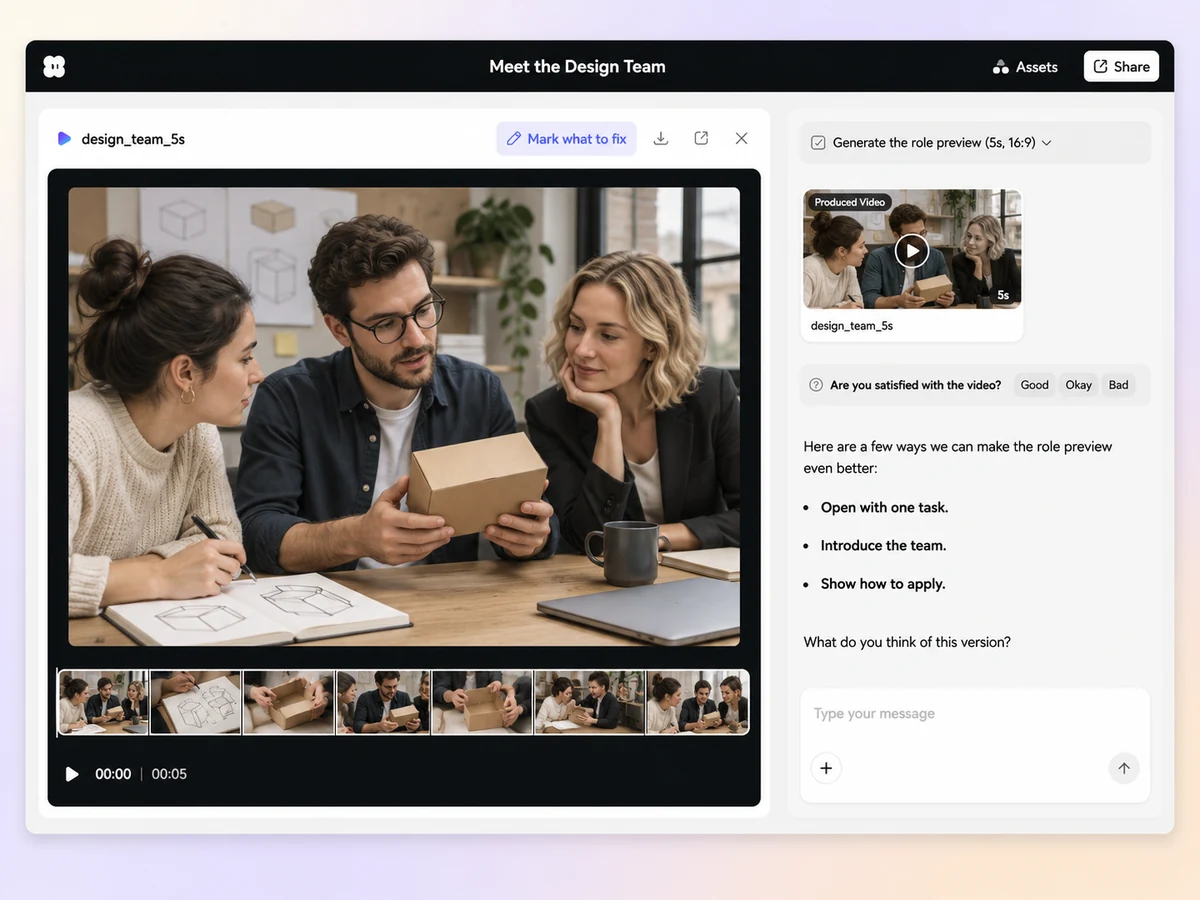
Create an AI recruitment video from a role brief, team clips, or workplace photos. Show what the work looks like, introduce the people behind it, and point candidates to the application.
Give Pexo’s recruitment video maker a role title, an example task, and the team context. A designer might walk through a review, or a technician might explain a handoff. Ask for a short opening scene that shows the work, then review the scene order in chat.
Use an approved team clip or a short quote from the hiring manager. Turn an approved introduction into a narrated sequence with script to video. Pair each line with a scene that shows what the team does, and preview the names and captions.
Share the approved title, location, work arrangement, and one or two responsibilities. Ask Pexo to put the essentials on screen when they are relevant to the scene. Check the text against the live job post so viewers see the same information when they apply.
Choose the next step you want viewers to take. Add the approved careers page, posting name, or application deadline to the closing card. Hold it long enough to read and check that the link or label matches the application page.
Ask for 16:9 for a careers page, or 9:16 for a social post. For the shorter cut, keep one representative task and the application step. Preview the captions and job title on a phone before you use the clip.
Introduce one responsibility and show how the team handles it on a typical day. Use a short approved quote to explain why the role matters. Close on the role title and application path.

Bring together short clips from two colleagues. Let each person name a task and describe how they work with the rest of the team. Give viewers a place to learn about the open roles.

Show what a first assignment looks like and where participants get support. Use the approved program details on the final card. Include the application deadline if the program has one.

A recruitment video introduces an open role or an employer to prospective candidates. It can show the team, a typical task, the workplace, and the next step to apply. A focused recruitment video gives viewers enough context to decide whether they want to learn more about the position.
Yes. Use approved workplace photos, the role description, and a short script. Ask for illustrative scenes to explain the work, or make a simple role overview with text and narration. Keep workplace details grounded in the material you supply and label any scenes that are illustrations.
Yes. Share a clip you have permission to use and identify the answer or moment that explains the role. Use the interview as a talking head video segment and add work scenes around it for context. Review the captions and the speaker’s name, and keep enough of the answer for it to retain its meaning.
Pexo lets you plan a recruitment video from the job brief, approved team clips, and a clear next step. It can use a model such as Seedance 2.5 for an illustrative opening scene. Preview the result in 16:9 for a careers page or request a vertical social cut.
A recruitment video introduces the role and gives potential candidates a way to apply. An onboarding video helps people who have joined learn what to expect and what to do next. Use the recruitment cut to show the work and the onboarding cut to explain first steps.
Start with subject + action + camera movement + setting + style, then add the approved job details. Try “Follow a product designer reviewing a prototype with the team. Use a steady wide shot in a bright studio. Add our hiring manager’s approved quote and end with the role title and careers page.”
Share the role brief and one moment that shows what the work looks like. Give candidates a clear next step.
Make a Facebook video from one line of description with Pexo. The AI Facebook video generator writes the hook, burns in captions, and renders with Sora 2, Kling and Veo in minutes.
YouTube ad creation runs on Sora 2, Kling and Veo inside Pexo. Describe your product and get a hooked, voiced, captioned ad in 16:9, 9:16 and 1:1 in minutes.
Instagram video generator that turns a prompt or a photo into a captioned vertical Reel in minutes. Pexo runs Sora 2, Kling and Veo and exports 9:16 and 1:1.
A TikTok ad generator that turns one line of text or a product photo into a native 9:16 ad. Pexo writes the hook, uses Sora 2, Kling and Veo, and delivers in minutes.
Social media video creation starts with one prompt in Pexo. The AI social media video generator writes the hook, cuts the scenes, and renders with Sora 2, Kling and Veo in minutes, up to 4K.
YouTube video ideas turn into finished uploads in Pexo. The AI youtube video generator writes the scenes, voice, and captions, then renders with Sora 2, Kling and Veo in minutes.
Pexo helps create AI YouTube intro covers from text, logos, and reference images. Build polished opening visuals for tutorials, podcasts, product videos, and creator content in minutes.
Make TikTok videos from one line of description with Pexo. The AI TikTok video generator writes the hook, adds voiceover, and renders vertical 9:16 clips with Sora 2, Kling and Veo in minutes.