ChatGPT
 Perplexity
 Claude
 Gemini
 Grok
Grok


Three product photos can fill a video timeline without telling a buyer much. If the useful view appears last, motion at the start only delays the answer. Choose the fact to show, then the photo that deserves to move.
This walkthrough uses a fictional Halden canvas tote to show how to plan a video around one feature: “two exterior pockets.” The example calls for three photos: a front view, an angle showing both pockets, and a stitching detail. Interface and export instructions follow Canva’s help pages, checked on October 16, 2026.
Choose Photos for One Product Story
Start with the photo that makes the claim easiest to verify. For Halden, the angled view is the proof: both exterior pockets can be counted without asking the viewer to infer what lies around the side. The front view identifies the bag, and the stitching detail gives a closer look at its finish. None of the photos proves capacity, water resistance, or how securely a bottle stays in a pocket. Leave those claims out.
Choose the current color and construction, confirm the logo matches the listing, and keep uncropped originals. A tighter crop can remove the second pocket that makes the claim true.
The short sequence has a job for each image:
| Position | Halden image | What the viewer gets |
|---|---|---|
| Opening | Front view | Recognizes the tote and its shape |
| Proof | Angled view | Sees both exterior pockets together |
| Close | Stitching detail, then approved end card | Notices the finish and has a next click |
If the opening photo already shows both pockets, use it as proof and cut the redundant angle.
Build a Short Sequence in Canva
Create a video design for the intended placement and upload the approved photos. Canva's current video editor guide describes a main track for photos and clips, upper tracks for text and graphics, and separate audio tracks. It also says the updated media-first timeline is rolling out gradually. If your account shows a page-based editor, use its page and timing controls for the same sequence.
Place the front view first, the two-pocket angle second, and the detail third. Let viewers count the pockets before the cut moves on. Preview without effects; motion will not repair a confusing order.
Now decide whether one photo needs generated motion. For Canva's Image to Video feature, select the image and choose Edit → Tools → Image to Video. Select Smart or Custom mode, then generate the clip. Canva currently describes a five-second result, with some outputs shorter, and says the feature uses AI allowance. It keeps the source image's layout and aspect ratio; the generated clip has no audio. Check availability and allowance in your account before building the plan around it.
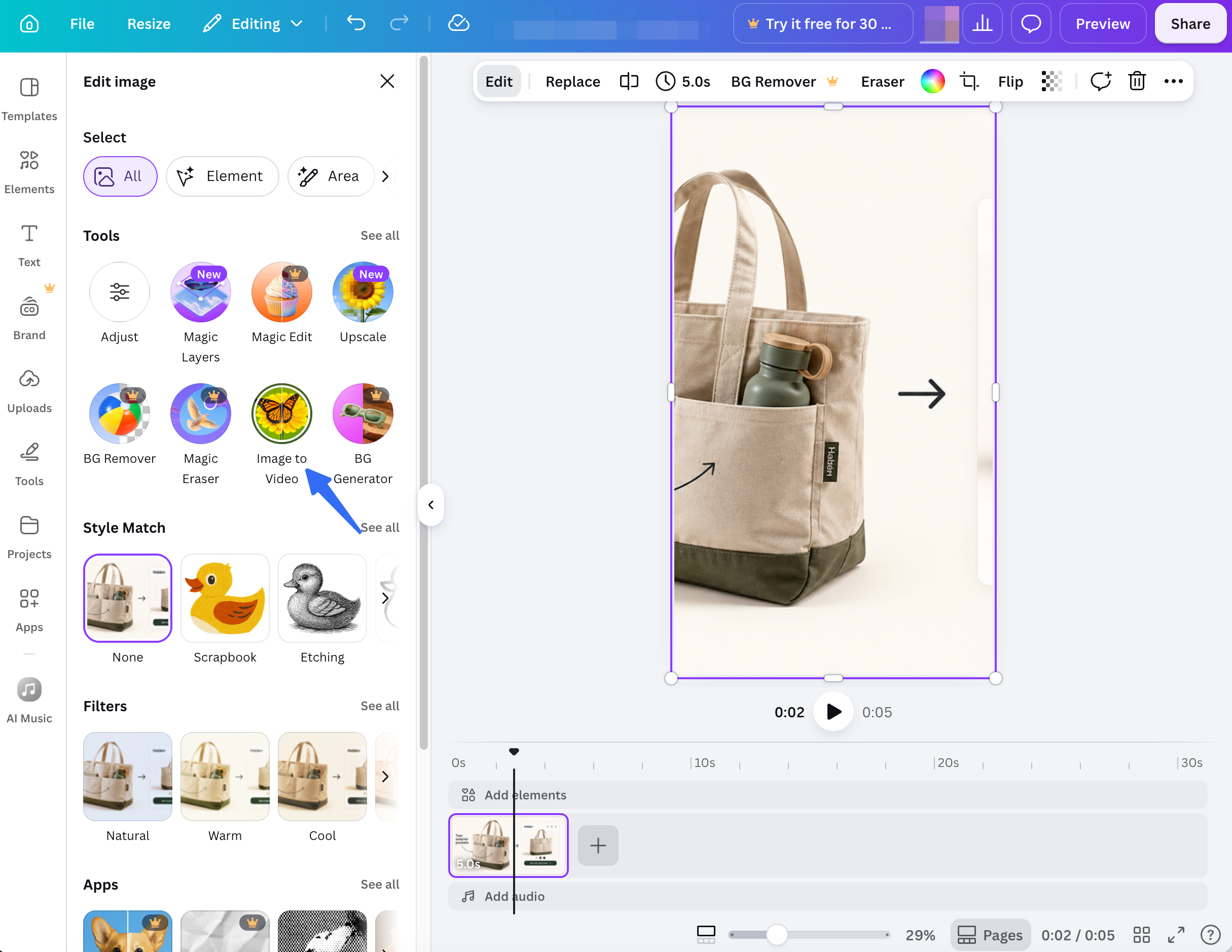
For Halden, try subtle motion on the front view and keep the angled proof still. If the bag turns or folds, a seam may disappear or appear where the real product has none. Canva's ordinary element animations can move an image or text without generating a new product view.
Add a Product Claim the Viewer Can Verify
Put “two exterior pockets” on the angled proof shot, where both pockets remain visible long enough to check. Use an approved type style and place the text away from the bag edges. A small label that sits over the second pocket defeats the point of showing it.
Check the claim against the image and current product page. If the photo shows an older sample, rewriting the words will not fix the mismatch. Typography cannot make an unseen benefit true.
Use “See sizes and colors” on the end card only if the destination has those choices. If you add voice, compare its claim with the on-screen line before approval.
Review Motion, Text, and Product Fidelity
Watch the whole cut once for meaning, then pause at the moments where a buyer might judge the product. On the moving front view, check the tote outline, handles, logo, stitching, and pocket seams against the original photo. If Image to Video changes a seam or invents a third pocket, use the still photo or a simpler animation. The generated clip can be attractive and still be the wrong product.
On the proof shot, keep both pockets unobstructed while the text appears. Check the end-card name and destination, then preview the export on a phone. Text that fits in the editor may collide with platform controls.
A useful send-back note names the frame and fact: “The left pocket disappears at the transition. Keep the approved still and the two-pocket line.” Save originals and approved exports for later changes.
Export a Version for the Intended Placement
Export the reviewed video as an MP4. Canva's download guide directs users through Share → Download → MP4 Video and explains that resolution choices depend on plan and device. Confirm the current options in your account; do not assume a high-resolution setting is included because it appears in the menu.
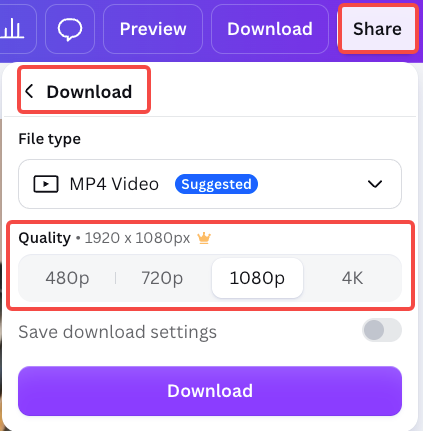
Play the downloaded file end to end. Check the generated segment's length, claim placement, end card, and any added audio. Record the approved export and source-photo versions.
Review each target placement separately. Canva documents resizing designs, with access depending on plan and role, but a resized copy needs inspection. Check the platform's current format and ad requirements.
When a Directed Video Workflow Makes More Sense
Use a directed workflow when the team needs an ordered explanation, voice, and revisions to the complete cut. Halden's two-pocket clip may work as a short product view. A launch video showing how it is packed needs more source material and a story plan.
Pexo publishes this guide. Its start guide describes beginning with images, video, a website, or a storyboard. Its revision guide describes conversational and marked-frame feedback. That route suits comments about scene order or the whole message; product facts still need checking.
If the three photos are enough, approve the Canva export. If the missing piece is a packing demonstration, shoot it. For a broader story, bring the approved assets and one buyer question to Pexo. Review the proposed sequence before asking for a final cut.