 ChatGPT
 Perplexity
 Claude
 Gemini
 Grok


If your team records walkthroughs for launches, sales, or product pages, I wouldn’t pick a screen recorder by its capture button alone. What matters is what each tool can capture, what you can fix afterward, and what the next editor actually receives.
To keep this concrete, take Morrow Carry, an invented travel-accessories brand with a 75-second demo of its packing-planner app: create a trip, add a compression pouch, export a packing list. It needs clean mic audio, captured app sound, and a source file the next editor can actually reopen.
What Must an Accurate Product Demo Capture?
The demo needs a reliable sequence before the recorder opens. Morrow Carry’s source brief should name:
-
the interface version and test account;
-
the exact steps the viewer must see;
-
fields that contain customer, payment, or internal data;
-
the voiceover or talking points;
-
whether webcam, microphone, and system audio are required;
-
the target ratio, resolution, captions, and delivery file.
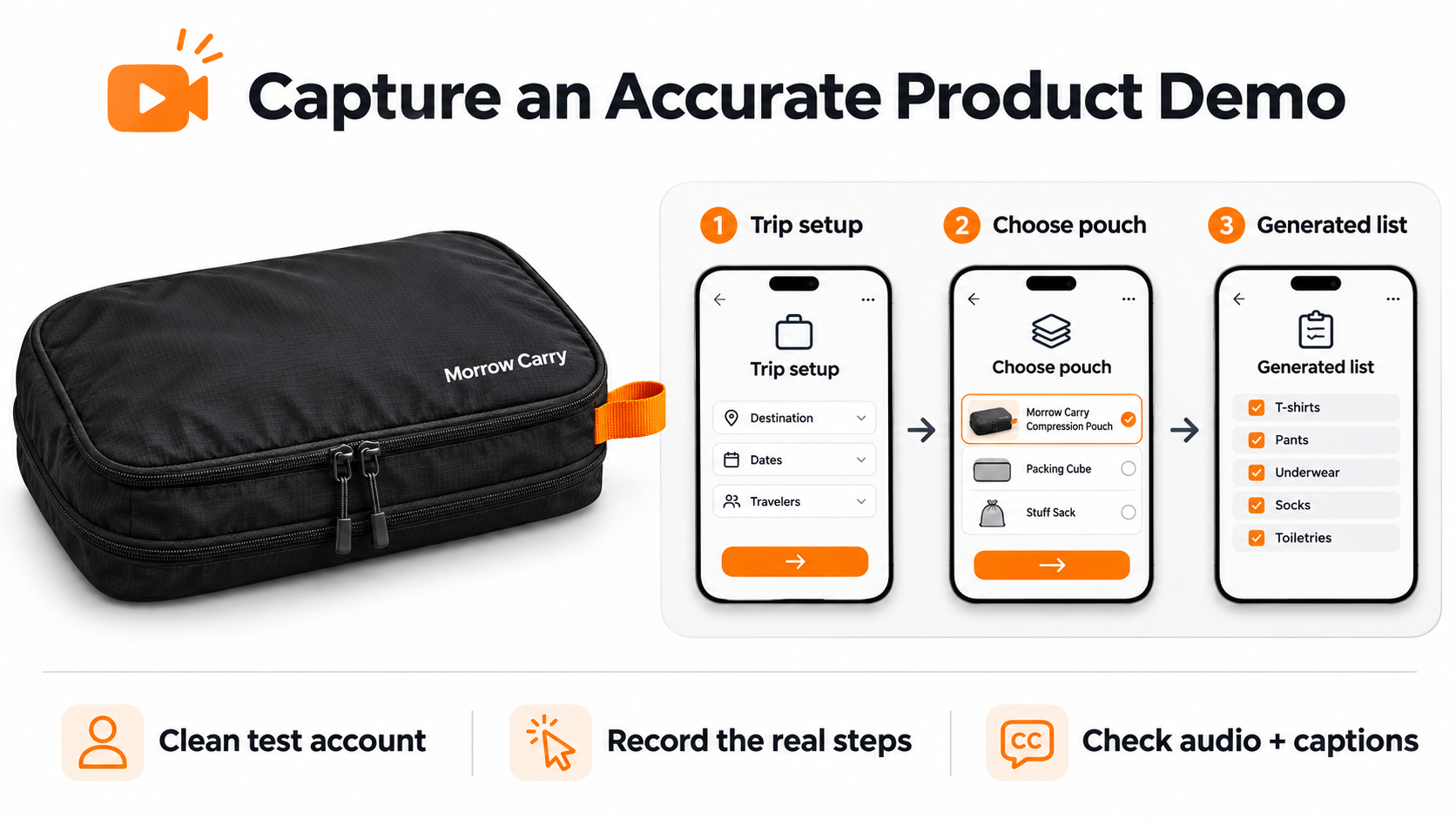
Create a clean test account and rehearse the path once. If the app loads a real customer name, order number, or internal URL, replace it before recording. A blurred field can still reveal context through surrounding labels or browser history.
The recording should preserve the action that proves the product value. For the packing planner, that means showing the trip setup, the pouch selection, and the generated list. A decorative cursor move does not replace a missing product step.
How Were the Screen Recorders Compared?
Each tool is compared against the same brief across five questions:
-
What can it capture from the screen, webcam, microphone, and system audio?
-
How much control does it give the cursor, zoom, framing, and scene layout?
-
What can the editor change after recording?
-
Which source files and audio tracks remain available for handoff?
-
Where do account, platform, privacy, or export limits affect the demo?
The comparison uses current public product documentation. It does not claim a speed or quality test.
1. Loom for Fast Asynchronous Walkthroughs
Suitable Task, Export, and Limits
Loom suits a product specialist who needs to record a browser walkthrough and send it to a teammate or client quickly. Its browser recorder supports screen recording with audio, and Loom’s Chrome extension can capture the full screen, a window, or the current tab. The Chrome extension captures internal tab audio only in Current Tab mode; Full Screen and Window modes do not capture tab audio. Use the Desktop app for system audio from other applications.
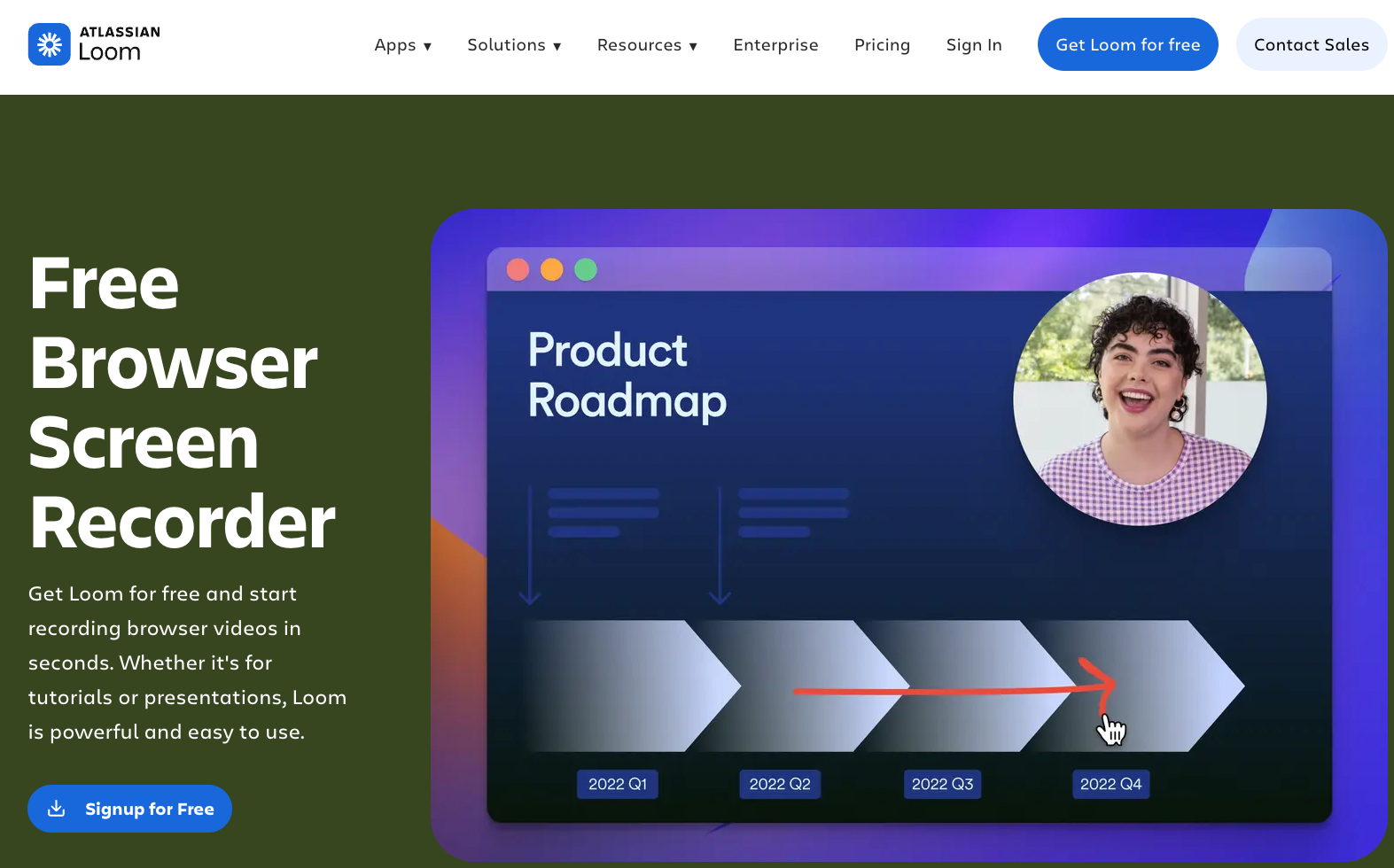
For Morrow Carry, Loom works well for an early product explanation or a review link. A specialist can narrate the packing flow, show the app, and share the recording without preparing a full production timeline. The team can use the recording as a source for a later edit when the download and workspace permissions allow it.
The browser context creates a useful boundary. The recorder captures what the selected tab or window exposes, while desktop notifications and other applications remain outside that capture when the correct mode is chosen. The team still needs to close unrelated tabs, check the address bar, and confirm the browser does not reveal internal data.
Loom is less suited when the handoff requires separate microphone and system tracks, detailed cursor animation, or a project file that another editor can fully reshape. Confirm what the account can download and which editing actions are available before making Loom the master recording route.
2. Screen Studio for Directed Mac Demos
Suitable Task, Export, and Limits
Screen Studio is built for macOS recordings that need polished framing without a large editing setup. Its current product page describes smart auto-zoom, cursor treatment, cutting and trimming within a single recording, backdrops, and export to MP4 or GIF. It requires a current macOS version listed by the product.
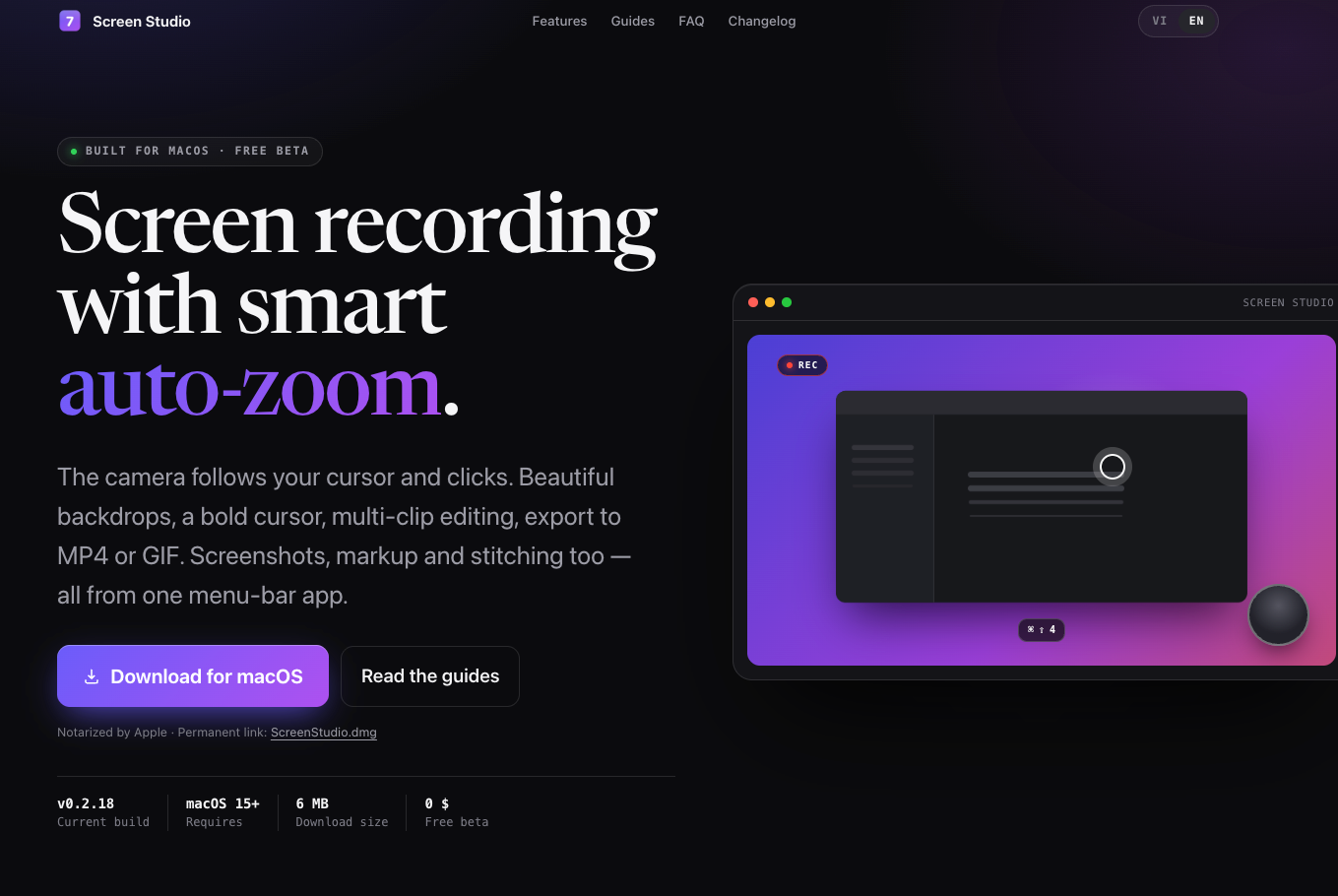
For Morrow Carry, Screen Studio fits a guided Mac demo where the cursor should lead the viewer from trip setup to packing list. The auto-zoom can make clicks easier to follow, while the backdrop and framing can turn a raw screen capture into a cleaner product asset.
The team should decide how much of the effect belongs in the recording and how much should remain adjustable. Screen Studio’s published workflow emphasizes rendered effects, cursor behavior, and export. Ask whether the editable project preserves the original cursor positions, zoom decisions, audio tracks, and clip boundaries needed for later revisions.
Screen Studio is a Mac-first option. A team recording on Windows or handing the source to an editor who needs another platform should confirm the project and export path before production. A rendered MP4 can be handed over easily, but it does not provide the same control as the original project.
3. OBS Studio for Controlled Local Capture
Suitable Task, Export, and Limits
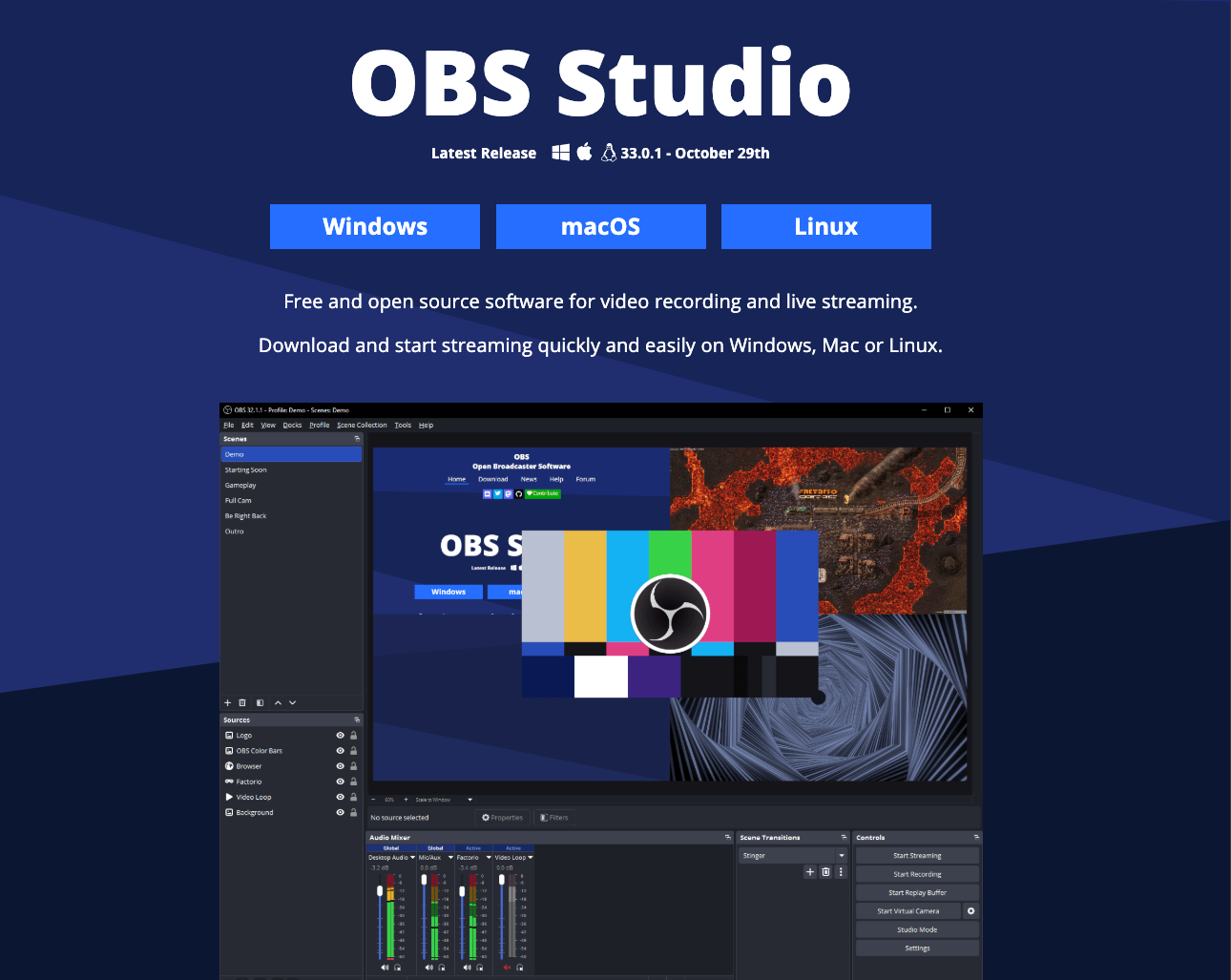
OBS Studio fits teams that need detailed control over scenes, sources, encoding, and audio routing. Its official macOS audio guide documents desktop and application audio capture in supported versions. It can combine display or window capture, webcam, microphone, and application or desktop audio. OBS’s official guides document macOS Audio Capture for macOS 13 and later, along with multiple audio tracks for post-production.
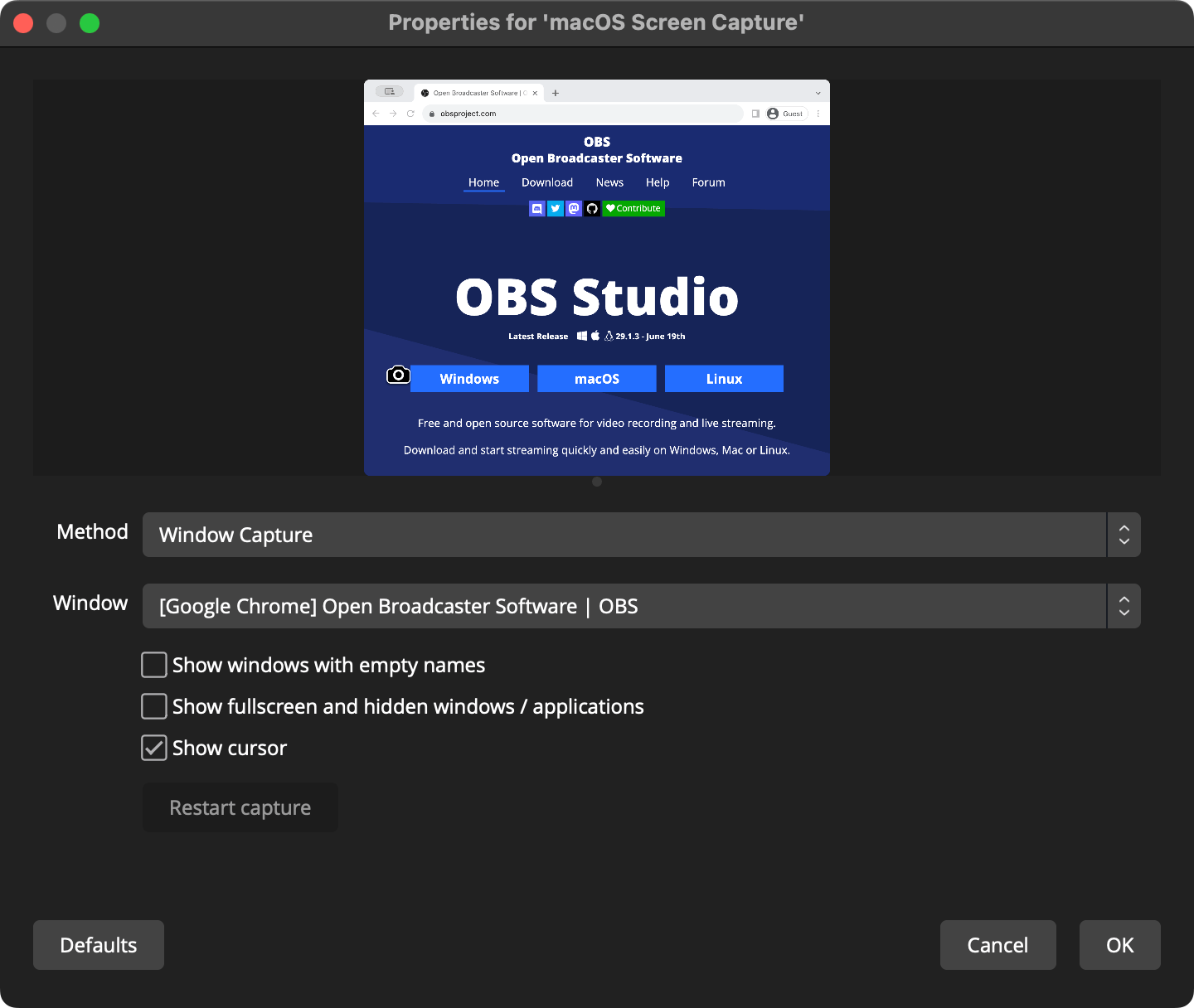
For Morrow Carry, OBS can create a clean capture scene with the app window, webcam frame, microphone, and system audio assigned deliberately. The team can retain the OBS scene collection and assign separate audio tracks for post-production, while keeping the original source media available for the editor.
That control requires setup. On macOS, system-audio capture depends on the operating system and OBS version. A team should build a scene collection, assign each source to the intended track, and make a short test recording before the real demo. The test is for routing and privacy, not for measuring product quality.
OBS is a strong choice when the recording itself is the source material for a later edit or when the team needs repeatable local capture. It takes more configuration than a browser recorder, and the marketing team must own the scene setup, audio routing, file format, and backup plan.
4. Camtasia for Capture and Manual Editing
Suitable Task, Export, and Limits
Camtasia combines screen recording and timeline editing. TechSmith’s current documentation describes recording the screen, camera, microphone, and system audio, while its product page presents those sources as separate tracks that can be adjusted after capture.
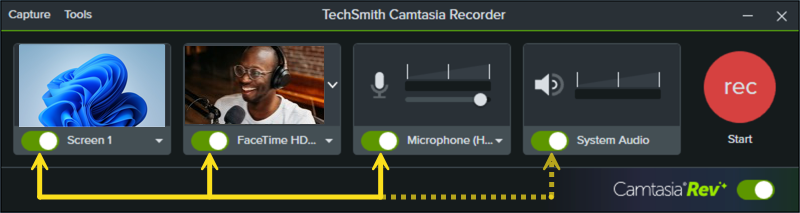
For Morrow Carry, Camtasia fits a demo that needs immediate editing after the recording. The editor can remove pauses, tighten the cursor path, adjust webcam placement, clean the narration, add callouts, and produce a polished walkthrough from the same project.
The separate-track workflow helps when the product team changes one part of the demo. The editor can replace a voice section or lower system audio without re-recording the entire screen. Confirm the exact track behavior on the platform and version used by the team, especially when the project moves between Mac and Windows.
Camtasia is a practical middle ground for teams that want an approachable editor with capture built in. It still depends on a disciplined source setup. The editable project, media files, fonts, and output settings need to travel together when an agency or client takes over.
A Sensitive-Data and UI Accuracy Checklist
Use this checklist before recording and again before delivery.
| Check | Record for Morrow Carry |
|---|---|
| Interface version | App version, browser version, capture date |
| Test account | Account owner and data scope |
| Visible data | Names, emails, IDs, URLs, customer records |
| Product path | Exact clicks and screen states to capture |
| Audio | Microphone, system audio, mute states, track plan |
| Webcam | Position, framing, background, consent |
| Cursor | Size, highlight, zoom, click visibility |
| Source files | Project file, screen capture, webcam, audio, captions |
| Export | Ratio, resolution, format, filename, version |
| Reviewers | Product owner, privacy reviewer, final approver |
If a sensitive field appears during the recording, stop and capture a clean replacement. Blurring in post can hide the text while leaving names, timing, or data relationships visible. Keep the original file restricted and deliver the cleaned source to the editor.
What Happens After the Screen Is Recorded?
A screen recording becomes a product demo through selection and explanation. Remove dead time, keep the path that answers the buyer’s question, and add captions that match the approved voiceover. Highlight the click that matters, then let the viewer see the result before moving on.
For a longer product video, the source recording can feed a brief with scene order, narration, CTA, and output ratios. Pexo can work from approved screen recordings and direction through its AI Video Editor, while the product-page video guide explains how to keep source proof and approved product-page line and intended final use. Pexo supports the production and revision step after capture. It does not replace the screen recorder’s job of capturing the real interface.
FAQ
Can Loom record a browser tab without desktop notifications?
Yes, when you choose the current tab or browser capture mode. Close unrelated tabs, hide notifications, and review the address bar before sharing. A browser capture does not protect sensitive content that appears inside the selected tab.
Does Screen Studio preserve cursor moves in its editable project?
Screen Studio documents cursor and auto-zoom treatment, but the exact editability of those decisions depends on the project and export path. Keep the original project and confirm which cursor, zoom, clip, and audio changes remain adjustable before handing it to another editor.
Can OBS capture system audio on a Mac without extra setup?
On macOS 13 and later, OBS provides a macOS Audio Capture Source in supported versions. Add the source, select the desktop or application audio, assign it to the intended track, and make a short routing test before the product recording.
Does Camtasia keep separate microphone and system tracks?
Camtasia documents separate screen, camera, microphone, and system-audio tracks for its multitrack recorder. Confirm the behavior on the platform and version used for the project, then keep the editable file with the recorded media.
Can a Loom demo link remain available if its creator leaves the team?
Access depends on the workspace owner, team settings, and the link’s permissions.
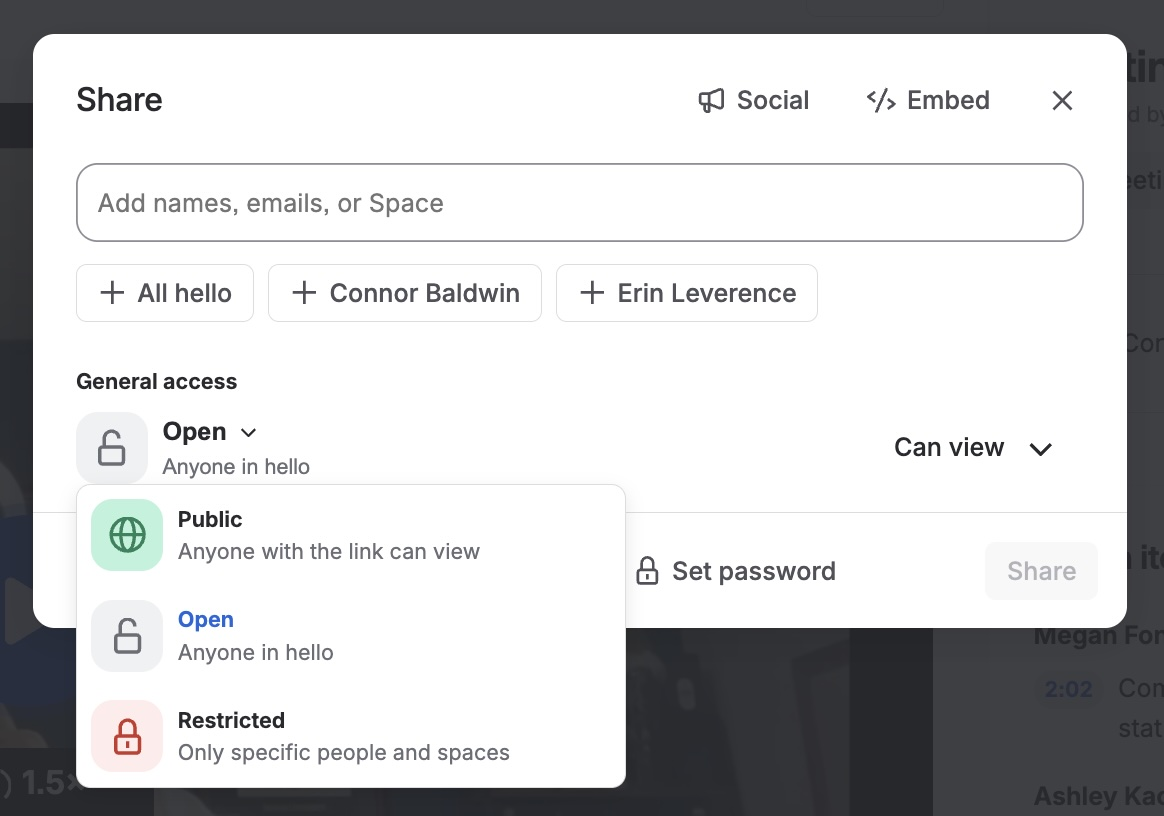
Transfer ownership or download the approved file before the creator leaves, then verify the link and viewer access with the account administrator.Deactivating a creator removes their access to workspace content, while deleting their account can permanently delete videos they own. Ownership transfer and download options depend on the workspace plan and permissions.
Conclusion
Loom suits fast walkthroughs and review links. Screen Studio suits polished Mac demos with cursor and zoom treatment. OBS suits controlled local capture and audio routing. Camtasia suits teams that want capture and manual editing in one project.
Choose the recorder after deciding what the editor must receive. A clean interface capture, protected data, deliberate audio, and an editable source will matter more than the recorder’s feature count once the demo enters a product video.
This article does not provide legal advice. Confirm current privacy, consent, recording, storage, export, and client-handoff terms before recording or delivering the demo.